
01Who this is for
- Founders who want a unified booking experience for meetings and services, reducing the need for separate links.
- Service based businesses that need control over which services are exposed to portal users.
- Clients who prefer self service scheduling, allowing them to manage appointments without contacting staff.
02Service Booking, explained
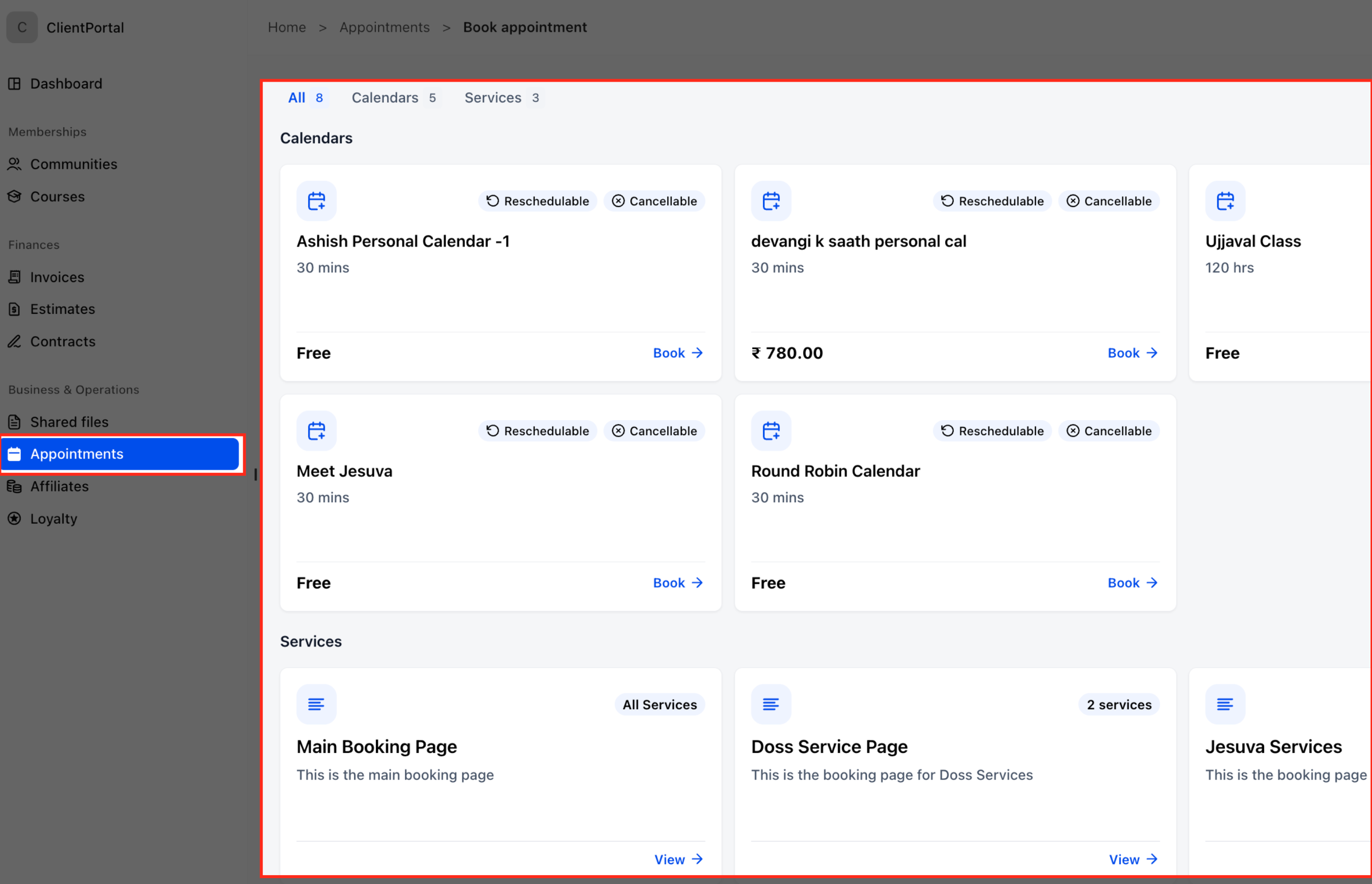
Service Booking adds a Services catalog to the Appointments section of the HighLevel Client Portal. Clients can pick a service, choose a date and time, and confirm the reservation without leaving the portal. The business decides which Services booking pages appear by toggling a setting on each page. Access to the entire Appointments area, including Services, is controlled by the Appointments permission in the Client Portal app settings. Once enabled, clients see both meeting calendars and enabled Services pages in one place. Clients can also reschedule or cancel eligible service appointments from the portal. All changes follow the cancellation and rescheduling rules defined in the Services booking configuration.
03How businesses use Service Booking
- Hair salon. The salon enables its haircut and coloring booking pages in the client portal, then turns on the Appointments permission. Clients log in, select a service, pick a slot, and complete the booking without leaving the portal.
- Consulting firm. The firm activates its strategy session booking page and the Appointments permission. Clients access the portal, view the consulting service, choose a date, and schedule the session directly.
- Gym. The gym makes its personal training booking page visible in the portal and enables Appointments. Members open the portal, select a training package, pick an available trainer slot, and confirm the session.
04How to set up and use Service Booking in HighLevel
Enable a Services booking page in the Client Portal
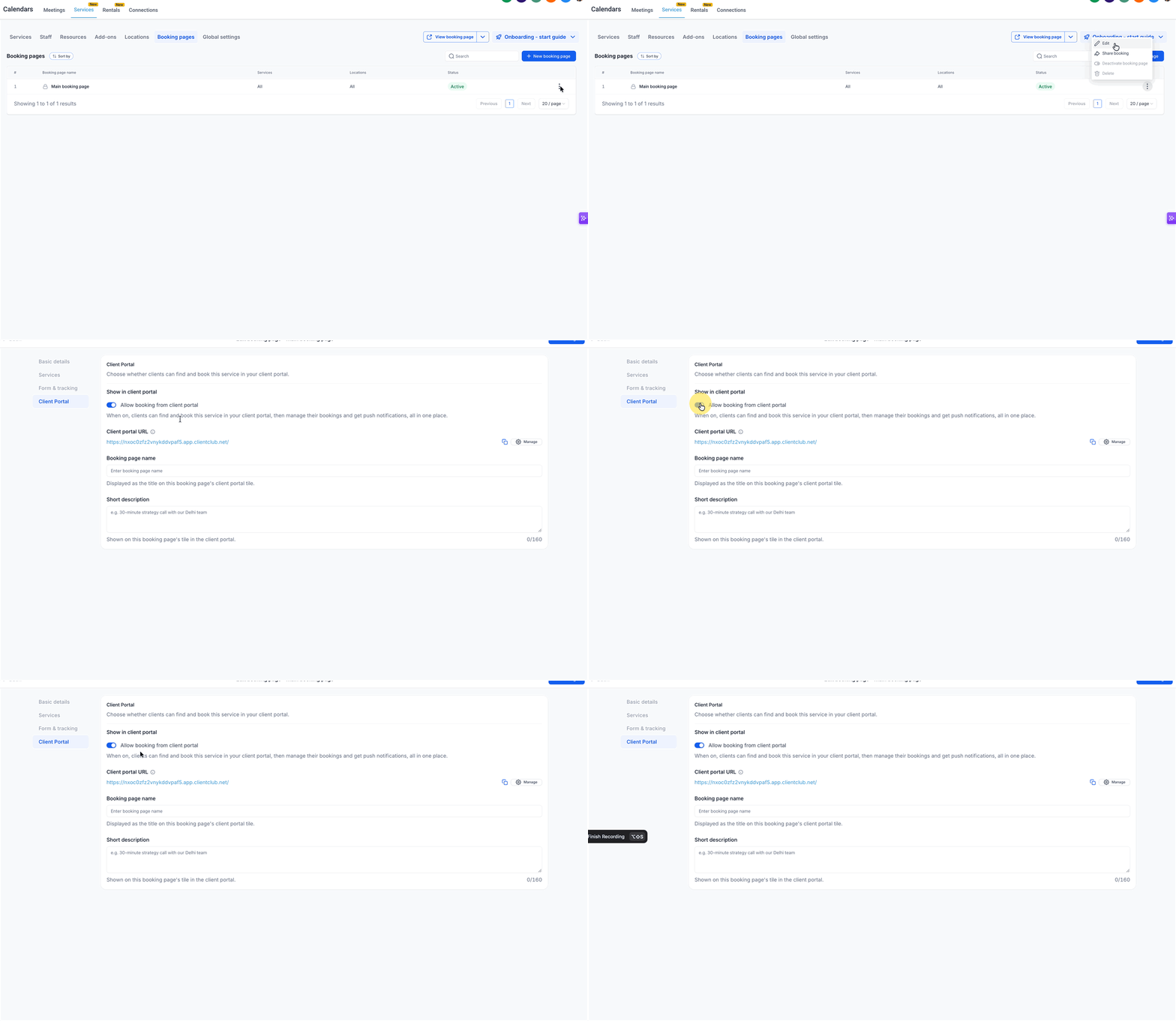
- Open the Subaccount view and choose Calendars from the left navigation.
- Select Services, then open Booking Pages.
- Find the desired Services booking page and open its editor.
- In the editor, click Client Portal in the left side settings menu.
- Turn on Allow booking from client portal under Show in client portal.
- Confirm the Booking page name that will appear as the tile title.
- Confirm the Short description that will appear beneath the tile title.
- Save changes and repeat for any additional booking pages.
Enable Appointments in Client Portal App Permissions
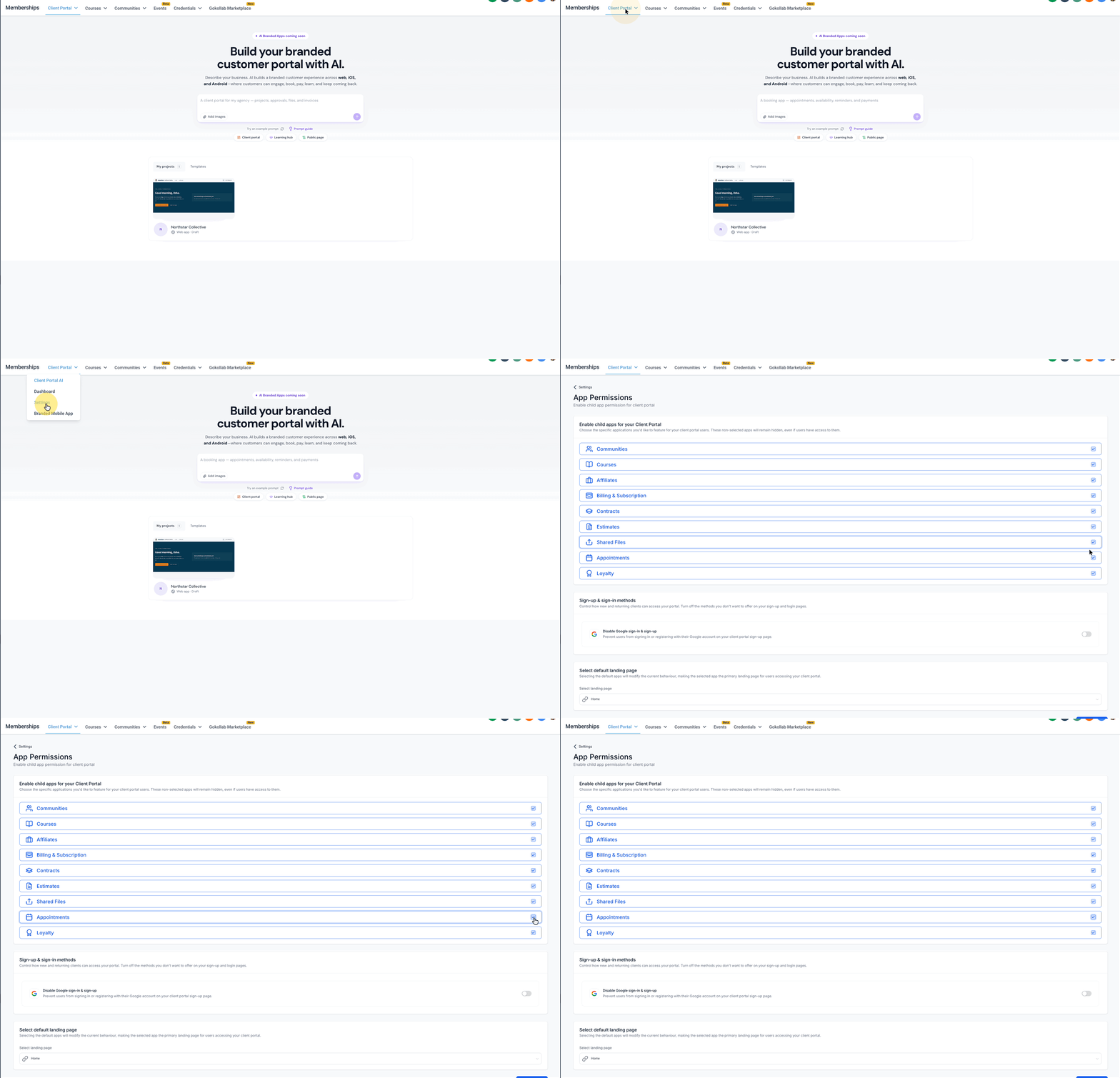
- From the Subaccount view, select Memberships from the left navigation.
- Choose Client Portal.
- Open Settings.
- Select App Permissions.
- Locate Appointments in the list of applications.
- Turn on the Appointments toggle.
- Click Save to apply the setting.
Client books a service
- Sign in to the Client Portal.
- Select Appointments from the left navigation.
- Click Book Appointment in the upper right corner.
- In the catalog, choose Services to view enabled booking pages.
- Find the desired page and click View on its card.
- Select a service, review details, add another if allowed, then click Next.
- Choose a date from the calendar, pick a time slot, and click Select.
- Complete any required forms or payment steps and submit the booking.
- Important: The confirmation screen may show an appointment request acknowledgment if Auto Confirm New Appointments is disabled.
05What it looks like in HighLevel
06Settings that matter
- Allow booking from client portal. Controls whether a specific Services booking page appears in the client portal catalog.
- Show in client portal. Groups the toggle that enables the booking page for client portal access.
- Allow Multiple Service Selection. Enables clients to add more than one service during a single booking session.
- Auto Confirm New Appointments. Determines if a new service booking is automatically confirmed or shows an appointment request acknowledgment.
- Appointments (App Permissions). Grants portal users access to the Appointments area where they can book and manage services.
07Things to know before you rely on it
- Only Services booking pages that have Allow booking from client portal turned on will be visible in the portal.
- Clients can only reschedule or cancel appointments when the service booking rules allow those actions.
- Disabling the Appointments permission removes portal access but does not delete any existing appointment records.
- Service booking pages are distinct from Calendar Service Menus; they use separate configurations.
08If something goes wrong
- Client cannot select multiple services. Verify that Allow Multiple Service Selection is enabled in Services Global Settings.
- Booking displays an appointment request message instead of immediate confirmation. Check the Auto Confirm New Appointments setting in Services Global Settings and adjust as needed.
- Client cannot cancel or reschedule an appointment. Review the cancellation and rescheduling rules configured for the specific service booking.
- Disabling Appointments deletes existing appointments. Understand that turning off the Appointments app removes portal access only; appointments remain in HighLevel.
09How it connects to the rest of HighLevel
- Step by step guide to set up the HighLevel client portal Client portal setup
- How customers can access the HighLevel client portal Portal access
- HighLevel pricing and plans for access to the client portal features Pricing
Michael's take

Service Booking feels like a modest convenience that keeps clients in one place instead of juggling separate links.
A boutique fitness studio could find it useful, as they can show class packages and personal training sessions alongside their regular intake calls.