
01Who this is for
- Field technicians who need clear, shared language for work progress.
- Operations managers who track job completion across many visits.
- Customer service staff who reference internal status labels when answering inquiries.
02Visit statuses, explained
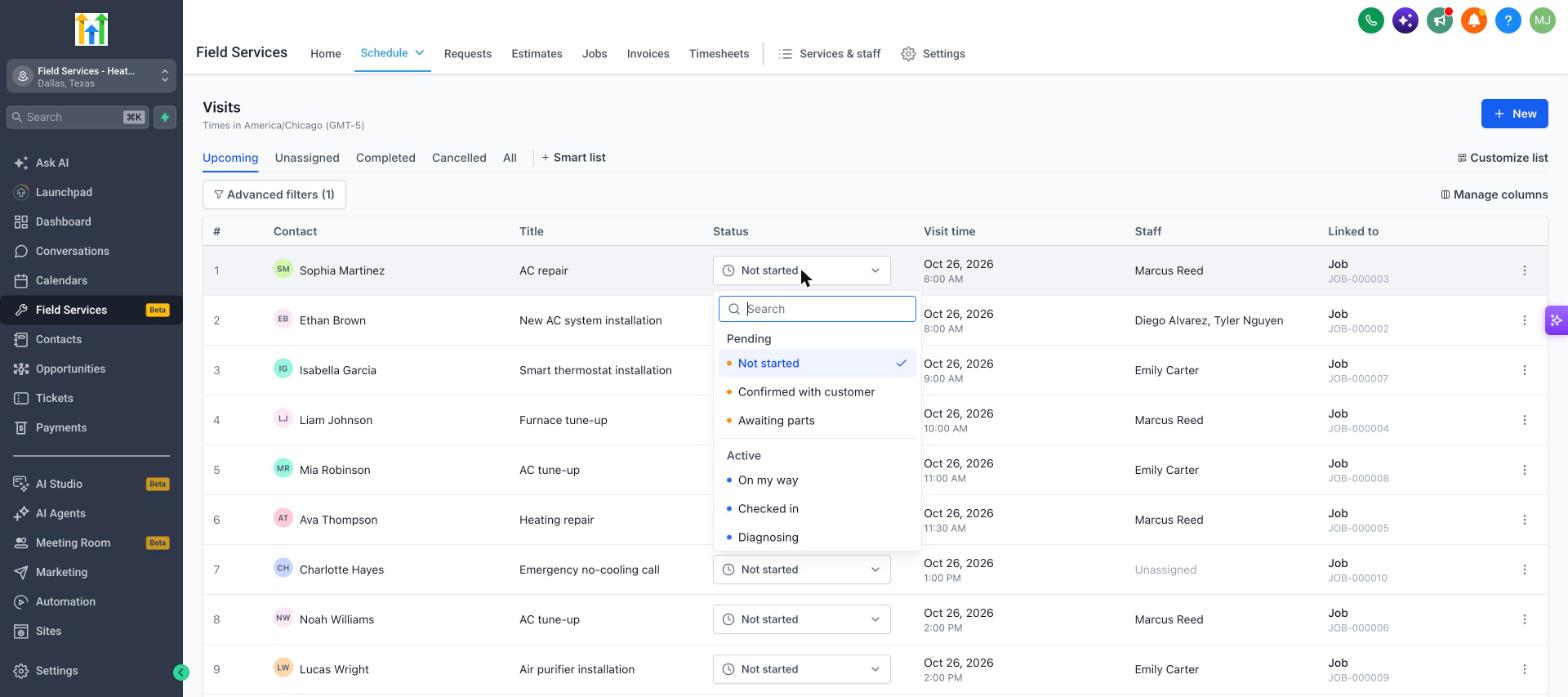
Visit statuses are labels such as Not started, On my way, or Completed that appear on every scheduled visit. Each label lives inside one of six predefined states, Pending, Active, Completed, No show, Cancelled, and Invalid. The state determines how the platform reports and applies logic, while the label is what staff see.
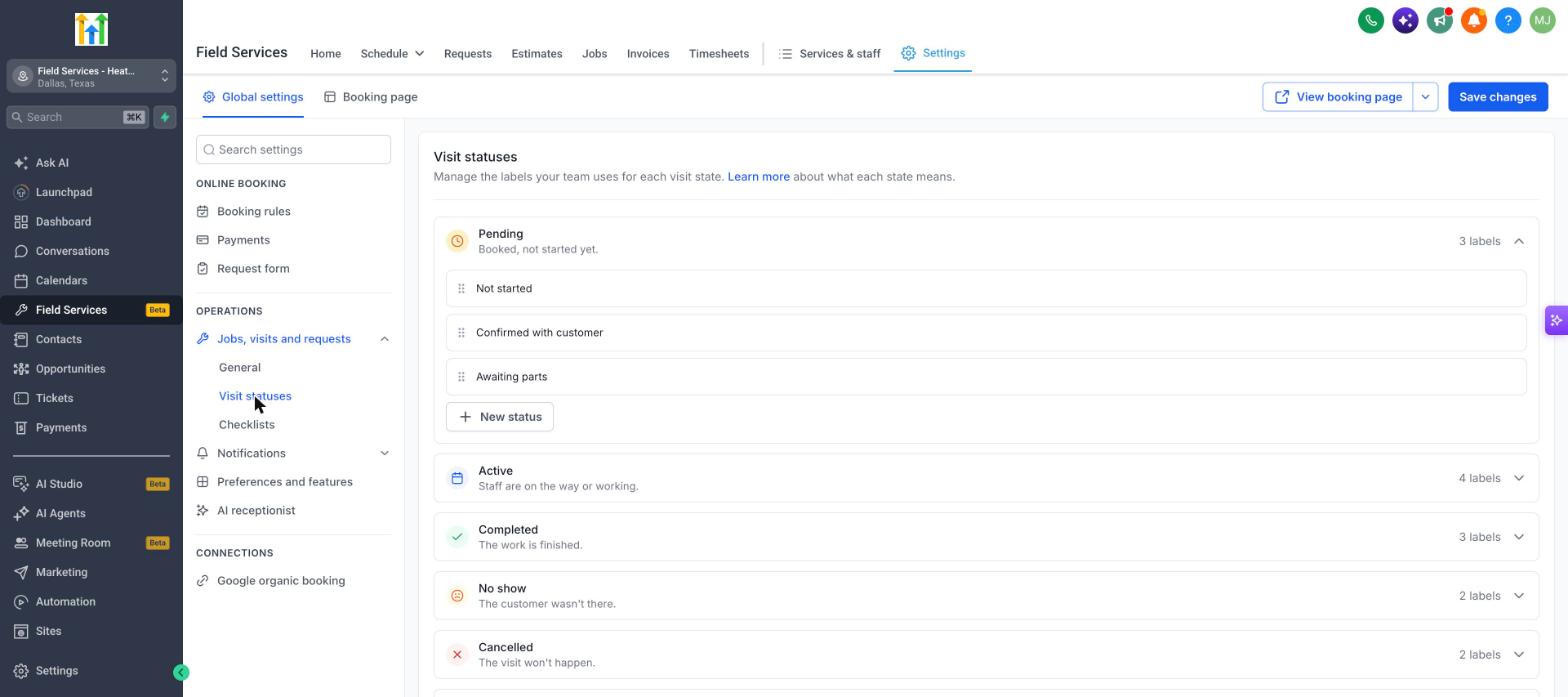
The six states are fixed and cannot be altered. Within each state you can create new labels, rename existing ones, or reorder them to match your team’s terminology. Changes to labels do not affect the underlying state, so job calculations remain consistent. Visits marked as Invalid are excluded from reports.
Visit statuses are managed from the Field Services settings area. They also influence job status: a job without visits is Unscheduled, with scheduled visits is Scheduled, and with an active visit is In progress. Custom labels roll up to their state, keeping job behavior unchanged.
03How businesses use visit statuses
- Plumbing company. The team adds labels like Technician assigned, On the way, Job started, and Work completed under the Pending and Active states. When a plumber begins work, they select the appropriate label, keeping the schedule clear for dispatch.
- HVAC service firm. Dispatch adds a custom label "Parts ordered" under Pending. As soon as parts arrive, the technician updates the visit status to reflect the new label, ensuring the office sees the exact stage of each appointment.
- Lawn care business. Field staff reorder the default Active labels so "On site" appears before "Checked in". When crews arrive, they choose the first label, giving managers a quick visual cue of who is currently working.
04The numbers and rules that matter
- Custom labels roll up to their state and do not affect job behavior.
05Before you start
- Field Services must be enabled for the account as part of the private beta.
- A visit must exist in the calendar, visits list, or job to change its status.
06How to set up and use visit statuses in HighLevel
Change a visit's status
- Open the visit from the calendar, the visits list, or a job.
- Find the Status dropdown at the bottom of the visit panel or in the visits list column.
- Select the new status; the options appear grouped by their state.
Manage status labels
- Go to Field Services > Field Services Settings > Global settings.
- Under Operations, open Jobs, visits and requests and click Visit statuses.
- Click a state to expand it and view its current labels.
- Click New status to add a label to that state, or drag the handle next to a label to reorder it.
- Click Save changes.
07What it looks like in HighLevel
08Settings that matter
- Visit statuses. Controls the list of labels that appear under each of the six fixed visit states.
09Things to know before you rely on it
- The six visit states are fixed and cannot be changed.
- Field Services is in a private beta; features and screens may change.
- Visits marked as Invalid are excluded from reports.
- If Timesheets is active, the system warns when a timer is still running as a visit is marked Completed.
10If something goes wrong
- Timer still running when marking a visit Completed. When the warning appears, stop the running timer before confirming the status change.
11How it connects to the rest of HighLevel
- Enable Field Services beta and set up mobile access Field Services overview
- Learn how jobs are calculated from visits Jobs in Field Services
Michael's take

Visit statuses feel like a small convenience that quickly shifts a crew’s day from guesswork to clarity. The ability to rename and reorder labels means the team can talk in its own language without breaking any reports.