
01Who this is for
- Operations managers who need to see all field visits at a glance to keep staff aligned.
- Dispatch coordinators who assign unassigned jobs and track travel distances before sending a technician.
- Service company owners who require an export of daily appointments for reporting or billing.
02Schedule in Field Services, explained
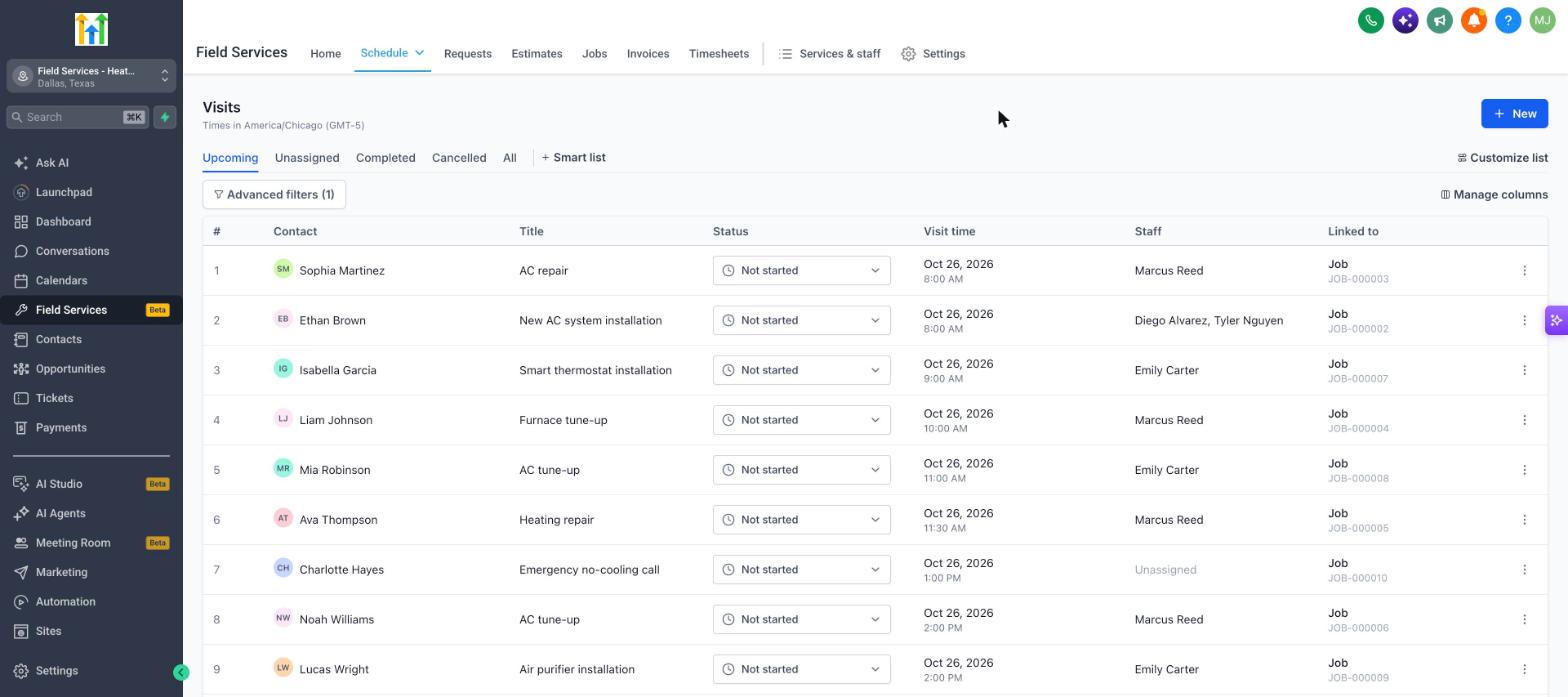
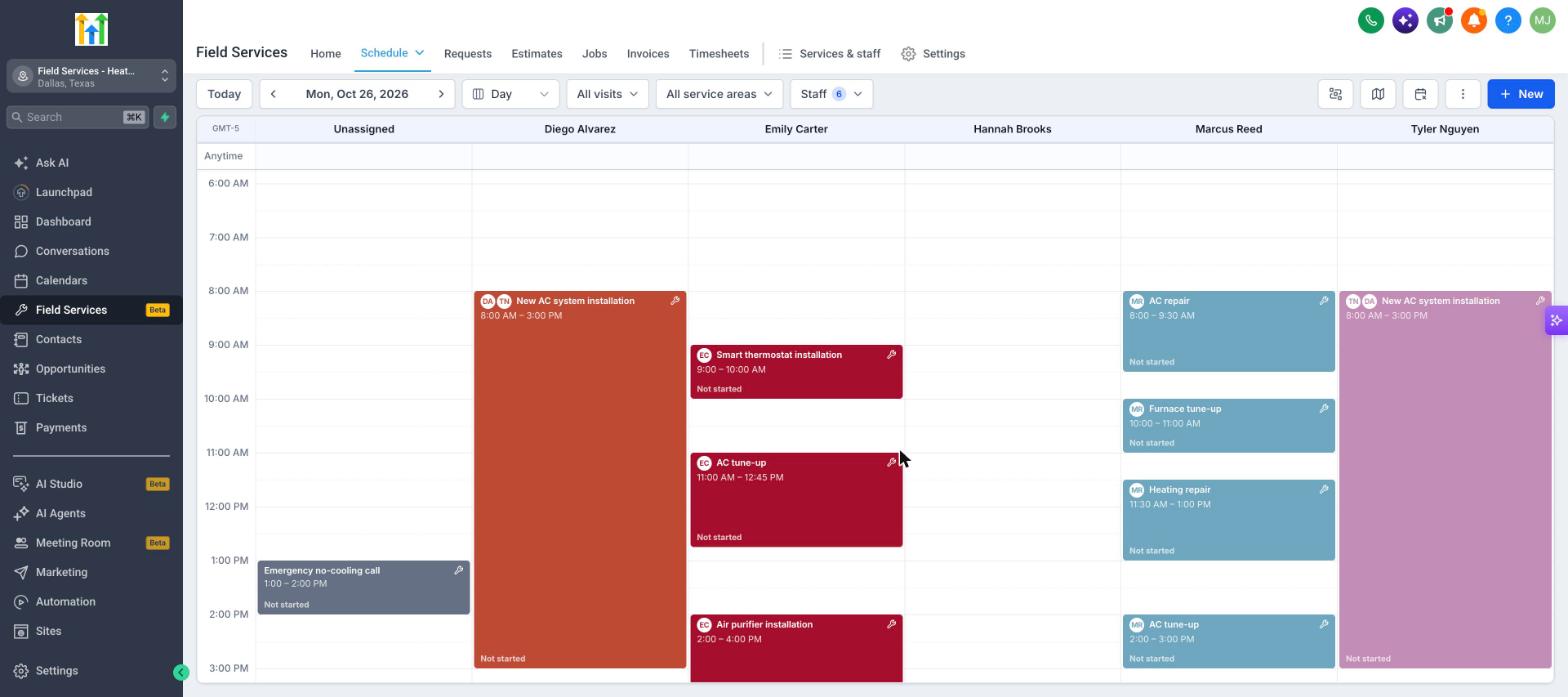
Schedule lives under the Field Services section and presents the day's visits either in a tabular list or a time based calendar. Each row or block shows the contact, job title, status, scheduled time, assigned staff member and its source request.
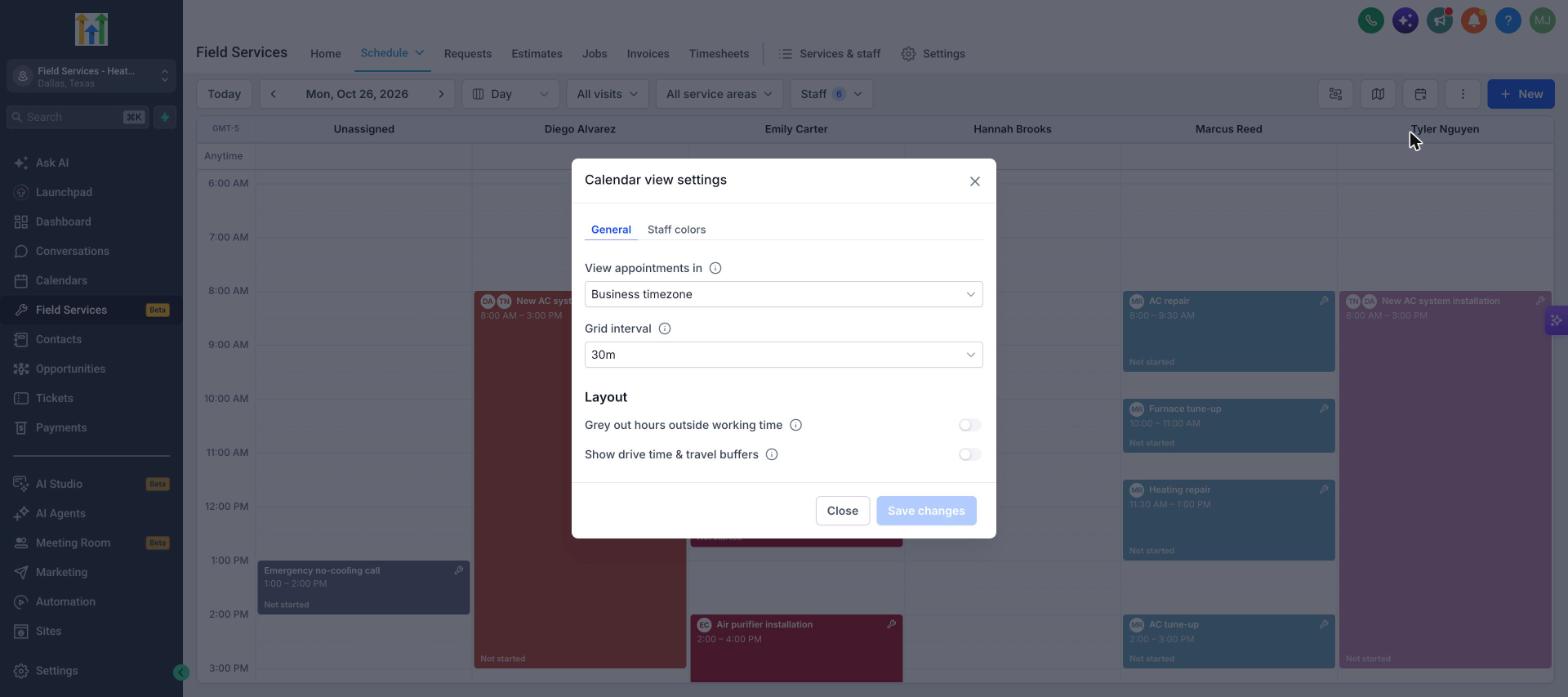
The view can be filtered by staff, service area or visit status using the controls above the grid. An optional map pane can be opened to see the geographic spread of the appointments. Settings let you adjust time zone display, grid granularity, working hour shading, travel buffers and staff colors.
From the schedule page you can create new requests, jobs or time blocks, change a visit’s status directly, and export the visible set of visits as a PDF or CSV file. The mobile app mirrors these capabilities, letting field staff view and edit the schedule in real time.
03How businesses use schedule in Field Services
- Home cleaning service. The manager opens the schedule, filters the view to show only cleaning staff, and assigns unassigned cleaning jobs to available technicians. Completed cleanings are marked as done, and a CSV export is downloaded for billing.
- Lawn care company. Dispatch clicks the map button to see the distance between upcoming lawn maintenance visits, then uses the route optimization option from the calendar to create efficient travel routes for each crew.
- Mobile HVAC repair. Technicians on the mobile app check the calendar view for their day, reschedule any conflicting appointments, and update the status of finished repairs, which immediately syncs back to the web schedule.
04The numbers and rules that matter
- The default grid interval is 30 minutes.
05Before you start
- Field Services is currently in private beta and available only to selected accounts.
06How to set up and use schedule in Field Services in HighLevel
Open the schedule view
- Select Field Services from the left navigation panel.
- Click the Schedule option.
- Choose either List view or Calendar view to display the appointments.
Export the current schedule
- Press the three dot menu at the top right of the schedule screen.
- Select Export to PDF or Export to CSV from the dropdown.
- Confirm the download and save the file to your device.
07What it looks like in HighLevel
08Settings that matter
- View appointments in. Sets the time zone used for displaying visit times; defaults to the business’s time zone.
- Grid interval. Defines how many minutes each row on the calendar represents; the default interval is 30 minutes.
- Grey out hours outside working time. Dims time slots that fall outside staff members’ defined working hours.
- Show drive time & travel buffers. Adds visual blocks for travel time and any extra buffer before each visit.
- Staff colors. Assigns a distinct color to each staff member for easier identification on the calendar.
09Things to know before you rely on it
- Field Services is in a private beta; available only to accounts that have been granted access.
- Export to CSV is disabled when the current view contains no visits.
10How it connects to the rest of HighLevel
- See the overview of the Field Services home page for more context. Field Services home page
- Learn how to enable route optimization directly from the calendar. Route optimization
Michael's take

When a dispatch team needs a single pane of glass to manage daily visits, the Schedule can be very helpful. It lets staff see their day on the mobile app and provides quick export for reporting.
If your operation runs only a handful of appointments a week or you aren’t using the private beta, the Schedule may be more than you need.