
01Who this is for
- Customer support managers can capture incoming work needs before scheduling, ensuring staff have all details upfront.
- Field technicians use requests to plan site visits and prepare materials before a job is confirmed.
- Small business owners can track unconverted opportunities and keep a record of service inquiries.
02Requests, explained
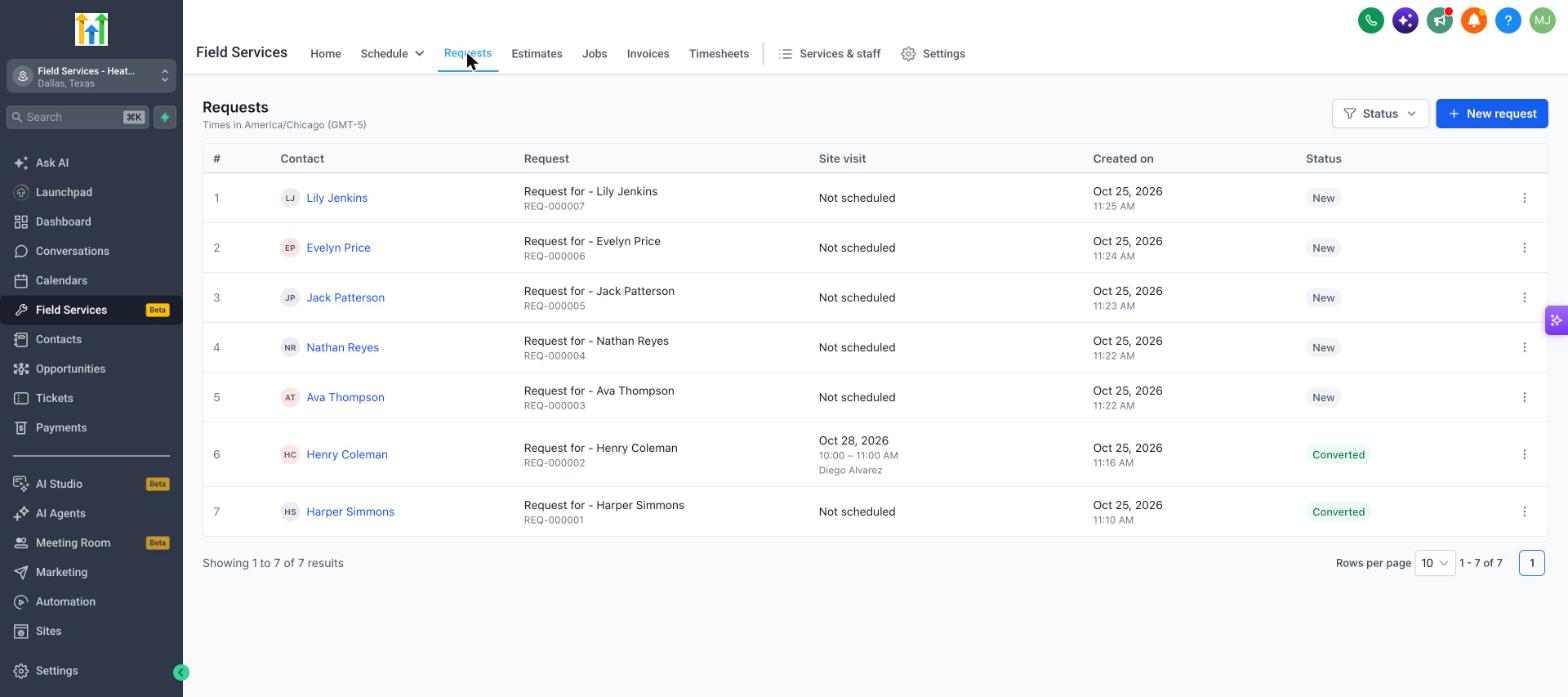
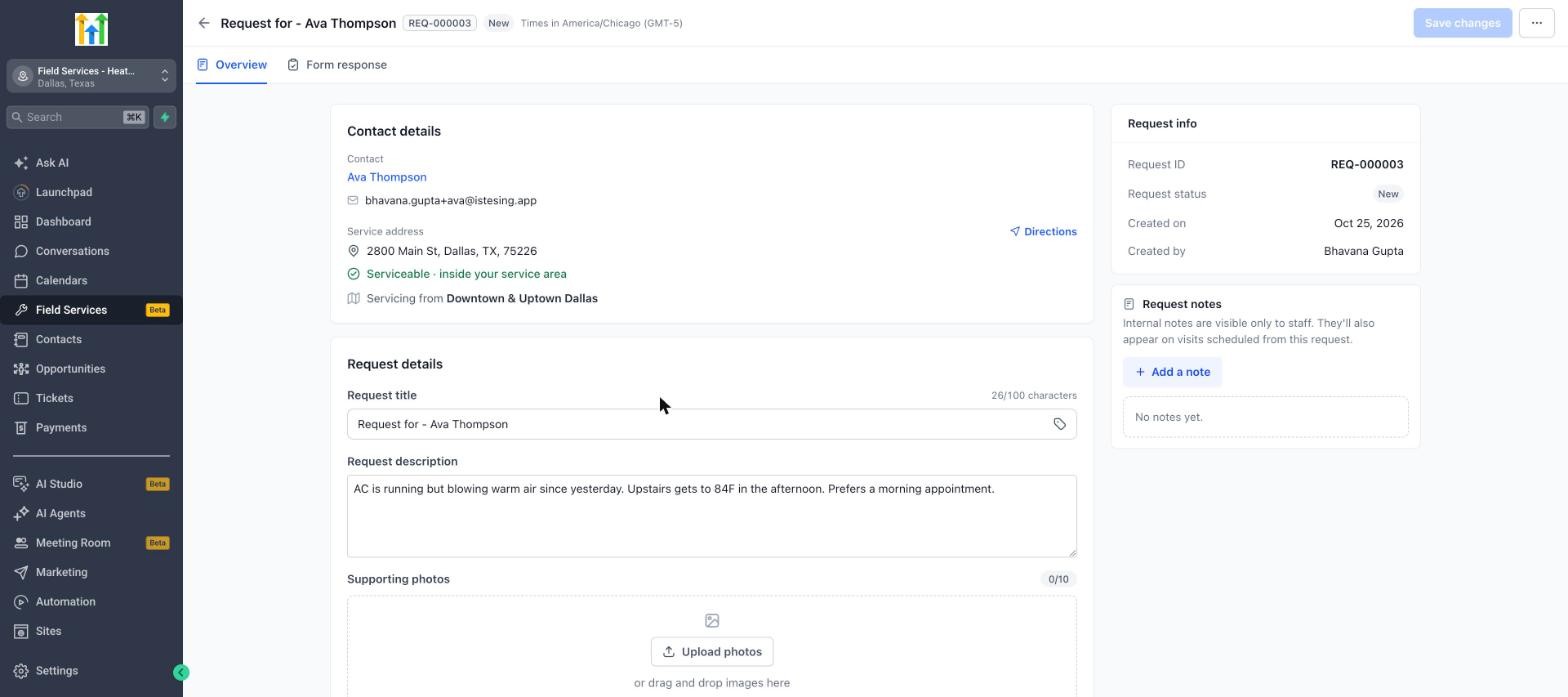
Requests are the entry point for new work in the Field Services module. A request holds a contact, description, optional photos, services, products and an optional site visit. Staff review the request and may convert it directly to an estimate or a job.
The feature lives under the Field Services section in the left navigation. When the Requests toggle is on, contacts can submit requests via the booking page and staff can create them manually.
All changes sync between the web interface and the mobile app, so field staff and office users always see the same information.
03How businesses use requests
- Plumbing company. A plumber creates a request when a homeowner calls with a leak. They add a description, upload photos of the pipe, list required parts, and schedule a site visit. Later the request is turned into an estimate that the homeowner can approve.
- Home cleaning service. The cleaning crew logs a request after a walk through with a client. They note the cleaning areas, add any special products, and set a site visit for a senior manager. The request is then converted to a job for scheduling.
- IT support firm. An IT technician records a request for a network issue, attaches screenshots, lists needed hardware, and chooses a staff member for a pre visit. After reviewing, the request is turned into an estimate for the client.
04The numbers and rules that matter
- Request title can be up to 100 characters.
- You can upload up to 10 supporting photos.
05Before you start
- The account must be part of the Field Services private beta.
- The Requests toggle must be turned on in Field Services Settings > Global settings > Preferences and features.
06How to set up and use requests in HighLevel
Create a new request
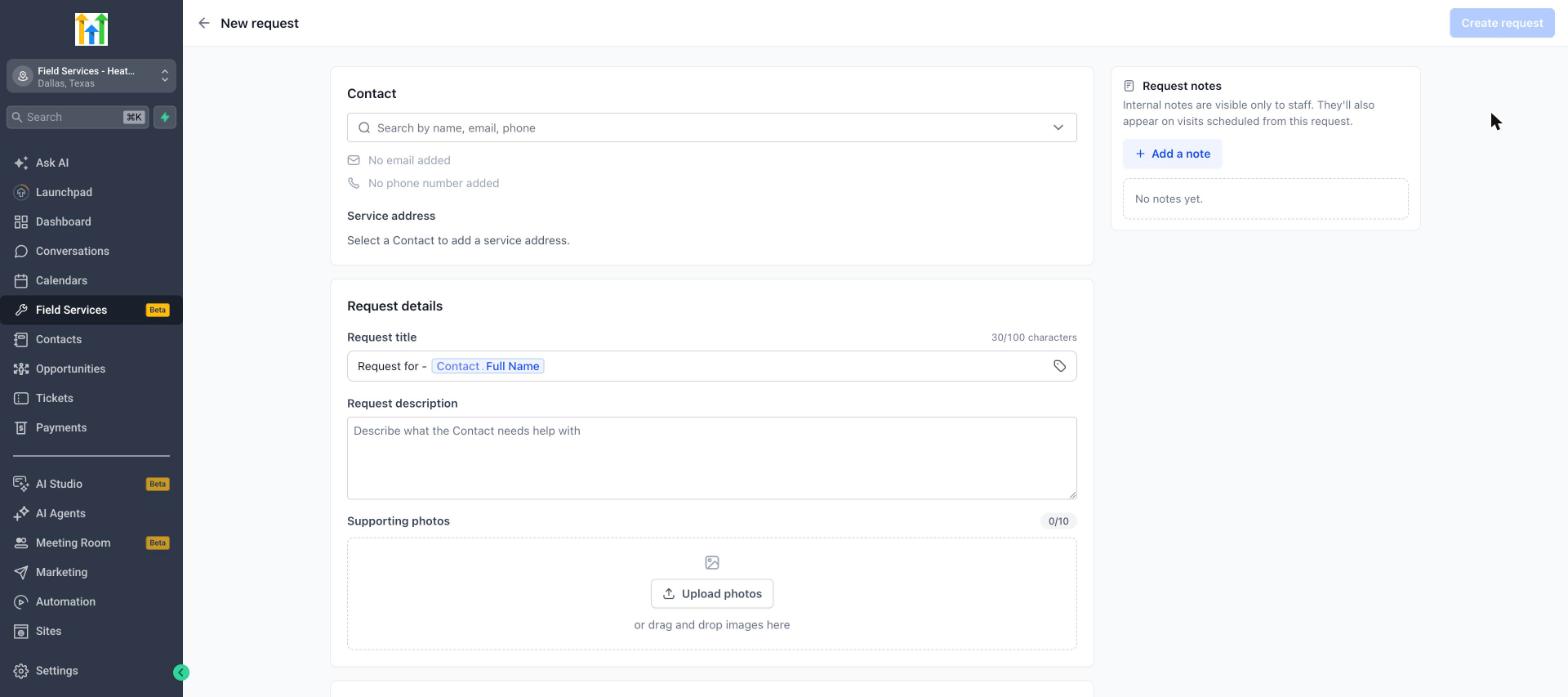
- Open the Requests view and press the New request button.
- Search for an existing contact by name, email, or phone and select it, or create a new contact record.
- Confirm or enter the service address, choosing a saved address or adding a new one.
- Edit the automatically generated request title, keeping it under 100 characters, or type a custom title.
- Enter a description that explains what the contact needs.
- Upload up to ten supporting photos by dragging them onto the upload area or selecting files.
- Select Add service and specify any needed services, including quantity, rate and total.
- Select Add product and list any products with their quantity, rate and total.
- Enable Schedule site visit, set the desired date and time, and assign a staff member if a pre visit is required.
- Add internal notes in the Request notes panel and click Create request to save.
07What it looks like in HighLevel
08Settings that matter
- Requests switch. Controls whether contacts can submit requests and whether staff can view and manage them.
- Request archive reasons. Defines the list of reasons staff can select when archiving a request without converting it.
- Titles. Sets the naming pattern used for new request titles.
09Things to know before you rely on it
- A request title can contain up to 100 characters.
- A maximum of ten images can be attached to a single request.
- Field Services is in a private beta, so features and screens may change.
10How it connects to the rest of HighLevel
- Enable Field Services and learn how to get mobile access. Field Services overview
- Add staff members, set their hours and assign services for request handling. Field Services staff
- Review how requests become estimates or jobs within the module. Jobs in Field Services
- Set up online booking options that affect how customers submit requests. Field Services home
- Explore pricing plans and trial options for accessing Field Services. HighLevel pricing
Michael's take

Be aware that Requests are still in private beta, so the interface might shift and not every account will see it right away. That uncertainty can make planning a bit tricky until the feature rolls out more broadly.
When it’s available, the ability to capture a customer’s need, add photos, and schedule a quick site visit before any commitment syncs between the mobile app and the web, so the office and the field see the same information. It also lets you turn a request into an estimate or a job with a single click.