
01Who this is for
- Founders of service based businesses benefit because they can collect payments right away through a trusted PayPal checkout.
- Coaches and consultants gain flexibility as clients can choose PayPal instead of entering card details.
- Small ecommerce brands that schedule appointments can increase conversion by offering PayPal alongside existing card gateways.
02PayPal in calendars, explained
PayPal Support for Calendars adds PayPal as a payment gateway for Service (v2), Round Robin, Collective and Personal calendar types. After the gateway is linked, the PayPal button appears in the booking checkout flow, letting clients pay with their PayPal balance, linked bank account or card. The feature works together with Stripe, Square, NMI and Authorize .net, so multiple payment methods can be offered at once.
The integration lives under the Payments section of the platform. You first connect your PayPal credentials in Payments ➜ Integrations. Then, for each calendar you want to charge, you enable payments in Calendars ➜ Settings and select PayPal as the gateway. Pricing and description are set per calendar, and you choose Live or Test mode before saving.
03How businesses use PayPal in calendars
- Fitness studio. The studio connects its PayPal account in Payments ➜ Integrations, then opens each class calendar, turns on Accept Payments, selects PayPal, enters the class fee and saves. Clients can now book and pay with PayPal during checkout.
- Online tutoring service. The tutoring service links PayPal, enables payments on its session calendars, and sets the session amount and description. When a student books a lesson, the checkout shows PayPal beside any credit card options.
- Consulting agency. The agency adds PayPal as a gateway, activates payments on its consulting appointment calendars, and chooses Live mode. Prospective clients select PayPal at checkout and the funds flow directly to the agency’s PayPal account.
04The numbers and rules that matter
- Supported providers: PayPal, Stripe, Authorize.net, NMI, Square, Razorpay*.
- Supported for all Calendar types and new Services (v2).
- Not supported for the legacy Service Menu (v1).
05How to set up and use PayPal in calendars in HighLevel
Connect PayPal to a subaccount
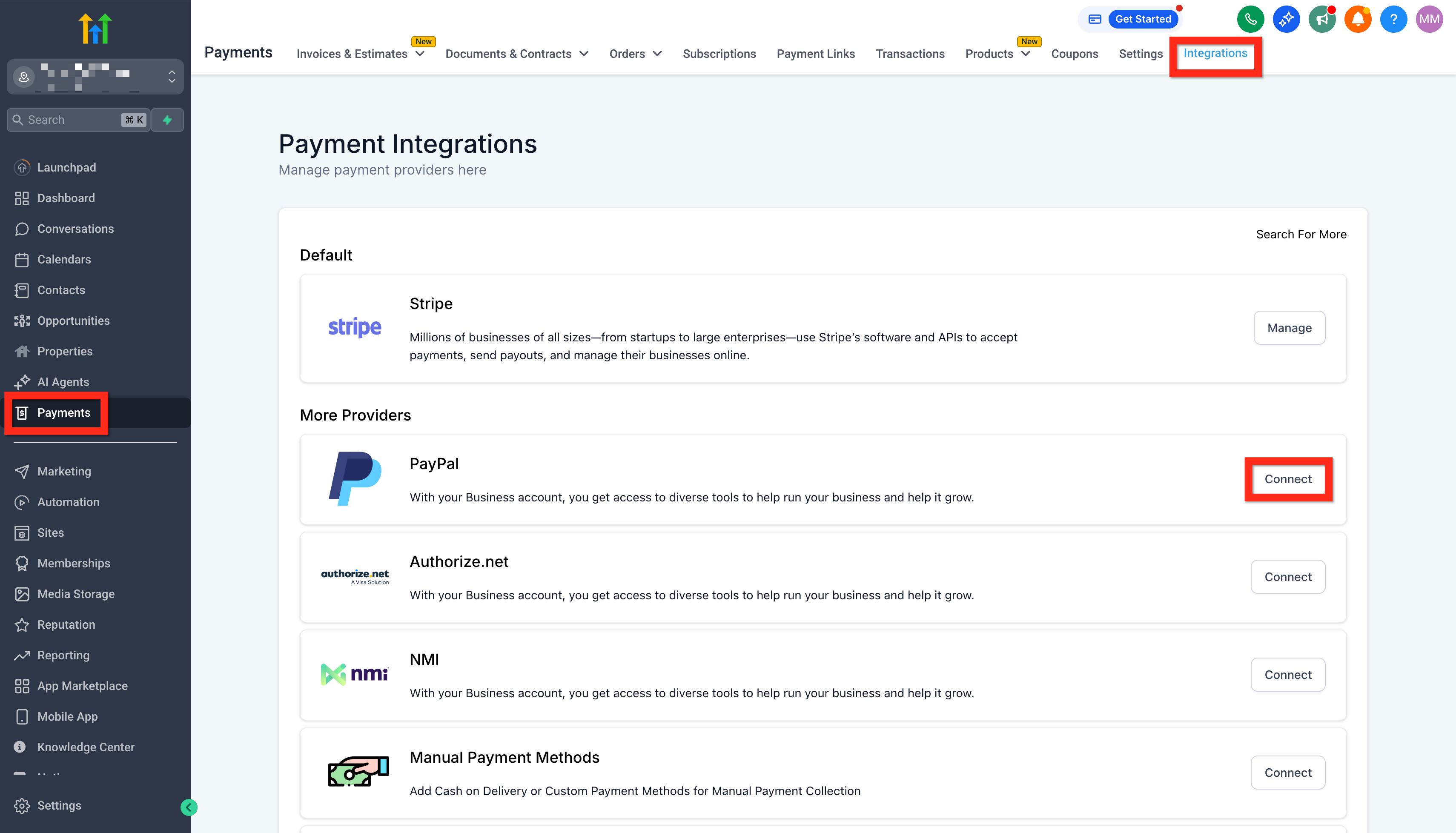
- Open Payments ➜ Integrations.
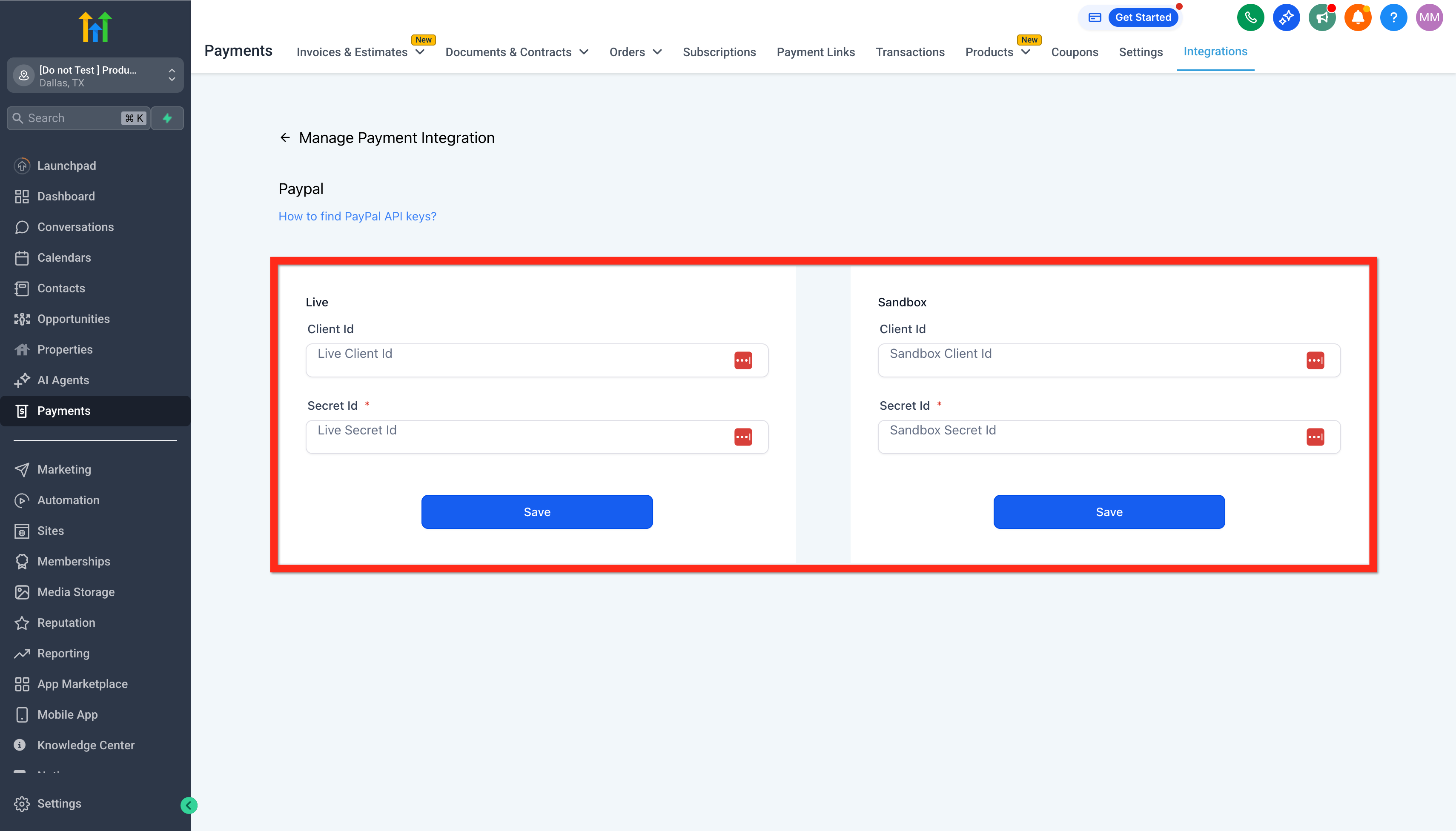
- Click PayPal, select Connect, and provide the PayPal Client ID and Secret.
- Press Save to store the credentials.
Enable PayPal payments on a calendar
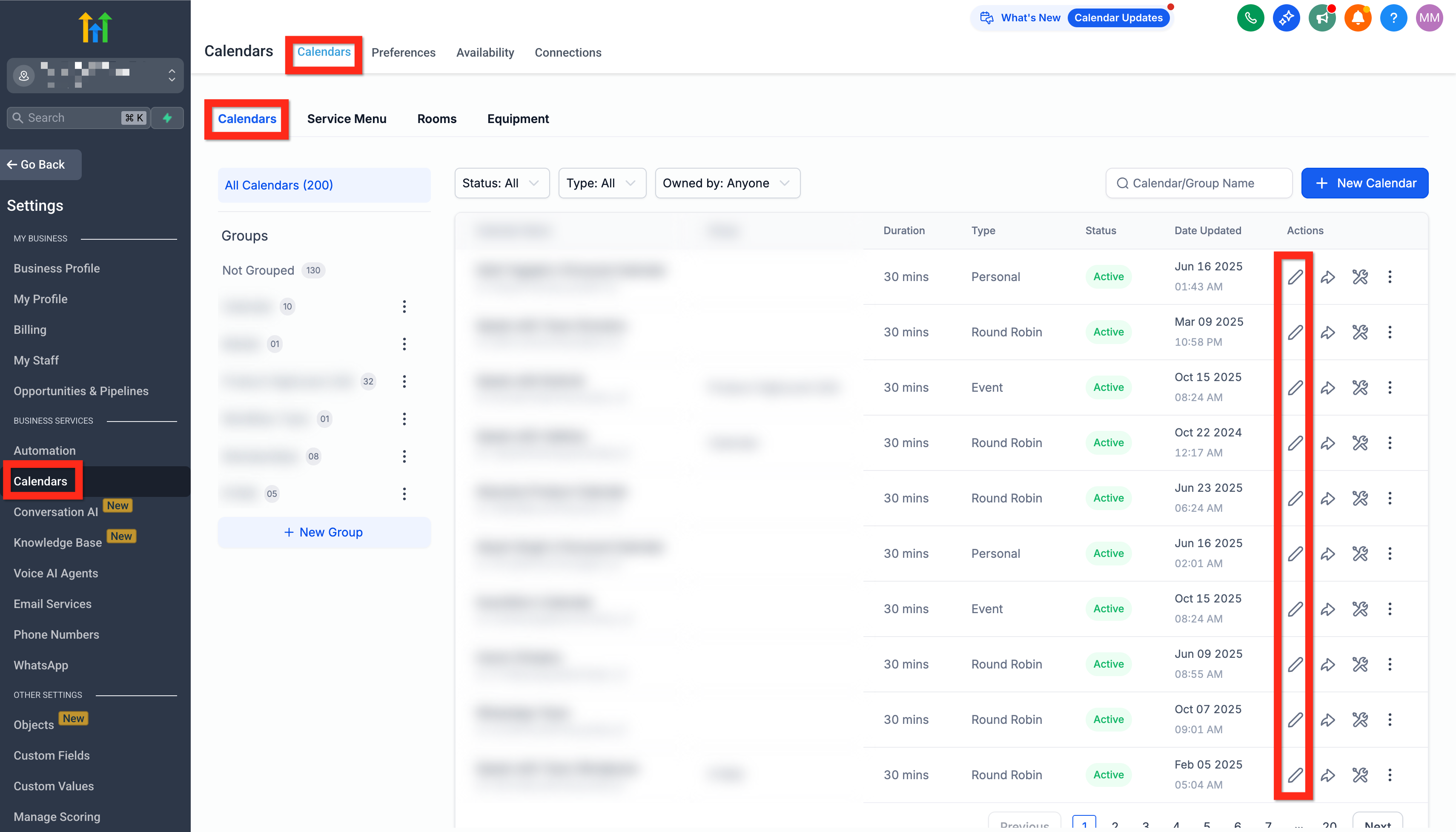
- Navigate to Calendars ➜ Settings and open the desired calendar.
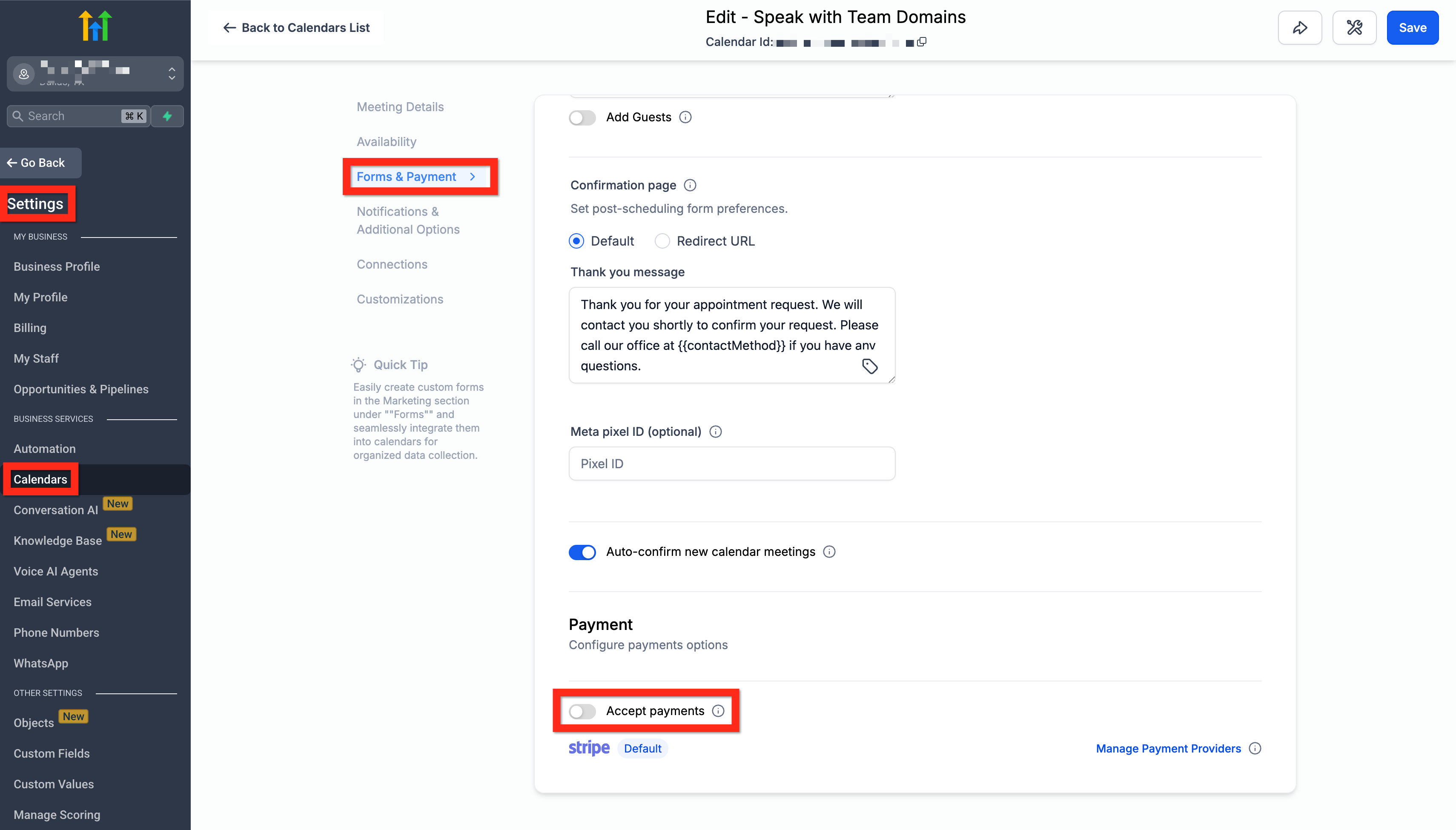
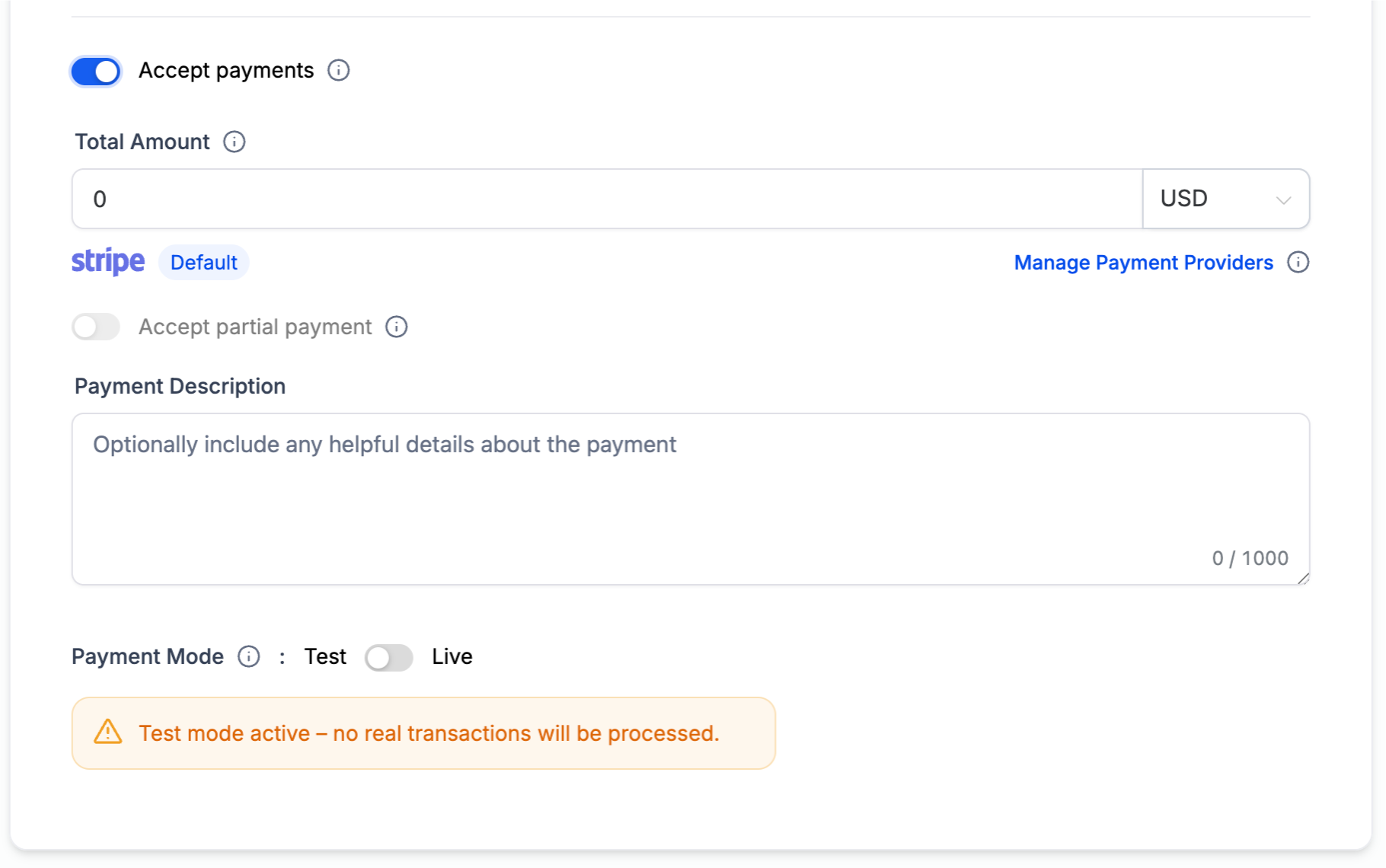
- In the Forms & Payments section, switch Accept Payments to On.
- Choose PayPal, or keep the Default selection if PayPal is the only gateway.
- Enter the payment Amount, a Description, and set the mode to Live or Test.
- Click Save to apply the payment settings.
06What it looks like in HighLevel
07Settings that matter
- Accept Payments. Controls whether a calendar requires a payment at checkout.
- PayPal. Selects PayPal as the active payment gateway for the calendar.
- Amount. Specifies the charge applied when a client books the calendar event.
- Description. Provides text that appears on the checkout screen describing the charge.
- Live or Test mode. Determines whether transactions are processed as real payments or sandbox test transactions.
08Things to know before you rely on it
- PayPal cannot be active at the same time as Razorpay; Razorpay will become the default if both are connected.
- PayPal does not work with the legacy Service Menu (v1) or custom in app recurring appointments.
- Guest checkout is not compatible with calendar bookings using PayPal.
- PayPal support applies to all calendar types and new Service (v2) calendars only.
09How it connects to the rest of HighLevel
- Read about collecting payments in calendars to see other gateway options. Collecting Payments in Calendars
- Review HighLevel pricing and plan details if you need to upgrade for additional gateways. HighLevel pricing and plans
- Start a free trial to test PayPal integration before committing. Start a 30 day HighLevel trial
Michael's take

Adding PayPal to your calendar bookings fast gives clients a trusted checkout path and removes the need for card entry.
Don’t forget to disconnect Razorpay if you want PayPal to show up at checkout.