
01Who this is for
- Users who need to host video meetings through Microsoft Teams from their HighLevel calendars.
- Teams admins who want to connect a single Teams account across multiple locations or users within HighLevel.
02Microsoft Teams integrations, explained
The integration creates a video conferencing connection inside HighLevel. After a Teams account is linked, the platform can generate a fresh Teams meeting URL each time a calendar slot is booked. The link is attached to the calendar invite and appears for the client.
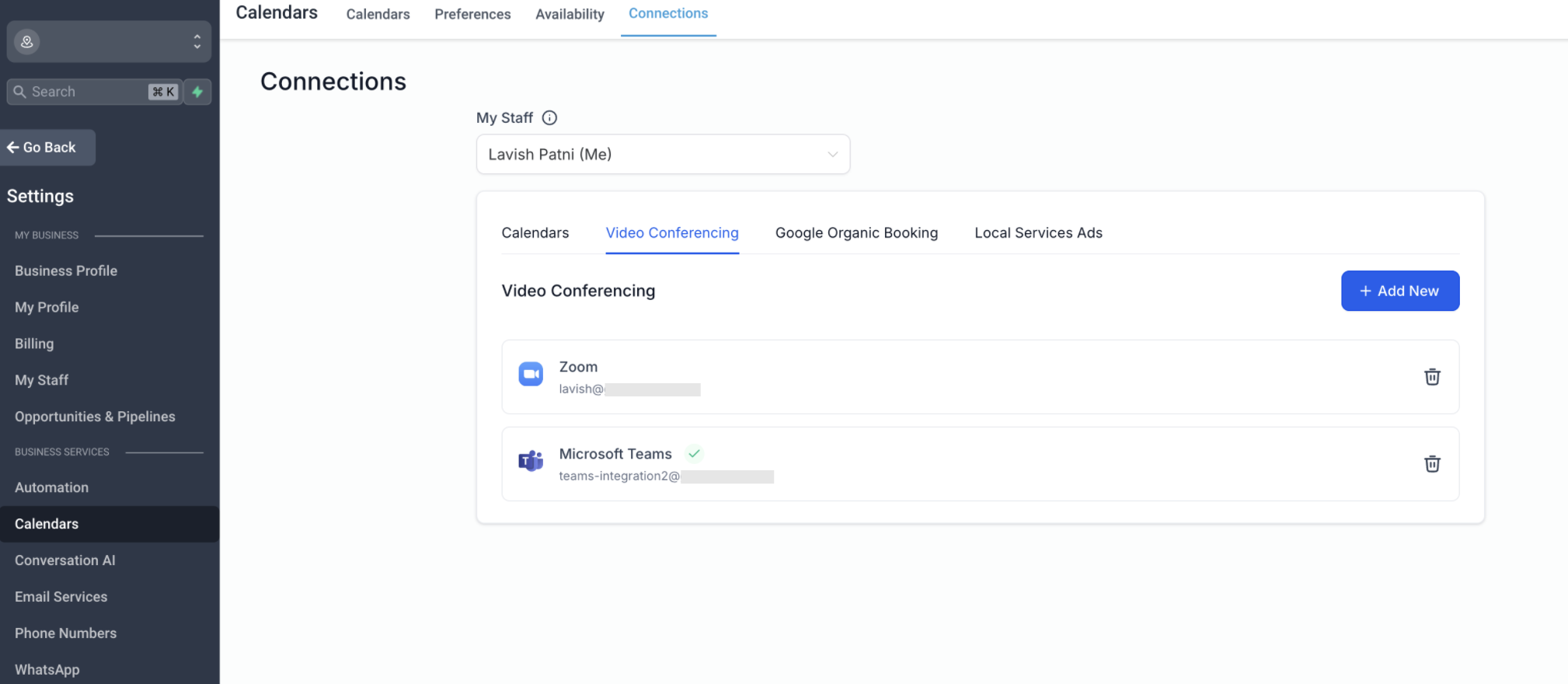
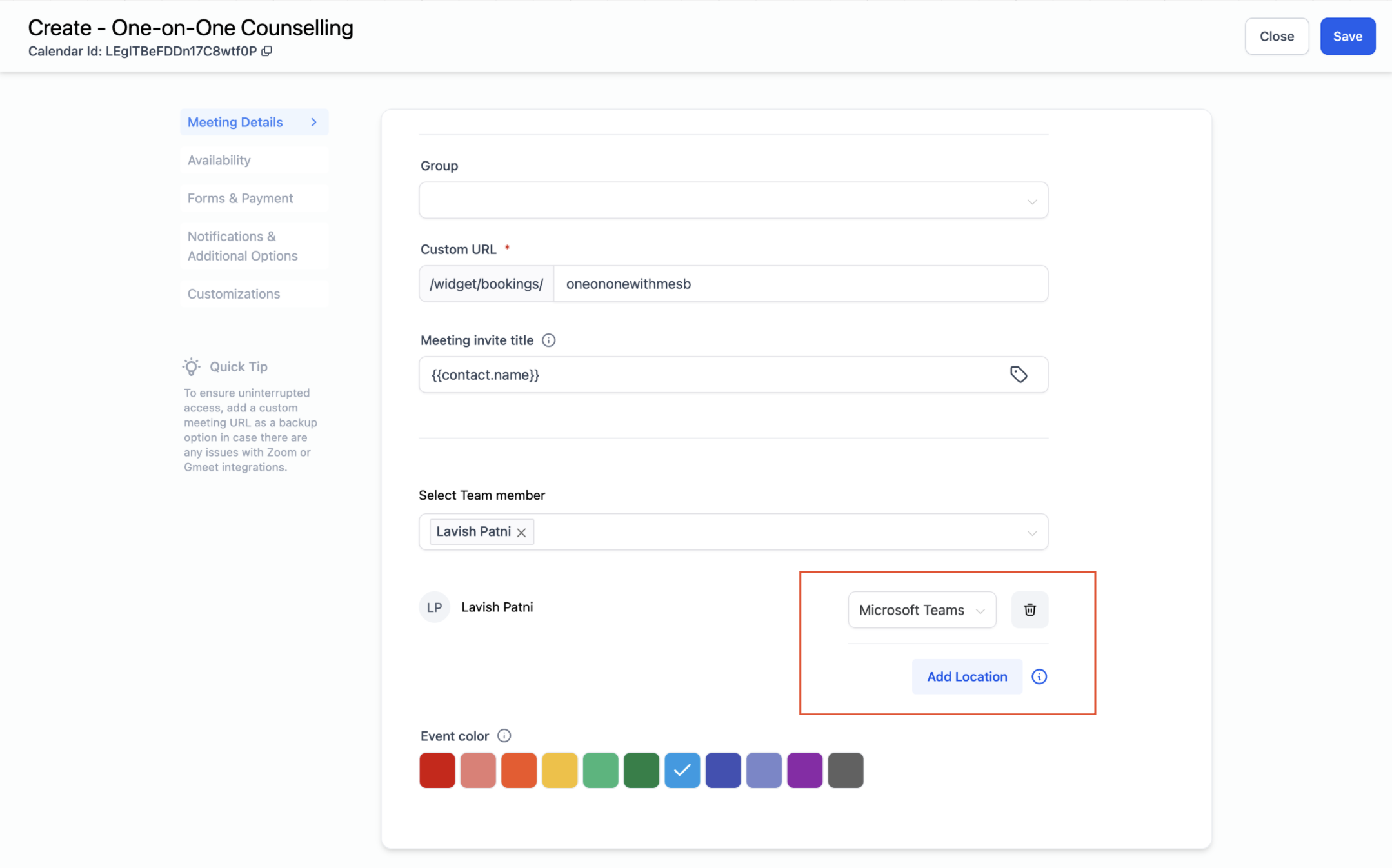
The connection lives under the Video Conferencing section of either the My Profile or Calendars settings. When you edit a calendar, you choose a team member and set Microsoft Teams as the meeting location. The system then inserts the dynamic link automatically.
Only Work or School (Organisation and Education) Teams accounts can be used, and each user may attach one Teams account per location. The same account can be shared across multiple locations and users.
03How businesses use Microsoft Teams integration
- Consulting firm. The firm links its corporate Teams account via My Profile. When a consultant schedules a client call on a Personal Booking calendar, the platform inserts a unique Teams link automatically, so the client receives a ready to join meeting URL.
- Digital marketing agency. The agency connects a single Teams account in the Calendars settings for each client subaccount. Round Robin calendars used for sales calls then generate individual Teams links for every prospect appointment.
- Online tutoring service. Tutors add the Teams connection under Calendar Settings, select the Service Calendar for each subject, and set Microsoft Teams as the meeting location. Each student booking receives its own Teams meeting link.
04The numbers and rules that matter
- Each user can connect one Microsoft Teams account per location.
05Before you start
- You must have access to the Microsoft Teams account you intend to connect.
06How to set up and use Microsoft Teams integration in HighLevel
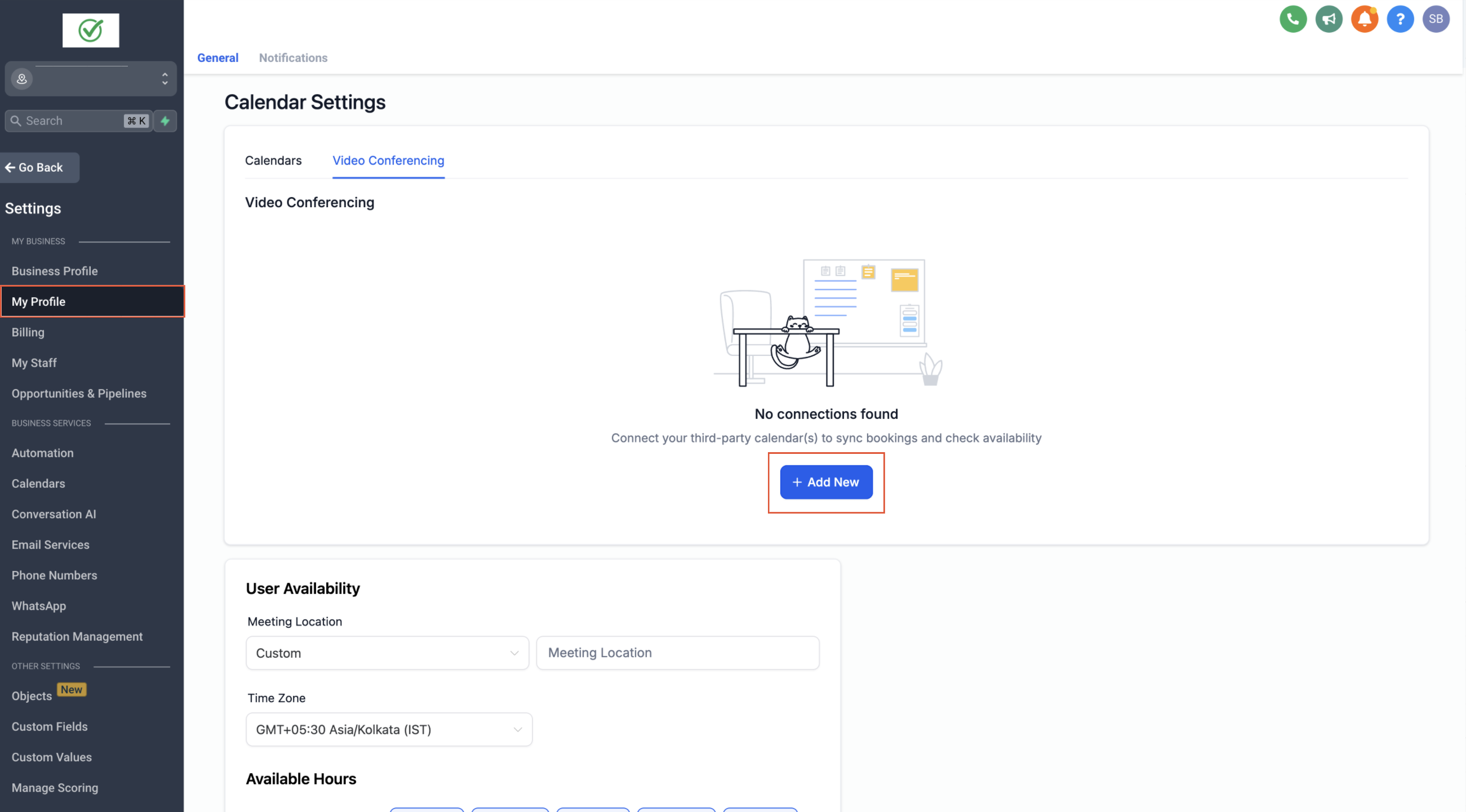
Connect Microsoft Teams via My Profile
- Open Settings and choose My Profile.
- Locate the Video Conferencing connections area and click Add New.
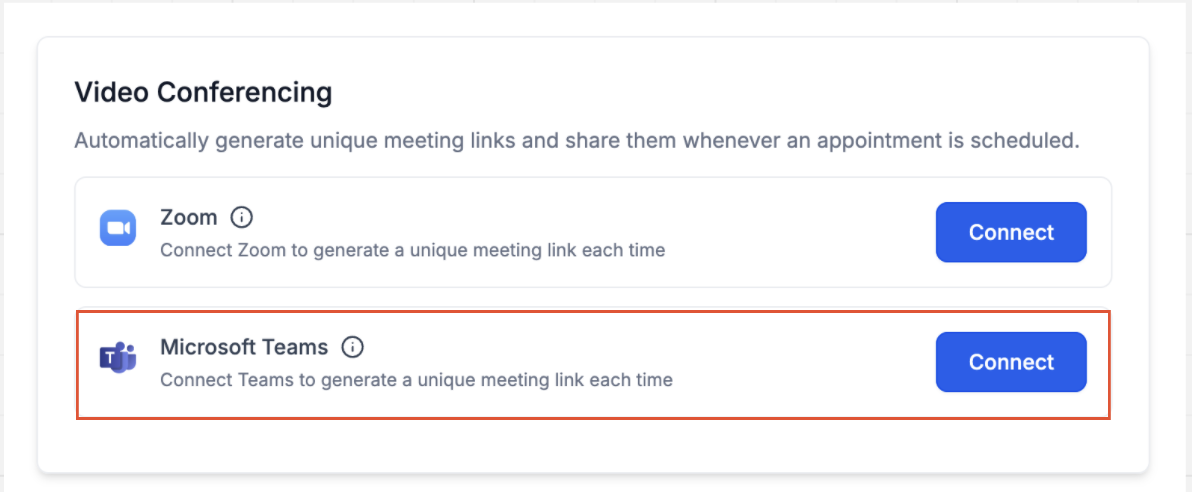
- Pick Microsoft Teams from the list and press Connect.
- Enter your Microsoft Teams credentials to sign in.
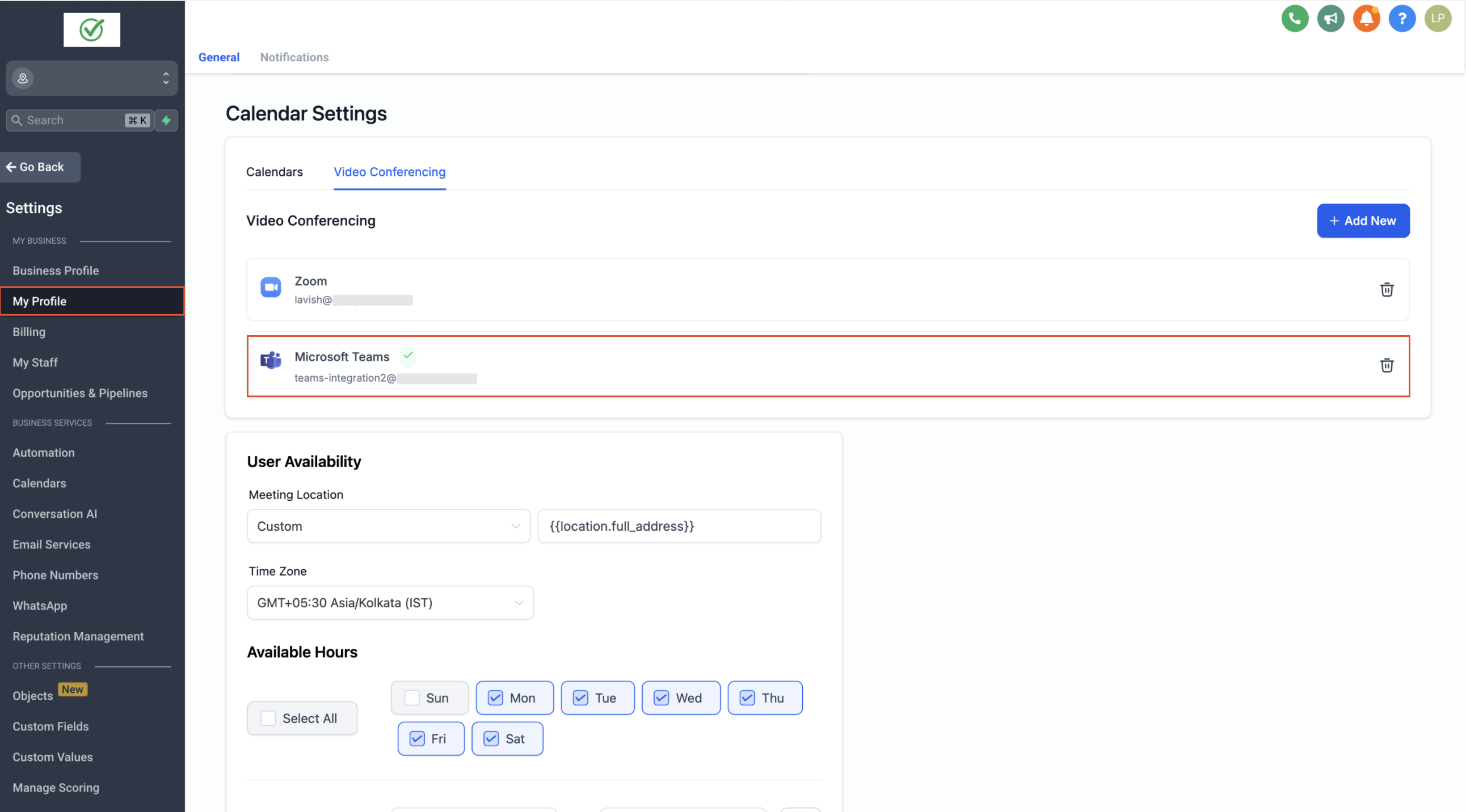
- A confirmation appears indicating the Teams account is now linked.
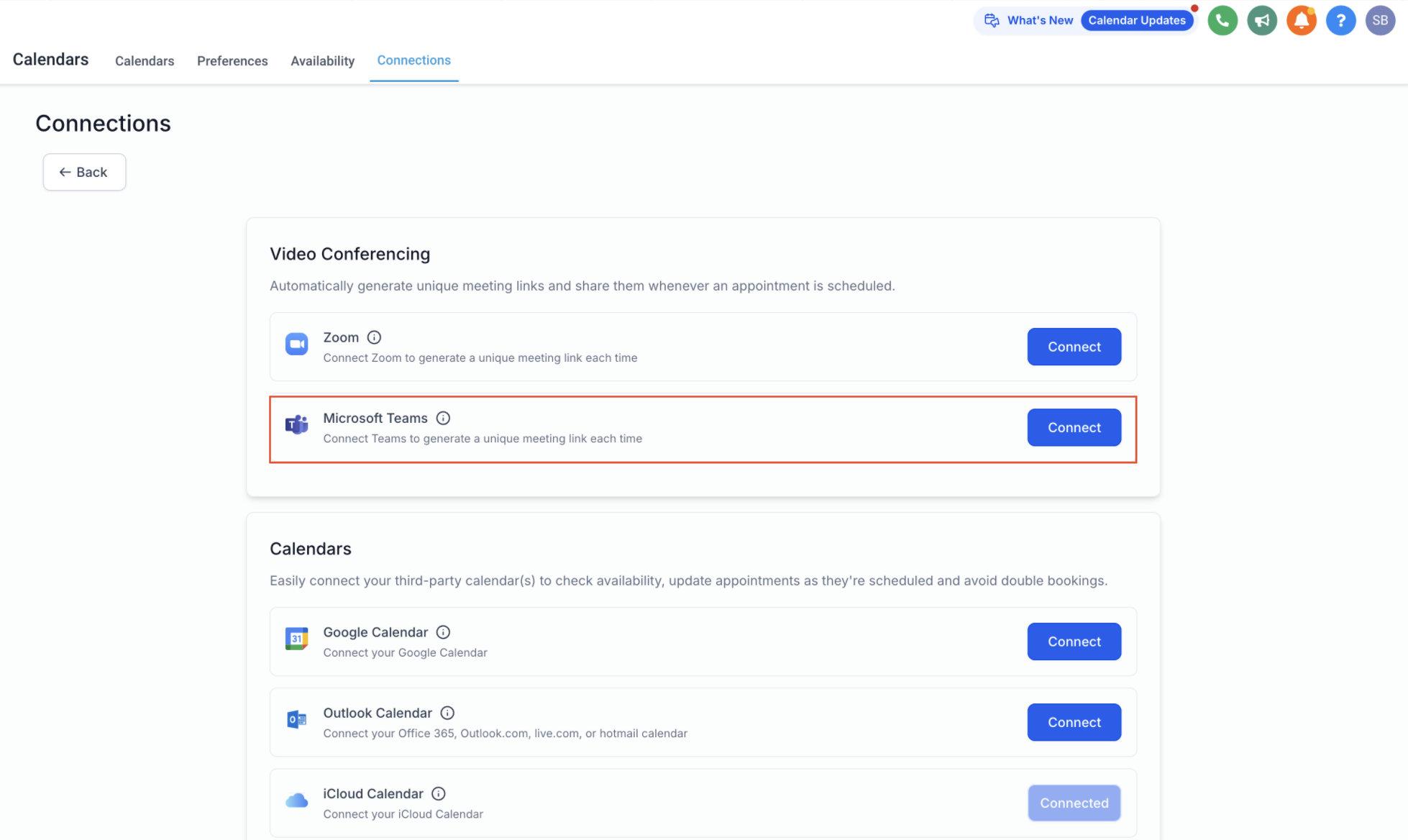
Connect Microsoft Teams via Calendars
- Navigate to Calendars, then select Calendar Settings and open Connections.
- Find the Video Conferencing tab within the Connections view.
- Click Add New and then press Connect next to Microsoft Teams.
- Log in using your Microsoft Teams credentials.
- The system confirms the Teams account has been connected.
Add Microsoft Teams links to a calendar
- Confirm the Teams account has been linked successfully.
- Open Calendar Settings and edit the calendar you want to modify.
- Go to the Meeting Details tab and scroll to the Team Members section.
- Select a team member, ensure Teams is integrated, choose Microsoft Teams as the meeting location, and click Save.
Remove or switch the connected Teams account
- Open Calendars, go to Settings, then Connections and select Video Conferencing.
- Delete the existing Microsoft Teams connection or connect a different Teams account.
- Verify that the meeting location setting on any affected calendars still points to Microsoft Teams.
07What it looks like in HighLevel
08Settings that matter
- Video Conferencing connections. Controls which video conferencing services are linked to your HighLevel account.
- Add New. Opens the list of available video conferencing providers to add a connection.
- Connect. Starts the authentication flow for the selected provider, such as Microsoft Teams.
- Calendar Settings. Allows editing of individual calendars, including meeting location and team member assignments.
- Meeting Details. Contains options for assigning team members and selecting the meeting location for a calendar.
- Team Members. Lists users who can host the meeting; you choose one and set the meeting platform.
09Things to know before you rely on it
- Only Microsoft Teams accounts for Work and School (Organisation and Education) can be integrated.
- A single user may attach one Teams account per location.
- Dynamic Teams links are generated only when Microsoft Teams is selected as the meeting location in a calendar.
10How it connects to the rest of HighLevel
- Sync HighLevel with Outlook calendar Outlook sync guide
- Integrate Google Calendar with HighLevel Google Calendar guide
- Zoom integration for HighLevel calendars Zoom integration
Michael's take

Connecting Microsoft Teams can feel risky if you rely on a single account for many meetings. If the connection is lost, appointments created while disconnected may be missing a meeting link, but HighLevel will generate links when the account is reconnected. The automation creates a Teams meeting URL for each booking, removing the need to copy links manually.