
01Who this is for
- Salon owners can bundle shampoo or styling products with a haircut to streamline checkout.
- Any service based business can include retail items with an eligible appointment to keep the sale in one place.
02Retail products in service appointments, explained
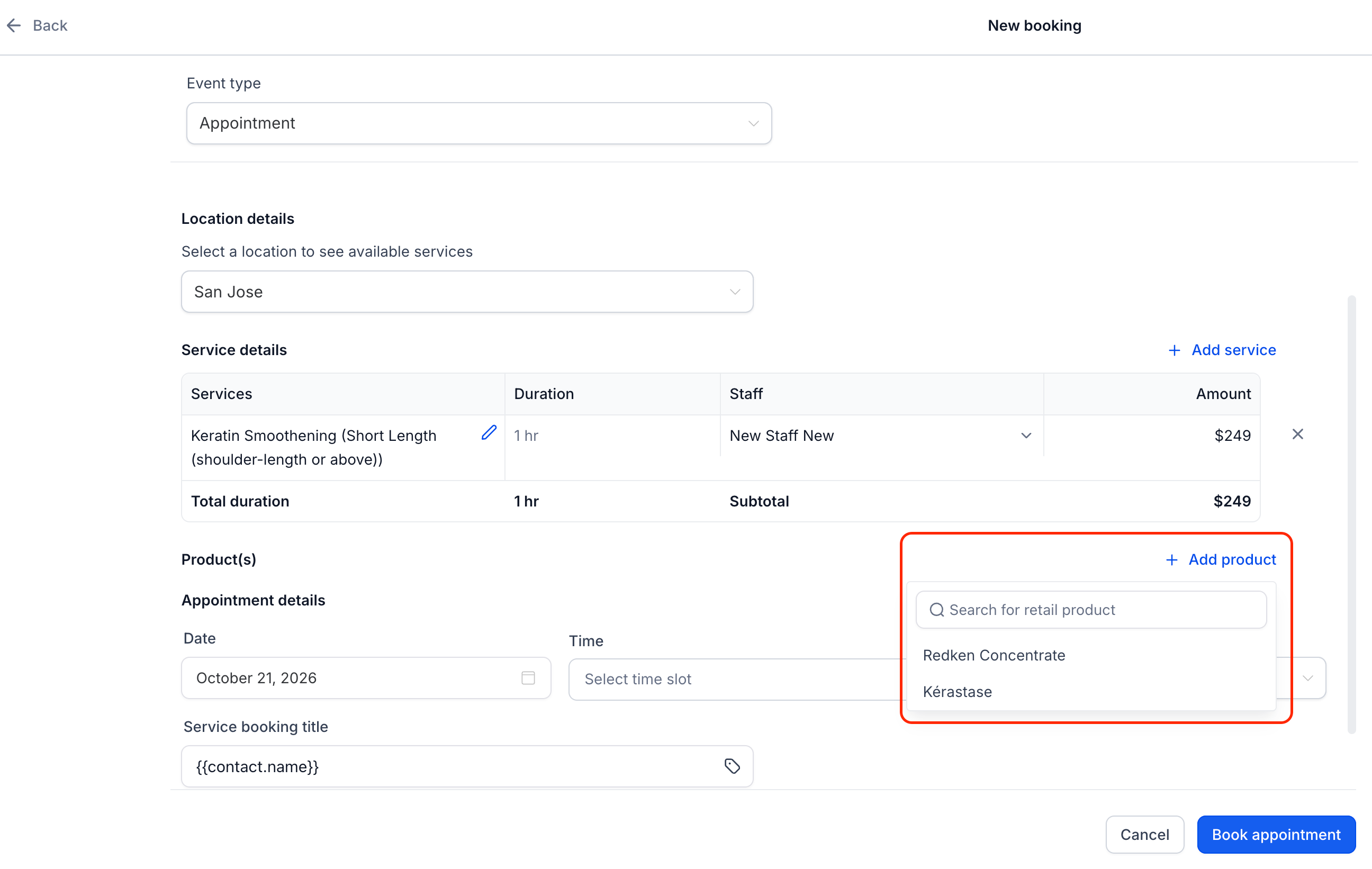
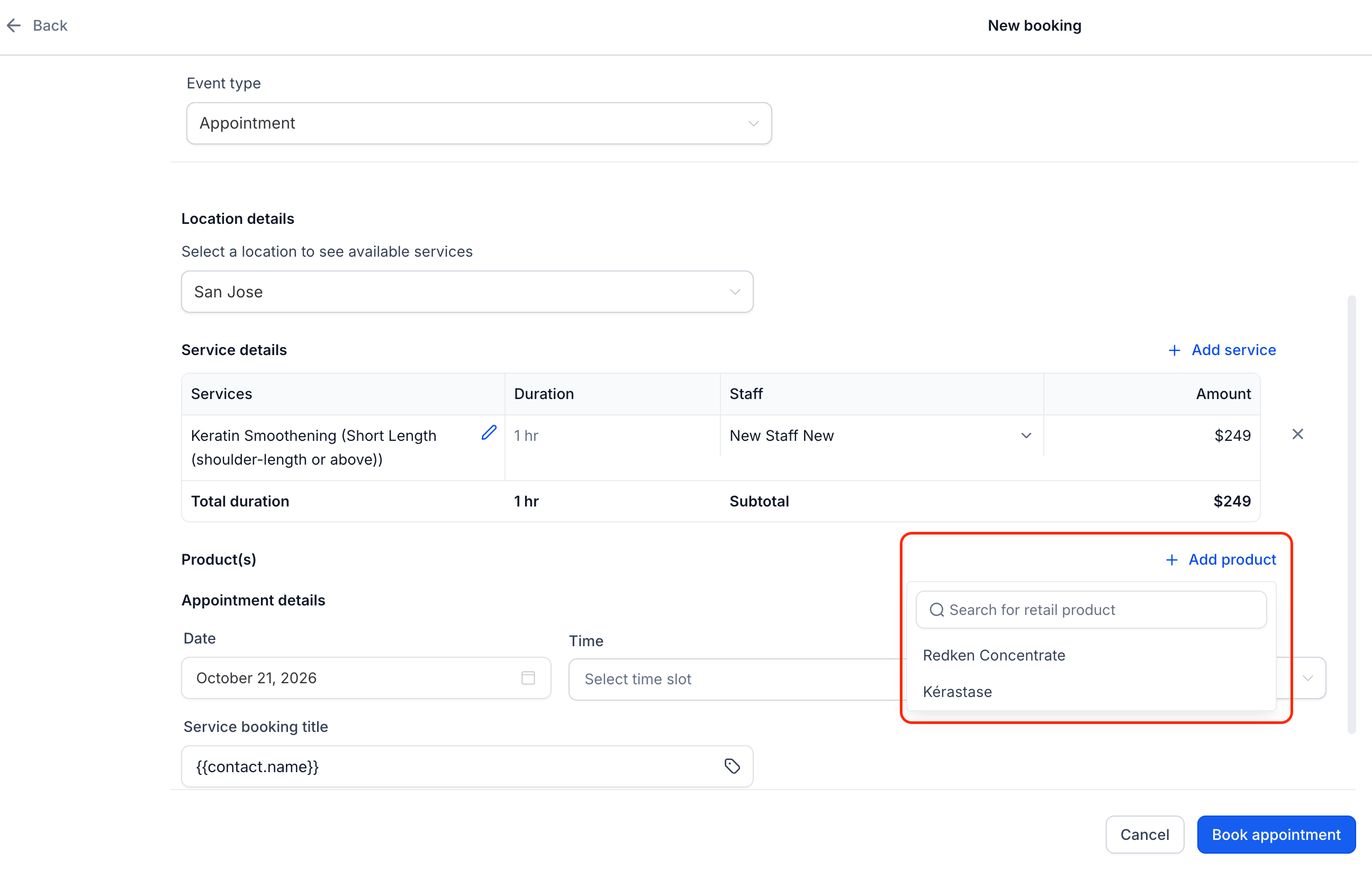
The feature lives inside the appointment modal of eligible service bookings. When you open or edit an appointment, a Product(s) section appears with a + Add product button that pulls from the Payments > Products catalog.
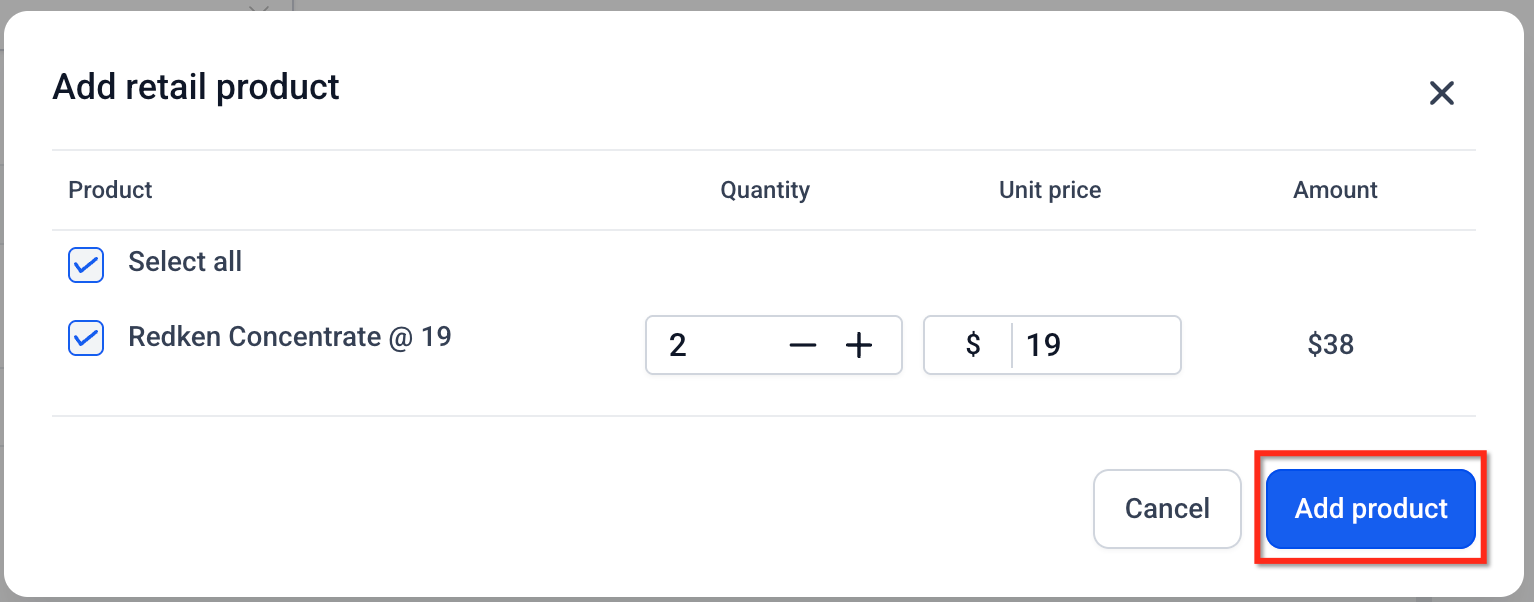
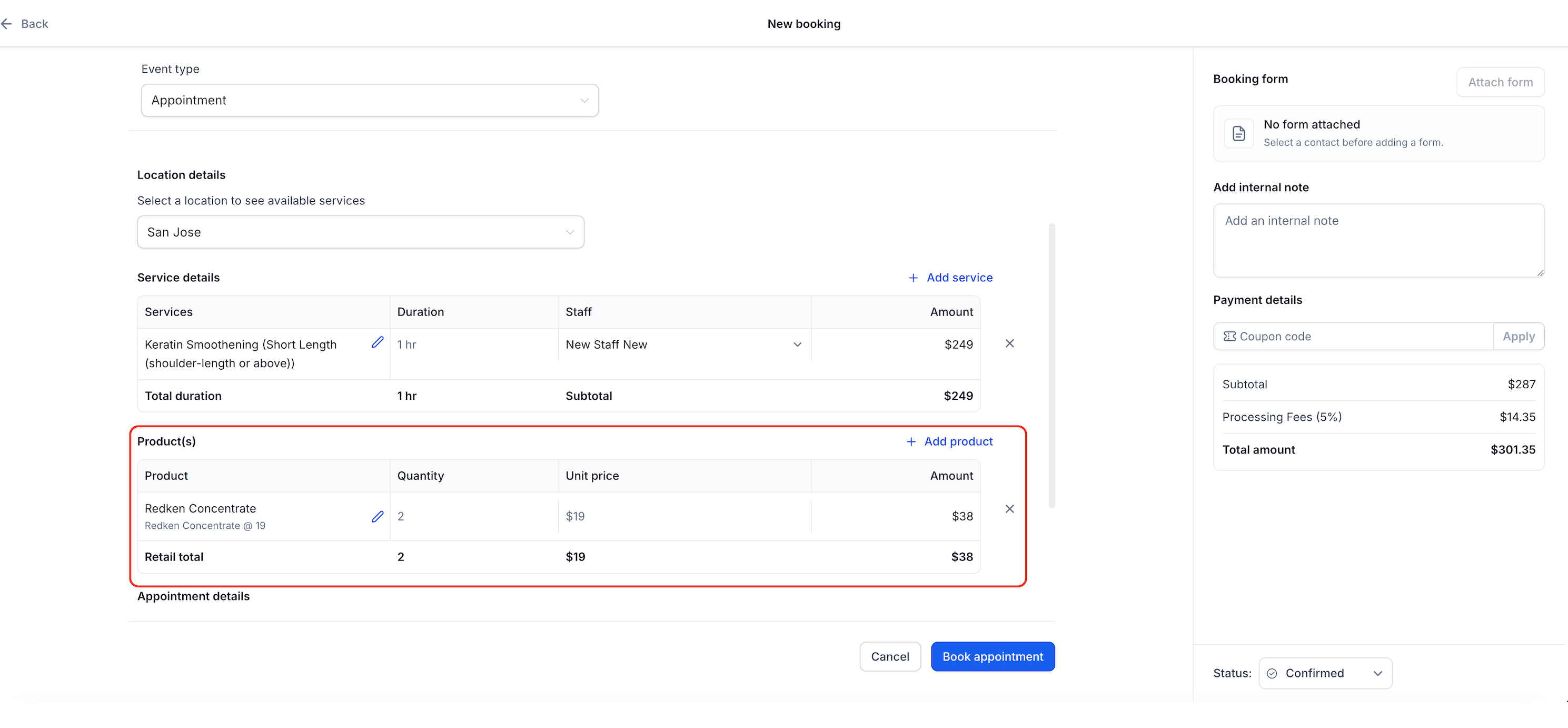
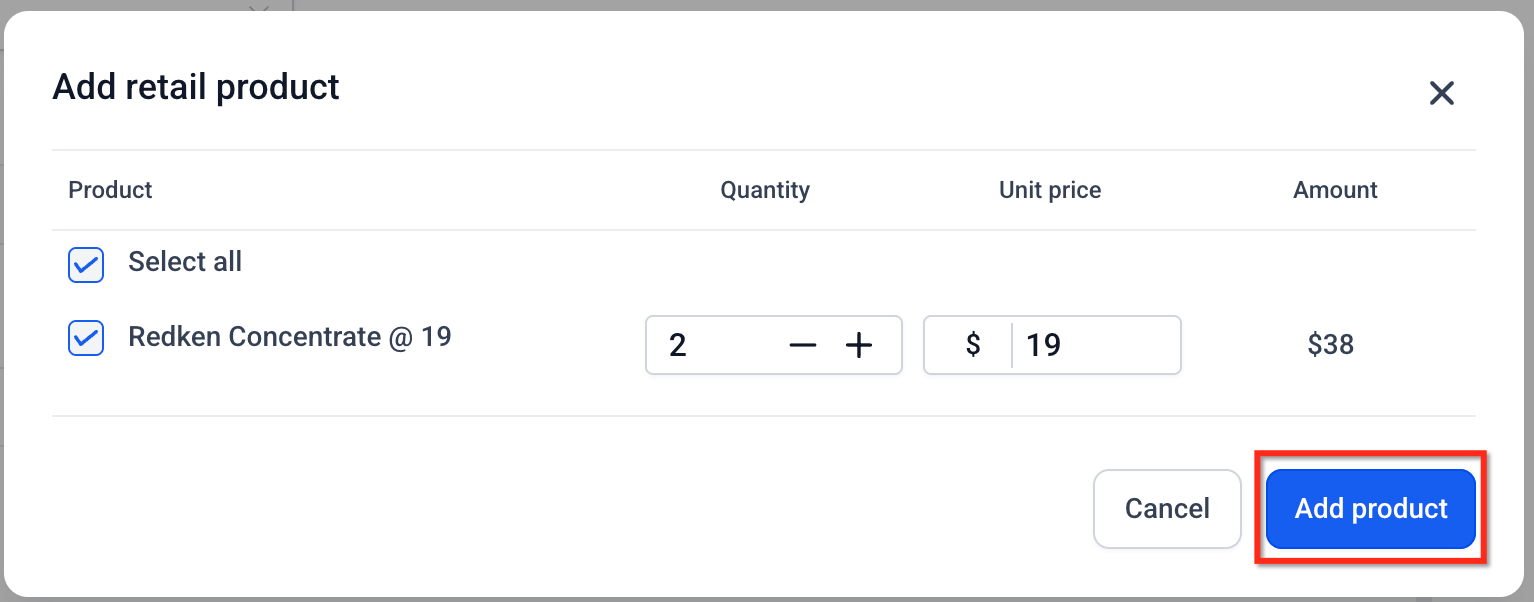
After selecting a product you can change the quantity and unit price for that appointment only. The amount column shows the line total, and the payment summary adds the product charge to the service charge.
If the product tracks inventory, HighLevel adjusts the stock count automatically when the product is added, quantity changed, or removed from the appointment.
03How businesses use retail products in service appointments
- Hair salon. Open the appointment for a client’s cut, click + Add product, search for a shampoo variant, set two units, adjust the price if needed, and save. The shampoo appears in the booking details and inventory drops by two.
- Service business adding products to an existing appointment. Edit a previously booked service, add a retail product from the catalog, set the required quantity and optional unit price change, then save. The new charge appears in the payment summary.
- New service appointment with retail add on. Create a fresh service booking, use the + Add product button to include a retail item, define quantity and price, and book the appointment. Both service and product charges are captured together.
04Before you start
- Create the required retail items in Payments > Products.
- Make sure the appointment you are working with is an eligible service booking.
05How to set up and use retail products in service appointments in HighLevel
Add retail products to service appointments
- Navigate to Calendars > Calendar View > Services.
- Start a new service booking or open an existing eligible appointment.
- If editing, select the pencil icon to enter edit mode.
- In the appointment modal locate the Product(s) area and press + Add product.
- Search for the desired product or its variant and select it.
- Enter the quantity you wish to sell.
- Change the unit price if a different charge is needed for this appointment.
- Check the calculated amount and click Add product to confirm.
- Review the combined service and product lines in the appointment summary.
- Click Book appointment for a new booking or Save to store changes to an existing one.
- Important: Retail products can only be added through eligible in app service booking flows, not the public booking page.
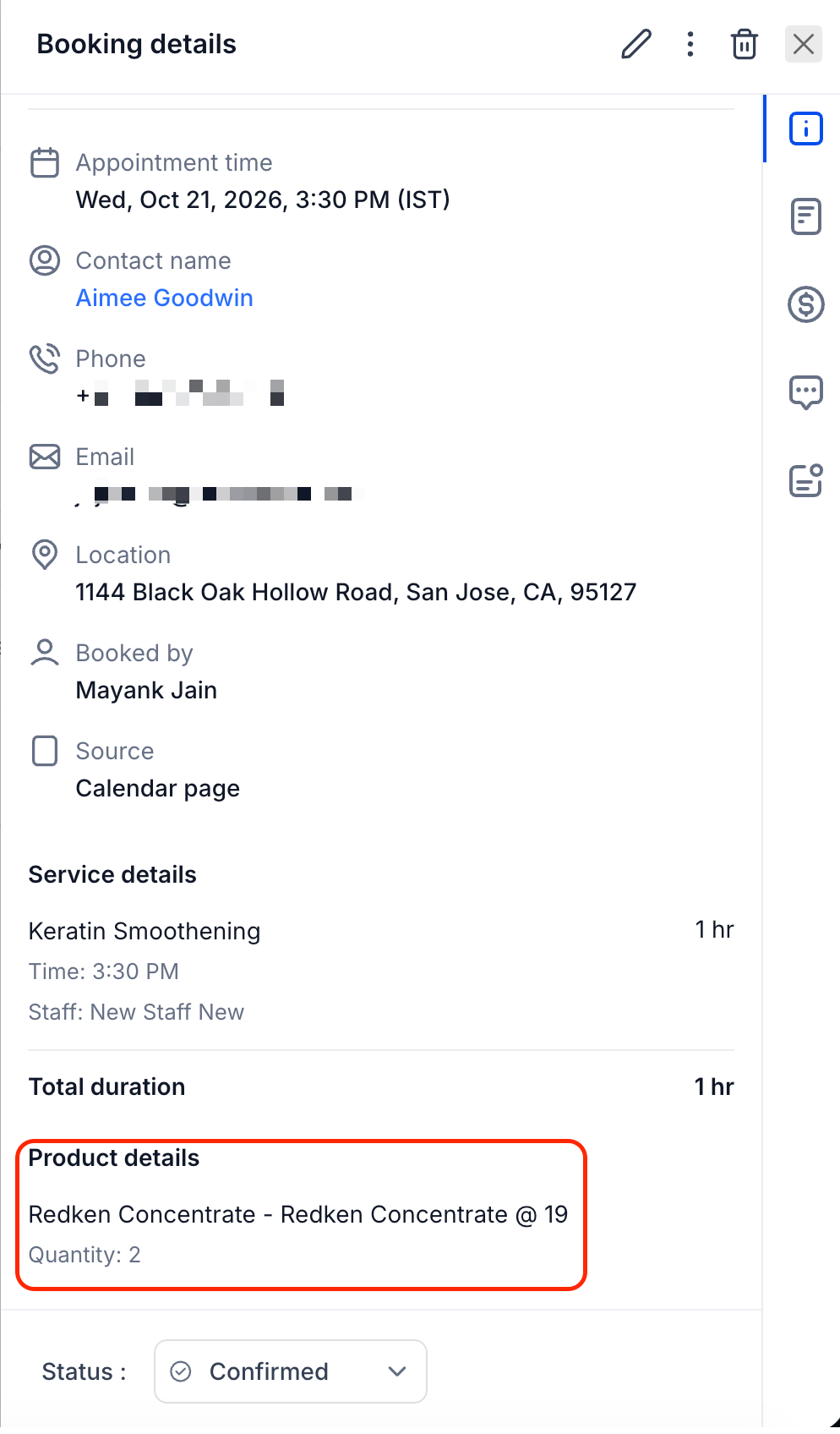
- Verify the product details in Booking details and confirm the payment total on the Payments tab.
06What it looks like in HighLevel
07Settings that matter
- Quantity. Controls how many units of the selected product are attached to the appointment.
- Unit price. Sets the charge per unit for this appointment only, leaving the catalog price unchanged.
- Continue selling when out of stock. Allows the product to be added even if available stock is zero, preventing an out of stock error.
08Things to know before you rely on it
- Retail products are managed under Payments > Products, not Services.
- They cannot be added through the public booking page; only in app service flows support them.
- Inventory changes occur only for products with stock tracking enabled.
- If stock is insufficient, an error blocks the addition unless the product permits continued selling when out of stock.
- Inventory restoration on appointment cancellation is not yet confirmed.
09If something goes wrong
- Insufficient stock error when adding a product.. Enable the Continue selling when out of stock option for that product in the product settings.
- Payment status shows a new balance but no automatic charge or refund.. Use the Payments tab to collect the additional amount or issue a refund manually.
10How it connects to the rest of HighLevel
- Create a service calendar to define eligible appointments Service calendars guide
- Manage product inventory for your online store WooCommerce integration
- View pricing options for HighLevel plans Pricing page
Michael's take

Retail products in service appointments let you bundle goods with services, but they add extra steps to the booking flow. Businesses that rely exclusively on the public booking page can skip this feature.