
01Who this is for
- Founders of hair salons benefit by presenting multiple styling services on one booking page, simplifying client choices.
- Owners of yoga studios can assign classes to specific instructors, manage class times and accept payments directly from the calendar.
02Service calendars, explained
Service Calendars are a specialized calendar type that aggregates individual services into one scheduling link called a Service Menu. Users define each service, group similar services, and set staff, duration, and payment details.
The calendar respects the assigned staff members’ schedules, so availability is automatically reflected based on their working hours. A fixed 15 minute slot interval is used, with optional buffer time between appointments.
All settings are located under Calendars > Calendar Settings in the platform. Once enabled, the Service Calendar option appears when creating a new calendar.
03How businesses use service calendars
- Hair salon. Create separate Service Calendars for cuts, coloring and treatments, assign stylists to each, and add them to a "Hair" group. Clients book any service from the shared Service Menu link.
- Yoga studio. Set up Service Calendars for each class type, assign instructors, define class duration and availability, then embed the calendar link on the studio website for client sign ups.
- Dog grooming business. Configure Service Calendars for baths, trims and nail care, assign groomers, set buffer times, and collect payment at booking through an integrated payment gateway.
04The numbers and rules that matter
- Slot interval default is 15 minutes and cannot be altered.
05Before you start
- Only agency admins can toggle the Service Menu setting.
- A payment gateway must be integrated to collect payments during booking.
06How to set up and use service calendars in HighLevel
Enable service calendars
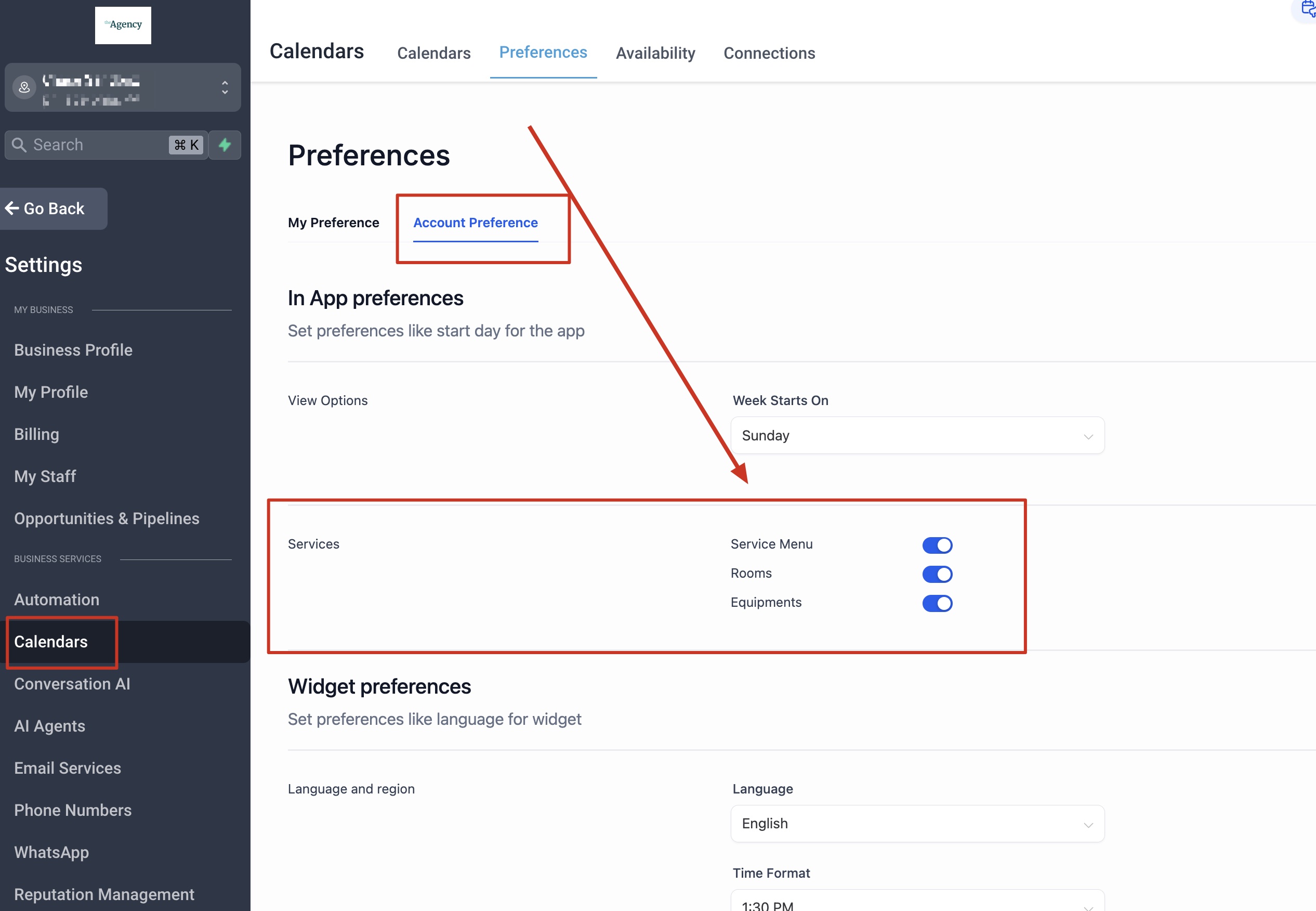
- Open Calendar Settings in the platform.
- Select Preferences.
- Turn on the Service Menu toggle under In App Preferences (only agency admins can access this setting).
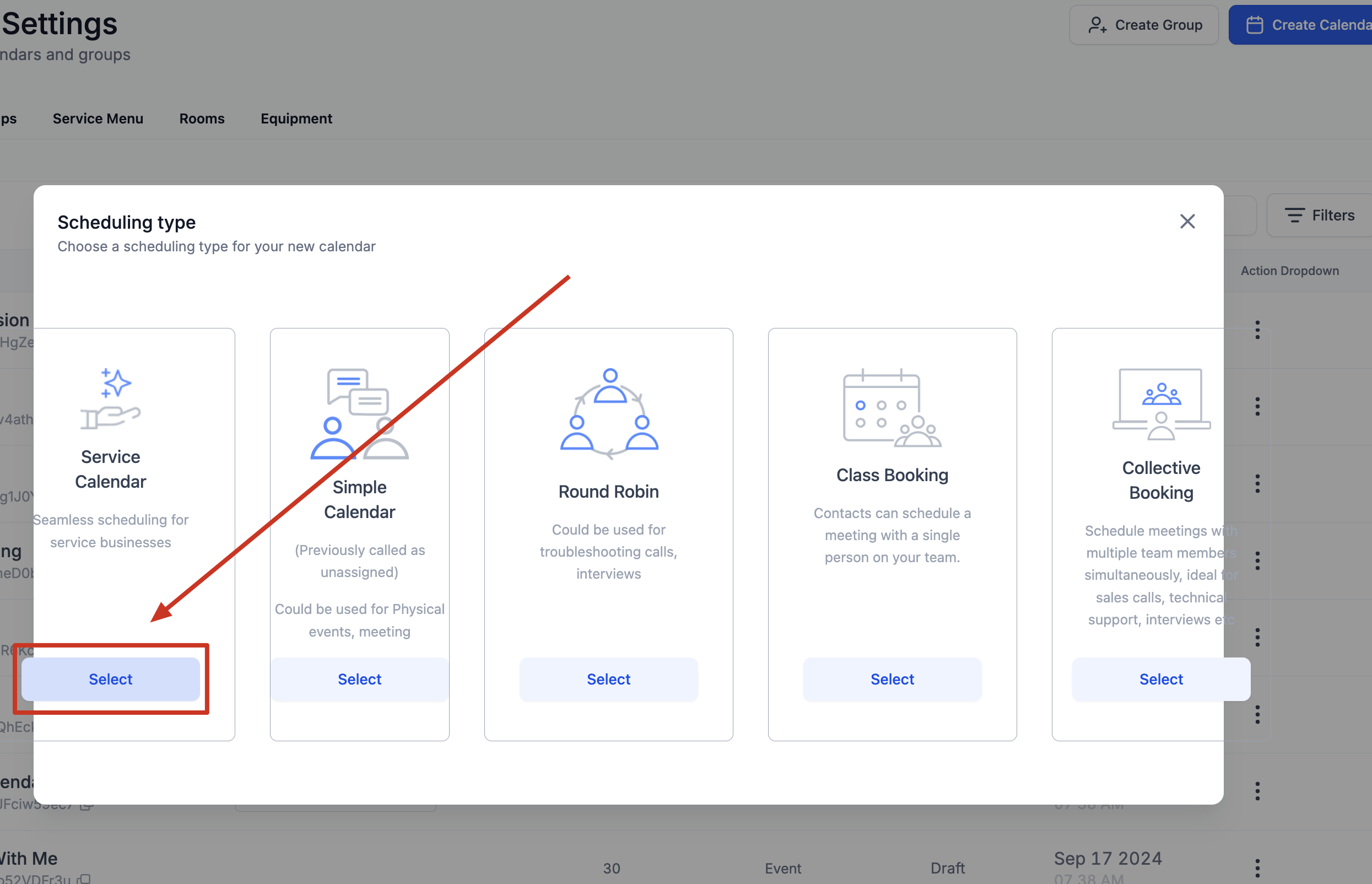
- Confirm that Service Calendar now appears under Create New Calendar.
Create a service calendar
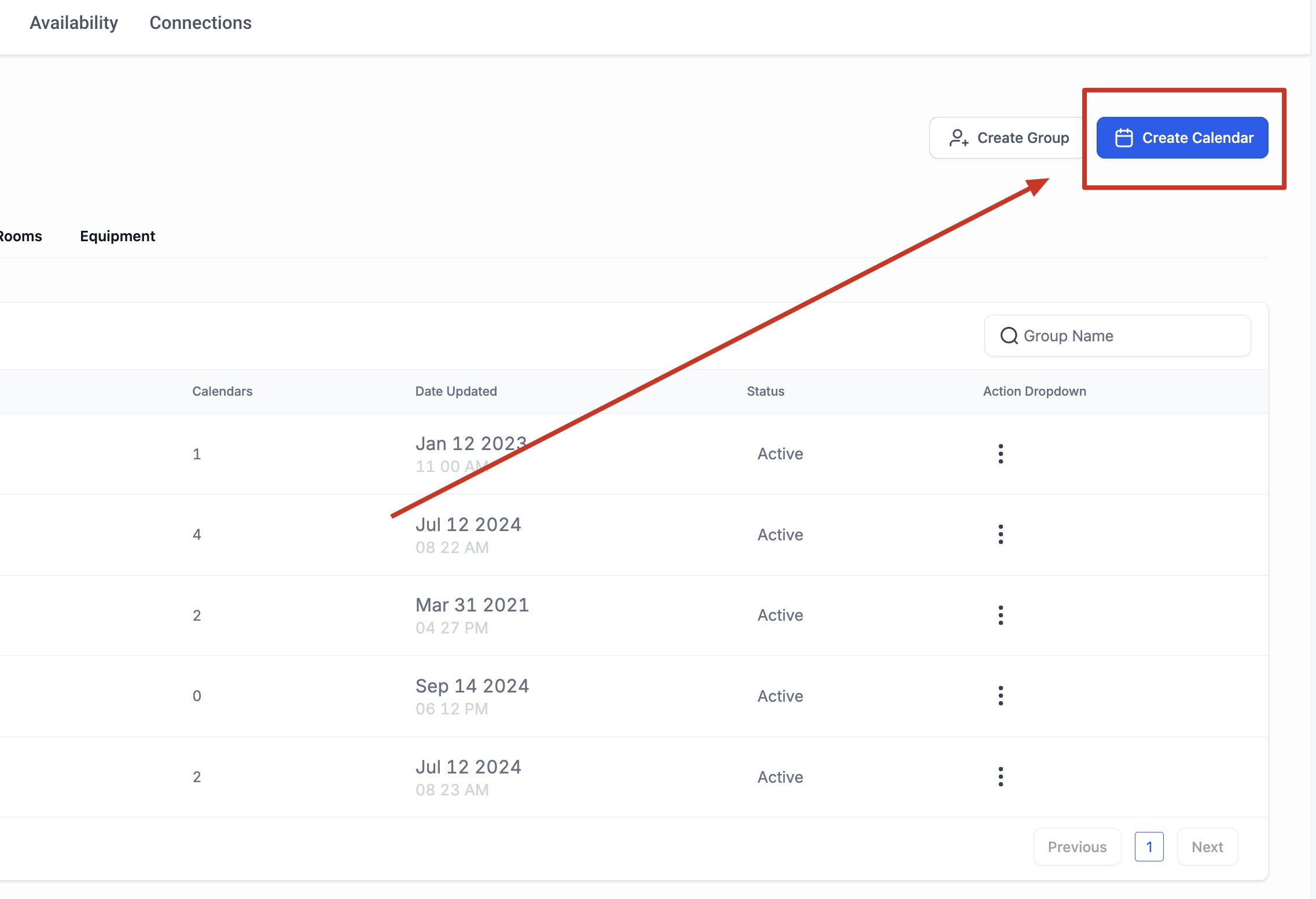
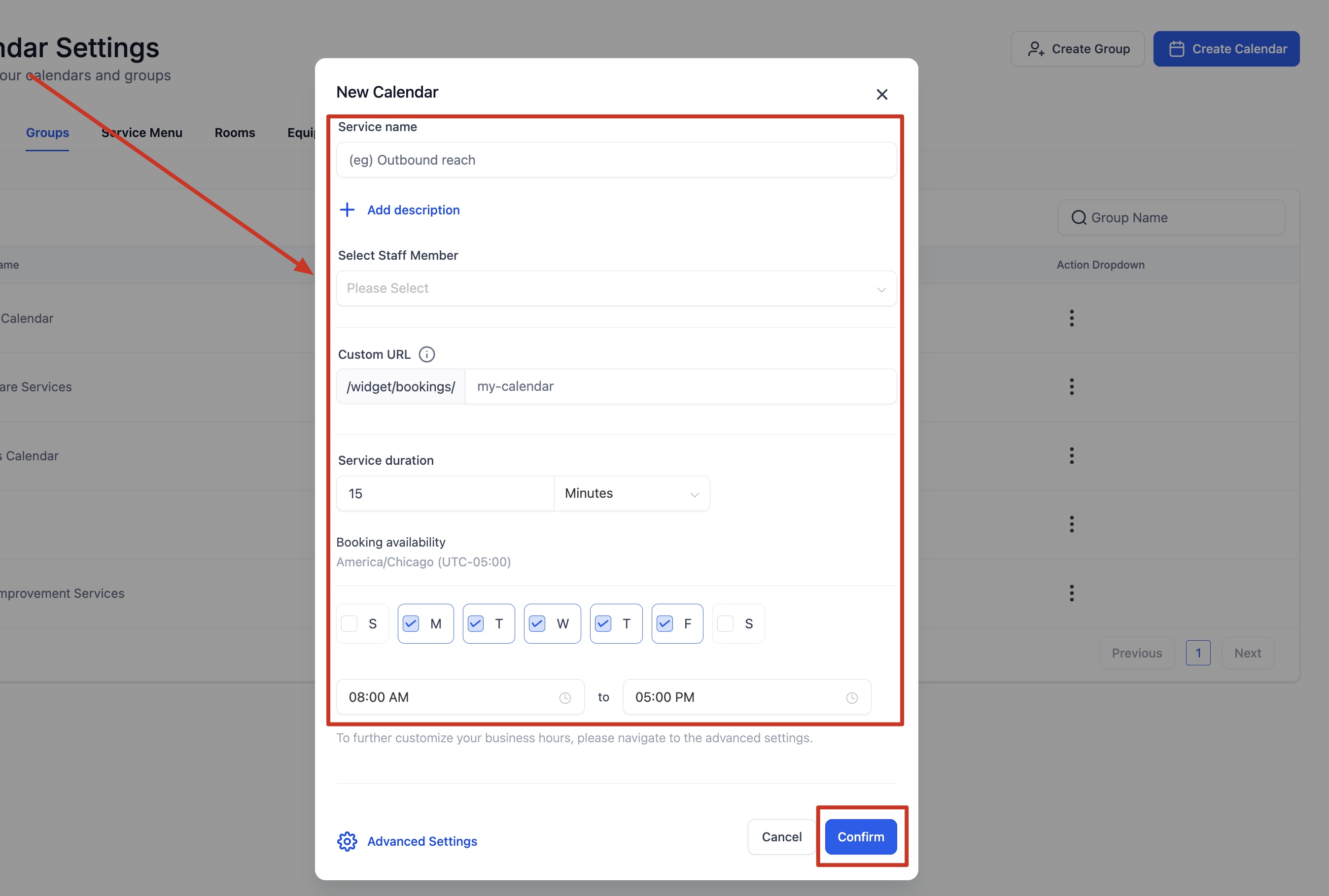
- Log in to the subaccount, go to Calendars > Calendar Settings, click Create Calendar and choose Service Calendar.
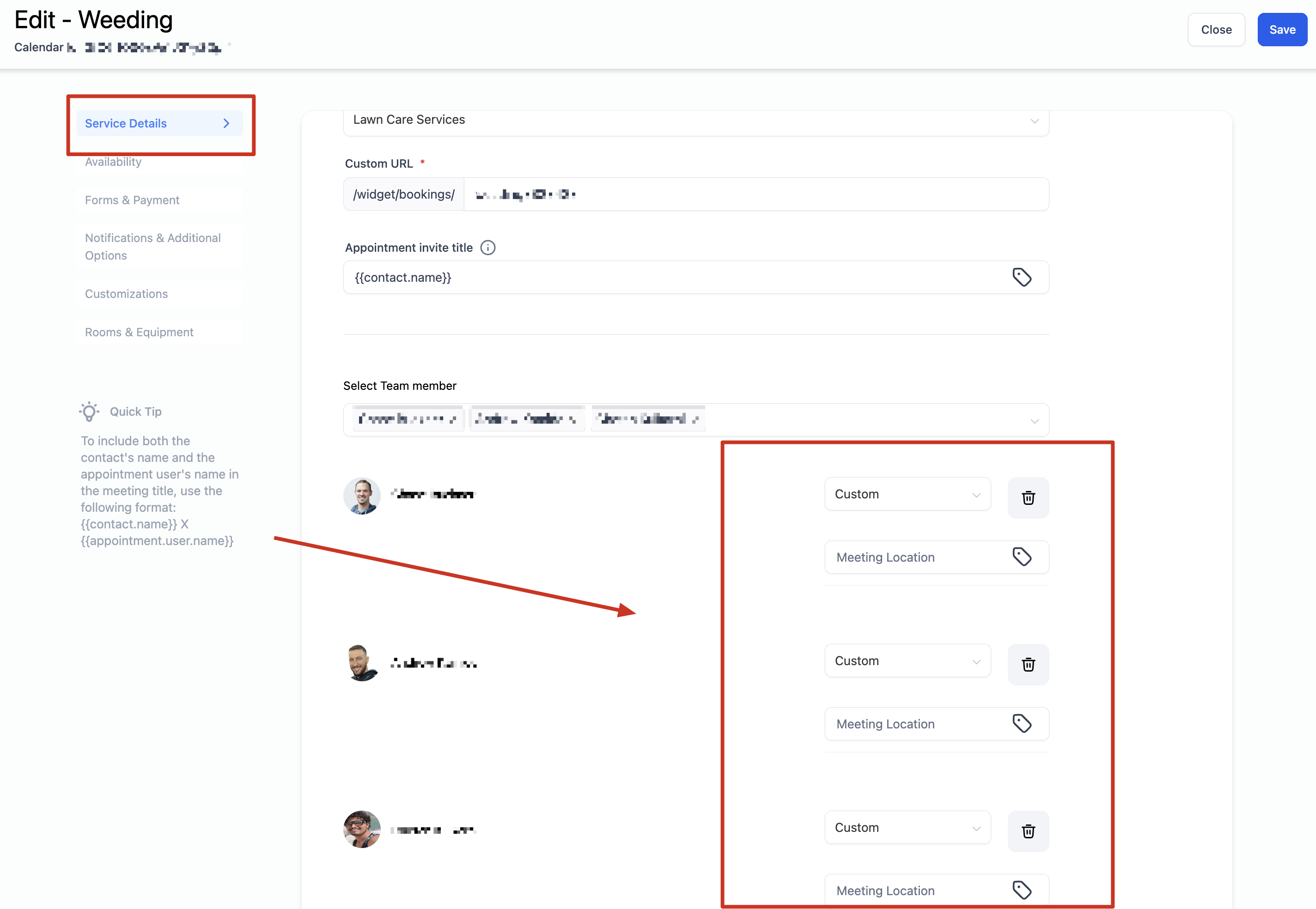
- Enter a Service Name and a brief Service Description.
- Assign staff members and, if needed, select a meeting location (physical locations only).
- Define the public URL or slug for the calendar.
- Set the service duration.
- Configure weekly working hours, date specific hours, service interval, buffer time, minimum scheduling notice and booking horizon.
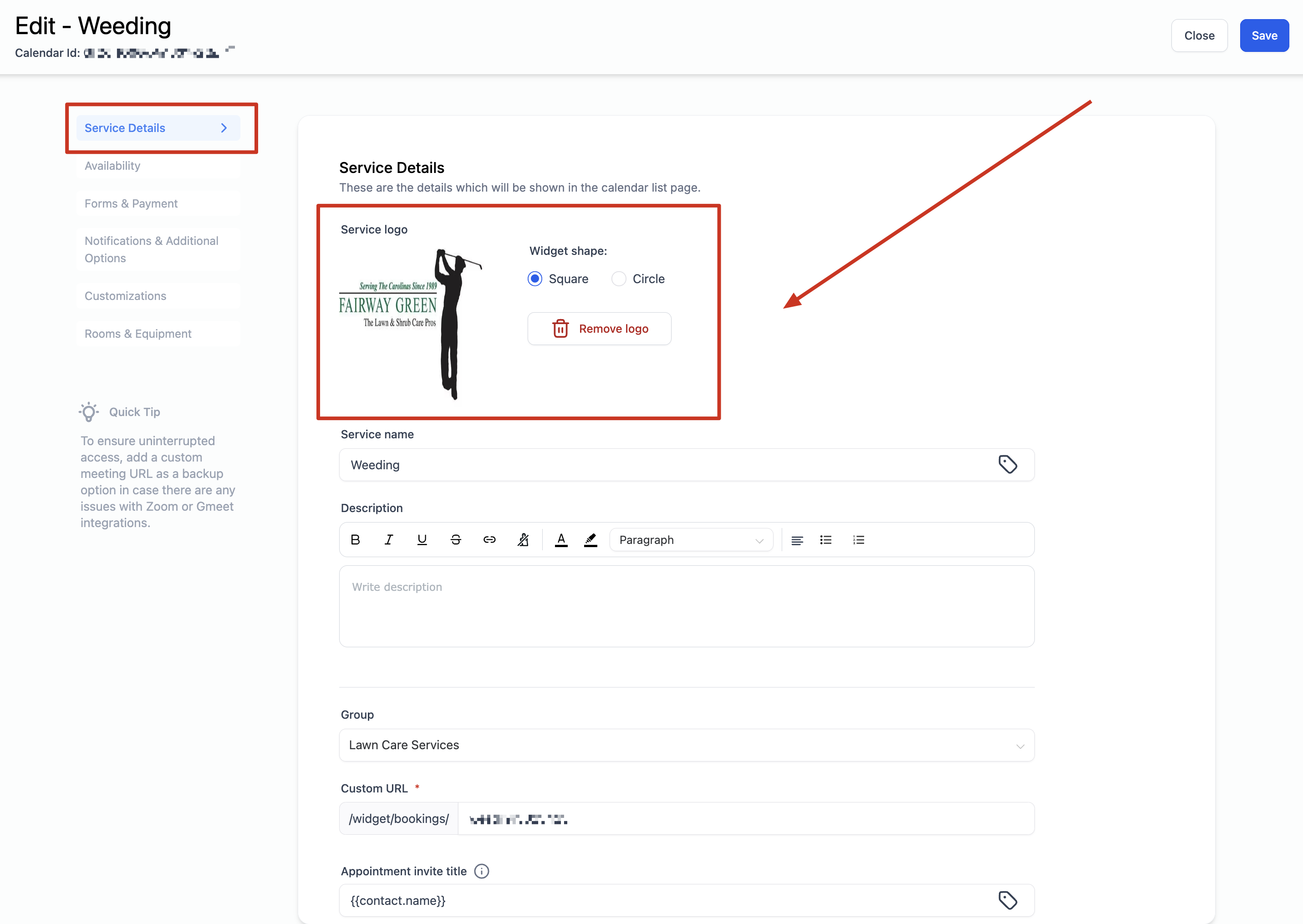
- Upload a Service Logo (visible only on the appointment widget for this calendar) and optionally a Service Cover Image for the Service Menu.
- Customize the Appointment Invite Title and choose an Event Color.
- If desired, click Advanced Settings for additional options such as staff selection and custom notes.
- Save the calendar.
Configure forms and payments
- Choose the default client information form or select a custom form created in Sites > Forms > Builder.
- Toggle the consent checkbox and edit the consent message as needed.
- Set up a Confirmation Page to show a thank you message or redirect to a URL.
- Ensure a payment gateway is integrated, then specify the payment amount for the main attendee.
Add the calendar to a Service Menu
- Create or select a group (e.g., "Hair").
- Assign the Service Calendar to that group so it appears in the Service Menu.
- Publish the Service Menu link for clients to book multiple services.
07What it looks like in HighLevel
08Settings that matter
- Service Menu. Enables the Service Calendar feature and makes the Service Calendar option available when creating new calendars.
- Service Logo. Image displayed on the appointment booking widget for a single service calendar.
- Service Cover Image. Image shown in the Service Menu for a group of services.
- Appointment Invite Title. Title that appears on calendar events in external calendars such as Google or Outlook.
- Event Color. Color used to highlight appointments created through the service calendar within HighLevel.
09Things to know before you rely on it
- Only agency admins can access the Service Menu toggle.
- The slot interval is fixed at 15 minutes and cannot be altered.
- Service Calendars are intended for physical services; meeting locations like Zoom or Google Meet are not applied when the calendar is used in a Service Menu.
- Service Menus do not support meeting locations.
10How it connects to the rest of HighLevel
- Set up a service calendar for a hair salon Hair salon guide
- Review all Calendars & Appointments features Calendars overview
- Explore HighLevel pricing and plans Pricing
- Start a 30 day HighLevel trial Free trial
Michael's take

Skipping the agency admin check can leave you scratching your head when the Service Menu toggle never appears. That gate keeper step is essential before you even think about building a calendar.
Once it’s on, you can bundle multiple services under one link, let staff schedules drive availability, and even take payments on the spot. That flexibility is a real advantage for any service centric business.