
01Who this is for
- Detail shop owners need to assign specific bays and equipment to avoid conflicts.
- Mobile detailing teams benefit from staff availability and resource tracking.
- Car care centers offering multiple services use grouping to keep bookings organized.
02Service calendars, explained
Service Calendars act as scheduling tools that link each automotive detailing service to the right detailer, bay, and equipment. They live under the Calendars menu where groups, calendars and service menus are created. When a client books, the platform reserves the assigned staff member, room and any required tools, ensuring no overlap.
The calendars appear on a custom booking page that can be branded with images and colors. A Service Menu can gather several calendars into one page, letting customers pick multiple services or their preferred detailer. All settings are controlled through the calendar’s Advanced Settings panels.
03How businesses use service calendars
- Automotive detailing shop. The shop creates a group for interior detailing, adds a calendar for each service, and assigns detail bays and polishers. Clients book directly from the branded page, and the system blocks the bay and tool for the chosen time.
- Mobile detailing business. The mobile team adds staff members with their travel windows, creates a service calendar for on site washes, and links a vehicle ready kit as equipment. Booking automatically shows only available time slots for each mobile unit.
- Full service car wash with add on detailing. The car wash sets up a Service Menu that includes wash, interior detail and ceramic coating. Customers can select multiple services in one order, and the platform allocates the wash bay and the appropriate detailing equipment for each step.
04The numbers and rules that matter
- Advanced Settings include Service Details, Availability, Forms & Payment, Notifications, Customizations, Rooms & Equipment.
05Before you start
- Staff members with defined availability must be added before creating a service calendar.
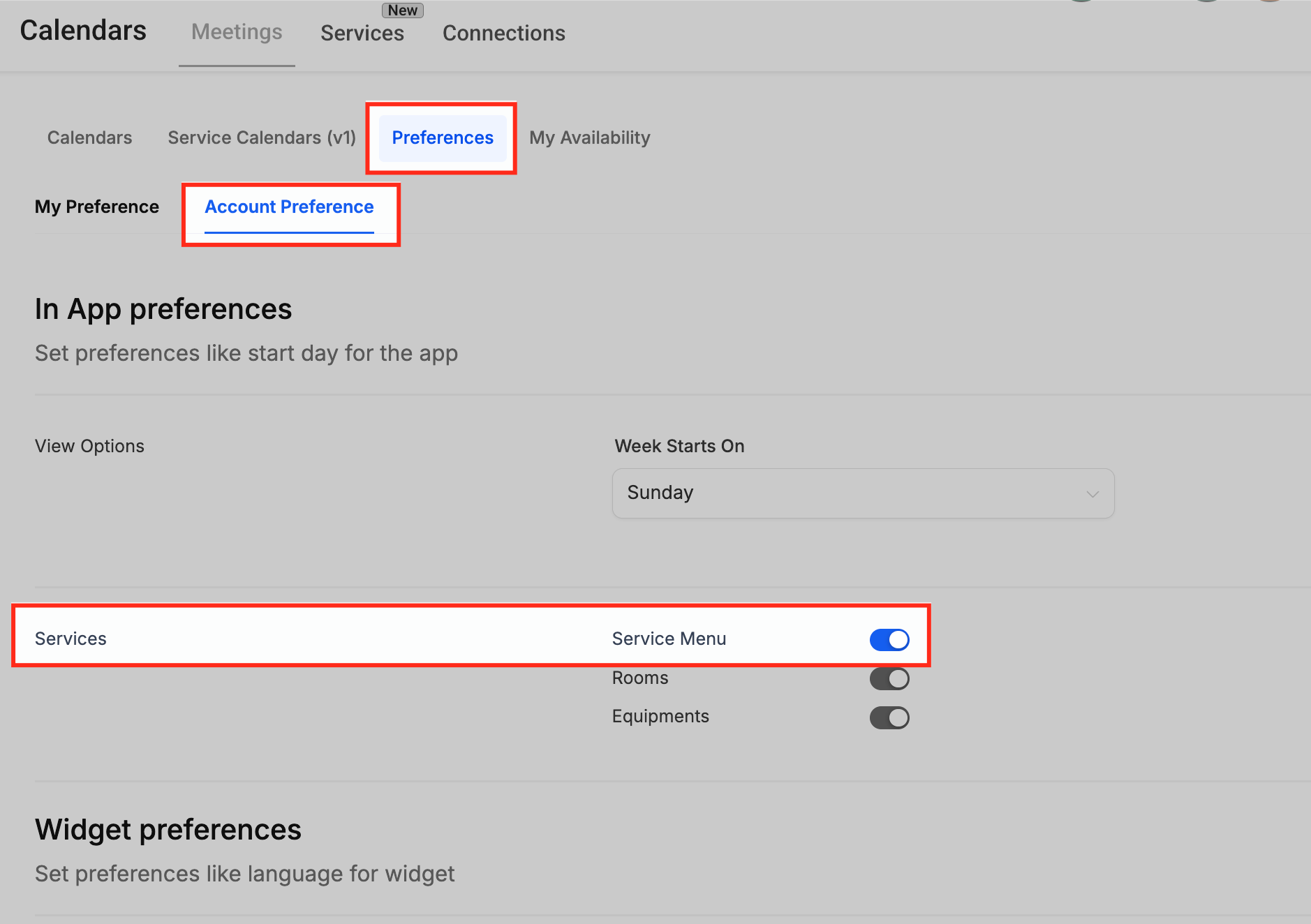
- The Service Menu option must be enabled in Preferences > Account Preference.
06How to set up and use service calendars in HighLevel
Add staff members and availability
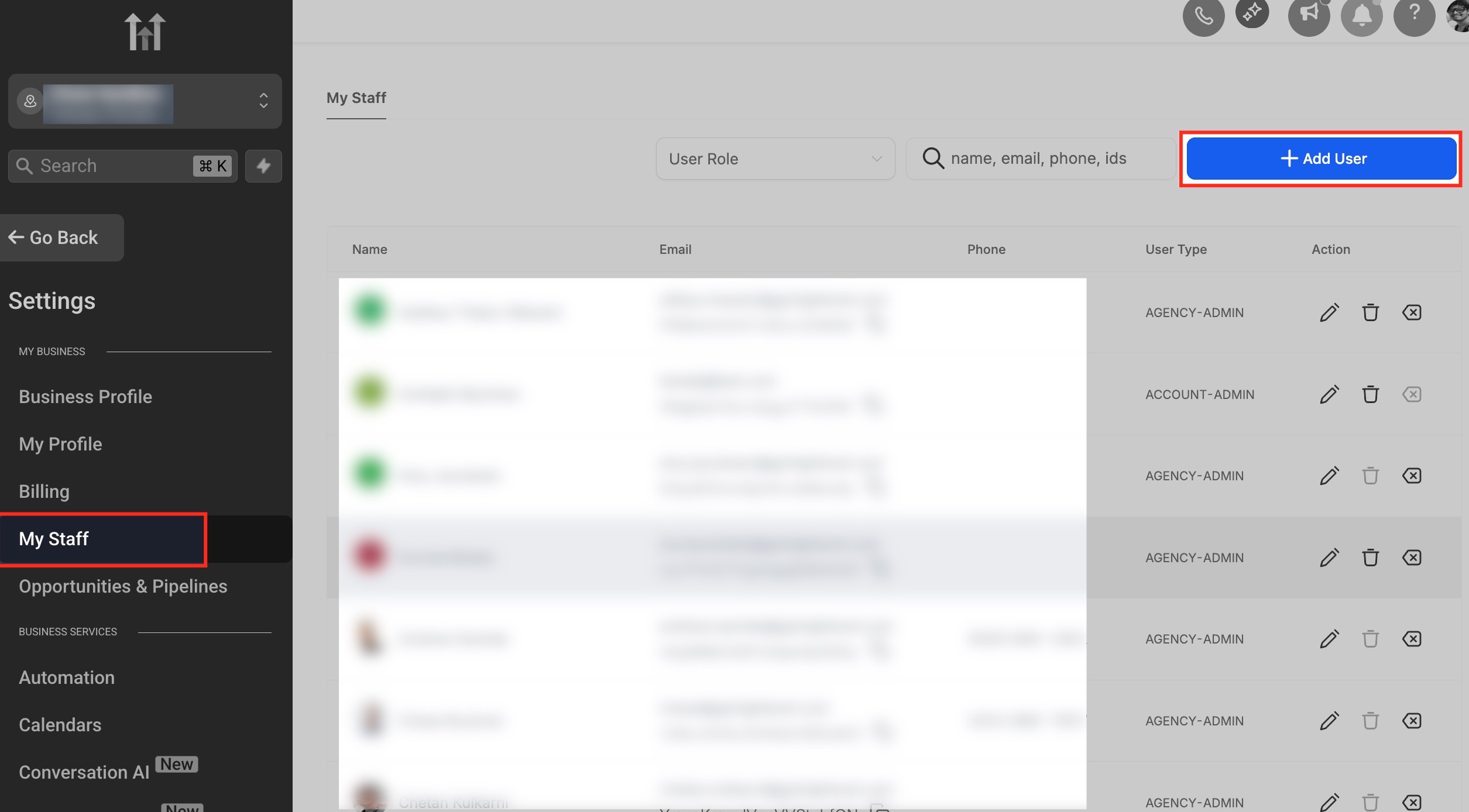
- In the subaccount dashboard go to Settings > My Staff > Add User.
- Click the Add User button.
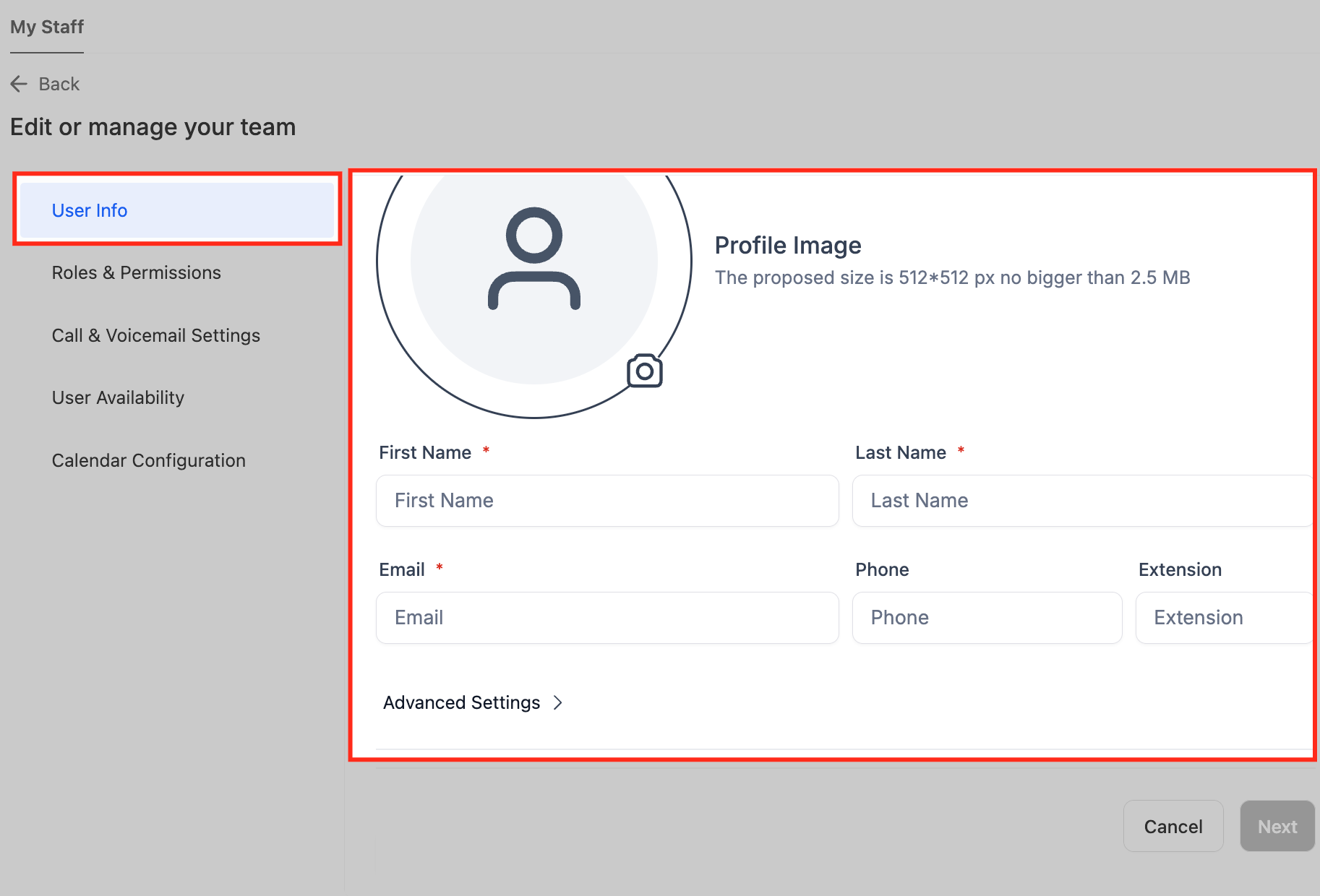
- Enter the detailer’s name, email and extension.
- Set user permissions and mark the days and hours the staff works.
- Press Save to store the staff profile.
Create a group for services
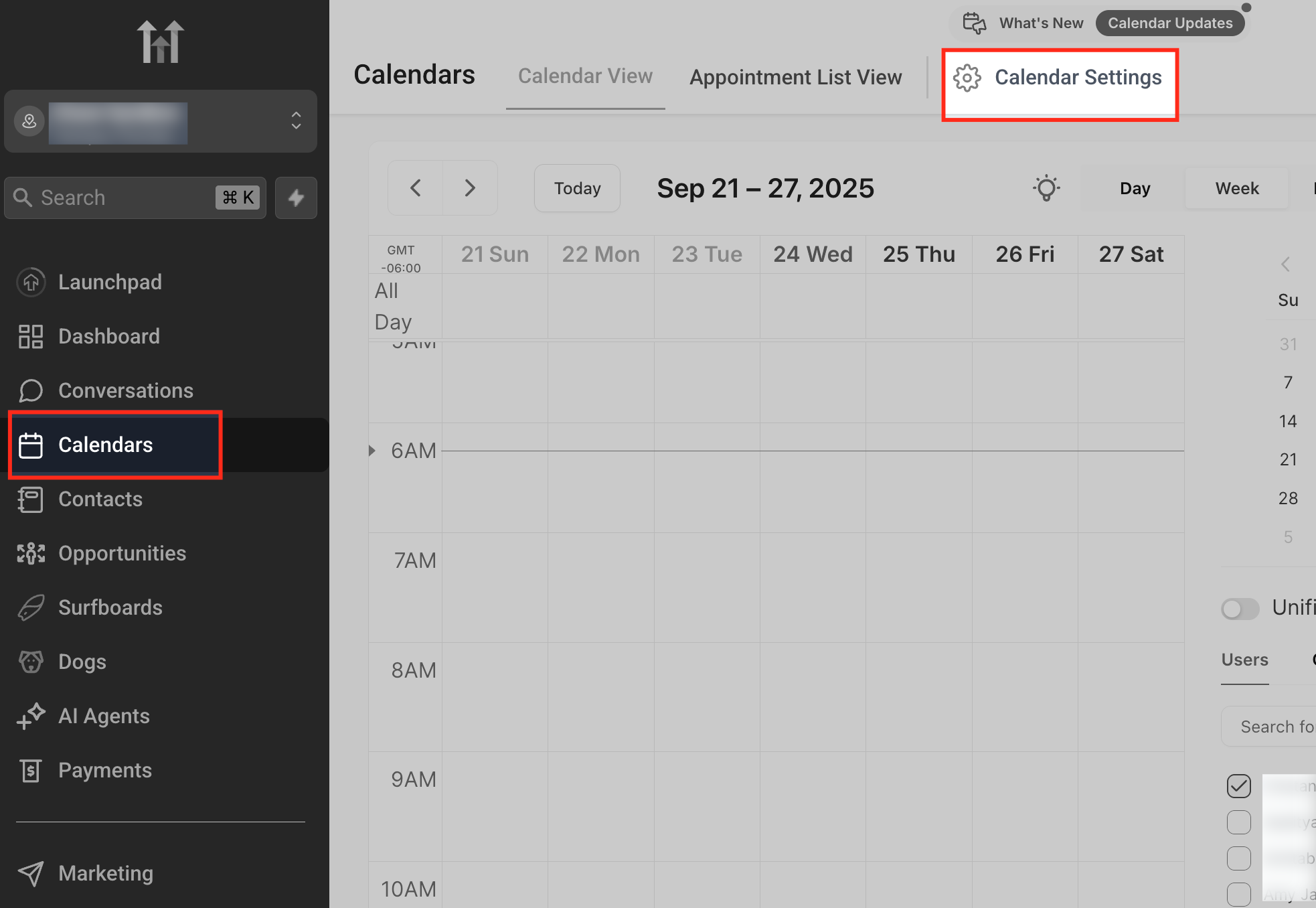
- Open the Calendars menu and click Calendar Settings at the top right.
- Navigate to Preferences > Account Preference and toggle the Service Menu option on.
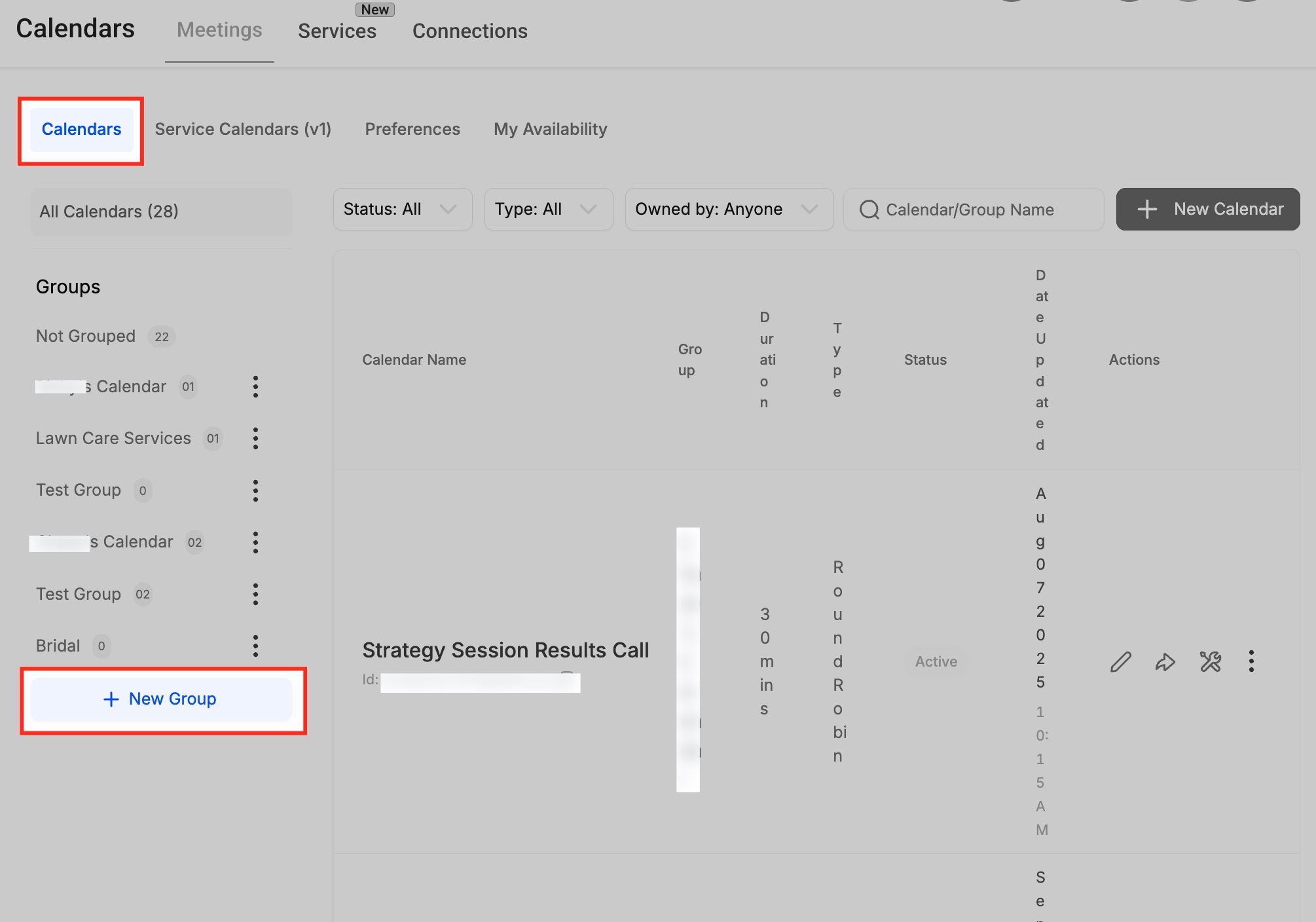
- In the Calendars tab click + New Group on the left sidebar.
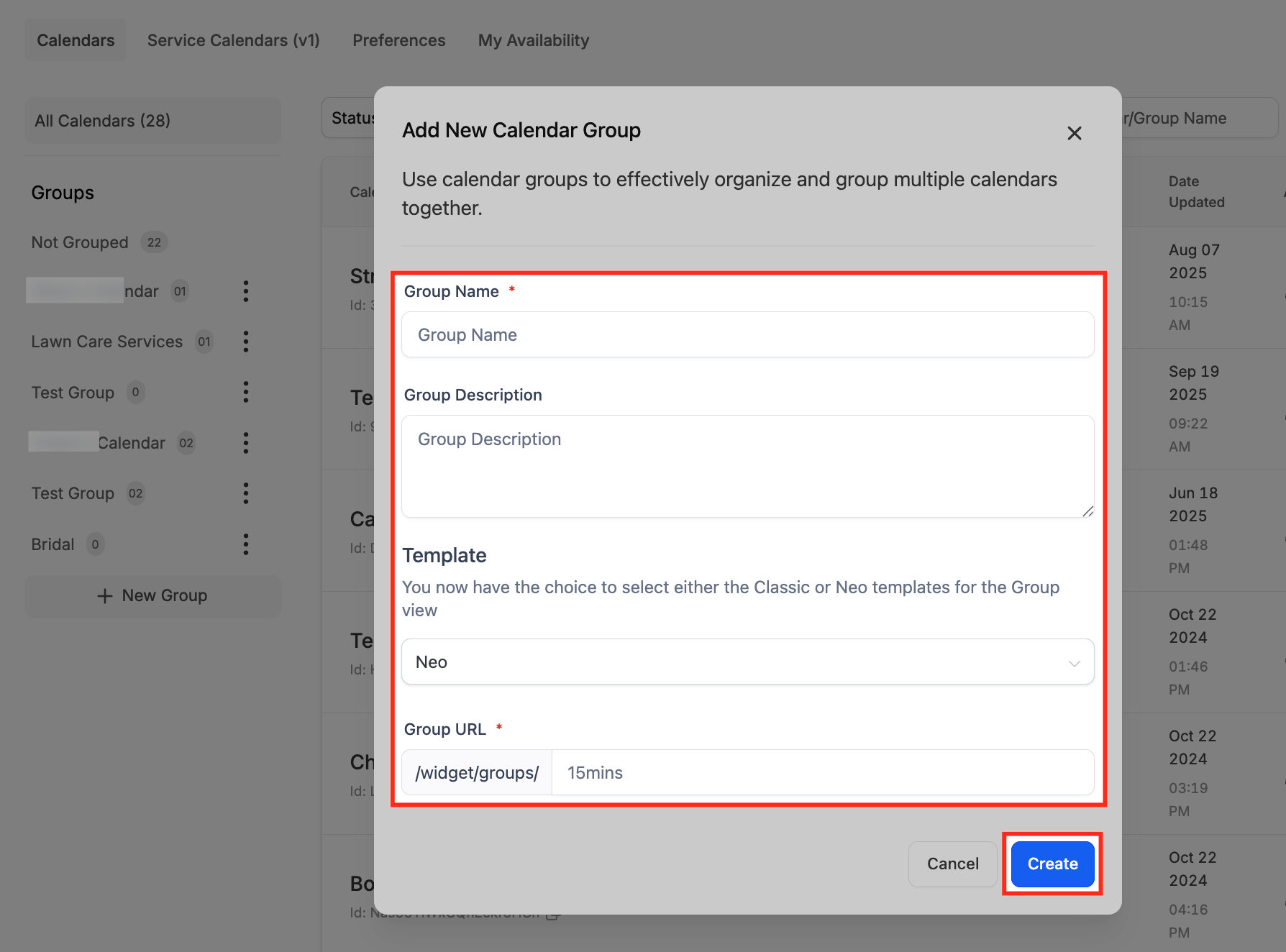
- Enter a Group Name, Description and URL slug in the pop up form.
- Choose a template type (Classic or Neo) and click Create.
Create a service calendar
- Select the desired group from the left sidebar and click Create Calendar.
- Go to Calendars > Service Menu > Create Service Menu and choose Service Booking.
- Enter Service Name, assign staff, set a custom URL, define duration and availability.
- Open Advanced Settings and adjust Service Details, Forms & Payment, Notifications and other panels.
- Save the calendar to finish the setup.
Create a service menu
- Navigate to Meetings ➜ Service Calendars (v1) ➜ Service Menu.
- Click + Create Service Menu at the top right.
- Fill in the Service Menu name, description, URL slug and select a form; enable consent if required.
- Toggle Enable Add Guests, Enable Multiple Service Selection and Enable Staff Selection under Additional Options.
- Click Select Services and choose the groups or calendars to include.
- Open Arrange your services and drag items to set the display order.
- Save the Service Menu.
07What it looks like in HighLevel
08Settings that matter
- Service Menu (toggle). Activates the service based booking system so groups, calendars and menus can be created.
09If something goes wrong
- Cannot save a service calendar. Assign at least one staff member before attempting to save.
- No time slots appear for a service. Verify staff availability, assigned rooms and equipment for that service.
10How it connects to the rest of HighLevel
- Group calendar setup guide Group calendar
- All Calendars & Appointments features Calendars overview
- HighLevel pricing and plans Pricing
Michael's take

Skipping the resource checks can quickly turn a smooth shop floor into a bottleneck; you may find yourself scrambling for a free bay or tool at the last minute. That’s why assigning rooms and equipment in the service calendar is important.
When the system works, staff see exactly what’s booked and the shop runs like a well tuned engine. It helps keep the schedule honest and frees up time for the actual detailing work.