
01Who this is for
- MedSpa owners who need to schedule treatments with specific rooms and devices.
- Clinics that require separate staff calendars for each type of service.
- Business managers who want a single booking page that lists multiple offerings.
02Service calendars, explained
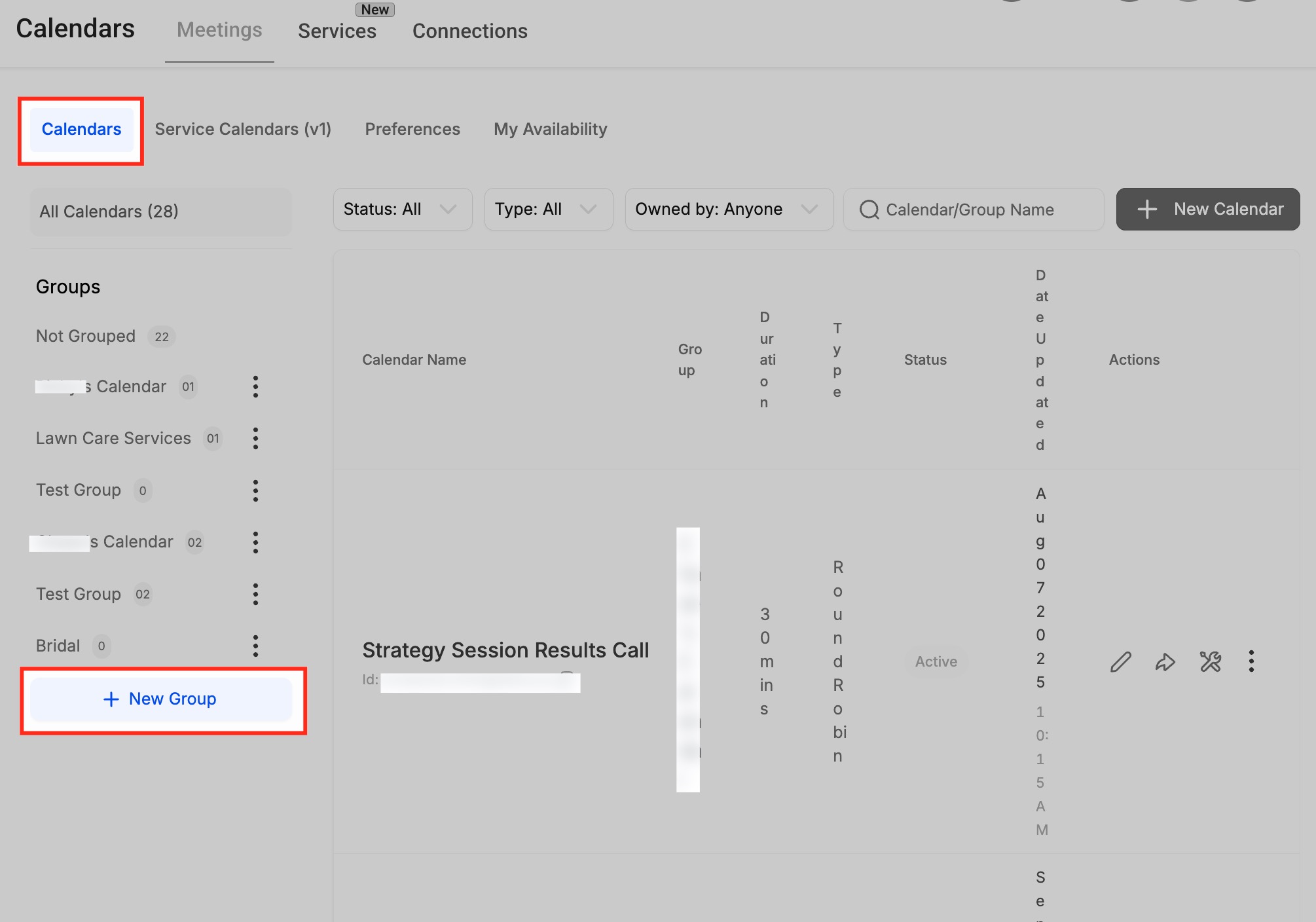
Service calendars are a scheduling component in HighLevel that ties a service to a provider, a treatment room and any required equipment. When a client books, the system reserves the assigned staff member, the room and the tools needed for that appointment. The calendars live under the Calendars section and are organized into groups that can each have its own public link.
To use the feature you first enable the service menu, create groups for related services, add staff members with defined working hours, then build individual service calendars that include duration, availability and resources. Finally a service menu aggregates selected calendars into one booking page for customers.
03How businesses use service calendars
- Microneedling treatment. Add staff members who perform microneedling, assign a treatment room and the microneedling pen as equipment, then create a service calendar. Clients can book the microneedling service directly from the service menu.
- Laser therapy. Register providers qualified for laser procedures, link the laser room and laser device, and set up a service calendar. The service menu displays laser therapy alongside other offers for smooth client booking.
- Injectable appointments. Create staff entries for injectors, assign a consultation room and supply inventory, and configure an injectable service calendar. Clients can select the injectable option and their preferred injector on the menu page.
04The numbers and rules that matter
- Create service menu: Meetings > Service Calendars (v1) > Service Menu.
- Service Calendars (v1) are found under the Meetings tab.
05Before you start
- At least one staff member must be added before a service calendar can be saved.
06How to set up and use service calendars in HighLevel
Add staff members and availability
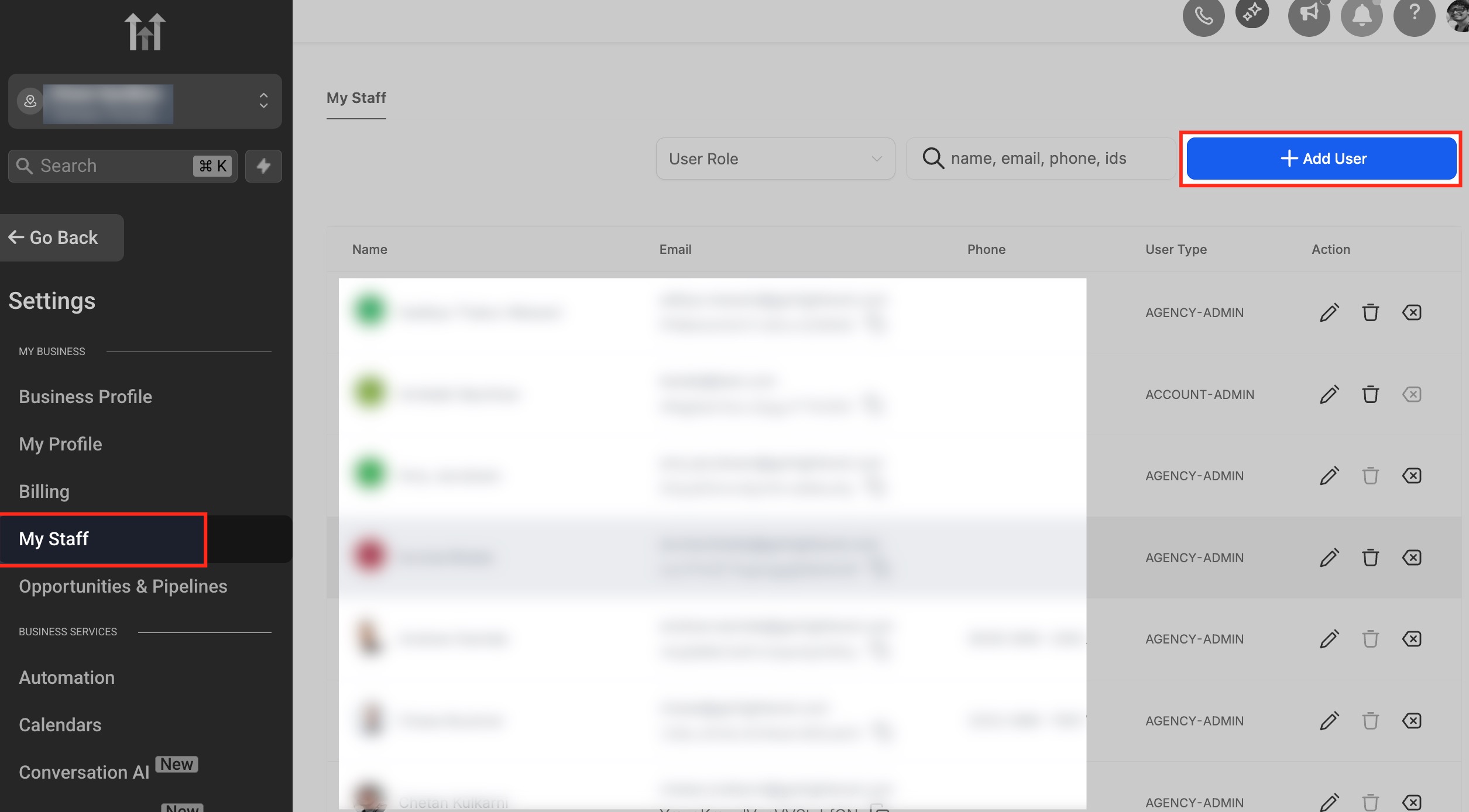
- Open Settings, go to My Staff and click Add User.
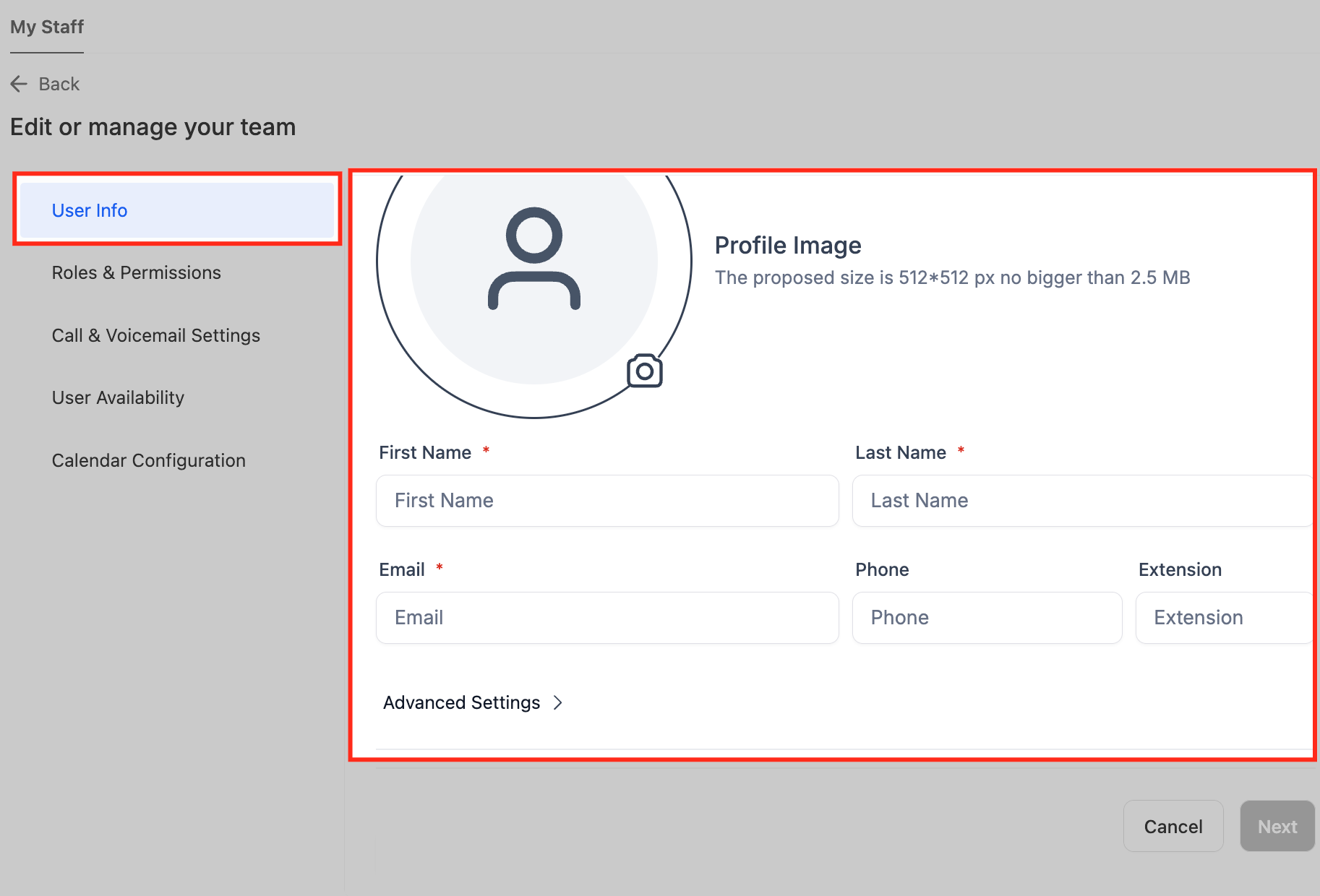
- Enter the provider’s name, email address and phone extension.
- Set the appropriate user permissions.
- Define the days and hours the provider works.
- Click Save to store the new staff record.
Enable service menu
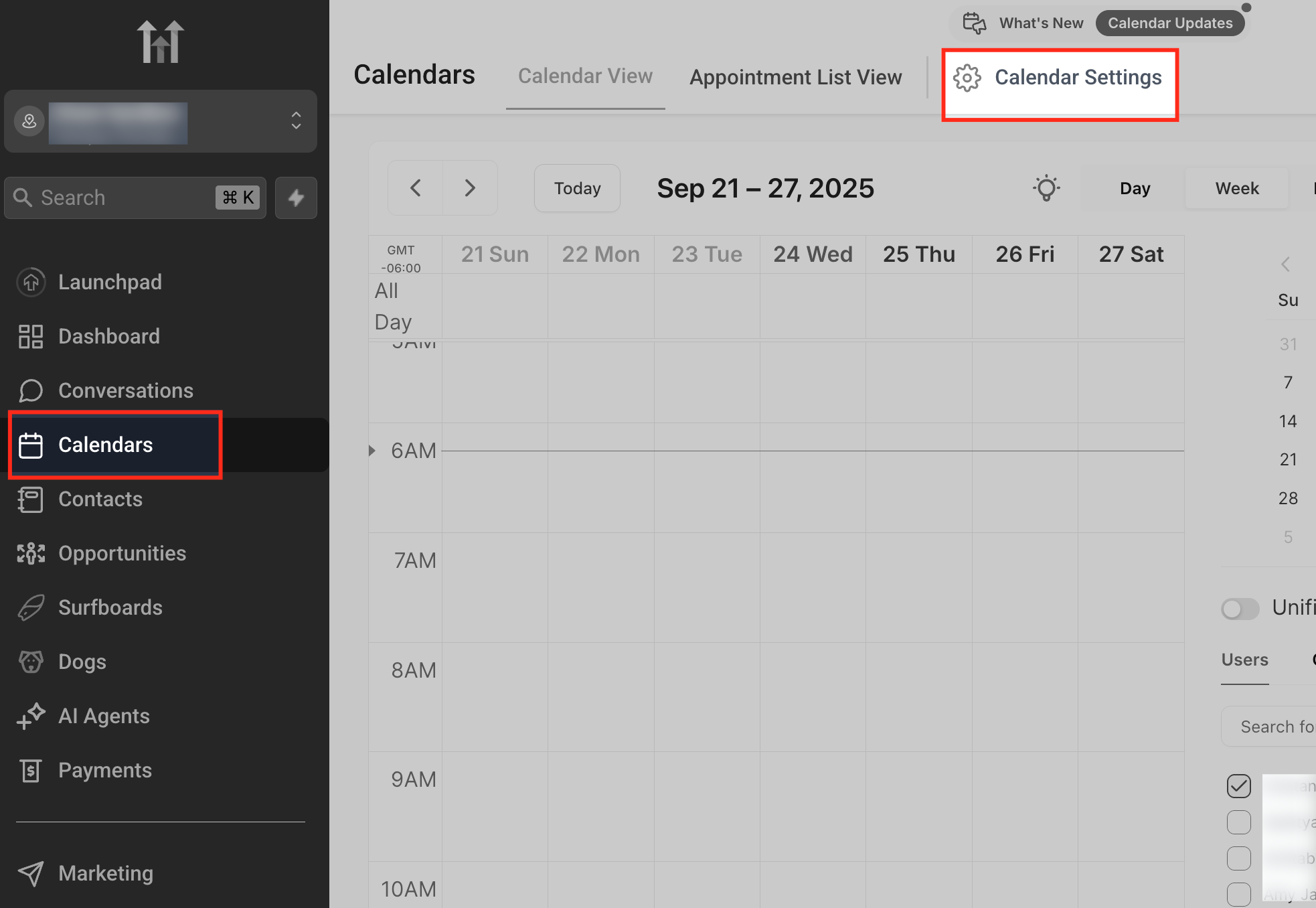
- Open Calendar Settings from the Calendars menu.
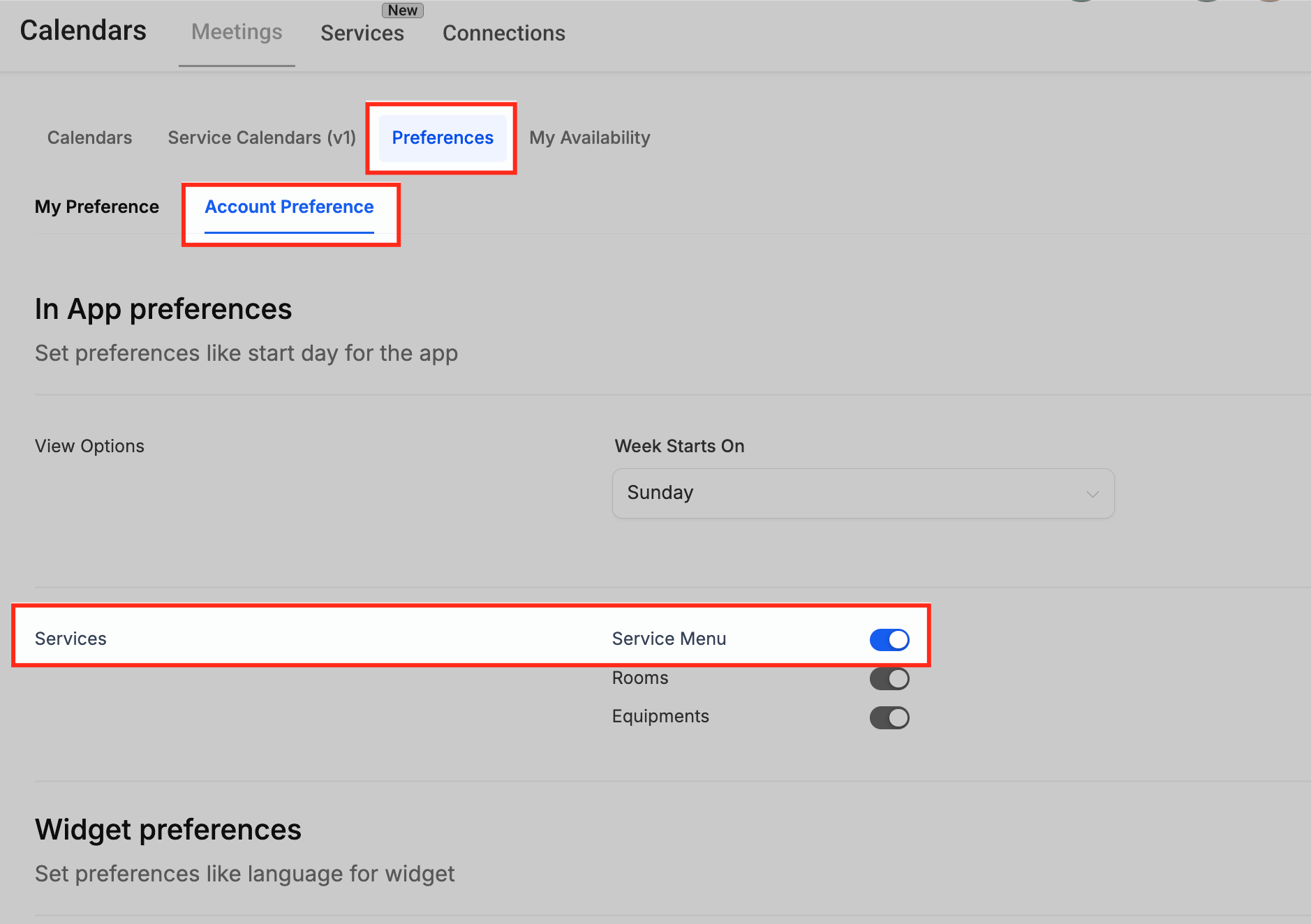
- Select Preferences then Account Preference.
- Toggle the Service Menu option on.
Create a service group
- In the Calendars tab click + New Group on the left sidebar.
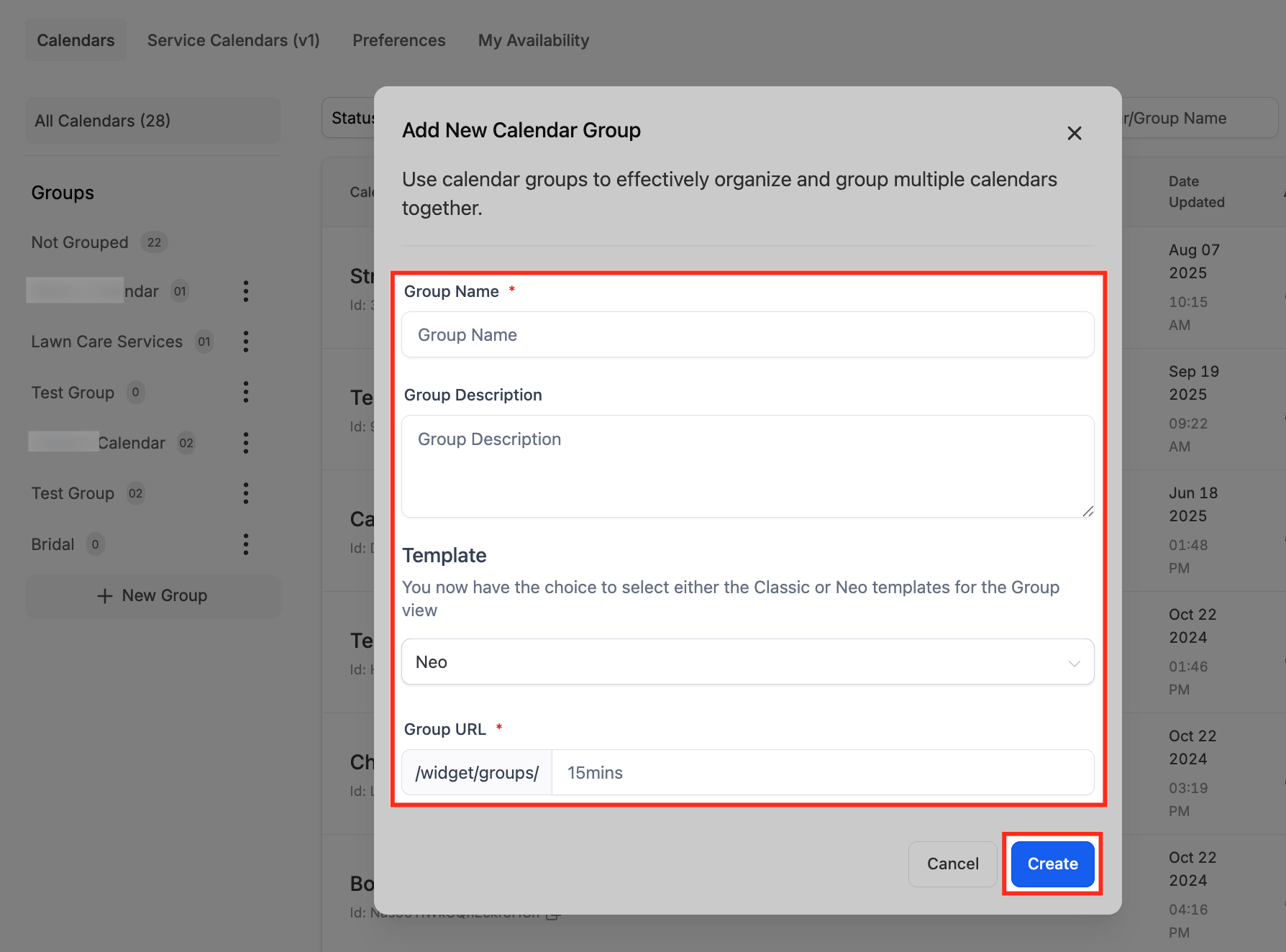
- Enter a Group Name, Description and URL slug in the pop up form.
- Select a template type (Classic or Neo).
- Click Create to save the new group.
Create a service calendar
- Select the desired group from the left sidebar and click Create Calendar.
- Navigate to Calendars > Service Menu > Create Service Menu and choose Service Booking.
- Enter service basics: name, assigned staff, custom URL, duration and availability.
- Open Advanced Settings and configure Service Details, Forms & Payment, Notifications, Customizations, and Rooms & Equipment.
- In Service Details upload a logo, edit the service name and description, confirm group assignment and set the custom URL.
- In Appointment & Staff Setup set the invite title, assign team members, choose a meeting location and meeting color.
- Assign the appropriate room in the Rooms tab.
- Assign the required equipment in the Equipment tab.
Create a service menu
- Go to Meetings > Service Calendars (v1) > Service Menu.
- Click + Create Service Menu.
- Enter the menu name, description, URL slug, select a form and enable the consent checkbox if required.
- Toggle on Enable Add Guests, Enable Multiple Service Selection and Enable Staff Selection.
- Click Select Services and choose the groups or calendars to include in the menu.
- Open Arrange your services and drag handles to reorder the items as desired.
07What it looks like in HighLevel
08Settings that matter
- Service Menu. Activates the service based booking system so calendars and menus can be created.
- Service Menu name. Defines the title shown at the top of the customer facing menu page.
- Description. Provides explanatory text that appears below the menu name for customers.
- Service URL slug. Sets the short web address that becomes part of the public booking link.
- Form. Selects the intake form that will be displayed when a client books a service.
- Consent checkbox. Adds a required agreement box for clients before they can complete a booking.
- Enable Add Guests. Allows customers to include additional attendees when they schedule a service.
- Enable Multiple Service Selection. Lets clients pick more than one service in a single booking session.
- Enable Staff Selection. Provides an option for clients to choose their preferred provider.
09Things to know before you rely on it
- A service calendar cannot be saved until at least one staff member is assigned.
- Time slots will not appear if the assigned staff, rooms or equipment lack matching availability.
- The Service Menu must be enabled before groups and calendars can be created.
10If something goes wrong
- Cannot save a service calendar. Add at least one staff member to the calendar before attempting to save.
- No time slots show for a service. Verify that staff availability, assigned rooms and equipment are correctly set.
11How it connects to the rest of HighLevel
- General guide to setting up service calendars in HighLevel Service calendar guide
- Review HighLevel pricing and plan options Pricing
- Start a 30 day trial of HighLevel Free trial
Michael's take

Service calendars are worth the effort for any small MedSpa that wants to stop juggling phone calls and avoid double bookings. They keep staff, rooms and equipment in sync and let clients schedule themselves on a polished page.
The biggest mistake is trying to save a calendar without first adding at least one provider.