
01Who this is for
- Hair salon owners, need a single place to manage appointments, staff hours, and equipment.
- Salon managers, can organize services into groups and control which stylists perform each service.
- Front desk staff, use the booking page to see available slots, rooms, and tools without manual checks.
02Service calendars, explained
Service Calendars are a scheduling feature in HighLevel that let you list each salon offering, link it to qualified stylists, and assign physical resources such as chairs or tools. The calendars appear under the Meetings section and can be grouped for easier navigation.
When a client books, the platform checks staff availability, room reservations, and equipment counts before confirming the slot. You can also create a Service Menu that aggregates several calendars onto one public page, allowing multi service bookings and stylist selection.
03How businesses use service calendars
- Hair salon. Add each stylist as a user, define their work hours, then create individual service calendars for haircuts, coloring, and blowouts. Assign each calendar to a particular chair or color kit so the system reserves the right resources when a client books.
- Barbershop. Set up groups for cutting and shaving services, then build service calendars that link each barber to a specific station. Enable the Service Menu so customers can book a haircut and a shave in one session and choose their preferred barber.
- Hair extension boutique. Create groups for extension types, add stylists as staff, and build service calendars that reserve the extension stations and necessary tools. Publish a Service Menu so clients can book extensions along with a consultation and pick a stylist.
04The numbers and rules that matter
- Service Calendars (v1) are found under the Meetings tab.
05Before you start
- Add all staff members and set their weekly availability.
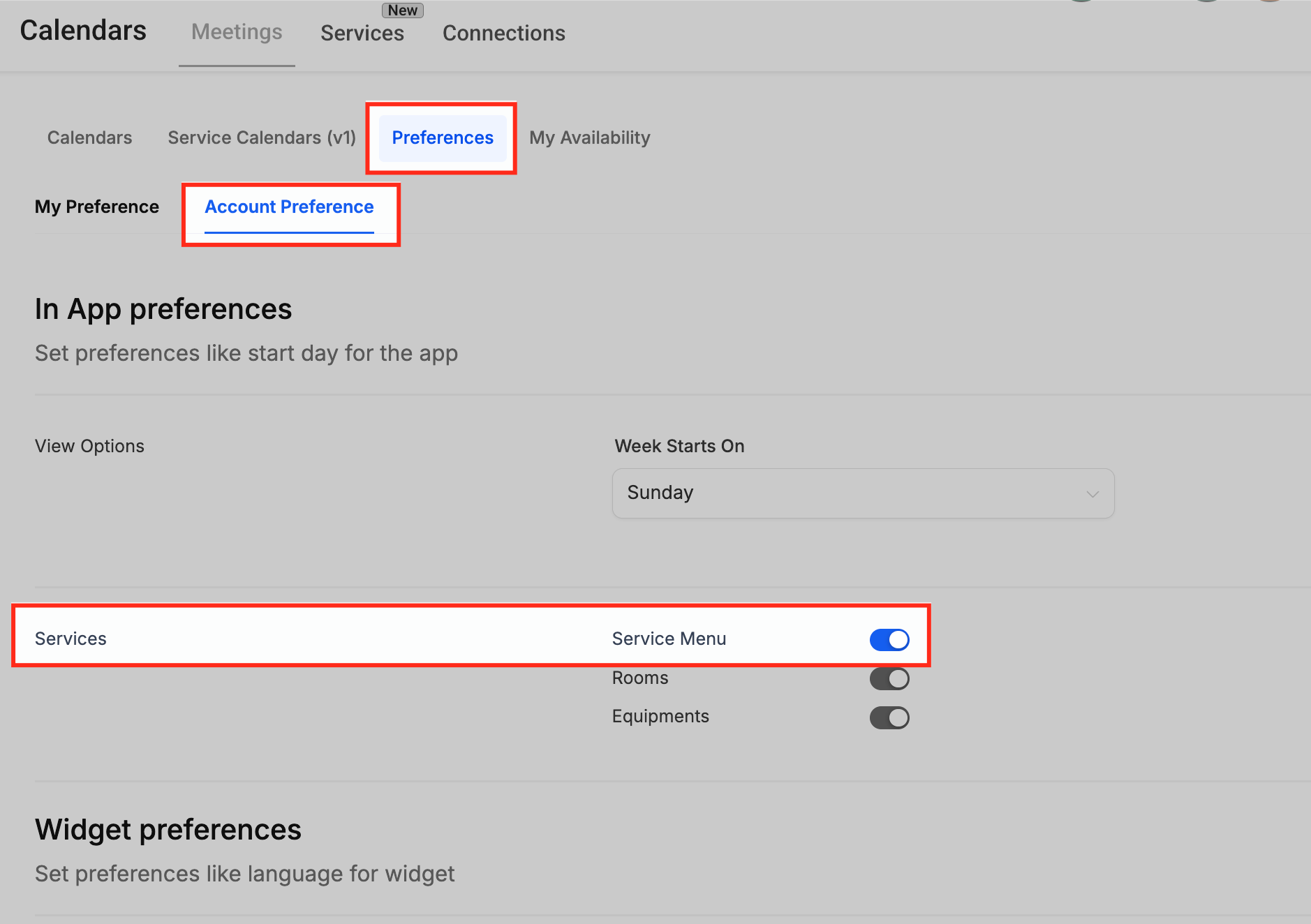
- Turn on the Service Menu toggle in Preferences > Account Preference.
06How to set up and use service calendars in HighLevel
Add staff members and availability
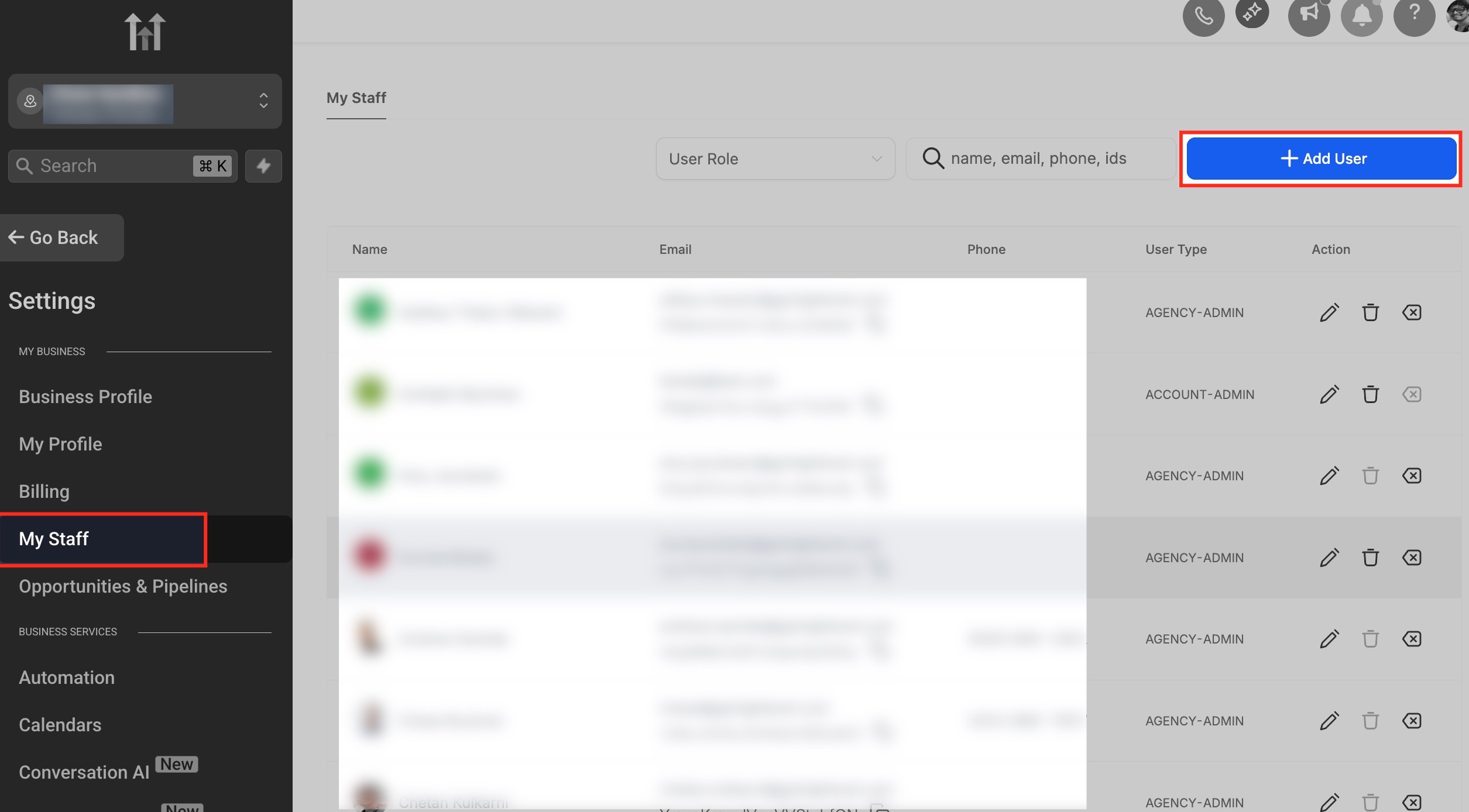
- Open Settings then My Staff from the subaccount dashboard.
- Click Add User.
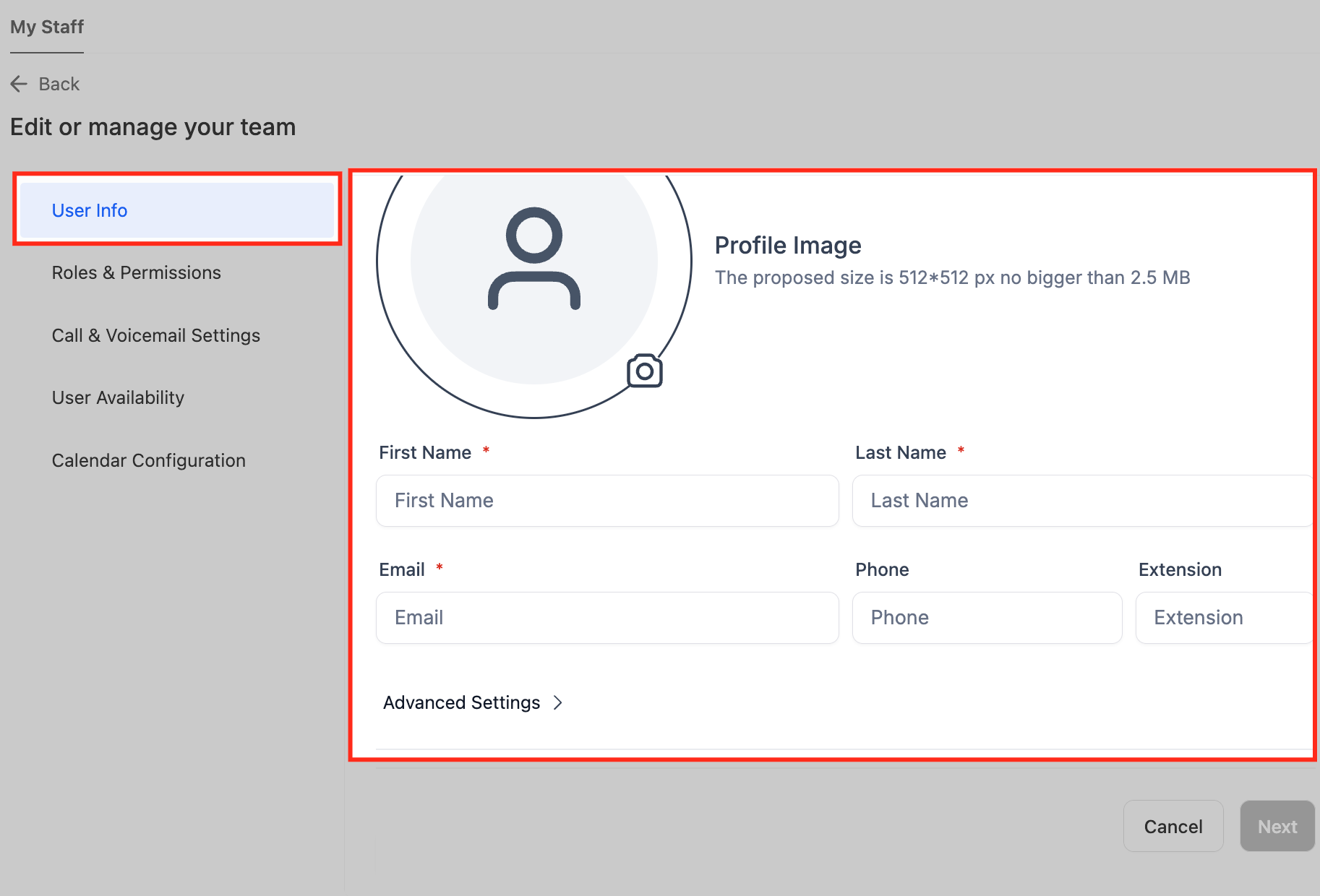
- Enter the stylist’s name.
- Enter the stylist’s email and extension.
- Set user permissions and mark the days and hours the stylist works.
- Click Save.
Create a service group
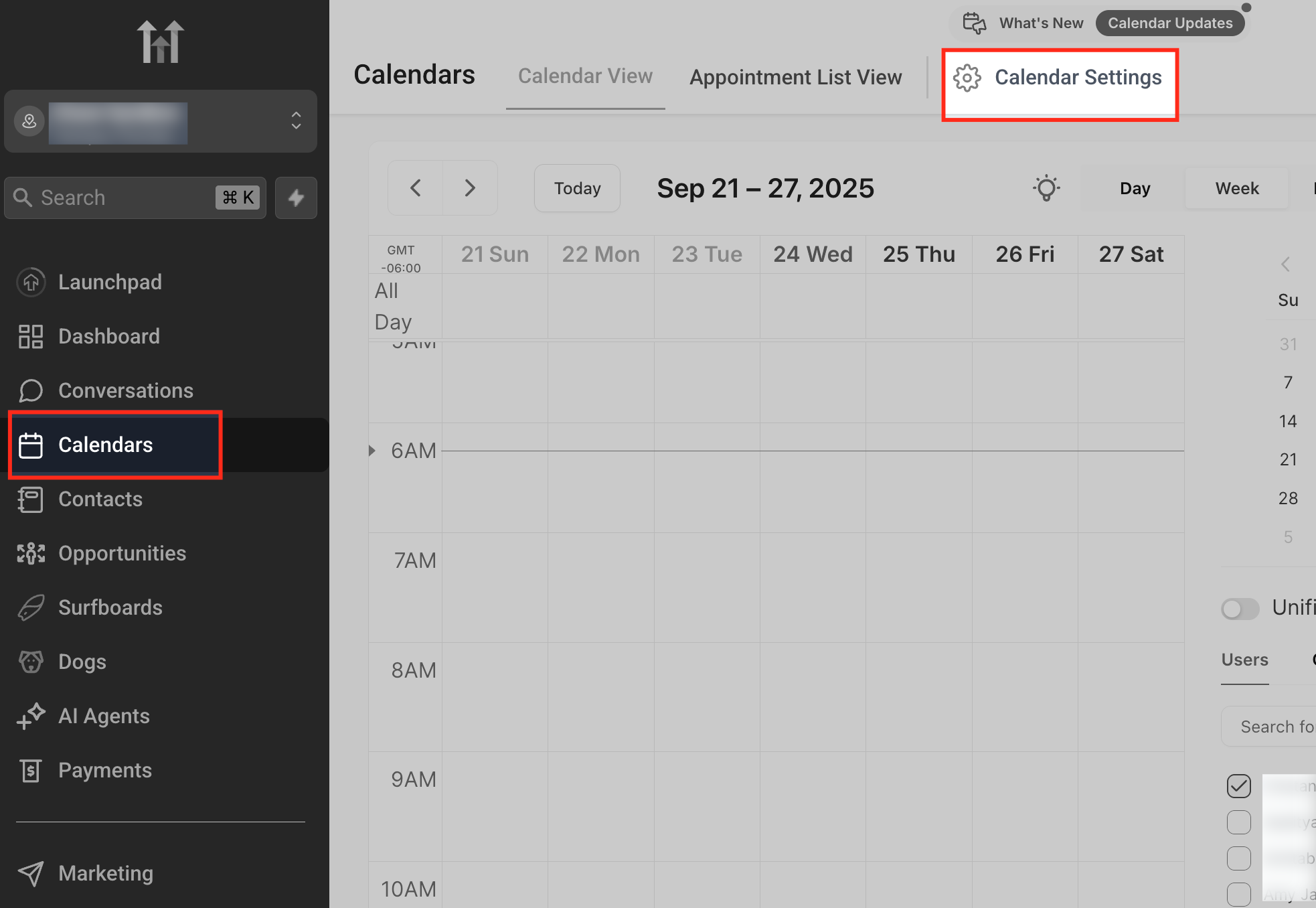
- Open Calendar Settings from the Calendars menu.
- In Preferences > Account Preference, toggle the Service Menu option on.
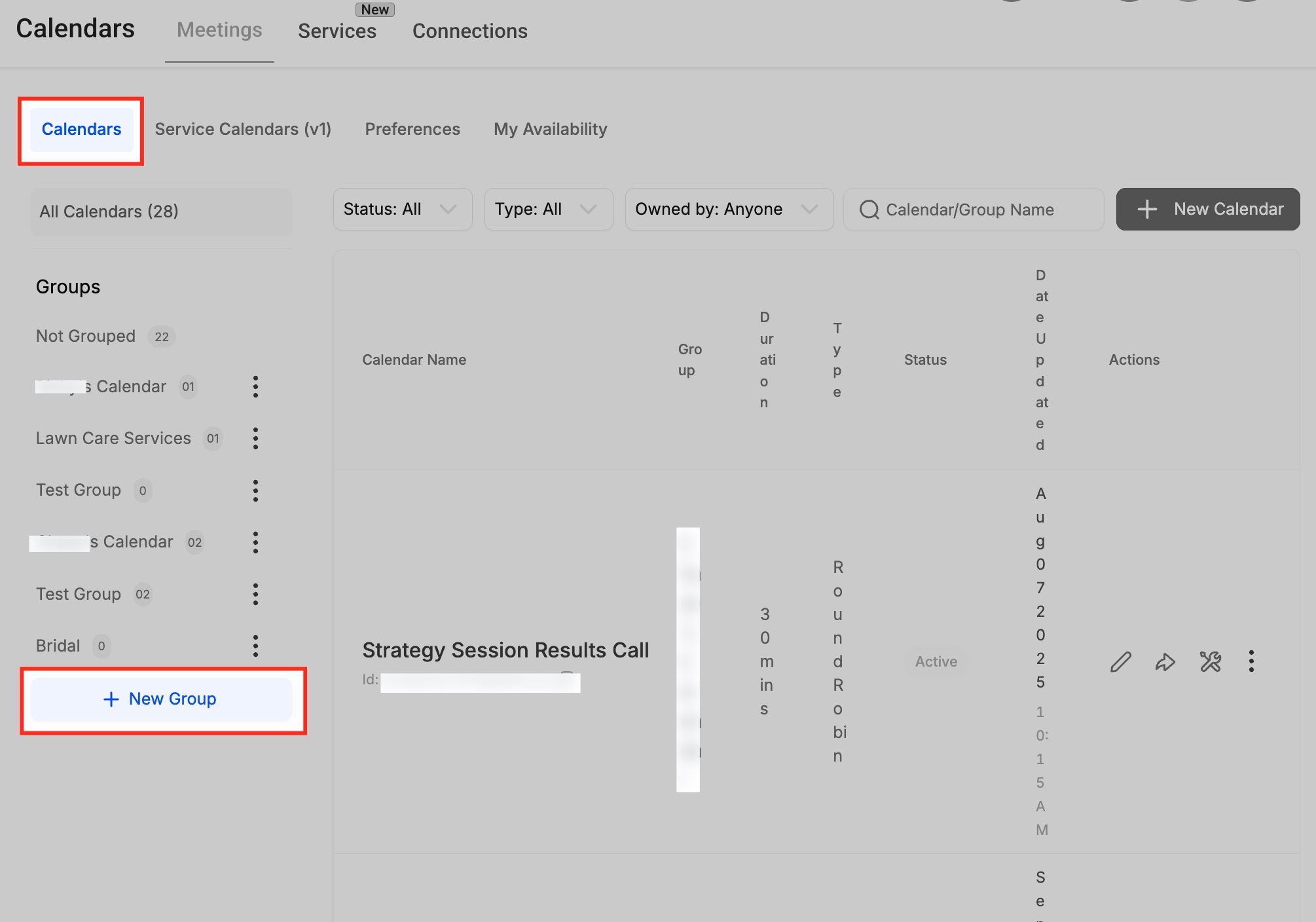
- Click + New Group in the Calendars tab.
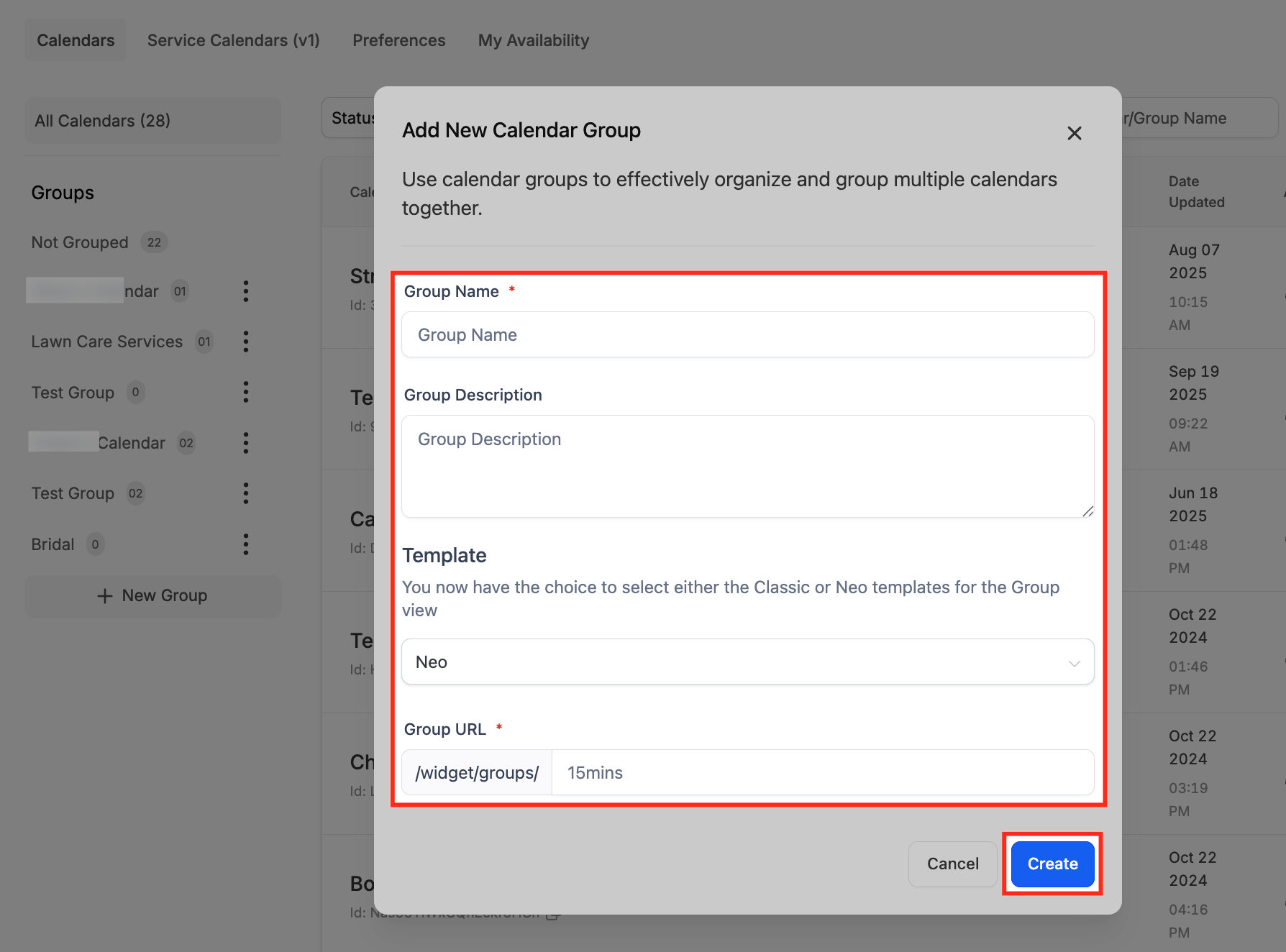
- Enter a Group Name, Description, and URL slug.
- Select a template type and click Create.
Create a service calendar
- Select a group from the left sidebar and click Create Calendar.
- Navigate to Calendars > Service Menu > Create Service Menu and choose Service Booking.
- Enter the Service Name, assign staff, set a custom URL, define the Service Duration, and set Availability.
- Click Advanced Settings to open additional configuration panels.
- Upload a Service Logo, type the Service Name, and write a Description.
- Assign the calendar to the proper Group and set the Custom URL.
- Set the Appointment Invite Title, assign team members, choose a Meeting Location, and pick a Meeting Color.
- In the Rooms tab, select the chair or station that will host the service.
- In the Equipment tab, choose the tools needed for the service and set their quantities.
Edit an existing service calendar
- Open the Meetings tab and select Service Calendars (v1).
- Locate the calendar you want to modify in the list.
- Click the pencil icon under the Actions column.
- Change any details such as staff, availability, notifications, or resources and save.
Create a service menu
- Go to Meetings > Service Calendars (v1) > Service Menu.
- Click + Create Service Menu in the top right corner.
- Enter the Service Menu name and a short Description.
- Set the Service URL slug, choose a Form, and toggle the Consent checkbox if required.
- Toggle Enable Add Guests, Enable Multiple Service Selection, and Enable Staff Selection.
- Click Select Services and check the groups or calendars you want to appear.
- Open Arrange your services and drag the handles to reorder the items.
07What it looks like in HighLevel
08Settings that matter
- Service Menu. Activates the service based booking system so you can create service calendars and a combined menu.
- Enable Add Guests. Allows clients to add additional attendees when they book an appointment.
- Enable Multiple Service Selection. Lets customers choose more than one service in a single booking.
- Enable Staff Selection. Permits clients to pick a preferred stylist or instructor during booking.
09If something goes wrong
- Cannot save a service calendar. Assign at least one staff member to the calendar before attempting to save.
- No time slots appear for a service. Verify that staff availability, assigned rooms, and equipment are correctly set.
10How it connects to the rest of HighLevel
- General step by step guide for building service calendars Service calendar guide
- View pricing and plan options for HighLevel Pricing
- Start a free 30 day trial of HighLevel Free trial
Michael's take

For a salon that already juggles walk ins, phone calls, and staff schedules, Service calendars feel like a small convenience that quickly becomes a real shift. The automation can reduce the back and forth of confirming times and helps ensure the right chair and tools are reserved for each client.
Think of a boutique barbershop that only offers cuts and shaves. Setting up a Service calendar lets each barber own a station, blocks double bookings, and lets customers pick their preferred barber. All without a phone call. If I were testing it, I’d first verify that at least one stylist is linked before trying to save a calendar, then walk through a few test bookings to see that the right chair and tools are reserved.