
01Who this is for
- Service based small business owners who need to control client appointment options.
- Field technicians who require specific payment collection methods for on site visits.
- Customer support managers who want to route contact assignments automatically.
02Online booking settings, explained
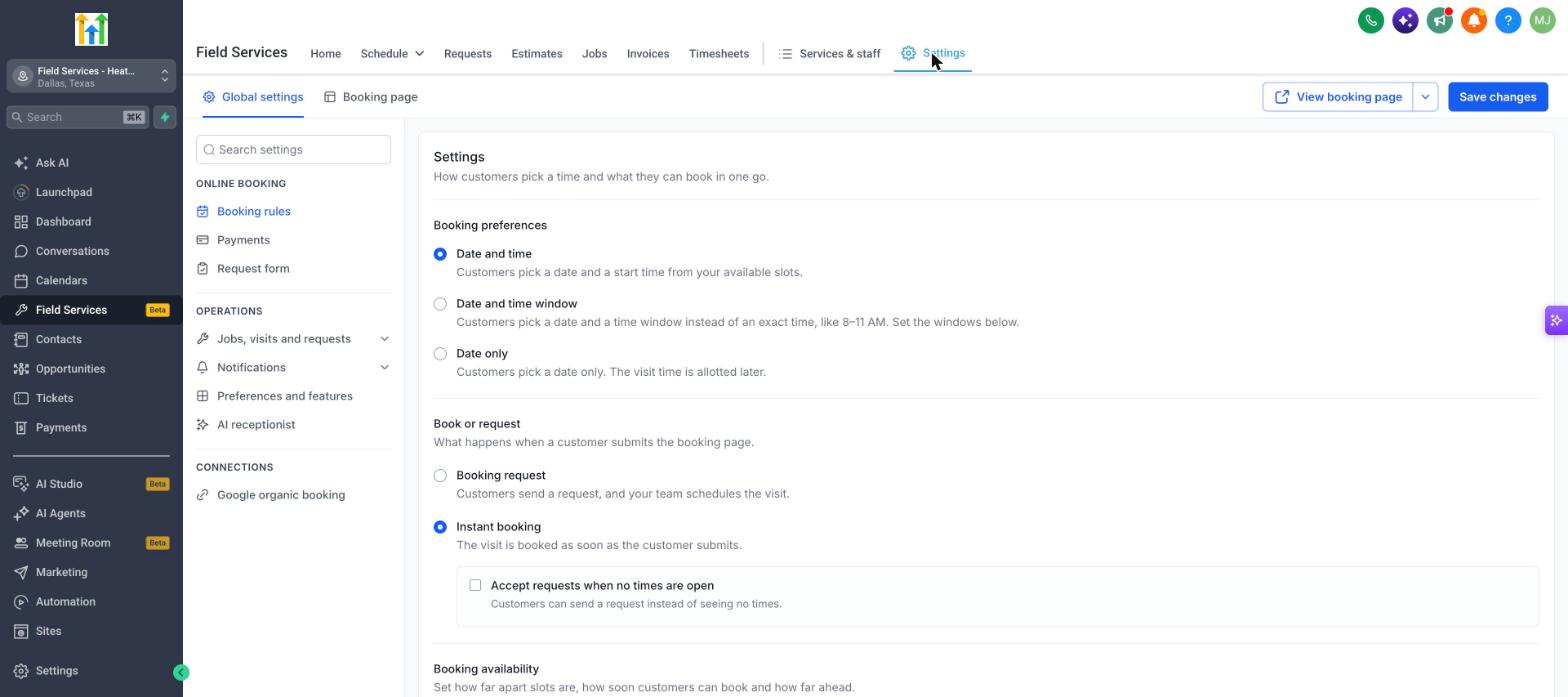
The online booking settings control the experience customers have when they schedule a visit through your public booking page. You can decide whether they pick an exact time, a time window, or only a date, and you can set limits such as how far in advance they may book, the minimum notice required, and the interval between bookable slots.
These options are found under Field Services > Field Services Settings on the Global settings tab. Within the Online booking section you choose between Booking rules, Payments, or Request form. Changes are saved with the Save changes button and can be previewed using View booking page.
03How businesses use online booking settings
- Dental practice. The practice selects the Date and time window option so patients can choose a morning or afternoon slot. They enable Online payment and allow a deposit option so patients can secure appointments without paying the full amount upfront.
- Home cleaning service. The service sets the booking window to a range based window, limits the slot interval to a set number of minutes, and activates Contact assignment so each cleaning job is automatically linked to the assigned technician.
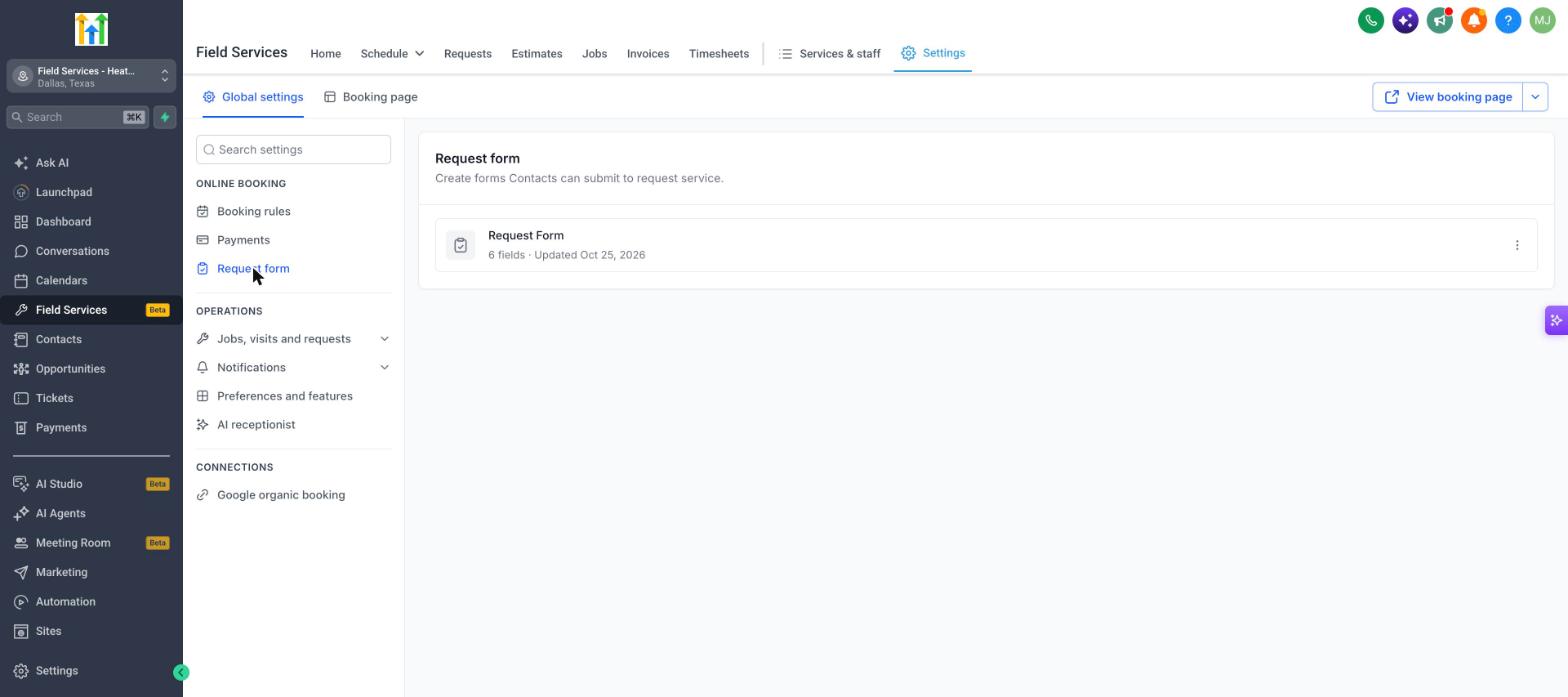
- IT field service company. The company uses the Request form to collect device details from customers. They choose Pay in person because no payment provider is connected yet, ensuring a booking can still be made.
04Before you start
- Field Services must be enabled for the account as it is currently in a private beta.
05How to set up and use online booking settings in HighLevel
Access online booking settings
- Open the Field Services > Field Services Settings menu.
- Remain on the Global settings tab.
- Under Online booking, select Booking rules, Payments, or Request form.
- Use the search box at the top of the settings menu to locate a specific setting.
- Press Save changes at the top right after editing any values.
- Click View booking page to preview the customer facing booking interface.
06What it looks like in HighLevel
07Settings that matter
- Booking rules. Defines how customers select a time, whether by exact date and time, a time window, or date only.
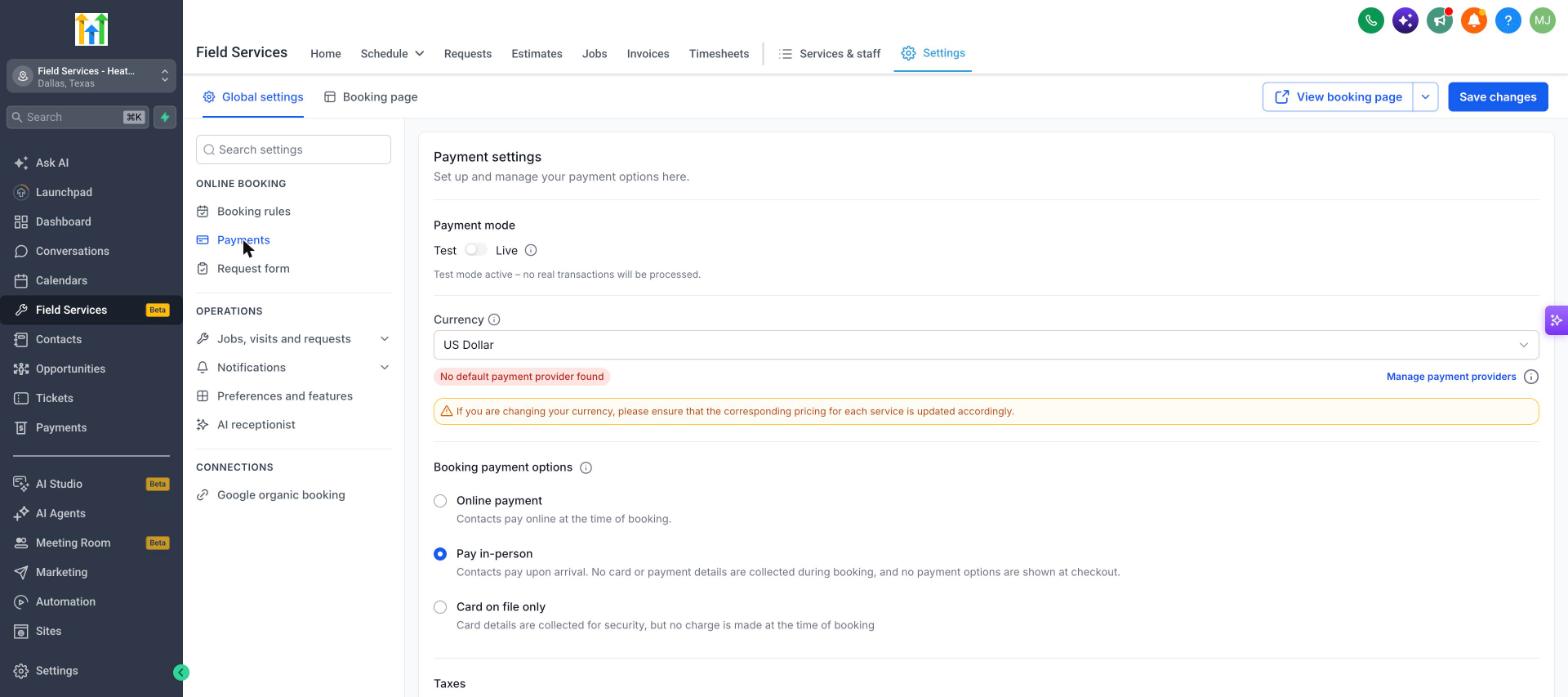
- Payments. Controls payment mode, currency, and the connected payment provider for online transactions.
- Request form. Specifies the form customers complete when booking, including its fields and shareable link.
- Slot interval. Sets the distance in minutes between each bookable time slot.
- Minimum notice. Determines the minimum number of days before a visit that a customer can schedule.
- Booking window. Limits how far ahead customers may book, using either a rolling date based window or a fixed range.
- Contact assignment. When turned on, automatically links the contact to the staff member assigned to the visit.
- Payment mode. Switches between Test and Live; test mode does not process real transactions.
- Currency. Selects the monetary unit for all service prices; changing it requires updating each service price.
- Payment provider. Specifies the external service that processes online payments; must be connected to enable online payment.
- Online payment. Allows customers to pay online at booking time, with optional deposit or full payment choice.
- Pay in, person. Collects payment when staff arrive; no card details are gathered during booking.
08Things to know before you rely on it
- Field Services is in a private beta; screens and features may change.
- Test mode processes no real transactions; switch to Live mode for actual payments.
- Online payment requires a connected payment provider; otherwise select Pay in person.
- Manual taxes must be configured on each service individually.
09How it connects to the rest of HighLevel
- Enable the Field Services beta and set up mobile access Enable beta
- Learn how to integrate a group calendar for shared scheduling Group calendar
- Review pricing and plan options for accessing Field Services Pricing
- Start a 30 day trial to test online booking features Trial
- Explore the Founder Plan for advanced Field Services capabilities Founder Plan
Michael's take

Wondering if the online booking page can match the way your field crew works? The settings let you pick how customers choose a time, whether they book fast or just send a request, and what payment options they see. You can also control how far ahead they can schedule and set a minimum notice, which keeps your calendar realistic.
If I were setting this up, I’d start by matching the time selection mode to my service style. Most field jobs need a window rather than an exact minute. Then I’d enable a test payment flow, verify the provider connection and switch to live once the checkout works smoothly.