
01Who this is for
- Field service managers who need consistent naming for jobs and visits to keep schedules organized.
- Dispatch teams that rely on clear visit status labels and checklists for daily routing.
- Business owners who want to customize how customers see appointment times and archive reasons.
02Field services settings, explained
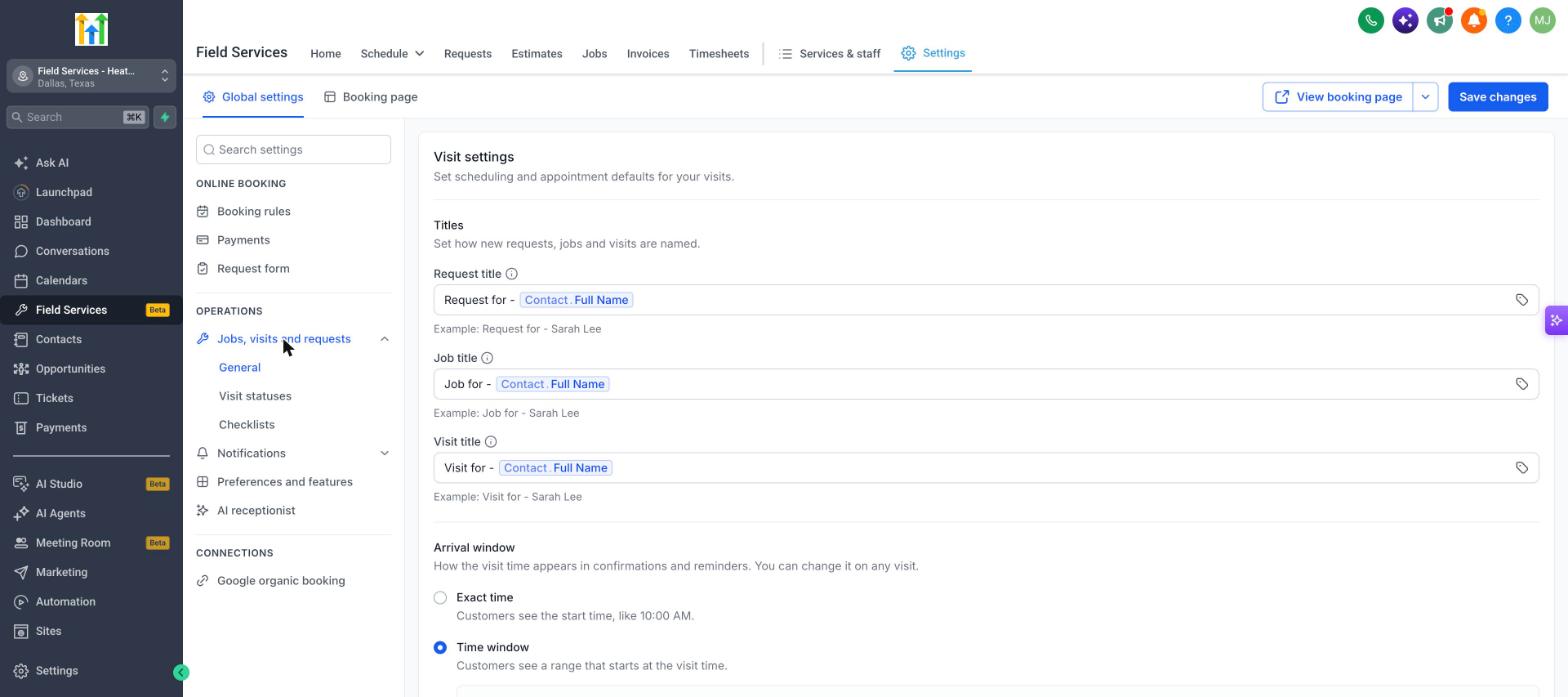
Operation settings reside under the Field Services module. From the Global settings tab you open the Operations section and choose Jobs, visits and requests, Notifications or Preferences and features. The General tab lets you define title formats for new requests, jobs and visits using text and merge fields. It also lets you pick whether customers see an exact start time or a time window in confirmations.
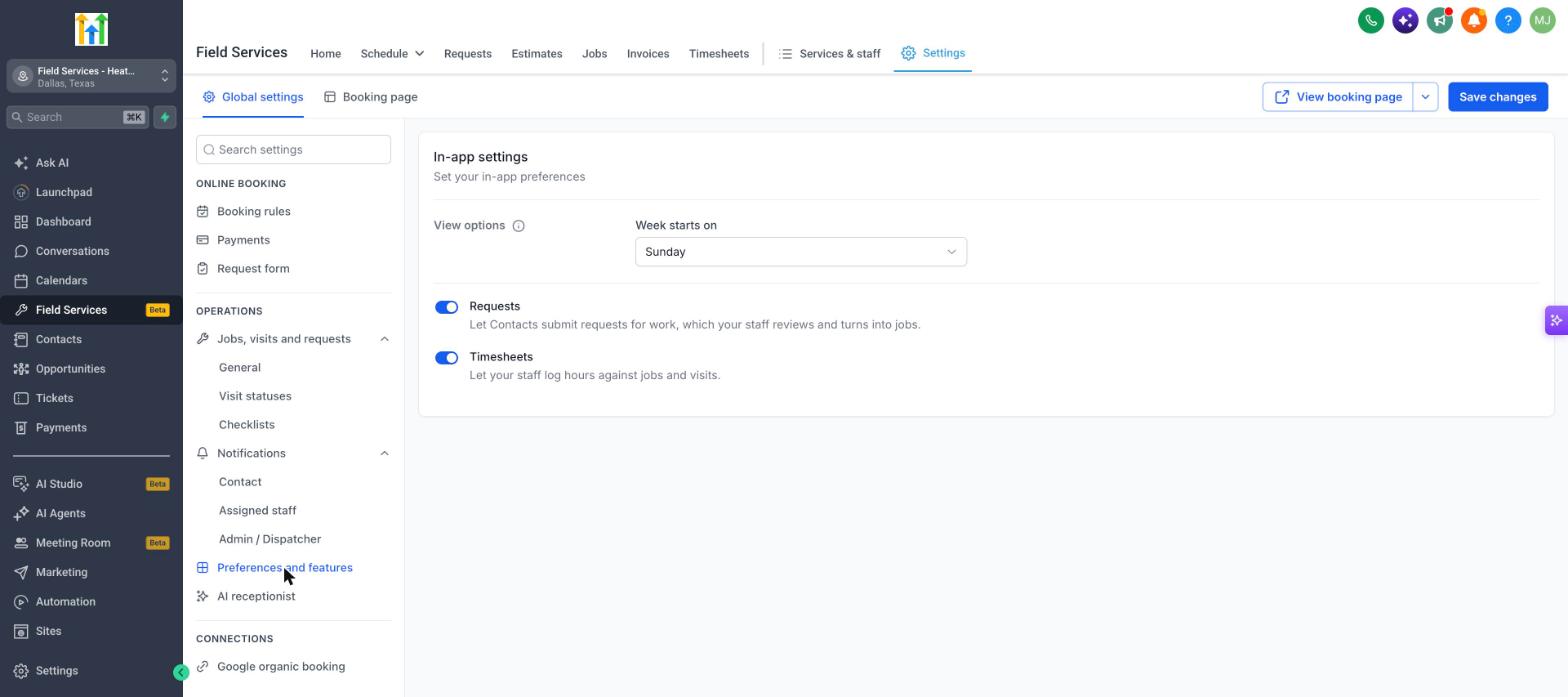
You can add up to eight custom archive reasons for requests that are not converted into jobs. Visit statuses, checklists and notification toggles are managed through separate linked articles. Preferences let you set the first day of the week and enable optional components such as customer submitted requests and staff timesheets. After making changes you save them to apply across the account.
03How businesses use field services settings
- Plumbing company. The owner opens Jobs, visits and requests > General to set the request title to include the property address. Staff then see each new request labeled with that address, making dispatch easier.
- Home cleaning service. The manager selects the Arrival window option "Time window" so customers receive a range of possible cleaning times in reminder emails, reducing confusion about exact start times.
- HVAC contractor. The scheduler adds eight archive reasons such as "Quote declined" or "Client postponed" so technicians can quickly record why a request was closed without becoming a job.
04The numbers and rules that matter
- Arrival window options: Exact time shows the start time like 10:00 AM; Time window shows a range that starts at the visit time.
- You can have up to 8 archive reasons.
05Before you start
- Field Services must be enabled in the private beta for the account.
- Navigate to the Global settings tab before accessing Operations settings.
06How to set up and use field services settings in HighLevel
Access operations settings in HighLevel
- Select Field Services > Field Services Settings from the main menu.
- Remain on the Global settings tab that appears.
- In the Operations area, open Jobs, visits and requests, Notifications, or Preferences and features.
Set titles for requests, jobs and visits
- Open Jobs, visits and requests and go to the General section.
- Locate the Request title field and enter the desired text, using the tag icon to insert merge fields as needed.
- Repeat the process for the Job title and Visit title fields.
- Click Save changes to store the new naming formats.
07What it looks like in HighLevel
08Settings that matter
- Request title. Controls how new service requests are labeled, allowing custom text and merge fields.
- Job title. Defines the naming format for jobs created from requests.
- Visit title. Sets the pattern for naming individual visits attached to jobs.
- Arrival window. Determines whether customers see an exact visit start time or a time range in confirmations.
- Request archive reasons. Provides a list of selectable reasons staff can choose when archiving a request without conversion.
- Week starts on. Selects the first day of the week for calendar views; defaults to Sunday.
- Requests. Enables contacts to submit service requests that staff can review and convert into jobs.
- Timesheets. Allows staff to log hours worked against jobs and visits.
09Things to know before you rely on it
- You can define up to eight request archive reasons.
- Field Services is in a private beta; features and screens may change as the product evolves.
- Arrival window offers only two display options: exact time or time window.
10If something goes wrong
- Need to change default titles after they are set. Edit the titles in the General tab; the new format applies only to newly created requests, jobs and visits.
- Unable to locate the setting for customer facing booking times. Open Online booking > Booking rules to adjust the time display customers see.
11How it connects to the rest of HighLevel
- Enable the Field Services beta and configure mobile access Field Services beta guide
- Set up staff, assign services and define work hours Field Services staff setup
- Create and manage jobs, visits and billing within Field Services Jobs in Field Services
Michael's take

Field services settings feel like a small convenience upgrade that can become a real shift when your team is out on the road daily.
Tweaking titles, time displays and checklists lets you speak the same language across every job.