
01Who this is for
- Service companies with mobile technicians benefit from a repeatable process that reduces missed steps.
- Small business owners running field operations can keep staff aligned and capture customer details in one place.
02Checklists, notes and forms, explained
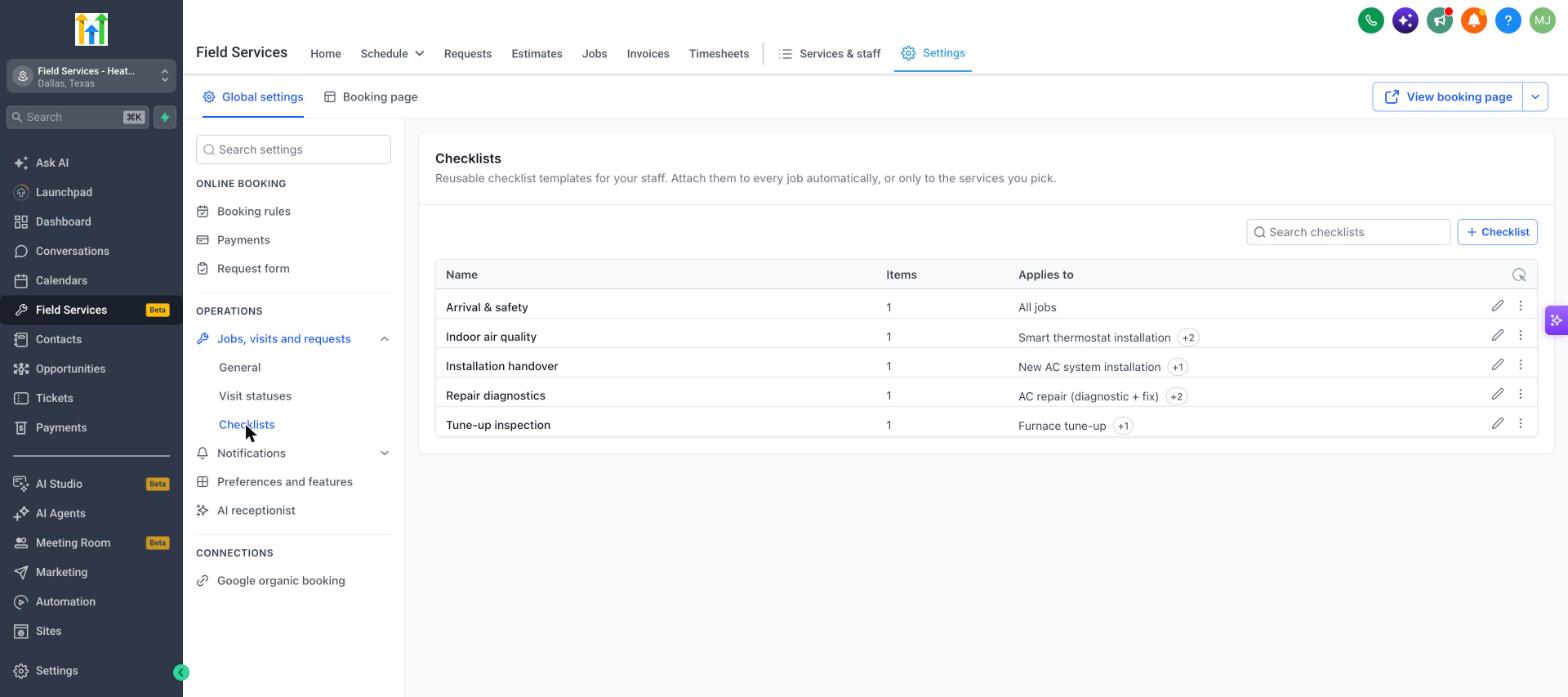
Checklists are reusable step lists that technicians complete while on a job. They can contain text fields, checkboxes, radio buttons or dates, and can be set to apply to all jobs or only selected services. The feature lives under Field Services settings in the Operations section.
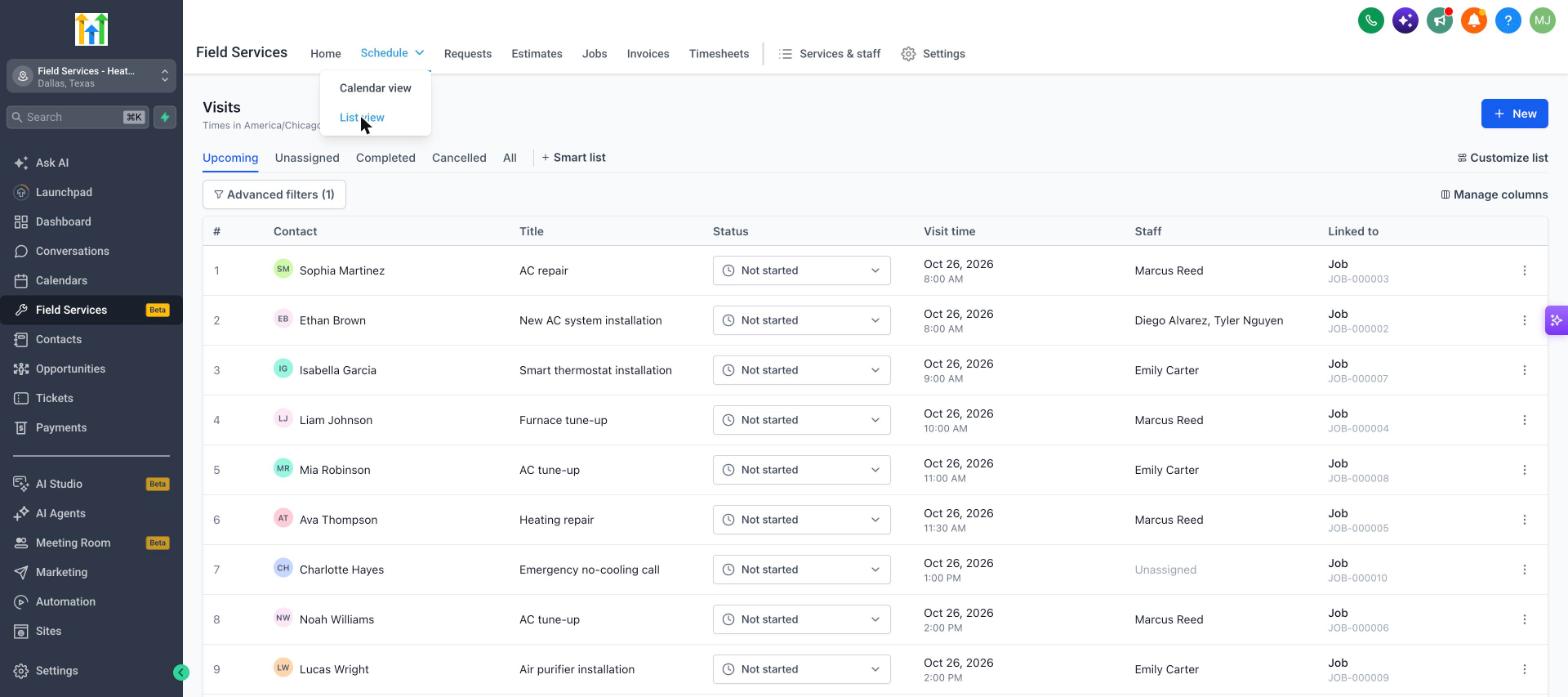
During a visit, staff see four tabs: Details, Notes, Checklist and Job form. Details show appointment data, Notes let internal comments be added, Checklist displays progress on the template items, and Job form shows any customer submitted information. The status of the visit can be updated from the Details tab.
03How businesses use checklists, notes and forms
- Plumbing company. The manager creates a checklist template for safety inspections, adds it to each new service job, and technicians complete the items while on the site. This ensures every pipe check follows the same steps.
- HVAC maintenance business. A technician opens a scheduled visit, writes internal notes about equipment condition, fills out the assigned checklist, and reviews the customer's booking form if one was submitted.
- Mobile IT support firm. The team builds a checklist for device setup, attaches it to relevant tickets, and staff mark each step as they configure hardware during the on site appointment.
04Before you start
- Field Services must be enabled in the private beta for the account.
05How to set up and use checklists, notes and forms in HighLevel
Create a checklist template
- Navigate to Field Services > Field Services Settings > Global settings.
- Open Operations, select Jobs, visits and requests, then click Checklists.
- Press the + Checklist button.
- Enter a name and add each item to the list.
- Choose the appropriate field type for each item and mark required ones.
- Set the Applies to option to all jobs or to specific services.
- Save the checklist.
Add a checklist to a job
- Open the desired job record.
- In the Checklists section, click Add checklist.
- Select the checklist template you want to attach.
Use checklists, notes and forms on a visit
- Open a scheduled visit to view its panel.
- Tap the Notes icon and choose Add a note to record details.
- Switch to the Checklist tab and complete each item as work progresses.
- Update the visit status using the Status dropdown in the Details section.
- Open the Job form tab to view any customer submitted form or a message if none exists.
06What it looks like in HighLevel
07Settings that matter
- Applies to. Controls whether a checklist template is automatically added to every job or only to jobs that include selected services.
- Checklists. Enables creation, editing and management of reusable step lists for field visits within the Jobs, visits and requests configuration.
08Things to know before you rely on it
- Field Services is in a private beta and only available to selected accounts.
- Features and screens may change as the beta progresses.
09How it connects to the rest of HighLevel
- Enable Field Services beta and configure mobile access Field Services beta setup
- Add staff, assign services and set work hours in Field Services Staff setup
- Organize jobs, visits and billing in Field Services Jobs overview
Michael's take

When a field tech walks onto a job site, they need a clear, repeatable process and a place to capture what the customer said. Checklists, notes and forms give you exactly that. A way to lock down steps, keep the team on the same page, and pull up the original request without digging through emails.
The first setting I would lock in is the checklist template itself. Make sure every required item is listed and set the template to apply to the right services. Once that’s solid, you can watch the team tick off steps and add notes in real time, knowing the data is consistent across every visit.