
01Who this is for
- Users receive alerts directly, allowing them to restore integrations and avoid missed appointments.
- Location admins do not receive these alerts; only the individual user sees them.
02Calendar integration disconnection notifications, explained
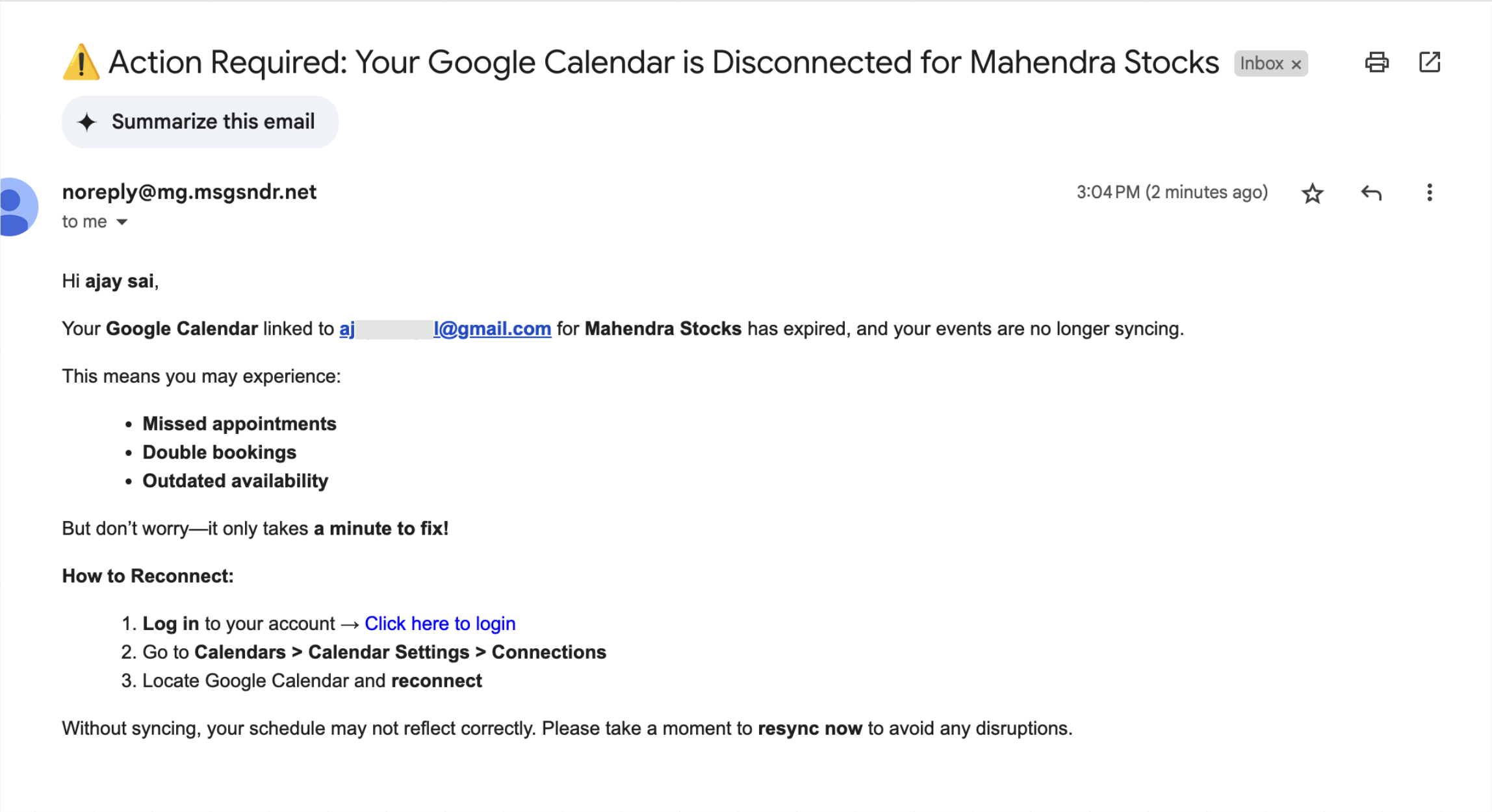
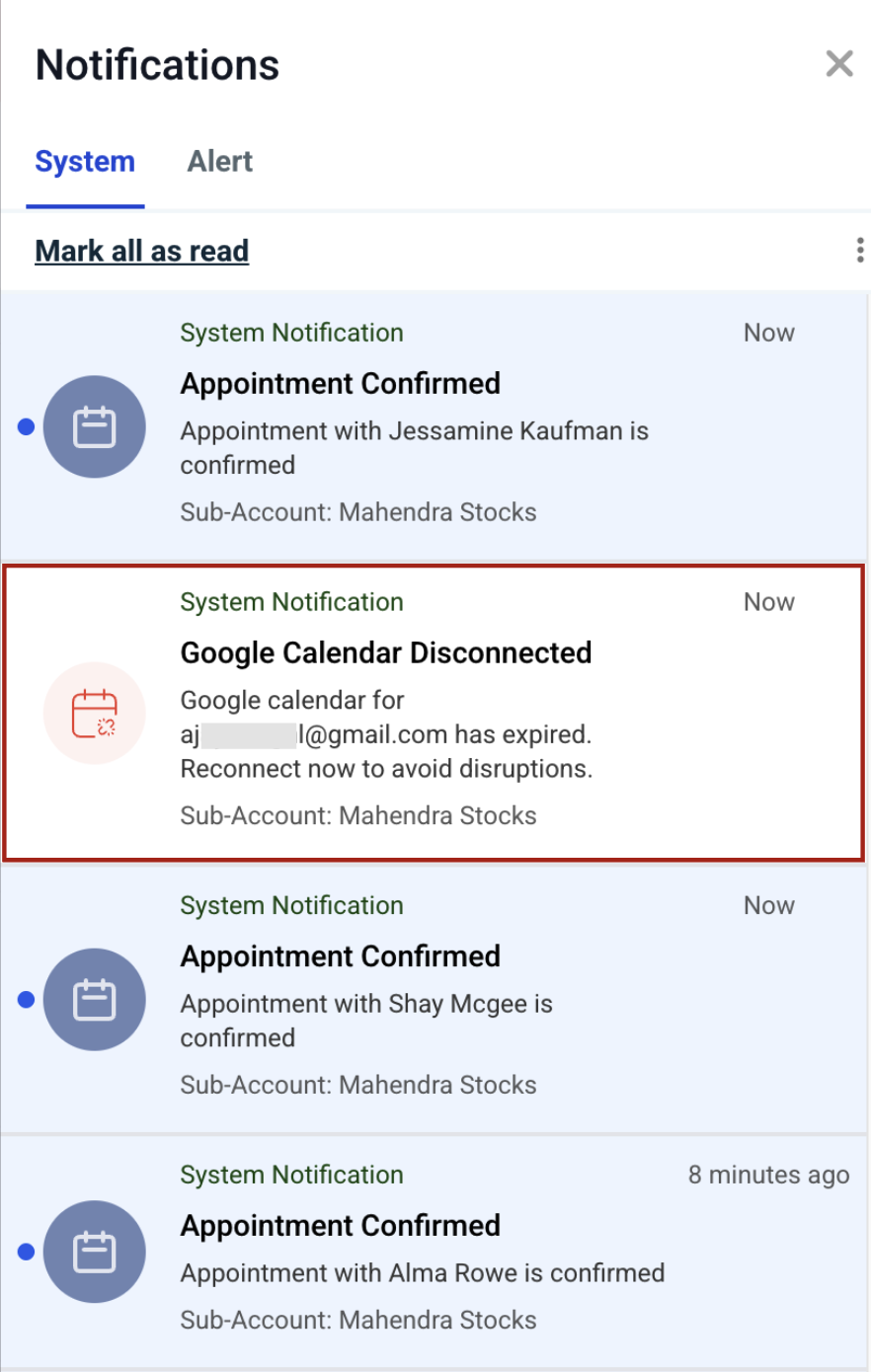
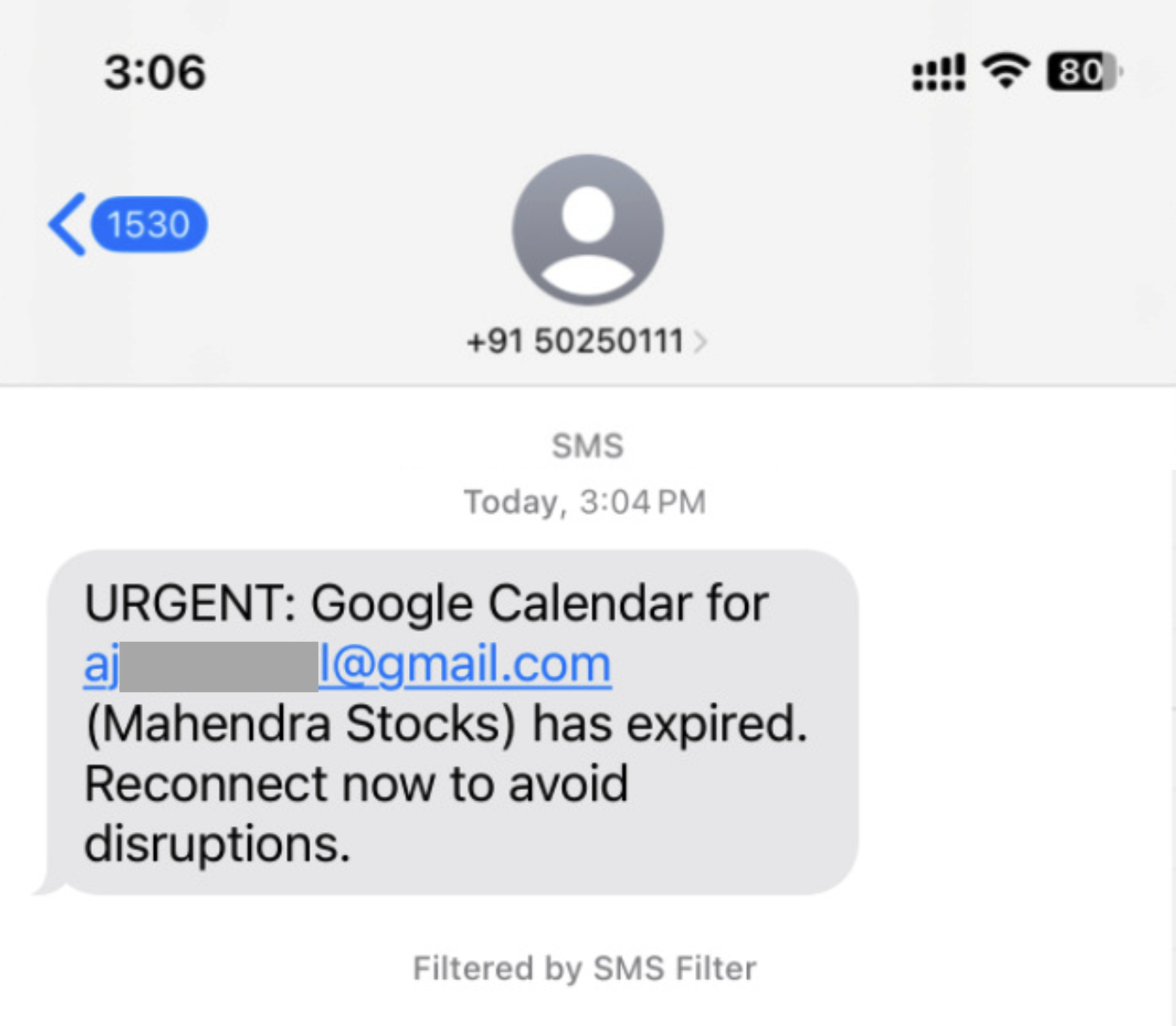
The feature watches the connection status of Google Calendar, Outlook Calendar, iCloud Calendar, Zoom and Microsoft Teams integrations. When one of these stops syncing, the platform creates a notification that includes the name of the integration and brief reconnection instructions. The alert can be sent by email, in app pop ups visible on the web and mobile apps, or as an SMS text.
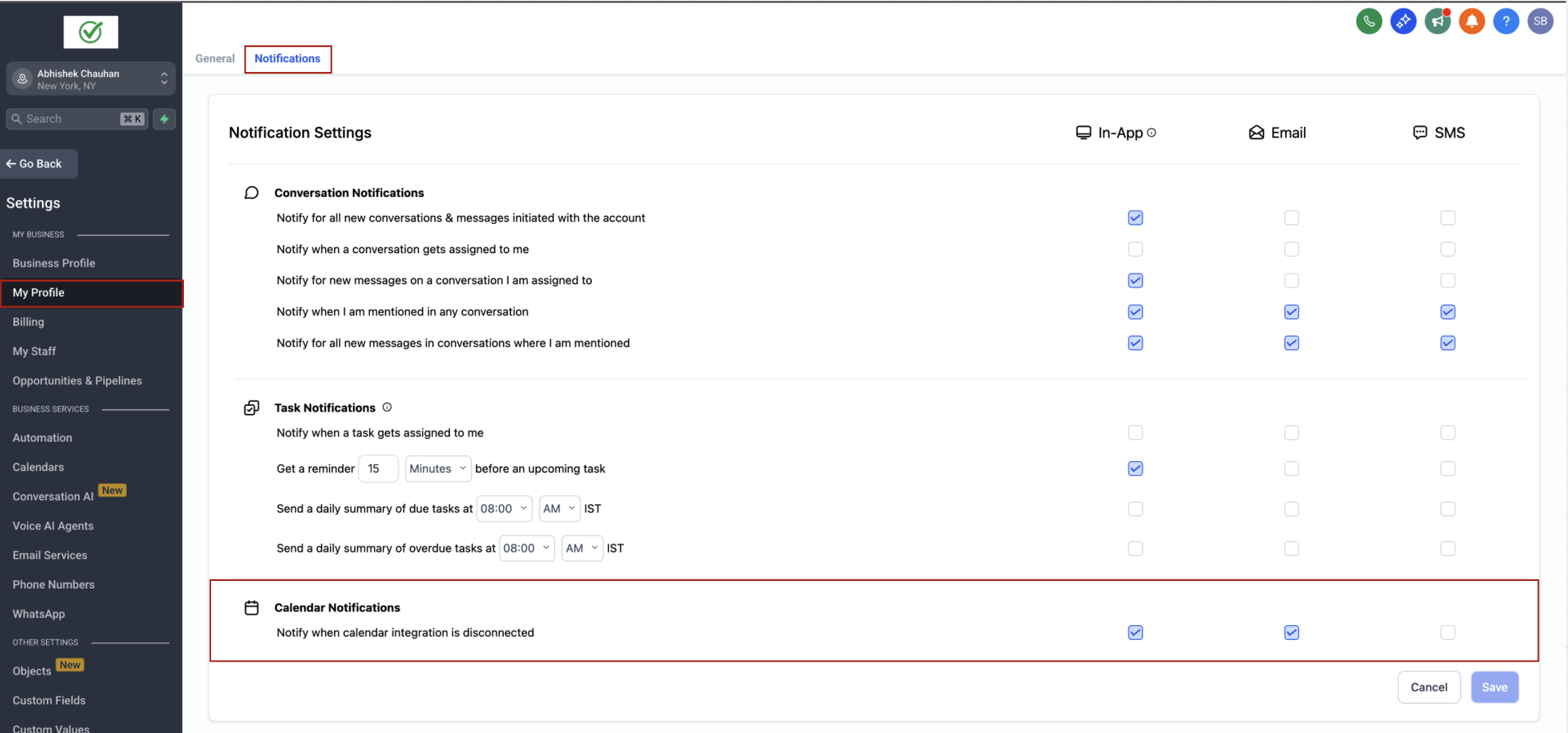
Notification preferences are stored in each user’s profile. By default, Email and In App alerts are turned on; SMS is optional and may generate charges. Users adjust their choices in the Calendar section of the Notifications settings page.
03How businesses use calendar integration disconnection notifications
- Dental practice. A dentist enables Email and In App alerts so they are right away aware when the practice’s Google Calendar stops syncing, preventing missed patient appointments. They may also turn on SMS alerts after adding a phone number to receive notices on the go.
- Real estate agency. An agent configures the platform to send In App notifications for Zoom disconnects, ensuring that virtual tour links stay functional. If a Zoom session drops, the agent sees the alert in the web dashboard and follows the reconnection steps.
- Online coaching business. The coach activates SMS notifications for Outlook Calendar disconnections after setting a mobile number at the subaccount level. When Outlook stops syncing, a text arrives with the integration name and guidance, allowing quick restoration of booking flow.
04The numbers and rules that matter
- Supported integrations: Google Calendar, Outlook Calendar, iCloud Calendar, Zoom, Microsoft Teams.
05Before you start
- A mobile phone number must be entered at the subaccount level for SMS alerts to be sent.
- Email and SMS alerts may incur costs depending on the account’s communication settings.
06How to set up and use calendar integration disconnection notifications in HighLevel
Enable or disable calendar disconnect notifications
- Open My Profile and select Notifications.
- Scroll down to the Calendar section.
- Toggle the In App, Email, and SMS switches according to your preference.
07What it looks like in HighLevel
08Settings that matter
- In, App. Controls whether pop up alerts appear in the web browser and mobile app when an integration disconnects.
- Email. Determines if an email containing the integration name and reconnection steps is sent after a disconnect.
- SMS. Enables a text message with disconnect details to be sent to the user’s configured phone number.
09Things to know before you rely on it
- By default, Email and In App notifications are turned on; SMS is off until the user enables it.
- SMS alerts are only delivered if a phone number exists at the subaccount level; otherwise no SMS is sent.
- Location or agency admins do not receive disconnect notifications; only the individual user does.
- Email and SMS notifications may generate charges based on the account’s communication plan.
10How it connects to the rest of HighLevel
- How to integrate Google Calendar with HighLevel Google Calendar integration
- How to connect Outlook calendar to HighLevel for synced bookings Outlook calendar sync
- Zoom integration with HighLevel calendars: how to set up Zoom integration
Michael's take

These notifications are a handy reminder when a calendar drops, so you don’t have to constantly check the integration status.
Any business that relies on calendar sync can benefit from getting an immediate alert and a quick way to reconnect.