
01Who this is for
- Founders who need a custom data exchange point between HighLevel and their own service, because the action can push or pull information via API.
- Agency owners who build client specific automations, as the actions appear in subaccounts only when the app is installed.
- Developers creating integrations, since they can add validation, dynamic fields and custom code to ensure data quality.
02Marketplace workflow actions, explained
Marketplace Workflow Actions live in the App Marketplace and belong to the LC Premium Triggers & Actions feature set. They are chargeable per execution and require the LC Premium setting to be enabled for the subaccount. An action appears in a workflow only after the related app is installed in that subaccount.
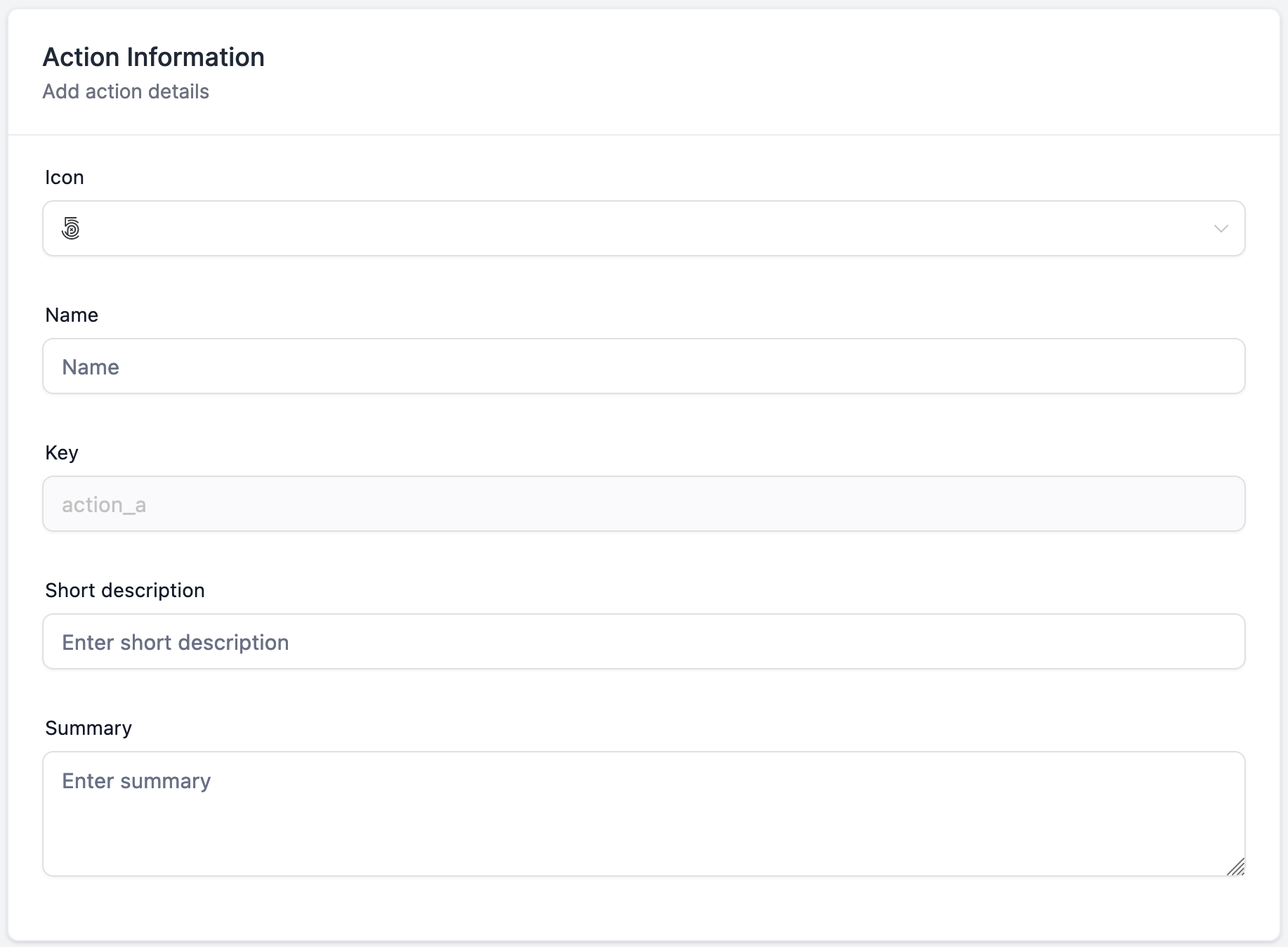
When you create an action, you provide a name, a unique, immutable key, an icon, a short description and a detailed summary. The Action Configuration section lets you build a form with custom fields, set validation rules, and optionally create dynamic fields that are generated from an external API response. Execution can be performed via a standard API call or custom JavaScript code.
After saving, you can test custom code, format it, and optionally pause execution to wait for an external webhook. Sample response data can be mapped to custom variables for use later in the workflow. Actions can be versioned, submitted for review, and once approved they are published to all subaccounts.
03How businesses use marketplace workflow actions
- SaaS startup. The startup defines a custom action that posts new user sign up data to its backend API. It adds fields for email and plan type, sets validation for a proper email format, and tests the JavaScript code that formats the payload before execution.
- Digital marketing agency. The agency creates an action that pulls campaign performance metrics from an external reporting API. It uses a dynamic field to generate a list of available reports, adds validation rules, and configures the action to pause execution until the report is ready.
- Online education provider. The provider builds an action that registers a student in an LMS by sending course selections via an API call. Fields for student ID, course ID and enrollment date are added, and a custom code block calculates discounts before sending the request.
04The numbers and rules that matter
- Marketplace workflow actions are part of LC Premium Triggers & Actions and are chargeable per execution.
05Before you start
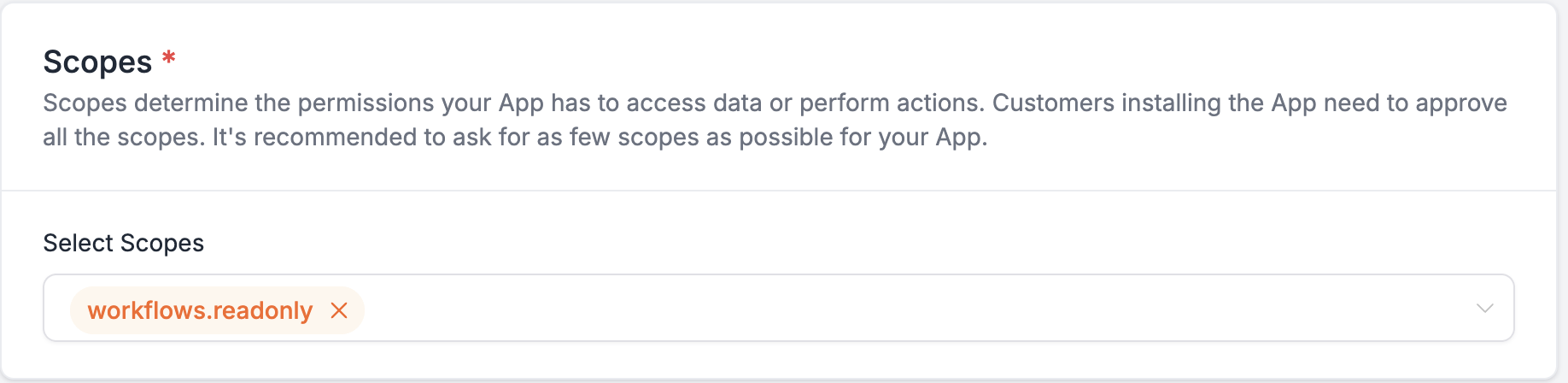
- Enable the workflows.readonly scope for the account.
- Turn on Workflow LC Premium Triggers & Actions for the subaccount.
- Install the Marketplace app that contains the custom action.
06How to set up and use marketplace workflow actions in HighLevel
Create a new marketplace workflow action
- Sign in to the Marketplace.
- Navigate to the Marketplace Workflow Actions section.
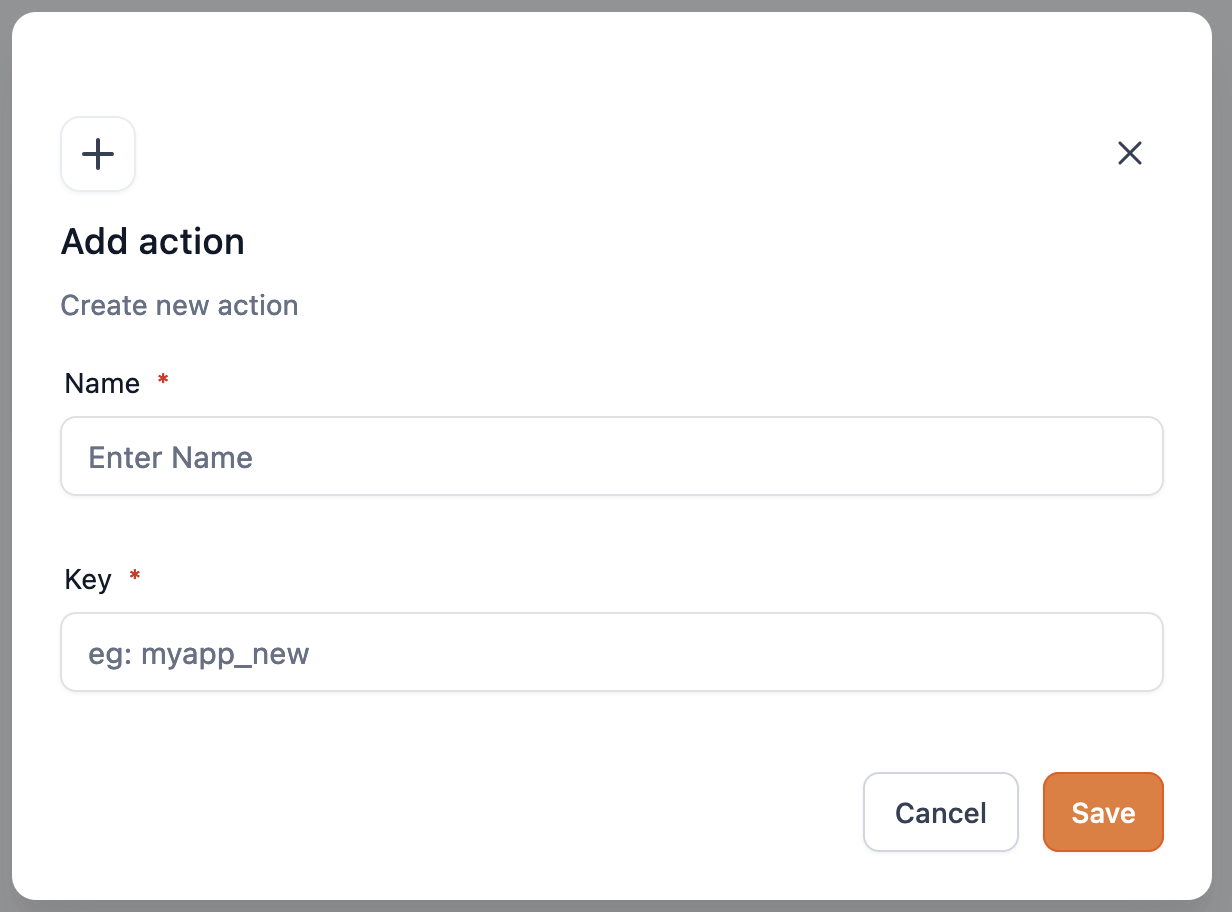
- Click the button to create a new action.
- Enter the Action Name.
- Enter a unique Key for the action (cannot be changed later).
- Provide Action Information details, including icon, short description and summary.
- Save the new action.
Add a field to an action
- Open the desired action’s configuration page.
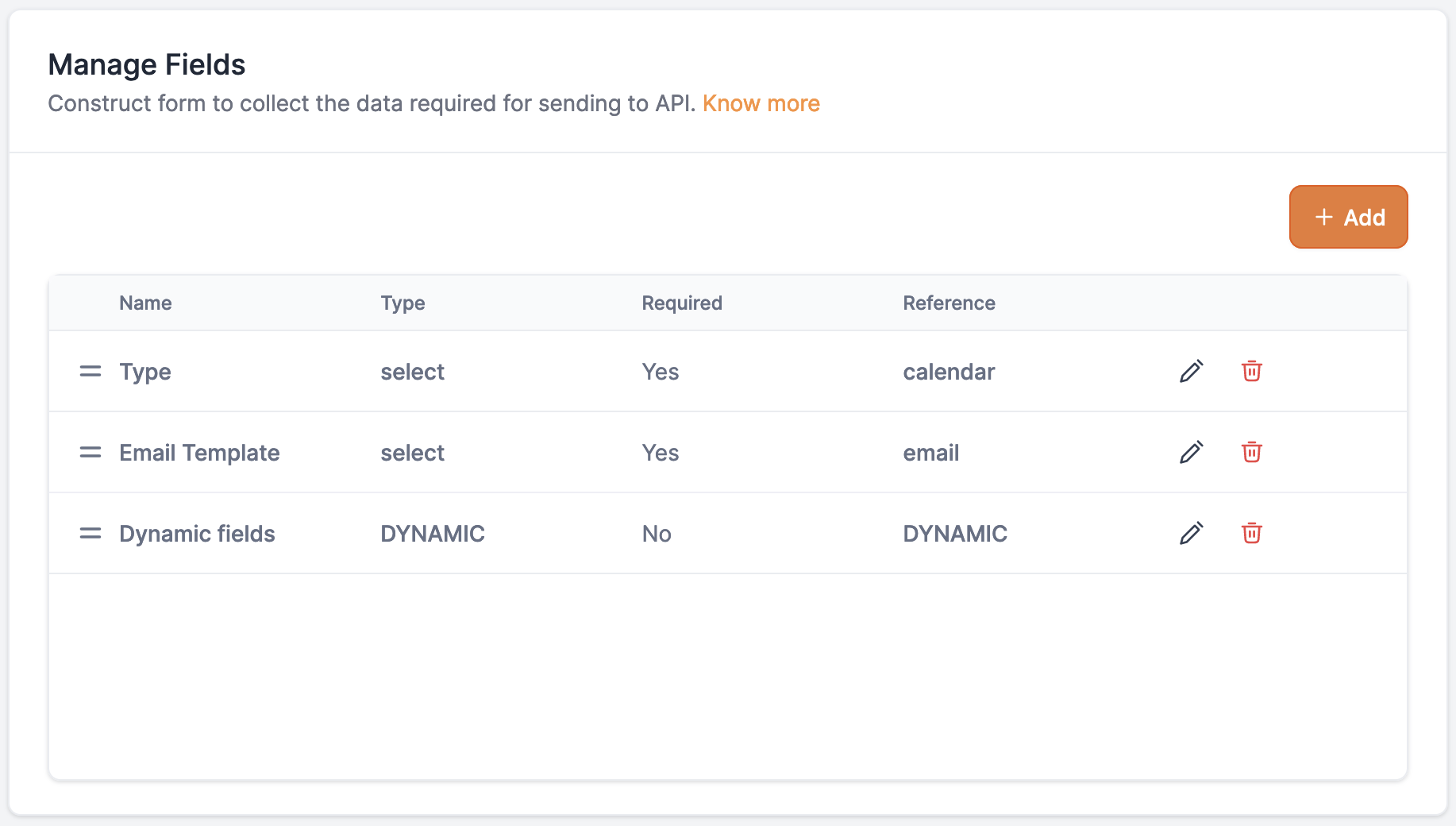
- Select Manage Fields.
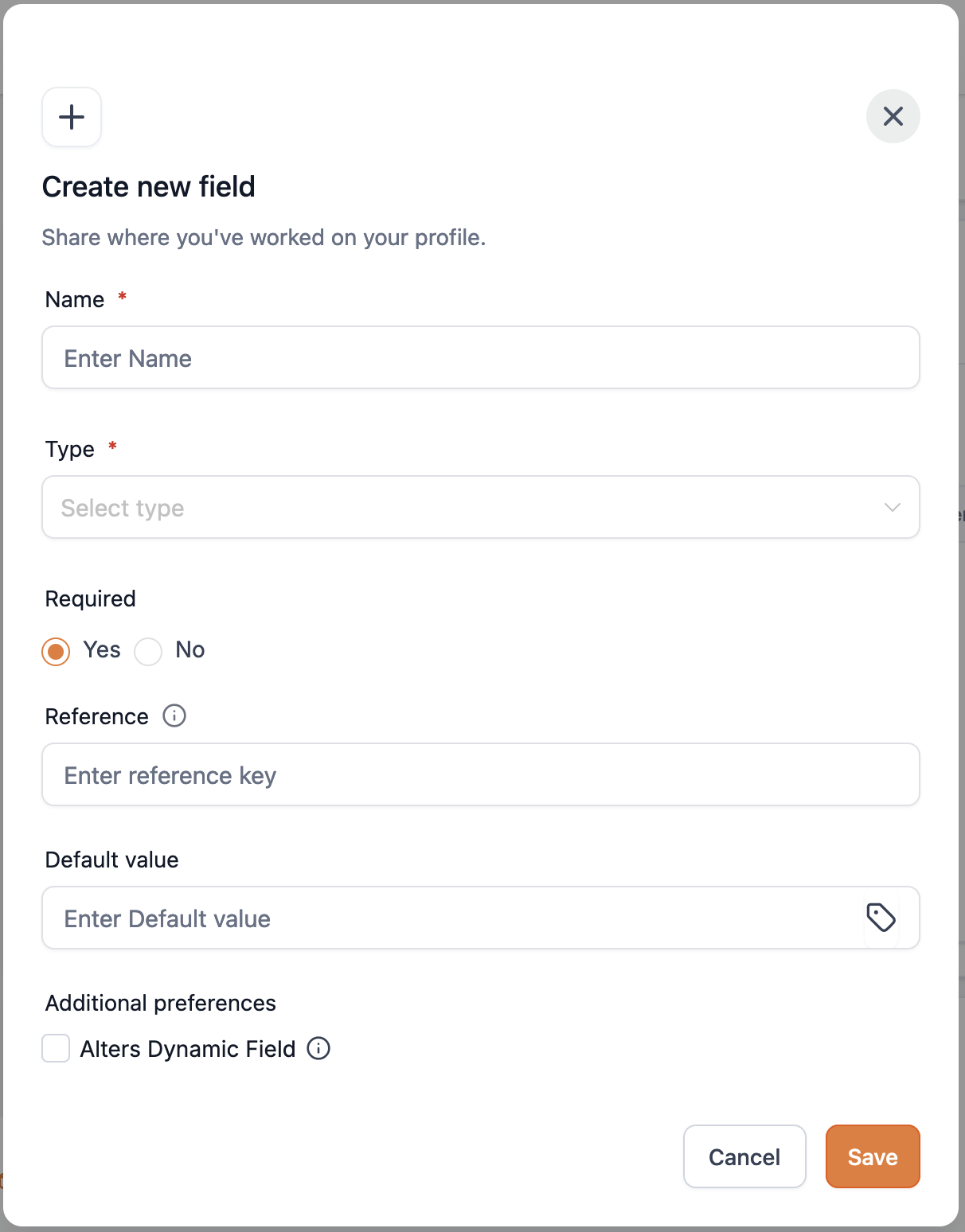
- Click Create New Field.
- Enter the Field Name.
- Select the Field Type from the list (e.g., String, Select, Hidden, Dynamic).
- Toggle the Required option if needed.
- Enter a Reference key for the field.
- Set a Default Value and optionally enable Alters Dynamic Field.
Configure validation rules
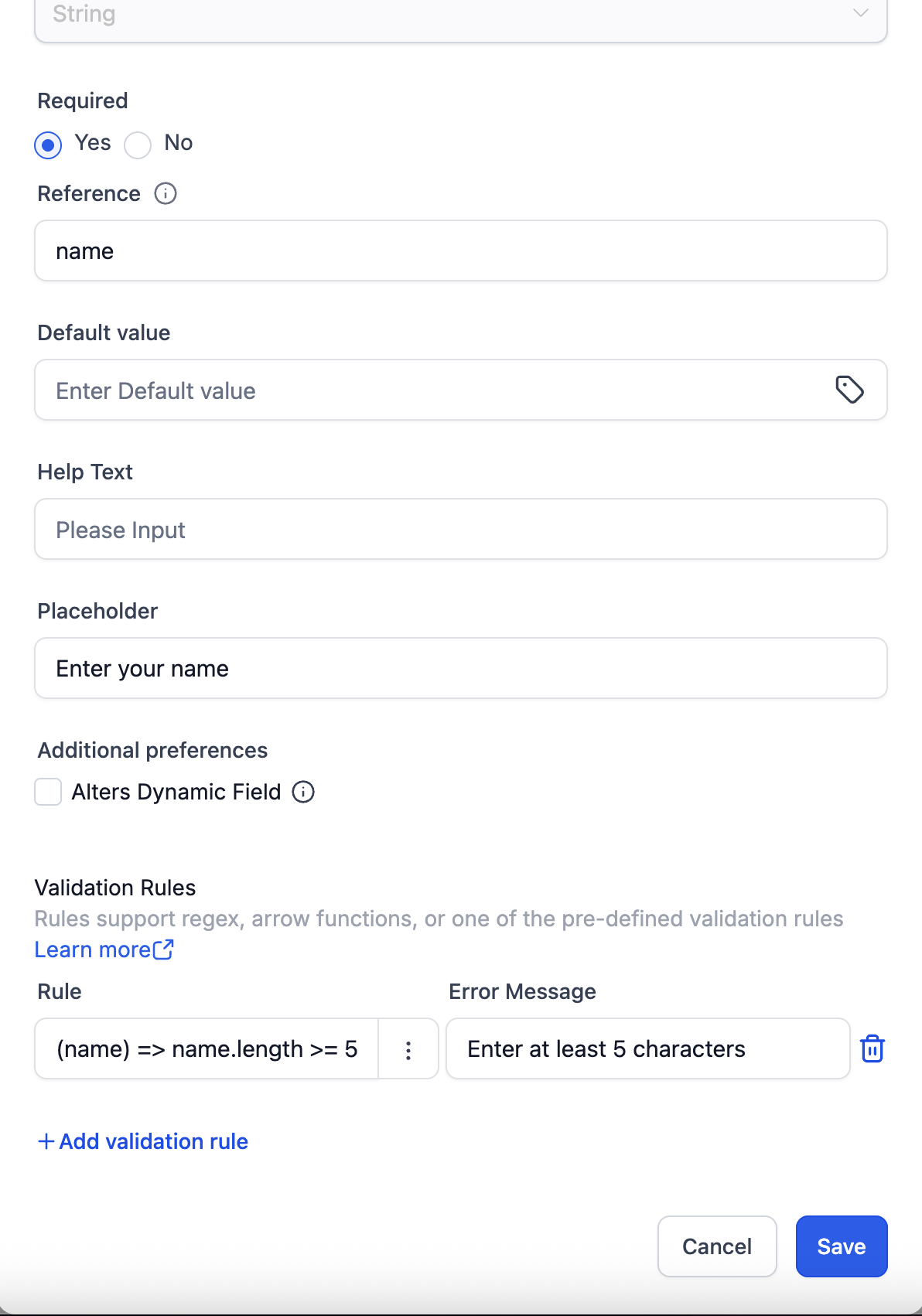
- In the Action Configuration, open Validation Rules.
- Choose a rule type (pre defined, regex, or arrow function).
- Enter the validation condition.
- Provide a custom error message.
- Save the validation rule.
Test custom code
- Open the Custom Code editor for the action.
- Write or paste the JavaScript code.
- Click the Test Code button.
- If the result shows “Test Result Success,” the code can be used in subsequent steps; otherwise correct errors and test again.
- Optionally click the Format Code button to tidy the script.
Submit action for review and publish
- After configuring the action, click Submit for Review.
- Enter required changelog information.
- Wait for approval; once approved the version is published live to all subaccounts.
Create a new version of an action
- Click + New Version on the action page.
- Edit the draft version as needed and save.
Delete an action
- Enter the action name to confirm deletion.
- Confirm the delete operation (note: deletion is permanent and cannot be restored).
07What it looks like in HighLevel
08Settings that matter
- Name. The display name of the custom action shown in the workflow list.
- Key. A permanent identifier used to reference the action inside a workflow; it cannot be changed after creation.
- Short description. A brief subtitle that appears beneath the action name in the workflow UI.
- Summary. A detailed explanation of what the action does, shown as tooltip information.
- Type. Defines the data type of a field, such as String, Select, Hidden or Dynamic.
- Required. Marks a field as mandatory, preventing the action from saving if the field is empty.
- Pause Execution toggle. When enabled, the contact is held at this action until a resume webhook is received; the toggle can be used with synchronous or asynchronous branching.
09Things to know before you rely on it
- Each action incurs a charge per execution because it is part of LC Premium Triggers & Actions.
- The Key value for an action is immutable after the action is saved.
- Only one Dynamic field can be added to a single action.
- An action appears in a workflow only when the corresponding Marketplace app is installed in the subaccount.
10If something goes wrong
- Test Result Failed when testing custom code.. Review the code for syntax errors, correct the issue, and run the test again.
- Pause Execution does not release the contact.. Ensure a resume webhook is sent with the required extras payload, and that the branchId (for sync) or webhook response (for async) is correctly provided.
11How it connects to the rest of HighLevel
- Explore related workflow triggers in the Marketplace. Workflow triggers
- Learn how to manage external connections for Marketplace apps. External connections
- Check pricing details for LC Premium Triggers & Actions. Pricing
Michael's take

When a business needs to move data between HighLevel and another system, Marketplace workflow actions let you add a custom API call or JavaScript snippet to automate tasks.