
01Who this is for
- Agency owners who run multiple subaccounts need control over which third party tools their clients can install.
- Consultants managing client accounts benefit from limiting app choices to those they have vetted.
02Marketplace app permissions, explained
The permission system lives in the App Marketplace settings area. Agency admins can toggle a switch that limits subaccounts to apps the agency has explicitly approved. When the switch is off, subaccounts see every public Marketplace app.
Admins also control whether subaccount admins can ask Ask AI for app suggestions. Enabling the Ask AI discoverability flag lets subaccount admins receive recommendations; disabling it hides those suggestions. All changes take effect for subaccount users immediately.
03How businesses use the marketplace app permissions
- Digital marketing agency. The agency enables the ‘Show only approved apps to subaccounts’ setting, approves a handful of campaign tools, and disables Ask AI discoverability so client admins cannot request unvetted apps.
- Consulting firm with client portals. Consultants disapprove any Marketplace app that does not meet security standards, ensuring client portals only expose compliant integrations.
- Partner reseller program. The agency leaves the approval toggle disabled while allowing partners to explore all Marketplace apps, then later enables the restriction for a specific set of partner accounts.
04Before you start
- Review the current approval status of all apps in the list before turning on the ‘Show only approved apps to subaccounts’ setting.
05How to set up and use the marketplace app permissions in HighLevel
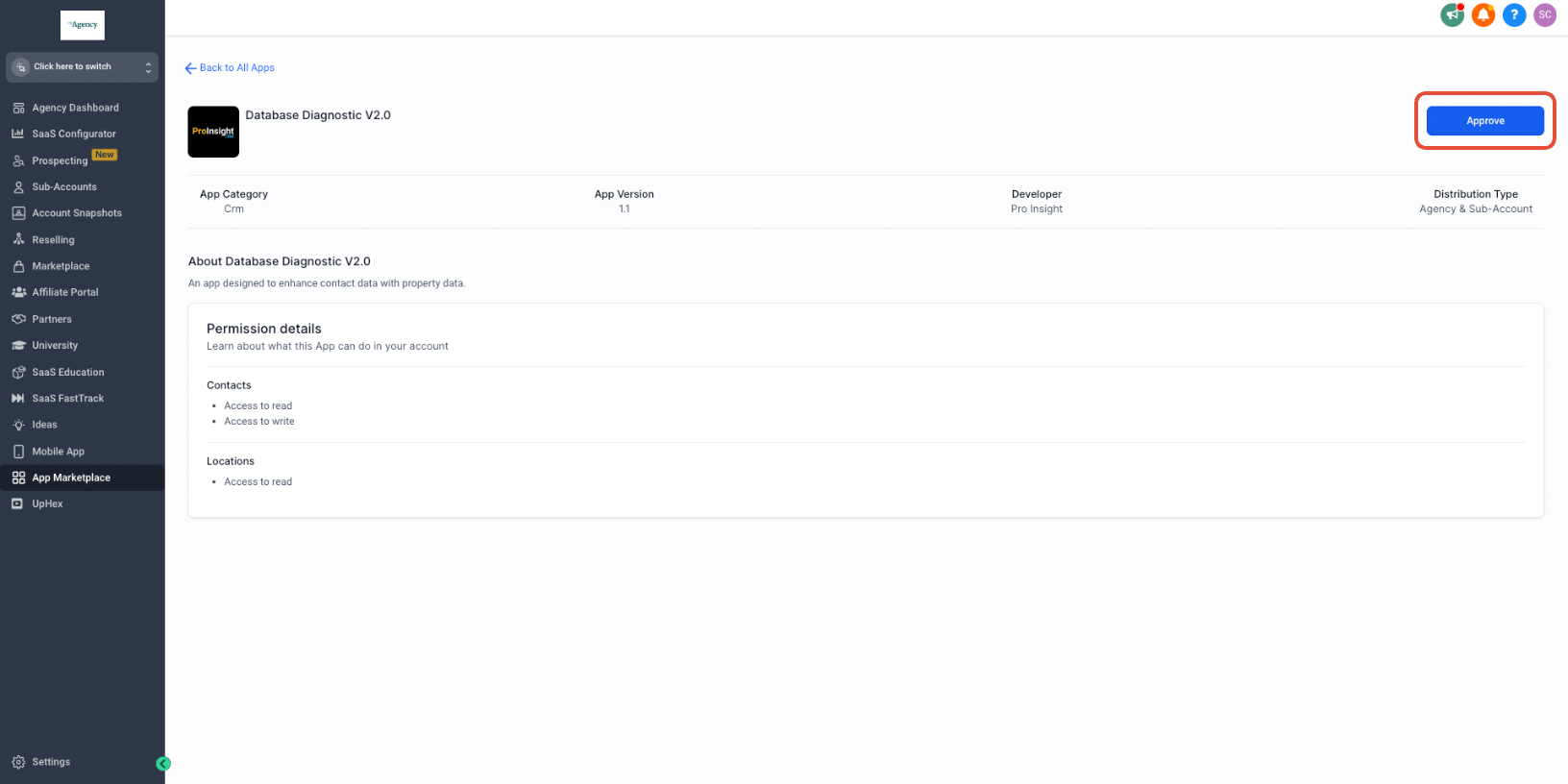
Approve a Marketplace app
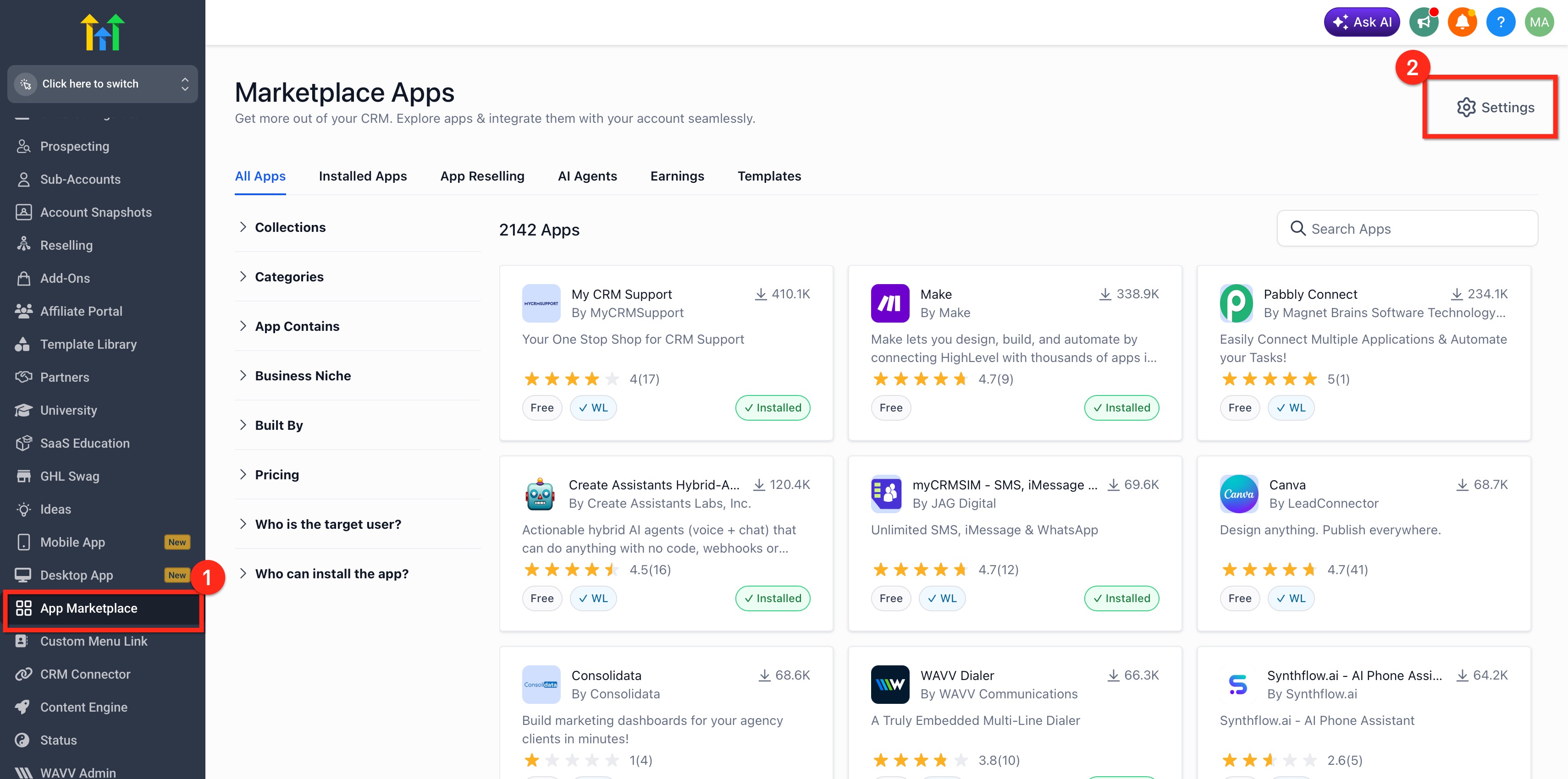
- Open App Marketplace, then go to Settings and select Manage App Access.
- Locate the desired app in the list.
- Check the app’s present approval status.
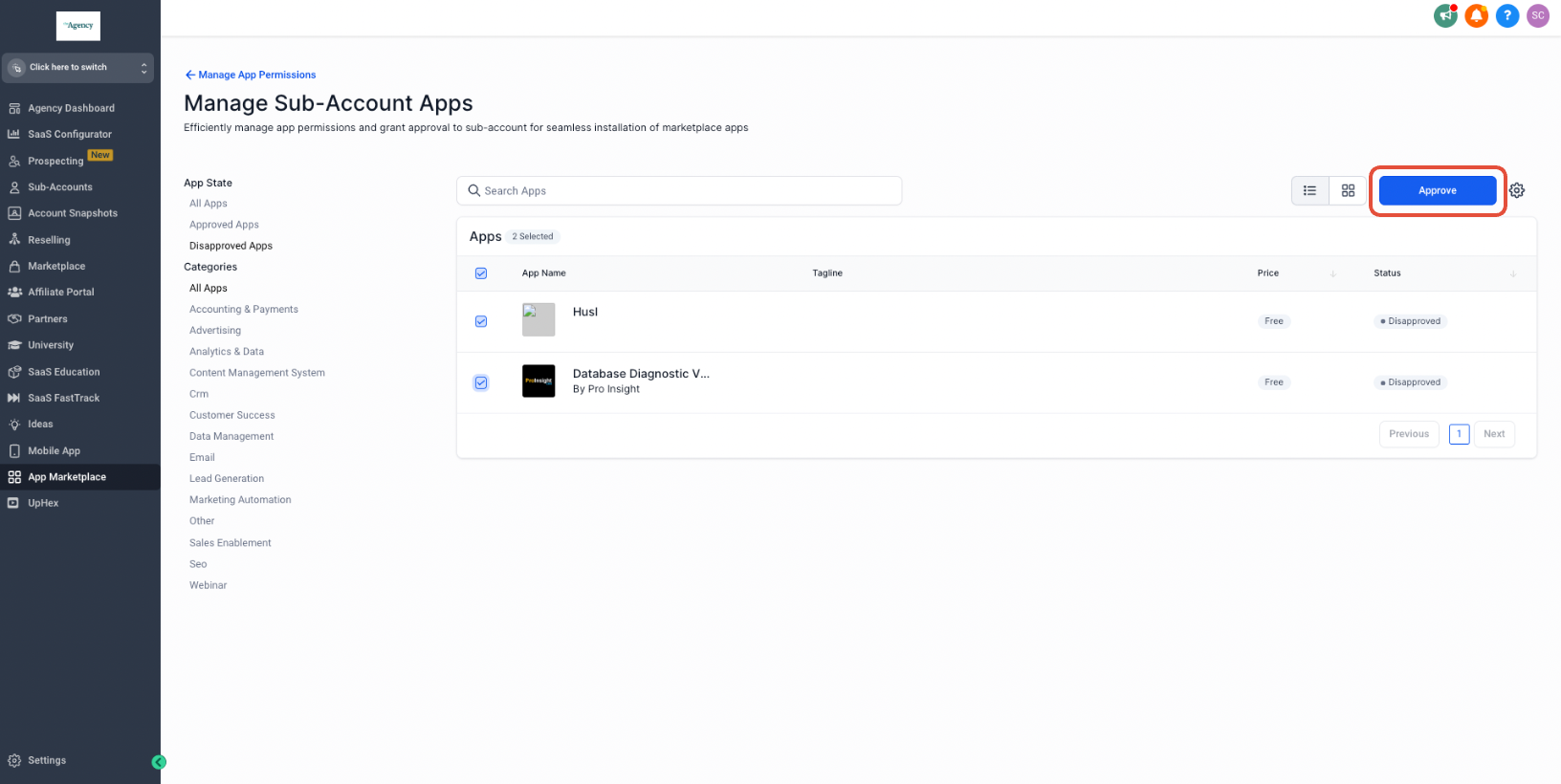
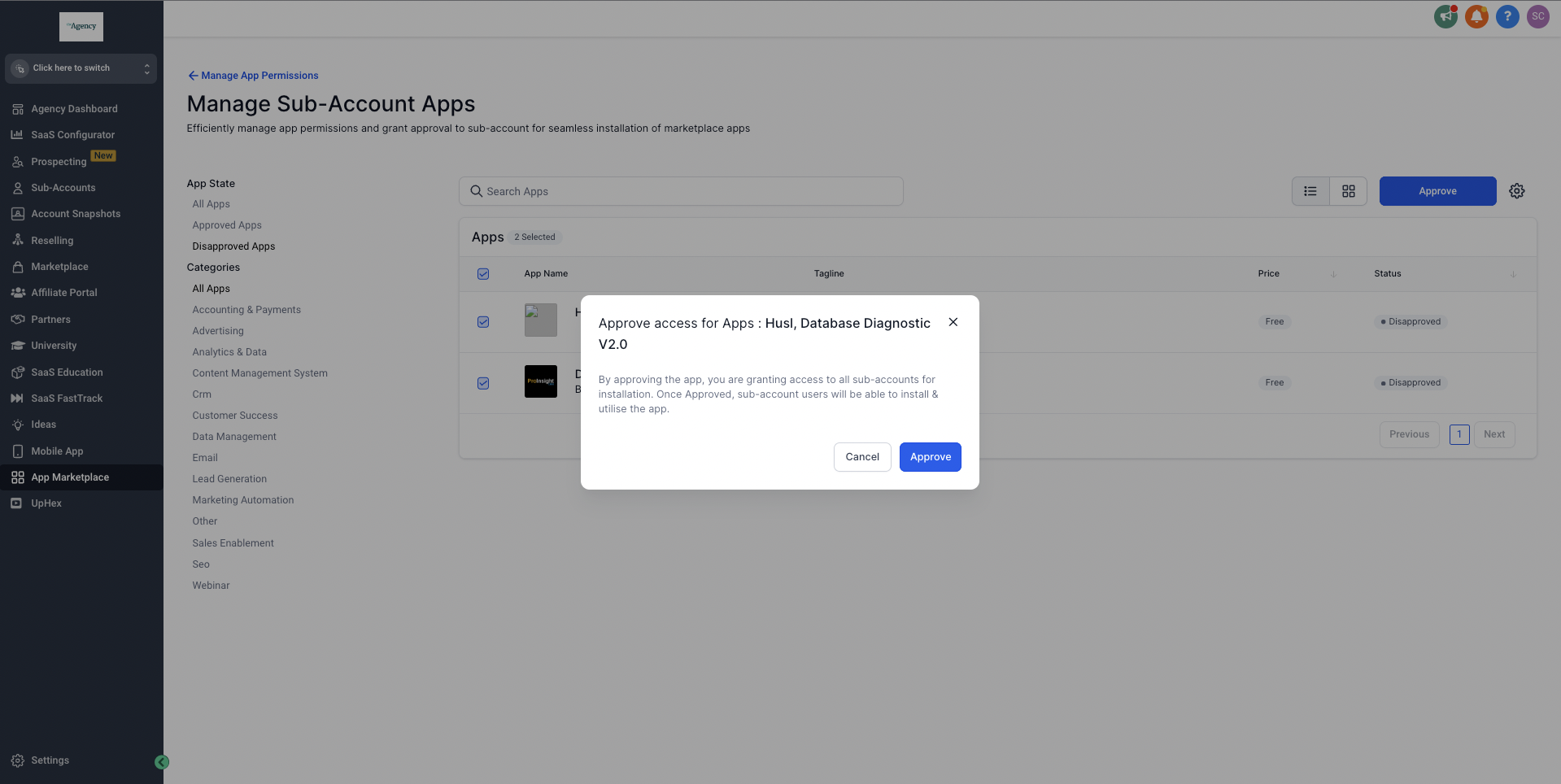
- Click Approve and confirm the action in the modal window.
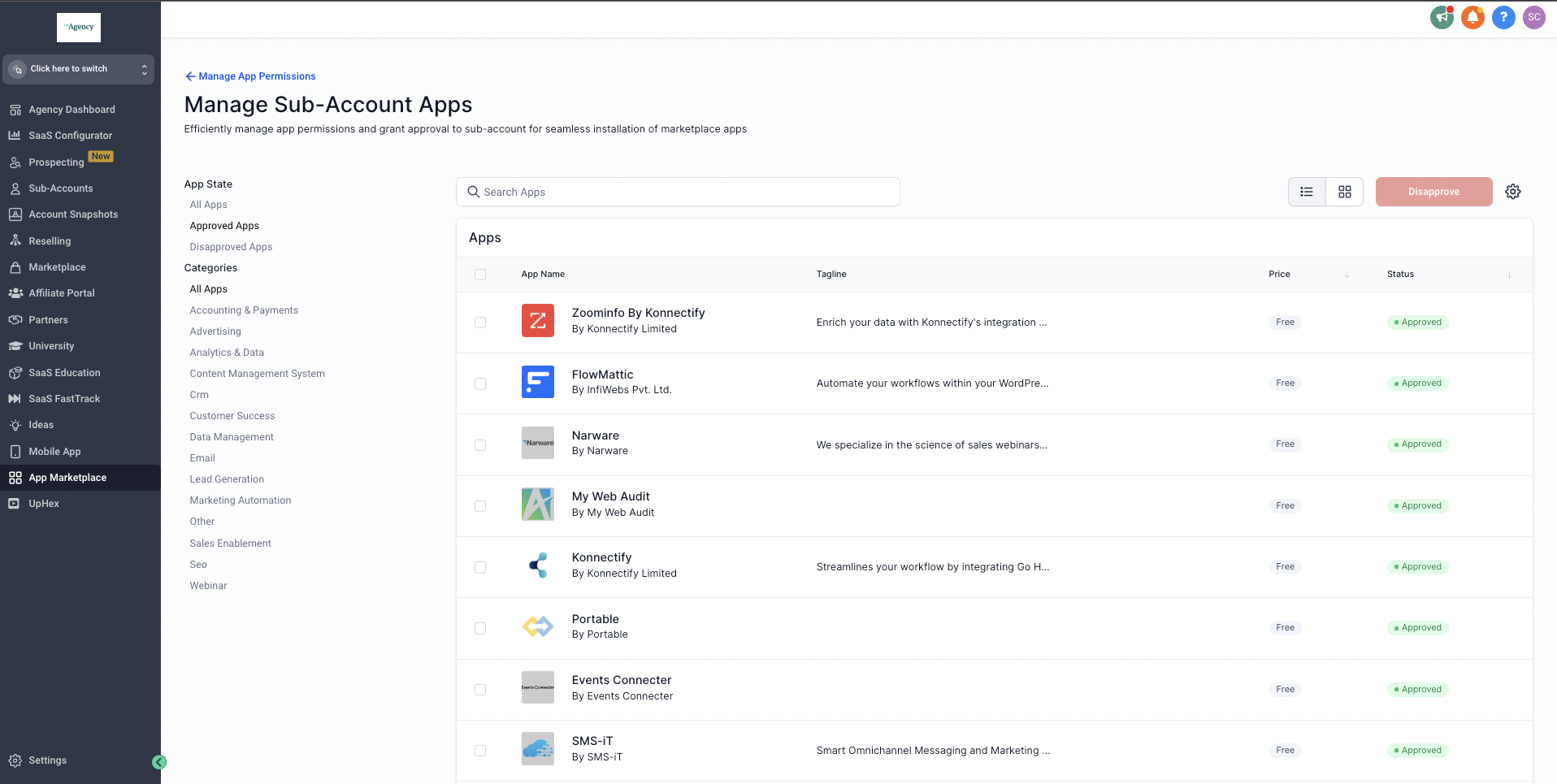
Disapprove Marketplace apps
- Select the Approved apps filter under App state.
- Pick one or more apps and press the disapprove button at the top right.
- Enter CONFIRM in the prompt and click disapprove to finalize.
Restrict marketplace access to approved apps
- Navigate to App Marketplace > Settings > Manage App Access.
- Find the ‘Show only approved apps to subaccounts’ option.
- Turn the option on to limit access to approved apps only.
- Review the app list and approve or disapprove individual apps as needed.
Configure Ask AI discoverability
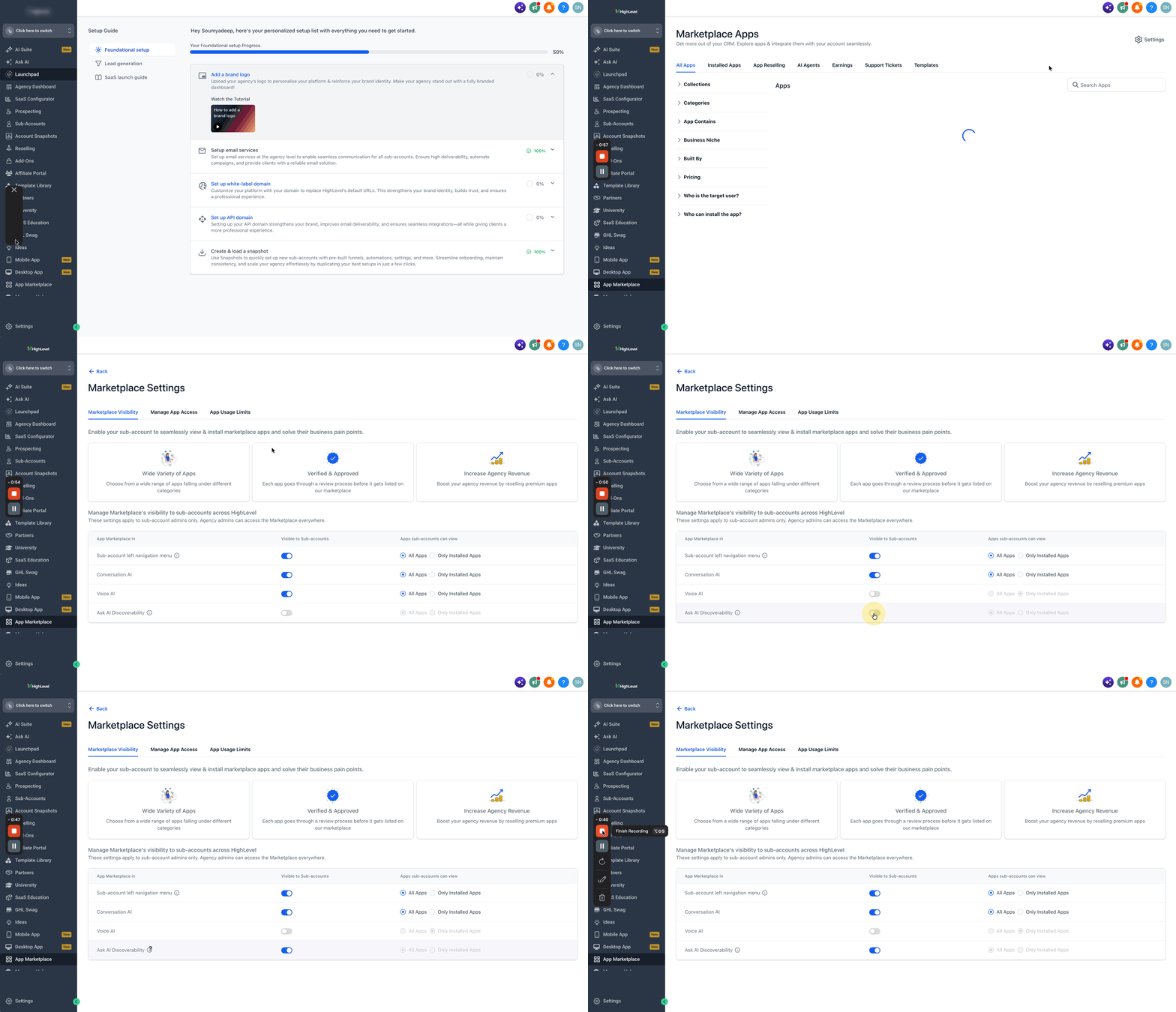
- Open App Marketplace and click Settings.
- Choose Marketplace Visibility.
- Toggle the Ask AI Discoverability switch on or off.
06What it looks like in HighLevel
07Settings that matter
- Show only approved apps to sub, accounts. When enabled, subaccounts see only those Marketplace apps that the agency has marked as approved.
- Ask AI Discoverability. Controls whether subaccount admins can request app recommendations from Ask AI.
- allow sub, accounts to view and install apps built by 3rd party developers. A checkbox that, when selected, restores full Marketplace visibility for subaccounts.
08Things to know before you rely on it
- The default state of ‘Show only approved apps to subaccounts’ is disabled, meaning all Marketplace apps are visible.
- Enabling the restriction does not affect agency admins, they retain full discovery capabilities.
- Disapproved apps are removed from subaccounts and must be manually re installed after re approval.
09How it connects to the rest of HighLevel
- Learn how to install and use apps from the agency marketplace Agency app marketplace guide
- Read about reselling Marketplace apps as an agency Resell Marketplace apps
- Explore how to manage external connections for Marketplace apps External connections guide
Michael's take

From my experience, limiting which apps subaccounts can install helps enforce agency standards and keeps the toolset consistent.
If your agency thrives on offering every new Marketplace app to clients, the extra gating may feel like an unnecessary hurdle. In that scenario the feature adds little value and could slow down adoption of useful new integrations.