
01Who this is for
- Agency owners who manage multiple client locations benefit because they can install a custom payment provider per client without leaving the platform.
- Ecommerce businesses gain flexibility by adding a white label payment option that works in both one step and two step order forms.
- Service based firms can process invoices and payment links through the same provider, keeping the payment experience consistent.
02White label payment providers, explained
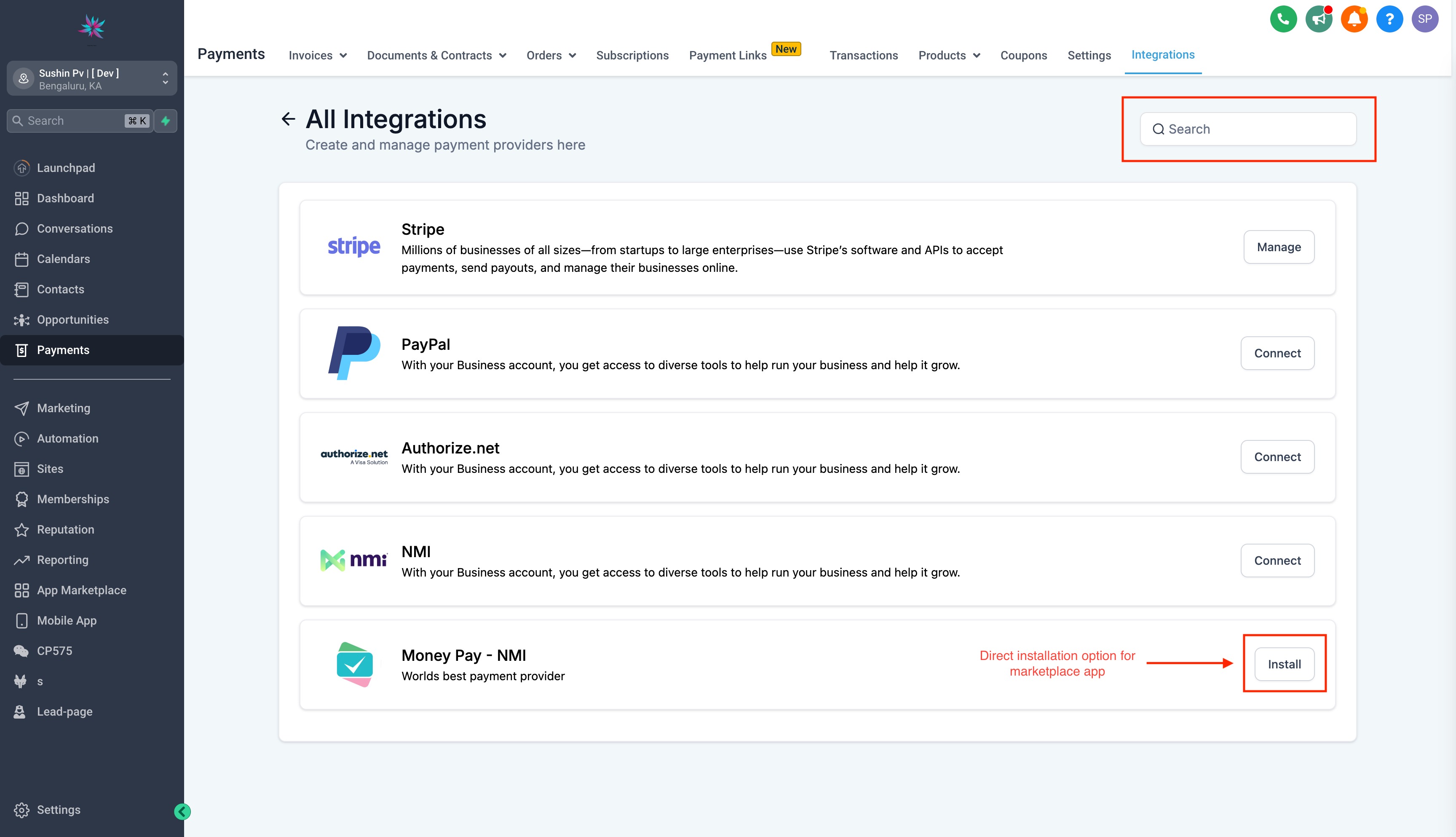
The feature adds a new category of marketplace apps called White Label Payment Provider. These apps appear on the payment integration page, where a search bar lets users locate and install them directly. Installation creates a provider configuration tied to the current location.
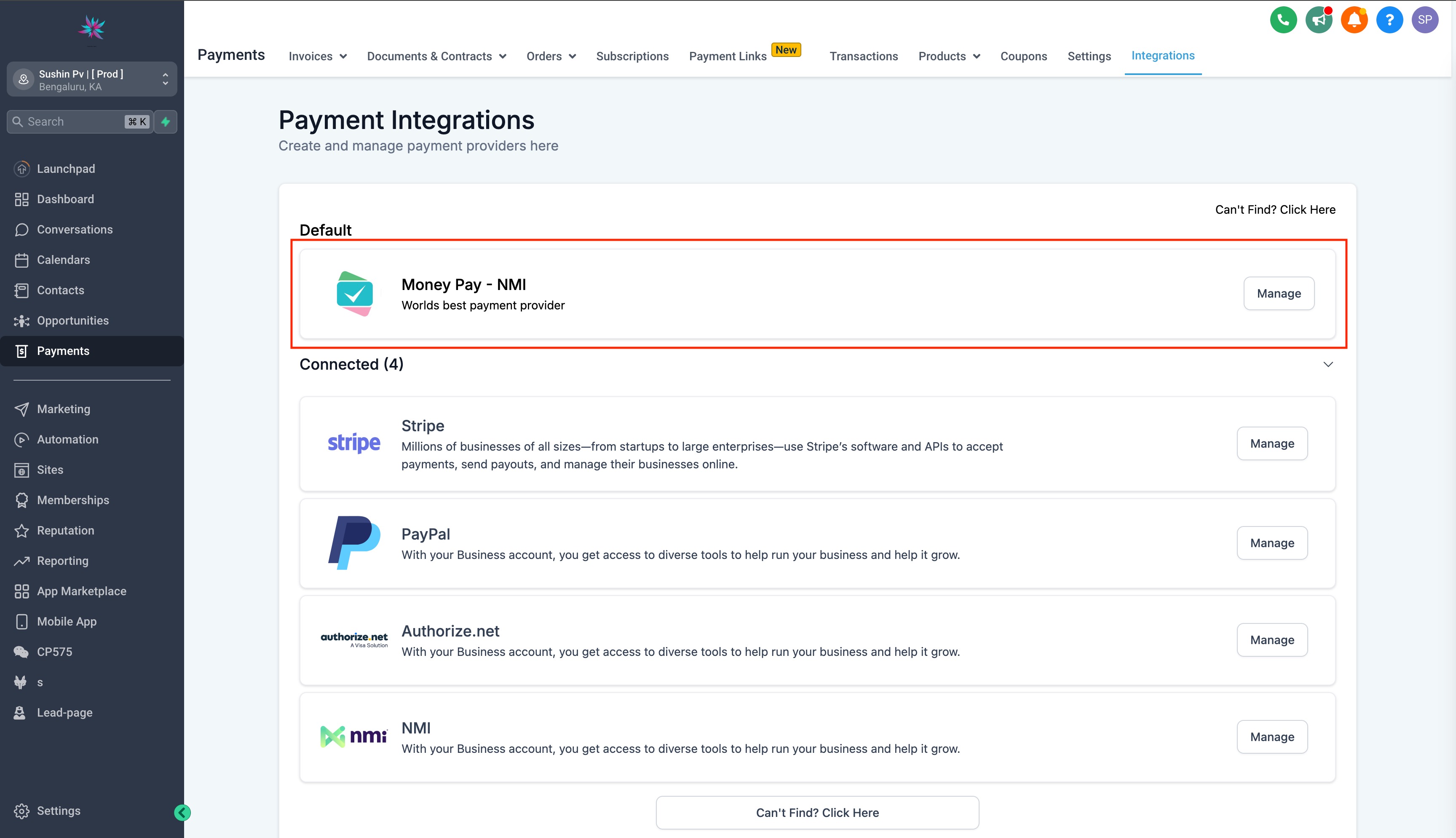
After installation, the configuration behaves like any native provider. Users can edit connection properties, set the white label provider as the default payment method, and then use it in order forms, ecommerce stores, invoices and payment links just as they would with NMI or Authorize.Net. Public API endpoints also support the new provider for developers.
03How businesses use white label payment providers
- Digital marketing agency. The agency installs a white label payment app from the marketplace on a client’s account. It then edits the connection settings, marks the provider as default, and runs the client’s order forms and invoices through the new provider.
- Online retail store. The retailer searches for a white label payment provider on the payment integration page, installs it, configures the API credentials, and selects it as the default for its shopping cart checkout and payment links.
- Consulting firm. The firm installs the provider, updates the connection details, sets it as the default payment option, and then sends invoice emails that charge clients via the white label payment gateway.
04How to set up and use white label payment providers in HighLevel
Install a white label payment provider
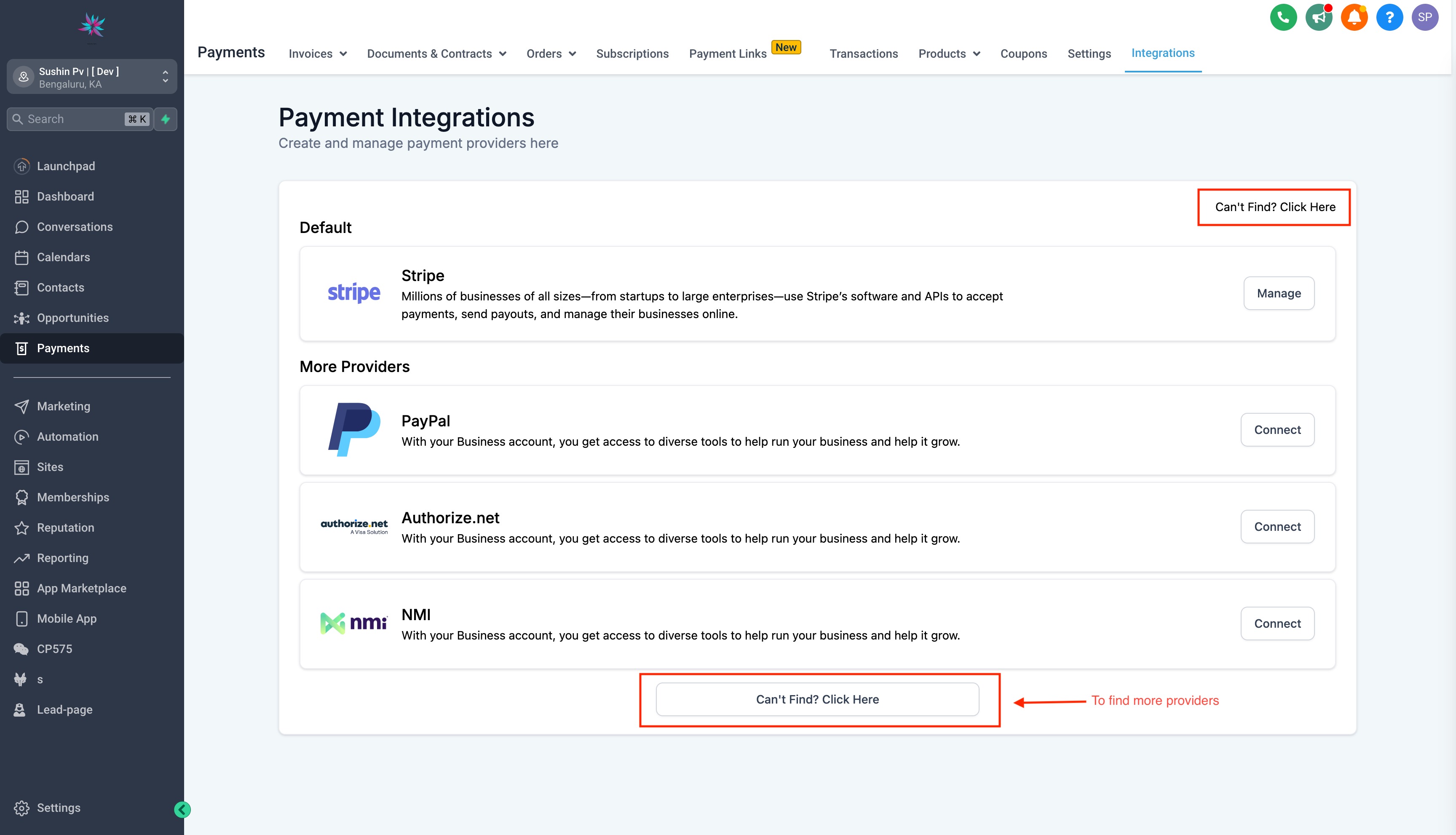
- Open the payment integration page in HighLevel.
- Use the search box to locate a marketplace app listed under White Label Payment Provider.
- Select the desired app from the results.
- Click the install button; the app automatically generates a provider configuration for the current location.
Configure and use the provider
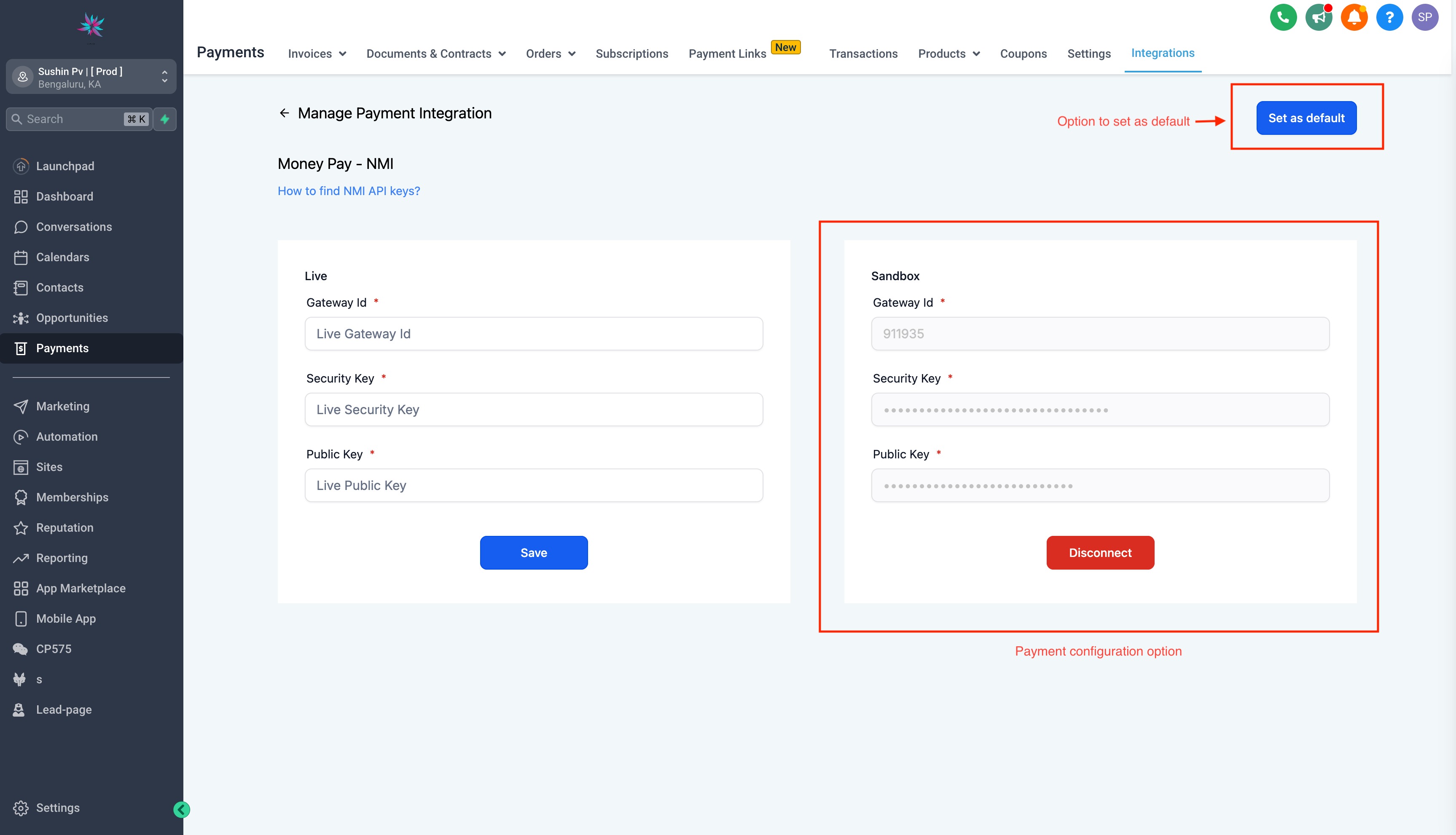
- Open the newly created provider configuration for the installed app.
- Edit the connection properties with the required credentials.
- Save the changes and set the provider as the default payment option.
- Create or update order forms, invoices, or payment links to use the default provider. Remember to save any form or invoice changes after selecting the provider.
05What it looks like in HighLevel
06Settings that matter
- White Label Payment Provider. Identifies marketplace apps that add custom payment gateways built on NMI or Authorize.Net.
- Default payment option. Controls which payment provider is used automatically for order forms, invoices and payment links.
07Things to know before you rely on it
- The white label provider works on any platform where NMI and Authorize.Net are already supported, including order forms, ecommerce stores, invoices and payment links.
08How it connects to the rest of HighLevel
- Explore all marketplace apps available for HighLevel Marketplace apps
- Learn how to install apps from the agency app marketplace Install marketplace apps
- Manage permissions for white label agency apps App permissions
Michael's take

The marketplace install and default setting steps are straightforward, so you can start taking payments quickly.