
01Who this is for
- Founders who need to create automations quickly without deep technical knowledge.
- Marketing agencies that manage multiple client workflows and want consistent guidance.
- Service based businesses that use appointment reminders and need to configure actions efficiently.
02Workflow AI Assistant, explained
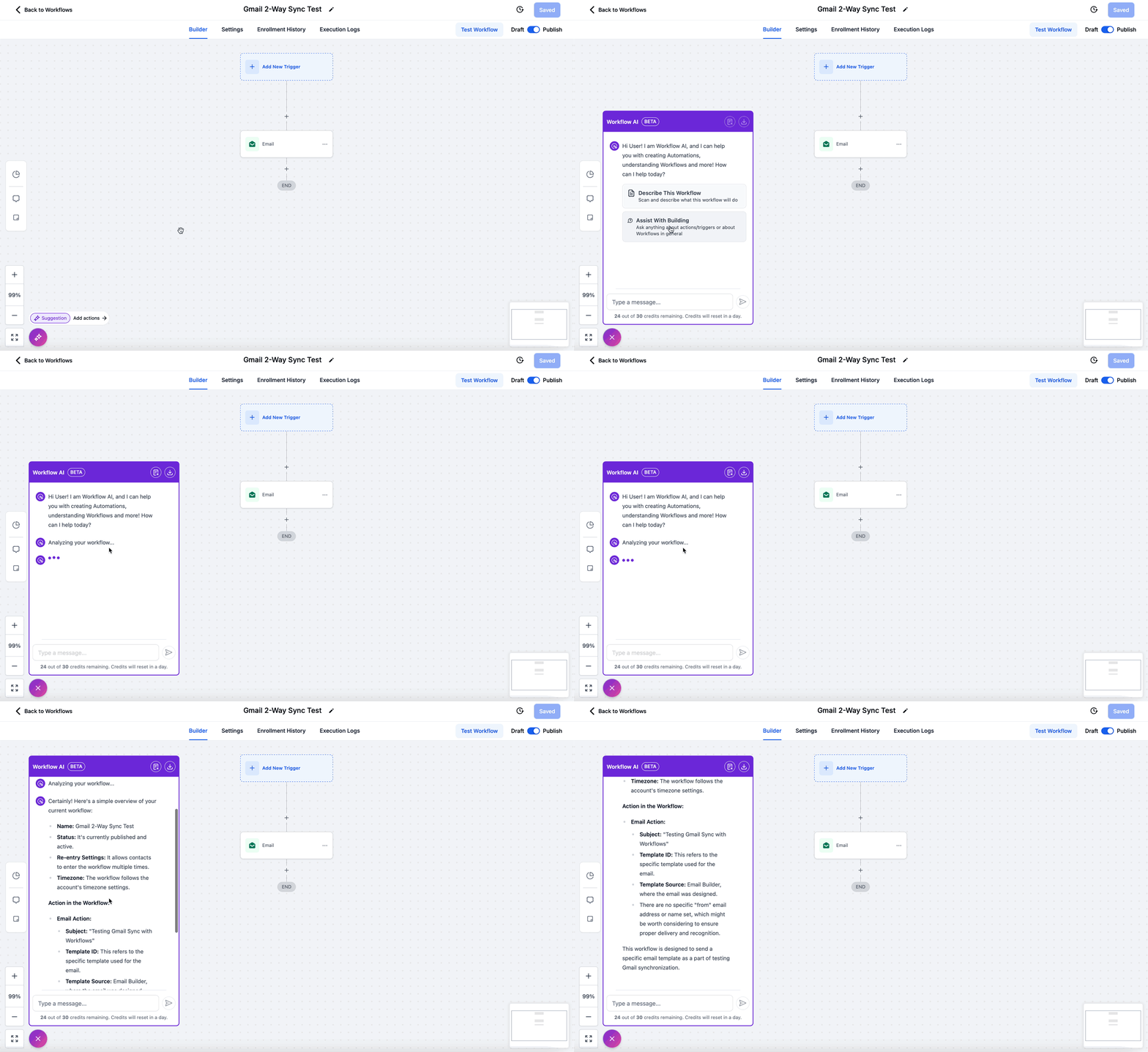
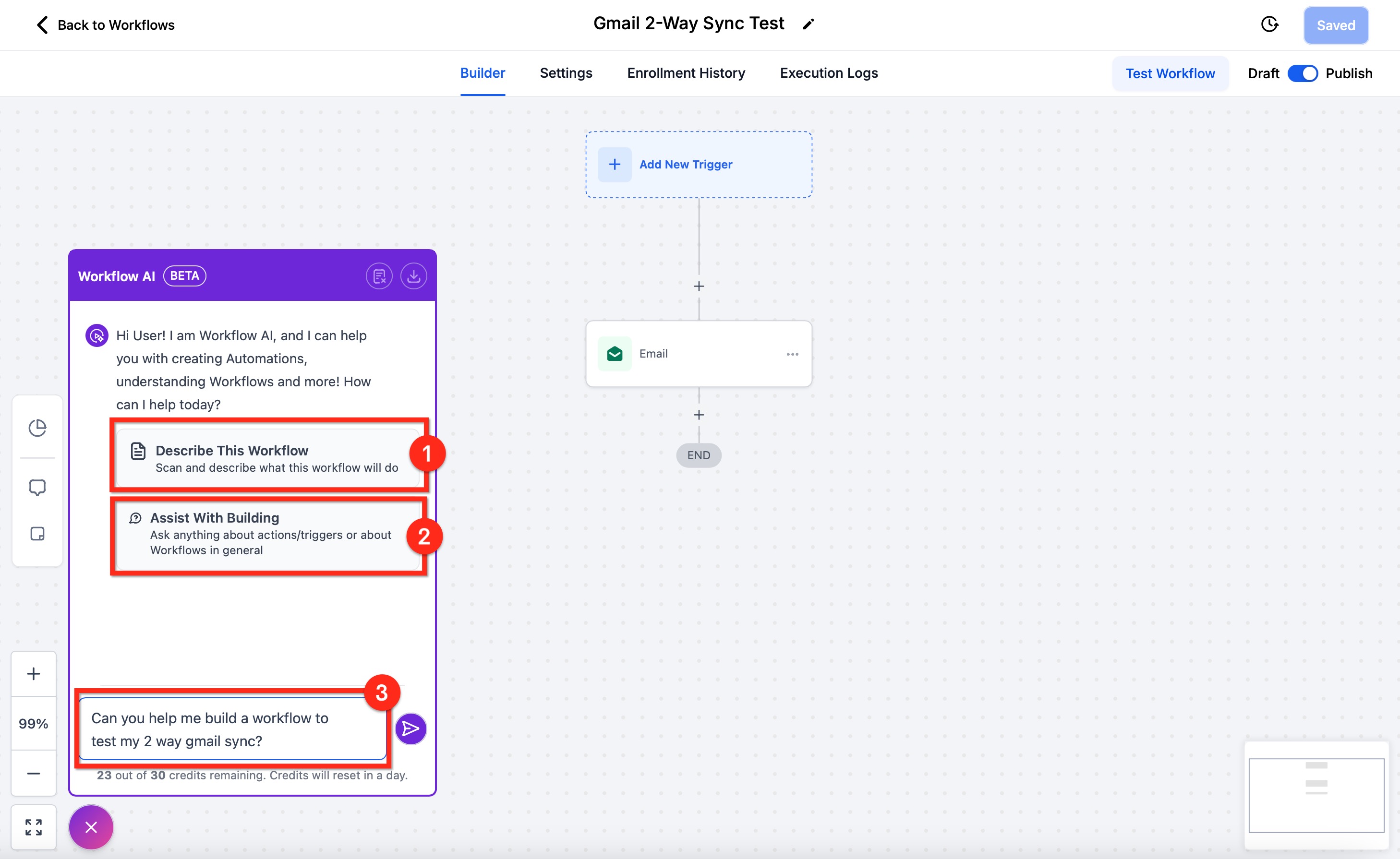
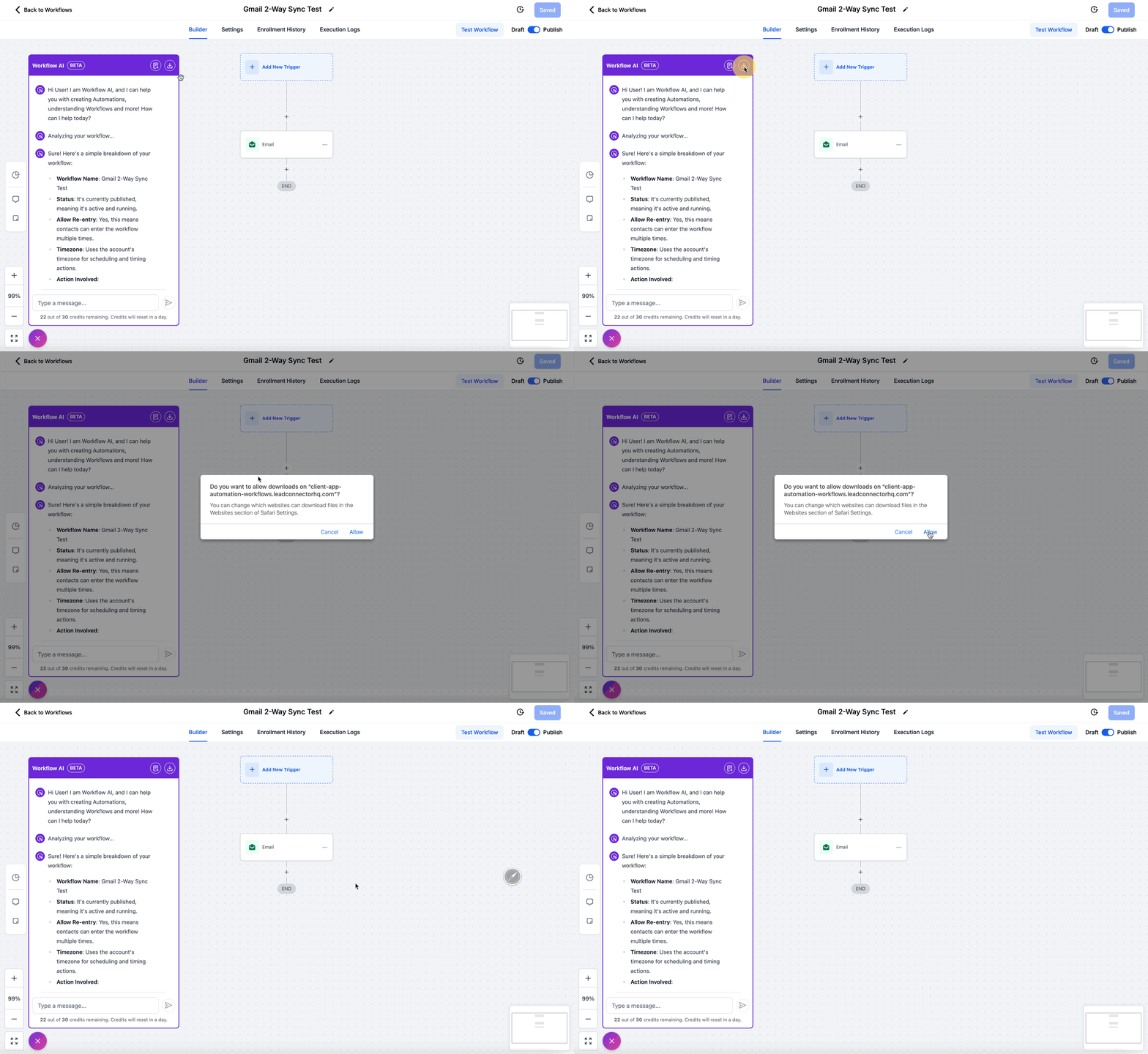
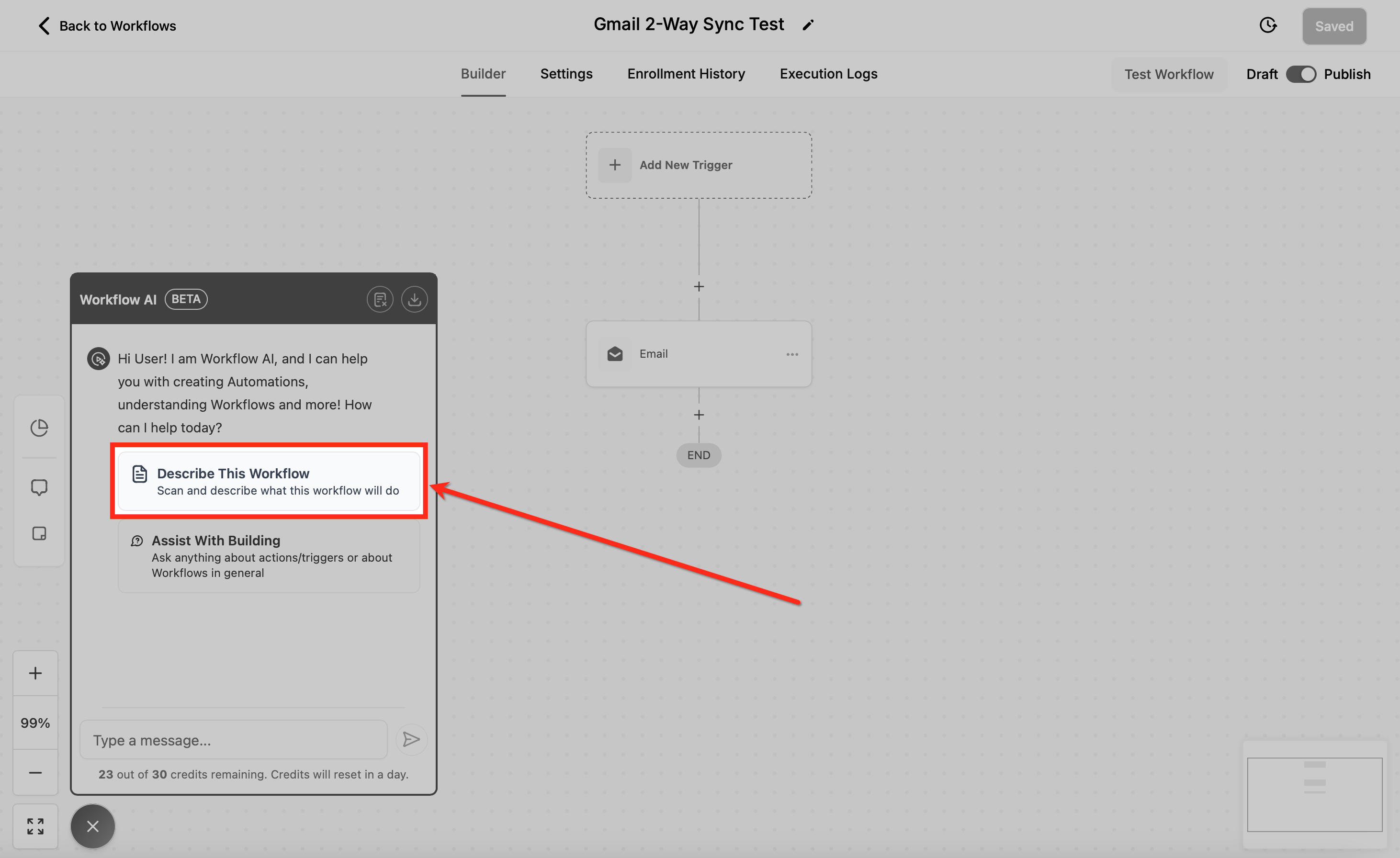
Workflow AI lives inside the workflow builder and appears as an icon at the bottom left. Clicking the icon opens a chat box where you can converse with the assistant. It can suggest triggers and actions, describe existing workflows, and point out improvements.
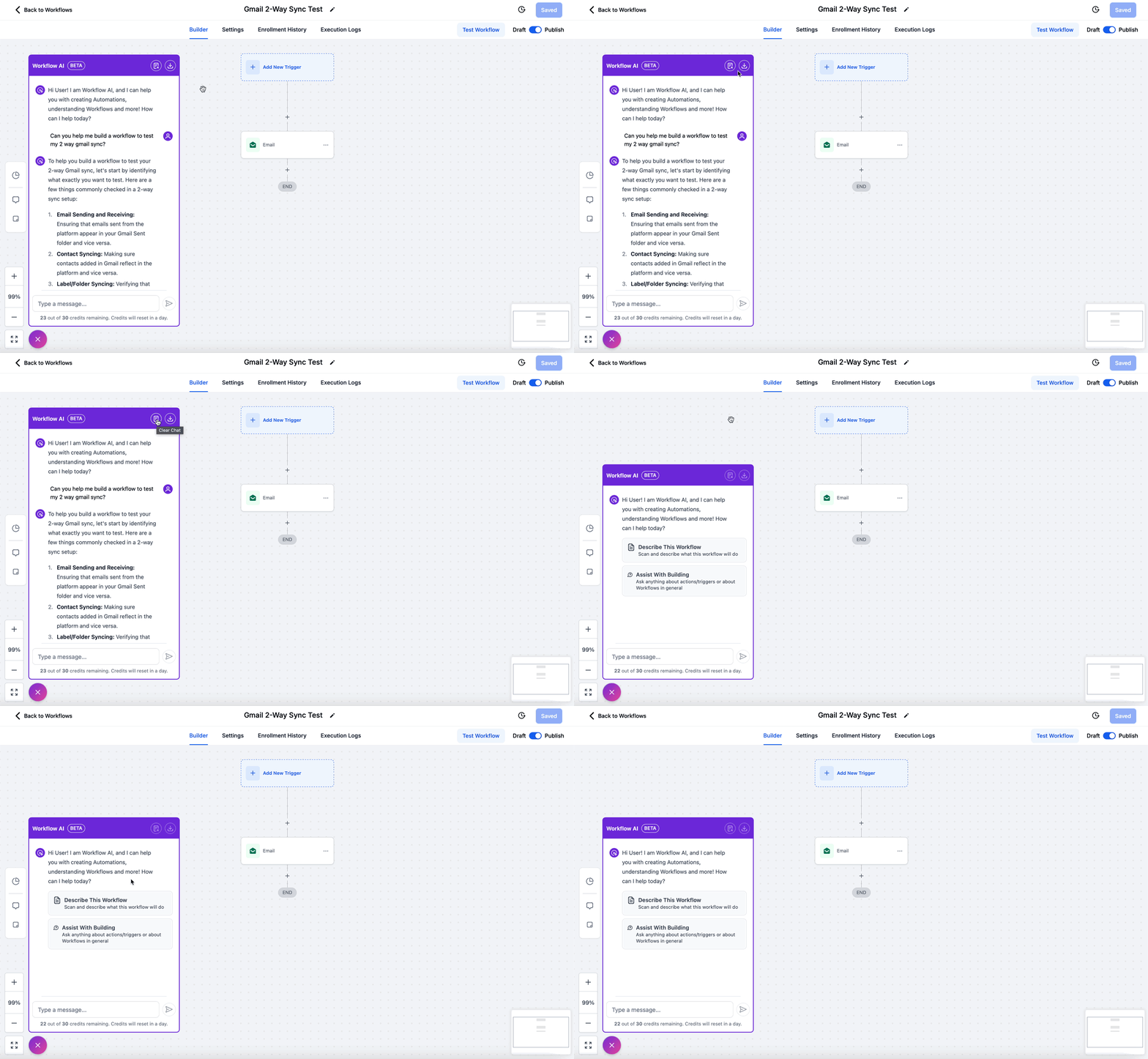
The assistant works in four modes: analyzing a workflow, helping you build one, answering general questions, and explaining a workflow imported from a snapshot. All interactions are text based, and you can clear the chat or export the conversation for later reference.
You do not need any separate installation; the feature is available to any user who can access workflows in HighLevel.
03How businesses use Workflow AI Assistant
- Digital marketing agency. The agency asks Workflow AI to design a lead capture automation for a new client. The assistant lists the needed triggers and actions, then the agency selects the suggestions and lets the AI walk them through configuring each step inside the builder.
- Health care clinic. When reviewing a workflow imported from a snapshot, the clinic clicks the Explain This Workflow pill. Workflow AI breaks down the triggers, actions, and branching logic, allowing staff to understand the patient reminder process before making adjustments.
- Ecommerce store. The store types a request to send a follow up SMS after an order is shipped. Workflow AI returns the appropriate action, the store inserts it into the workflow, and follows the AI’s prompts to set up the message content and timing.
04Before you start
- Open the workflow builder in HighLevel.
05How to set up and use Workflow AI Assistant in HighLevel
Open Workflow AI
- Open the workflow builder.
- Locate the Workflow AI icon at the bottom left of the builder.
- Click the icon to open the chat box.
Explain a snapshot workflow
- Open a workflow that was imported through a snapshot.
- Click the Explain This Workflow pill at the top of the workflow.
- The AI Assistant opens and describes the workflow’s triggers, actions, and branching logic.
- Continue the conversation to ask follow up questions about specific parts of the workflow.
Build a workflow with AI
- Start typing in the chat box and describe the use case you want to achieve.
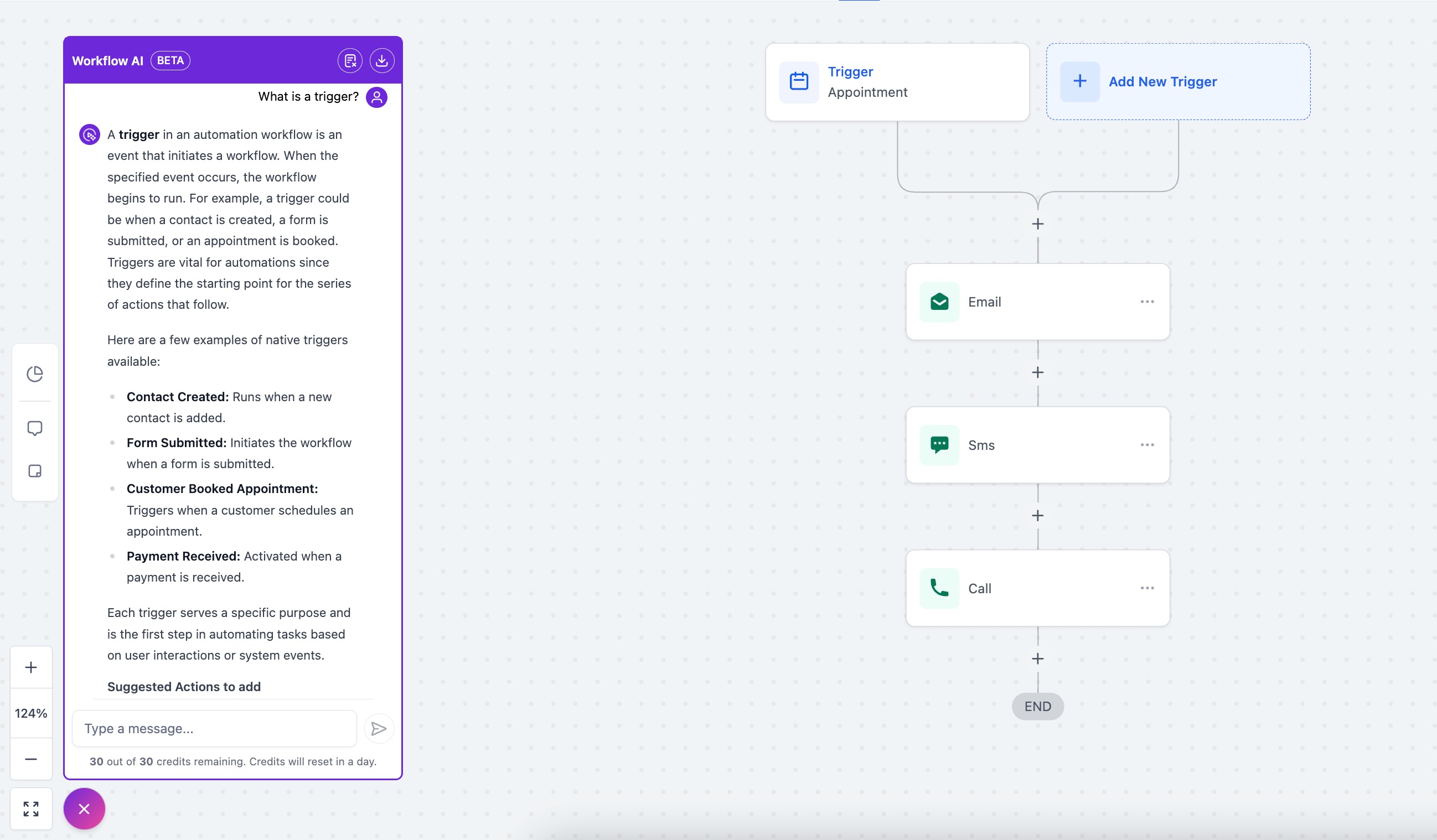
- Review the list of suggested triggers and actions that Workflow AI returns.
- Choose the suggestion that best matches your goal.
- Select where to insert the suggested trigger or action; the action is added and the configuration sidebar opens.
- Follow the AI’s guidance to set up the new trigger or action parameters.
- Ask any follow up questions or request the next steps as the AI proposes.
06What it looks like in HighLevel
07Settings that matter
- re entry. Controls whether contacts can re enter the workflow after completing it.
- multiple opportunities. Determines if a contact can have several opportunities generated by the workflow.
- stop on response. Stops the workflow when a contact replies, preventing further actions.
- timezone/time windows. Sets the time zone and allowed time windows for workflow actions.
- sender details. Specifies the sender name and email address used in communications.
- mark conversations as read. Automatically marks incoming conversations as read when the workflow processes them.
08Things to know before you rely on it
- Export Chat only saves the current conversation; earlier chats are not included.
- Workflow AI is available only to users who have access to workflows.
09How it connects to the rest of HighLevel
- Explore all AI Employee features for more automation tools. All AI Employee features
- Manage AI usage limits and enable extra usage if needed. AI limits
- Check HighLevel pricing and plans to confirm access to workflows. HighLevel pricing
Michael's take

Workflow AI Assistant feels like a small convenience that can quickly turn a vague idea into a working automation.
A local service business that schedules appointments can use it to set up reminder SMS messages, wait for confirmation, and automatically update appointment statuses. I would test the assistant on a simple follow up series first, make sure the suggested actions match my needs, and then let it handle the rest of the build.