
01Who this is for
- Marketing agencies benefit by quickly reusing trigger setups across client campaigns, reducing build time.
- SaaS Founders gain consistency when creating similar triggers for different user segments, lowering configuration errors.
- Sales teams can efficiently adjust lead capture triggers for varied prospect groups without recreating each from scratch.
02Copy and delete workflow triggers, explained
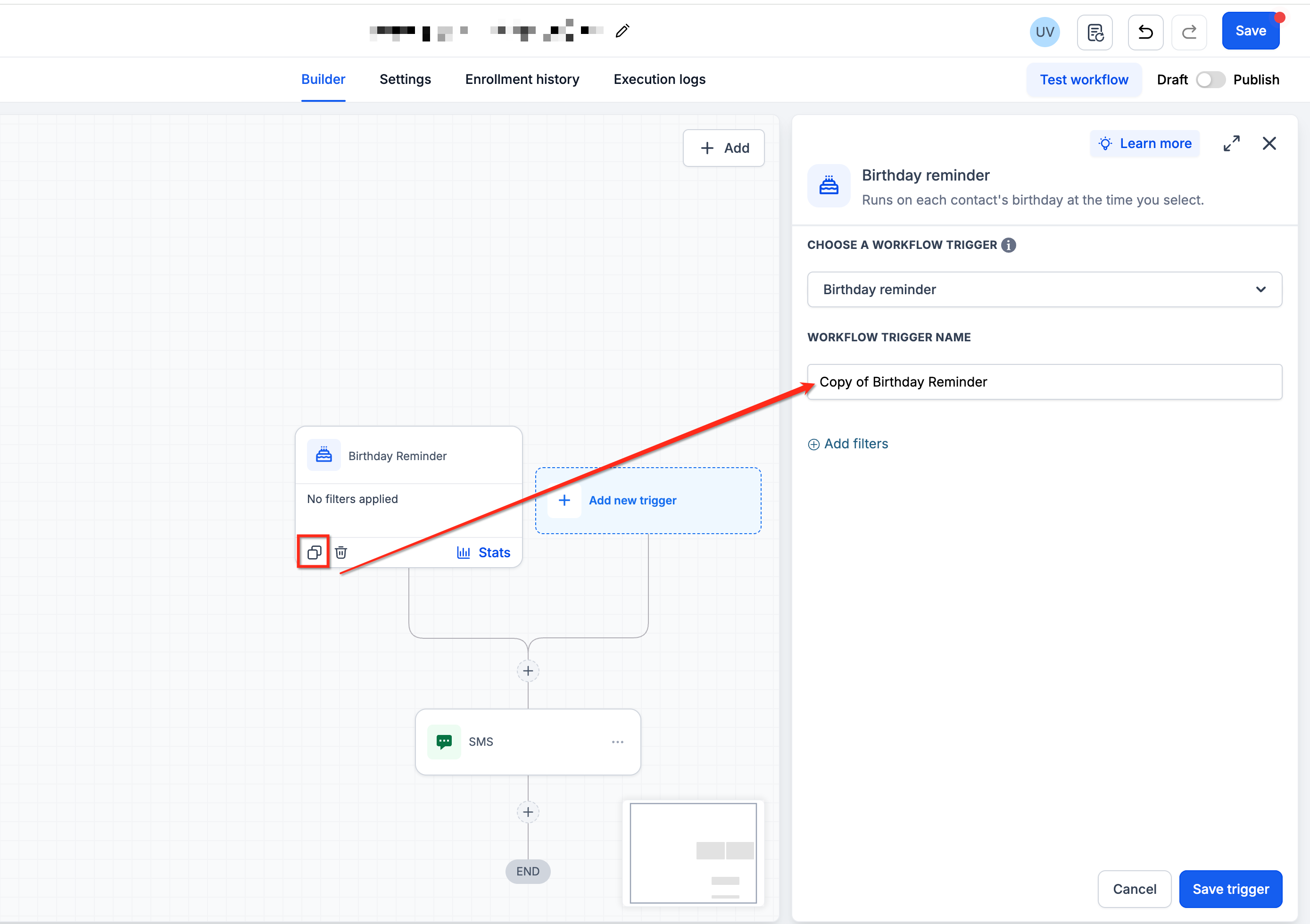
Copy Trigger is a canvas level option that creates an exact duplicate of an existing workflow trigger. The duplicate appears immediately with the prefix "Copy of" added to the original name, so you can identify it at a glance. All filter conditions and settings are carried over, and you may edit any part before saving the trigger to the workflow.
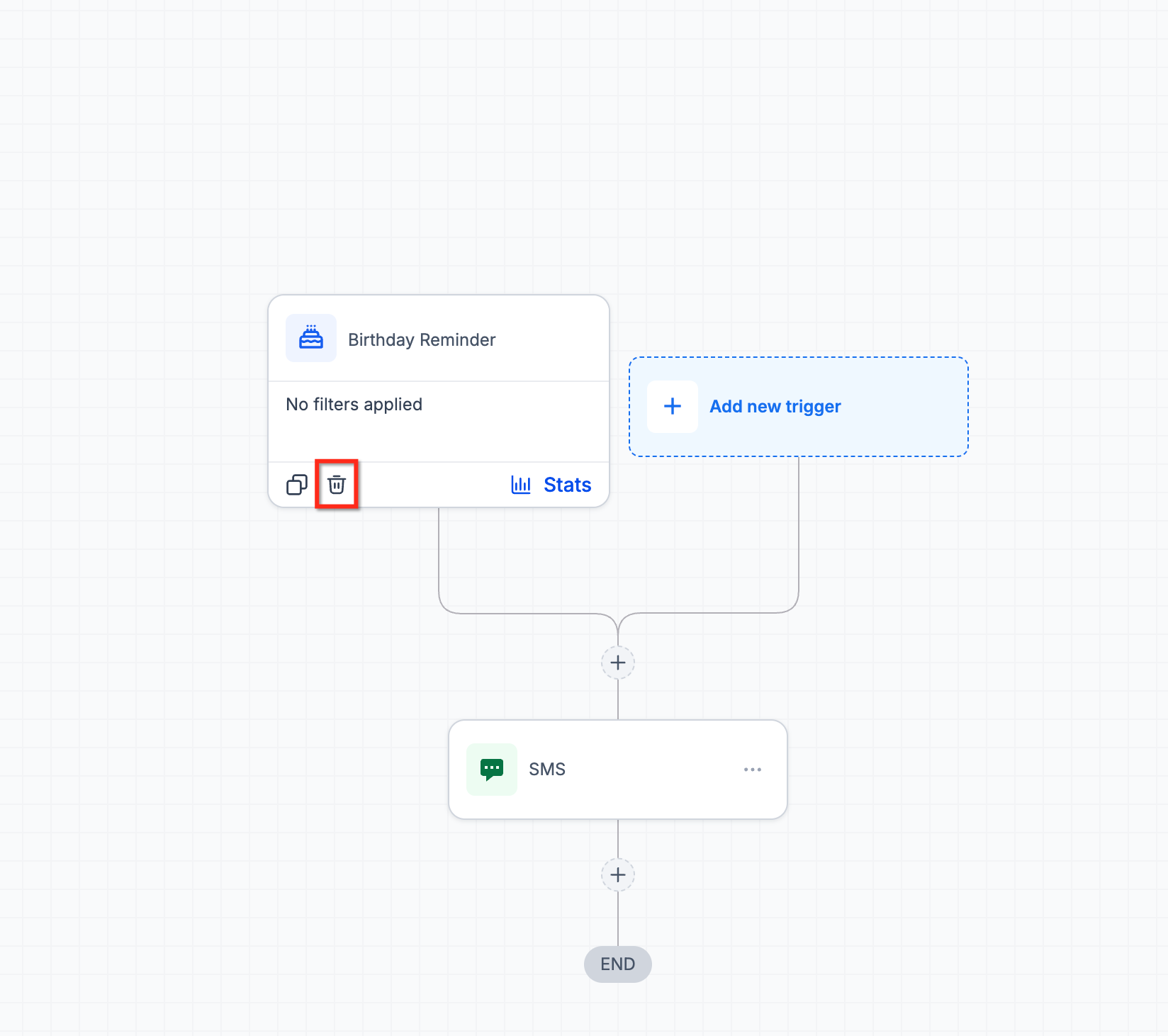
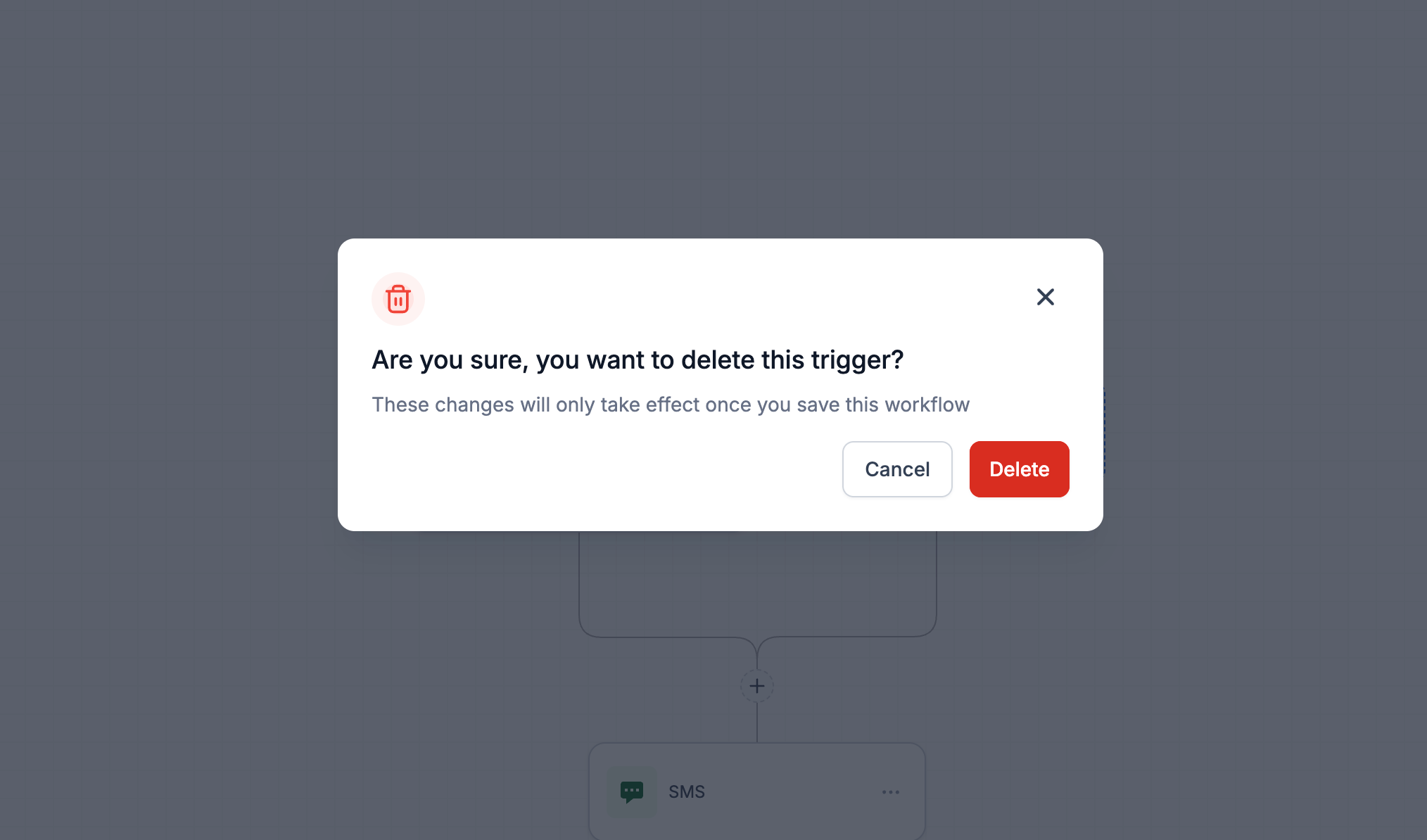
The Delete option removes a trigger from the canvas without opening its configuration panel. After clicking the bin icon, a confirmation prompt appears; once confirmed, the trigger disappears right away. Deletions are permanent and cannot be undone, so choose the correct trigger before confirming.
03How businesses use copy and delete workflow triggers
- Digital marketing agency. The agency duplicates a lead capture trigger for each client, then adjusts the tag filters on each copy to match the client’s audience. After confirming the changes, the agency saves the triggers, creating multiple ready to use variations.
- SaaS product team. The product team copies a signup trigger to test different onboarding email sequences. They edit the filter conditions on each copy to target users by plan type, save the triggers, and integrate them into separate automation paths.
- Real estate brokerage. The brokerage deletes an outdated property interest trigger directly from the canvas by clicking the bin icon and confirming the prompt, right away cleaning the workflow and preventing unwanted automation steps.
04The numbers and rules that matter
- There is no limit to how many times a trigger can be copied.
05How to set up and use copy and delete workflow triggers in HighLevel
Copy a workflow trigger
- Open the three dot menu on the desired trigger card in the workflow canvas.
- Select the "Copy" option from the dropdown menu.
- Observe the new trigger appear with the name "Copy of [Original Trigger Name]".
- Open the copied trigger to adjust filter conditions or other settings as needed.
- Click the Save button on the trigger to add it to the workflow.
- Ensure the workflow is saved to retain the new trigger.
Delete a workflow trigger
- Click the bin icon on the trigger card you want to remove.
- When the confirmation prompt appears, confirm the deletion.
- The trigger is removed from the workflow immediately.
06What it looks like in HighLevel
07Settings that matter
- Copy. Creates an identical duplicate of the selected trigger, preserving all filter conditions and settings.
- Delete. Removes the selected trigger from the canvas after a confirmation step; the action cannot be undone.
08Things to know before you rely on it
- There is no limit to how many times a trigger can be copied within the same workflow.
- Copying a trigger only works inside the current workflow; it cannot be copied to another workflow directly.
- Deleted triggers are removed permanently and cannot be restored without recreating them.
09How it connects to the rest of HighLevel
- Explore the Workflow AI Assistant for advanced automation ideas Workflow AI Assistant
- Review HighLevel pricing and plan options Pricing
- Start a 30 day trial to test workflow features 30 day trial
Michael's take

The shortcut is to use the Copy Trigger button on the canvas; it gives you a clone you can tweak.
Before I delete an old trigger, I double check that I've selected the correct trigger, because removal is permanent.