
01Who this is for
- Founders who want faster workflow prototyping without typing.
- Marketing teams that need hands free automation creation while multitasking.
- Accessibility coordinators seeking inclusive tools for users with limited mobility.
02Voice dictation, explained
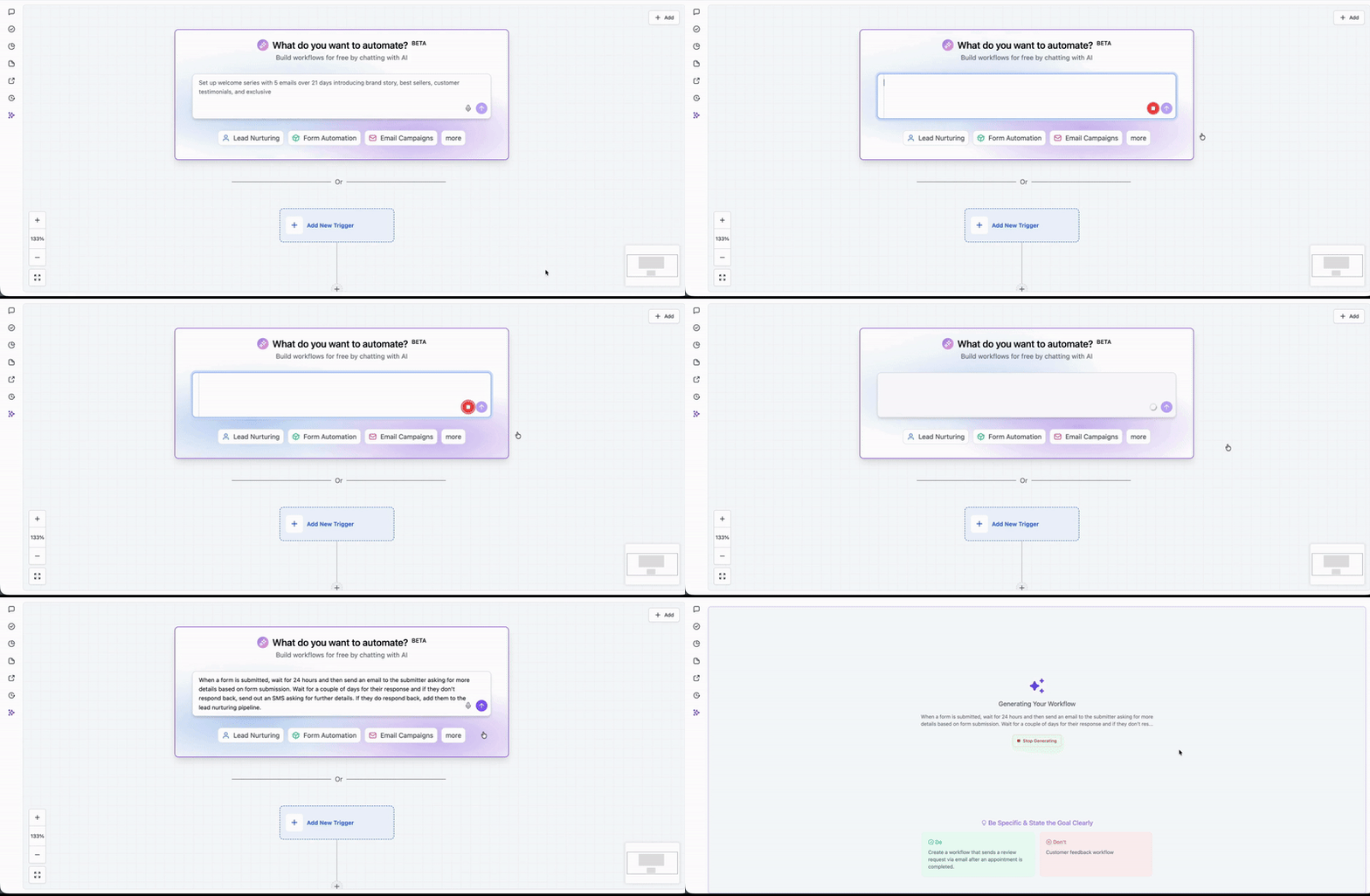
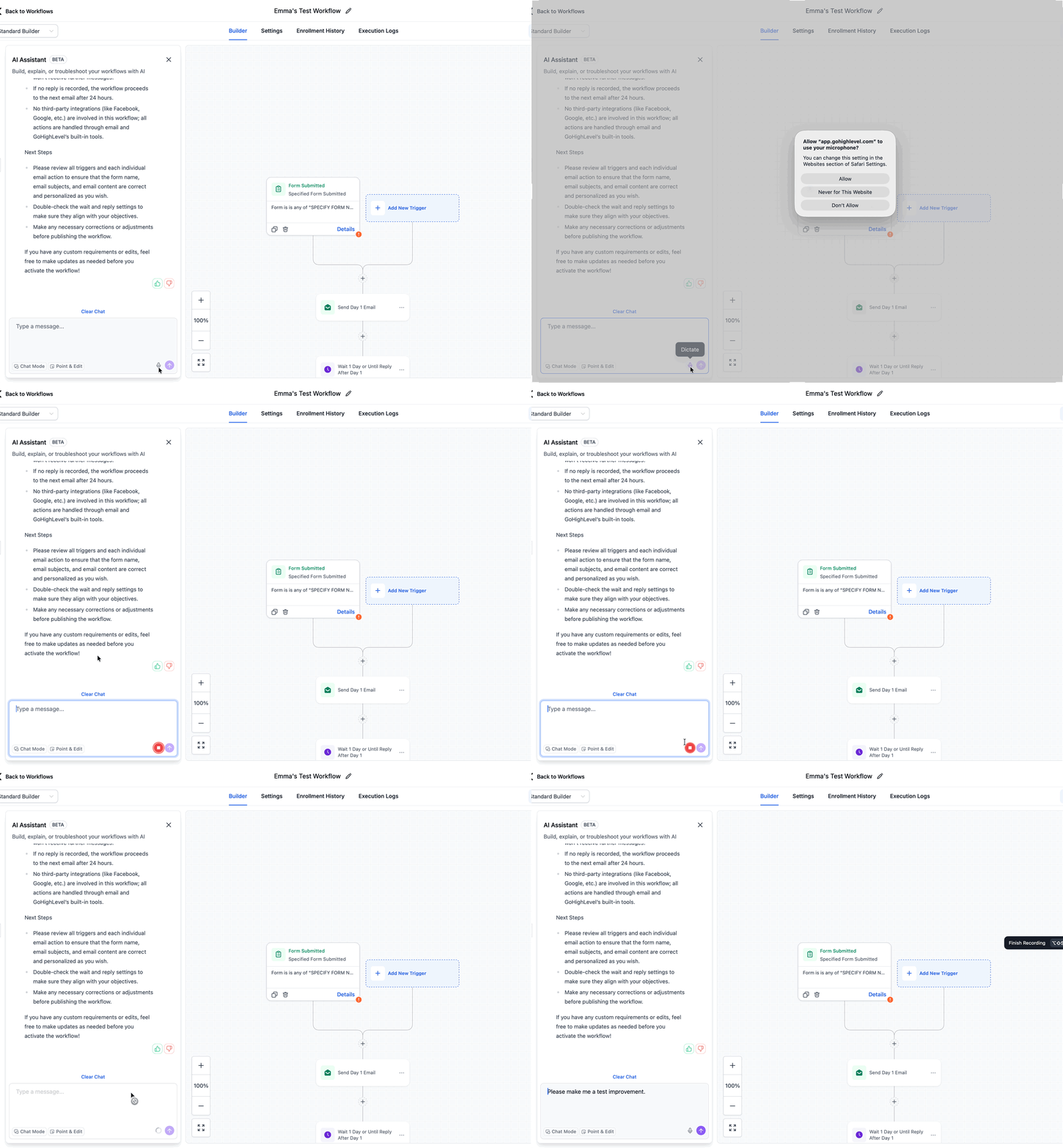
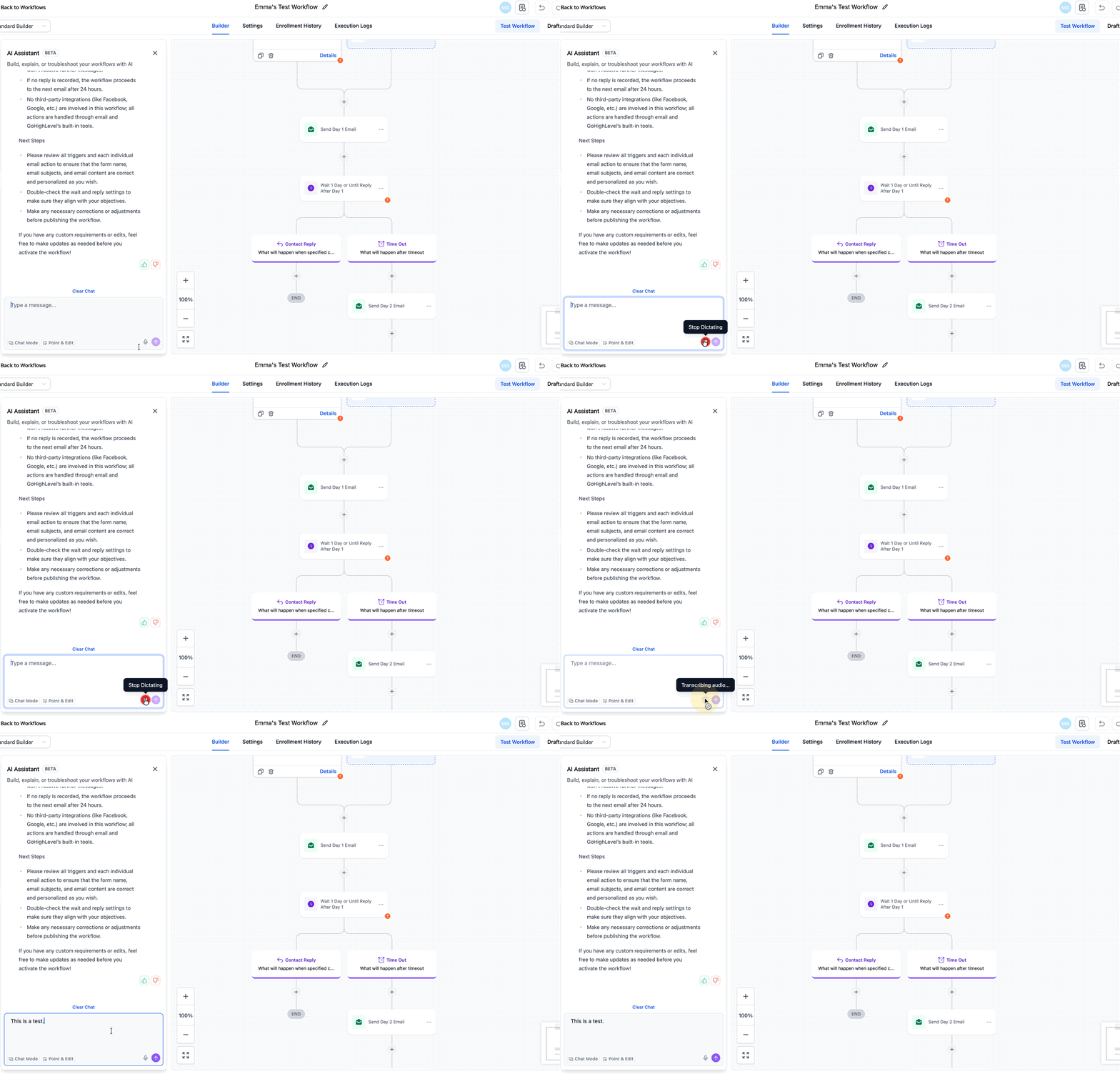
Voice Dictation adds speech to text to the Workflow AI Builder and the AI Assistant inside the workflow canvas. When you click the microphone icon, HighLevel records your voice, converts it to text and treats it as an AI prompt. The system then generates a workflow draft or applies the requested edits.
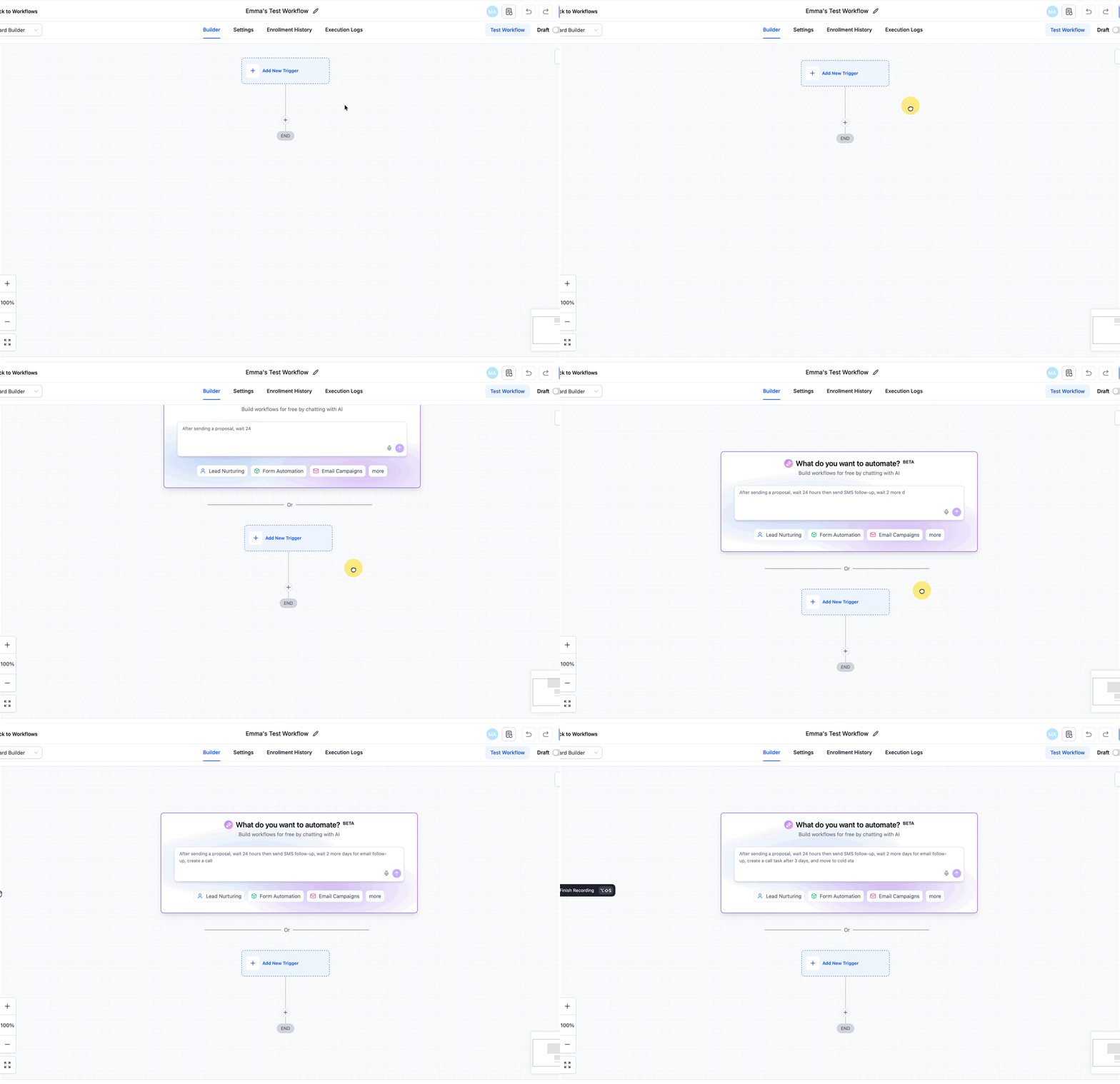
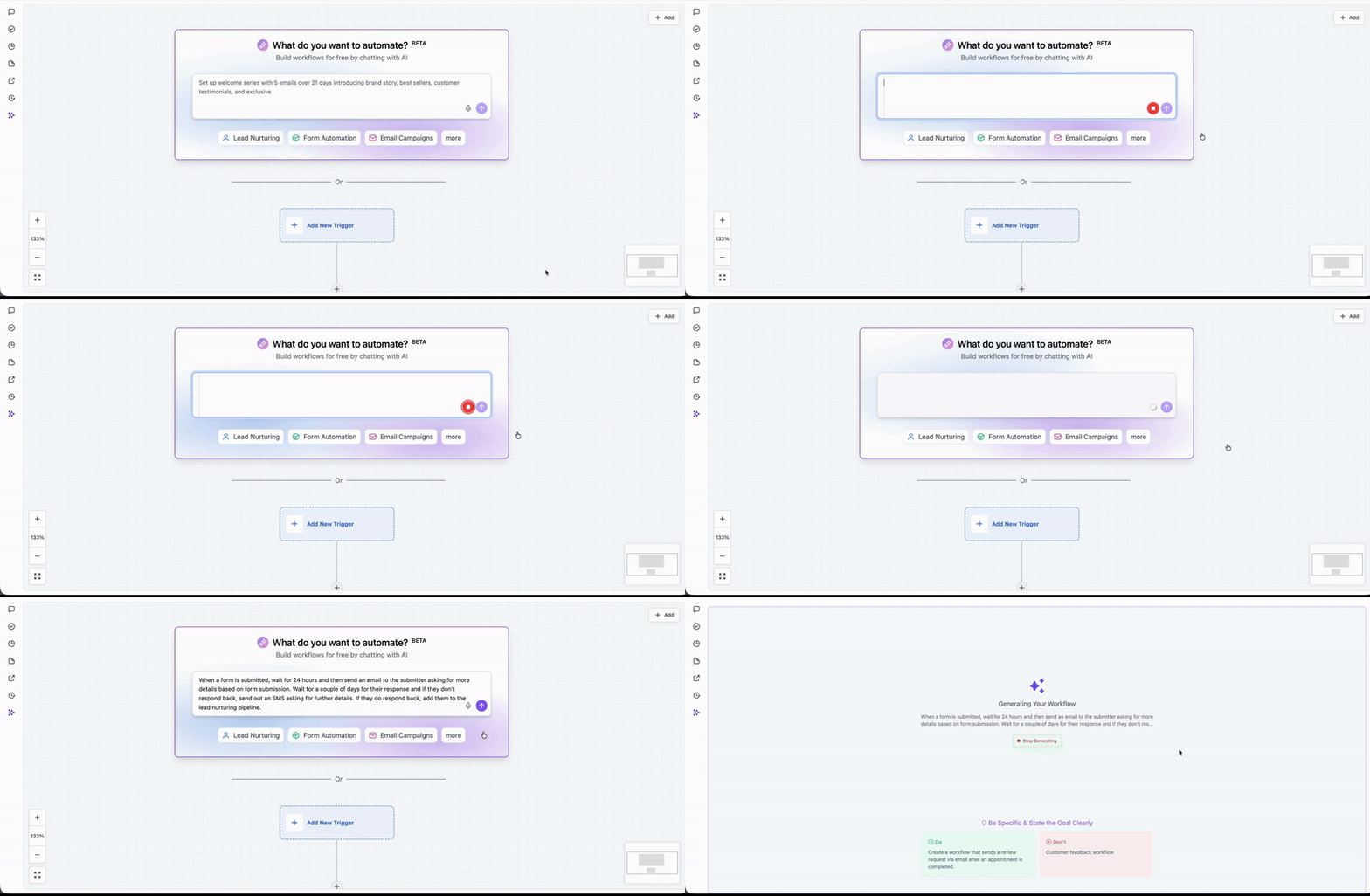
The feature lives in the Automation > Workflows area. In the builder, the prompt box above the “Add Trigger” button contains the microphone control. Both new and existing workflows can be created or modified using spoken commands.
All languages that HighLevel AI prompts support are accepted, allowing global teams to work in their native language. The generated workflow appears in the standard builder for further review and adjustment.
03How businesses use voice dictation
- Digital marketing agency. A strategist opens a client’s workflow and speaks the desired sequence, such as “When a new lead is added, send a welcome email and wait 30 minutes, then add a tag.” The AI Builder transcribes and builds the steps, which the strategist then reviews.
- Real estate brokerage. An agent accesses an existing appointment reminder workflow and says, “Insert an SMS reminder two days before the showing.” The AI Assistant processes the voice command and adds the SMS action at the requested point.
- Healthcare clinic. A clinic manager opens the patient follow up workflow and uses voice to add, “Add a 24 hour delay after the discharge trigger, then send a feedback survey.” The assistant creates the delay and survey steps for later fine tuning.
04Before you start
- A plan that includes Workflow AI Builder or AI Assistant must be active.
- Browser must allow microphone access and have permissions granted.
05How to set up and use voice dictation in HighLevel
Create or edit a workflow using Voice Dictation
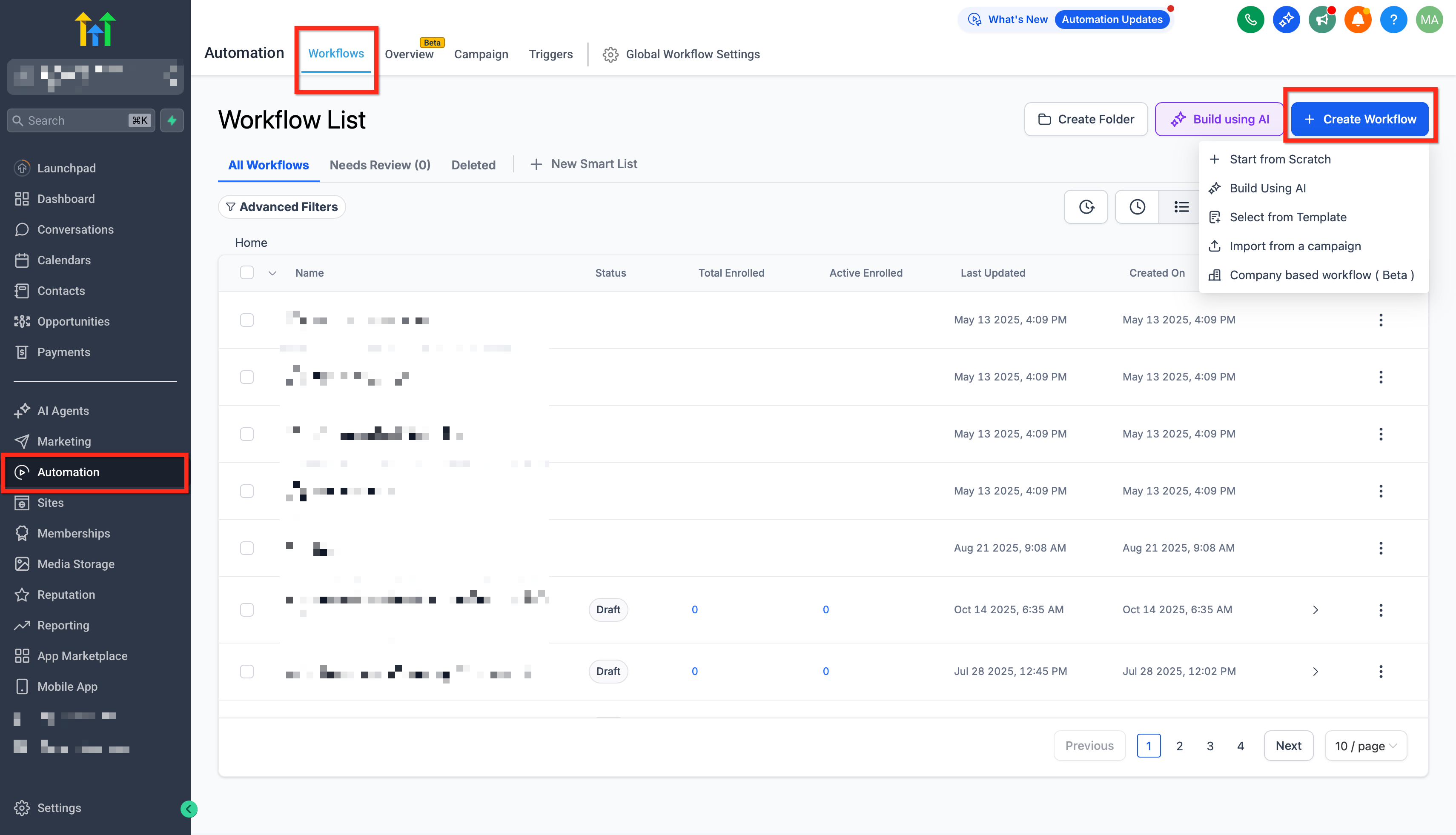
- Navigate to Automation > Workflows.
- Create a new workflow or open an existing one.
- Locate the AI Builder prompt box above the “Add Trigger” button.
- Click the microphone icon.
- Grant browser microphone permissions if prompted.
- Speak your workflow idea naturally, mentioning triggers and actions.
- Click Stop or wait for the auto stop feature.
- Review the generated workflow and edit any elements as needed.
- Click Save and Publish.
06What it looks like in HighLevel
07Things to know before you rely on it
- Voice Dictation works in any language that HighLevel AI prompts support.
- The feature is available wherever AI Builder or AI Assistant is enabled within your plan; no extra subscription is required.
08If something goes wrong
- Microphone isn’t working.. Confirm microphone permissions are enabled in your browser and operating system settings and refresh the page after granting access.
09How it connects to the rest of HighLevel
- All AI Employee features overview AI Employee features
- Using the Workflow AI Assistant in HighLevel Workflow AI Assistant
- Start a 30 day HighLevel trial 30 day trial
Michael's take

Voice dictation improves accessibility by allowing users who have limited mobility or typing challenges to build workflows more easily, turning spoken instructions into fully formed drafts.
The first thing I would get right is the microphone permission in the browser. Make sure the prompt to allow access appears and that the setting stays enabled; otherwise the feature never hears you and you’ll be stuck back at the keyboard.