
01Who this is for
- Founders of SaaS companies who need consistent product details in every chat.
- Small business owners who publish policies and pricing on their website and want the bot to reference the latest version.
02Conversation AI bot training, explained
Conversation AI bot training connects a bot to a Knowledge Base that stores approved content such as web pages, FAQs, documents, tables, rich text and Google Drive files. When a customer asks a question, the bot searches the Knowledge Base, pulls the most relevant source and incorporates that information into its answer.
The Knowledge Base is managed under AI Agents > Knowledge Base. A bot selects the desired Knowledge Base in its Bot Training tab. Sources are processed before they become searchable, and you can refresh or replace them at any time.
03How businesses use Conversation AI bot training
- SaaS company. Add pricing tables and help center pages to a Knowledge Base, attach it to the support bot, and verify that the bot returns the correct plan details for common inquiries.
- Real estate agency. Upload property listings as tables and create FAQs for buying steps, then train the bot to retrieve exact listings and procedural answers when prospects ask about available homes.
- Healthcare clinic. Import policy documents and FAQ entries about insurance, then test that the bot pulls the latest coverage rules and appointment guidelines for patient questions.
04The numbers and rules that matter
- Google Drive imports supported Google Docs, PDF, DOC, and DOCX files.
05Before you start
- A Conversation AI bot must exist or be created before linking a Knowledge Base.
06How to set up and use Conversation AI bot training in HighLevel
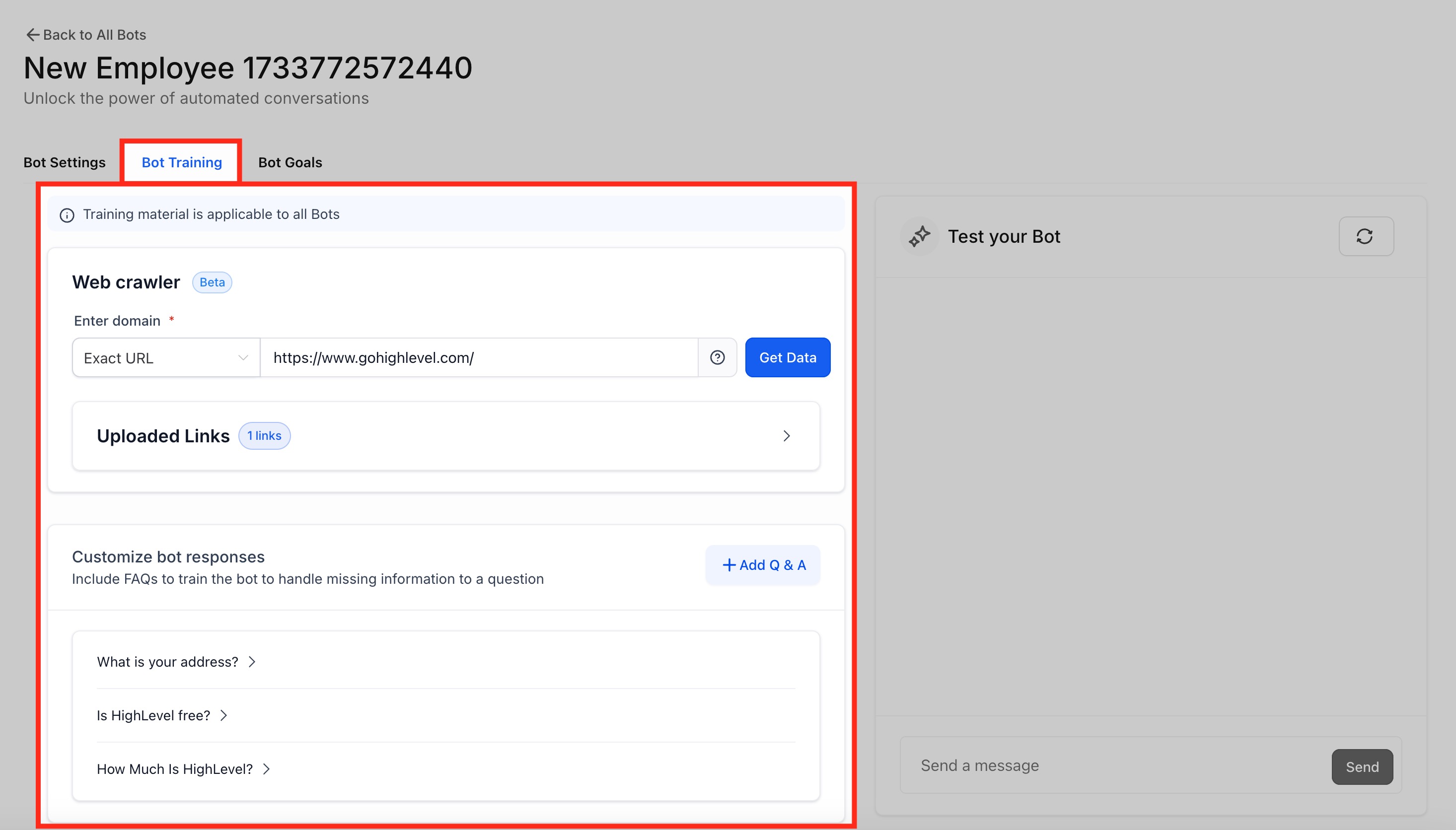
Open Bot Training
- Navigate to AI Agents > Conversation AI.
- Open the Agent List.
- Select an existing bot or create a new one.
- Open the Bot Training tab.
- Choose an existing Knowledge Base from the Knowledge Base selector if available.
- To create or manage a centralized Knowledge Base, go to AI Agents > Knowledge Base.
Review Existing Website Sources
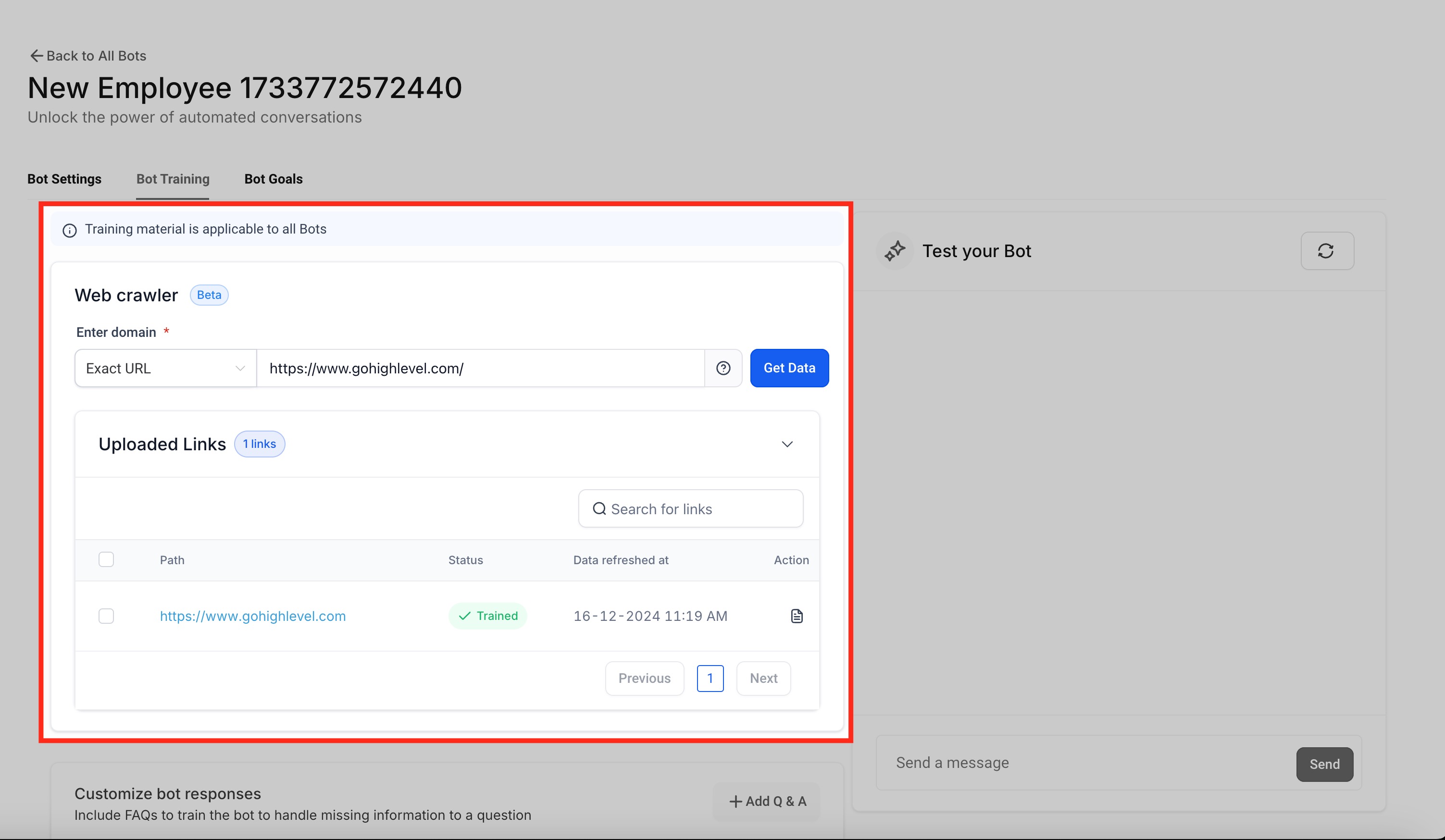
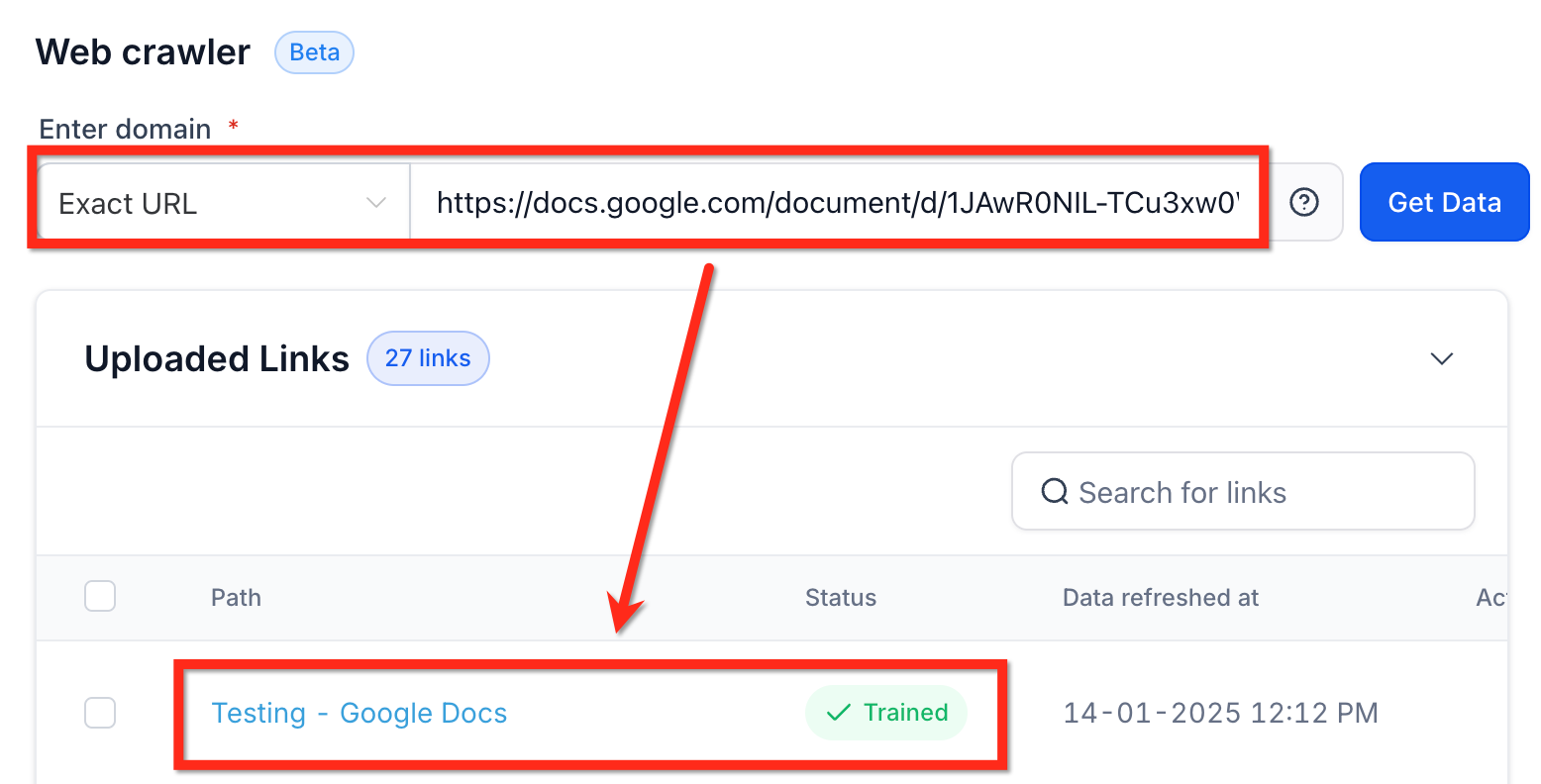
- Expand the Uploaded Links section.
- Confirm each page listed was intended for training.
- Check that every source shows a successful status.
- Verify the refresh timestamp is recent.
- Make sure the content still matches current business information.
Add Website Content
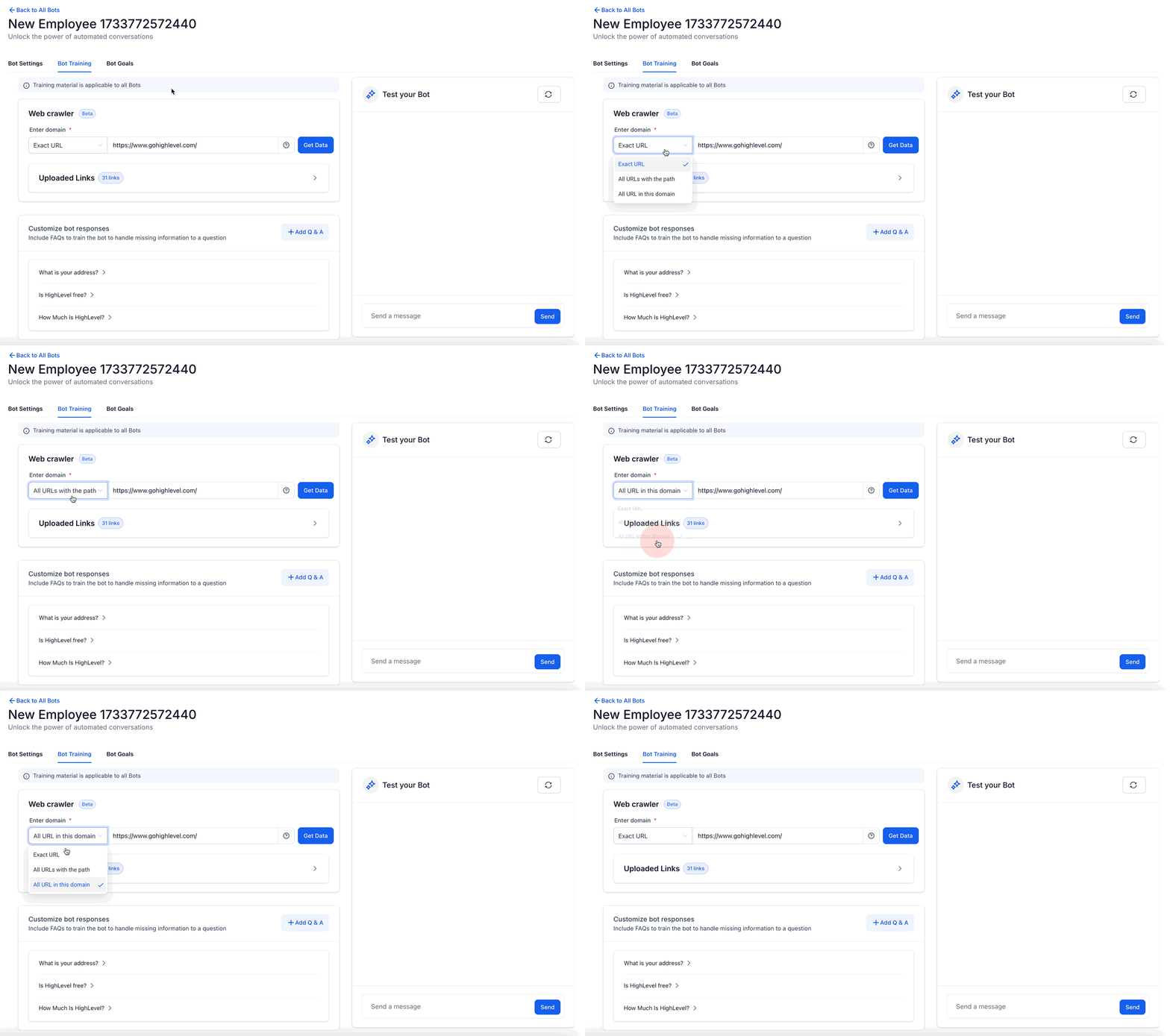
- Select the desired crawling mode.
- Choose Exact URL, All URLs with this Path, or All URLs in this Domain.
- Enter the full URL, including https://.
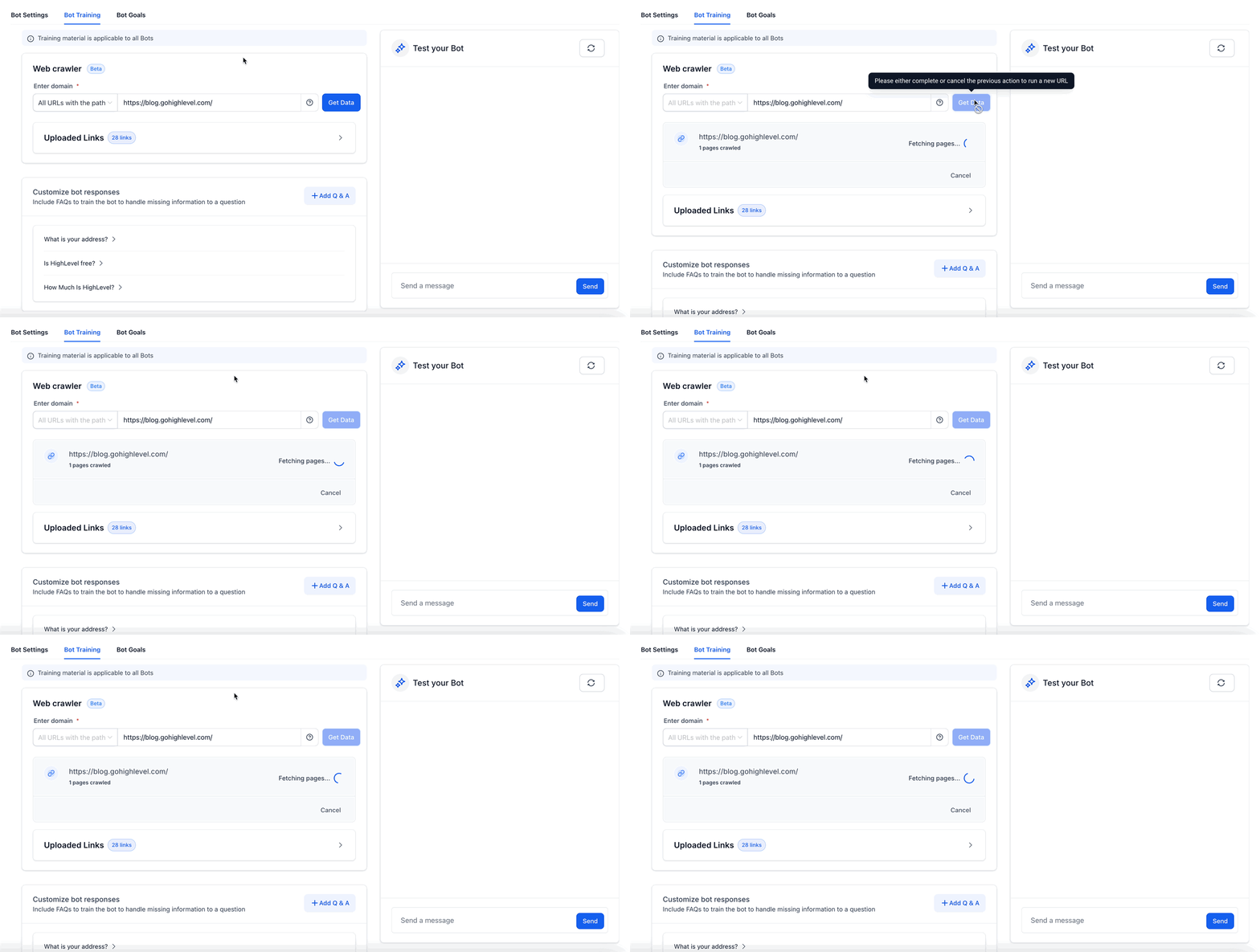
- Click Get Data.
- Review the list of pages HighLevel discovers.
- Select only the pages that answer customer questions.
- Click Train Bot.
- Wait until each chosen URL displays a Trained status.
Add Documents, Tables, Rich Text, or Google Drive Files
- Go to AI Agents > Knowledge Base.
- Create a new Knowledge Base or open an existing one.
- Click Add Source.
- Select the required source type (File Upload, Table, Rich Text, or Google Drive).
- Add the content and wait for processing to complete.
- Return to the Conversation AI bot and select the updated Knowledge Base.
Add Custom Bot Responses or FAQs
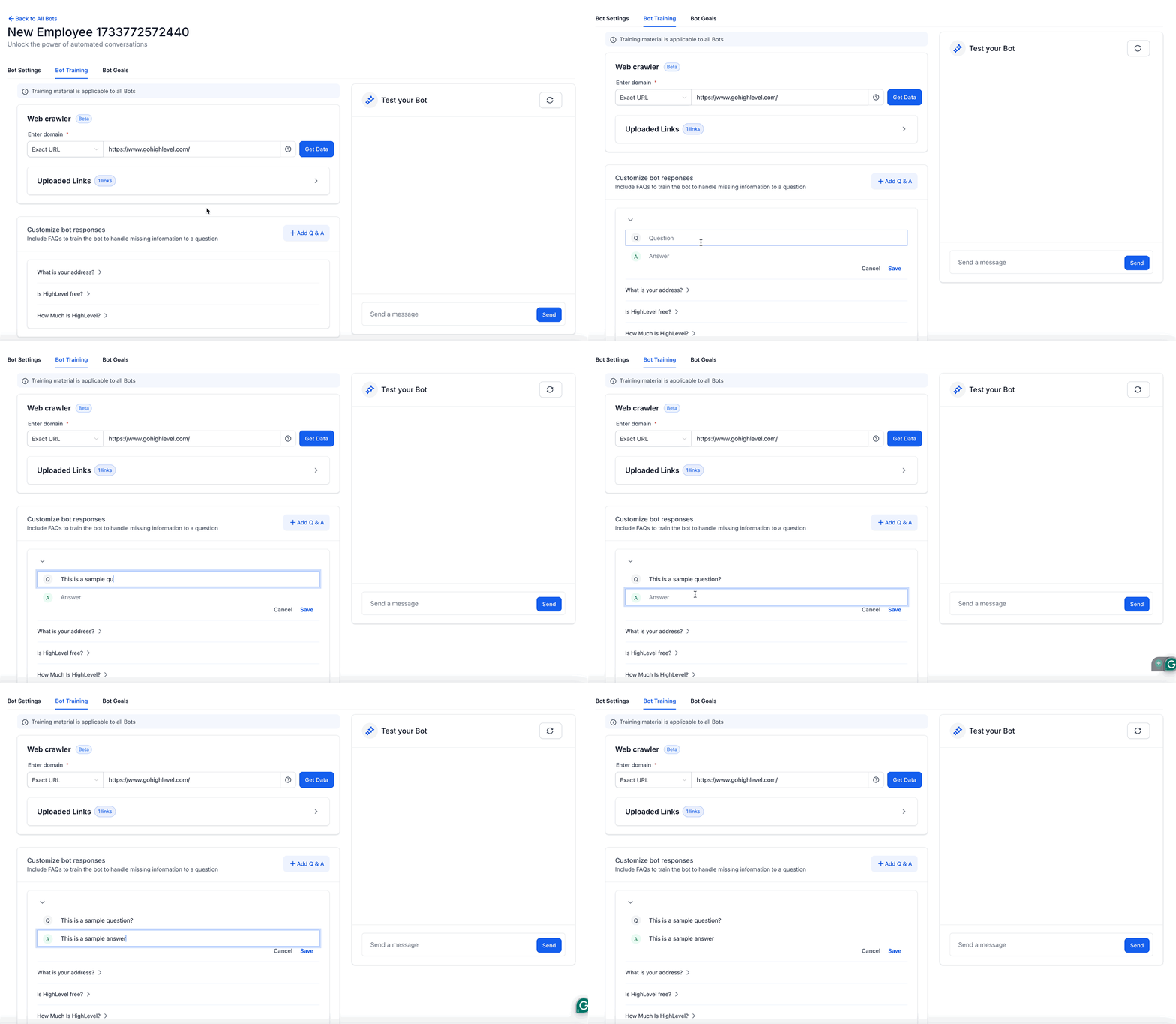
- Click + Add Q & A.
- Enter a customer style question.
- Enter a concise, complete answer.
- Save the Q&A entry.
- Test several natural variations of the question.
Keep Sources Current
- Search trained URLs by title or address.
- Refresh any website pages that have changed.
- Remove outdated or irrelevant sources.
- Bulk refresh or delete URLs when the options appear.
- Re sync Google Drive files after updates.
- Replace revised uploaded documents.
- Remove duplicate or conflicting information.
Test Retrieval and Bot Responses
- Go to AI Agents > Knowledge Base.
- Open the Knowledge Base linked to the bot.
- Wait for new or updated sources to finish processing.
- Open the Knowledge Base Retrieval Tester.
- Enter a realistic customer question.
- Review the answer and the retrieved sources.
- Update any unclear, missing, or outdated content.
- Retest the same question.
- Return to the Conversation AI bot.
- Open Bot Training and use Test your Bot to ask a question.
- Test a common question, a paraphrased version, an FAQ, and an out of scope question.
- Use the reset icon before beginning a separate test scenario.
- Confirm that the response matches the approved source content.
07What it looks like in HighLevel
08Settings that matter
- Auto Refresh. Schedules the Web Crawler to re crawl selected URLs daily, weekly or monthly.
- crawling mode. Determines whether the Web Crawler processes a single page, all pages sharing a path, or every page in a domain.
- Knowledge Base selector. Lets you choose which Knowledge Base the bot will use for answering questions.
09Things to know before you rely on it
- Only supported document types with searchable text are processed for File Upload sources.
- Web Crawler indexes only publicly accessible pages or Google Docs shared with Anyone with the link.
10If something goes wrong
- Bot does not use a newly added source. Confirm processing is complete, the source shows a successful status, and the correct Knowledge Base is attached to the bot. Use the Retrieval Tester to verify the content can be found.
- Bot returns conflicting or outdated answers. Search for duplicate or overlapping sources, remove or update the incorrect version, then retest both the Knowledge Base and the bot.
11How it connects to the rest of HighLevel
- See how AI messages show which Knowledge Base sources contributed to a response. Response info for AI messages
- Learn about the flow that detects new queries for Conversation AI. New query detection flow
- Set the response mode for a Conversation AI bot. Response mode settings
Michael's take

Training a bot in HighLevel feels like a convenient shift for businesses that rely on consistent, up to date information in every chat. Pulling approved policies, pricing tables, and FAQ answers from a single Knowledge Base keeps the bot from guessing and reduces the back and forth with customers.