
01Who this is for
- SaaS Founders, keep product docs and pricing tables inside the AI so prospects get accurate data without manual updates.
- Service agencies, store policy documents and client FAQs in rich text so the bot can answer support tickets right away.
- Ecommerce managers, upload CSV product catalogs and PDFs of specifications so the AI can reference inventory details during chats.
02Knowledge sources support, explained
The Knowledge Base feature lets you collect many content types, CSV tables, rich text blocks, PDFs, DOCX files, FAQs, and crawled web pages. When a user asks a question, the system first runs a vector search, then a lightweight re ranking layer chooses the most relevant passages before the language model creates a reply.
All replies include a “Response Info” icon. Clicking it opens a side drawer that lists the exact chunks, file names or URLs, and timestamps that powered the answer. You can edit or replace those sources without leaving the conversation.
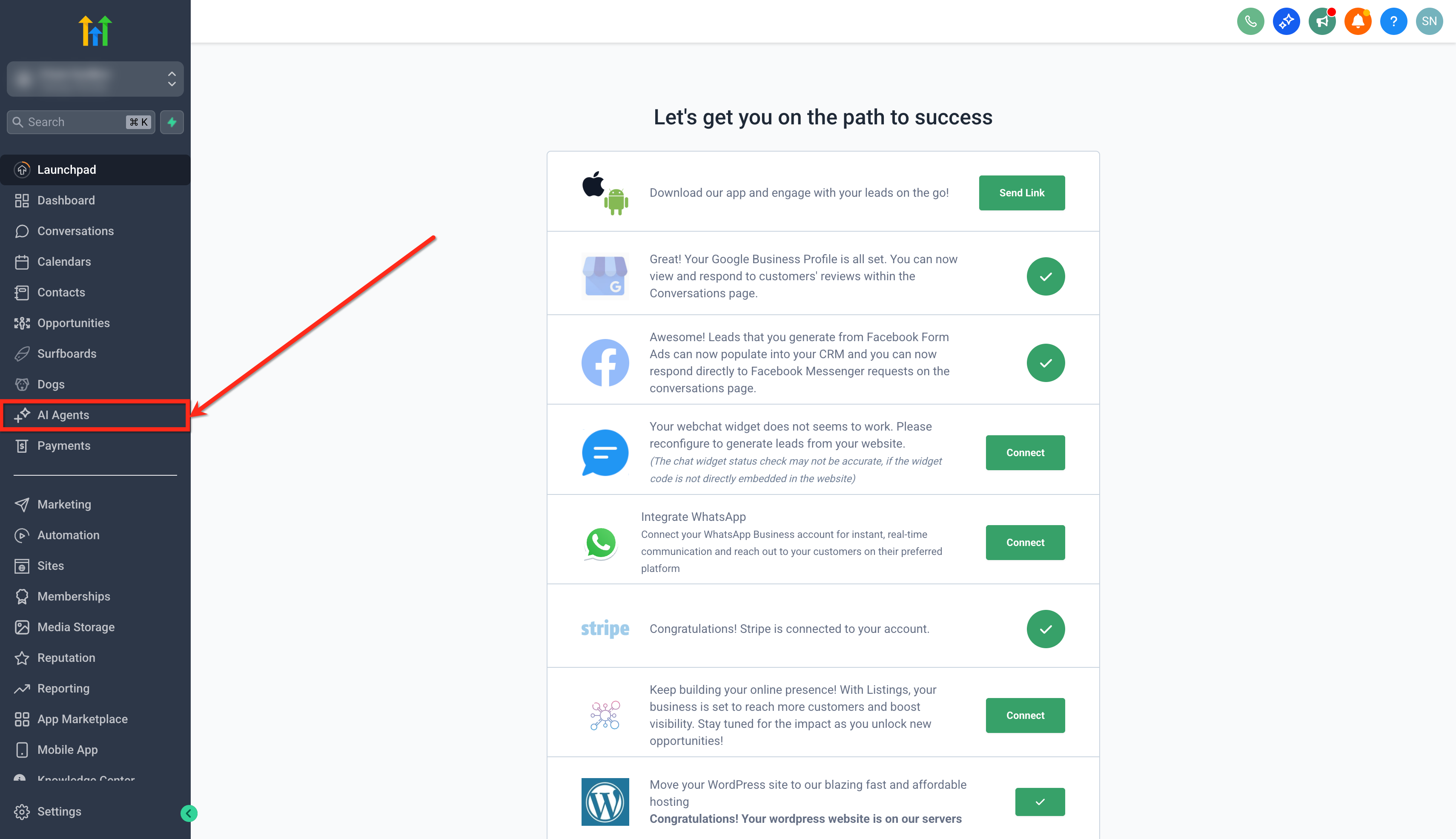
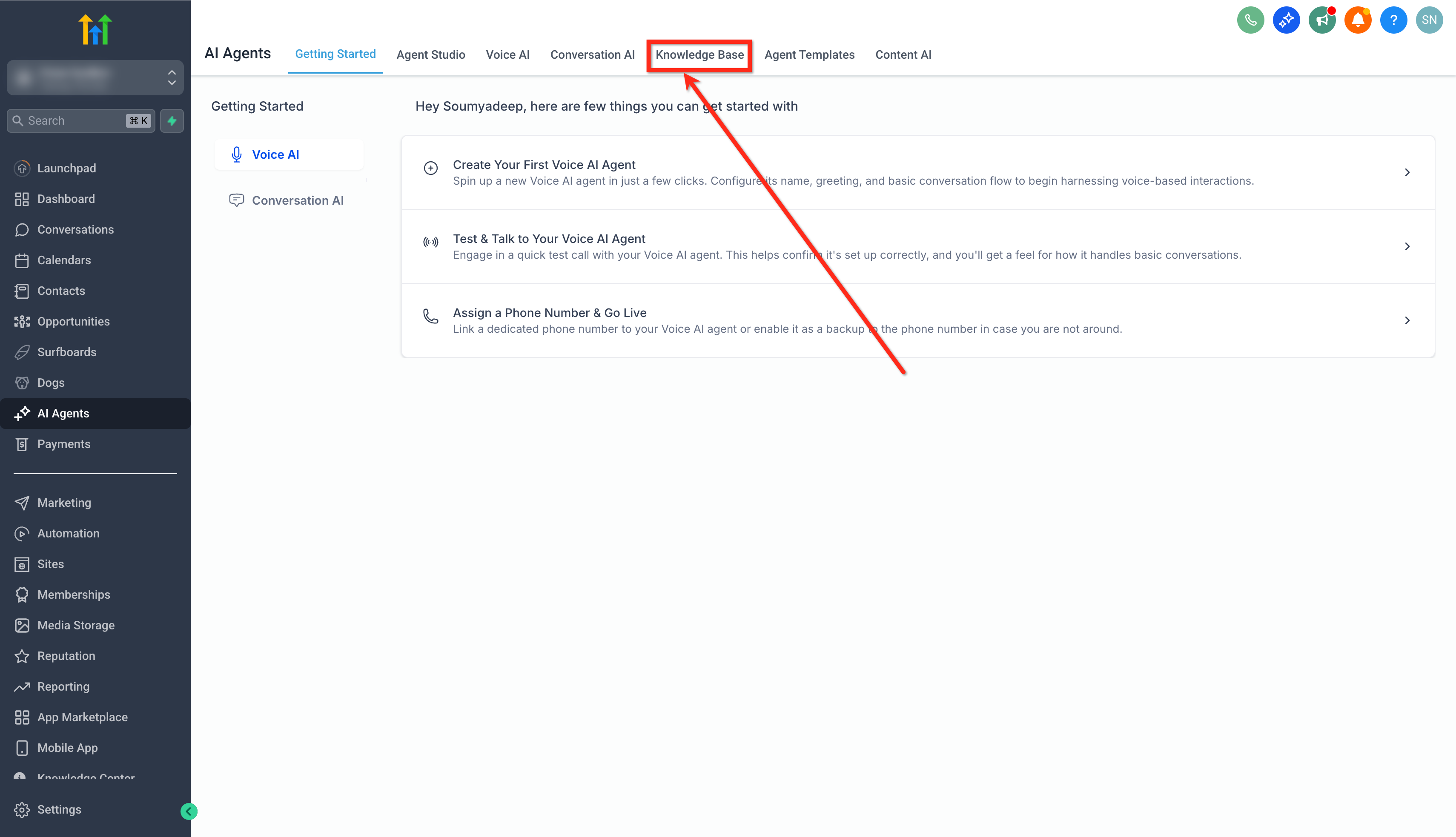
The Knowledge Base lives under the AI Agents section. You create or edit a base, add sources, attach it to a Conversation AI bot on the Bot Training tab, and test retrieval with a built in tester before the bot goes live.
03How businesses use knowledge sources support
- SaaS startup. Create a Knowledge Base, upload a CSV pricing grid, and attach it to the sales bot. The bot pulls the latest price rows when a prospect asks about plan costs, and you can see the exact table row used in the Response Info drawer.
- Digital marketing agency. Add a rich text FAQ about campaign guidelines and a PDF of brand assets to the same Knowledge Base. The support bot pulls the relevant policy paragraph when a client inquires about ad approval, and you can edit that paragraph directly from the response view.
- Ecommerce store. Upload product spec PDFs and enable a web crawler source for the store’s help site. The order status bot references the correct SKU details from the PDF and shows the originating file name when customers ask about features.
04The numbers and rules that matter
- Supported source types: Tables, Rich Text, File Upload, FAQ, Web Crawler, Web Search.
- Supported file types: PDF, DOC/DOCX, PPT/PPTX, TXT, CSV.
- Maximum table columns: 500 columns, with the 20 most relevant columns selected.
- Up to three knowledge chunks are shown for each AI reply.
05Before you start
- You must be signed in to a subaccount.
06How to set up and use knowledge sources support in HighLevel
Create or open a Knowledge Base
- Sign in to your subaccount.
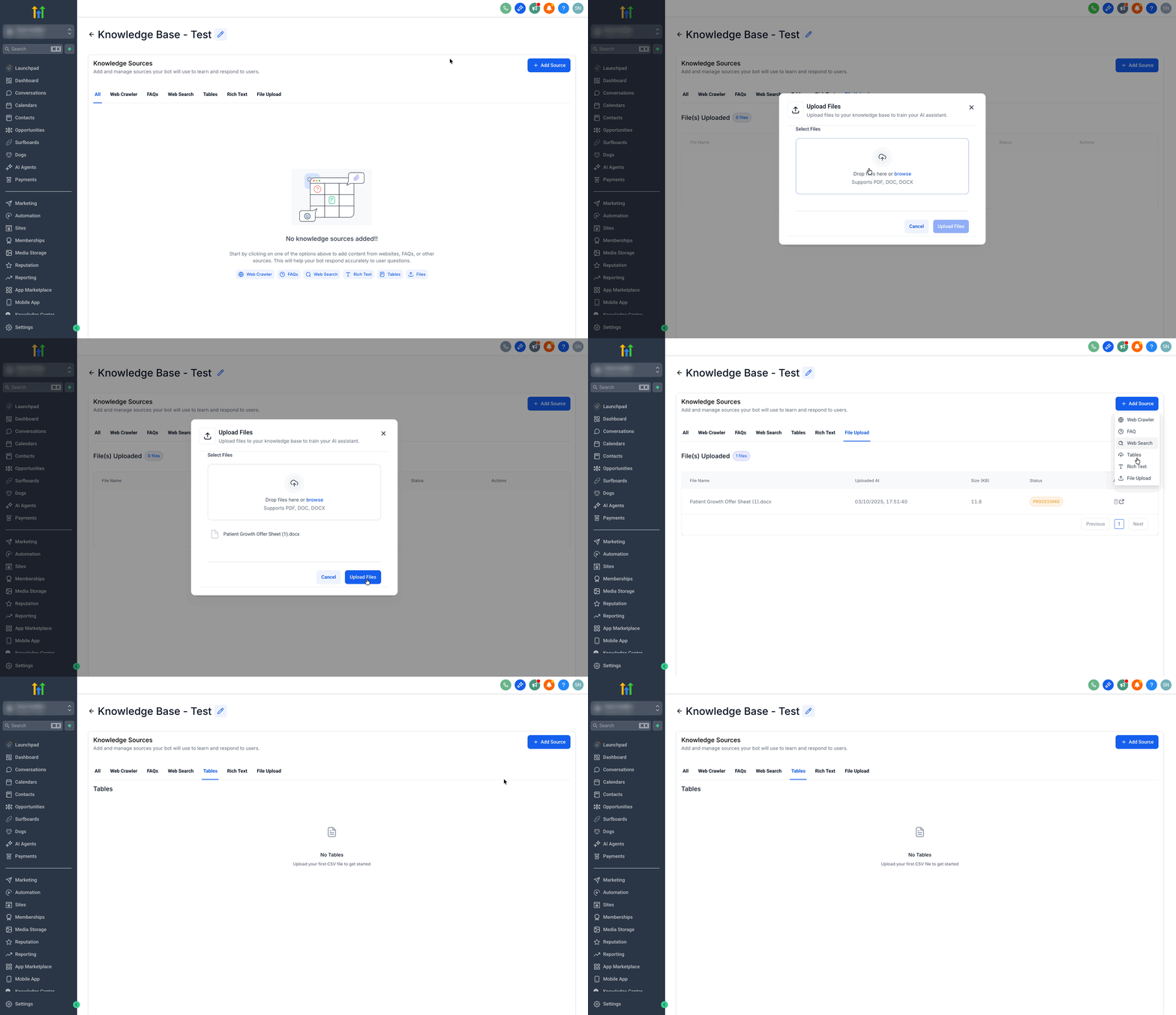
- Navigate to AI Agents > Knowledge Base.
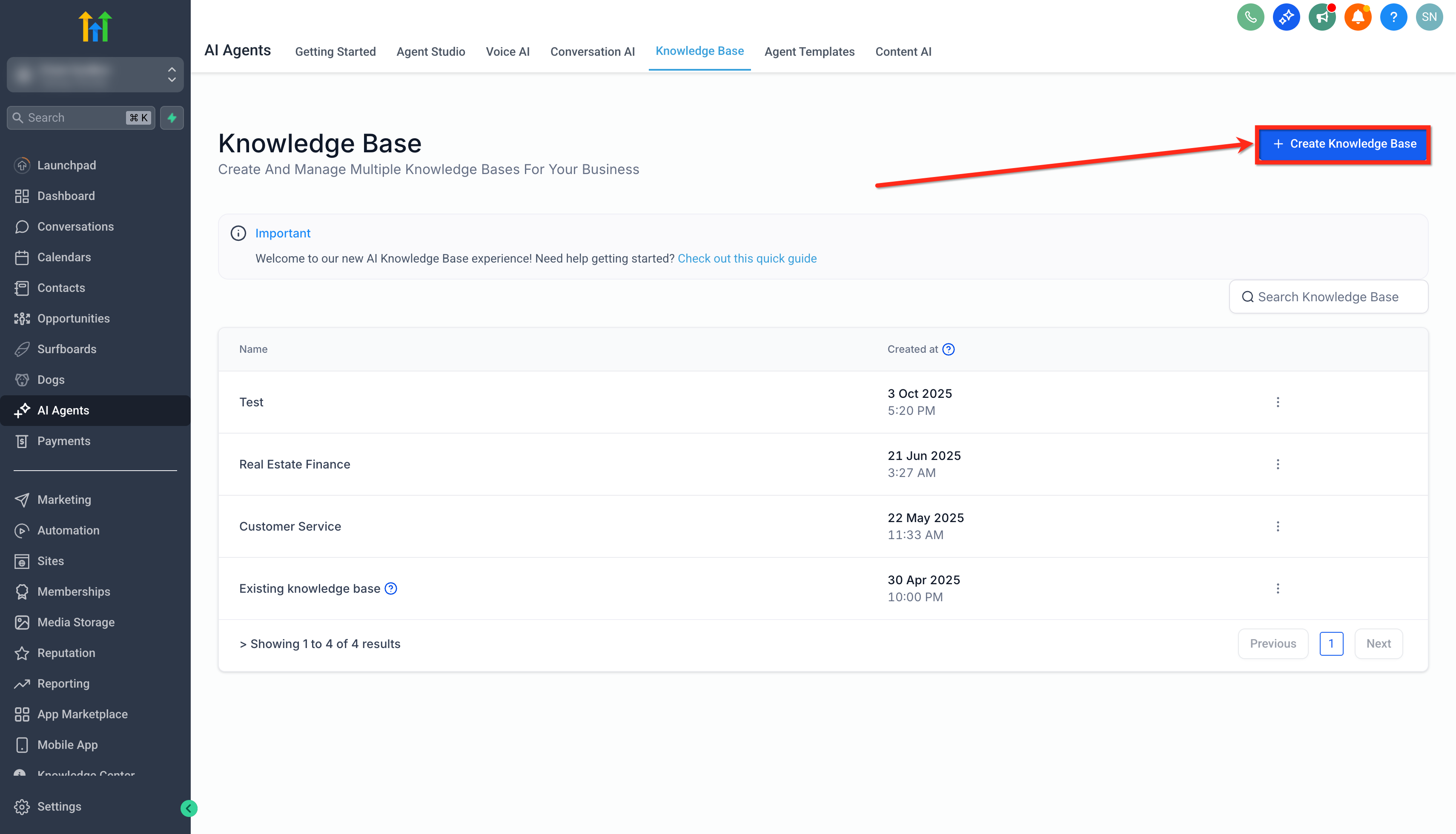
- Click the + Create Knowledge Base button to start a new base.
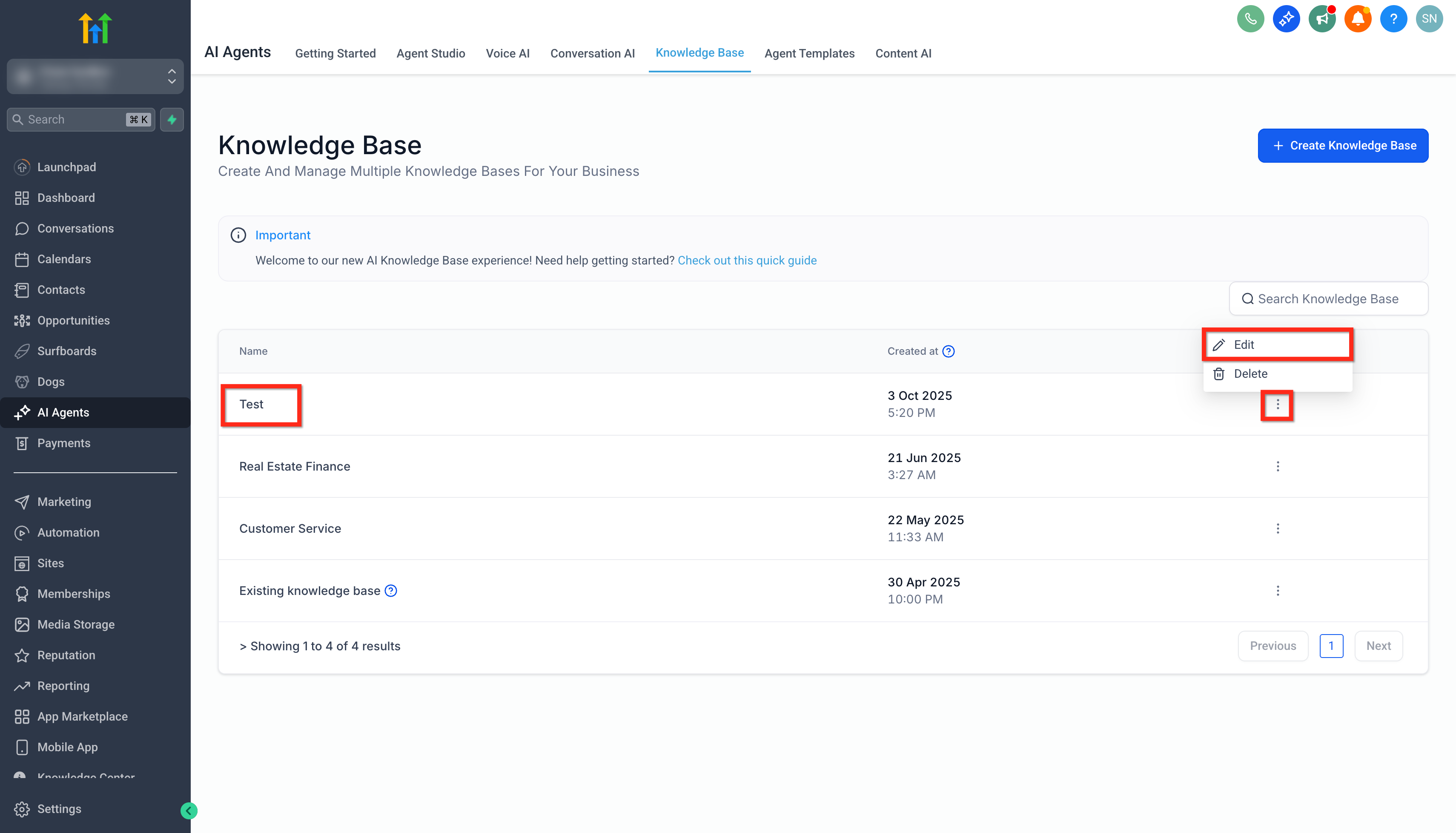
- Or select an existing Knowledge Base name to edit it.
Add Knowledge Sources
- Click the + Add Source button.
- Choose the desired source type such as Table, Rich Text, File Upload, FAQ, Web Crawler, or Web Search.
- Upload the file or enter the content for the selected source.
Attach the Knowledge Base to a Conversation AI Bot
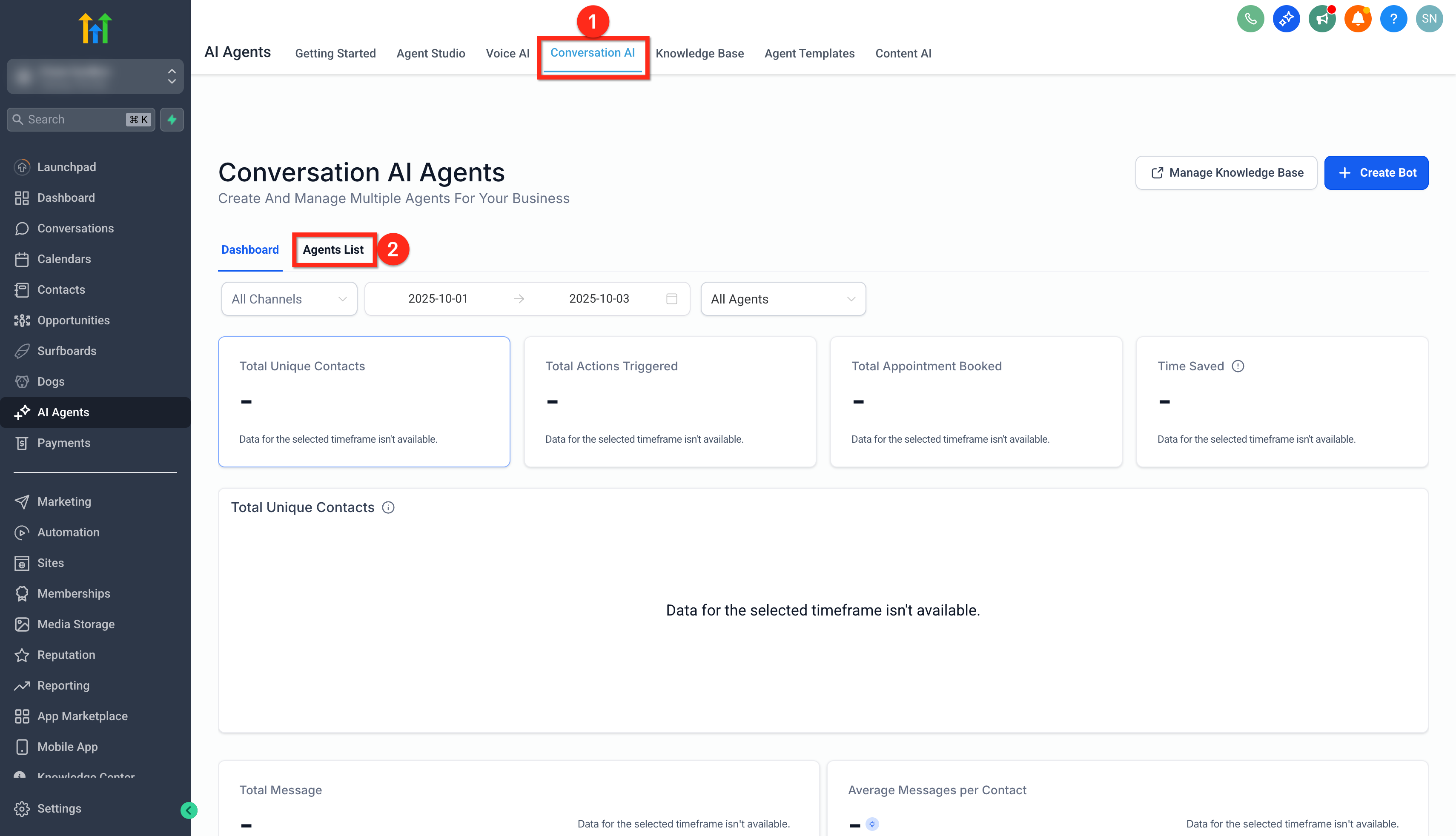
- In AI Agents, open the Conversation AI section.
- Select the Agent List tab.
- Create a new bot with + Create Bot or edit an existing one.
- Open the Bot Training tab.
- Choose the Knowledge Base you prepared from the Knowledge Base dropdown.
Test Knowledge Base Retrieval
- Open AI Agents > Knowledge Base and select the Knowledge Base to test.
- Wait until newly added content finishes processing or indexing.
- Open the Knowledge Base Retrieval Tester.
- Enter a realistic customer style question.
- Review the answer and the displayed source information.
- Update the Knowledge Base if any source is missing or outdated.
- Retest the same question to confirm the correct content is retrieved.
- Finally, test the full bot experience from the bot testing window.
Inspect Which Knowledge Chunks Powered the Reply
- From the subaccount dashboard, go to Conversations.
- Open a conversation where the AI bot posted a reply.
- Click the AI Response Info button next to that message.
- View the Knowledge Chunks list to see up to three chunks used.
07What it looks like in HighLevel
08Settings that matter
- Knowledge Base (Bot Training tab). Selects which Knowledge Base the Conversation AI bot will query for answers.
09Things to know before you rely on it
- Supported file types are PDF, DOC/DOCX, PPT/PPTX, TXT, and CSV for tables.
- CSV tables can contain up to 500 columns, but only the 20 most relevant columns are used.
- When an AI reply is displayed, up to three knowledge chunks are shown in the Response Info drawer.
- Images embedded in uploaded documents are ignored during indexing.
10How it connects to the rest of HighLevel
- Learn how Knowledge Base triggers work in Conversation AI. Knowledge Base triggers
- Guidance on training a Conversation AI bot after adding sources. Training Conversation AI bot
- View pricing and plan options for using AI Employee features. HighLevel pricing
Michael's take

Knowledge sources support is a solid upgrade for any AI driven help desk.
Teams that rely on a single static FAQ should skip it until they need richer, dynamic answers.