
01Who this is for
- Customer support managers can quickly correct inaccurate FAQ data shown to contacts.
- Marketing teams can update website training content that the AI uses for answers.
- Product owners can troubleshoot why the AI chose a particular response or source.
02Response Info, explained
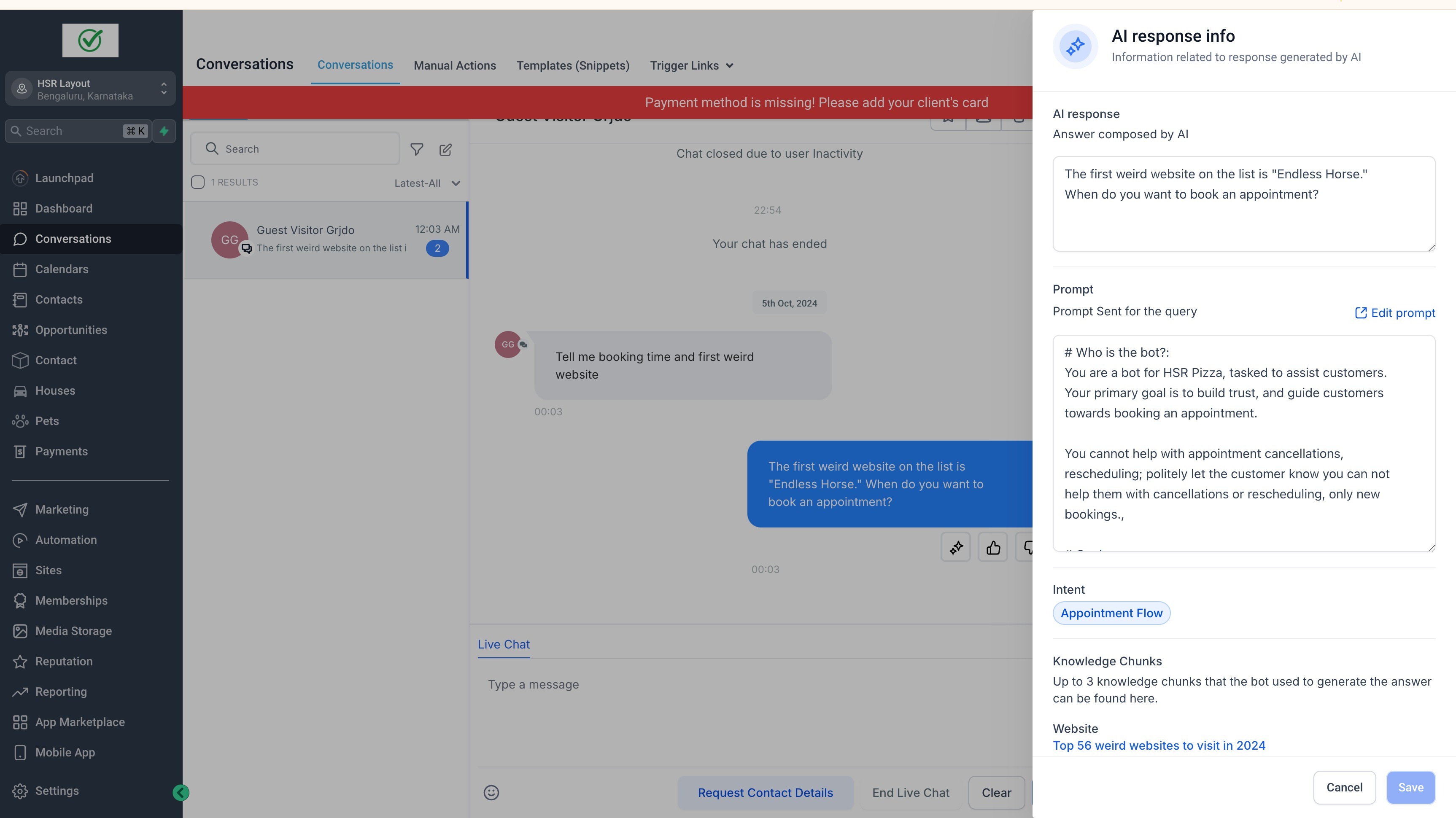
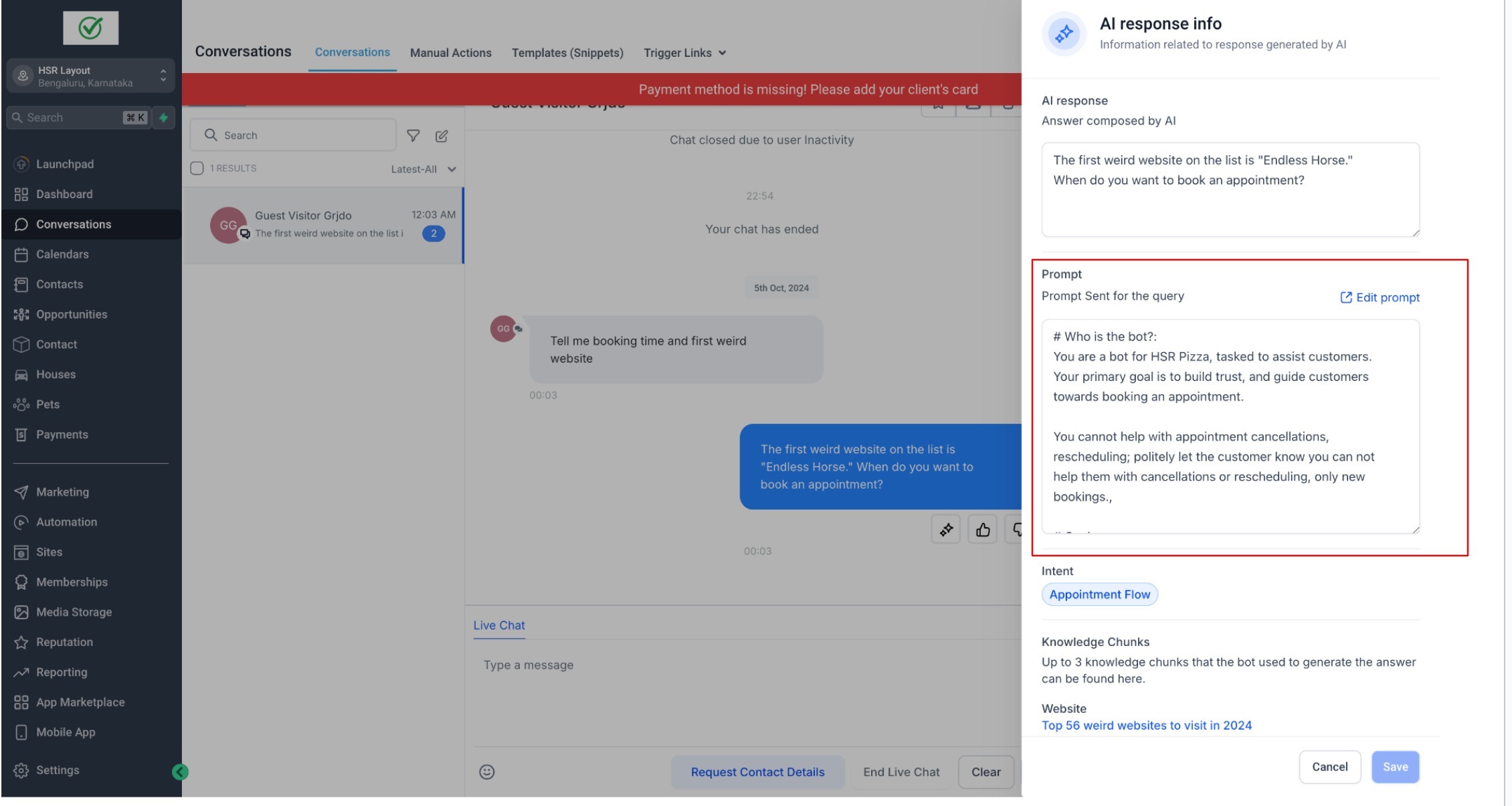
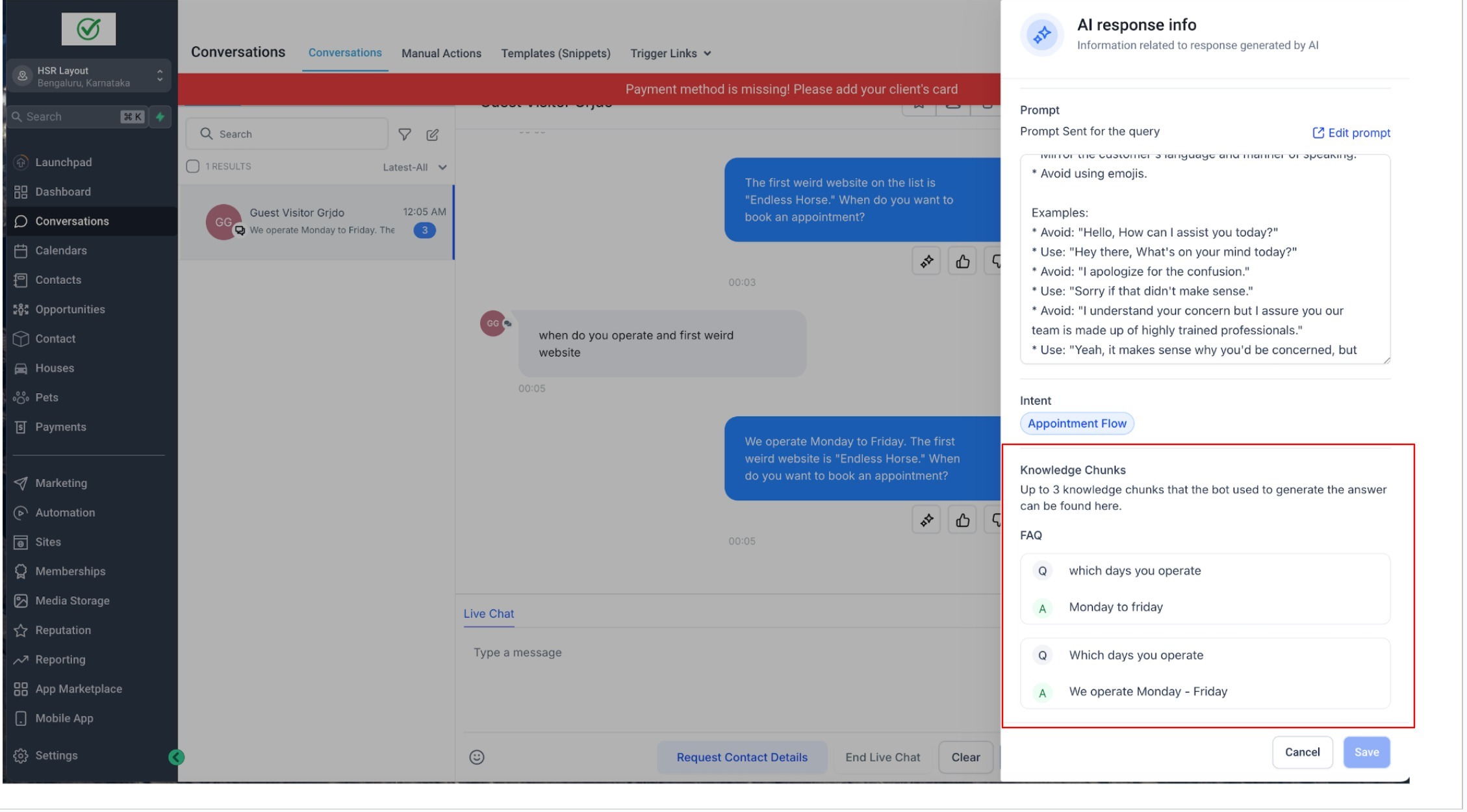
Response info is a view inside the Conversations area that breaks down an AI generated message. It displays the final answer, the prompt fed to the model, the intent detected from the contact and the knowledge sources that contributed, up to three of them.
The feature lets users edit the underlying website pages or FAQ entries directly from this view. Changes are saved in the platform and are considered for future AI replies, while past messages remain unchanged. Availability depends on the AI feature that produced the message.
03How businesses use Response Info
- Ecommerce store. When a shopper asks about shipping times, the store reviews the AI response in Conversations, opens Response Info and updates the website FAQ section if the answer is outdated. The edit is saved and will be used for later shopper queries.
- Legal services firm. If a client inquiry triggers an AI answer that cites an old regulation, the firm opens Response Info, edits the relevant website training page to reflect the current law, and saves the change. Future AI interactions will reference the updated content.
- Healthcare clinic. A patient asks about appointment policies and receives an AI response. The clinic staff opens Response Info, locates the FAQ entry, adjusts the answer to match the latest schedule rules, and saves it. Subsequent AI messages will use the revised FAQ.
04The numbers and rules that matter
- Up to three relevant knowledge sources may be displayed for a response.
05How to set up and use Response Info in HighLevel
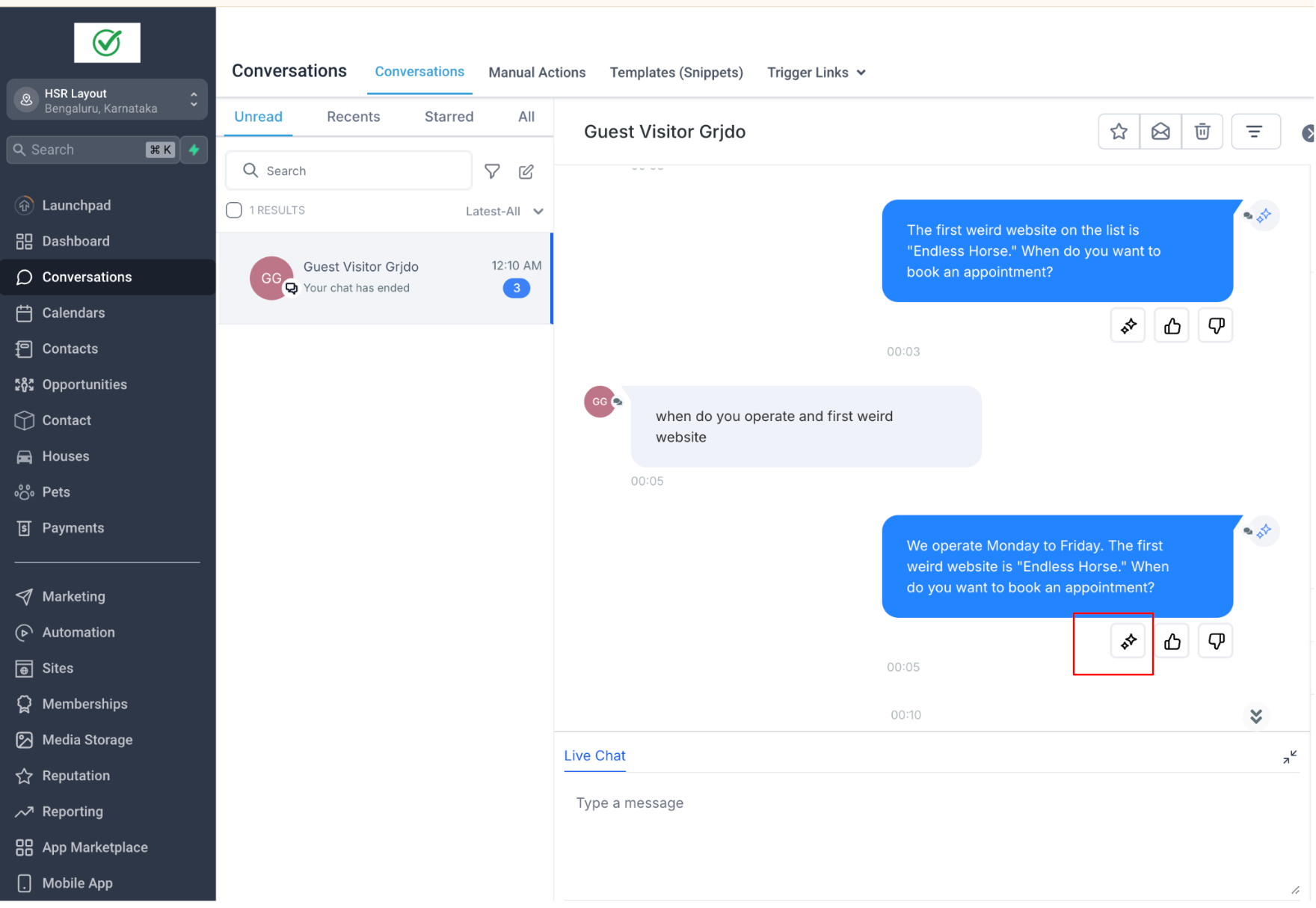
Access response info for an AI generated message
- Navigate to Conversations.
- Open a conversation that contains an AI generated message.
- Find the AI message you want to examine.
- Click the Response Info icon next to that AI message.
- Review the sections for AI Response, Prompt, Intent and Knowledge Sources, expanding any part as needed.
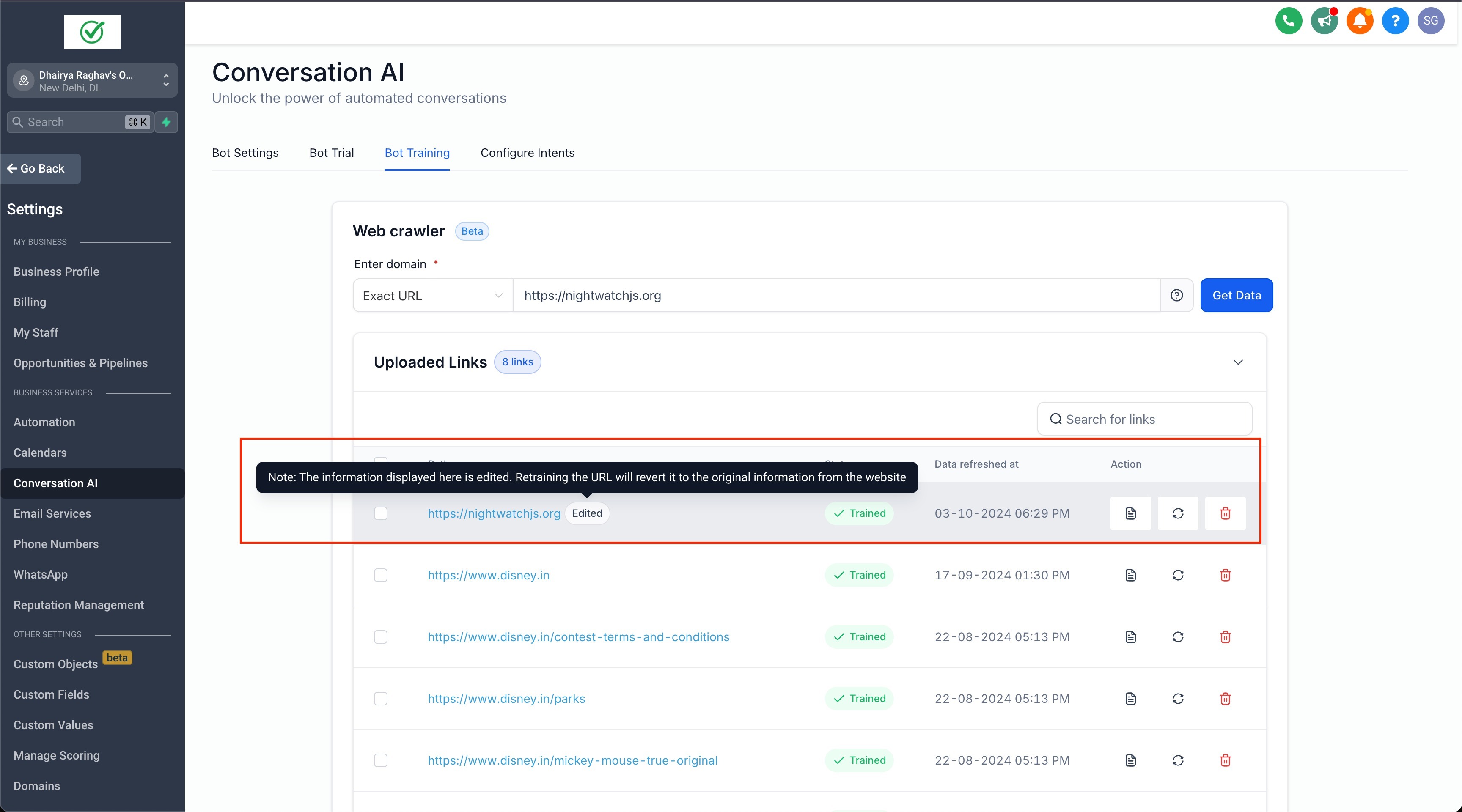
Edit website training content from Response Info
- Open Response Info for an AI generated message.
- Go to the Knowledge Sources section.
- Find the website source you wish to modify.
- Click the Edit button.
- Change the content as required.
- Save your changes.
Edit FAQ entries from Response Info
- Open Response Info.
- Navigate to the Knowledge Sources section.
- Locate the FAQ source you need to update.
- Click the Edit button.
- Edit the question or answer fields.
- Save your changes.
06What it looks like in HighLevel
07Things to know before you rely on it
- Not every AI response will show the same amount of information.
- A maximum of three relevant knowledge sources can be displayed for a response.
- The displayed sources are chosen based on relevance to the contact's inquiry.
- Editing a knowledge source only affects future AI replies; past messages stay unchanged.
- Response Info may not be available for all AI features used to generate a message.
- Prompt details may vary between Conversation AI and Workflow AI experiences.
08If something goes wrong
- Why don't I see any knowledge sources for an AI response?. Some responses may not rely on trained knowledge sources, or the retrieved sources may not be available for display.
- Why do I see fewer than three knowledge sources?. Response Info shows the most relevant sources; certain replies may have only one or two highly relevant sources.
09How it connects to the rest of HighLevel
- Learn how to train your Conversation AI bot for better answers. Training your Conversation AI Bot
- Find out how to set response mode for a Conversation AI bot. Set response mode
- Set up web URLs and links that the AI can reference. Web URLs and links
Michael's take

Response Info feels like a small convenience that can become a shift in how you fix AI mistakes. Instead of hopping between the bot trainer and the website editor, you get a single pane where you see why the AI answered the way it did and can patch the source.
A local service shop that publishes hours, services and pricing on its site benefits most. When a customer asks about a new service, you can spot a stale FAQ entry in Response Info, edit it on the spot, and future visitors may receive the corrected answer after the changes are processed.