
01Who this is for
- Founders who need to protect AI bot settings from accidental edits while delegating specific tasks to team members.
- Marketing agencies that assign different staff to bot creation, goal optimization, or training data management.
- Customer support teams that require view only access to bot goals and responses without the ability to alter configurations.
02Granular permissions for Conversation AI Agents, explained
Granular permissions are a set of toggles that decide what a user can see or do inside Conversation AI agents. Permissions cover overall bot management, goal editing, goal viewing, and training configuration.
When a permission is turned on, the related menus, tabs, and actions become available for that user. Turning a permission off hides the corresponding UI elements and disables any dependent permissions, preventing the user from accessing those features.
The permission controls are located in the Roles and Permissions area of the Settings menu. Within the AI Agents section, each toggle can be switched on or off for individual staff members.
03How businesses use granular permissions for Conversation AI Agents
- Digital marketing agency. The agency enables the senior strategist to have View & Manage Conversation AI agents while giving junior staff only View Conversation AI agent Goals. This lets the strategist create and edit bots, and the junior staff can review bot goals without changing them.
- SaaS startup. The product team grants the lead developer View & Manage Conversation AI agent Training so they can attach the knowledge base to new bots. Other developers receive only View Conversation AI agent Goals to see how the bots are instructed.
- Coaching and consulting firm. The firm assigns the account manager View Conversation AI agent Goals, allowing them to monitor bot objectives for client accounts while keeping bot creation and training restricted to the admin.
04How to set up and use granular permissions for Conversation AI Agents in HighLevel
Configure granular permissions for Conversation AI agents
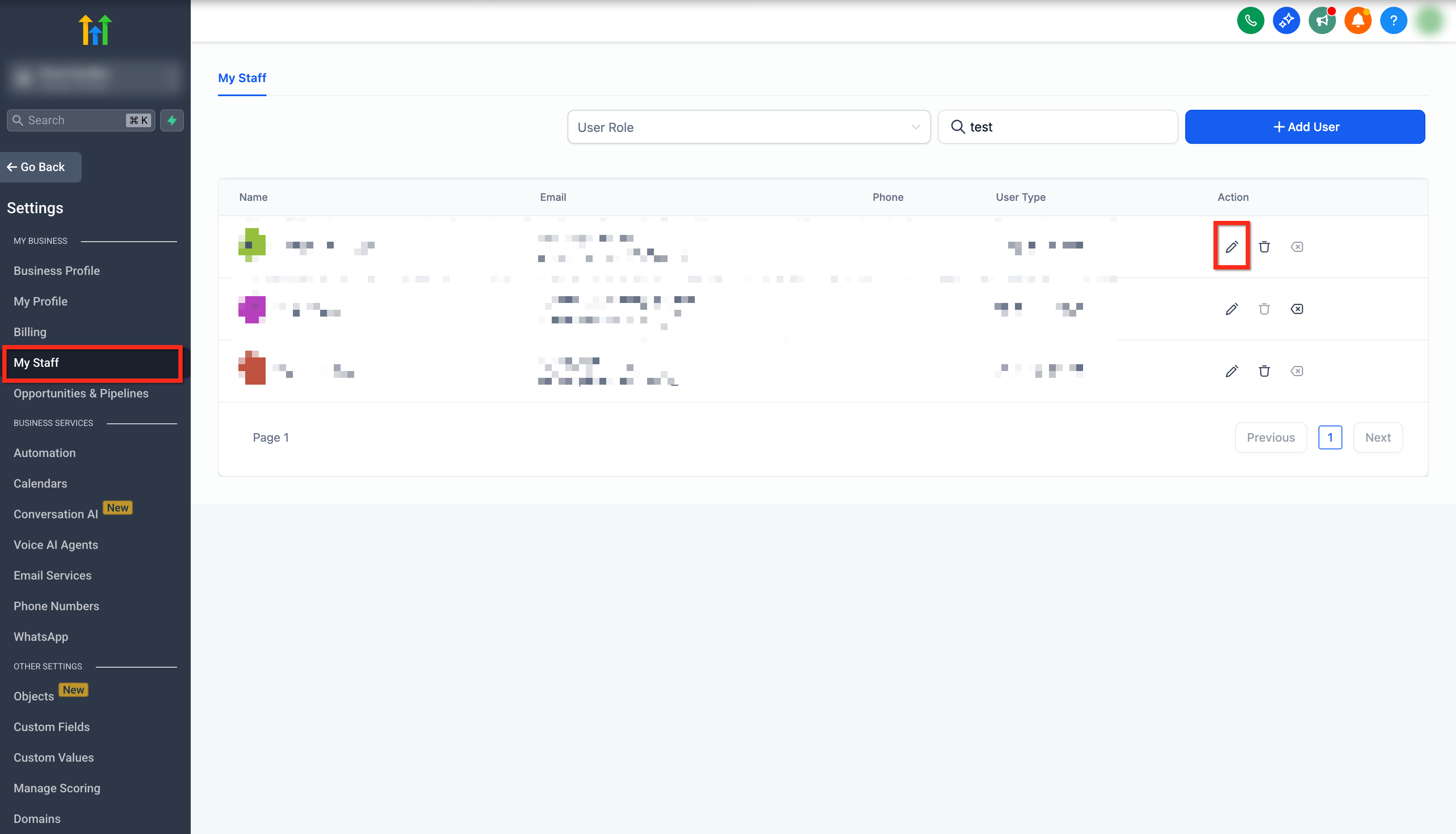
- From your subaccount, click Settings in the lower left corner.
- In the left navigation bar, select My Staff.
- Locate the staff member you want to modify and click the Edit (pencil) icon.
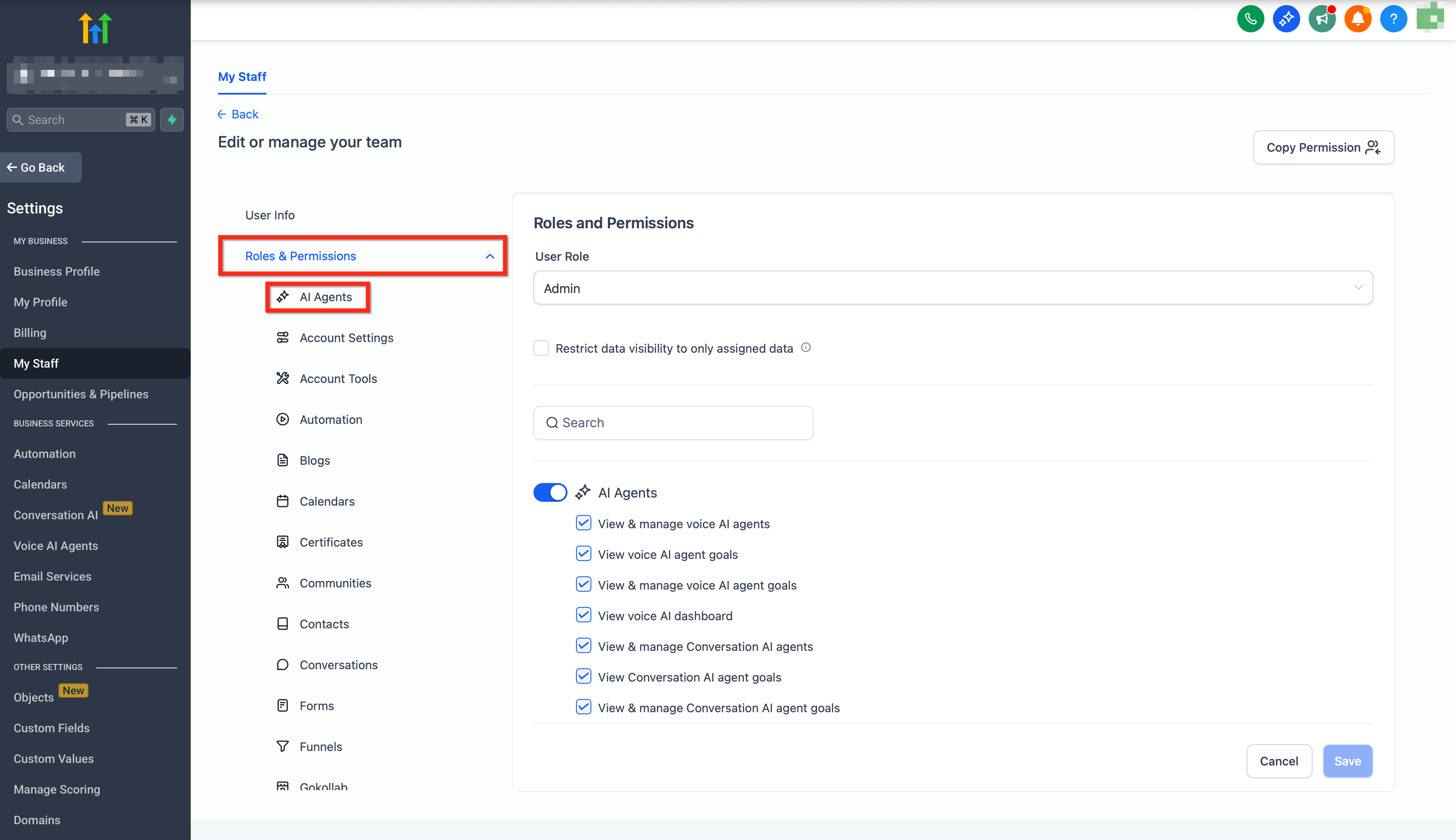
- In the secondary navigation bar on the left, click Roles and Permissions.
- Scroll down to the AI Agents section.
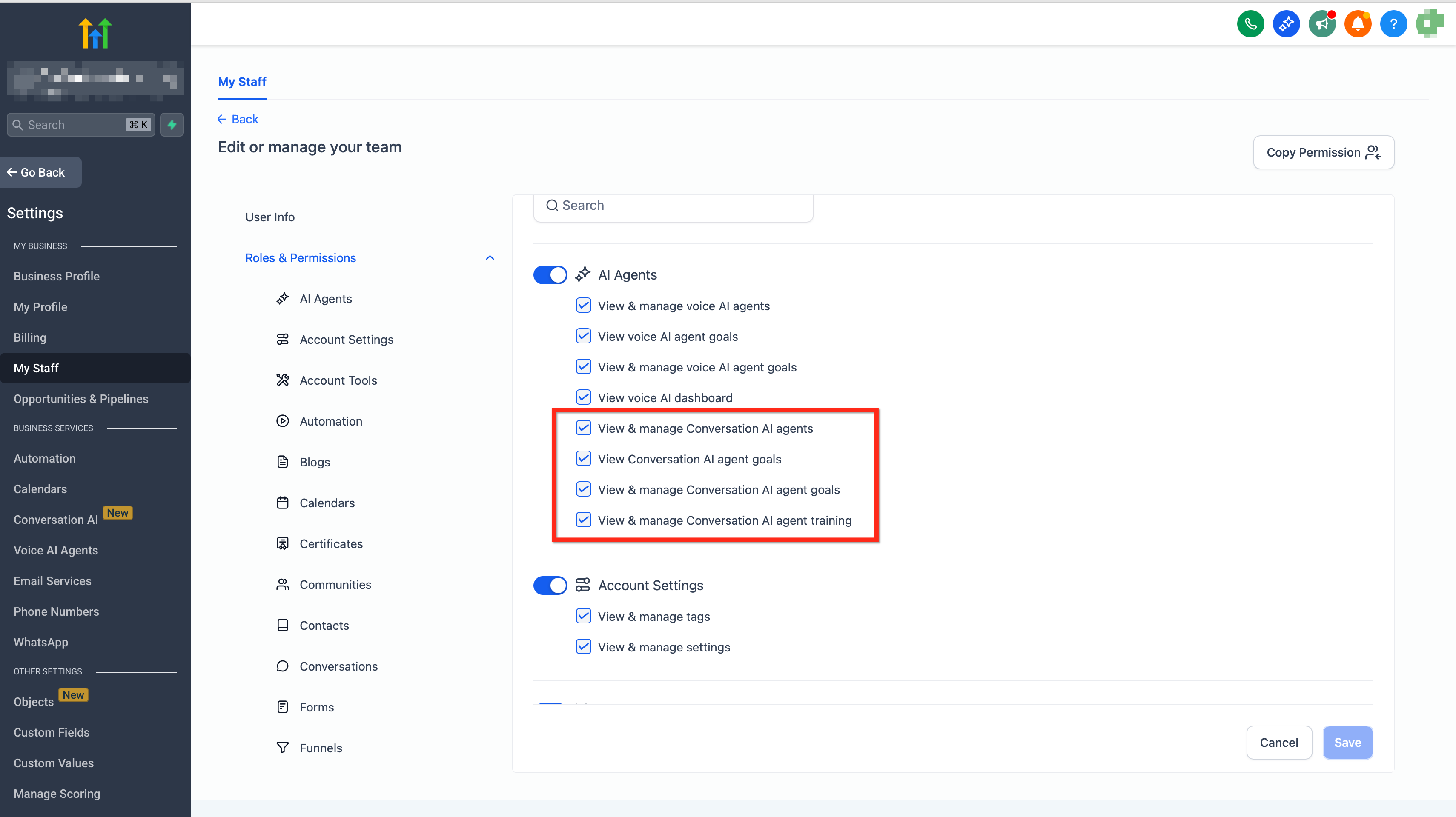
- Toggle the desired permission switches on or off for that user.
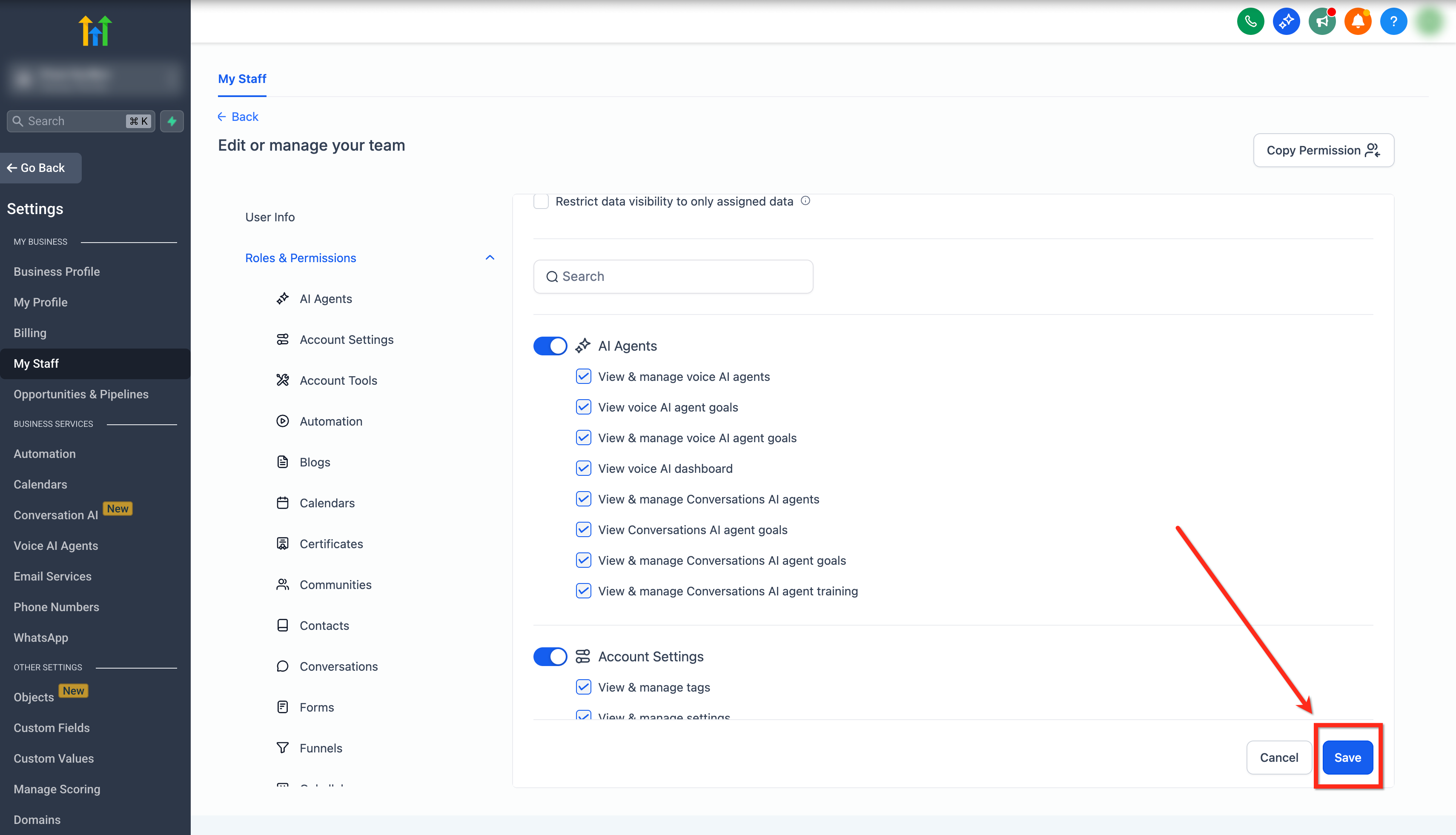
- Review the selected permissions to confirm they match the role.
- Click the blue Save button to apply the changes.
05What it looks like in HighLevel
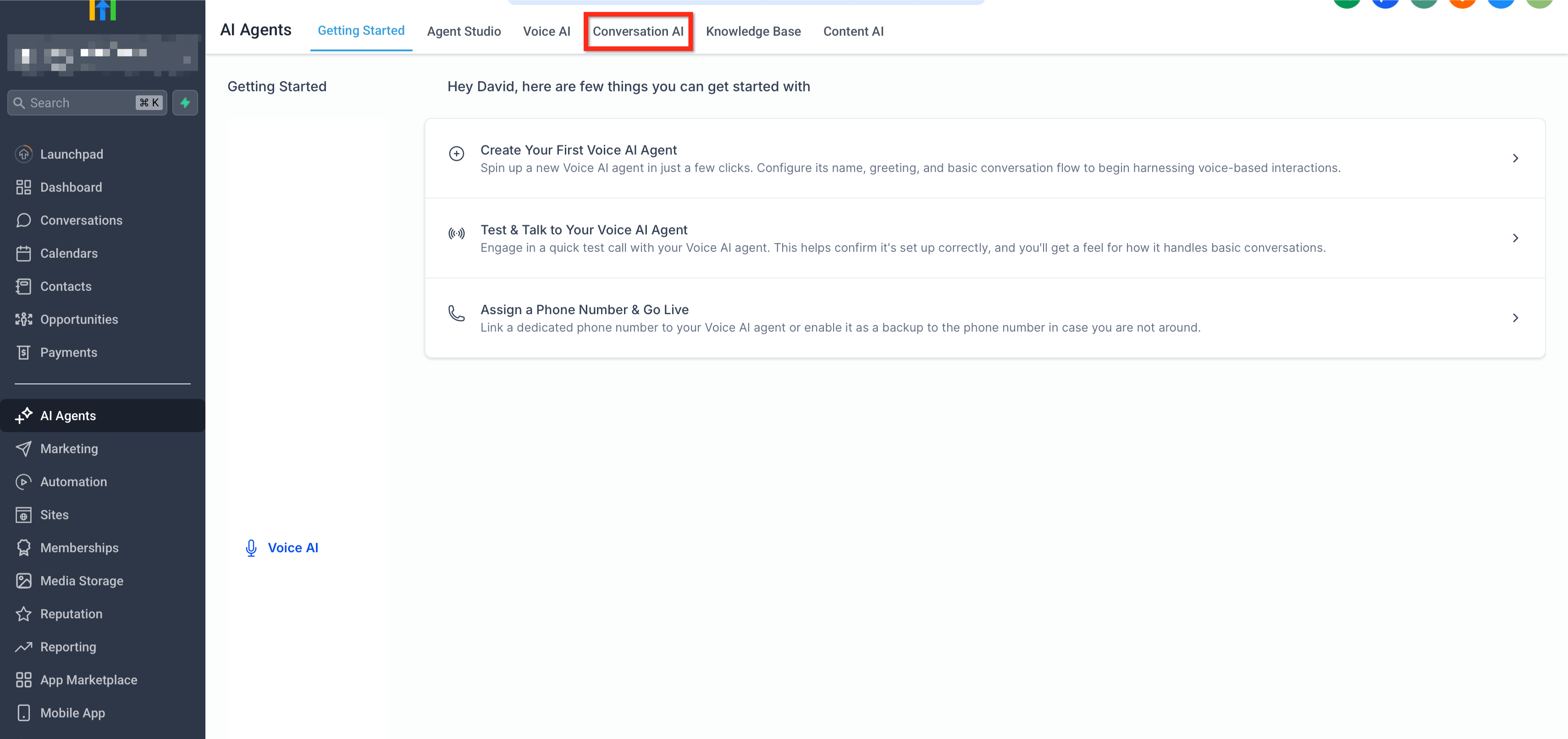
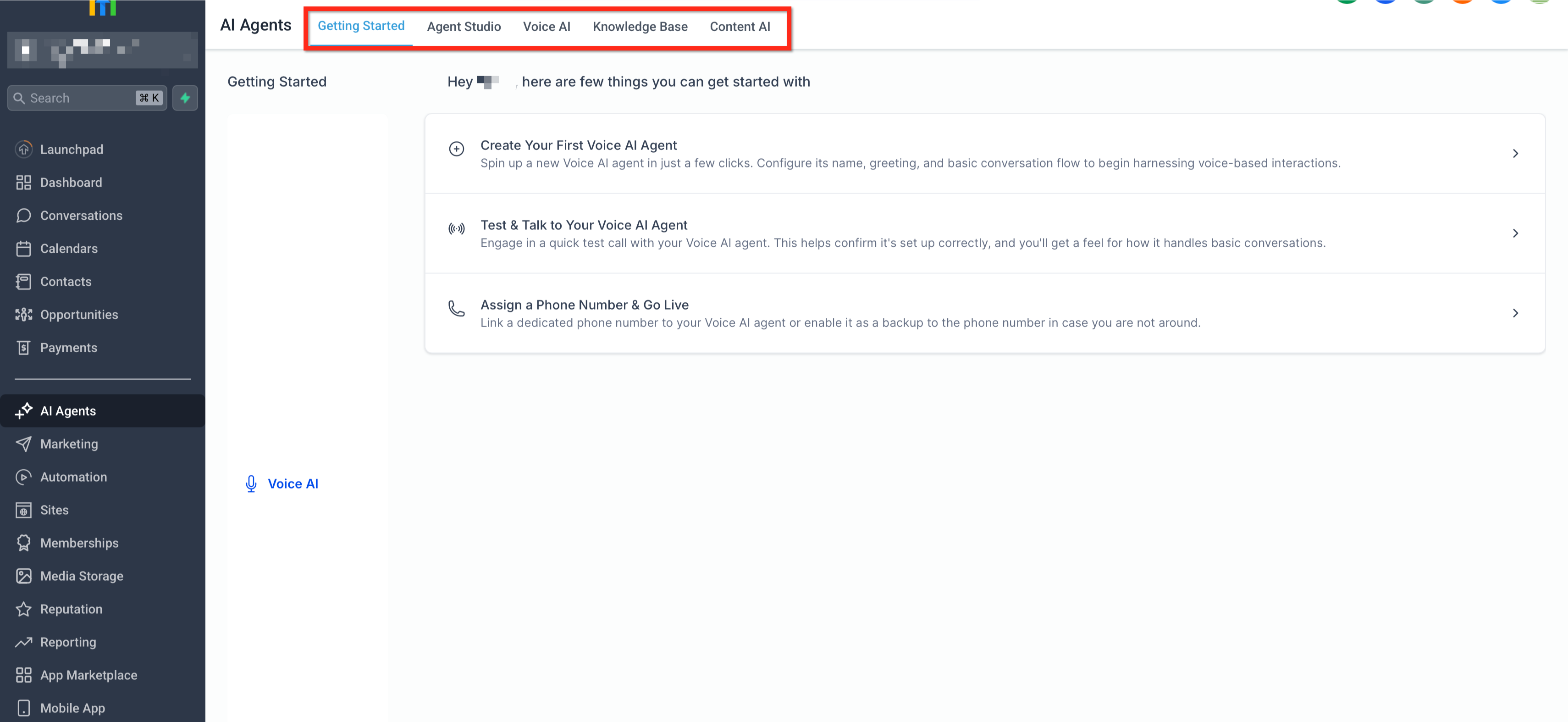
06Settings that matter
- AI Agents (Parent Control). Enables or disables all Conversation AI agent features for the user; turning it off hides the entire bot menu.
- View & Manage Conversation AI agents. Controls creation, editing, and deletion of bots and automatically activates dependent permissions.
- View Conversation AI agent Goals. Allows a user to see configured bot goals without the ability to edit them.
- View & Manage Conversation AI agent Goals. Grants permission to edit bot goals while editing an existing bot.
- View & Manage Conversation AI agent training. Lets a user attach or detach a knowledge base from a bot and view training details in the response drawer.
07Things to know before you rely on it
- Disabling View & Manage Conversation AI agents removes the bot menu and automatically disables all dependent permissions.
- If both View & Manage Conversation AI agent Training and View & Manage Conversation AI agent Goals are turned off, the Bot Trial feature becomes inaccessible.
- When a permission is disabled, related UI tabs are hidden and the user cannot access those functions.
08If something goes wrong
- The Conversation AI Bots menu disappears after disabling View & Manage Conversation AI agents.. Re enable the View & Manage Conversation AI agents toggle for the affected user.
09How it connects to the rest of HighLevel
- Learn how to build a Conversation AI flow in HighLevel Conversation AI flow builder
- Explore the Conversation AI Agents dashboard for monitoring bots Agents dashboard
- Set up access, rebilling, and reselling for AI Employee features AI Employee access
- Review pricing and plan options for HighLevel AI features HighLevel pricing
- Start a 30 day trial of HighLevel to test Conversation AI permissions 30 day trial
Michael's take

Granular permissions for Conversation AI Agents feel like a small convenience that can become a real shift for teams that rely heavily on bots. When you lock down who can tweak bot logic or attach knowledge bases, you protect the workflow from accidental changes and keep the interface tidy for users who don’t need the full toolbox.
A boutique marketing agency that builds custom chat bots for clients will find this useful. The creative lead can keep full control over bot creation, while junior staff get only view rights on goals or training. That way the agency can delegate work without risking a misconfigured bot that could affect a client campaign.