
01Who this is for
- Marketers who need structured lead qualification chats to capture contact data efficiently.
- Service businesses that schedule appointments and want the bot to handle booking, cancellations, and rescheduling.
- Support teams that require automated FAQ handling with the ability to hand over to a human when needed.
02Conversation AI Flow Builder, explained
The Flow Builder is a visual editor inside the Conversation AI section of HighLevel. It works like the Automation Workflow builder but creates a linear or branched dialogue that the bot follows. Each node represents an AI action such as capturing information, booking appointments, or sending messages. The flow starts only when a contact initiates a chat, and custom triggers can move a contact back to earlier points after an [END] node.
Bot settings and goals define the global personality, tone, and stop conditions for the entire flow. Within the builder you add AI actions, set looping behavior for capture and booking steps, and configure custom triggers with priority and sensitivity. All actions execute in the order you place them, and the bot will continue the conversation until an explicit end action, max message limit, or timeout occurs.
03How businesses use Conversation AI Flow Builder
- Real estate agency. The agency creates a flow that captures a prospect’s name, email, and buying budget, then uses the Book Appointment action to schedule a showing. If the budget is too low, the flow ends with a polite refusal.
- Dental practice. A dental office builds a flow that qualifies a patient’s insurance details, books a cleaning appointment, and offers a Cancel or Reschedule option. The bot hands over to a staff member if the patient asks for a live chat.
- Online retailer. The retailer designs a flow that greets shoppers, captures product interest, and provides a custom message with a discount code. If the shopper asks for help, the Human Handover condition routes the chat to a support agent.
04The numbers and rules that matter
- Set max messages to something like 100.
- You can have up to 3 custom triggers.
- Custom trigger priority values range from 1 to 10.
- Maximum attempts is an integer value for Capture Information and Book Appointment actions.
05Before you start
- Enable the desired communication channels (SMS, Facebook, Instagram, WhatsApp, Live Chat) in HighLevel before creating the bot.
06How to set up and use Conversation AI Flow Builder in HighLevel
Open the Flow Based Builder
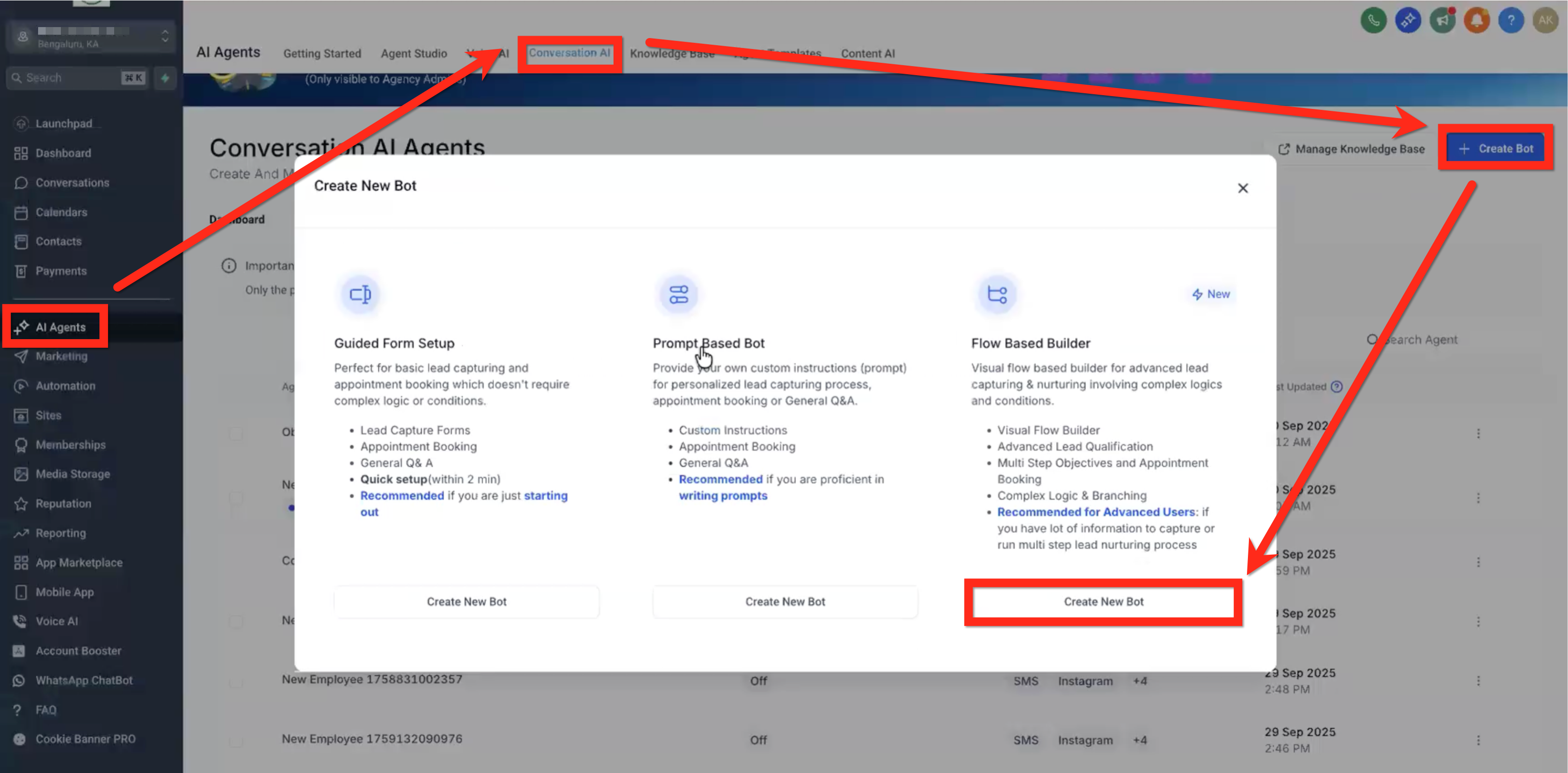
- Navigate to AI Agents > Conversation AI > Create Bot button > Create New Bot button (Flow Based Builder).
Configure basic bot settings
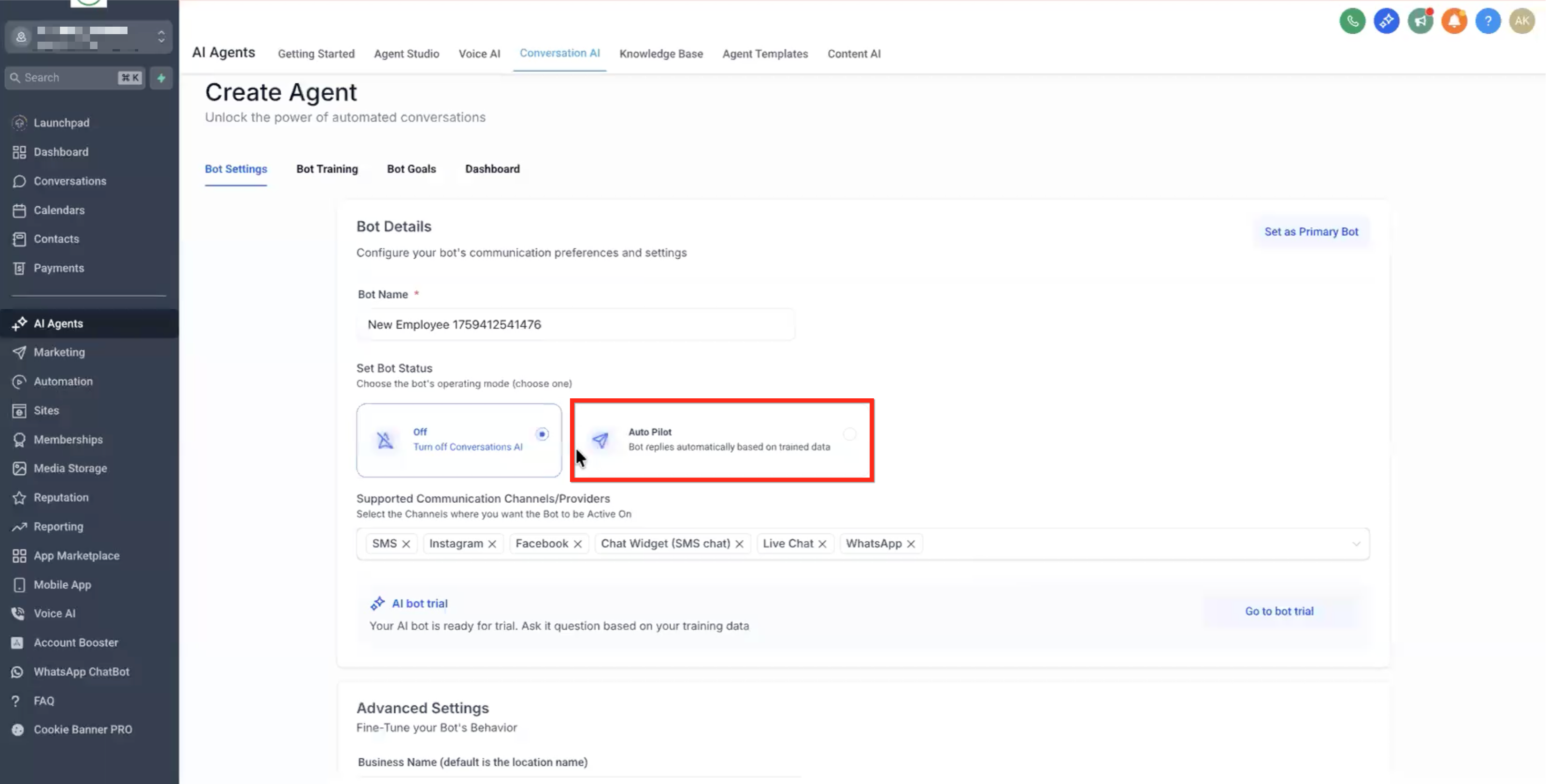
- On the Bot Settings tab, enter a name for the bot.
- Set Bot Status to Auto Pilot.
- Select or deselect each communication channel you want the bot to use.
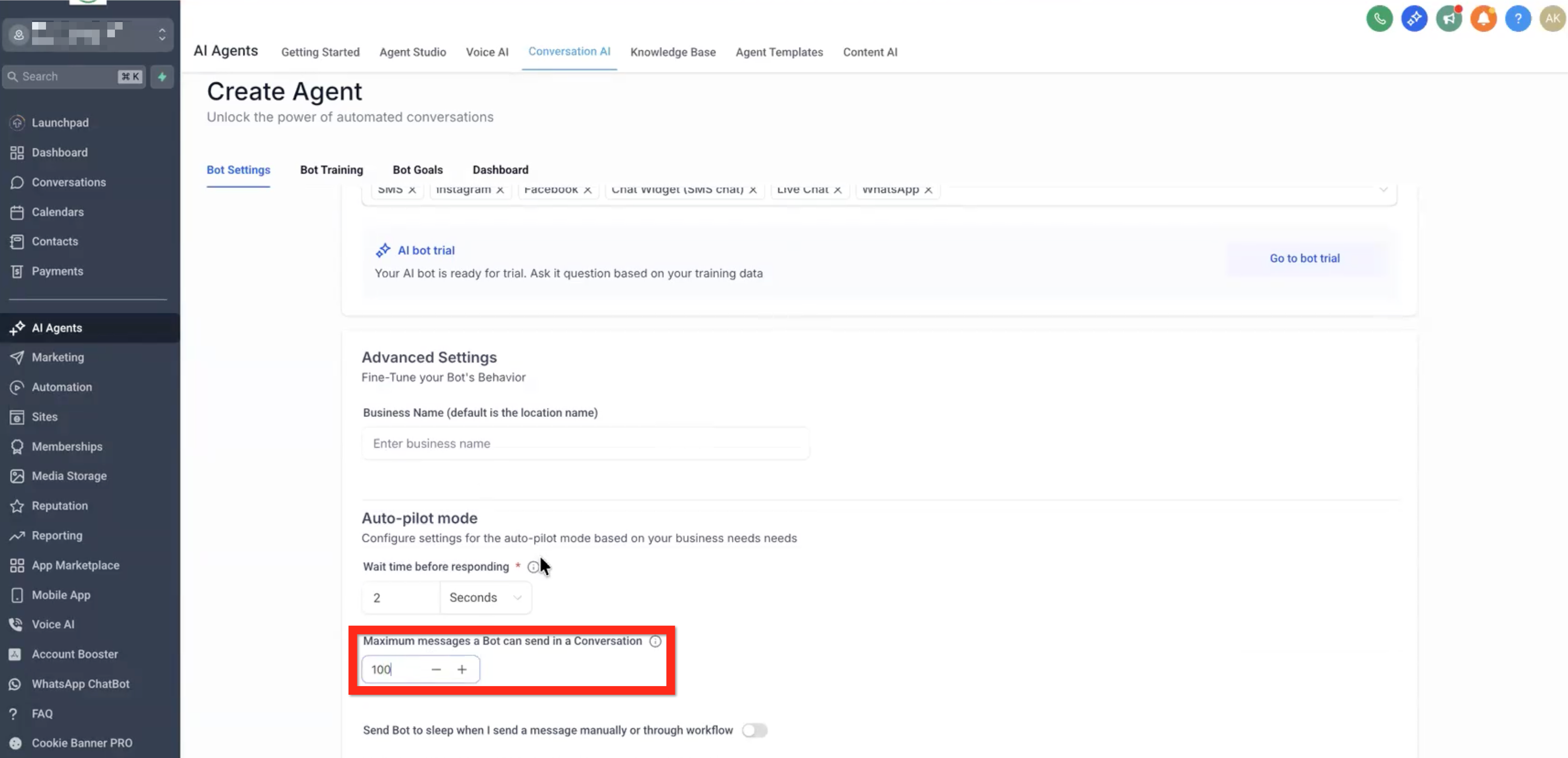
- Define the maximum number of messages the bot may send, for example 100.
- Save the bot settings.
Set bot goals and personality
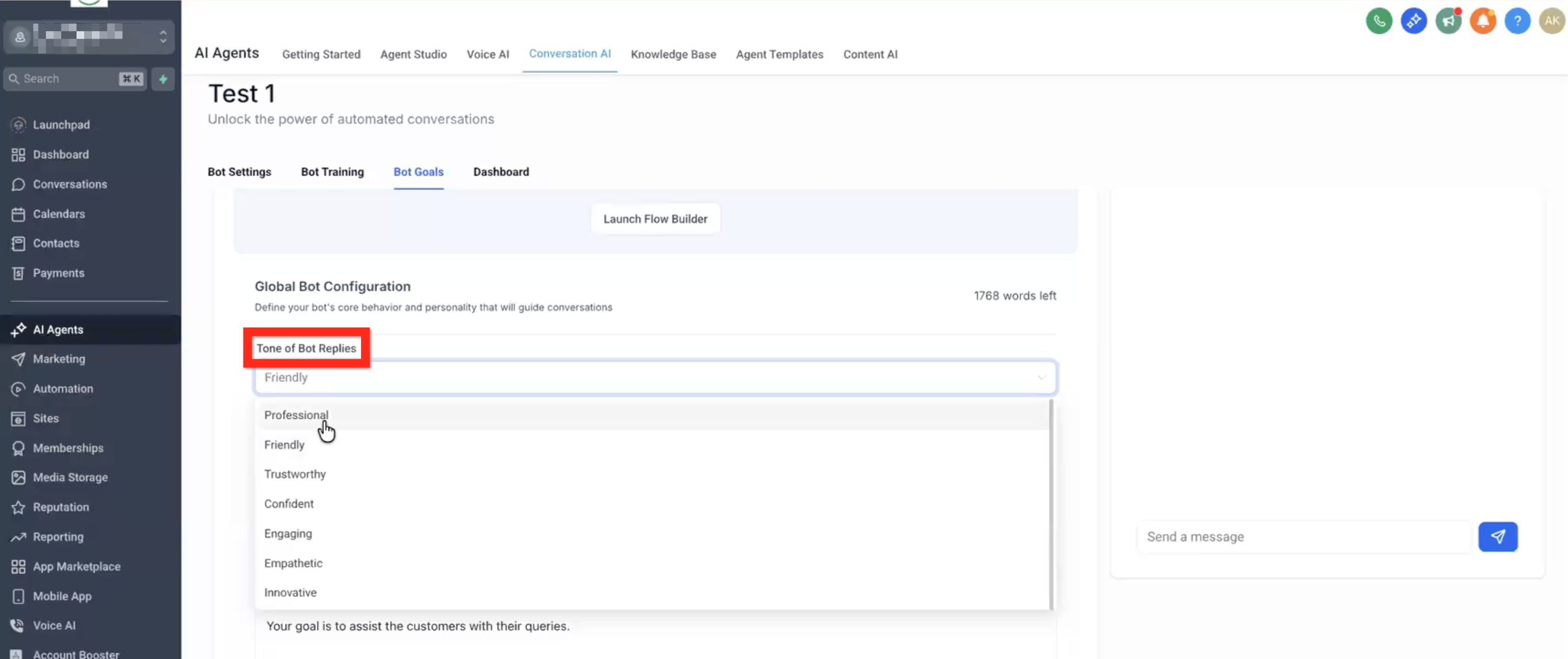
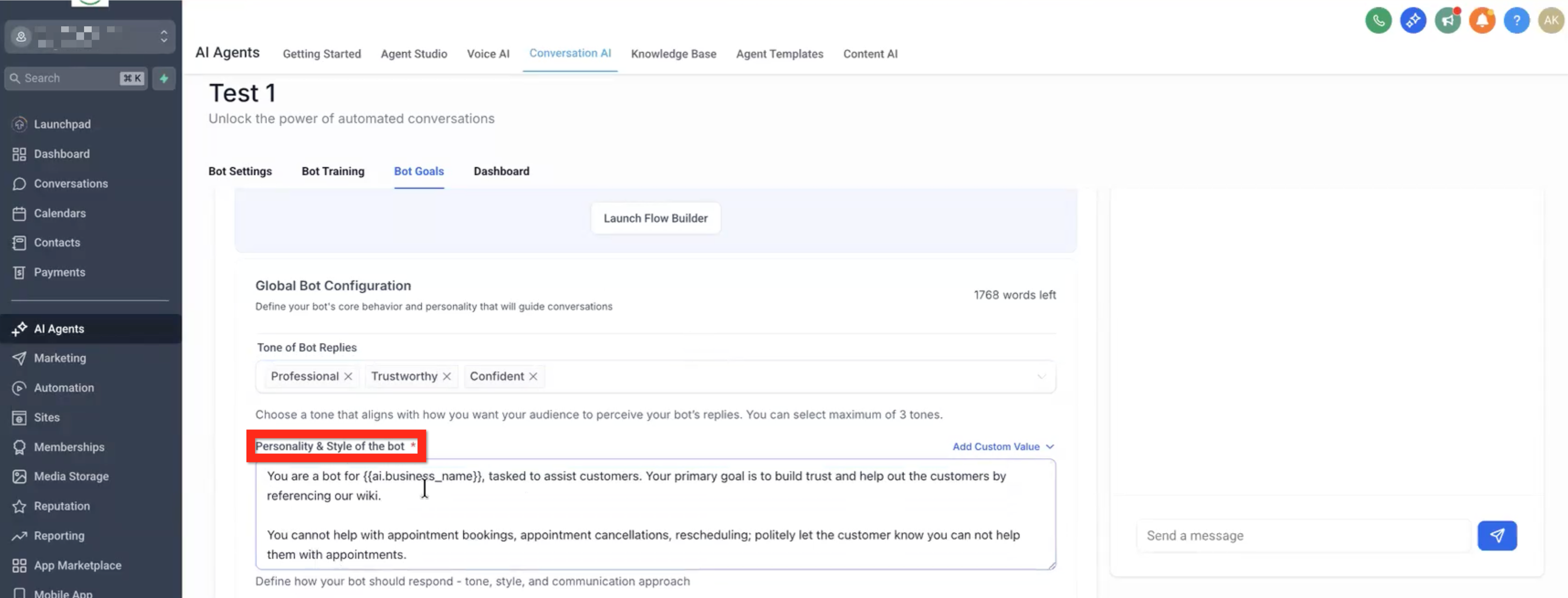
- On the Bot Goals tab, choose one or more tone keywords such as friendly and confident.
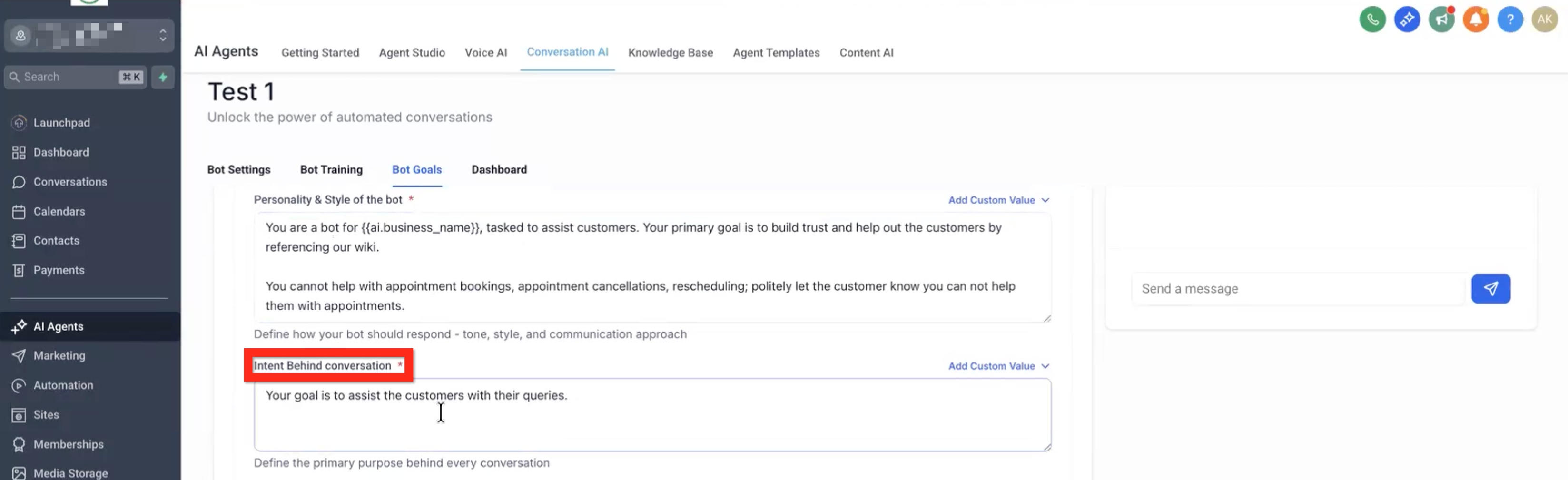
- Write a description of the bot’s personality and style, using merge fields where needed.
- Write a description of the bot’s intent, also using merge fields.
- Add extra business context and example phrasing, again with merge fields.
- Configure unique conditions: Stop Bot for vulgar language or a "stop" command, and Human Handover for unanswered questions or a human request.
- Toggle the Cancel option to let the bot cancel appointments.
- Toggle the Reschedule option to let the bot reschedule appointments.
- Save the Bot Goals.
Launch the flow editor
- From the Bot Goals tab, click the Launch Flow Builder button.
Add a Capture Information (Qualify) action
- Enter the objective prompt (up to 500 characters).
- Optionally select a contact field to update.
- Provide any additional instructions for the objective.
- Define a response example format.
- Enable skipping the objective if the selected contact field already has data.
- Set the maximum number of attempts the bot will make.
- Choose whether to stop the flow with a closing message if criteria are not met.
- Add one or more tags to the contact after this step.
Add a Book Appointment action
- Write the prompt that encourages the user to book an appointment.
- Select the appropriate calendar from the dropdown list.
- Configure the branch that runs when an appointment is successfully created.
- Configure the branch that runs when no appointment is booked.
Add an End Conversation action
- Enter a custom final message that will be sent unchanged.
- If you want the bot to restart later, enable reactivation after the bot finishes.
- Specify the numeric delay value before reactivation.
- Choose the time unit for the delay, such as hours.
Add an AI Splitter action
- Describe the branching logic that will evaluate previously collected information.
- Define the default "No condition met" branch.
- Add each specific branch (option 1, option 2, etc.).
Add an AI Message action
- Enter the prompt that tells the AI what type of message to generate.
- Optionally check the box to wait for a contact reply before moving to the next step.
Add a Custom Message action
- Type the exact message you want to send to the contact.
- Optionally check the box to wait for a contact reply before moving on.
Add a Transfer Bot action
- Select the destination bot from the dropdown menu.
Add a Continue Conversation action
- Provide additional instructions that tell the bot how to keep chatting if the user wants to continue.
Create a Custom Trigger
- Choose a custom trigger from the dropdown or create a new one.
- Write a description of the condition that will fire the trigger.
- Set the priority level between 1 and 10.
- Select the sensitivity level (Low, Medium, or High).
Change a Custom Trigger path
- Click the break link icon at the bottom of the custom trigger.
- In the modal window, click the Remove Path button.
- Click the action you want the new path to go to (highlighted in green).
07What it looks like in HighLevel
08Settings that matter
- Bot Status. Controls whether the bot runs automatically (Auto Pilot) or is paused.
- Max messages. Limits the total number of messages the bot can send in a single conversation.
- Bot Tone. Sets one or more keywords that define the bot’s overall voice.
- Stop Bot condition. Stops the flow immediately when the contact uses vulgar language or says "stop".
- Human Handover condition. Transfers the conversation to a human agent when the bot cannot answer or the contact asks for help.
- Appointment Options, Cancel. Allows the bot to cancel an existing appointment.
- Appointment Options, Reschedule. Allows the bot to reschedule an existing appointment.
09Things to know before you rely on it
- You can create up to three custom triggers per bot.
- The default Chat Initiated trigger is the only trigger that can start a flow; custom triggers work only after an [END] node.
- Capture Information and Book Appointment actions loop until they meet their goal or reach an exit condition such as maximum attempts.
- Auto Followup is not yet available; it is listed as "Coming soon.".
- If a contact reaches an [END] node, the conversation continues unless an End Conversation action or other stop condition ends it.
10If something goes wrong
- The bot does not start when a contact sends a message.. Verify that the flow’s default trigger remains set to Chat Initiated and that no custom trigger is trying to start the flow.
11How it connects to the rest of HighLevel
- View performance metrics for all Conversation AI agents. Agents dashboard
- Check a bot’s status for individual contacts. Bot status
- Explore the Conversation AI public API for advanced integrations. Public API
Michael's take

I find the Flow Builder handy for repeatable sales or support scripts such as appointment booking or lead qualification.