
01Who this is for
- Health clinics with several specialties benefit because the bot can direct patients to the correct department without manual routing.
- Multi location salons can book appointments for each location’s calendar, keeping bookings organized per storefront.
- Educational centers offering various courses can let prospects schedule classes with the appropriate instructor calendar.
02Multiple calendars support, explained
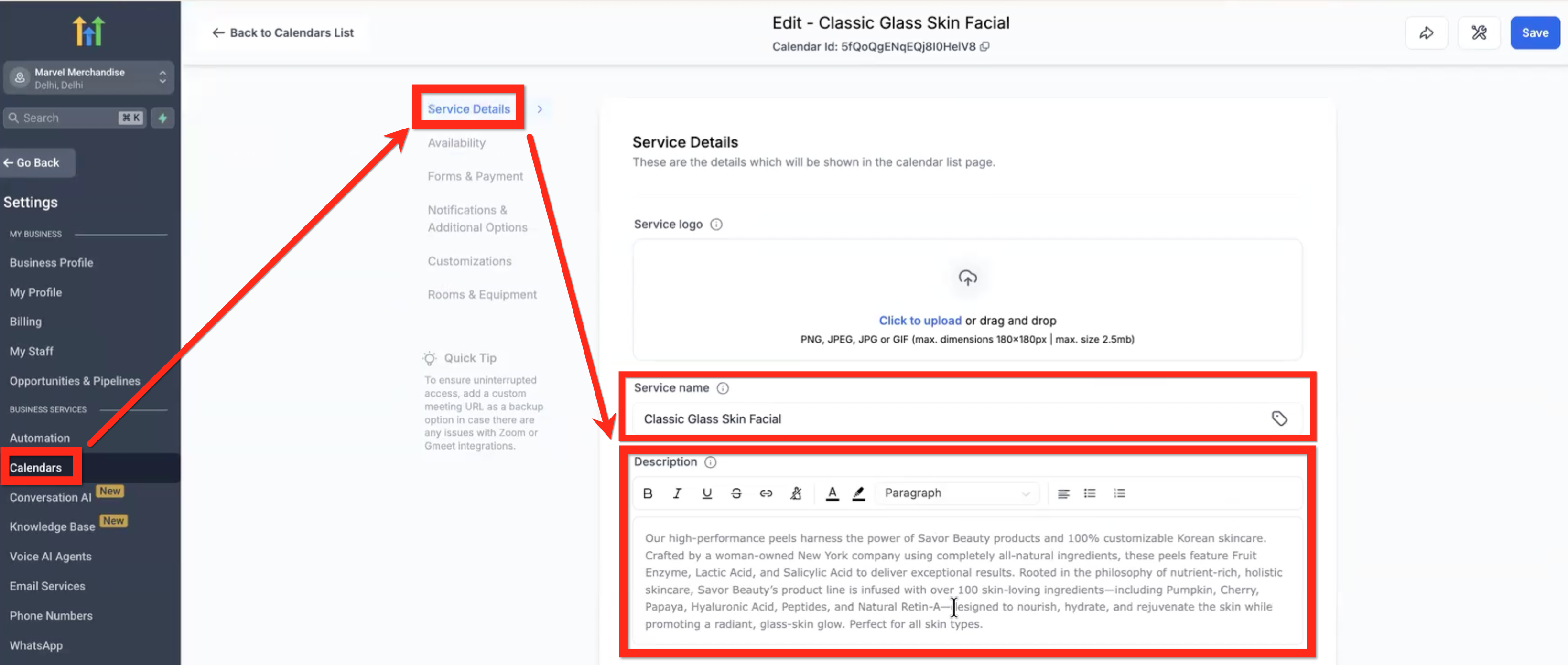
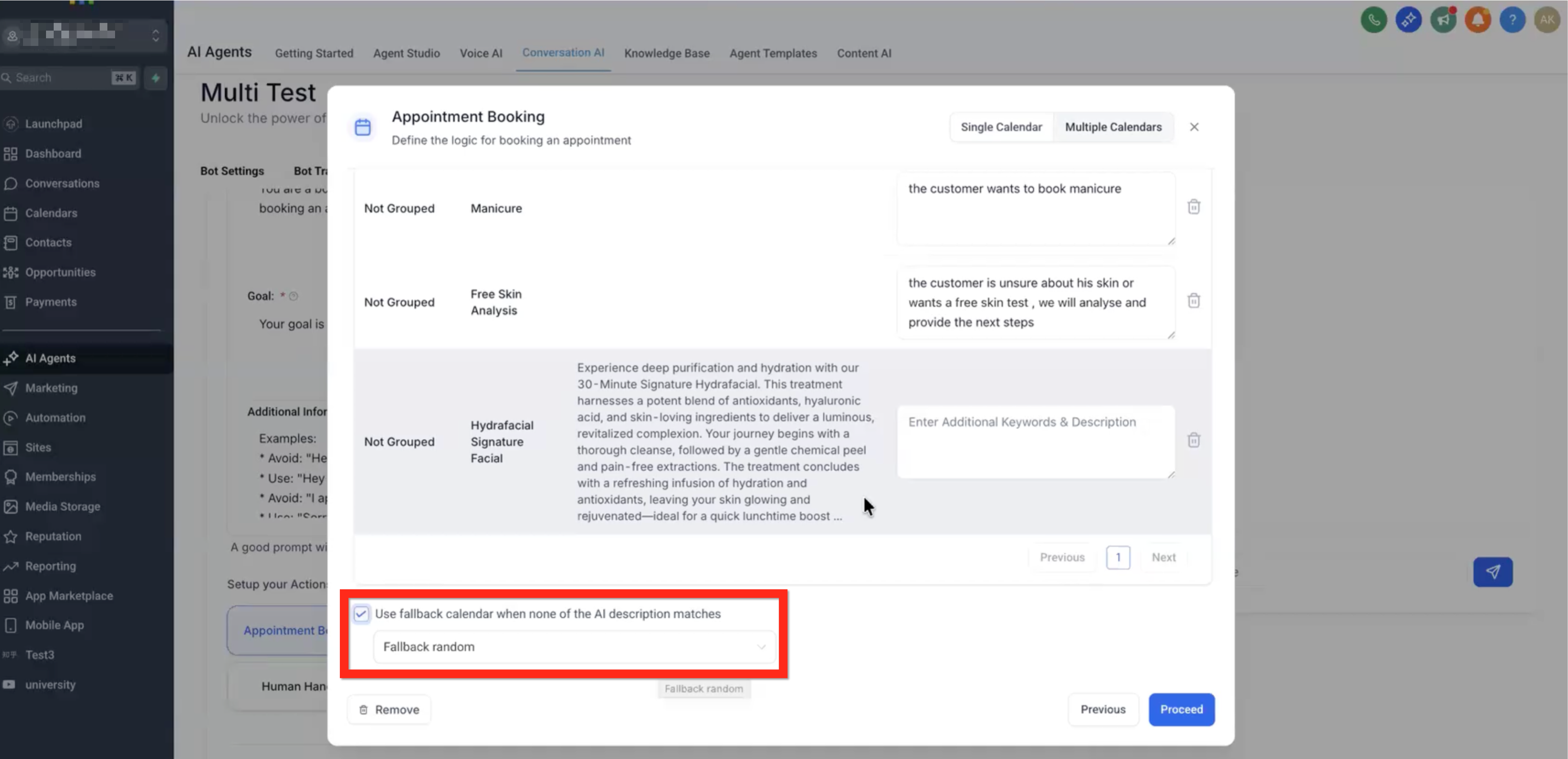
The feature expands the AI Appointment Booking Bot so it can work with more than one calendar. When a user asks for a specific service, the bot reads the calendar names, descriptions and any extra keywords you provide, then pulls available slots from the matching calendar. If no calendar matches, the bot can fall back to a default calendar you designate.
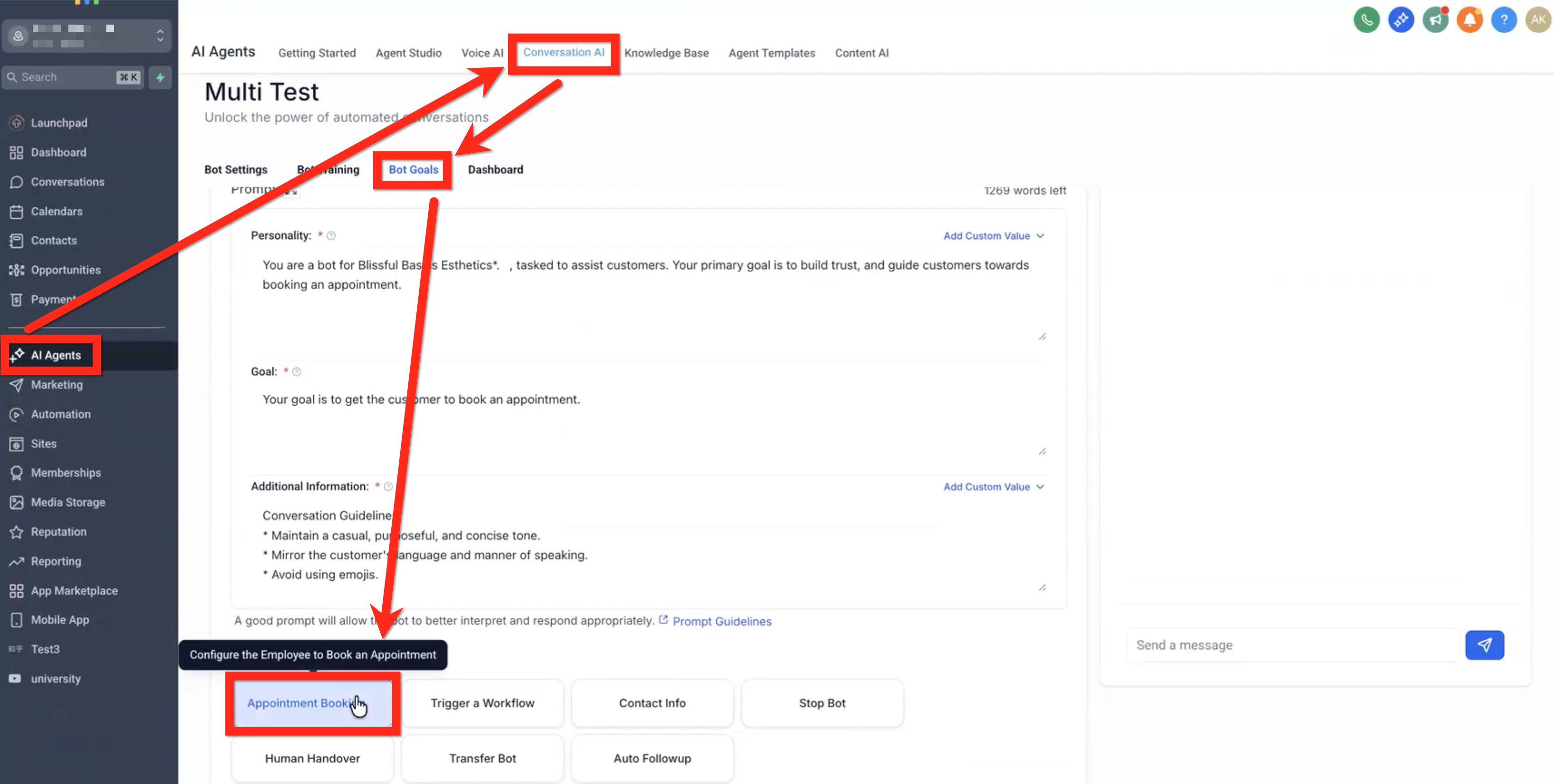
You find the option under Conversation AI > Appointment Booking Bot Goal while creating or editing a bot flow. After enabling Multiple Calendars, you select which calendars to include, optionally add keywords, choose a fallback, set the AI prompt, adjust advanced options and save. All existing workflow triggers such as notifications, cancellations and rescheduling continue to function as they did with a single calendar.
03How businesses use multiple calendars support
- Medical clinic. The clinic creates separate calendars for Cardiology, Neurology and Physiotherapy. When a patient asks for a neurologist, the bot identifies the Neurology calendar and offers its open slots. If the request is unclear, the appointment goes to the clinic’s general fallback calendar.
- Beauty spa chain. Each spa location has its own calendar. The bot reads the city or location name in the customer's message, selects the matching calendar, and books the chosen service at that site. Unmatched location requests are routed to the main office calendar.
- Language school. The school sets up calendars for Spanish, French and Mandarin courses. The bot uses keywords like “Spanish class” to pull slots from the Spanish calendar. If a learner mentions a language not listed, the bot books the session on a generic introductory class calendar.
04How to set up and use multiple calendars support in HighLevel
Configure multiple calendars for appointment booking
- Open AI Agents > Conversation AI > Bot Goals and open the Appointment Booking goal.
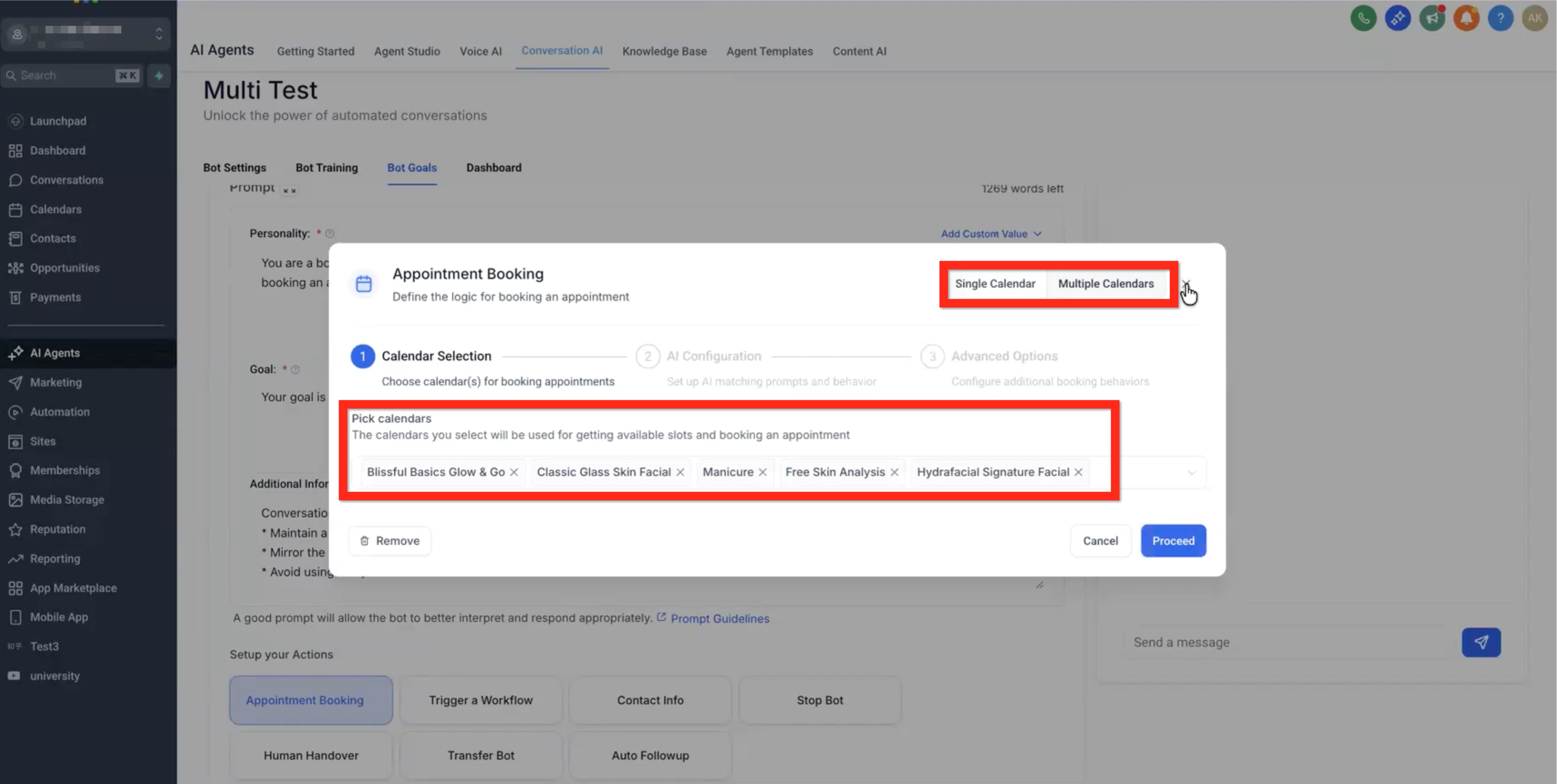
- Select the Multiple Calendars option at the top of the setup window.
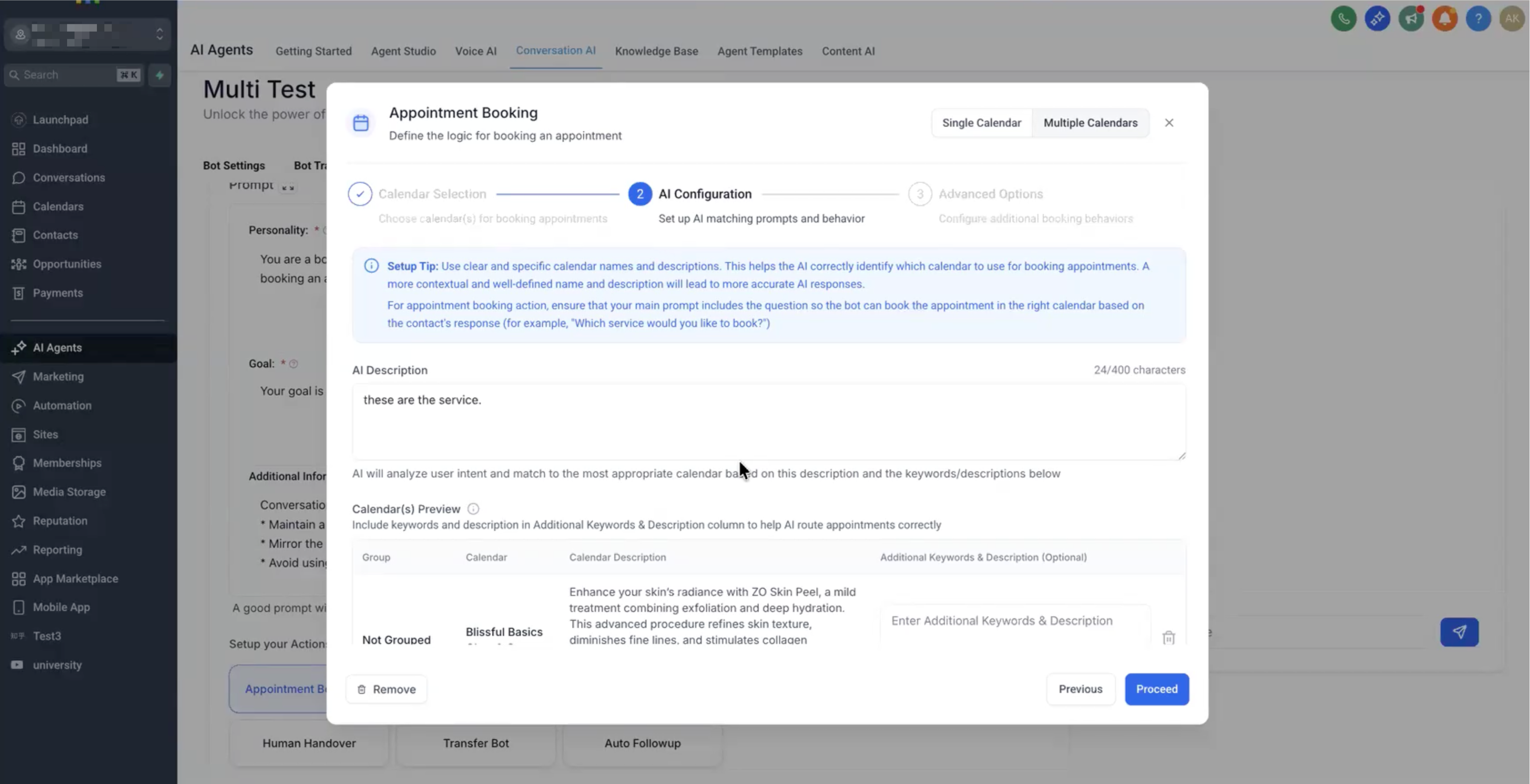
- In the Calendar Selection section, choose the calendars you want the bot to use.
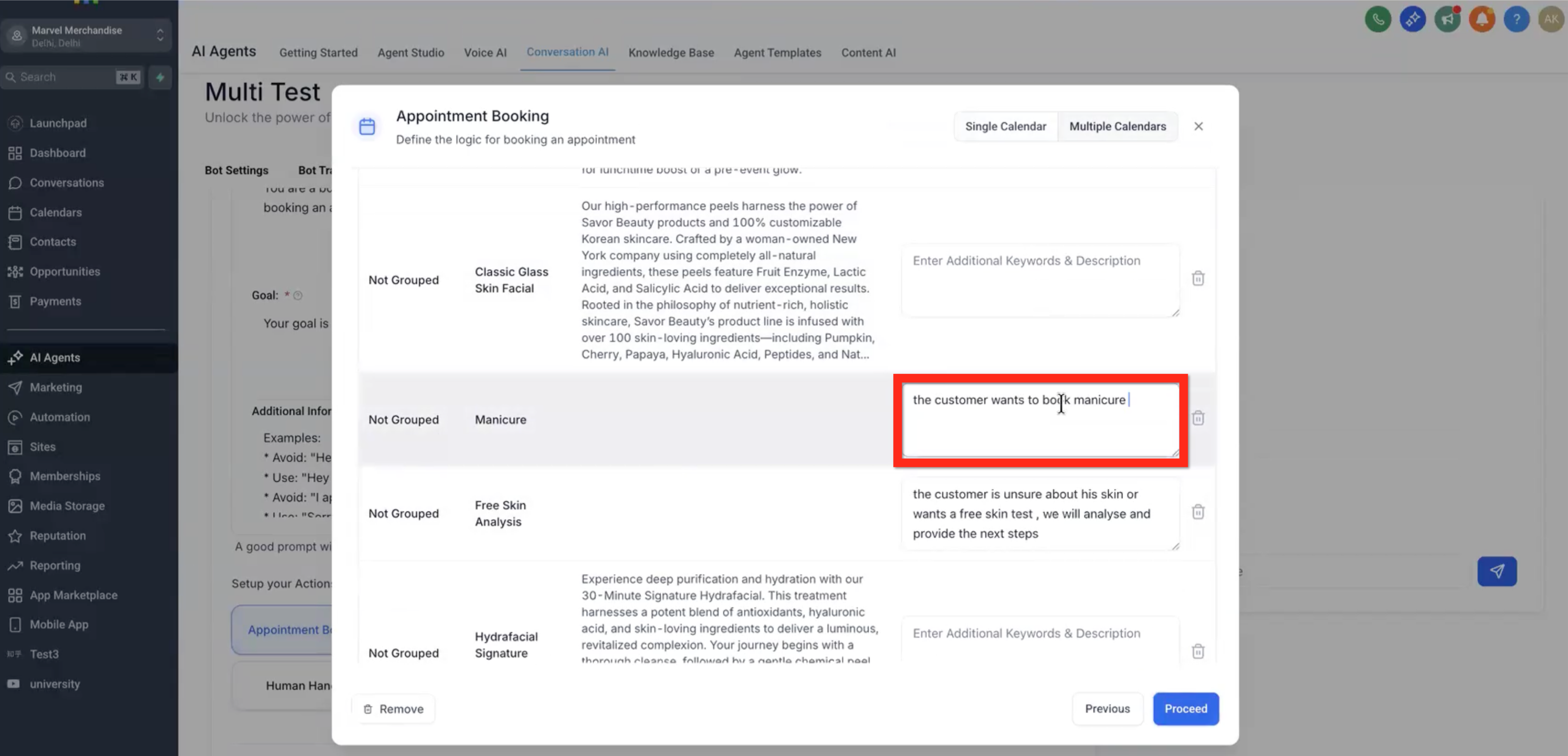
- If needed, enter Additional Keywords & Descriptions to improve intent recognition.
- Set a fallback calendar or leave the fallback option unchecked.
- Go to AI Configuration and type the prompt that will ask users for their desired service.
- Open Advanced Options and enable Pause bot response after booking.
- In Advanced Options, turn on Trigger workflows after booking.
- In Advanced Options, enable Transfer employee post appointment booking.
- In Advanced Options, allow the bot to cancel the appointment.
- In Advanced Options, allow the bot to reschedule the appointment.
- Click Save to store all changes.
05What it looks like in HighLevel
06Settings that matter
- Multiple Calendars. Activates the ability for the bot to work with more than one calendar.
- Calendar Selection. Identifies which calendars are available for the bot to choose from.
- Additional Keywords & Descriptions. Provides extra words or phrases to help the AI match user intent to a calendar.
- Fallback Calendar. Acts as a safety net for requests that do not match any configured calendar.
- AI Prompt. Defines the message shown to users when the bot asks what they want to book.
- Pause bot response after booking. Stops the bot from sending additional messages immediately after an appointment is booked.
- Trigger workflows after booking. Runs any attached automations once an appointment is successfully created.
- Transfer employee post appointment booking. Hands the conversation over to a staff member after the booking is finished.
- Allow bot to cancel the appointment. Enables the bot to cancel a previously booked appointment upon request.
- Allow bot to reschedule the appointment. Lets the bot move an existing appointment to a new time slot.
07Things to know before you rely on it
- Keep the list of calendars concise to improve AI matching accuracy.
- The fallback calendar is optional; if left unchecked, unmatched requests will not be booked.
- Multiple Calendars Support is only available when the Appointment Booking goal is selected.
08How it connects to the rest of HighLevel
- Set up a Conversation AI flow builder Conversation AI flow builder
- View bot status for individual contacts Bot status per contact
- Use the Conversation AI Agents dashboard AI agents dashboard
Michael's take

Be careful about overloading the bot with too many calendar options. The AI relies on clear names and keywords, and a long list can dilute its accuracy, leading to mismatched bookings or reliance on the fallback calendar.
When it works, the feature unlocks true multidepartment scheduling from a single conversational interface. It lets a health practice, consulting firm, or any business with several service lines handle bookings without switching bots or creating separate flows.