
01Who this is for
- Marketing managers can quickly compare bot performance across campaigns to decide where to invest resources.
- Customer support leaders gain a fast overview of automated interactions, helping them spot bottlenecks and handover events.
- Operations supervisors can monitor appointment bookings and workflow triggers generated by bots to ensure service capacity aligns with demand.
02Conversation AI Agents dashboard, explained
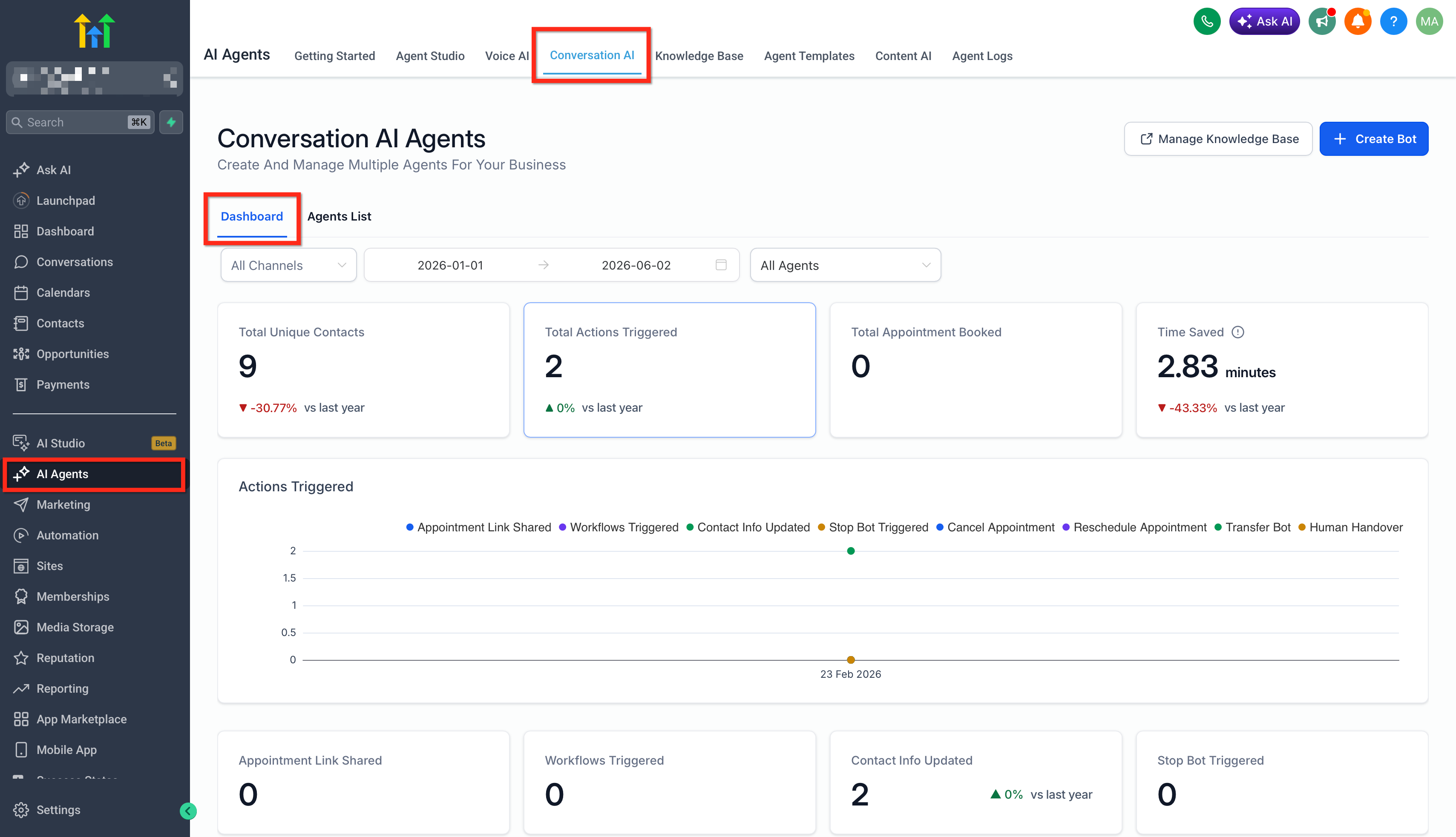
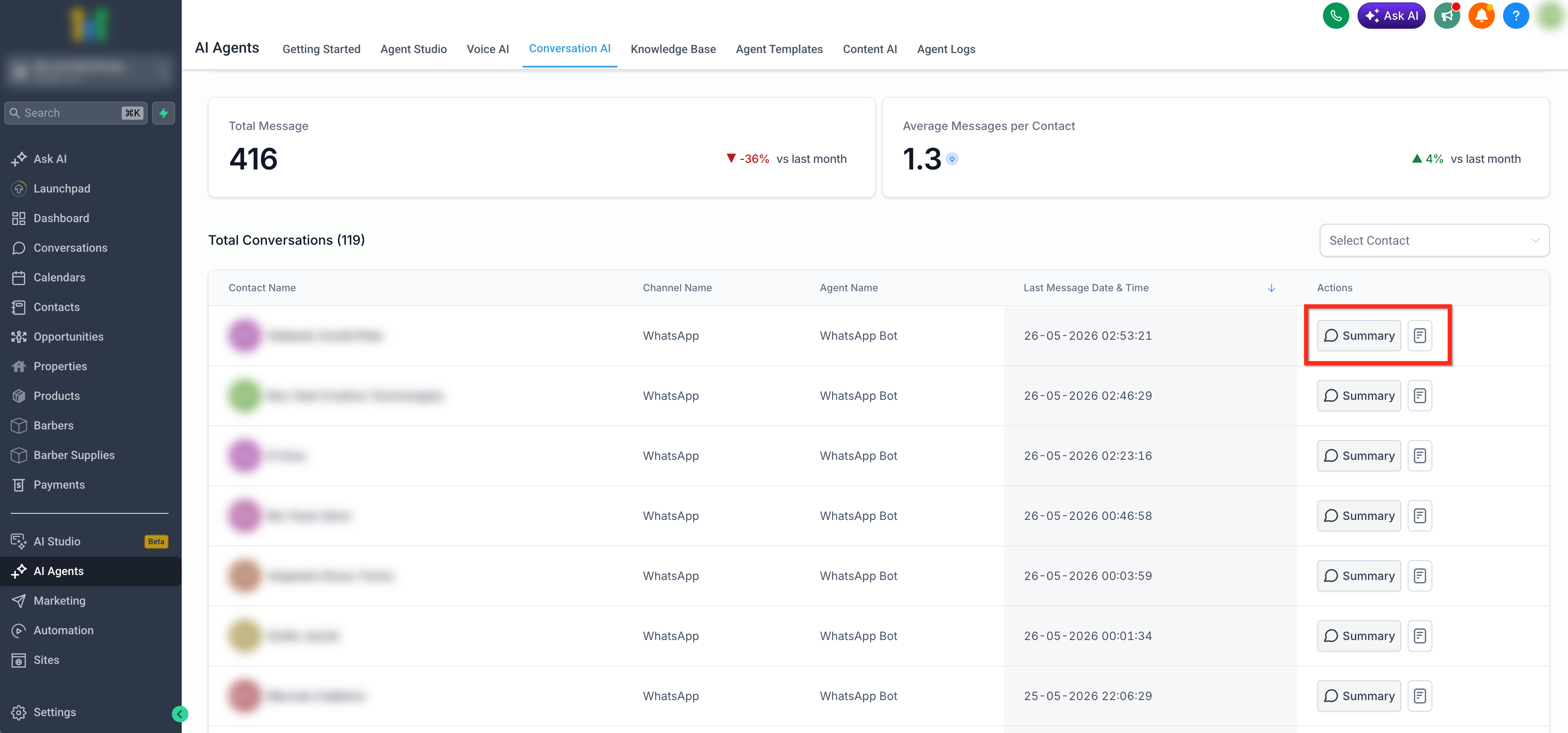
The dashboard aggregates data from all Conversation AI agents in a HighLevel account and displays it on one page. It shows metrics such as unique contacts, total messages, actions triggered, appointments booked and estimated time saved. Users can click any metric card to see more detailed numbers.
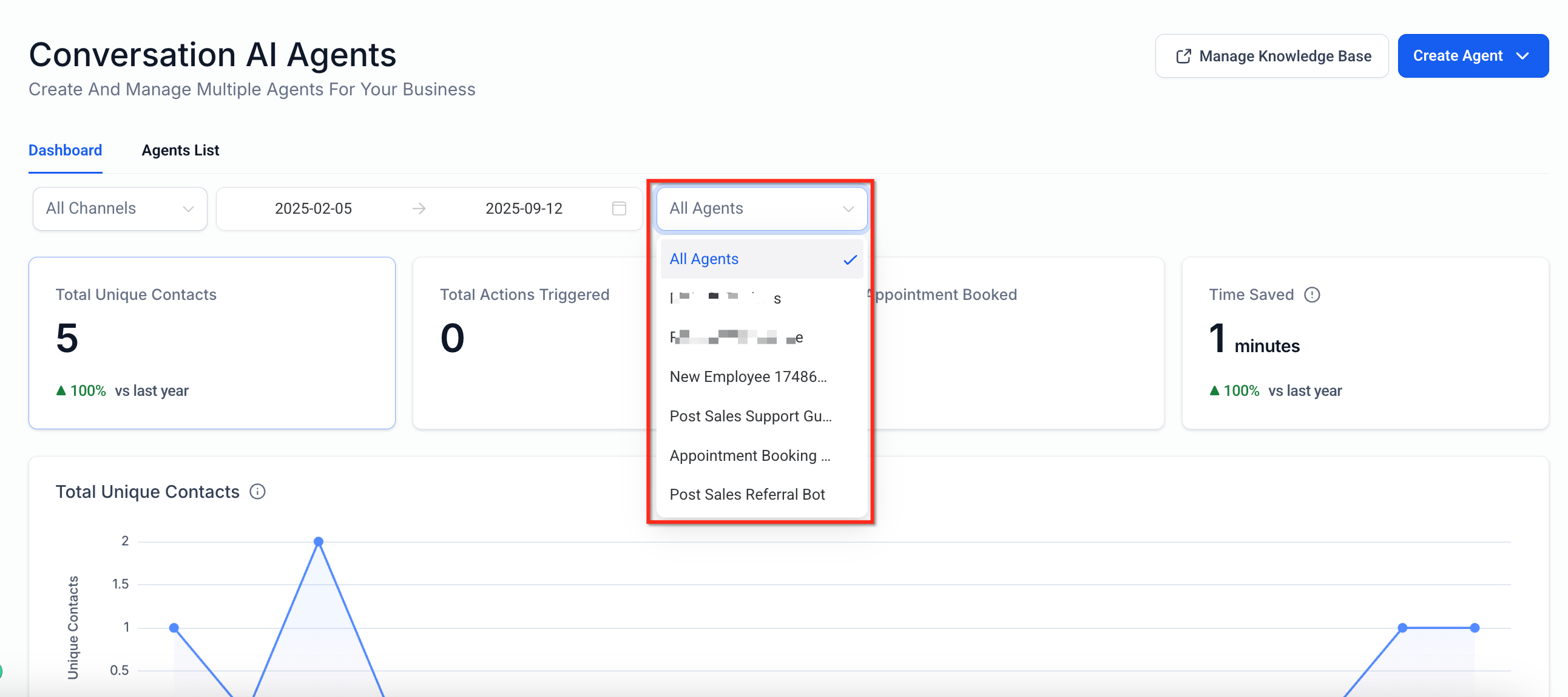
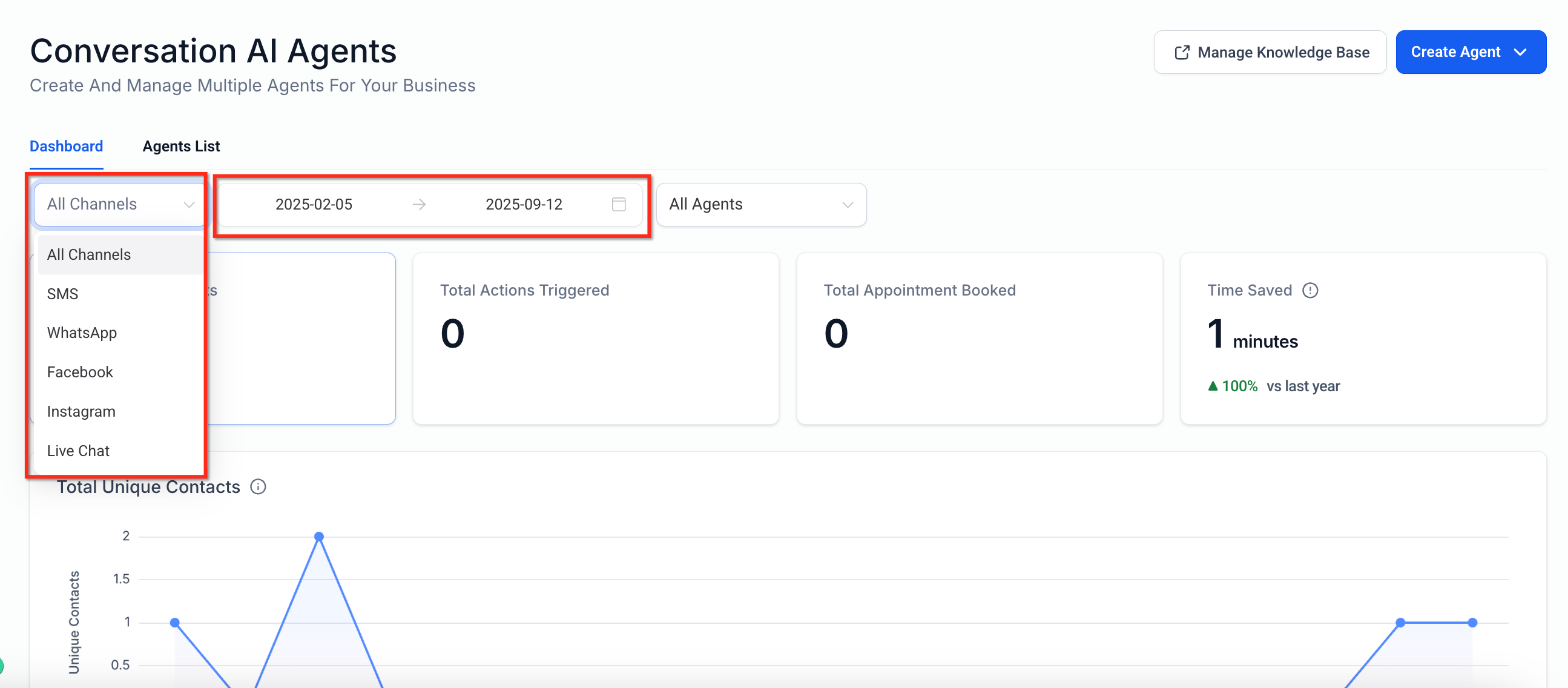
Filters sit at the top of the view. Selecting a date range narrows results to a specific period, the channel selector limits data to a single communication source, and the agent dropdown isolates a single bot’s statistics. The dashboard updates right away as filters change.
The tool lives on the Conversation AI home page and also appears on each bot’s individual page for users who have the appropriate permission. No extra setup is required for the bots themselves.
03How businesses use the Conversation AI Agents dashboard
- Real estate agency. The agency opens the dashboard, selects the bot that handles property inquiries, and filters to the past month. It then reviews total contacts and appointment links shared to gauge lead volume. If a dip appears, the team drills into the metric card to see which channel contributed most.
- Health clinic. Clinic staff accesses the dashboard and filters by the bot that schedules appointments. They view the appointments booked count and the cancel/reschedule actions to ensure the automation is functioning. The summary view helps them verify that contact information updates are being captured.
- Ecommerce store. The store’s marketing team navigates to the dashboard, chooses the sales assist bot, and filters by the chat channel used on the website. They examine total messages and workflow triggers to understand how many leads entered the sales funnel, then open a transcript for a specific conversation to audit the script.
04The numbers and rules that matter
- Available filters: Date Range, Channel, Agent.
- Metrics include: Total Unique Contacts, Total Message, Average Message per Contact, Total Actions Triggered, Appointment Link Shared, Workflows Triggered, Contact Info Updated, Stop Bot Triggered, Cancel Appointment, Reschedule Appointment, Transfer Bot, Human Handover, Total Appointments Booked, Time Saved.
05Before you start
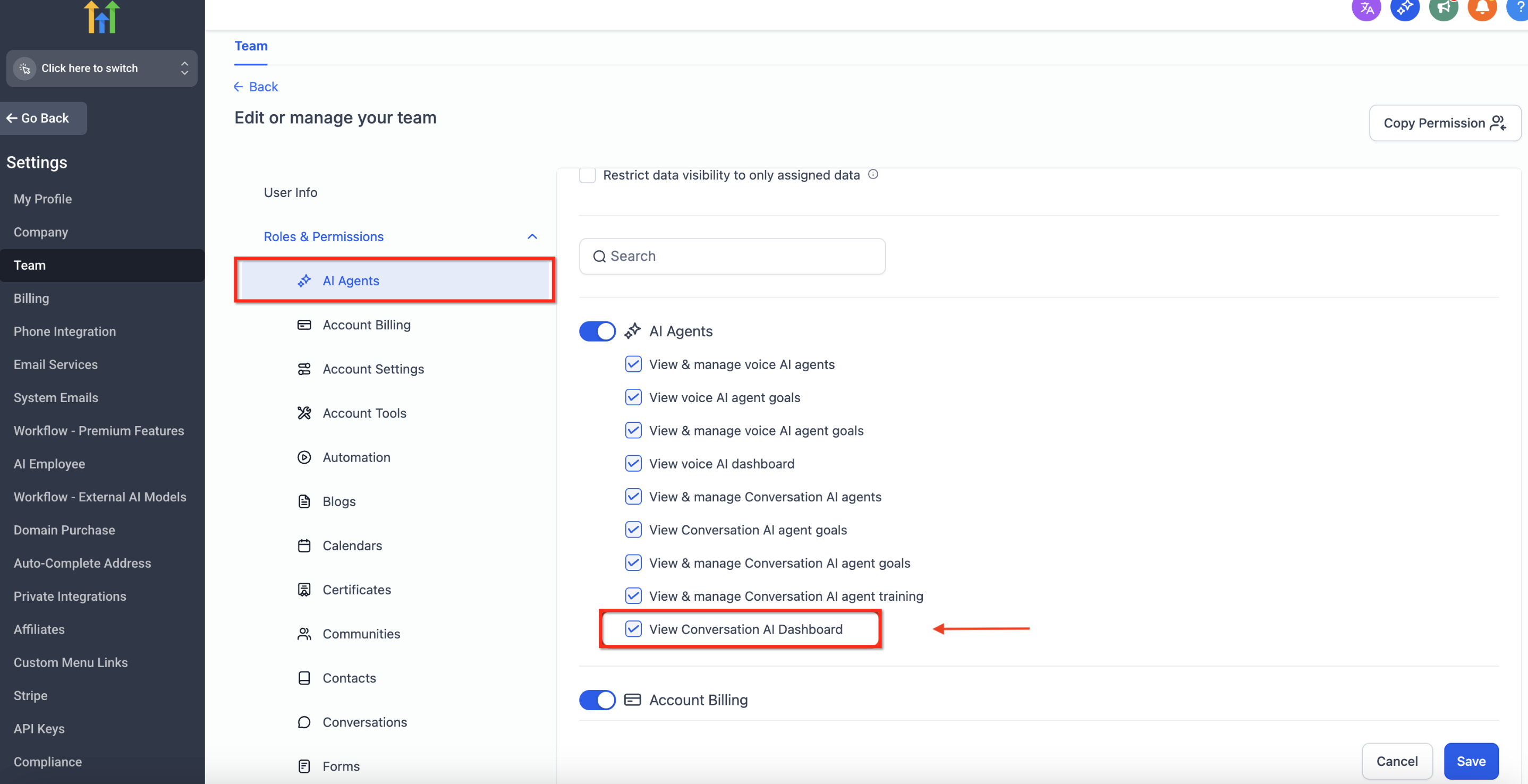
- An admin must enable the View Conversation AI Dashboard permission for the user.
- At least one Conversation AI agent must be published and linked to a communication channel.
06How to set up and use the Conversation AI Agents dashboard in HighLevel
Access the Conversation AI Bot Dashboard
- Open the HighLevel subaccount and click the Conversation AI link under AI Agents.
- Choose the bot you wish to examine from the dashboard tab.
- Apply the desired channel and date range using the selector controls.
07What it looks like in HighLevel
08Settings that matter
- View Conversation AI Dashboard. Controls whether a user can see the consolidated analytics dashboard for all Conversation AI agents.
09Things to know before you rely on it
- The dashboard appears only for users who have the View Conversation AI Dashboard permission enabled.
- Metric labels may change over time; refer to in app tooltips for the most accurate definitions.
- No additional configuration is required for bots; the view adds only reporting visibility.
10If something goes wrong
- Dashboard does not appear. Verify the user has the View Conversation AI Dashboard permission set in Agency Settings.
- No data shows in the dashboard. Confirm at least one bot is published, the relevant channels are connected, and the selected date range includes activity.
11How it connects to the rest of HighLevel
- Set up granular permissions for Conversation AI agents Granular permissions
- Learn how to create and manage Conversation AI bots All AI Employee features
- View pricing and plan details for HighLevel Pricing
Michael's take

The dashboard can feel overwhelming at first because it shows every bot’s numbers in one place. Without proper permission checks, you might expose sensitive performance data to the wrong team members.