
01Who this is for
- Customer support agents can pause AI for a contact that requires manual handling, preventing automated replies.
- Marketing managers can keep AI active for leads while disabling it for unsubscribed contacts to respect opt out preferences.
02Bot status for individual contacts, explained
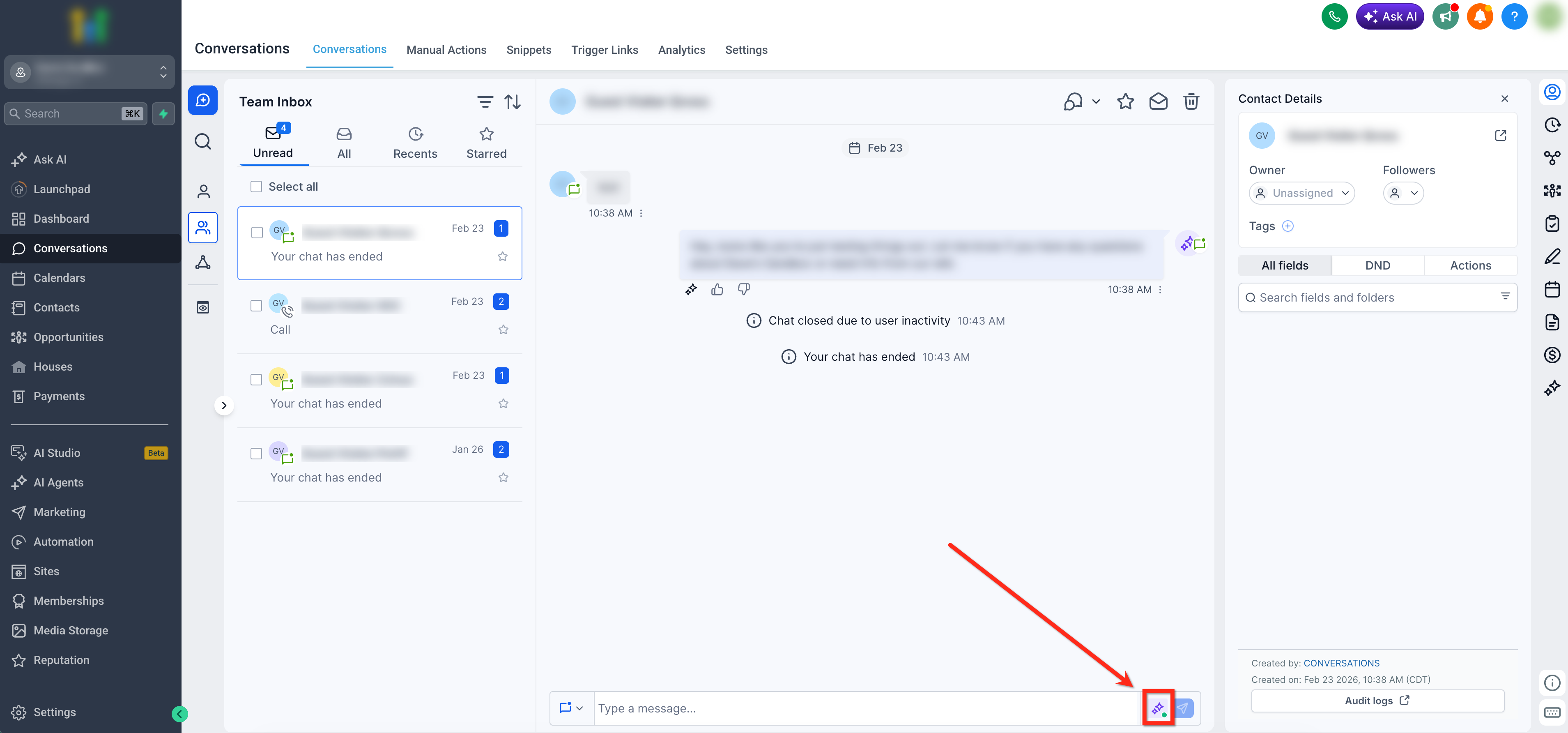
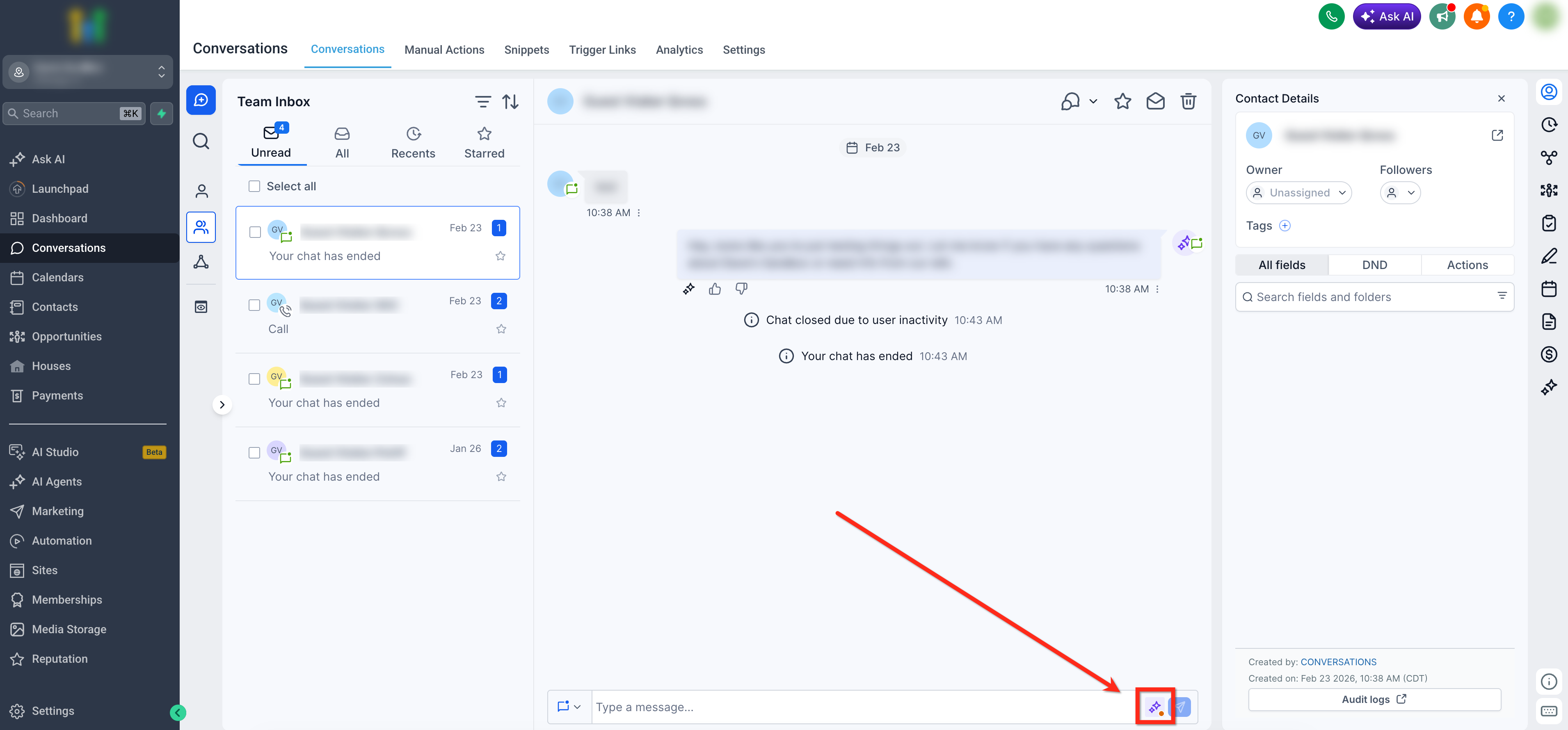
Bot Status for Individual Contacts is a control that resides in the message composer of the Conversations view. It works only when the bot runs in Suggestive or Auto Pilot mode. The icon shows the current state, active, inactive, or sleeping, for the selected conversation.
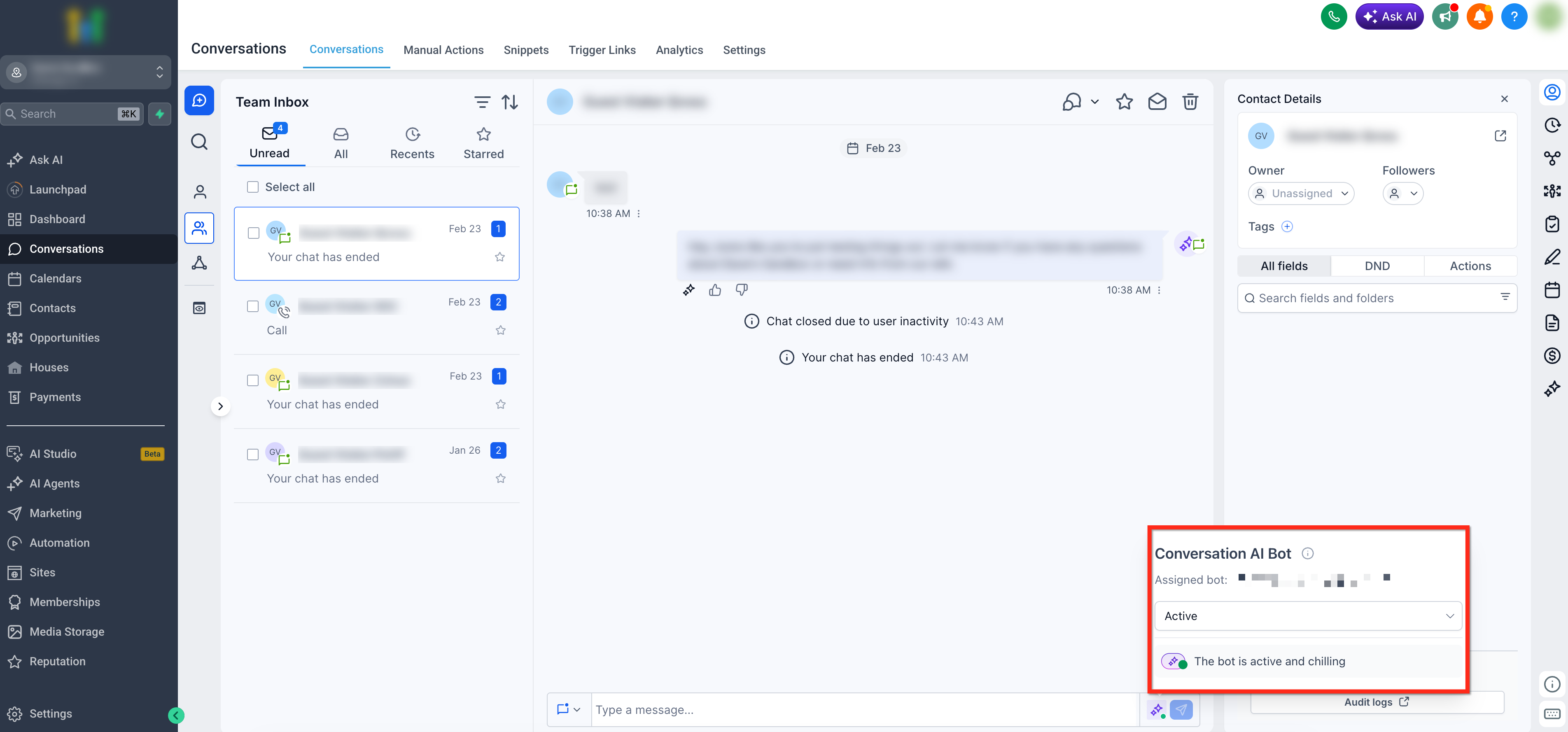
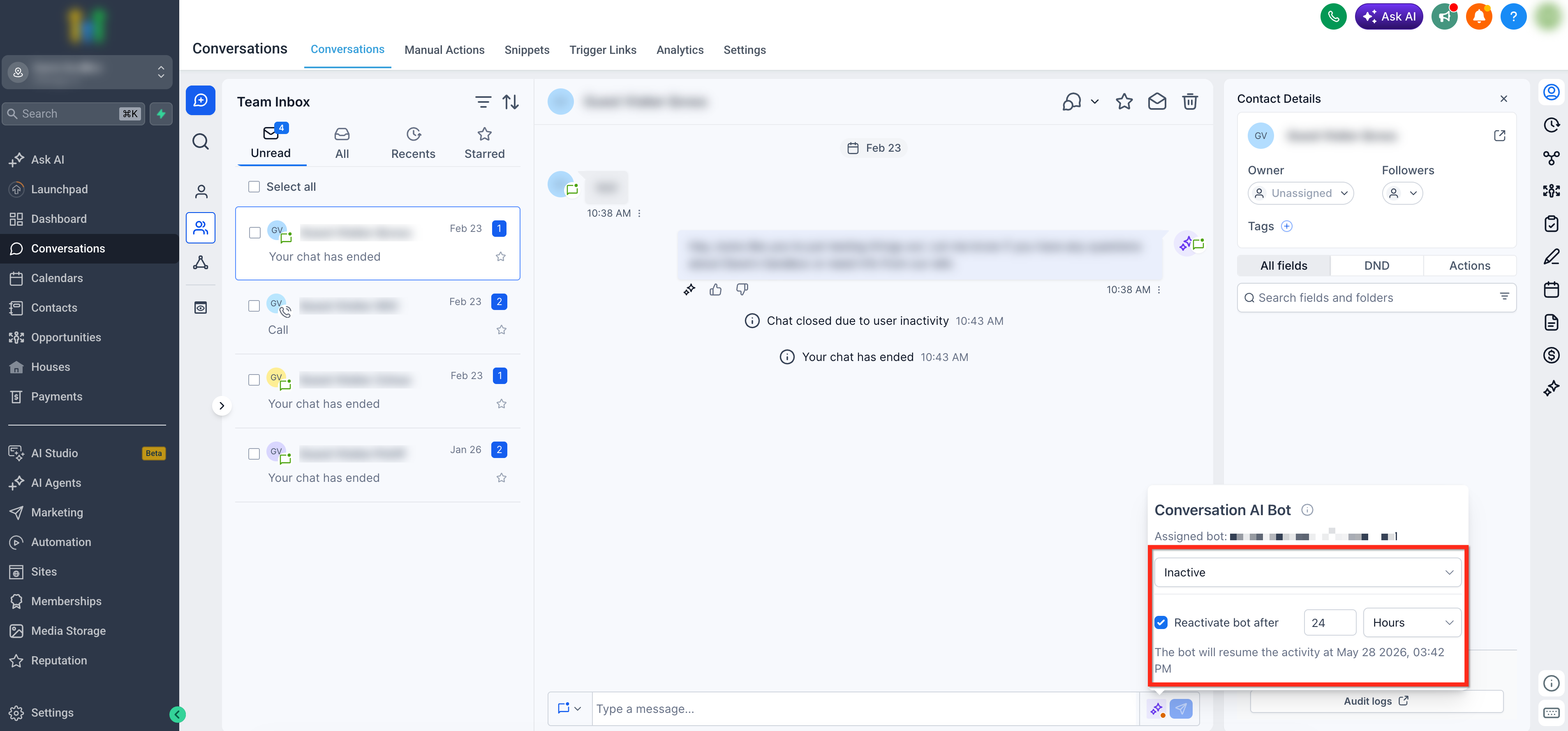
When you click the icon you can choose Active to let the bot reply, Inactive to stop replies until you reactivate it, or Sleep Snooze to pause the bot for a defined period. The chosen state applies only to that contact and does not affect other conversations.
03How businesses use bot status for individual contacts
- Ecommerce store. A support rep can set the bot to Sleep for a shopper who is reviewing a large order, allowing the rep to intervene without AI replies. The rep selects the Sleep option and defines a wake up time, after which the bot resumes responding.
- Legal services firm. When a client sends an opt out keyword, the team can manually set the bot to Inactive for that client’s thread. This prevents any further AI generated messages until the status is changed back.
- Fitness coaching business. A coach can activate the bot for a new member to receive automated workout suggestions, then switch to Inactive during a personalized coaching session to avoid overlapping messages.
04The numbers and rules that matter
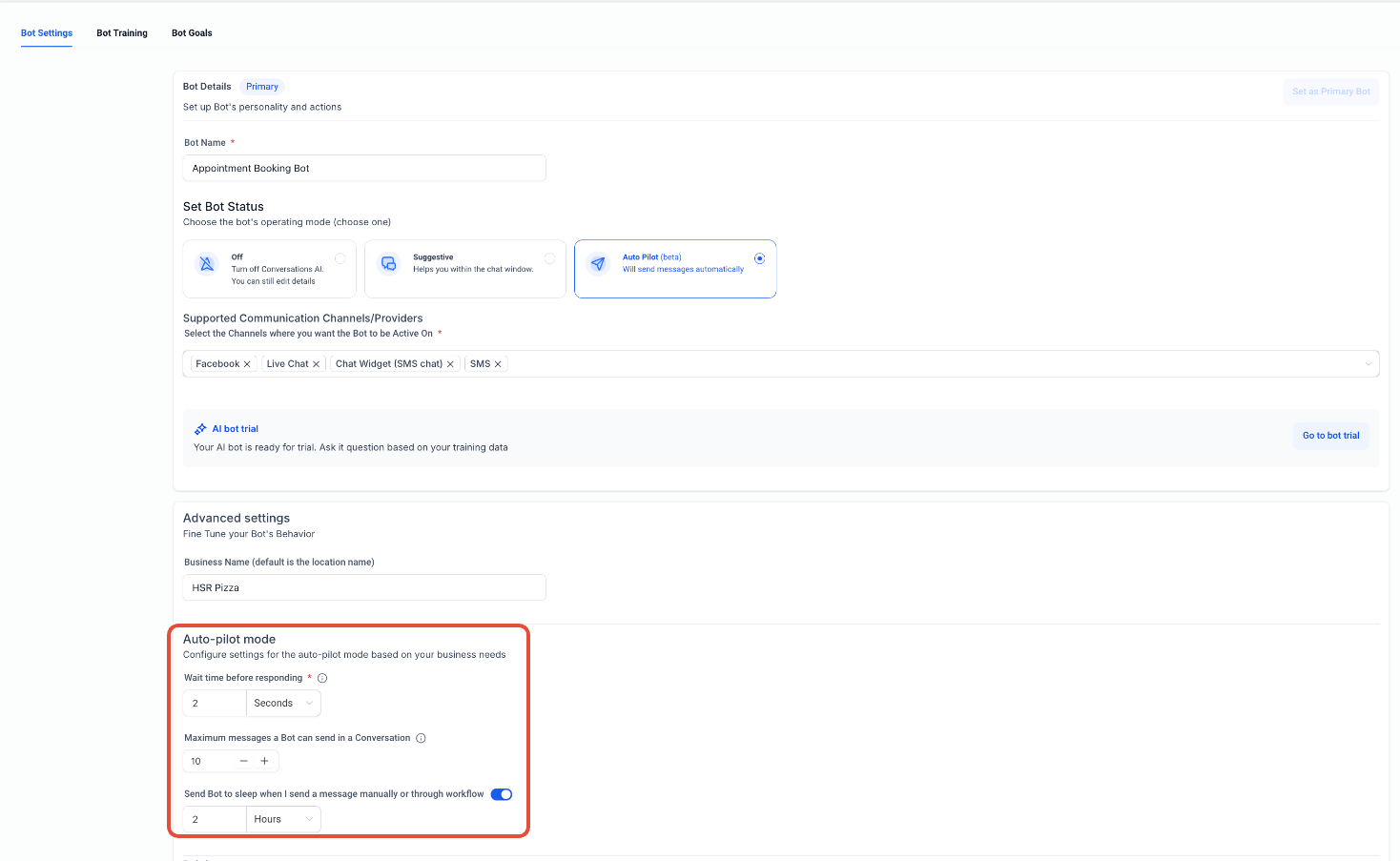
- Automatic inactivity triggers: Opt out keyword, AI message limit reached, manual message with sleep settings, workflow updates, human handoff settings.
05Before you start
- Conversation AI must be enabled for the subaccount.
- The bot must be configured to run in Suggestive or Auto Pilot mode.
06How to set up and use bot status for individual contacts in HighLevel
Update bot status for an individual contact
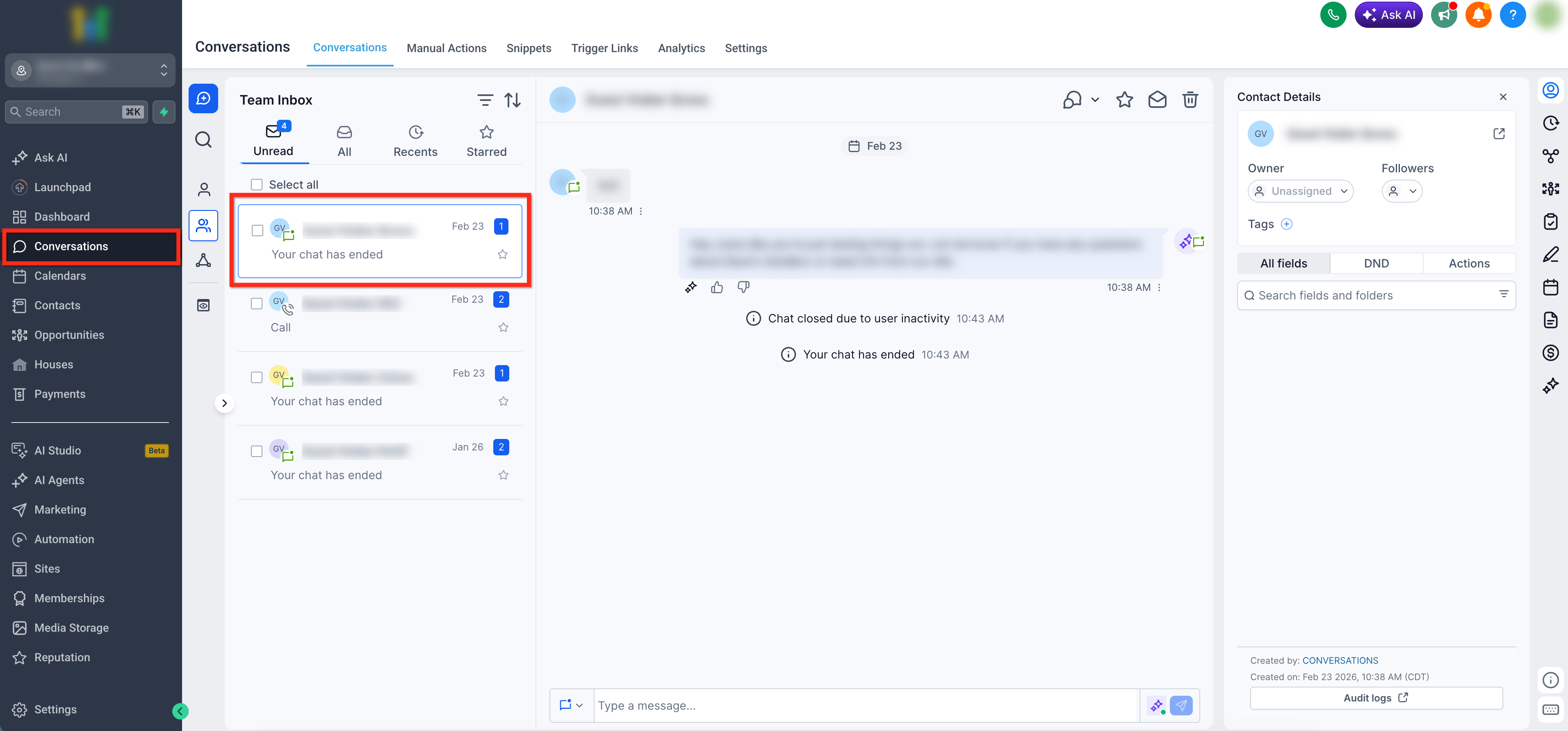
- Open the Conversations tab and select the contact’s conversation.
- Find the Conversation AI status icon in the message composer.
- Click the icon and pick Active, Inactive, or Sleep Snooze.
- If Sleep Snooze is chosen, select Inactive then check Reactive bot after and set a duration, or leave it unchecked for a permanent pause.
- Click outside the module to apply the change and verify the icon updates.
07What it looks like in HighLevel
08Settings that matter
- Active. Enables the bot to respond to every incoming message for the selected contact.
- Inactive. Stops the bot from replying until the status is manually set to Active again.
- Sleep Snooze. Temporarily pauses the bot for a defined time period, after which it automatically reactivates.
- Reactive bot after. Specifies the amount of minutes, hours, or days before a sleeping bot wakes up and resumes responses.
09Things to know before you rely on it
- The feature works only in Suggestive or Auto Pilot mode; other response modes do not show the status icon.
- Automatic inactivity can occur when a contact uses an opt out keyword, when the AI message limit is reached, after a manual message if sleep settings are enabled, or during a workflow driven status change.
10If something goes wrong
- Status control isn’t visible in the message composer. Confirm that Conversation AI is enabled, a bot is assigned to the channel, and the response mode supports AI replies.
11How it connects to the rest of HighLevel
- View overall bot performance in the Agents dashboard Agents dashboard
- Set granular permissions for who can change bot status Granular permissions
- Learn how to manage AI limits AI limits
Michael's take

Michael ReimerFounder of CRM Pros, HighLevel Commander and Certified Admin
Bot status for individual contacts provides additional control over Conversation AI per contact.
Teams should assess whether they need per contact AI control based on their workflow.
Get More InformationOpens on HighLevelPublished November 2, 2026 · Updated November 16, 2026