
01Who this is for
- Agency owners who manage many client subaccounts benefit because they can clone proven bot configurations without rebuilding each one.
- Marketing teams that run similar lead gen bots for multiple campaigns use snapshots to maintain a uniform tone and logic across campaigns.
02Conversation AI bot snapshots, explained
The snapshot feature captures the entire Conversation AI bot configuration. It stores bot names, prompts, actions, settings, training web crawler URLs and any custom FAQ responses. All of these elements are saved as part of an account snapshot.
Snapshots live in the Account Snapshots area of the platform. Once created, a snapshot can be imported into any subaccount. During import, the bot becomes the primary bot if the destination has none, and conflict options let you overwrite or skip existing bots with the same name.
The feature does not allow edits after a snapshot is created. To update a bot, you must make changes in the source bot and generate a new snapshot.
03How businesses use Conversation AI bot snapshots
- Digital marketing agency. The agency creates a snapshot of a lead capture bot that has been tuned for a specific industry. When a new client signs up, the agency imports the snapshot into the client’s subaccount, right away providing a ready to use bot with the same prompts and actions.
- E learning platform. The platform configures a bot that answers course FAQs and guides enrollment. By snapshotting the bot, the platform can quickly roll out the same support bot to new course subaccounts without manually recreating each FAQ entry.
- Real estate brokerage. A broker builds a bot that schedules property showings. The broker snapshots this bot and imports it into each agent’s subaccount, ensuring every agent has the same booking flow and training data.
04The numbers and rules that matter
- Bot settings, prompts, actions, Bot Training Web Crawler URLs and Custom Bot Responses/FAQs are included in the snapshot.
05Before you start
- The source subaccount must already contain the Conversation AI bot with the desired prompts, actions and training data.
06How to set up and use Conversation AI bot snapshots in HighLevel
Create a Conversation AI bot snapshot
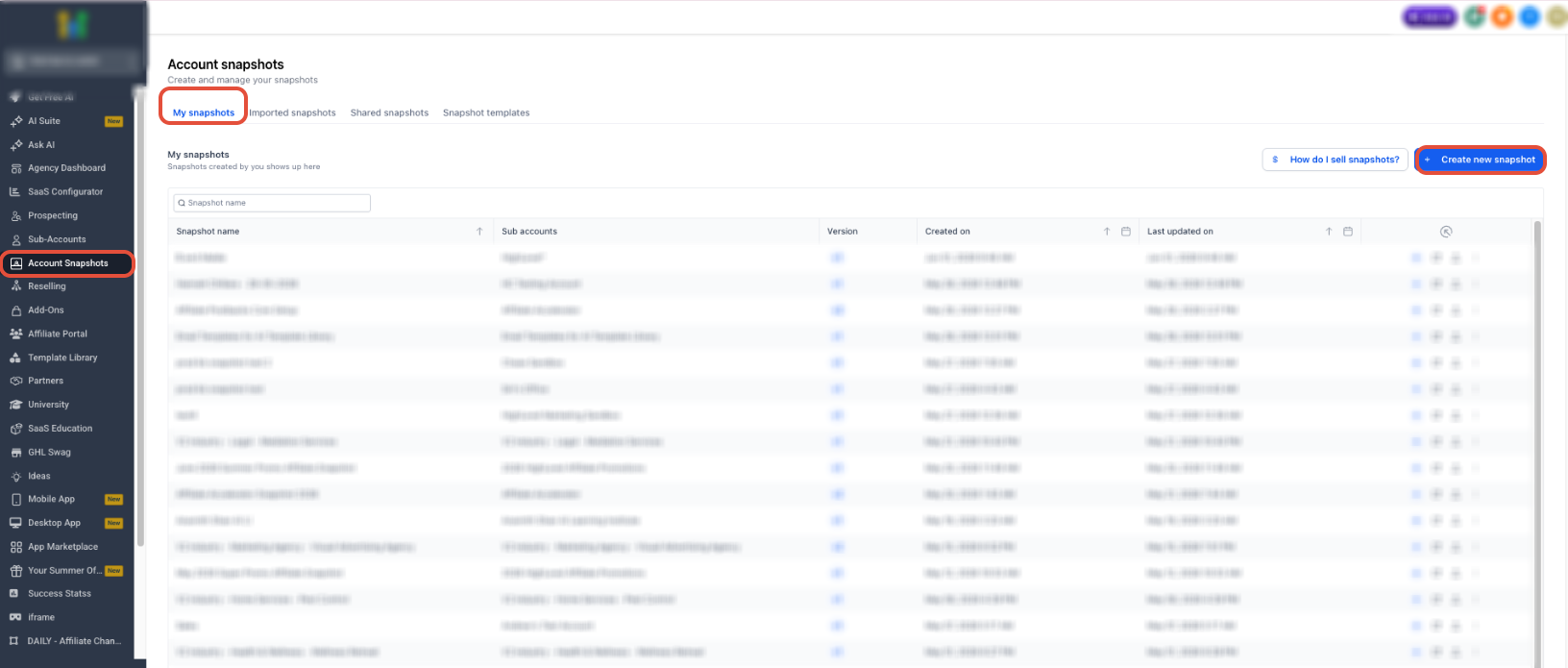
- Open the left hand navigation and select Account Snapshots.
- Press the Create new snapshot button.
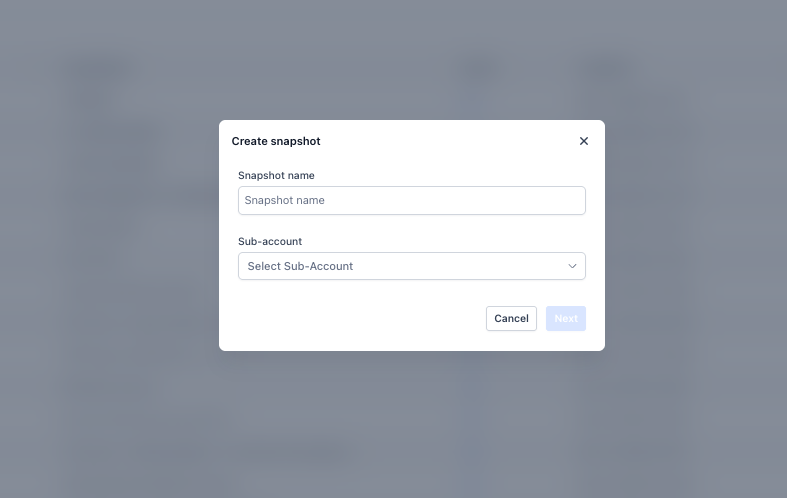
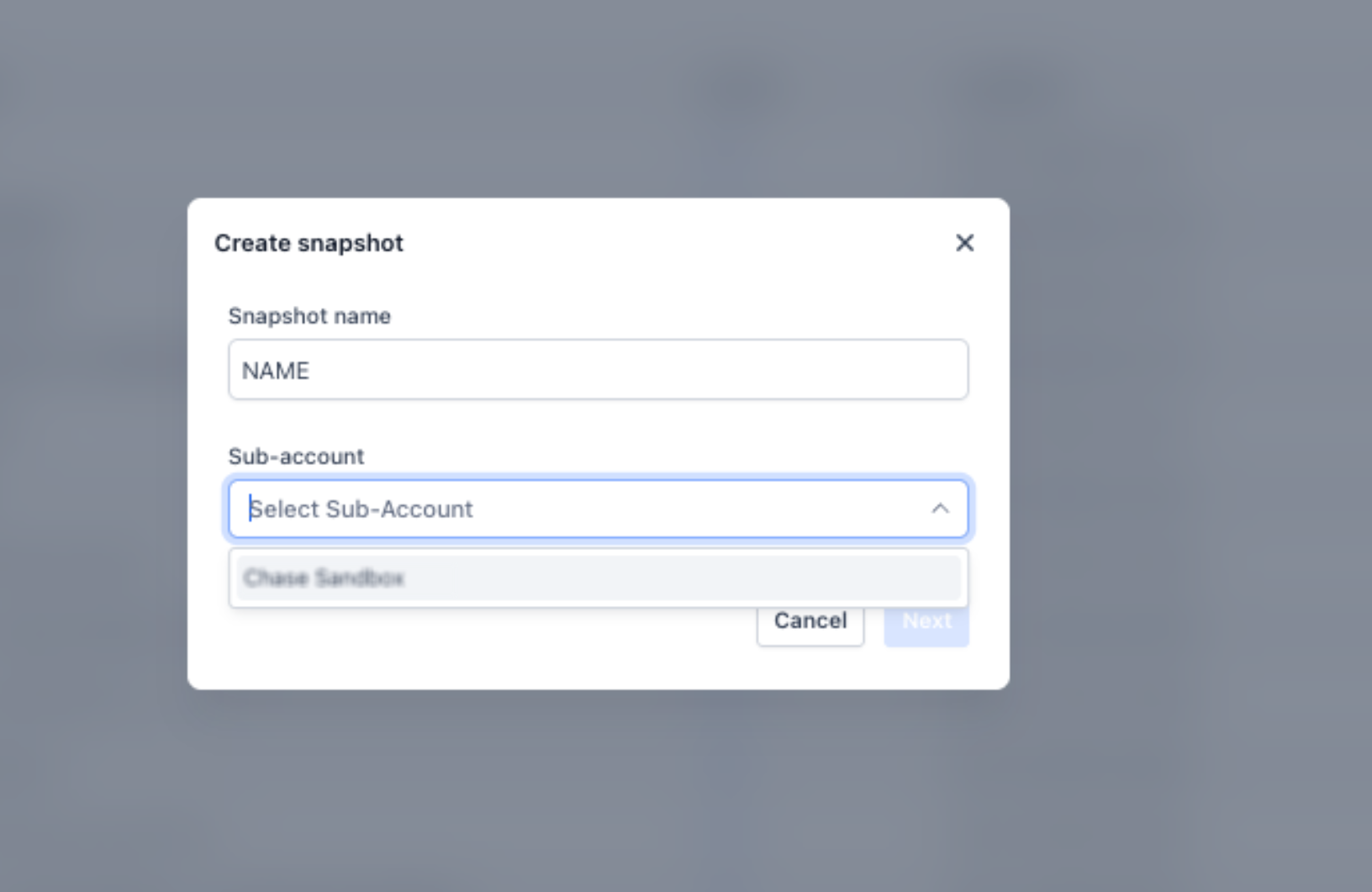
- Type a clear name for the snapshot.
- Open the subaccount dropdown and pick the subaccount that holds the bot you want to capture.
- Click Next to continue.
- Proceed through the creation flow, checking the assets that will be included.
- Find the Conversation AI section in the review screen.
- Examine the listed bots and their data, such as names, settings, actions, prompts, training web crawler URLs and custom FAQ responses.
- Select Create Snapshot to finalize the snapshot.
07What it looks like in HighLevel
08Settings that matter
- Primary Bot Auto Assignment. Determines whether the imported bot becomes the primary bot automatically when the destination subaccount lacks one.
- Conflict Handling. Lets you choose to overwrite an existing bot with the same name or skip importing that bot during a snapshot import.
09Things to know before you rely on it
- Snapshots cannot be edited after they are created; a new snapshot is required to capture updated bot configurations.
10How it connects to the rest of HighLevel
- Set up bots with the Conversation AI flow builder before snapshotting Conversation AI flow builder
- Monitor bot status for each contact after importing a snapshot Bot status per contact
- View imported bots in the Conversation AI Agents dashboard Agents dashboard
Michael's take

Conversation AI bot snapshots are worth the time it takes to set up a single perfect bot because they let you clone that work across any number of client accounts without rebuilding each piece. The consistency and speed they bring can be a real growth lever for a small agency.
Don’t forget to test the imported bot in the new subaccount before you go live.