
01Who this is for
- Founders who want a quick way to add automated booking and support without coding.
- Customer support teams that need an agent to answer common queries and route calls to humans.
- Marketing managers looking to capture leads and follow up automatically through chat.
02Conversation AI Agents, explained
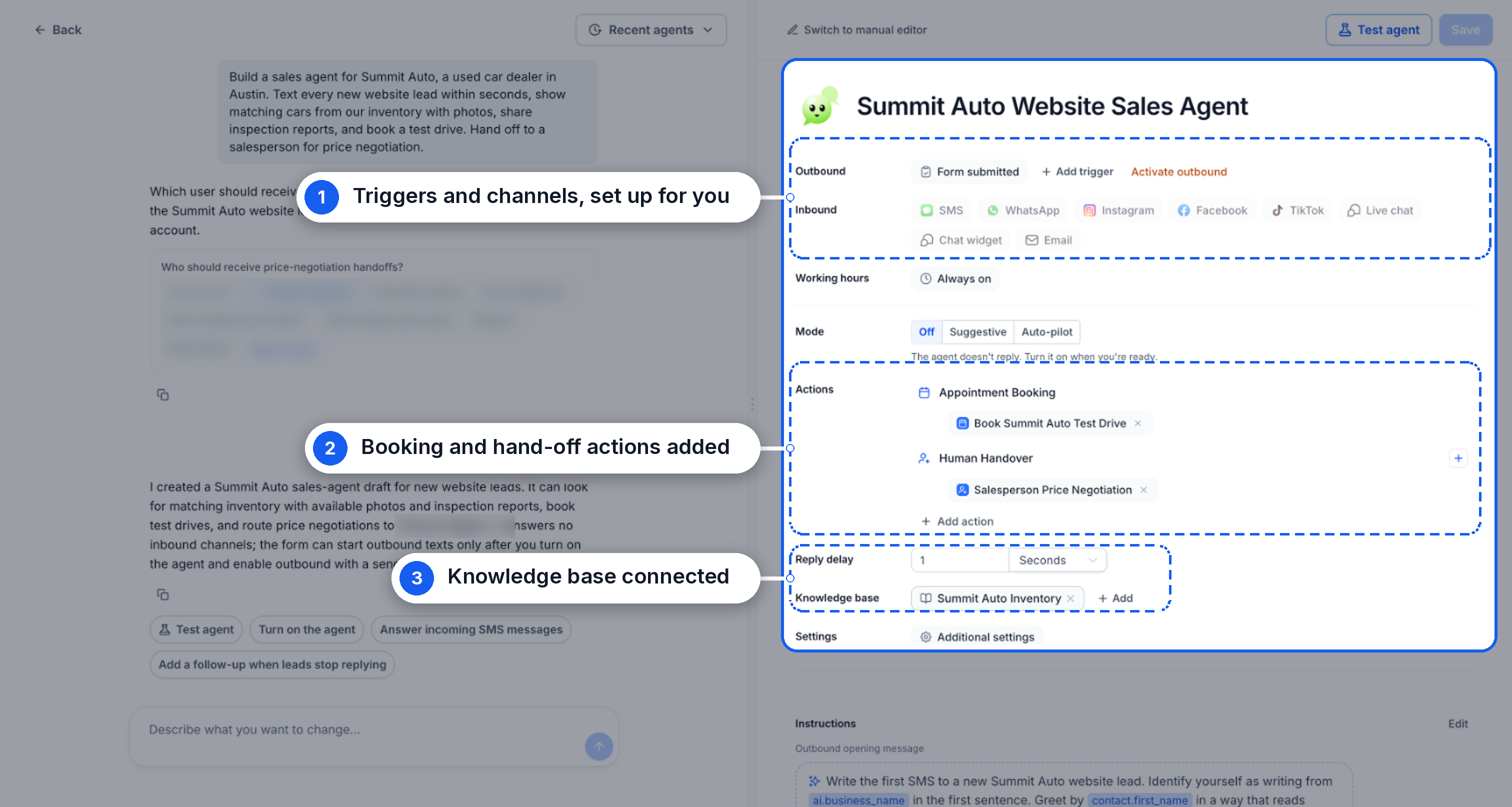
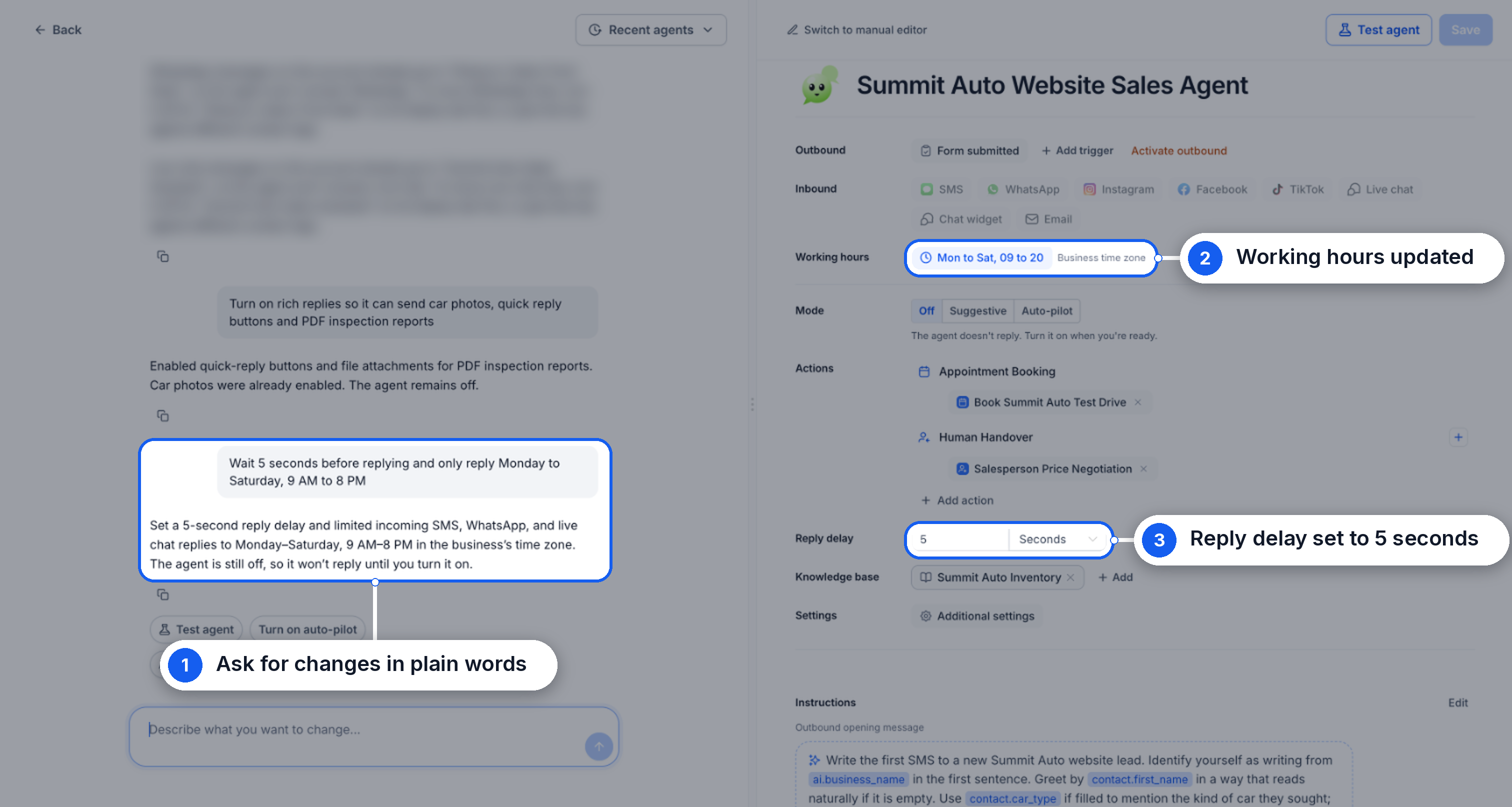
The AI builder generates a complete Conversation AI agent from plain language input. It sets up inbound and outbound channels, working hours, reply delays, booking calendars, handoff rules, knowledge base connections, instructions and opening messages.
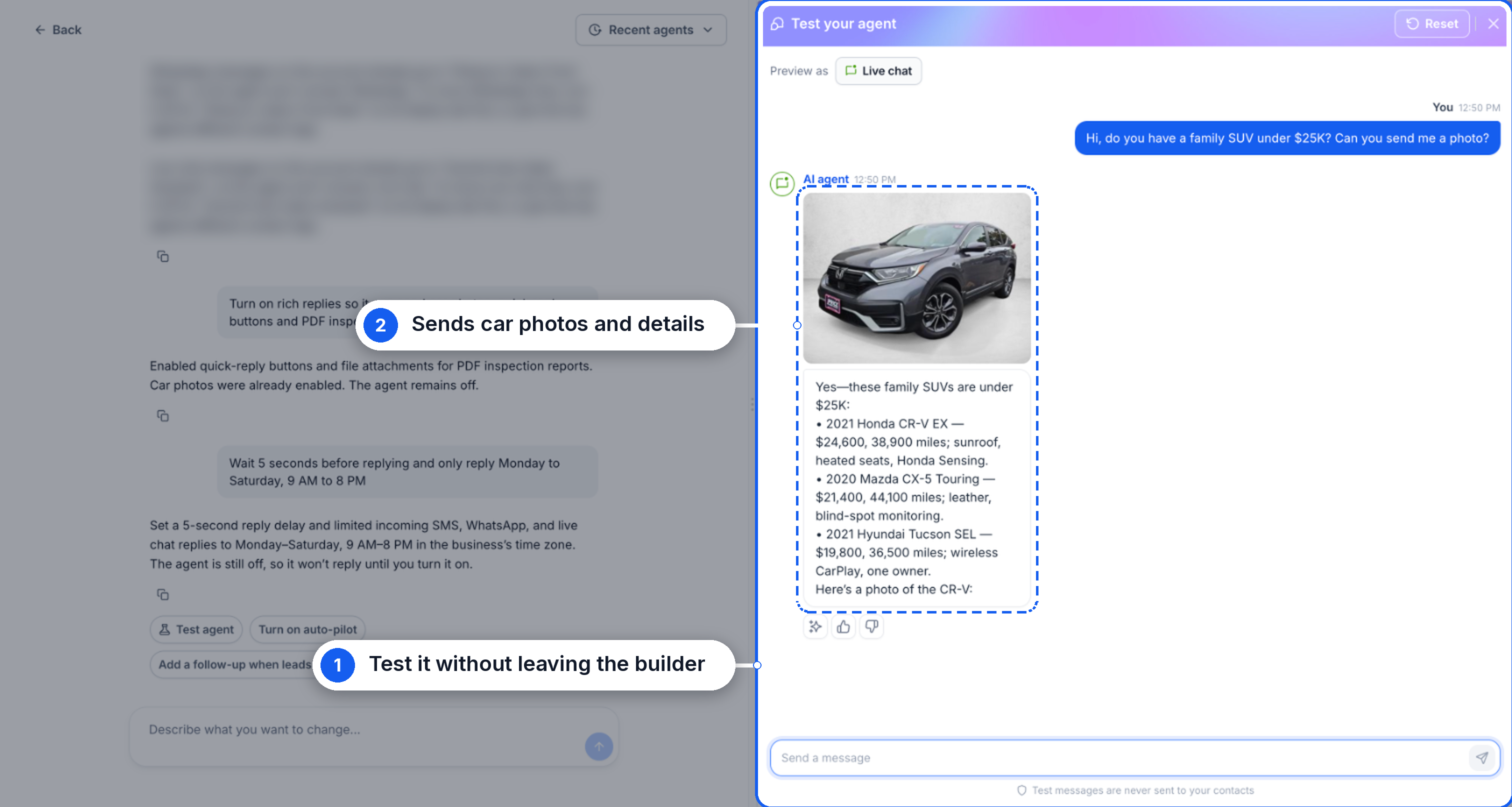
The agent lives under AI Agents ► Conversation AI in the platform. After building, it can be tested on any selected channel, then saved and enabled in the desired mode. Settings can be tweaked through chat or the manual editor.
03How businesses use Conversation AI Agents
- Dental practice. The practice describes an agent that books appointments, selects the clinic calendar, and forwards missed calls to the front desk. The AI builder creates the booking flow and handoff, which the practice tests before enabling live scheduling.
- SaaS startup. The startup asks the builder to capture leads, trigger follow up messages, and connect to its knowledge base for product FAQs. The resulting configuration handles inbound queries and schedules demos, ready for activation.
- Ecommerce store. The store creates a support agent that replies to order status questions, links to the store’s help articles, and escalates shipping issues to a human agent. The builder sets up the knowledge base and handoff, then the store tests and launches the bot.
04Before you start
- Enable Conversation AI: Build with AI in Settings ► Labs.
05How to set up and use Conversation AI Agents in HighLevel
Create a Conversation AI agent with AI
- Open Settings, go to Labs, and turn on the option labeled Conversation AI: Build with AI.
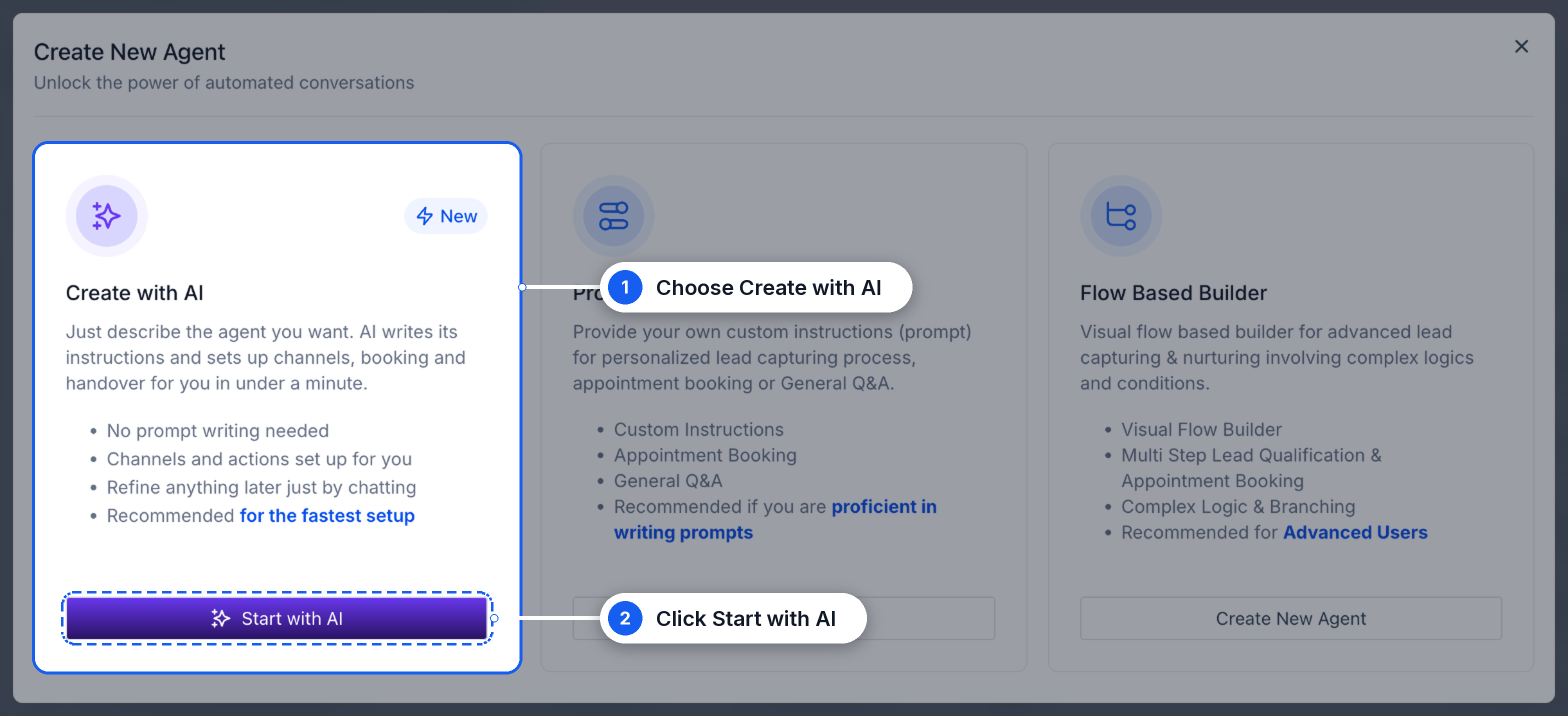
- Select AI Agents, then Conversation AI, and click Create Agent.
- Choose the Create with AI button and then press Start with AI.
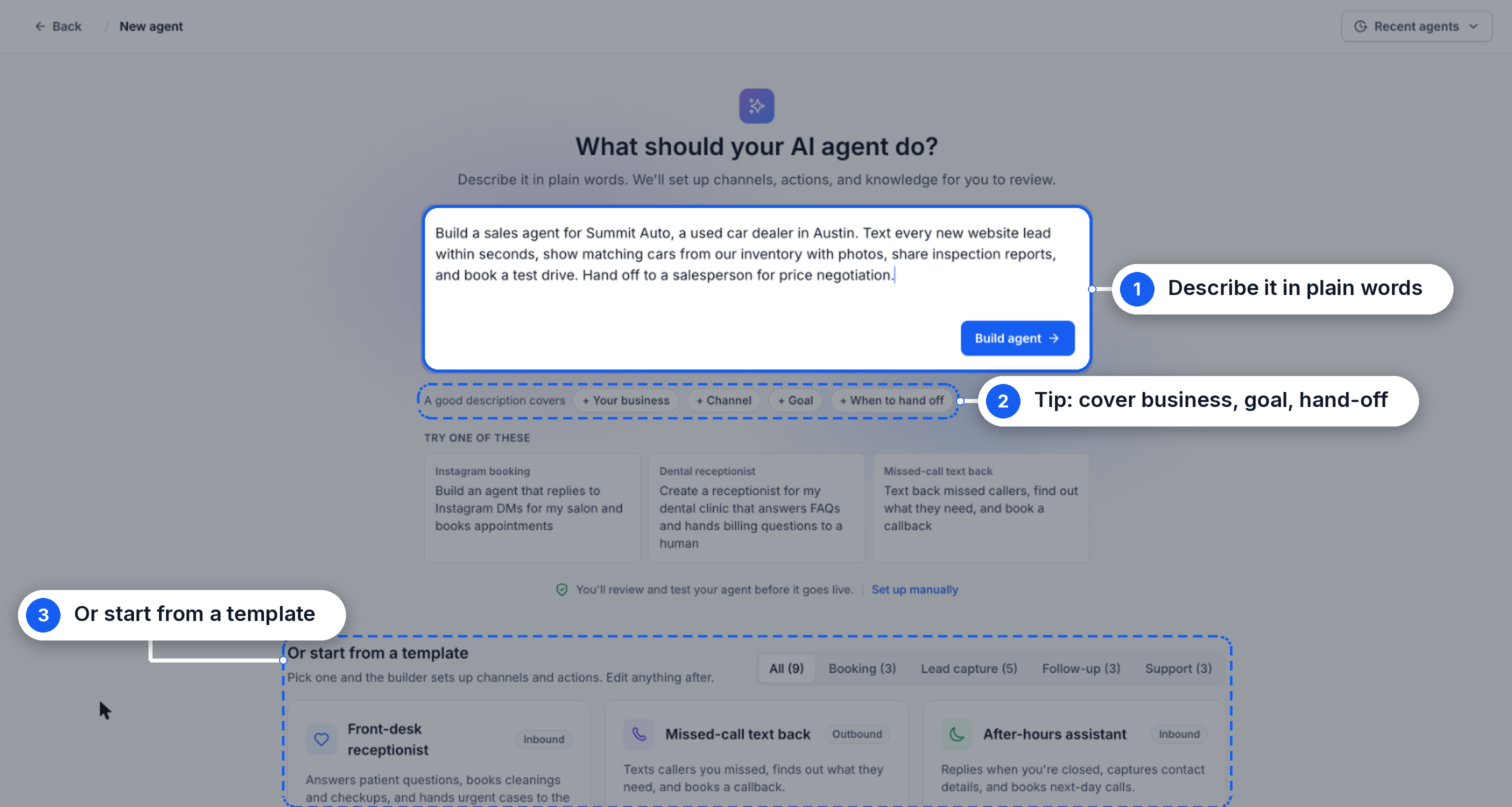
- Enter a description of the desired agent behavior or pick a template, and then click Build agent.
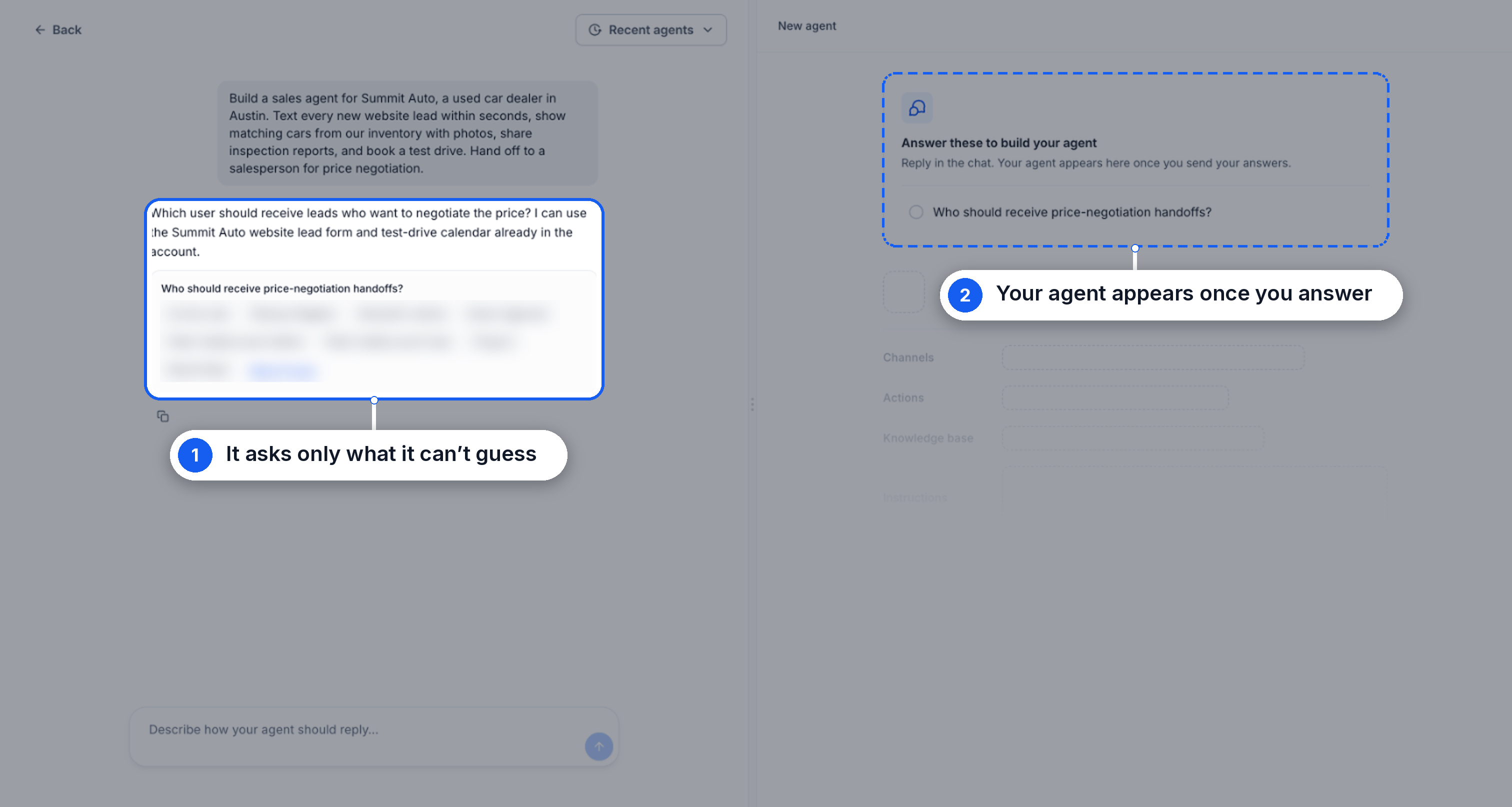
- Answer any follow up questions the builder asks, such as which calendar to use or who should receive handoffs.
- Examine the automatically generated configuration, including settings, instructions, channels, and actions.
- Ask for modifications in the chat, for example to change working hours, reply delays, or handoff rules.
- Press Test agent to run a trial conversation on the chosen channel and view the replies.
- Press Save to store the agent.
- Remember that saving does not activate the agent; you must enable the appropriate mode and outbound messaging separately.
- Activate the desired mode to launch the agent.
06What it looks like in HighLevel
07Settings that matter
- Conversation AI: Build with AI. Turns on the AI driven builder that creates Conversation AI agents from plain language descriptions.
08Things to know before you rely on it
- Saving an agent does not automatically make it active; you must enable the appropriate mode after saving.
- Outbound messaging must be turned on separately for the agent to send messages.
09How it connects to the rest of HighLevel
- Set up a chat widget to provide the channel for your Conversation AI agent. Chat widget guide
- Learn how to choose the response mode for your Conversation AI bot. Response mode guide
- Review how to manage AI usage limits and extra usage options. AI limits guide
Michael's take

Michael ReimerFounder of CRM Pros, HighLevel Commander and Certified Admin
The AI builder makes setting up Conversation AI Agents quick and low effort.
Get More InformationOpens on HighLevelPublished November 3, 2026 · Updated November 17, 2026