
01Who this is for
- Founders of service based businesses can let bots handle appointment bookings without manual handoff, saving time.
- Ecommerce owners can enable bots to send payment links through Stripe, streamlining checkout within chat.
02MCP servers, explained
MCP server support adds a new section to the prompt based bot editor where external applications are linked via the Model Context Protocol. Once enabled, bots can invoke tools from connected servers to perform actions such as scheduling, payments, or data updates during a conversation.
The feature lives inside the Conversation AI bot builder under the MCP Servers panel. It works alongside existing capabilities like Custom API actions and Workflows, but requires the bot to run in Auto Pilot mode on inbound chats and the Labs toggle to be active.
03How businesses use MCP servers
- Medical clinic. The clinic adds a Cal.com MCP connector, configures the bot to check open slots and create bookings, and then tests the flow. When a patient asks for an appointment, the bot uses the MCP tools to schedule it without leaving the chat.
- Online store. The store connects a Stripe MCP server, selects only the send payment link tool, and defines when to use it. When a shopper requests checkout, the bot generates and shares a payment link directly in the conversation.
- Consulting agency. The agency adds a custom MCP server that updates a Google Sheet. After a client confirms a meeting, the bot calls the appropriate tool to write the details into the sheet, then replies with a confirmation message.
04The numbers and rules that matter
- 40+ Marketplace MCP servers, including Stripe, Google Sheets, Google Calendar, Notion, and Zapier.
- Up to five MCP servers per bot.
- Maximum of 100 tools per bot.
05Before you start
- Enable MCP support for Conversation AI in Labs.
- Use a prompt based bot that operates in Auto Pilot mode for inbound conversations.
- Have an account with any external application you plan to connect.
- For custom MCP servers, obtain the HTTPS URL and any required authentication data.
06How to set up and use MCP servers in HighLevel
Enable MCP support in Labs
- In Subaccount View open Settings from the left navigation.
- Select Labs within Settings.
- Find the feature named MCP support for Conversation AI.
- Toggle the feature to on.
- Return to Conversation AI and reopen the bot editor.
Open MCP Servers in the Conversation AI bot builder
- From Subaccount View choose AI Agents in the left navigation.
- Select Conversation AI.
- Open Agent List.
- Pick the prompt based bot you want to edit.
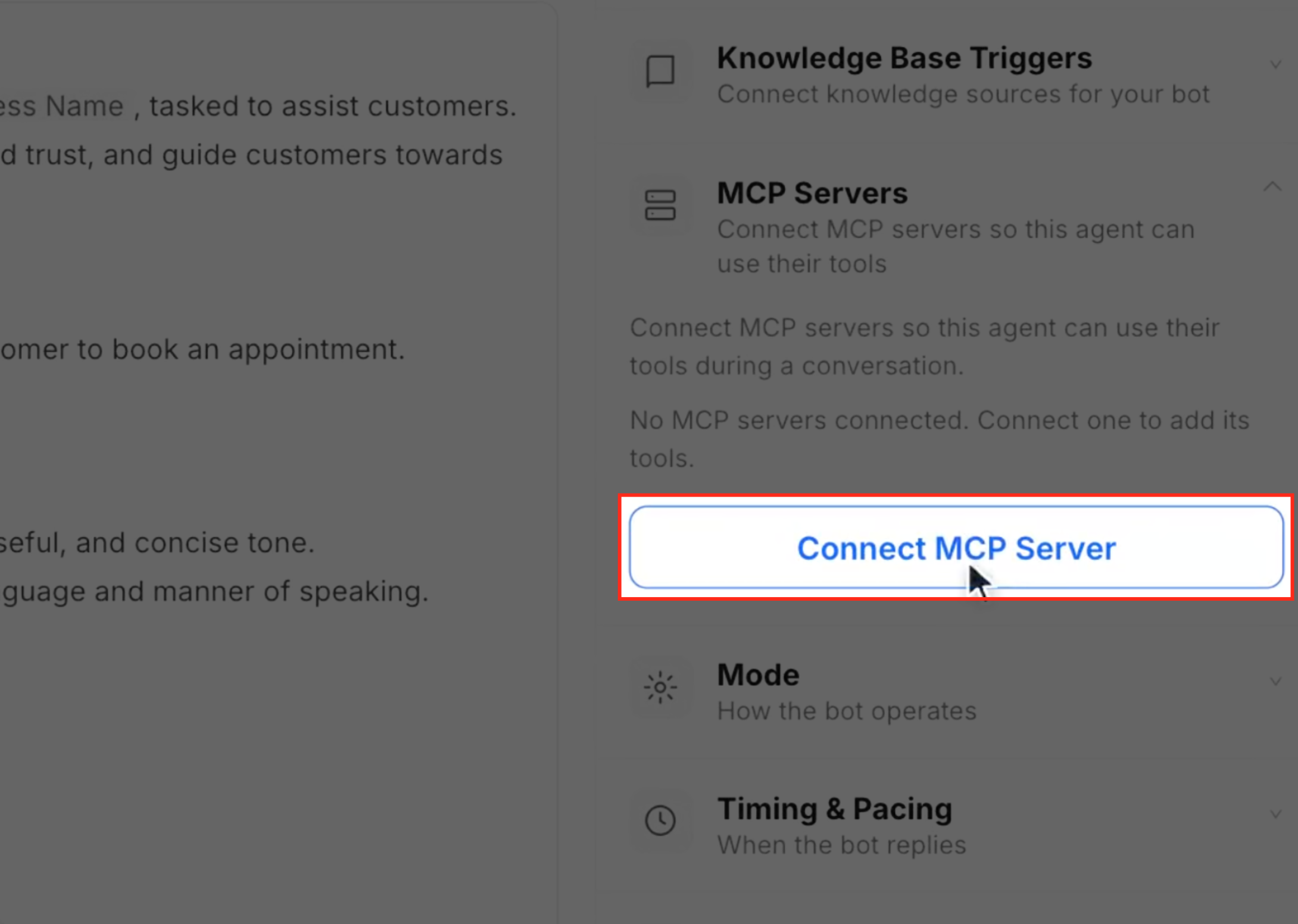
- In the right hand panel locate and expand MCP Servers.
- Click Connect MCP Server to open the selection window.
Connect an MCP server from the Marketplace
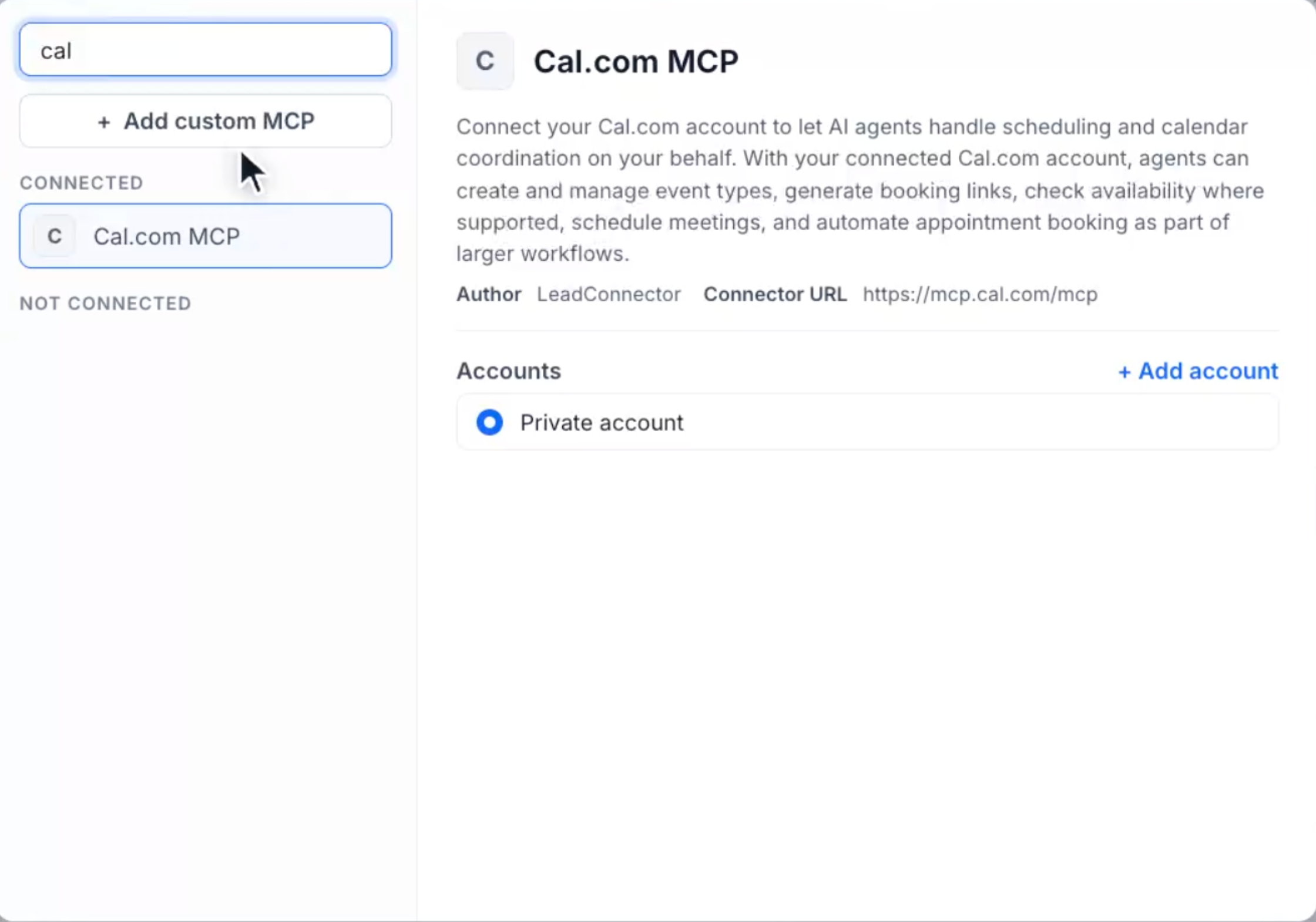
- In the server selection window locate the Search apps… field.
- Enter the name of the desired application, such as Cal.com or Stripe.
- Choose the app from the NOT CONNECTED list.
- Review its description, author and connector URL.
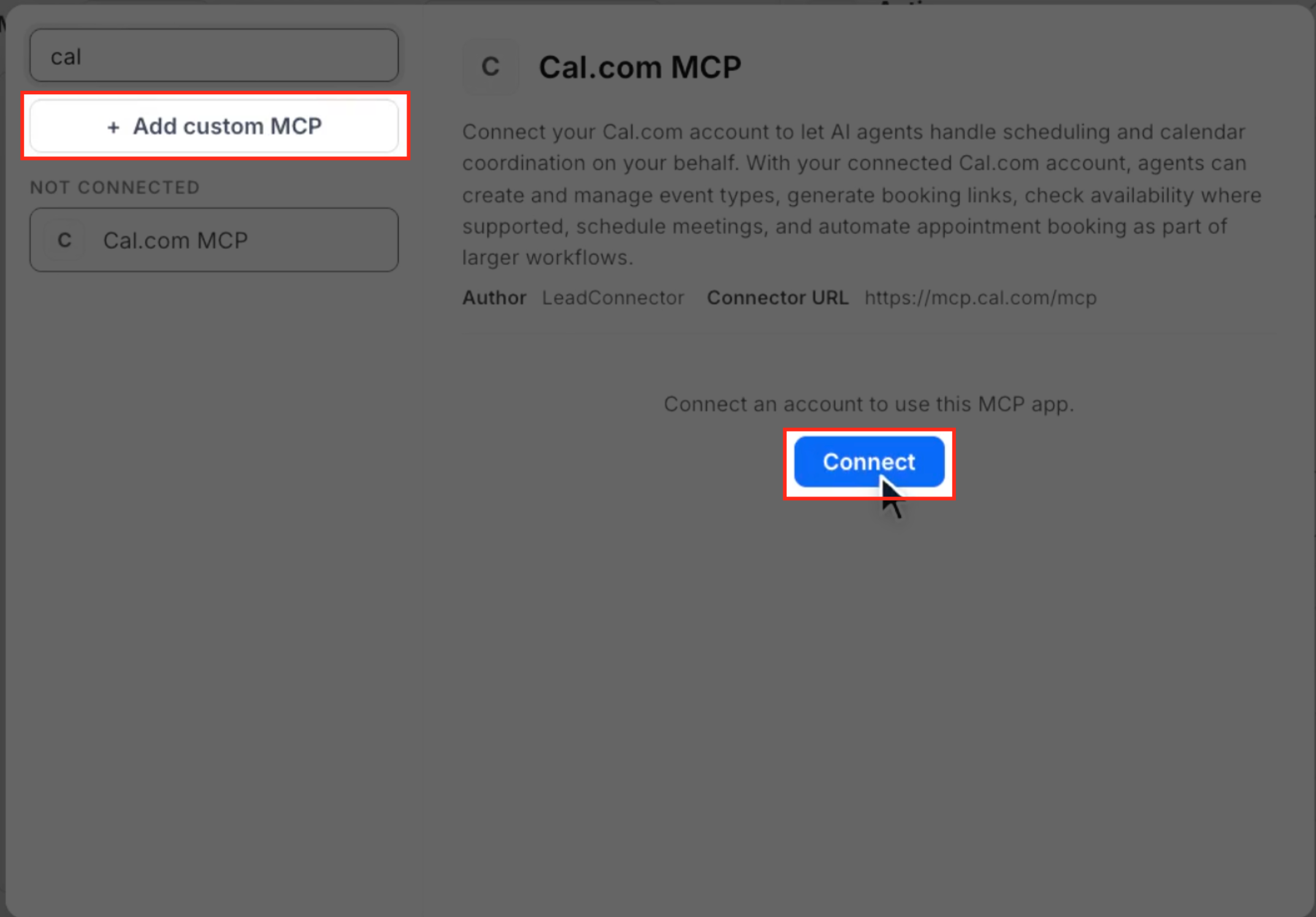
- Click Connect.
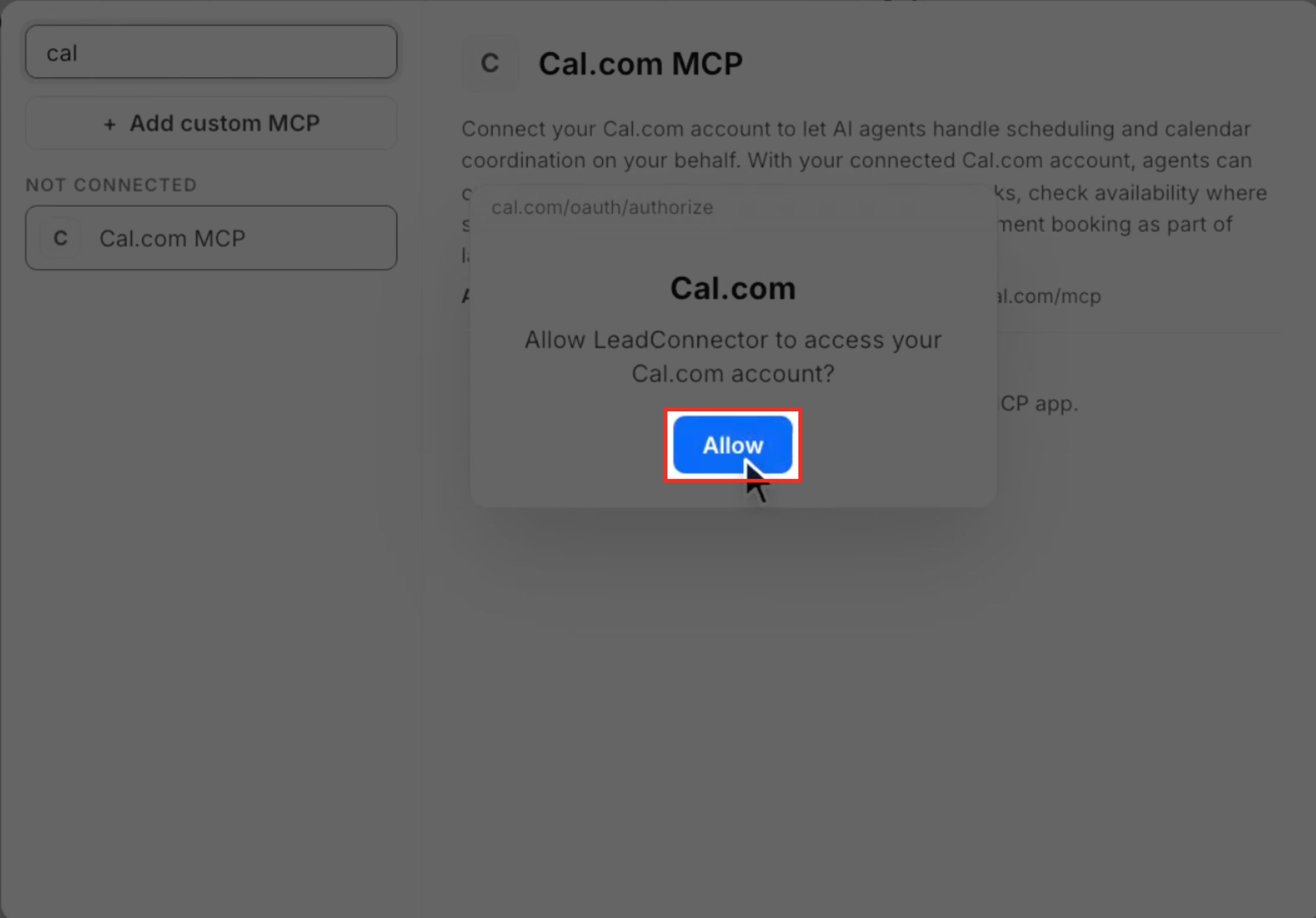
- Complete the application’s authorization process.
- When prompted, select Allow to approve access.
- Confirm the app now appears under CONNECTED.
Add a custom MCP server
- From Subaccount View go to AI Agents > Conversation AI.
- Open Agent List and select the prompt based bot.
- Expand MCP Servers and click Connect MCP Server.
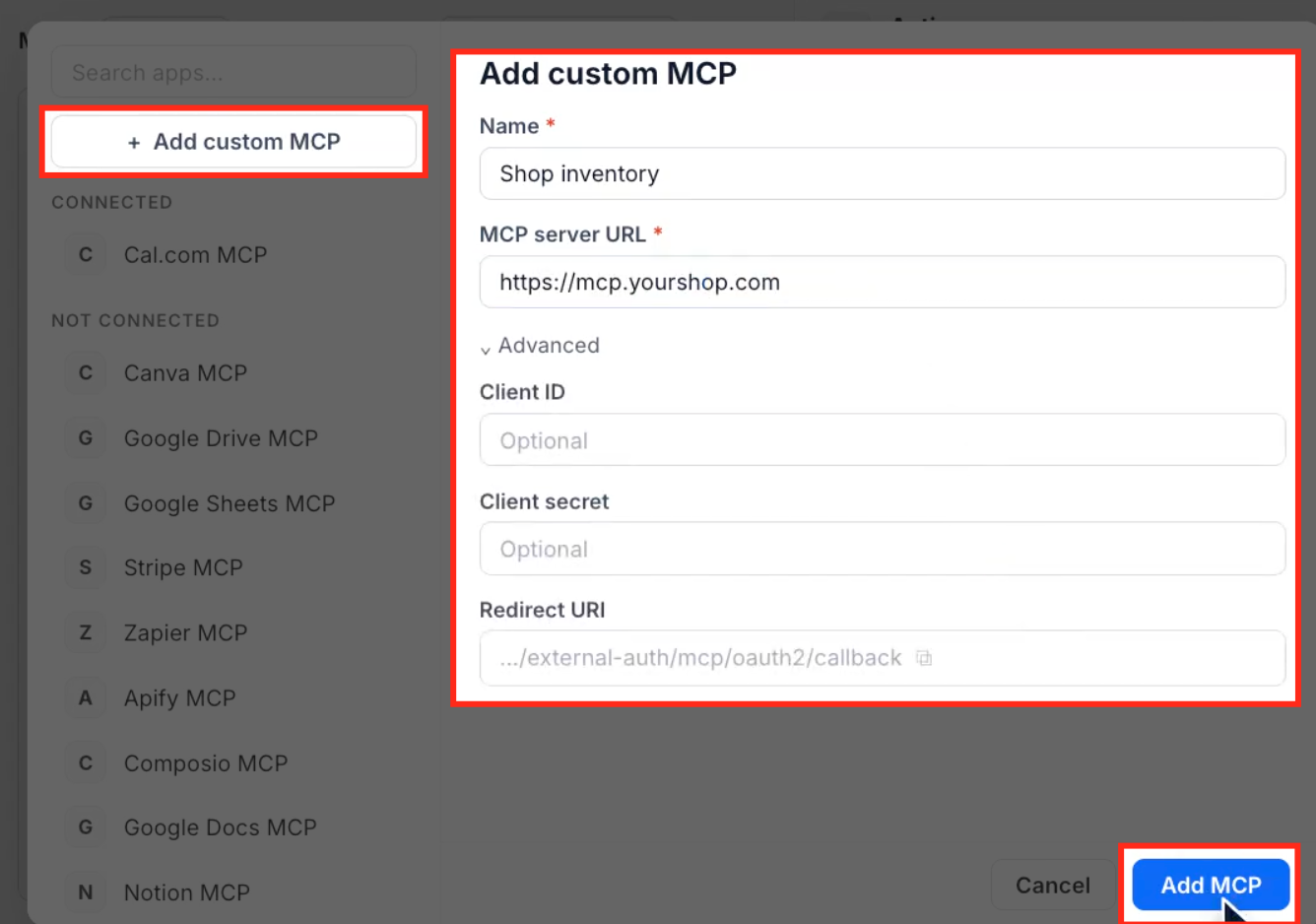
- In the selection window click + Add custom MCP.
- Enter a descriptive name and the server’s HTTPS URL.
- If needed, expand Advanced and fill optional Client ID, Client secret and note the Redirect URI.
- Click Add MCP to save the custom server.
Configure when the bot should use the MCP server
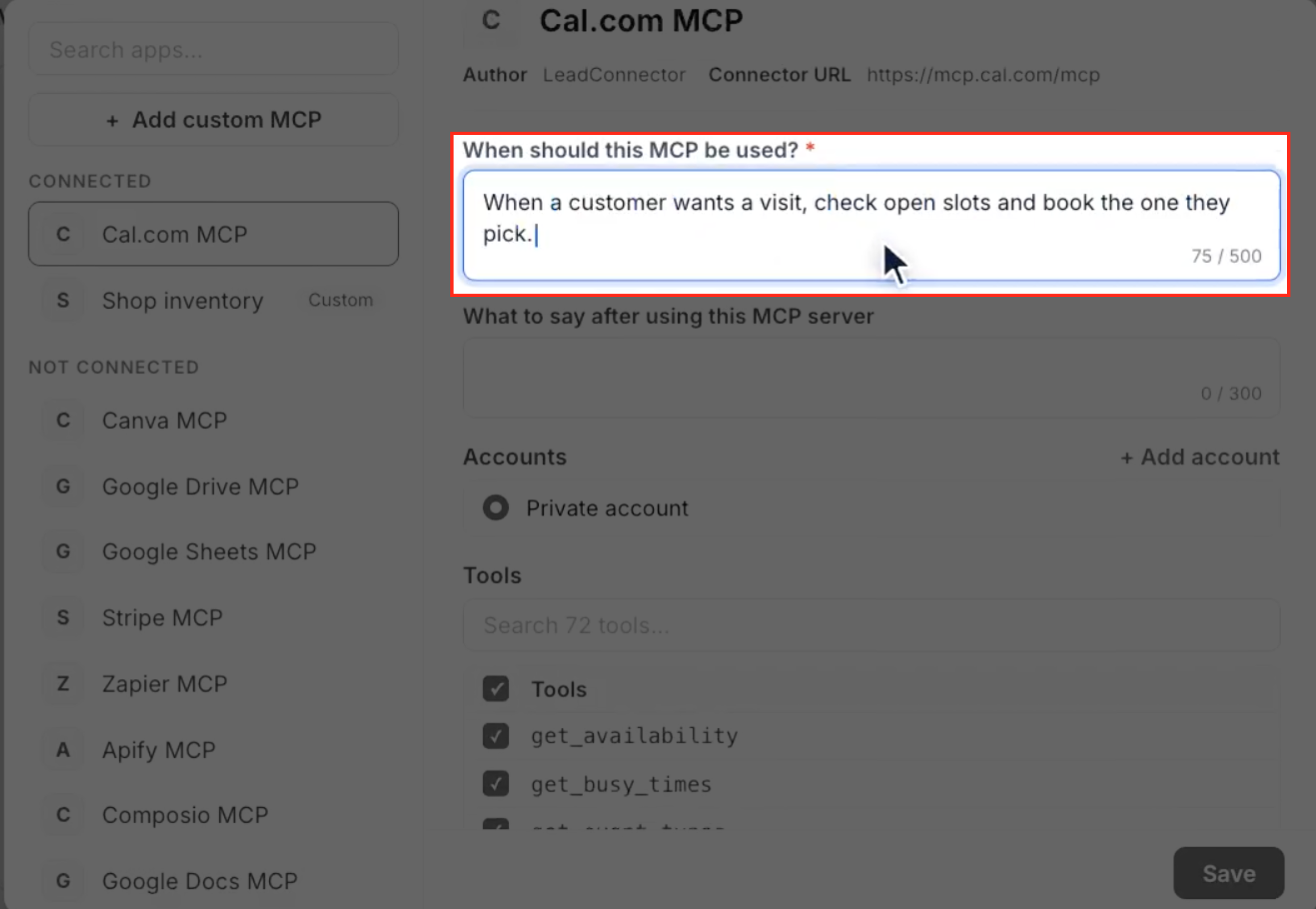
- In the server’s configuration panel locate the When should this MCP be used? field.
- Enter instructions that describe the situations that trigger the server, up to 500 characters.
- Optionally fill the What to say after using this MCP server field with follow up text, up to 300 characters.
Choose account and configure tools
- In the same server panel find the Accounts section and select the connected account (or add a new one).
- Scroll to the Tools list, review all exposed tools and use the search box if needed.
- Deselect any tools the bot should not have access to by clearing their checkboxes.
Save and test the MCP configuration
- Review the usage instructions, selected account and enabled tools.
- Click Save at the bottom of the MCP configuration panel.
- Return to AI Agents > Conversation AI, open Agent List, select the bot and open Bot Goals.
- In Test Your Bot, type a sample request that matches the MCP usage scenario.
- Observe the bot’s reply and verify MCP tool calls appear in Agent Logs.
Monitor MCP tool calls in Agent Logs
- From Subaccount View select AI Agents > Agent Logs.
- Open the Sessions view and locate the relevant conversation session.
- Open the session details and look for entries that start with MCP, followed by the tool name.
- Check each entry for a Success or Failed status.
07What it looks like in HighLevel
08Settings that matter
- MCP support for Conversation AI. Enables the MCP Servers section in the bot builder and allows bots to call external tools.
- When should this MCP be used?. Specifies the conditions under which the bot will invoke the connected MCP server.
- What to say after using this MCP server. Provides optional text that the bot will send after executing a tool on the MCP server.
- Accounts. Selects which external account the MCP server operates with for tool calls.
- Tools. Controls which exposed operations from the MCP server are available for the bot.
09Things to know before you rely on it
- A bot can have up to five MCP servers attached.
- A maximum of 100 tools may be enabled across all connected servers.
- MCP servers work only with prompt based bots in Auto Pilot mode on inbound conversations.
- They are not supported in Suggestive mode or with Flow bots.
10How it connects to the rest of HighLevel
- Use the appointment booking feature in Conversation AI to see how MCP tools like Cal.com automate scheduling. Appointment booking guide
- Manage AI usage limits and extra usage settings to ensure MCP calls stay within your plan’s allowances. AI limits management
- Set the bot’s response mode to Auto Pilot so MCP servers can be invoked during inbound chats. Bot response mode
Michael's take

Clear and precise instructions are important for the bot to use MCP tools correctly.
When set up properly, a single bot can schedule appointments, send payment links, and update Google Sheets or Notion without handing the chat off to another system.