
01Who this is for
- Support managers can cluster support bots together, allowing quick access to the right agent for ticket handling.
- Sales teams benefit from grouping sales oriented bots, speeding up locating the correct agent during campaigns.
- Marketing directors can separate after hours or promotional bots, keeping the agent list tidy as the portfolio expands.
02Folders for Conversation AI Agents, explained
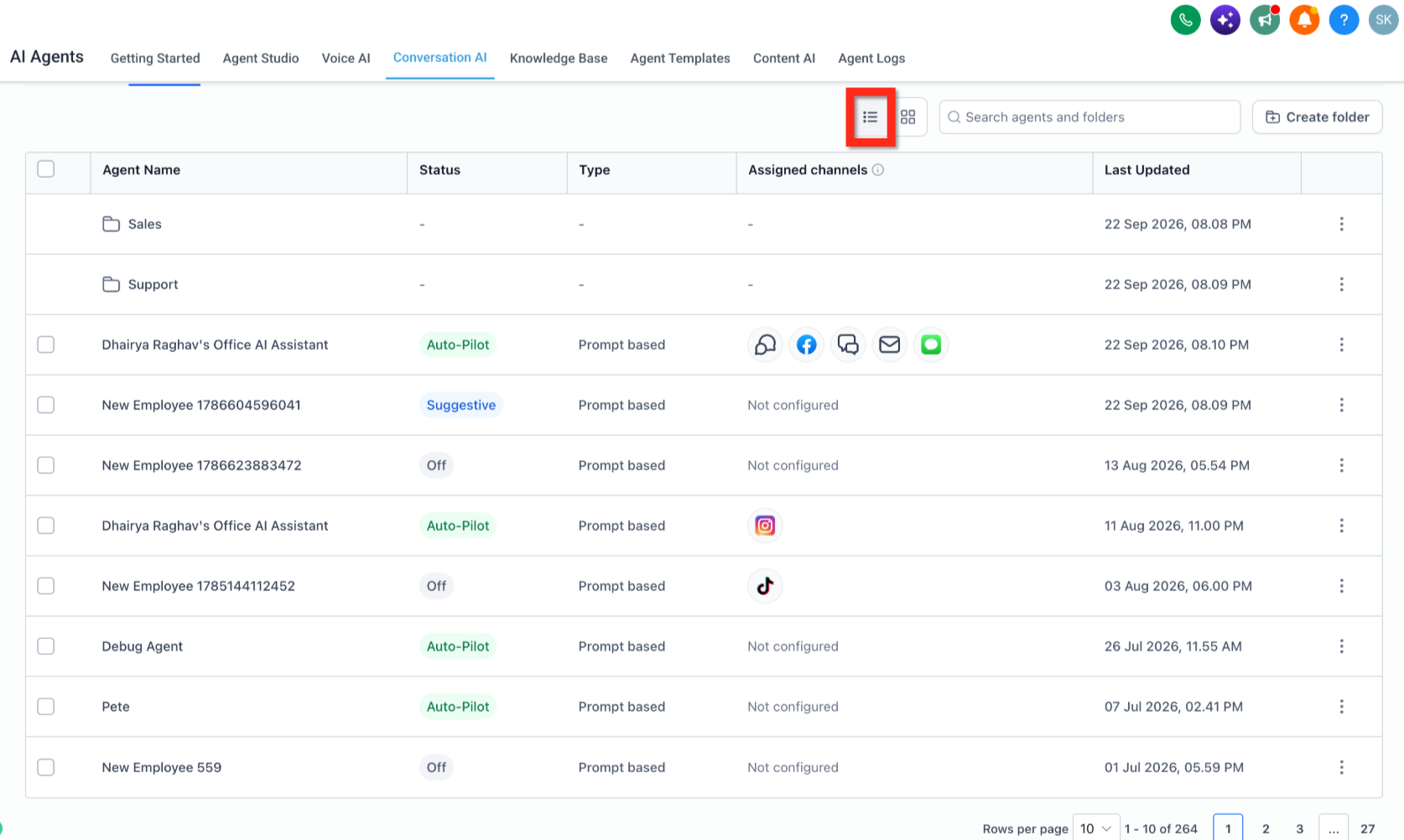
Folders are a structural tool inside AI Agents > Conversation AI > Agents List. They do not alter an agent's response logic or deployment; they simply group agents for easier browsing. The Agents List now offers Table and Grid views, and each agent card shows which channels are configured.
When a folder is opened, only the agents assigned to it are displayed. Users can search, switch view modes, add more agents, or return to the full list via breadcrumb navigation. Channel configuration remains managed on each individual agent’s deployment settings.
03How businesses use folders for Conversation AI Agents
- Ecommerce retailer. The retailer creates a folder named "Order Help" and selects all order related bots during creation. This lets the support staff open a single view to manage those agents, see their channel status, and add new bots as the catalog grows.
- Real estate agency. Agents are moved into a "Lead Capture" folder by using the three dot menu on each bot and choosing the destination folder. This keeps the lead generation bots together for quick adjustments during a campaign.
- Healthcare clinic. The clinic renames an existing folder from "Appointment" to "Booking & Reminders" and updates the agent list inside. The change reflects new workflow terminology without recreating the folder.
04The numbers and rules that matter
- Agent cards show status, agent type, and configured channels.
05How to set up and use folders for Conversation AI Agents in HighLevel
Create a new folder
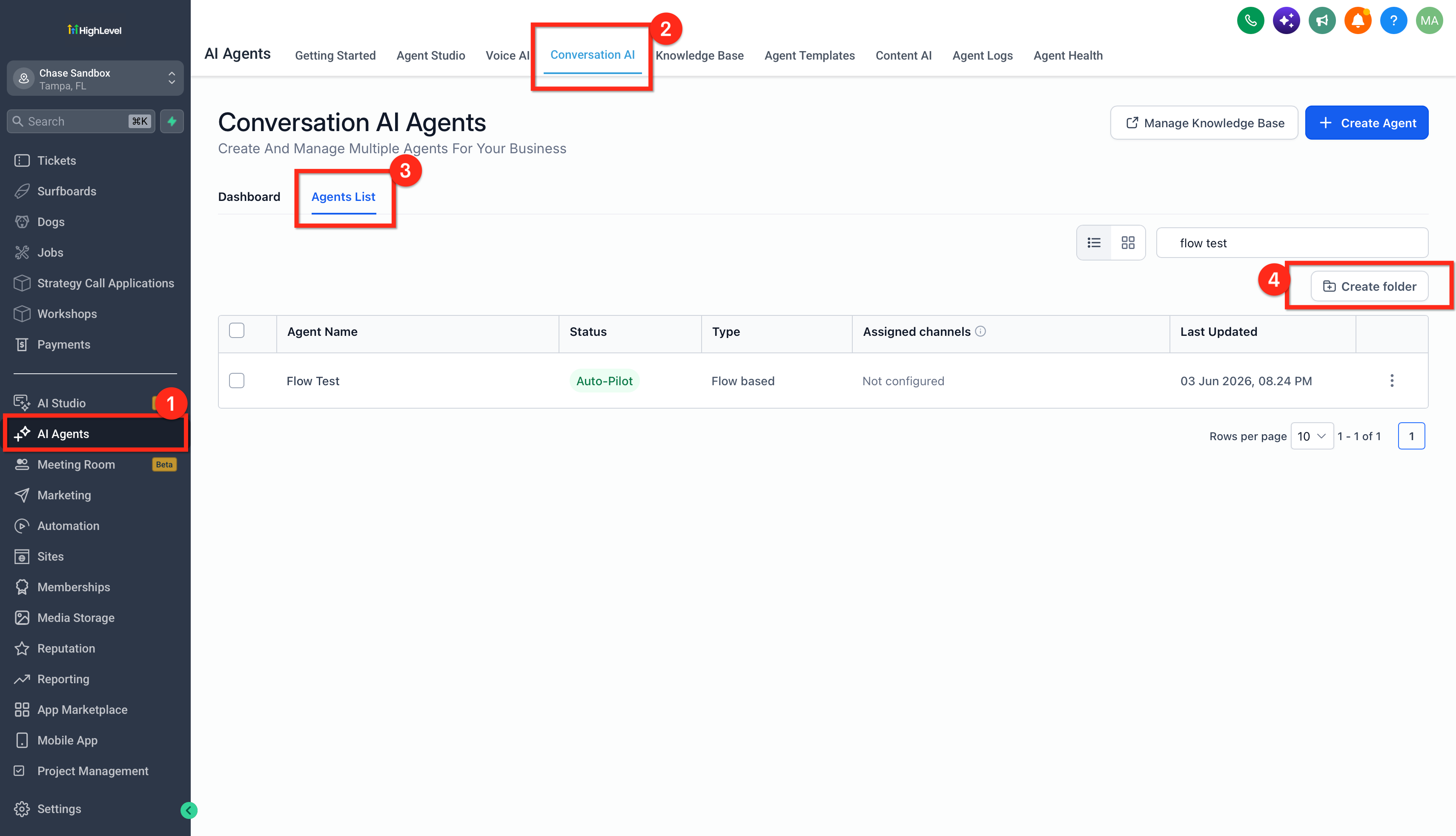
- Open AI Agents > Conversation AI > Agents List.
- Click the Create folder button.
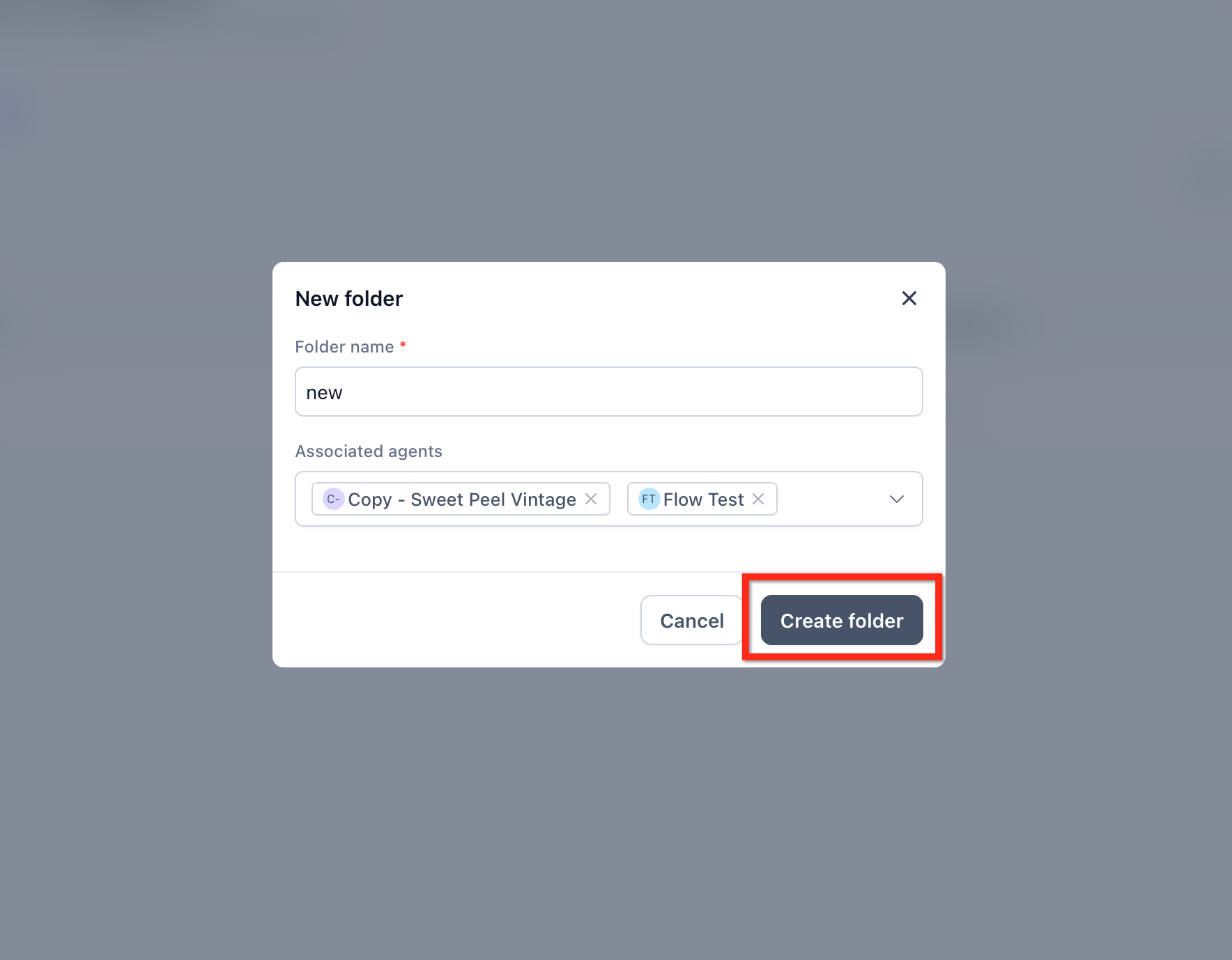
- Enter the folder name you want.
- Select the agents you wish to include.
- Confirm by clicking Create folder.
Move an agent to a folder
- In AI Agents > Conversation AI > Agents List, locate the agent to move.
- Open the three dot menu for that agent.
- Select the option to move the agent to a folder.
- Choose the destination folder from the list.
- Confirm the move.
Edit or rename a folder
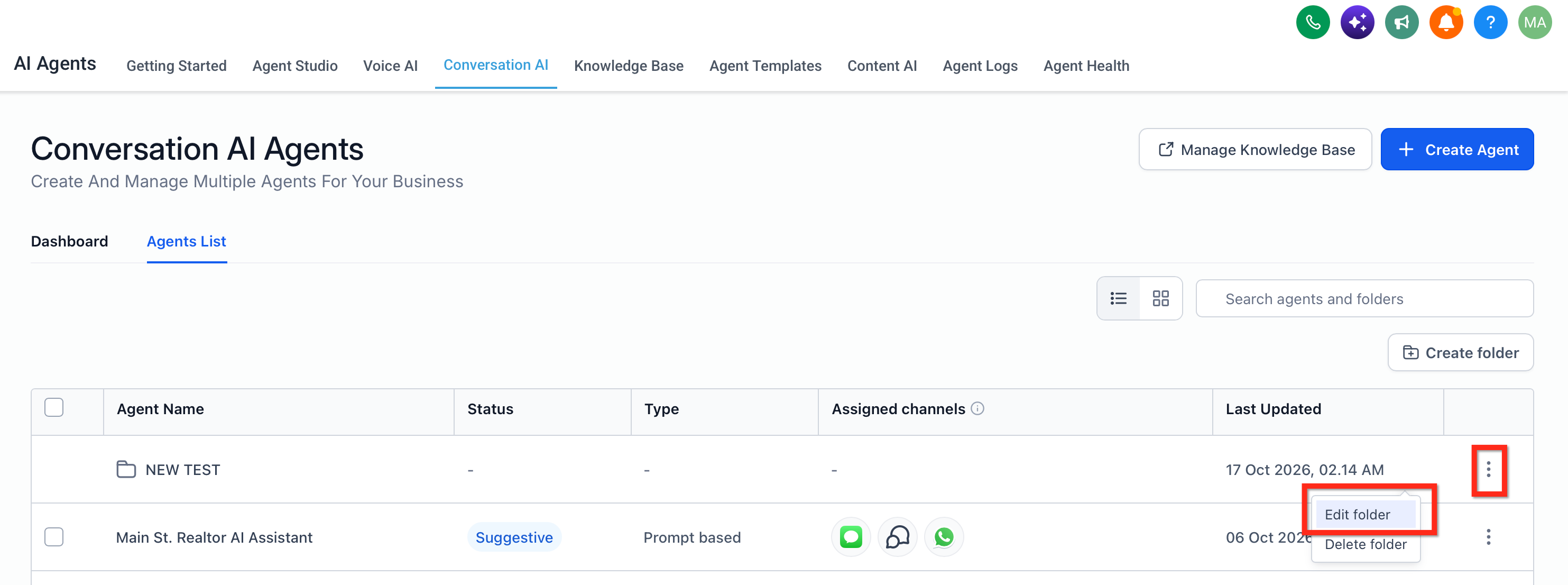
- Find the folder you want to edit in the Agents List.
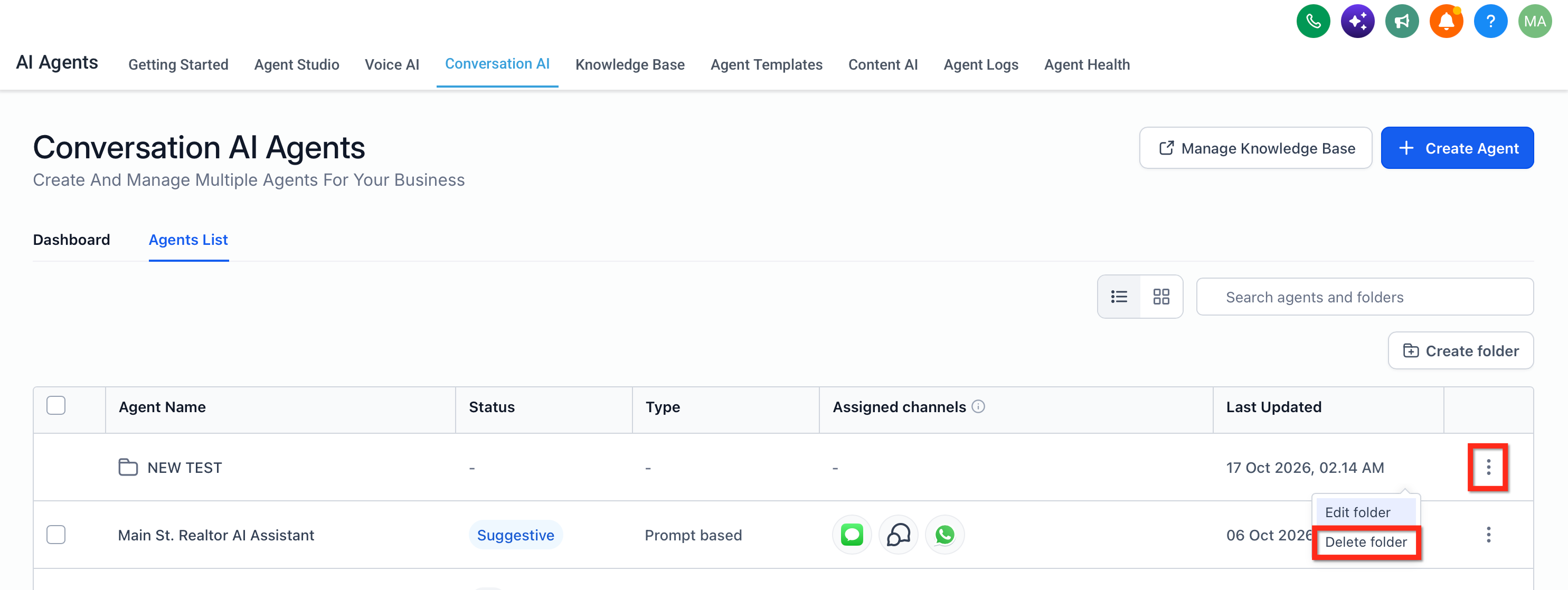
- Open the folder’s three dot menu.
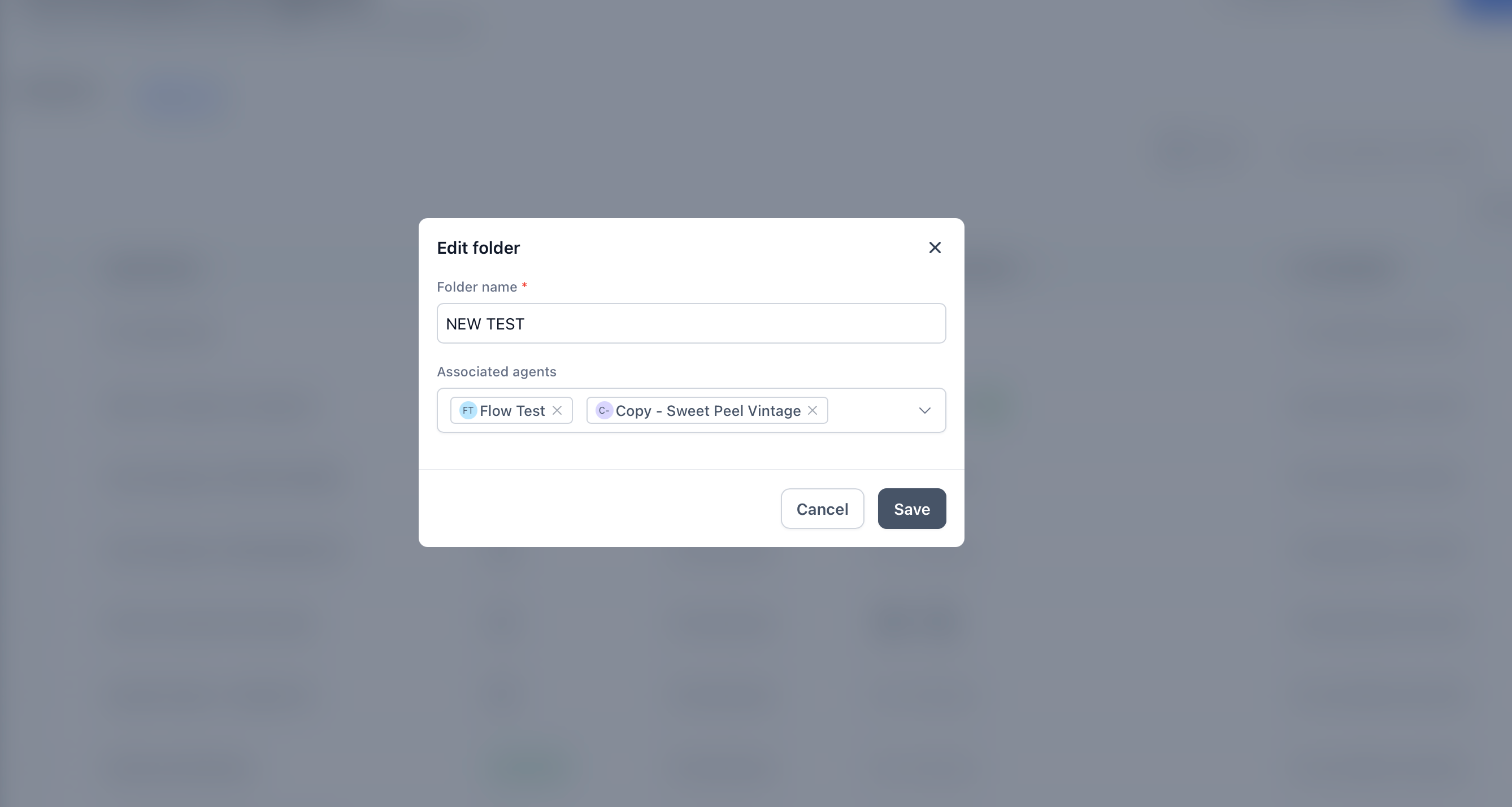
- Choose the edit action.
- Update the folder name or modify the list of associated agents.
- Save the changes.
Delete a folder
- Locate the folder you wish to delete in the Agents List.
- Open the folder’s three dot menu.
- Select Delete.
- Confirm the deletion when asked.
Browse agents inside a folder
- Click the folder name or card to open its view.
- Review the agents listed for that folder.
- Use the search field to find a specific agent within the folder.
- Switch between Table and Grid layouts using the view controls.
- Add additional agents with the Add Agents button, then use the breadcrumb to return to the main list.
06What it looks like in HighLevel
07Things to know before you rely on it
- Folders do not affect how a Conversation AI agent responds or routes messages.
- The documentation does not confirm whether a single agent can belong to multiple folders.
- Deleting a folder removes the grouping but does not specify what happens to agents that were inside.
08How it connects to the rest of HighLevel
- Use the Conversation AI Agents dashboard to see folder cards and agent status at a glance. Agents dashboard
- Set granular permissions to control which team members can create or modify folders. Granular permissions
- Ensure users have proper AI Employee access before organizing agents into folders. AI Employee access
Michael's take

When you have dozens of bots handling sales, support, and bookings, a tidy folder structure may help team members locate the right bot more quickly, adding value as your AI roster grows.
If you only run one or two agents, the extra clicks to manage folders may not be worth the effort. In that case a simple list is sufficient and you can skip creating folders until your collection expands.