
01Who this is for
- Bot owners who need to match reply length to the communication channel.
- Teams that want a consistent brand voice across different Conversation AI bots.
02Response style settings, explained
Response Style Settings control the verbosity of a bot’s replies. You select one of three preset lengths, Concise, Balanced, or Detailed, and the bot follows that guideline for all new messages. The setting lives inside the Bot Settings panel of each Conversation AI bot.
When the feature is turned on, a new section appears in Bot Settings where you choose the preferred style. The bot then formats its answers according to the selected word count range without needing changes to prompts or flow steps. If the setting is disabled, the bot behaves as it did before, ignoring any style choice.
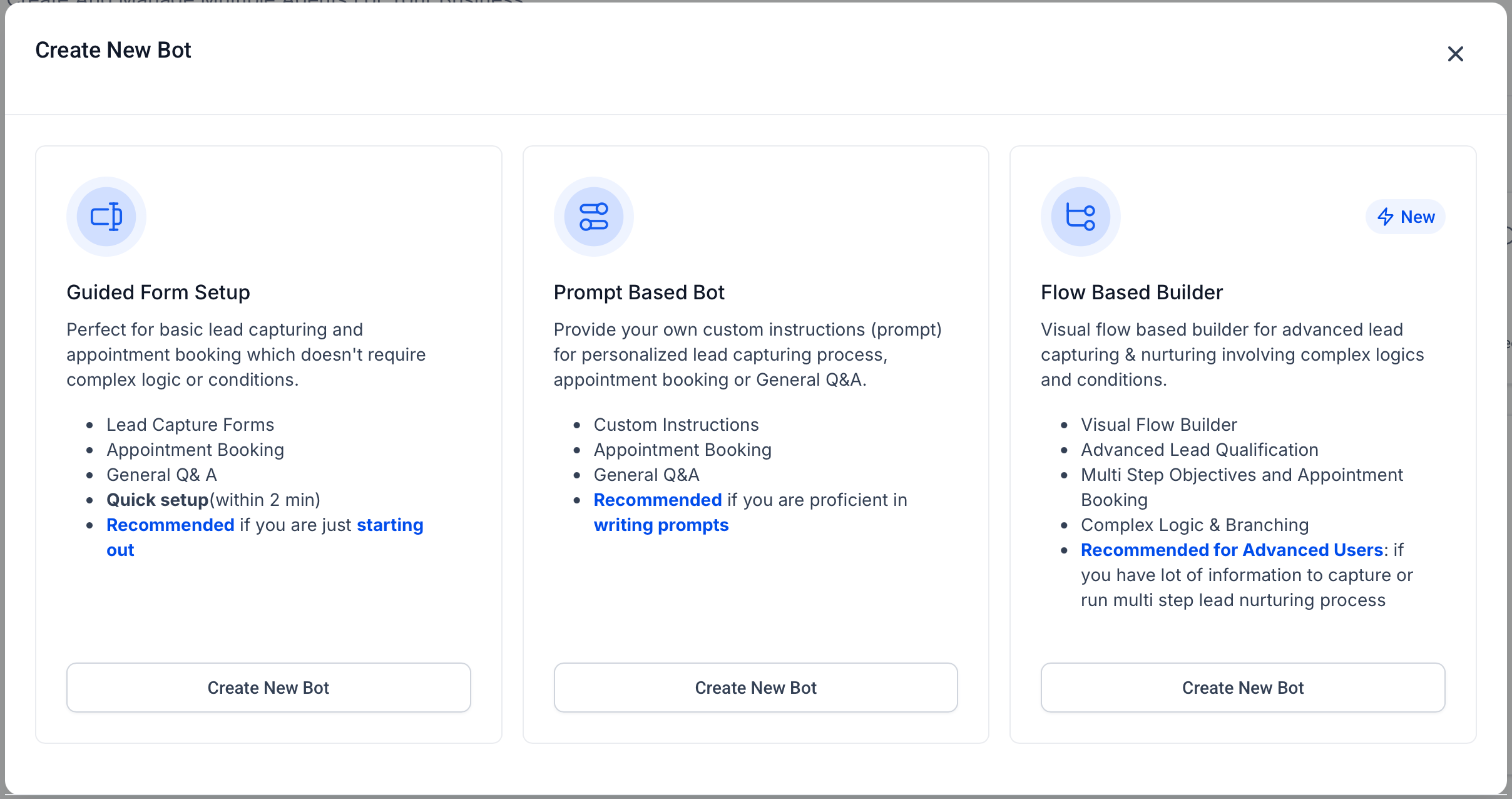
The option works for Form Based, Prompt Based, and Flow Based bots, allowing you to use different styles for separate bots that serve different purposes such as sales, support, or notifications.
03How businesses use response style settings
- Channel specific reply length. Select Concise for SMS based bots to keep messages short and readable.
- Detailed support interactions. Use Detailed style on web chat bots to provide thorough troubleshooting steps.
- Balanced general conversations. Apply Balanced style for multi channel bots that need a mix of clarity and context.
04The numbers and rules that matter
- Supported bot types: Form Based Bots, Prompt Based Bots, Flow Based Bots.
- Concise ~30 words, quick acknowledgments, SMS friendly replies.
- Balanced ~80 words, most general conversations, qualifying questions.
- Detailed ~200 words, FAQs, troubleshooting, onboarding.
05How to set up and use response style settings in HighLevel
Configure response style for a bot
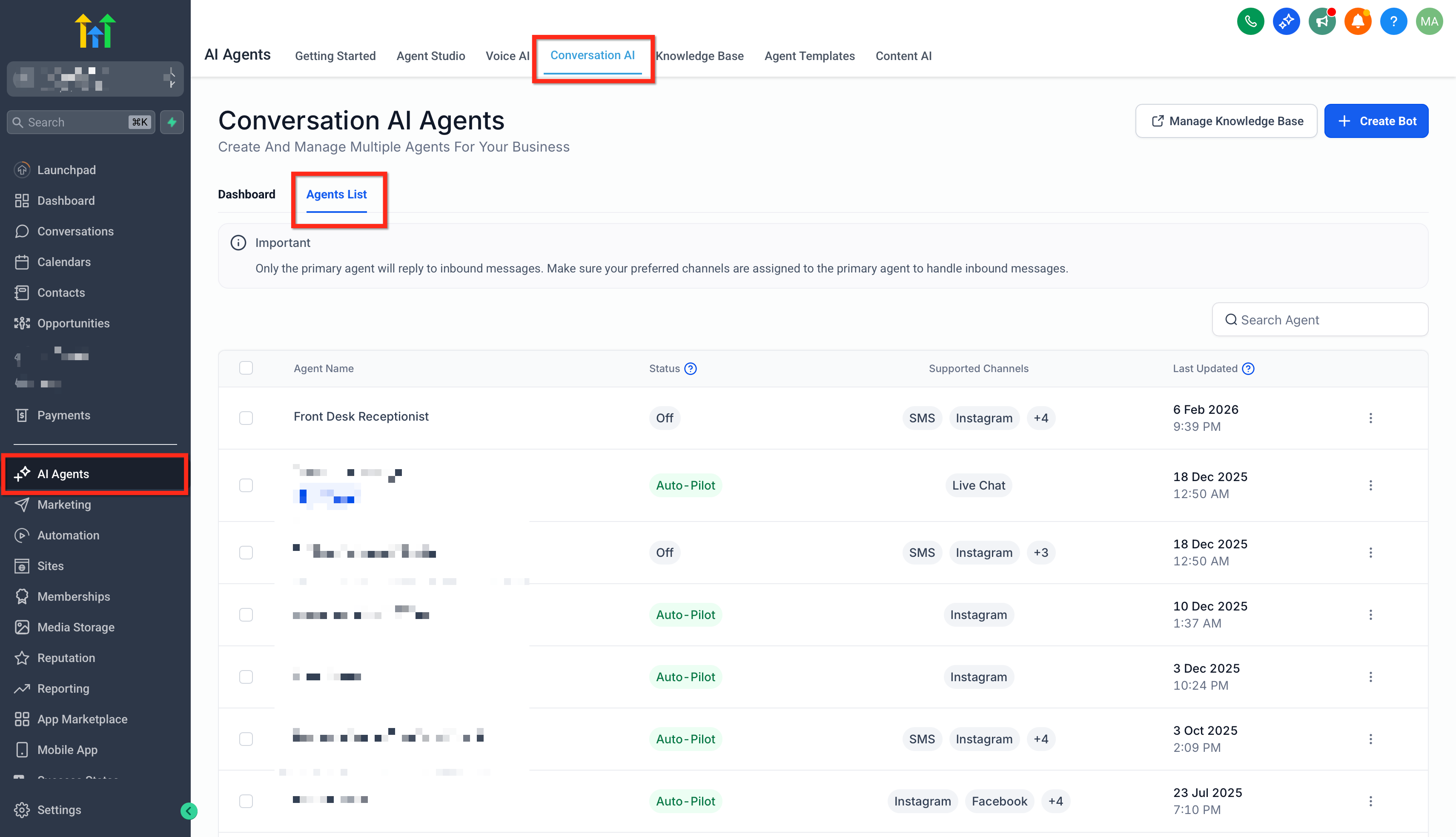
- Open AI Agents > Conversation AI > Agents list and select the bot you want to edit.
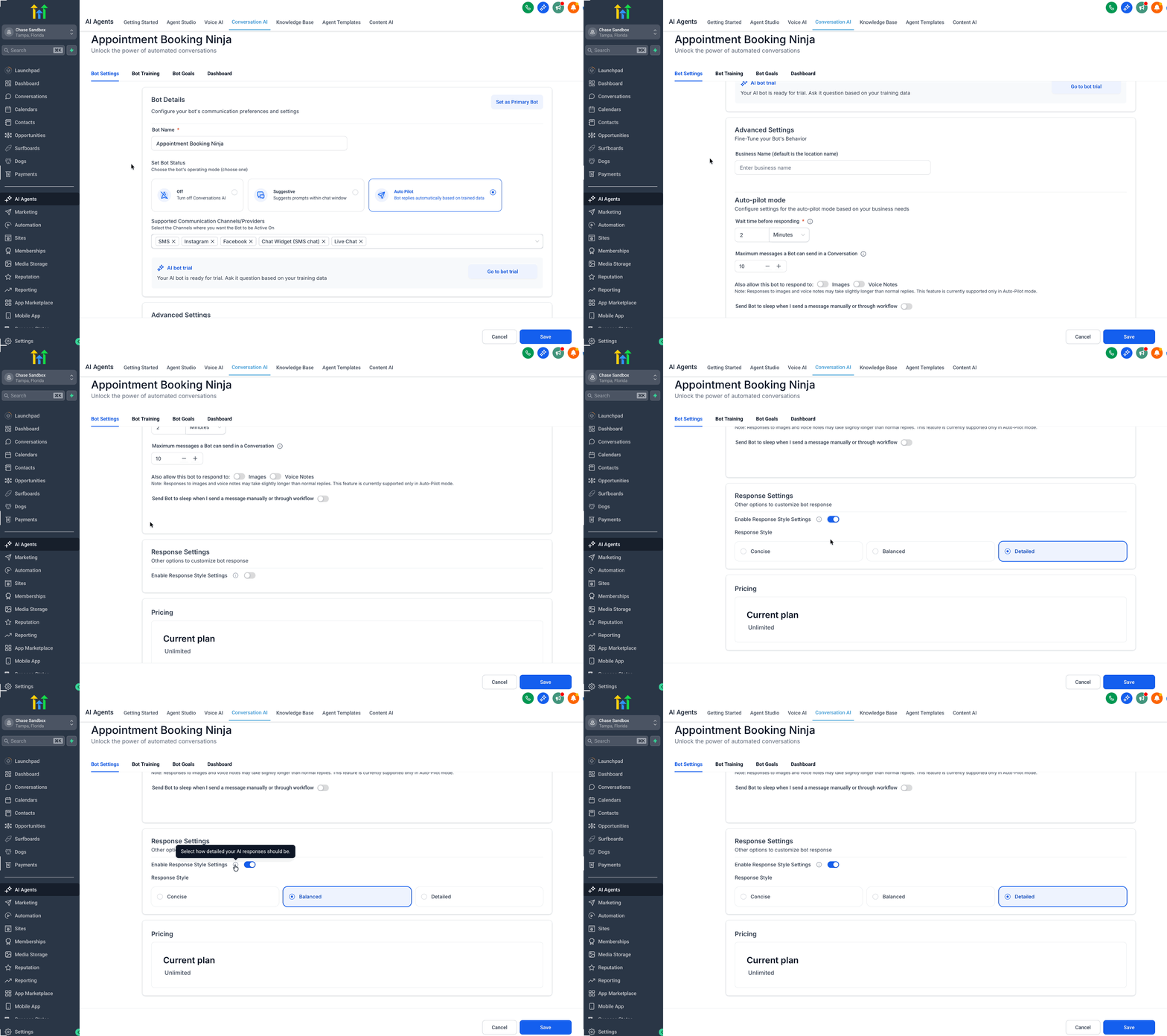
- Scroll down until you see the Response Settings section.
- Toggle the switch to enable Response Settings.
- Choose Concise, Balanced, or Detailed from the dropdown menu.
- Press Save to store the new setting.
06What it looks like in HighLevel
07Settings that matter
- Response Settings. Turns the response style feature on or off for the selected bot.
- Response Style. Determines the approximate length of each bot reply: Concise (~30 words), Balanced (~80 words), or Detailed (~200 words).
08Things to know before you rely on it
- Word counts are soft guidelines; actual replies may be slightly shorter or longer.
- If a custom prompt includes its own length rule, the result may be unpredictable.
- The feature only applies to the bot where it is enabled; other bots keep their existing behavior.
09How it connects to the rest of HighLevel
- Learn how to set response mode for a Conversation AI bot. Response mode guide
- Explore the Conversation AI Agents dashboard for overall bot management. Agents dashboard
- Get started with the Conversation AI flow builder to design bot interactions. Flow builder guide
Michael's take

I like that I can control how much my bot talks without rebuilding everything. Picking a verbosity level. Concise, balanced, or detailed. Lets me adapt the bot’s tone to the channel.
When I set up a new support bot, I’d enable the feature and start with Detailed mode so I have enough room for FAQs and troubleshooting. Then I’d test a few interactions to see if the length feels natural before finalizing the setting.