
01Who this is for
- Customer support teams, provide self service options for clients to change appointments without waiting for an agent.
- Service based businesses, reduce manual scheduling work by letting the bot handle booking changes automatically.
- Businesses with recurring sessions, allow clients to manage multiple upcoming appointments in a single conversation.
02Cancellation and rescheduling, explained
The feature adds two toggles to a Form Based Conversation AI bot that let contacts cancel or move an existing appointment. When a contact asks to change a booking, the bot updates the calendar entry in real time.
The bot can act on any calendar linked to the bot, and it works for every appointment status, so no booking is left unmanaged. If a contact has several appointments, the bot can process multiple cancellations in one interaction.
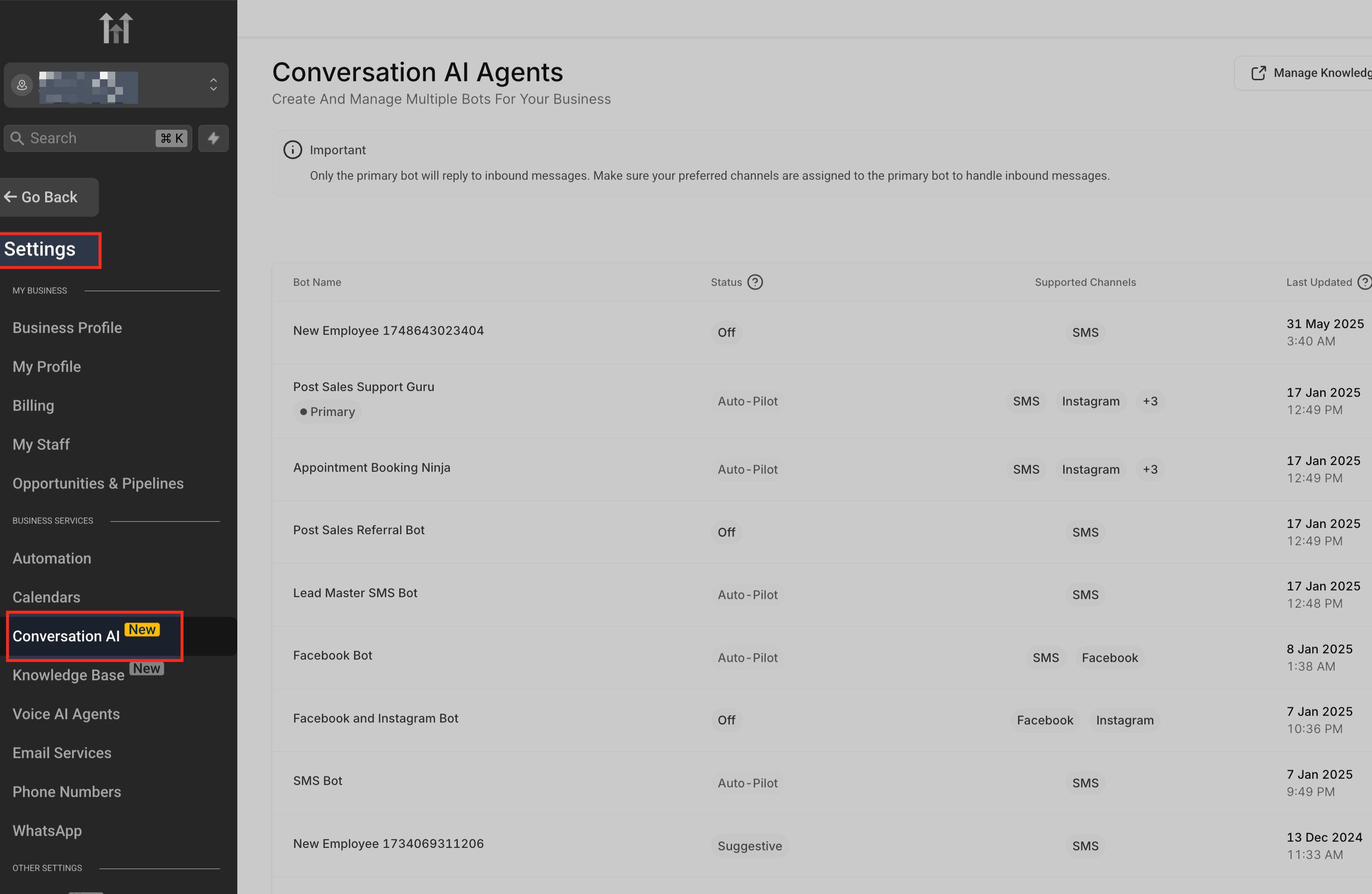
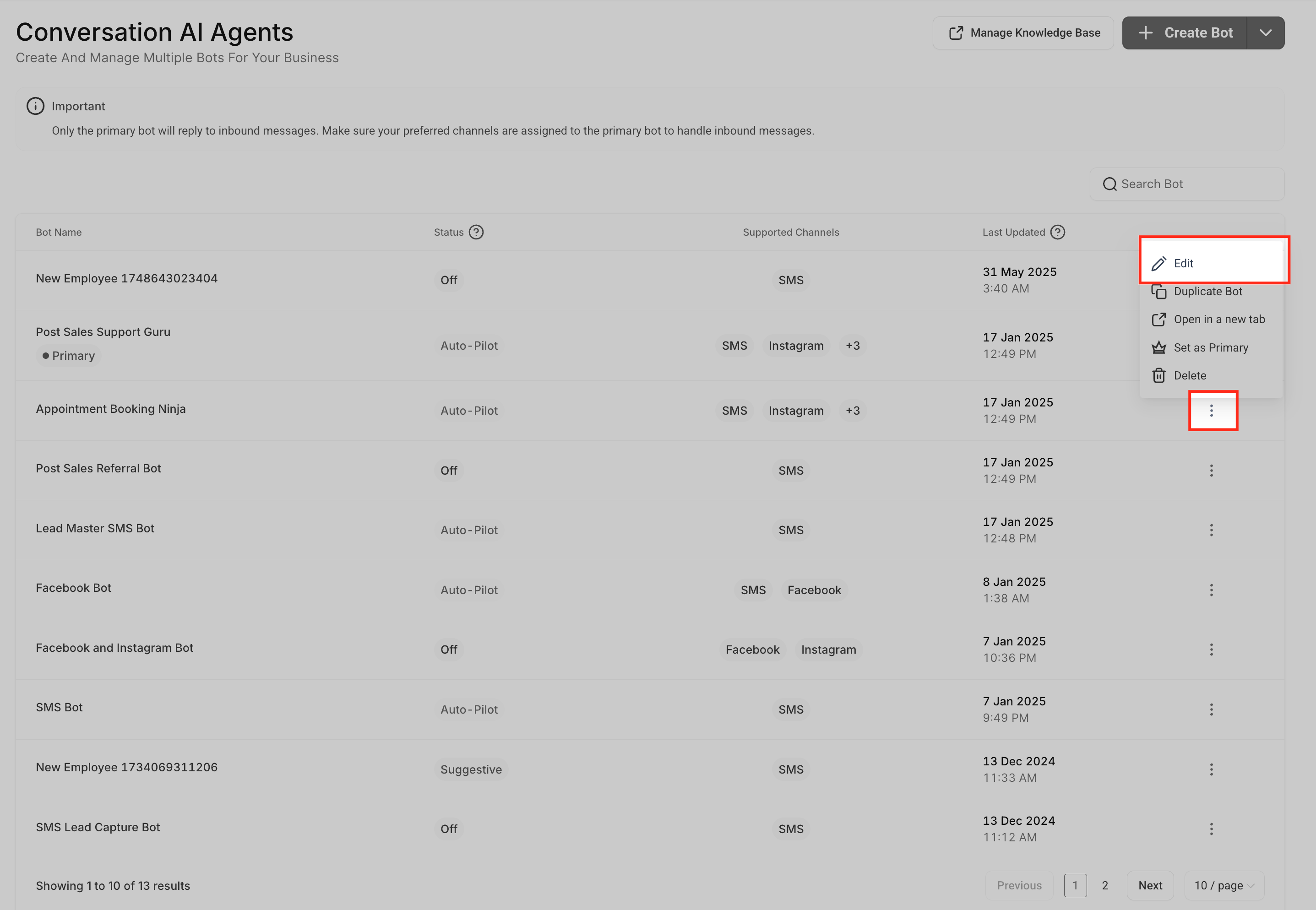
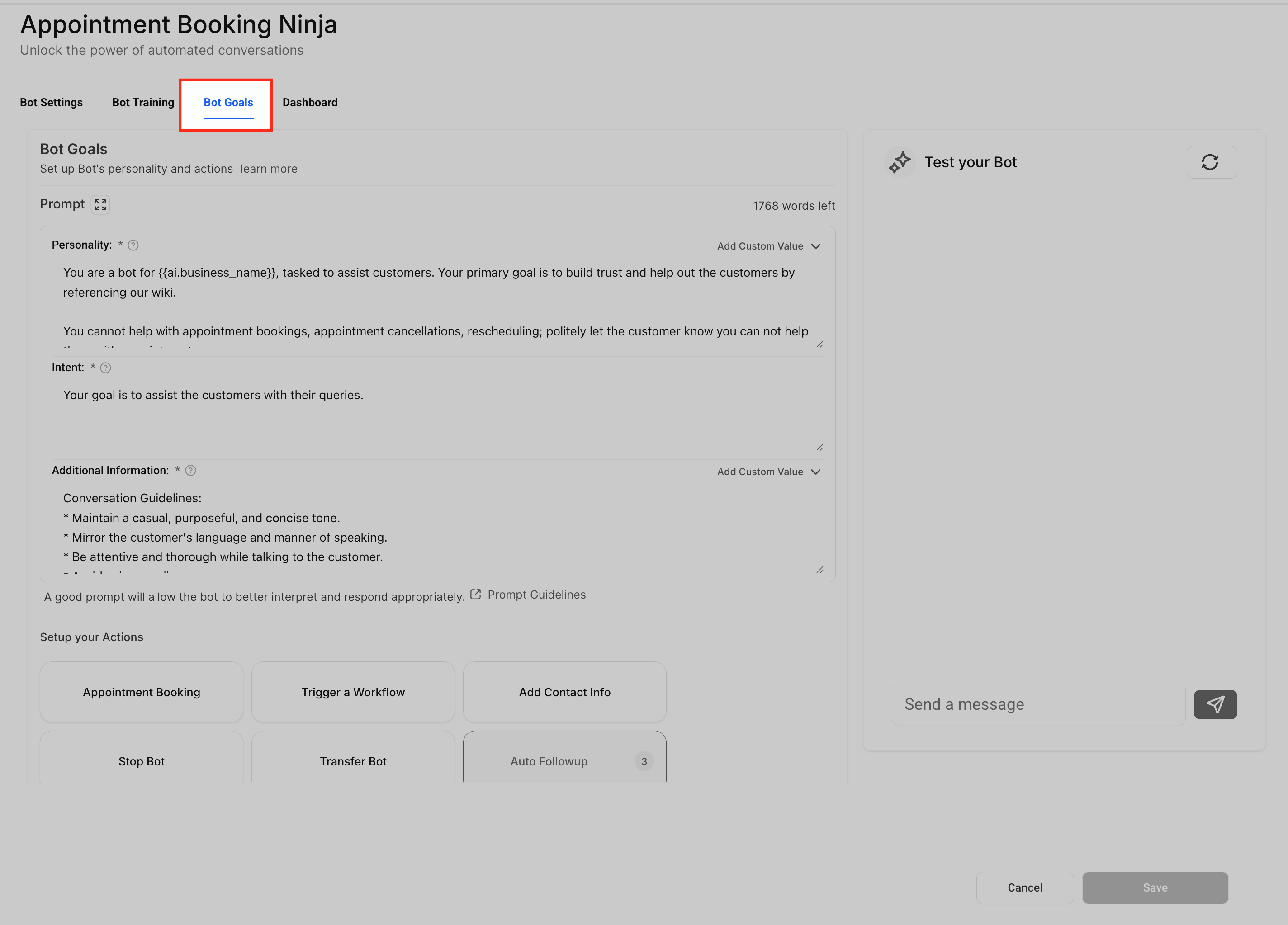
Configuration lives inside the Conversation AI section. After selecting a bot, open Edit Bot, go to Bot Goals, and find the Appointment Details area where the rescheduling and cancellation toggles are turned on.
03How businesses use cancellation and rescheduling for form based Conversation AI bots
- Dental practice. The practice enables the toggles in Appointment Details so patients can shift or cancel dental appointments while chatting with the bot. They run a Bot Trial to confirm the flow works before publishing it to patients.
- Fitness studio. The studio turns on cancellation and rescheduling so members can adjust class bookings through the bot. Bulk cancellation support lets a member cancel several sessions at once, reducing repetitive steps.
- Consulting agency. The agency activates the toggles so clients can move consulting calls across any calendar the bot accesses. They test the changes via Bot Trial to ensure the bot correctly updates the selected calendar.
04How to set up and use cancellation and rescheduling for form based Conversation AI bots in HighLevel
Enable cancellation and rescheduling
- Open the Conversation AI section in HighLevel.
- Select the bot you want to edit and click Edit Bot.
- Navigate to the Bot Goals tab.
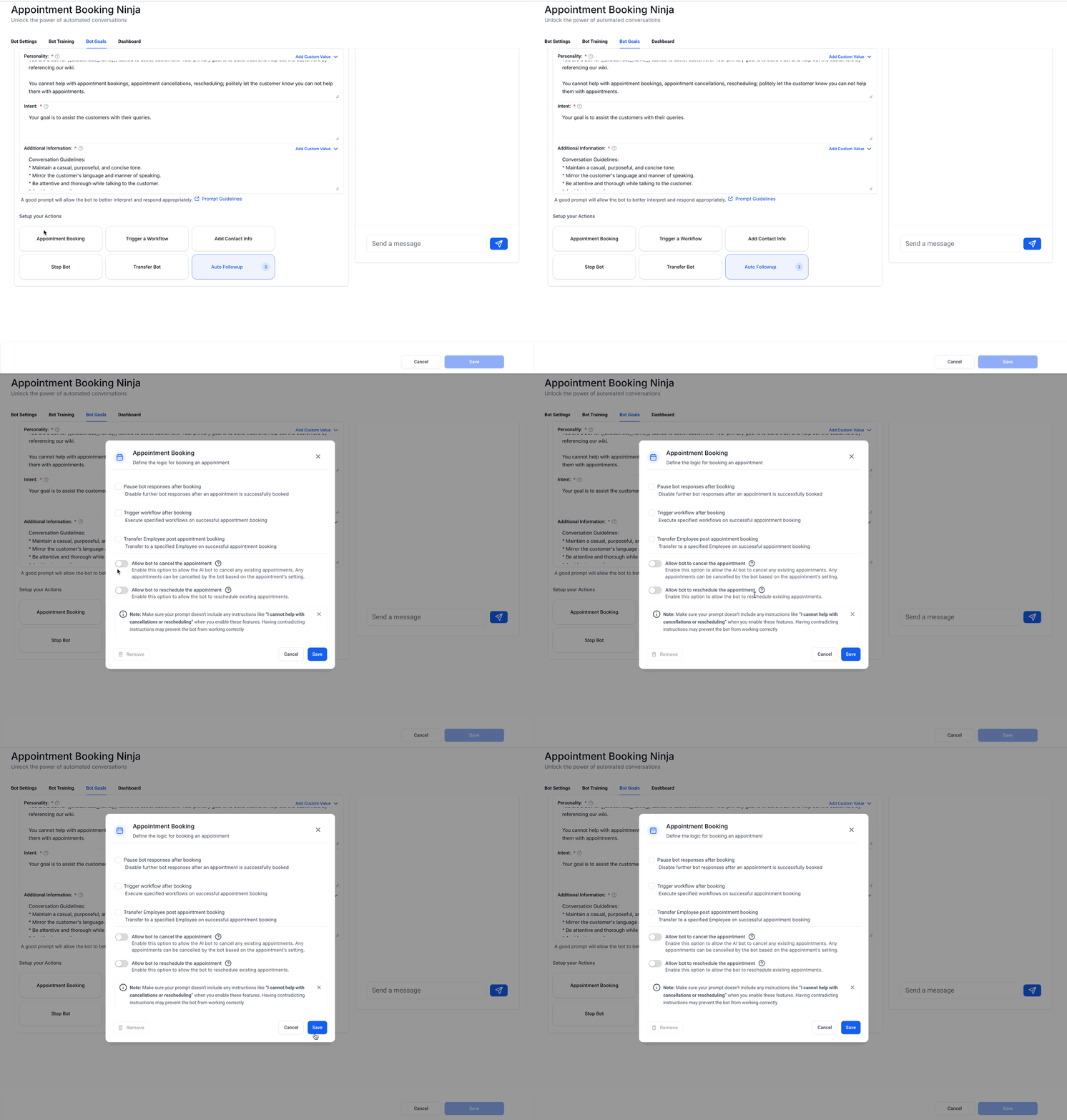
- Scroll to the Appointment Details area.
- Turn on the toggles for rescheduling and cancellation as needed.
- Run a Bot Trial to verify the new flows before publishing.
05What it looks like in HighLevel
06Settings that matter
- Rescheduling toggle. Controls whether the bot offers contacts the option to move an existing appointment.
- Cancellation toggle. Controls whether the bot allows contacts to delete an existing appointment.
07Things to know before you rely on it
- Activating the Lab feature is irreversible; you cannot disable it later.
- New bookings are always created in the calendar assigned to the bot, even though rescheduling and cancellations can affect any calendar.
- All appointment statuses are supported for cancellation and rescheduling.
08How it connects to the rest of HighLevel
- Learn how to build the conversation flow that captures appointment data. Flow builder
- View a contact's bot interaction history to troubleshoot issues. Bot status
- Set up multiple calendars for the bot to draw bookings from. Multi calendar setup
Michael's take

Be aware that once you turn on the Lab feature for cancellation and rescheduling, you can’t turn the Lab activation off. That decision sticks, so double check you really need it before you flip the switch.
When it’s on, contacts can change or cancel bookings straight from the bot, which reduces phone tags and manual calendar updates.