
01Who this is for
- Customer support managers benefit by reviewing AI generated replies before they reach clients, ensuring accurate contact updates.
- Appointment coordinators gain speed by approving booking actions directly in the chat view, avoiding separate scheduling steps.
02AI suggested actions, explained
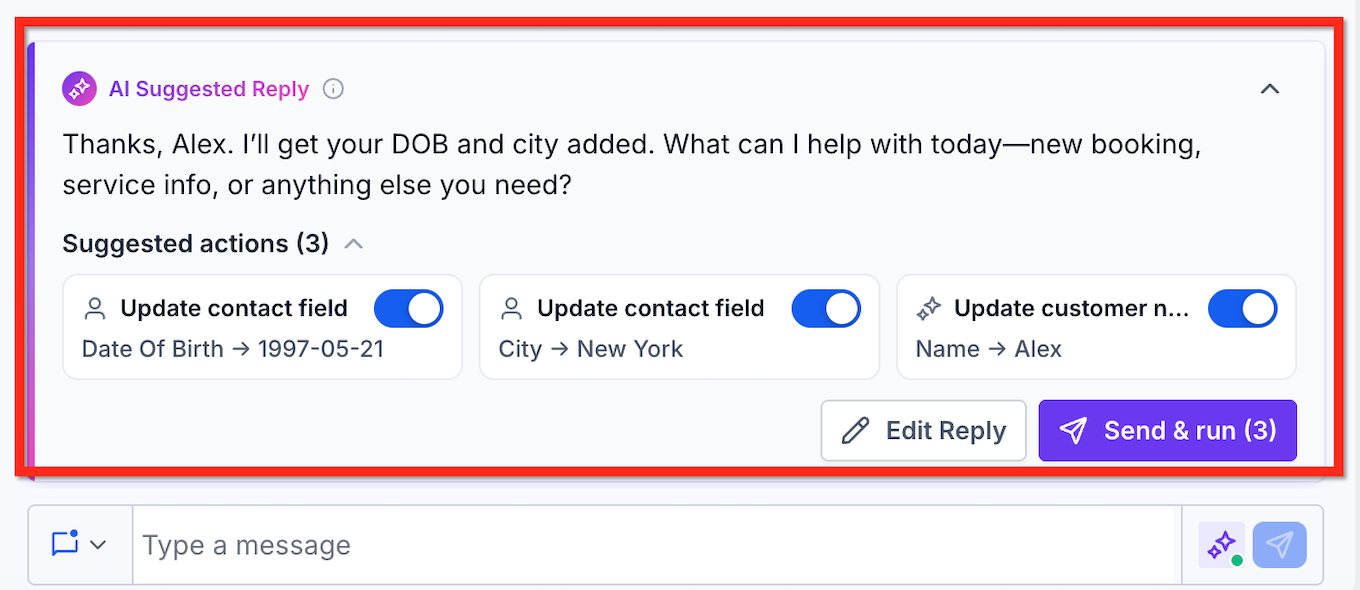
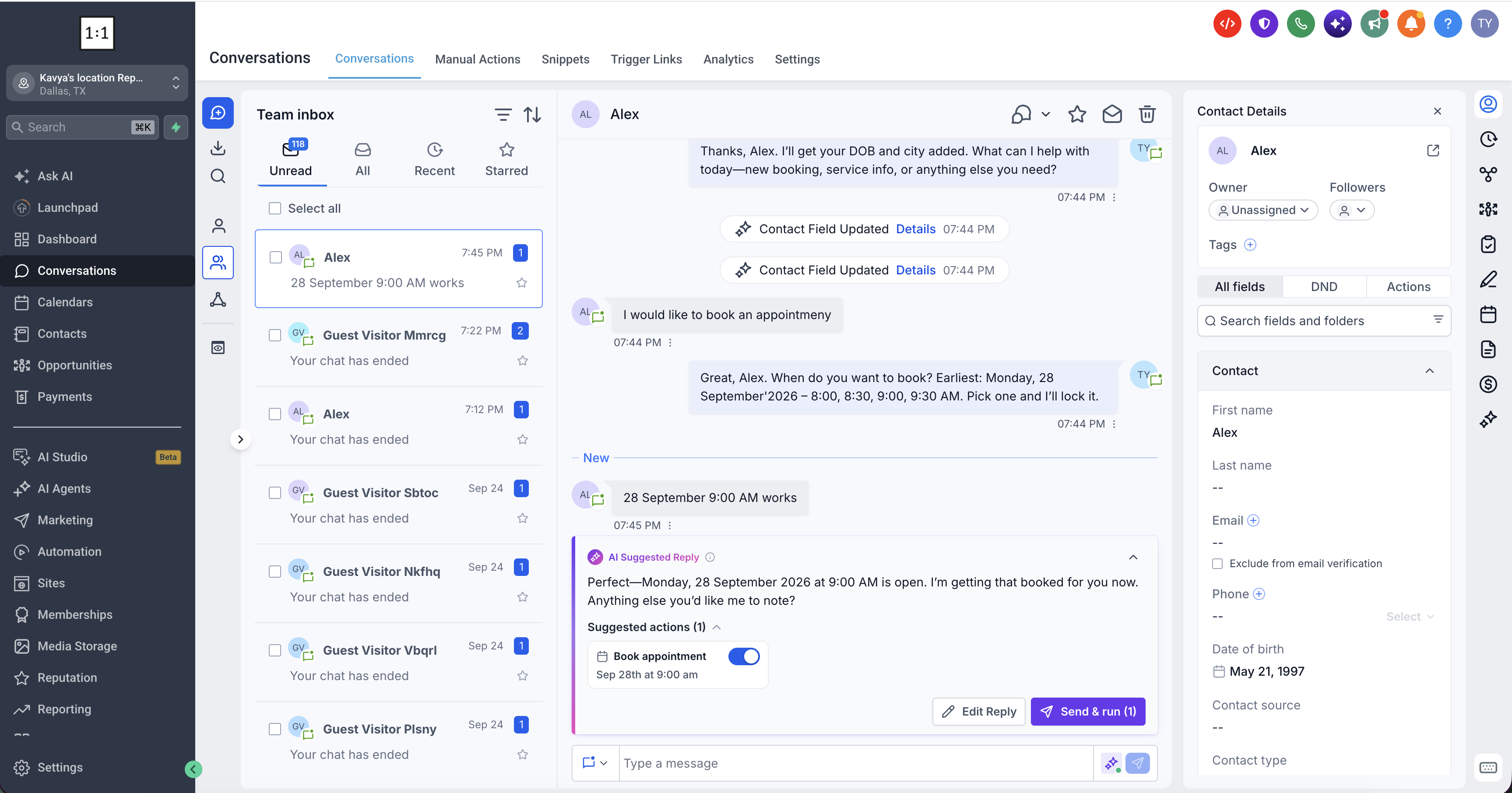
In Suggestive Mode, Conversation AI creates a suggested response and may propose tasks such as booking appointments or updating contact fields. Each proposed task appears as a chip below the reply with its type, details, and an Approval Toggle. All actions are selected by default, and users can deselect any they do not need.
The reply card also offers an Edit Reply button for customizing the message and a Send & run button that sends the reply and runs the selected actions together. Actions are not performed until the user presses Send & run.
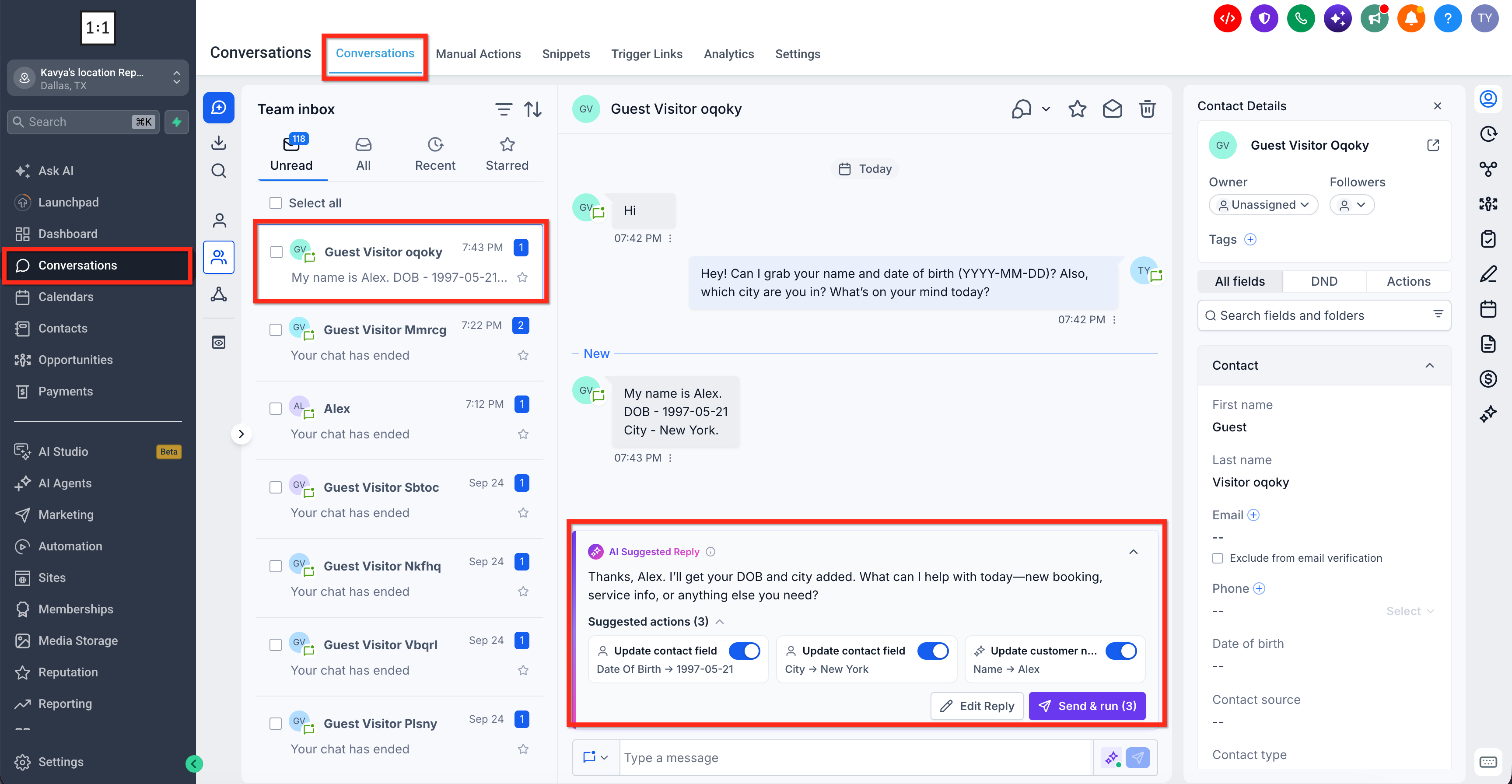
The feature lives in the Conversations inbox. When an inbound message triggers an AI Suggested Reply, the card appears within the conversation thread, allowing the user to manage the reply and related actions without leaving the inbox.
03How businesses use AI suggested actions
- Dental practice. When a patient confirms a date, the AI suggests a Book Appointment action. The staff reviews the details, keeps the toggle on, and clicks Send & run to confirm the appointment and reply to the patient.
- Real estate agency. A prospect shares a new phone number during chat. The AI proposes a Contact Field Update. The agent verifies the field, leaves the toggle enabled, and uses Send & run to update the contact record and send the acknowledgment.
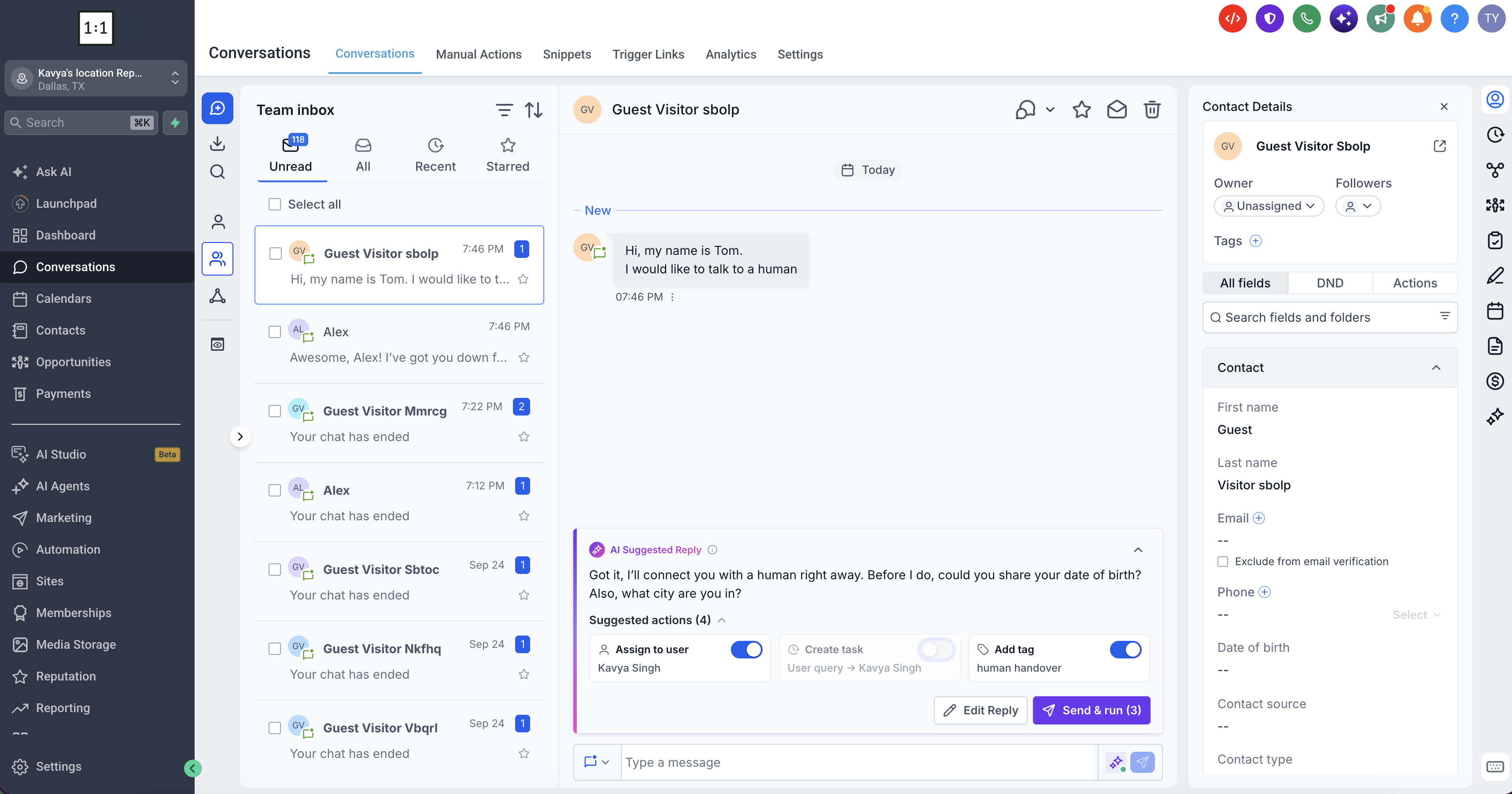
- IT service provider. A client requests to speak with a human agent. The AI presents Assign to User, Create Task, and Add Tag actions. The manager enables the needed actions and presses Send & run, completing the handover in one step.
04The numbers and rules that matter
- Supported actions include Appointment Booking, Appointment Rescheduling, Appointment Cancellation, Contact Field Updates, Customer Name Updates, Trigger Workflow, Transfer to Another Bot, Advanced Follow Up, Human Handover, Stop Bot.
- Up to five proposed actions are displayed when multiaction support is available.
05Before you start
- Ensure the Conversation AI bot is configured to operate in Suggestive Mode.
06How to set up and use AI suggested actions in HighLevel
Enable and use AI Suggested Actions in Suggestive Mode
- Confirm that the Conversation AI bot is set to Suggestive Mode.
- Open the Conversations area from the left navigation menu.
- Select a conversation that contains an inbound message with an AI Suggested Reply.
- Read the suggested reply and any proposed actions shown beneath it.
- Toggle the switches to keep the actions you want and turn off any you do not.
- Click Edit Reply if you need to modify the suggested message.
- Press Send & run to send the reply and execute the approved actions.
07What it looks like in HighLevel
08Settings that matter
- Approval Toggle. Determines whether a proposed action will be executed when Send & run is pressed.
- Edit Reply. Opens the reply editor so the user can change the AI generated text before sending.
- Send & run. Sends the chosen reply and runs all actions that have their toggles enabled.
09Things to know before you rely on it
- A maximum of five proposed actions can appear on a suggestion card when multi action support is available.
- Proposed actions are only executed after approval via the Send & run button.
- Some actions require prior configuration in the bot goals before they can be suggested.
- The Add Contact Info action only fills empty contact fields; it does not overwrite existing data.
- Action toggles may be disabled if required configuration or conditions are not met.
- The approval controls are currently available only in the web Conversations inbox, not confirmed on mobile.
10If something goes wrong
- AI Suggested Reply appears without any proposed actions.. Check that the relevant Bot Goals actions have been configured for the bot.
- A proposed action shows incorrect information.. Review the details, disable the action if it should not run, and edit the reply separately if needed.
- A proposed action is disabled.. Verify the underlying action settings to ensure all requirements are satisfied.
- Approved action fails to execute.. Inspect the failed action details and confirm that related calendars, contact fields, workflows, or user assignments are set up correctly, then retry.
- Fewer than five actions are shown on the card.. Understand that five is the maximum; the actual number depends on the customer message and configured actions.
- Cannot approve actions in the mobile app.. Use the web Conversations inbox, as mobile documentation does not confirm availability of approval controls.
11How it connects to the rest of HighLevel
- Set up a Conversation AI bot and select Suggestive Mode Conversation AI bot setup
- Manage granular permissions for Conversation AI agents Agent permissions
- Enable extra usage and manage AI limits AI limits
- View pricing and plans for HighLevel Pricing
Michael's take

AI suggested actions give teams oversight without the need to switch between CRM tools. If you prefer complete hands off automation, you may choose a different approach.