
01Who this is for
- Call center managers can track voice agent accuracy and receive prompts to fix issues before they affect callers.
- Founders of SaaS platforms with chat bots can monitor conversation agents and get suggested prompt changes without code changes.
02Agent health & self healing, explained
Agent Health is a dashboard feature that runs periodic evaluations of AI agents. It selects a sample of recent completed calls or chats, calculates an accuracy score and records the result for each agent. All agents with Monitoring enabled share the same schedule and usage limits.
Self Healing works with the Prompt Optimizer. When a monitoring run flags a performance drop, the optimizer builds, tests and ranks new prompt variations. The system presents the best performing suggestion as a recommendation, but it never changes the live agent automatically. You must approve the prompt before it replaces the existing one.
03How businesses use agent health & self healing
- Call center. Enable Monitoring for voice agents, set a weekly check, and review any recommendations that appear. Approve the suggested prompt to improve call handling without manual script edits.
- SaaS product with chat support. Turn on Monitoring for conversation agents, configure the number of chat transcripts to evaluate, and inspect the Prompt Optimizer panel for accuracy drops. Apply the recommended prompt to keep the chat experience consistent.
- Digital marketing agency. Activate Self Healing for client AI agents, let the system generate prompt variations when performance slips, and manually approve the best variation to maintain campaign messaging quality.
04The numbers and rules that matter
- Check every: 1 to 30 days.
- Number of conversations: 2 to 10 per evaluation.
05Before you start
- You must have a Voice AI or Conversation AI agent already created in the subaccount.
- Your user account needs permission to manage agents.
06How to set up and use agent health & self healing in HighLevel
Enable monitoring and optional self healing for an agent
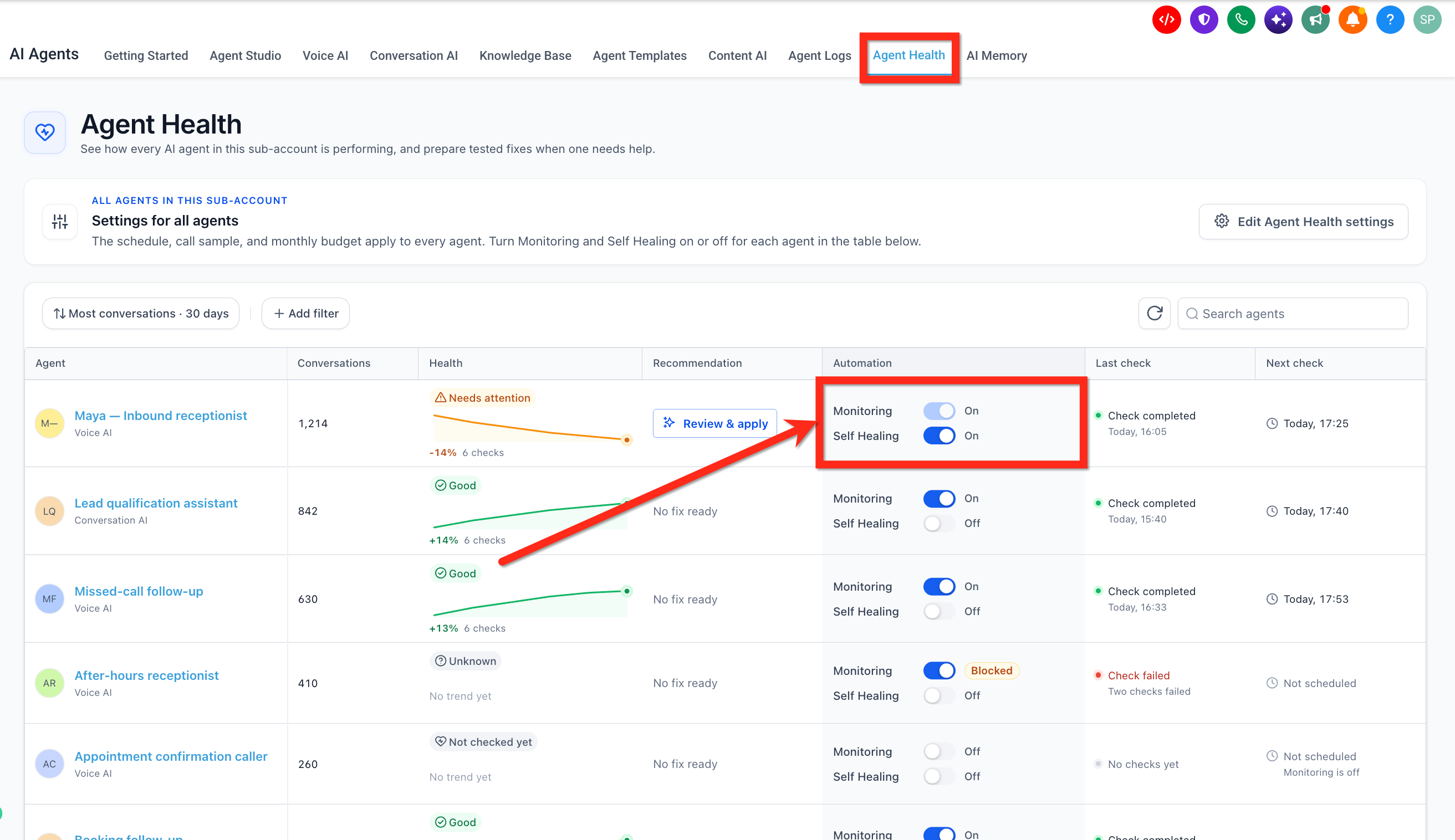
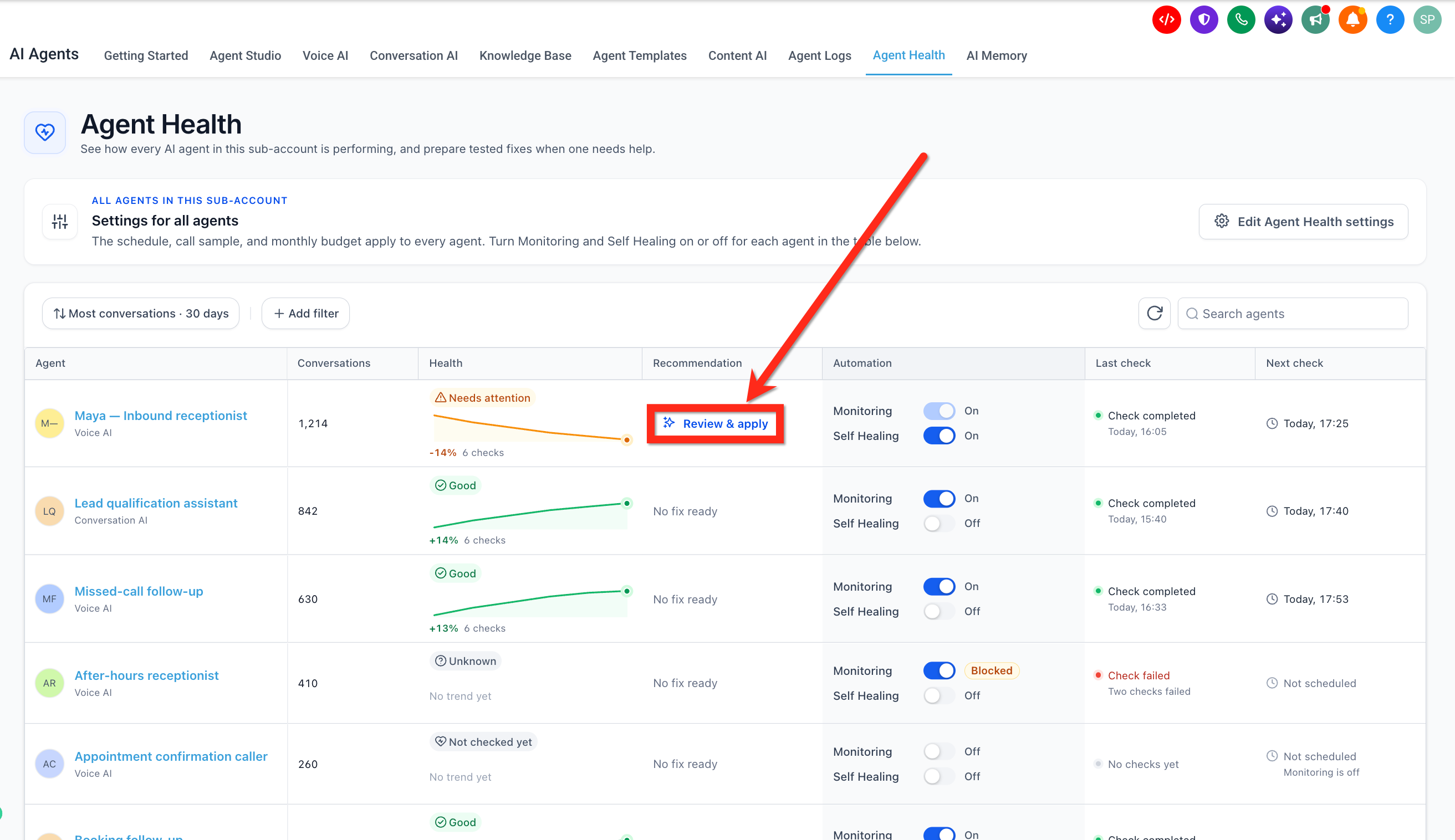
- Open the AI Agents > Agent Health page.
- Locate the target agent using the list, search field, or filters.
- Switch the Monitoring toggle on under the Automation section.
- If desired, also turn on the Self Healing toggle.
Set shared agent health parameters for the subaccount
- Open AI Agents > Agent Health.
- Click the Edit Agent Health settings button.
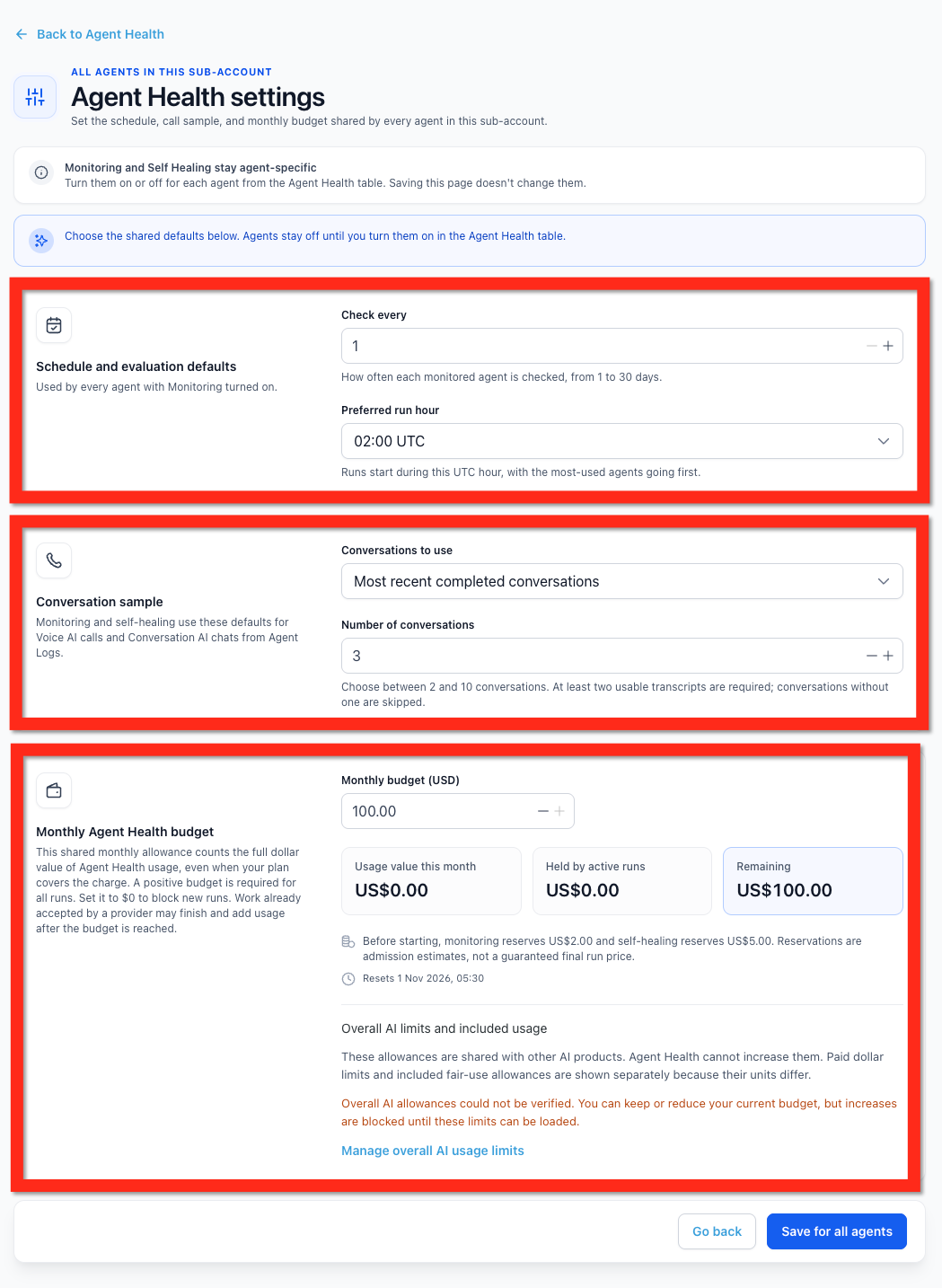
- Select a monitoring frequency between 1 and 30 days in the Check every field.
- Pick a UTC hour for the Preferred run hour.
- Choose which completed conversations should be included in the evaluation.
- Enter a number of conversations between 2 and 10 for each check.
- Review the displayed monthly budget, usage, reserved amount and remaining allowance.
- Press Save for all agents.
Open detailed results or start a one time evaluation
- Navigate to AI Agents > Agent Health.
- Click the name of the agent you want to inspect.
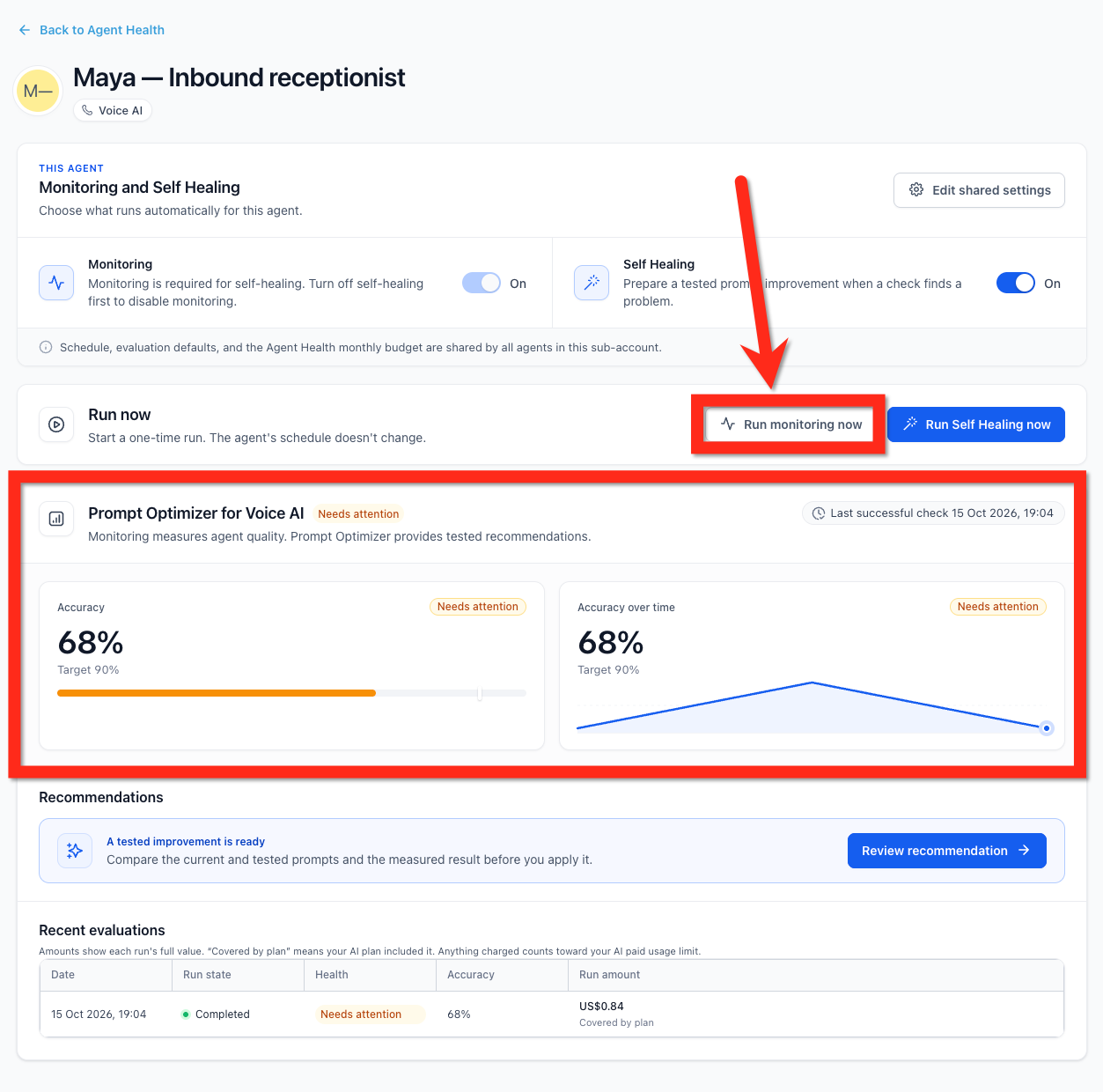
- Read the Prompt Optimizer panel for the latest accuracy score and trend.
- Select Run monitoring now to perform an immediate check.
Examine a self healing recommendation
- Open AI Agents > Agent Health.
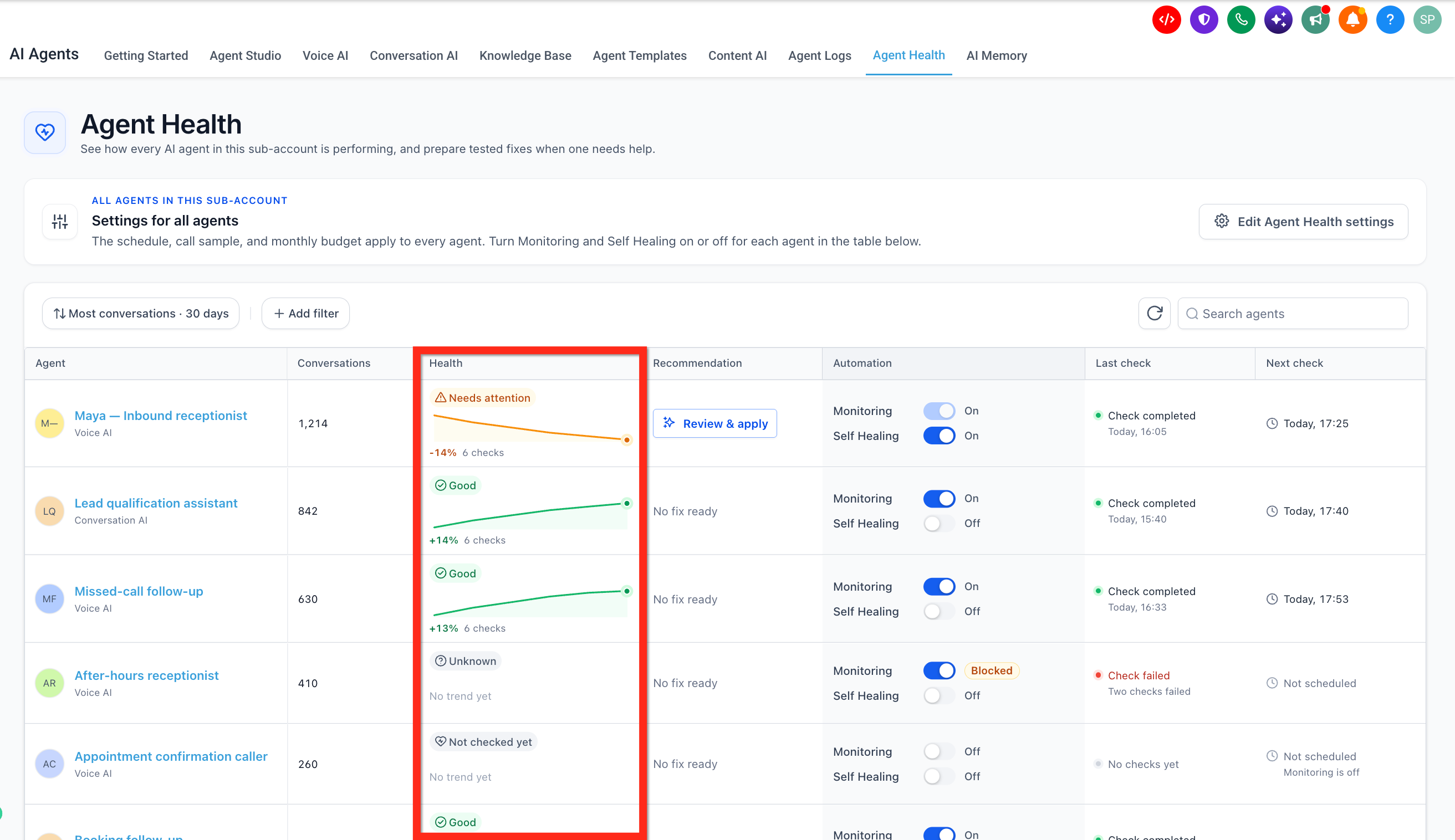
- Find the agent showing a Needs attention status.
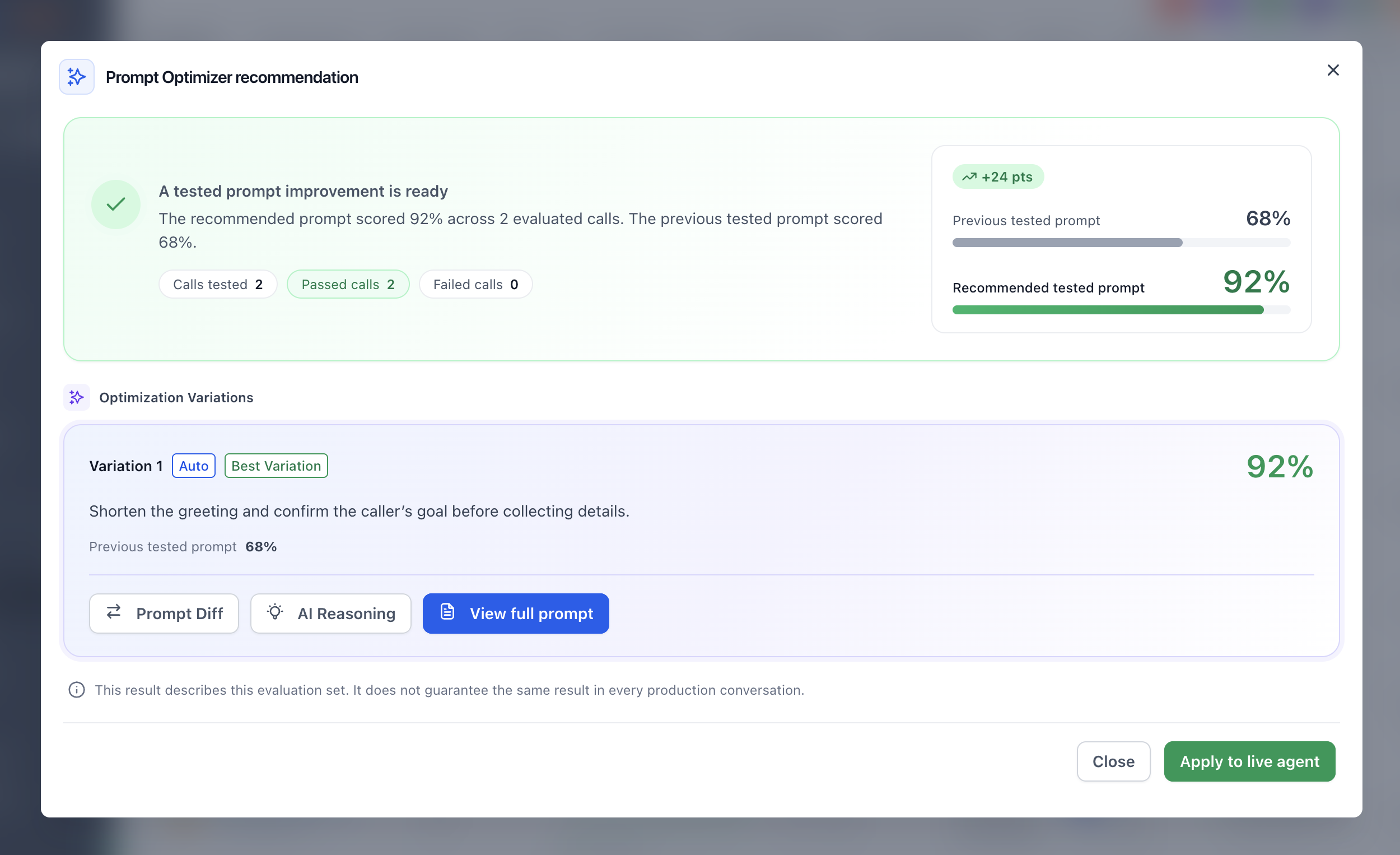
- Choose Review & apply from the dashboard or open the agent and click Review recommendation.
- Look at the previous and recommended accuracy scores.
- Check the number of calls tested, passed and failed.
- Select Prompt Diff to compare the current prompt with the suggested one.
- Select AI Reasoning to understand the suggested improvement and select View full prompt to inspect the complete recommended prompt.
Apply a recommended prompt to the live agent
- Verify that the suggested instructions align with the agent’s intended behavior.
- Click Apply to live agent to replace the current prompt.
- Allow the next scheduled monitoring run to assess the updated performance.
- Optionally, click Run Self Healing now for an on demand self healing run.
07What it looks like in HighLevel
08Settings that matter
- Check every. Controls how often the monitoring process runs for agents, with options from 1 to 30 days.
- Preferred run hour. Sets the UTC hour when scheduled checks start, determining the order in which agents are evaluated.
- Conversations to use. Specifies which completed conversations are pulled into the sample for each evaluation.
- Number of conversations. Defines how many conversations (between 2 and 10) are included in each check; at least two usable transcripts are required.
- Monthly Agent Health budget. Displays the allocated budget, current usage, reserved amount and remaining allowance for monitoring runs.
09Things to know before you rely on it
- Agent Health currently works only with Voice AI and Conversation AI agents.
- Self Healing requires Monitoring to stay enabled; you must turn off Self Healing before disabling Monitoring.
- Shared settings apply to all agents that have Monitoring turned on but do not automatically enable Monitoring or Self Healing.
- An evaluation needs at least two usable conversation transcripts; conversations lacking transcripts are ignored.
- The number of conversations per evaluation is limited to a range of 2 to 10.
- Monitoring runs are subject to the subaccount’s AI usage limits; if limits are exceeded, a run will not start.
- Self Healing never modifies a live agent automatically; each recommendation must be approved manually.
- A higher tested accuracy score does not guarantee the same result in live customer interactions.
10How it connects to the rest of HighLevel
- Set up AI Employee access, rebilling and reselling options. AI Employee access
- Enable Extra Usage and manage AI limits that affect Agent Health runs. Extra Usage
- Review HighLevel pricing and plan details for AI usage allowances. Pricing
Michael's take

I find Agent Health useful for getting a quick view of how our voice and chat agents are performing, and I appreciate that Prompt Optimizer can suggest prompt changes that we can review before applying. It works best when we have enough completed interactions because the evaluations need at least two usable transcripts.