
01Who this is for
- Agency owners who build automated outreach workflows can give agents access to Lemlist without writing custom code.
- Marketing teams that need to enrich leads can add the Clay connector to agents that run when new contacts are created.
- Video producers can use the Reap connector so Ask AI can cut long recordings into short clips on demand.
02MCP connectors, explained
MCP (Model Context Protocol) connectors are prebuilt bridges between HighLevel AI experiences and third party apps. Once a connector is linked, the AI can invoke the specific actions the app exposes, such as creating Airtable records or launching Lemlist sequences.
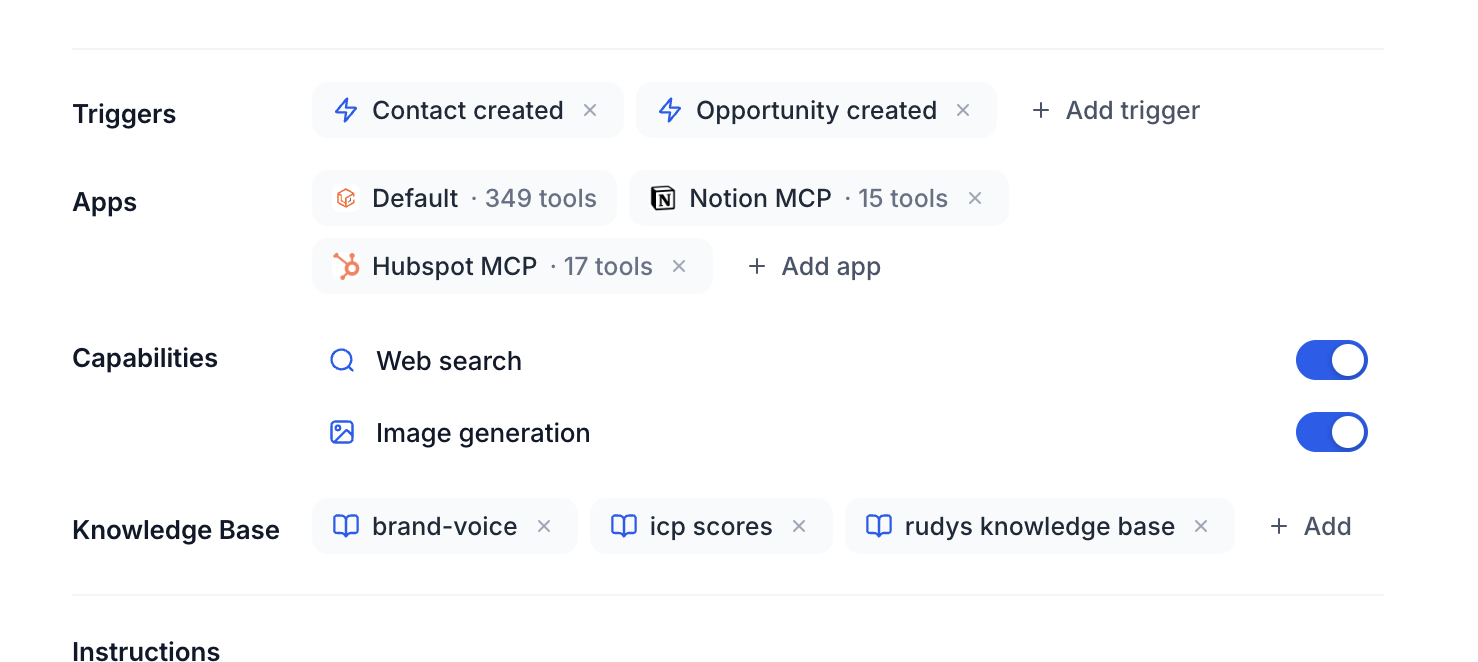
The connectors live in two places. For event driven Managed Agents, they are added in the Apps area of the agent inside Agent Studio. For interactive Ask AI, they are managed under Customize > Connectors > Manage Connectors. In both cases you authenticate the external account, enable the connector, and pick the individual tools the agent may call.
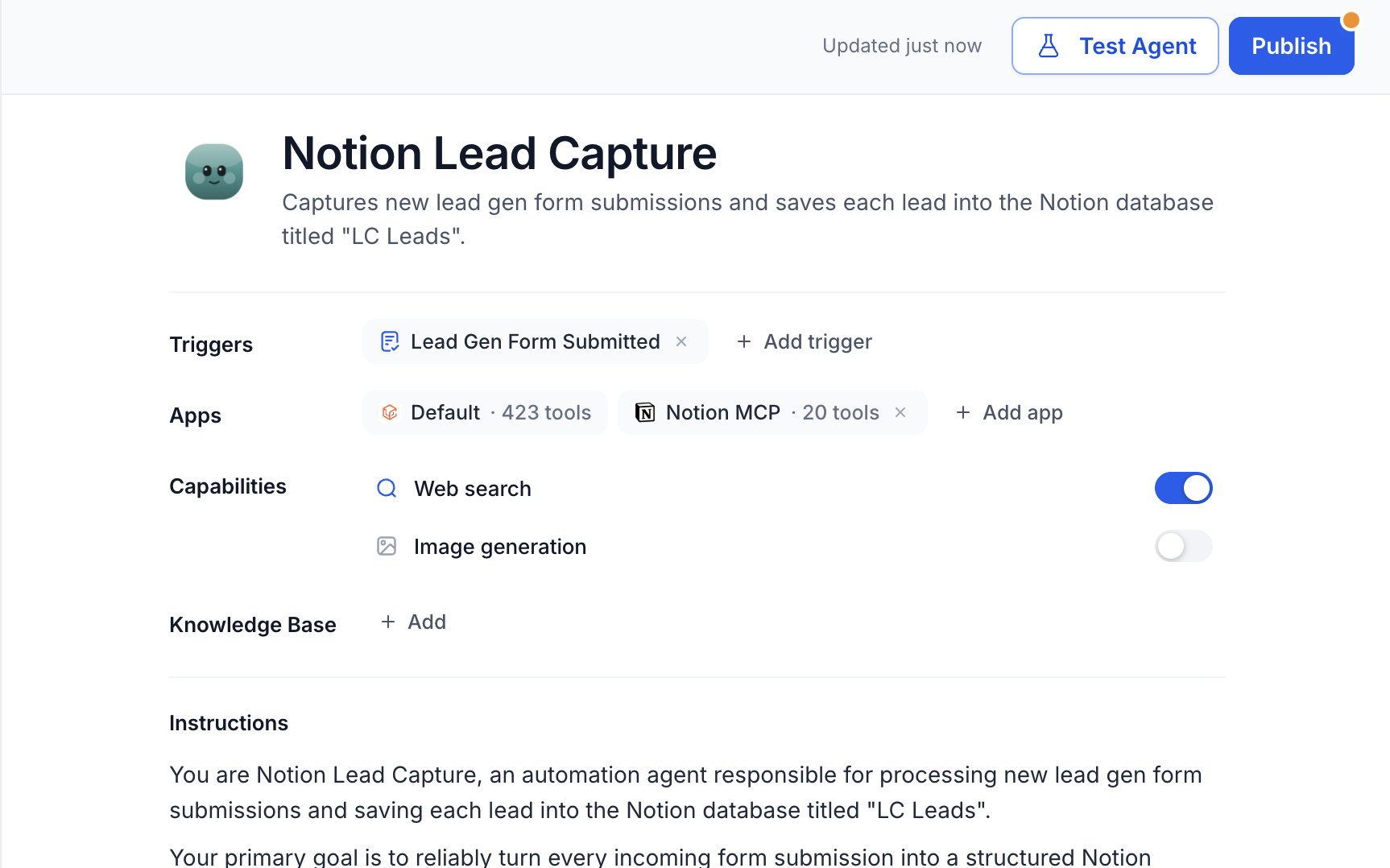
After the connector is set up, you update the agent’s instructions, configure a trigger (or a user request for Ask AI), test the flow with sample data, and then publish the agent for live use.
03How businesses use the MCP connectors
- Marketing agency. The agency adds the Lemlist connector to a Managed Agent that runs when a new lead is captured. It selects the email sequence tool, writes instructions to add the lead to the appropriate campaign, and tests the flow before publishing.
- Real estate brokerage. A broker creates an Airtable connector in a Managed Agent that triggers on a closed deal. The agent reads the deal data, creates a project record in Airtable, and confirms the result during testing.
- Video production company. The company enables the Reap connector for Ask AI, authenticates its video storage account, turns on the clipping tool, and then asks Ask AI to turn a long interview into short clips with captions.
04The numbers and rules that matter
- Available tools can vary by connector, connected account, third party permissions, and future connector updates.
05How to set up and use the MCP connectors in HighLevel
Connect an MCP app to a Managed Agent
- Navigate to AI Agents > Agent Studio.
- Open Managed Agents and create a new agent or select an existing one.
- Locate the Apps area within the selected agent.
- Click Add app and browse the MCP catalog.
- Choose the connector you need (Clay, Lemlist, Airtable, Composio, or Reap).
- Click the option to connect or add an account for the selected app.
- Sign in to the third party account when prompted.
- Review and authorize the access permissions requested.
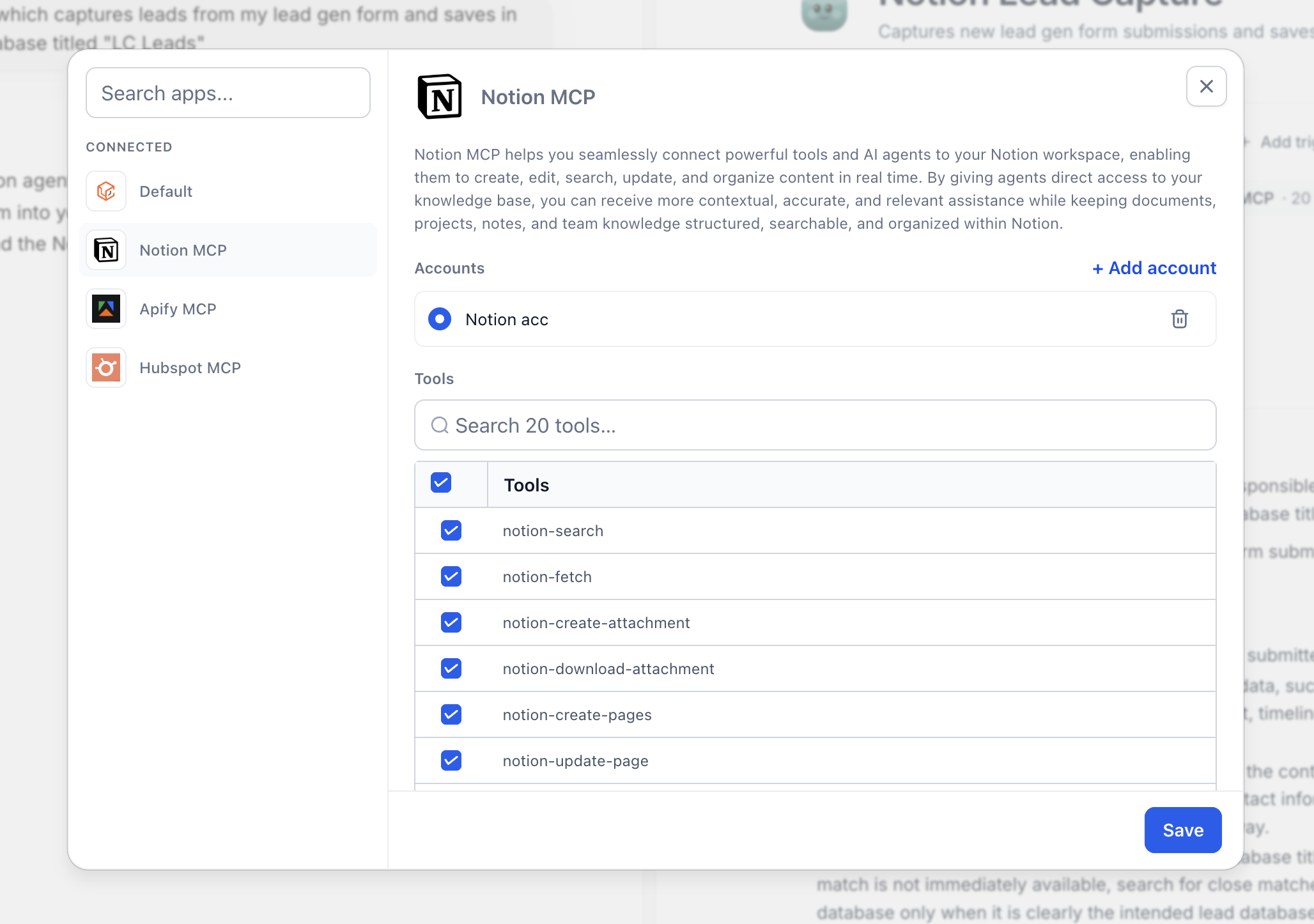
- Review the connector’s tool list and enable only the required tools.
- Click Save to apply the tool selection.
- Update the agent instructions and configure its trigger before testing and publishing.
Connect an MCP app in Ask AI
- Open Ask AI.
- Go to Customize > Connectors and select Manage Connectors.
- Find and select the MCP app you want to use.
- Connect and authenticate the applicable third party account.
- Review the tool list and enable the desired tools.
- Enable the connector and then ask Ask AI a request that uses the connected app.
06What it looks like in HighLevel
07Settings that matter
- Tools selection. Controls which individual actions of a connected app the AI agent is allowed to call.
- Connector enablement. Turns the MCP connector on or off for Ask AI so the model can use the selected tools.
08Things to know before you rely on it
- The set of available tools varies by connector, the linked third party account, its permissions, and future updates.
- Tool counts can change as connectors evolve, so always review the current list before publishing.
- Multiple MCP connectors can be attached to a single Managed Agent, but each must be explicitly added and configured.
09If something goes wrong
- The app is connected but the agent cannot use it. Confirm the connector is attached to the correct agent and the required individual tools are enabled.
- Authentication fails. Reconnect the app, verify the third party account credentials, and confirm the account is allowed to authorize the requested access.
- A required tool does not appear. Review the connector's current tool list and the permissions or plan available in the connected third party account.
- The agent uses the wrong external action. Reduce unnecessary tool access and make the agent instructions more explicit about when each tool should be used.
- The Managed Agent does not run. Verify that the intended trigger is configured, the agent is published, and your test event matches the trigger conditions.
- The connector previously worked but now fails. Check whether authorization was revoked or expired, then reconnect the third party account and retest the tool.
- Ask AI does not use the connector. Confirm the connector is enabled, the required tool is allowed, and your request clearly asks for an action that requires the connected app.
10How it connects to the rest of HighLevel
- Explore all Agency View features Agency View features
- Review HighLevel pricing and plans Pricing
- Start a 30 day HighLevel trial Free trial
Michael's take

People often think that simply adding a connector makes the agent act on its own. The reality is the connector only supplies tools; the agent still needs a clear trigger, precise instructions and the right tool permissions to do anything useful.
If I were setting this up, I would first pick the exact tool the workflow needs, lock down the trigger, and then test with realistic data before publishing. That way I know the agent is only touching the external system when it truly has to.