
01Who this is for
- Marketing agencies, they can produce audit reports for client prospects and add them to workflows.
- Small business owners, they can find local customers and view contact details to start outreach.
- Sales professionals, they can quickly add prospects to their pipeline and track outcomes.
02Prospecting tool, explained
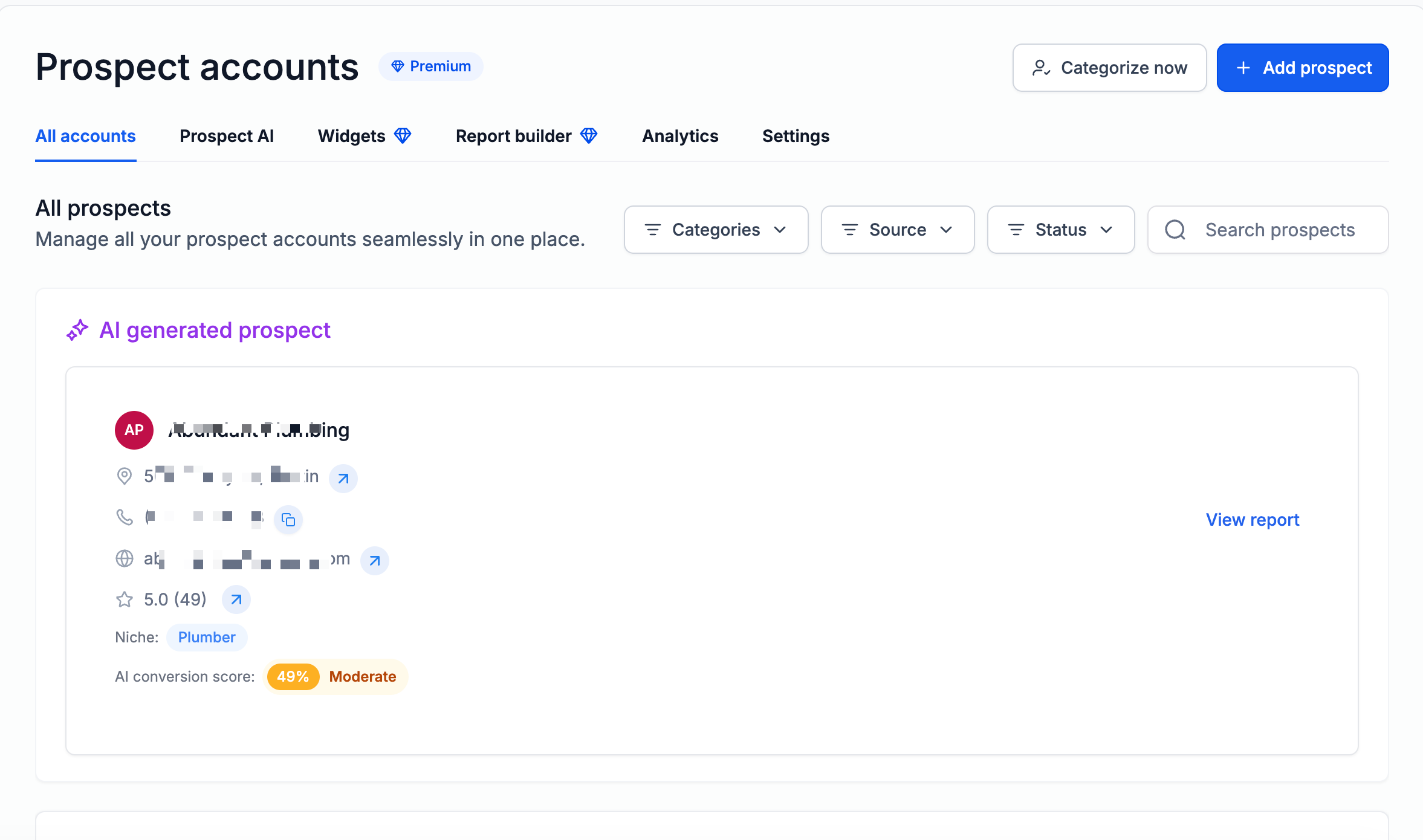
The Prospecting Tool searches public data using keywords, brands, or location inputs. It returns a list of local businesses that match the criteria. From the results you can add a prospect, decide whether to run a marketing audit report immediately, and save the prospect to the dashboard.
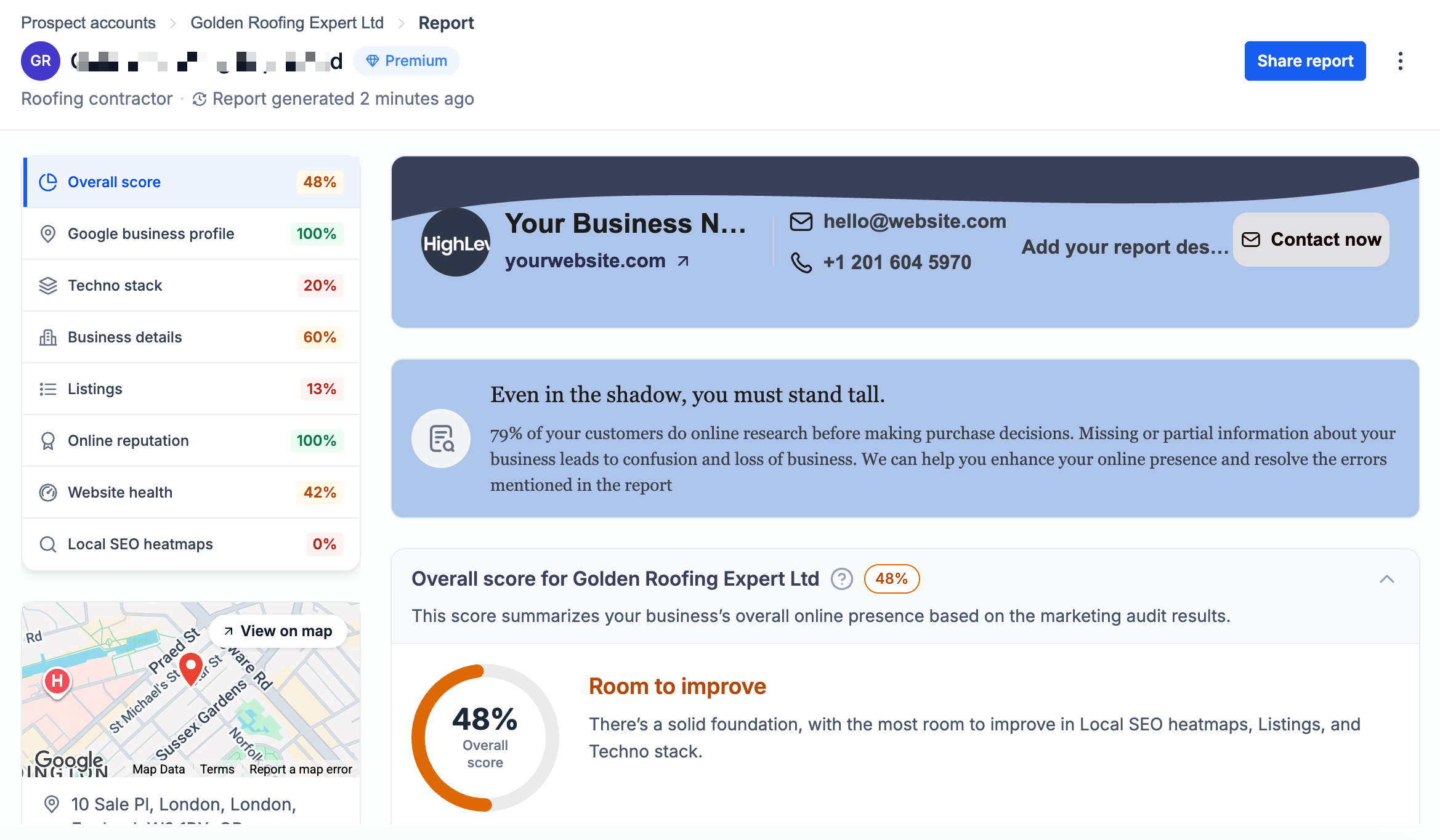
The generated Marketing Audit Report covers two sections: Listings, which aggregates data from many directories, and Reviews, which shows the prospect’s online reputation. The report can include a Website Hosting section that identifies the technology behind the prospect’s website.
You find the tool under the Prospecting tab in the left navigation of Agency view, or after enabling it in a subaccount via the Reselling tab and then opening the Marketing > Prospecting navigation.
03How businesses use prospecting tool
- Dental practice. A dental practice can enter "dentist" as a keyword and a zip code to pull nearby dental offices. After adding a prospect, it can generate an audit report to see the practice’s listings and reviews, then use the point of contact tab to obtain the office phone number for outreach.
- Real estate agency. The agency searches for "real estate agent" and selects a radius around its target market. It adds a prospect, chooses to run the audit report, and reviews the website hosting details to understand the prospect’s site platform before sending a personalized email.
- Local HVAC contractor. An HVAC contractor searches for "HVAC" in a specific city, adds multiple prospects using the bulk add option, and saves them without immediate reports. Later it opens each prospect’s detail page, runs the audit report, and uses the contact information to schedule follow up calls.
04The numbers and rules that matter
- Find more than 50 leads per search.
- Search radius up to 31.1 miles.
- Get more leads per search up to 60.
- View more leads per page up to 15.
- Prospect for 50 leads per day with basic plan and unlimited with Prospecting Premium Subscription.
- Supported website hosting services: WordPress, LeadConnector, LeadConnector AI Studio, Webflow, Wix, Squarespace, Framer.
05How to set up and use prospecting tool in HighLevel
Access the Prospecting Tool
- In Agency view, click the Prospecting tab in the left navigation.
- In a subaccount, enable Prospecting via the Reselling tab or by turning it on for that subaccount.
- Open the Marketing tab on the left and select the Prospecting tab on the top navigation bar.
Search and add a prospect
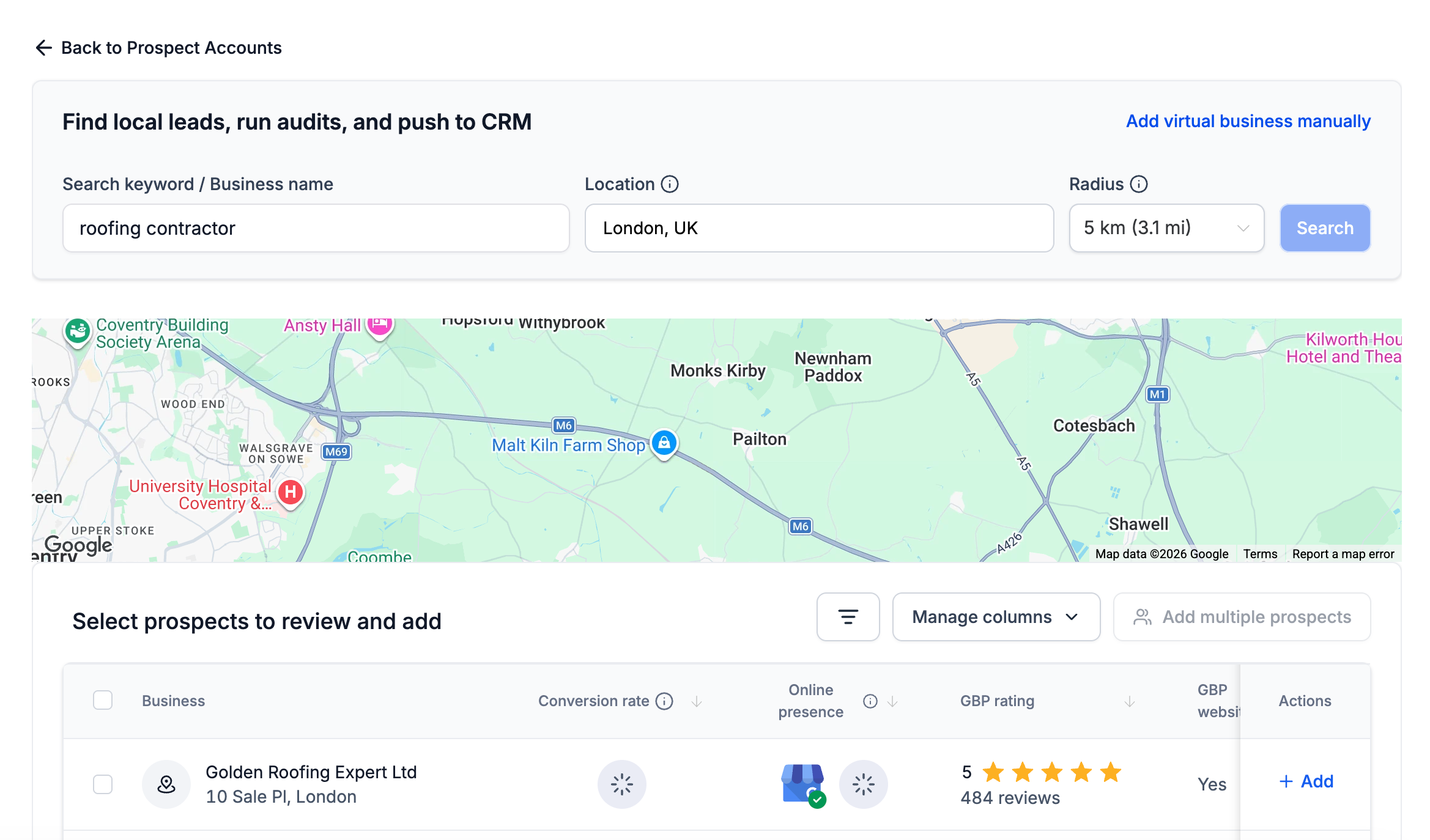
- Click the Add Prospect button to open the search page.
- Enter a keyword, brand name, or location (labs) and optionally set a radius up to 31.1 miles or type “near me”.
- Review the results and click the + Add button next to the desired business.
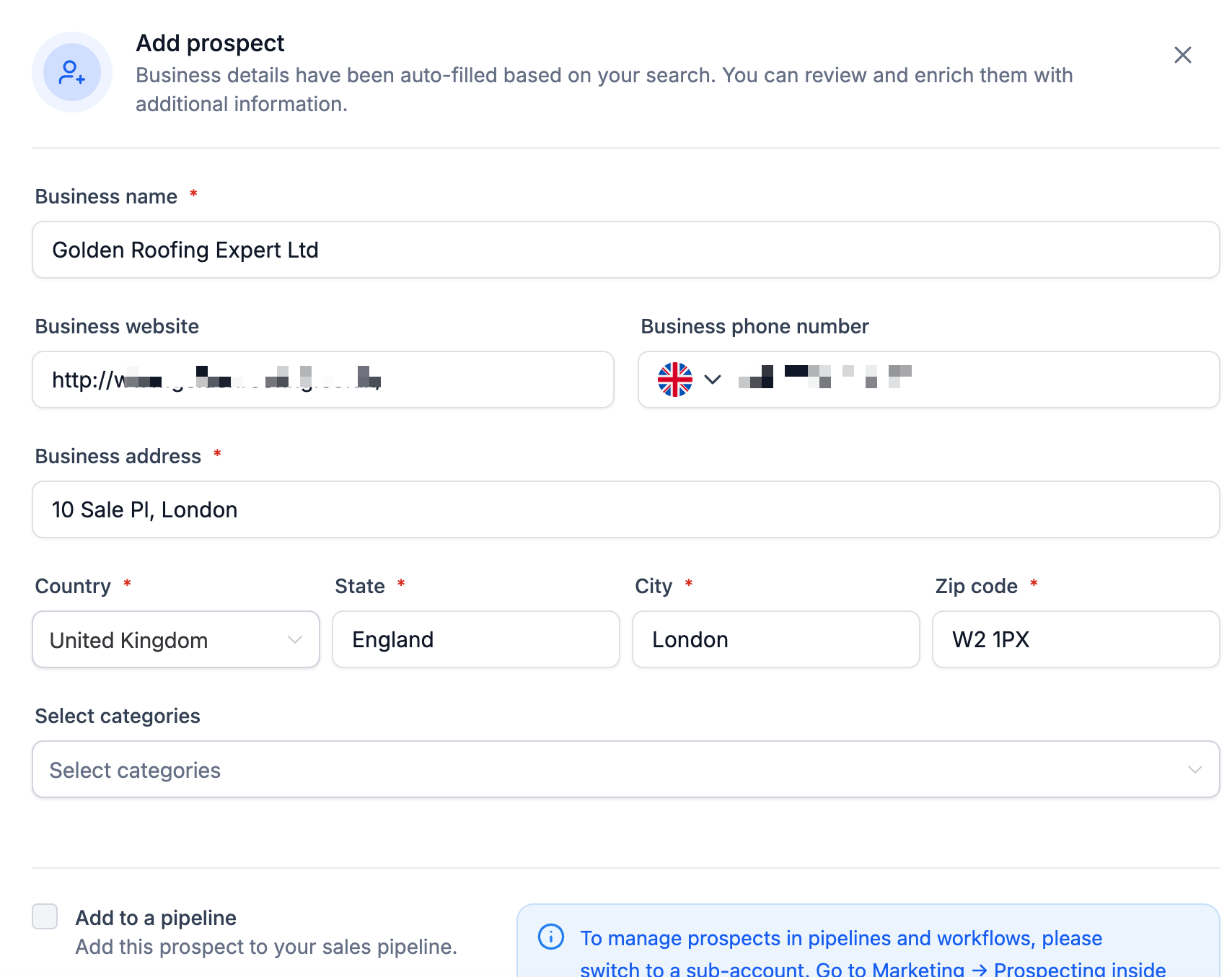
- In the Add prospect window, confirm the business details.
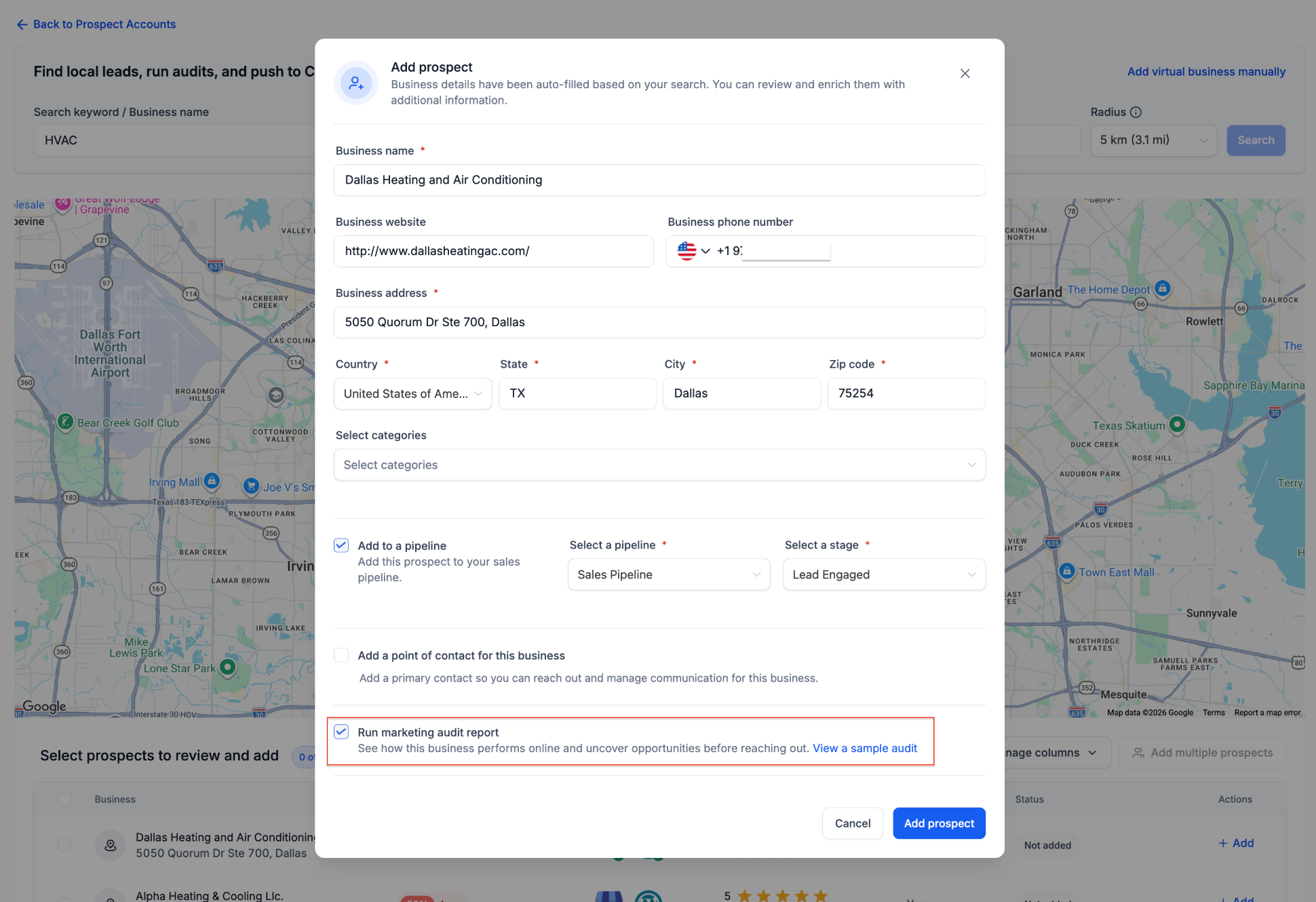
- Locate the Run marketing audit report checkbox; it is enabled by default.
- If you need point of contact details, enable the POC toggle and enter the information, then click Save Location to proceed.
- Click Add prospect to store the prospect (and generate the report if the checkbox is selected).
Generate or add a Marketing Audit Report later
- If the Run marketing audit report box was unchecked, the prospect is saved without a report.
- Open the prospect’s detail page later and click the option to run the marketing audit report from there.
Delete an irrelevant prospect
- From the dashboard, select the prospect card you wish to remove.
- Use the delete option to remove the prospect from your list.
Manage website hosting detection
- Navigate to Prospecting > Settings > Report Settings.
- Find the Website hosting section.
- Uncheck LeadConnector AI Studio if you do not want it included in reports.
- Click Save to apply the changes.
View point of contact details
- In Agency view, select Prospecting from the side navigation menu.
- Open any prospect card on the dashboard.
- Click the Point of Contacts tab to see lead information such as role, social profiles and contact details.
06What it looks like in HighLevel
07Settings that matter
- LeadConnector AI Studio. Controls whether the LeadConnector AI Studio hosting service appears in the Website Hosting section of generated audit reports.
08Things to know before you rely on it
- Location search is currently in Labs.
- Saving multiple leads and viewing more than 15 leads per page are Labs only features.
- Search radius can be set up to 31.1 miles.
- Basic plans allow up to 50 leads per day; Premium Prospecting gives unlimited daily leads.
- A single search can return up to 60 leads.
09How it connects to the rest of HighLevel
- Learn how to find leads with the Prospecting tool in HighLevel. Find leads guide
- Customize website hosting options in audit reports. Hosting settings
- Start a 30 day trial to test the Prospecting Tool. Free trial
Michael's take

The Prospecting tool can feel overwhelming at first because it pulls data from many directories and adds a layer of automation. If you let the defaults run. Keyword search, radius, and the audit report checkbox. You’ll quickly see a list of local businesses with gaps you can fill.
Once the prospects are in your dashboard, the real value shows up when you attach a workflow that sends a custom email or SMS with the audit link. That small step turns a raw list into a conversation without extra manual effort.