
01Who this is for
- Agency owners can tailor prospect reports to match client priorities, showing only the most relevant metrics.
- Team leaders can rearrange sections to highlight key data for stakeholders, making briefings clearer.
02Select and reorder report sections, explained
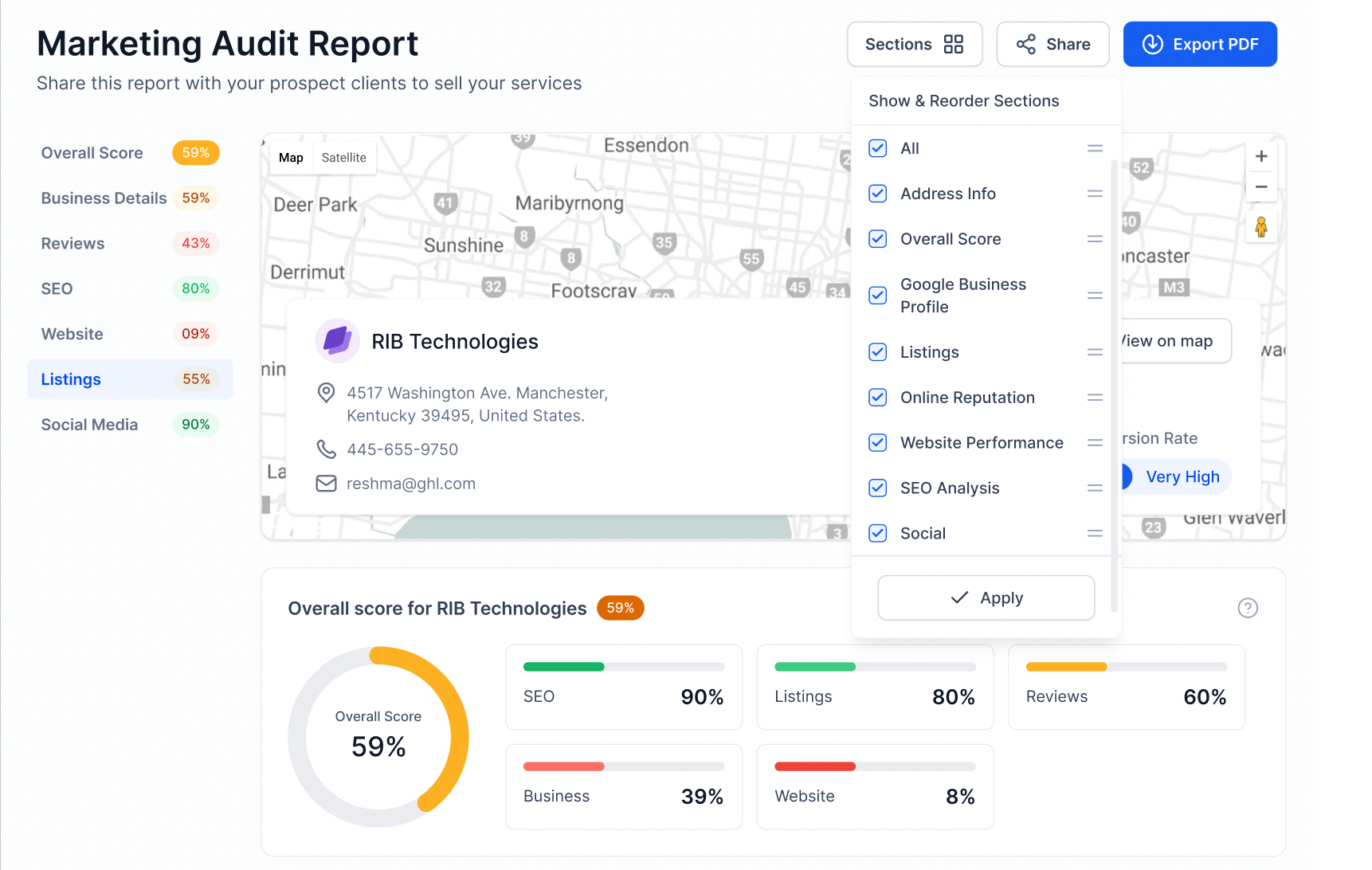
The feature adds a Sections control inside each prospect’s report. You can pick the sections you want to display and move them with a drag and drop interface. The layout you create is saved and used for the external report view and for PDF downloads.
You find the option by opening the Prospecting tab, selecting a prospect, and clicking View Report. The Sections button opens the selector where you add, remove, and reorder items before applying the changes.
03How businesses use select and reorder report sections
- Digital marketing agency. The agency opens a client prospect’s report and removes sections that aren’t relevant to the campaign, then drags the performance metrics to the top. After clicking Apply, the client receives a PDF that starts with the most important data.
- Real estate brokerage. A broker selects a prospect report, chooses only the property overview and pricing sections, and reorders them so pricing appears first. The saved layout ensures every PDF sent to sellers follows the same order.
- SaaS startup. The startup’s sales lead manager opens a prospect report, keeps the usage statistics section, and moves the trial conversion section to the top. Applying the change updates both the on screen view and the downloadable PDF.
04How to set up and use select and reorder report sections in HighLevel
Select and reorder report sections
- Open the Prospecting tab in HighLevel.
- Pick any prospect and open its View Report page.
- Click the Sections option, then choose and drag sections into the desired order.
- Press Apply to save the layout; the changes affect both external and PDF reports.
05What it looks like in HighLevel
06How it connects to the rest of HighLevel
- Learn how to adjust the overall layout of prospect reports beyond section ordering. Customize prospect report layout
- Explore how the prospecting tool generates leads that can be reported on with customized sections. Prospecting for lead generation
- See how subaccount users can access the prospecting tool and apply the same report customizations. Prospecting in subaccounts
Michael's take

Michael ReimerFounder of CRM Pros, HighLevel Commander and Certified Admin
Changing the layout of a prospect report can feel risky if you’re used to a fixed template. It’s easy to lose track of what you’ve moved, and a client could see a section out of place if you forget to hit Apply.
Get More InformationOpens on HighLevelPublished November 2, 2026 · Updated November 16, 2026