
01Who this is for
- Agency owners who want to provide automated lead suggestions for their clients without manual research.
- Location managers who need a steady flow of local business leads tailored to their chosen niche.
- Freelance marketers looking for a quick way to source prospects while working on a free plan.
02Prospect by AI, explained
The AI prospecting feature lives in the Labs section of an agency or a subaccount. After activation, the system uses the chosen niches, country, city, area and pin code to search public data and scores businesses. Each week it returns two to three top matching prospects, which appear on the Prospecting Dashboard.
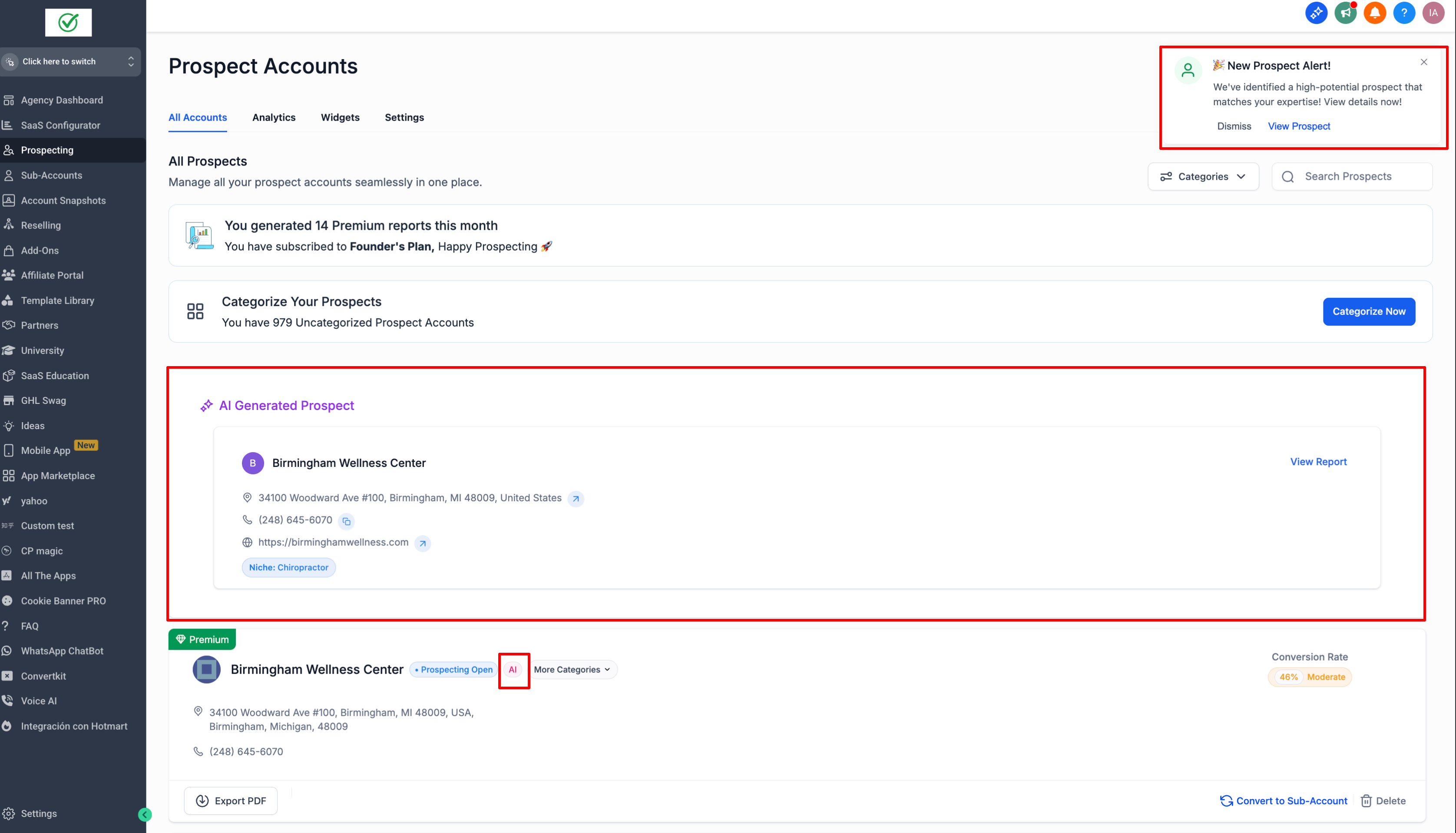
Prospects are displayed on an AI Recommended card that refreshes every two to three days. A notification badge alerts you when new recommendations are ready. Reports are basic by default; premium reports become available when the account has a Premium Prospecting subscription.
03How businesses use prospect by AI
- Digital marketing agency. The agency enables Prospect by AI in Labs, selects up to three client niches and target locations, and then pulls the AI Recommended card on the dashboard to receive weekly lead suggestions for client campaigns.
- Local service area business. The business turns on the AI toggle, configures its city and pin code, and checks the Prospecting Dashboard for new AI generated prospects that match its service area each week.
- Real estate brokerage. The brokerage activates the feature, chooses real estate related niches and the relevant municipalities, and uses the AI Recommended card to collect fresh property owner leads for outreach.
04The numbers and rules that matter
- 2 to 3 high quality prospect recommendations every week.
- AI Recommended card refreshed every 2 to 3 days.
05Before you start
- Access to Labs must be available in the agency or location.
- For subaccounts, the Prospecting tool must be enabled under the reselling tab in the agency first.
- A Premium Prospecting subscription is required only if premium reports are desired.
06How to set up and use prospect by AI in HighLevel
Enable Prospect by AI in agency
- Open the Labs area for the agency.
- Switch the "Prospect by AI" toggle to ON.
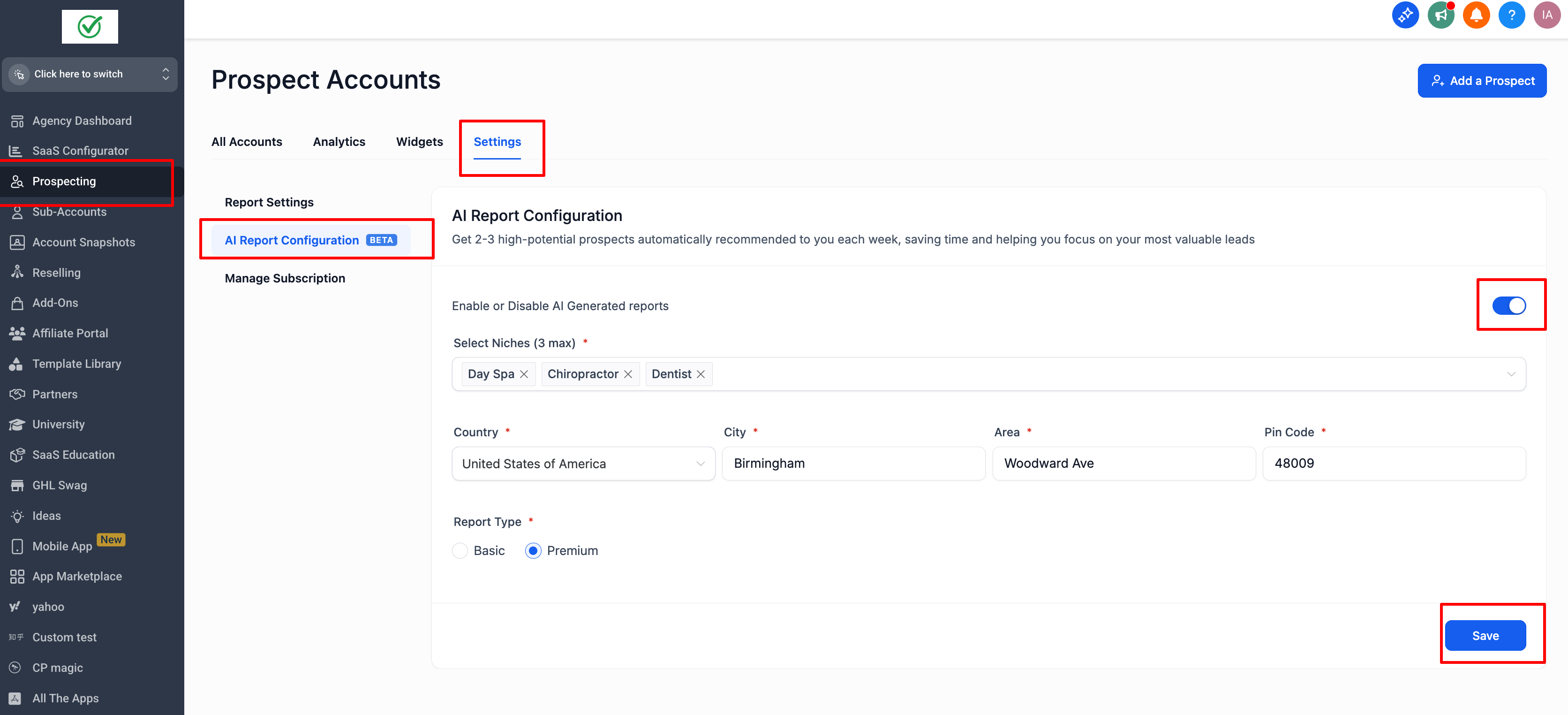
- Navigate to Prospecting > Settings > AI Report Configuration.
- Turn on the AI Recommendations toggle and click Save.
Enable Prospect by AI in subaccount
- Open the Labs area inside the subaccount.
- Toggle the "Prospect by AI" switch to ON.
- Go to Marketing > Prospecting > Settings > AI Report Configuration (after enabling Prospecting via the agency’s reselling tab).
- Activate the AI Recommendations toggle.
View generated prospects
- Open the Prospecting Dashboard.
- Find the AI Recommended card, which updates every two to three days.
- Notice the notification badge that signals new AI recommendations.
07What it looks like in HighLevel
08Settings that matter
- Prospect by AI. Controls whether the AI prospecting engine is active for the agency or subaccount.
- AI Recommendations toggle. Enables the display of AI generated prospect cards on the Prospecting Dashboard.
- Niche selection. Allows you to choose up to three business categories for which the AI will search prospects.
- Location fields (country, city, area, pin code). Define the geographic scope the AI uses to find matching businesses.
- Premium Report subscription. Determines whether the AI delivers basic reports (default) or premium reports (requires subscription).
09Things to know before you rely on it
- AI generates only two to three prospect recommendations each week.
- You can select a maximum of three niches per configuration.
- The AI Recommended card refreshes every two to three days.
- Free plan accounts receive basic reports only; premium reports need a Premium Prospecting subscription.
- The feature is available through Labs for all agencies and locations.
10How it connects to the rest of HighLevel
- Learn how the prospecting tool fits into overall lead generation Lead generation guide
- Create widgets to display prospects on your website Prospecting widgets
- Review pricing options for Premium Prospecting access Pricing page
Michael's take

Prospect by AI is useful for agencies that want a quick weekly lead list without manual research. Skip it if you already have a reliable in house prospecting system and don’t need AI generated suggestions.