
01Who this is for
- Agency owners, need a consistent report format for client pitches.
- Sales teams, want to highlight key metrics first.
- Consultants, can hide irrelevant sections for each client.
02Prospect report layouts, explained
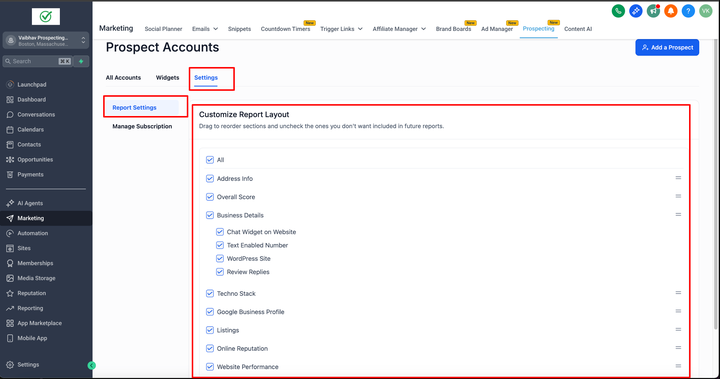
Prospect Report Layout Customization controls which parts of a Marketing Audit Report are shown and the order they appear. The feature works for both the on screen view and any exported PDF, so the presentation stays the same across formats. Settings are available in the Prospecting area of HighLevel.
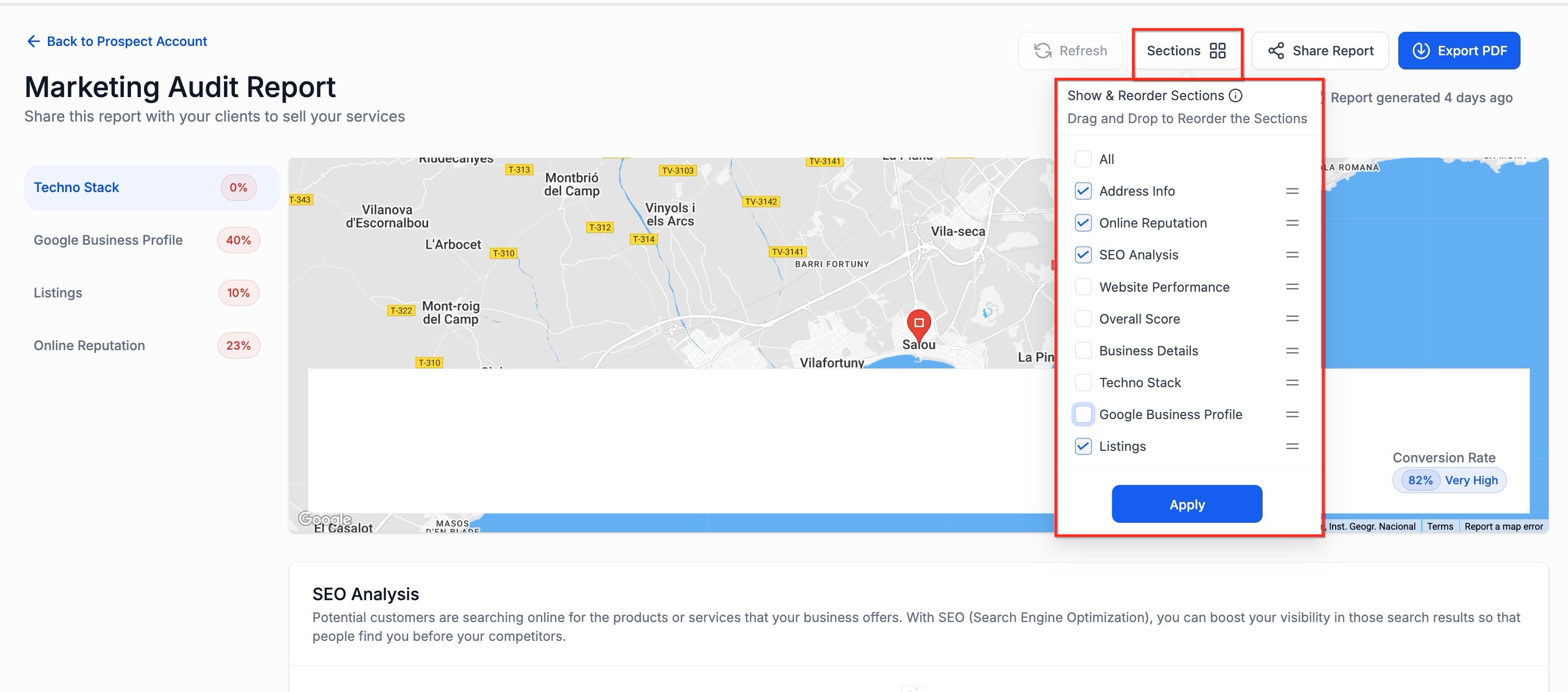
You can create a global default layout that applies to every new report, or you can change the layout of an individual report without affecting the default. The global layout lives under the Report Settings panel, while per report changes are made through the Sections panel inside each report.
03How businesses use prospect report layout customization
- Digital marketing agency. The agency sets a global layout that places the Overall Score at the top of every audit, ensuring all client presentations start with the most compelling metric. They also hide the Techno Stack section because it is not part of their core services.
- SEO consultancy. For a particular high value prospect, the consultant opens that report, hides the Reputation Analysis section, reorders the SEO Analysis to appear first, and applies the change so the report fits the client’s needs without altering the default template.
- Real estate lead generation firm. The firm creates a default layout that shows the Lead Volume and Conversion Rate sections first, then uses the per report Sections panel to add a custom Market Trends section for a specific region, applying only to that report.
04How to set up and use prospect report layout customization in HighLevel
Configure a global default layout
- Navigate to Marketing > Prospecting > Prospect Accounts.
- Click Settings.
- Select Report Settings.
- Enable or disable sections as needed.
- Drag sections into the order you prefer.
- Click Save to store the layout as the global default.
- Important: Saving creates the global default layout; existing customized reports will not automatically update.
Customize an individual report
- Open the specific Marketing Audit Report.
- Click Sections in the top right corner.
- Hide or reorder sections as desired.
- Click Apply so the changes affect only this report.
05What it looks like in HighLevel
06Settings that matter
- Report Settings. Controls which sections are visible and the sequence for the global default layout.
- Sections. Allows per report toggling of visibility and drag and drop reordering for a single audit.
07Things to know before you rely on it
- Global layout changes become the default only for reports created after the change; existing customized reports do not update automatically.
- Section visibility and order apply to the web view, shared report links, and exported PDFs.
- Existing reports may require a manual refresh after major audit improvements to show updated results.
08If something goes wrong
- Layout changes are not appearing. Confirm you clicked Save (global) or Apply (individual) and then click Refresh. If the problem persists, clear your browser cache.
- Removed a section by mistake. Re enable the section from either the global Report Settings or the report’s Sections panel.
09How it connects to the rest of HighLevel
- Learn how to generate leads with HighLevel prospecting Prospecting lead generation
- Details on reordering sections in prospect reports Reorder report sections
- Review HighLevel pricing and plans Pricing
Michael's take

“Can I change the look of my prospect audits without breaking my existing templates?” Absolutely. The layout editor lets you hide or move sections, then lock in a global default that all new reports inherit. If a client needs a one off tweak, you can adjust that single audit and hit Apply, keeping the master template unchanged.
I would first set a global layout that aligns with the flow of my sales pitch. Top scores, SEO analysis, then any secondary data. After that, I’d open a test report, hide a section I never use, and confirm the PDF exports exactly how I expect. A quick refresh and a glance at the PDF confirm everything is lining up before I roll it out agency wide.