
01Who this is for
- Agency owners can enable Support Access when they need direct assistance from the support team.
- Managers can grant temporary access to resolve configuration or integration issues quickly.
02Support access, explained
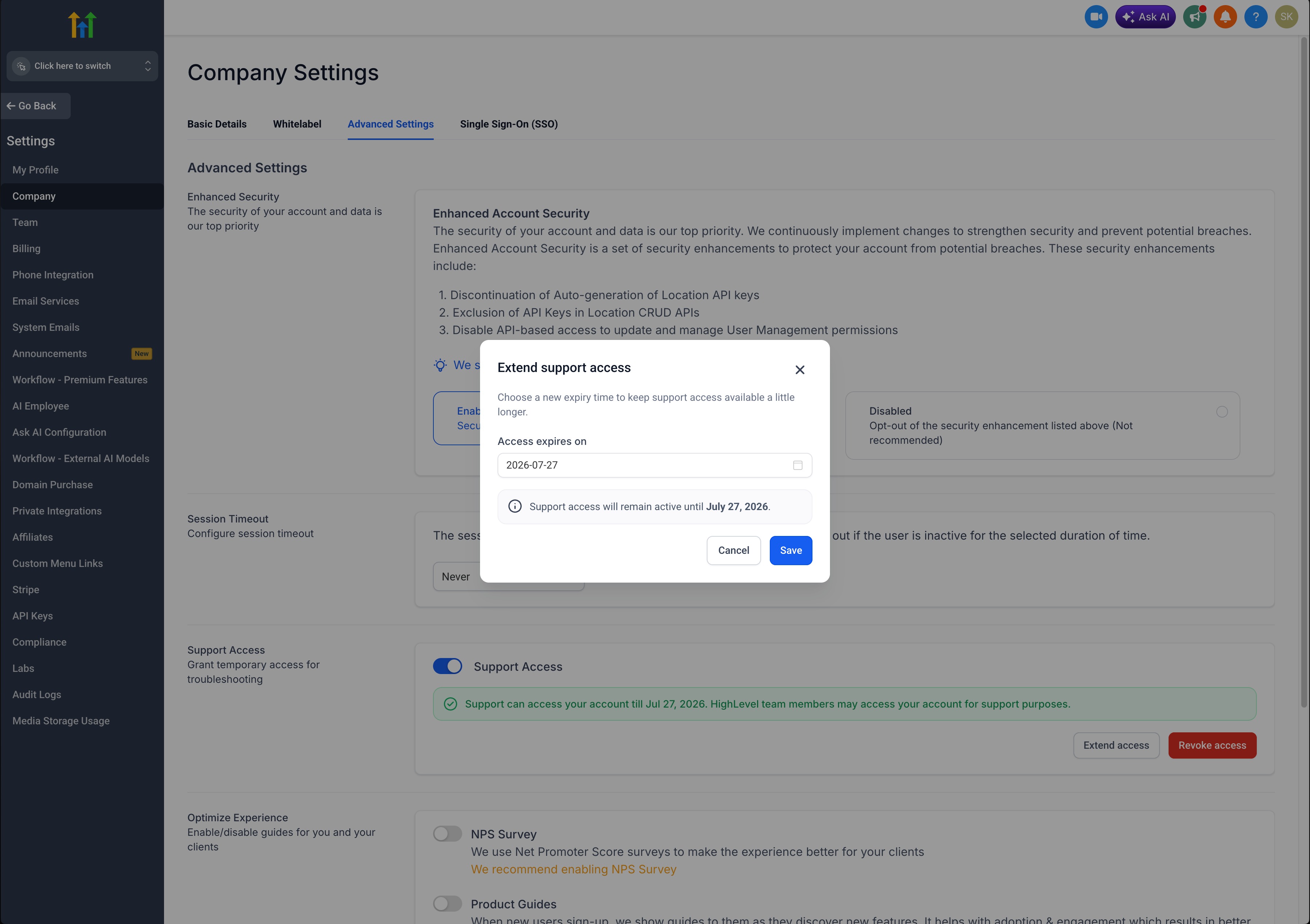
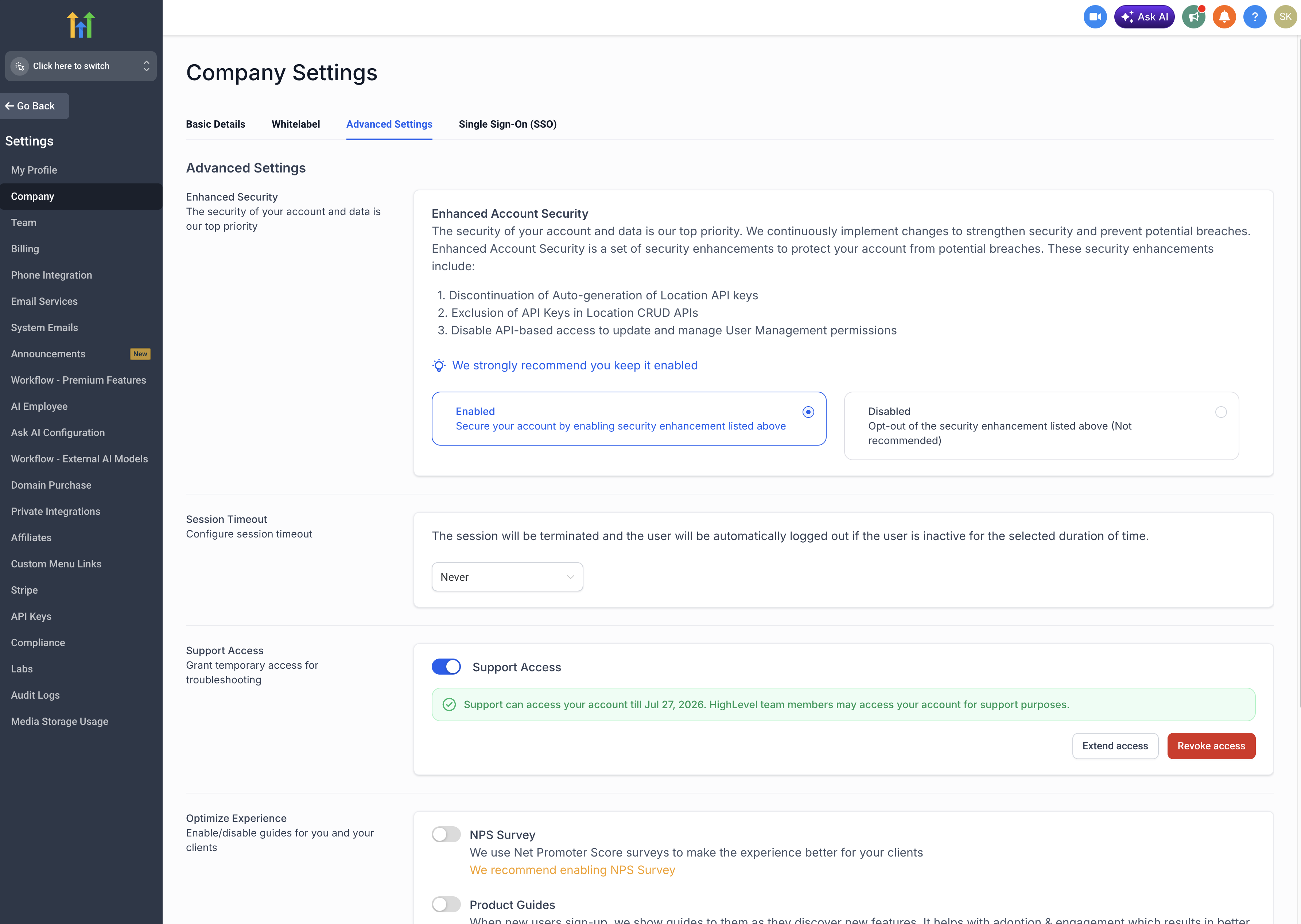
Support Access is a permission that lets HighLevel support members enter your account for a limited time. The access period is chosen by you and can be changed while the request is open. It lives inside the Agency View under Settings, then Company, and finally the Advanced Settings tab.
When enabled, the support team can view and adjust records to diagnose problems. You retain the ability to extend the time window or turn the permission off right away. The feature is built for short term use only and does not affect regular user roles.
03How businesses use support access
- Digital marketing agency. The agency switches to Agency View, opens Settings, and activates Support Access while a client ticket is open. They set a short window, allowing support to see campaign settings and suggest fixes.
- Ecommerce startup. The Founder enables Support Access during a checkout issue investigation. After choosing a brief duration, the support team inspects the checkout flow and returns with configuration changes.
- Health care clinic. The clinic’s admin turns on Support Access while an integration fails. They select a limited period, allowing support to verify API keys and restore connectivity.
04How to set up and use support access in HighLevel
Enable support access
- Sign in to HighLevel and switch to Agency View.
- Open the Settings menu.
- Select the Company option.
- Click the Advanced Settings tab.
- Find the Support Access area.
- Turn on the Support Access toggle.
- Pick the length of time to allow entry.
- Press Submit to save the changes.
05What it looks like in HighLevel
06Settings that matter
- Support Access. Controls whether HighLevel support can log into your account and for how long.
07Things to know before you rely on it
- The permission is temporary and must be set with a specific duration.
- You can extend the time window at any moment while support is active.
- Access can be disabled immediately once the issue is resolved.
08How it connects to the rest of HighLevel
- Explore all Agency View capabilities Agency View features
- Review HighLevel pricing and plan options Pricing
- Start a free 30 day trial of HighLevel 30 day trial
Michael's take

A small convenience that can feel like a real shift when you’re stuck on a glitch. Giving the HighLevel team a brief window into your account removes the endless back and forth and gets the problem fixed faster.
A SaaS business that runs multiple client funnels benefits because the support staff can see the exact configuration that’s misbehaving. I’d enable it only while the ticket is open, set the shortest duration needed, and turn it off as soon as the issue clears.