
01Who this is for
- Agency owners who need a single view of client subaccount costs to keep billing transparent.
- Finance teams that must verify which activities generate wallet charges before processing reimbursements.
- Operations managers who track month over month spend trends to spot unusual spikes.
02Wallets & transactions, explained
The Wallet & Transactions area lives under Agency View > Settings > Billing. It provides agency wide reporting that the individual subaccount billing dashboards do not cover. The Usage Overview tab shows total spend, month over month change, top spender and biggest spike, plus activity trends and cost drivers.
Additional tabs break spending down by subaccount, activity, or source. The Transactions tab lists each charge with filters for subaccount, billing period, product, transaction type or transaction ID, allowing detailed review of individual wallet deductions.
03How businesses use wallets & transactions
- Marketing agency. The agency opens the Wallet & Transactions area and reviews the Usage Overview to see which client subaccounts are consuming the most wallet funds. It then filters transactions by product to verify service related charges.
- SaaS startup. The startup uses the By Activity view to identify which platform features generate the highest wallet costs. It applies the activity filter in Transactions to drill down to specific usage events.
- Consulting firm. The firm selects the Transactions tab and filters by billing period and subaccount to locate charges for a particular month. It reviews the description and amount fields to confirm invoicing accuracy.
04How to set up and use wallets & transactions in HighLevel
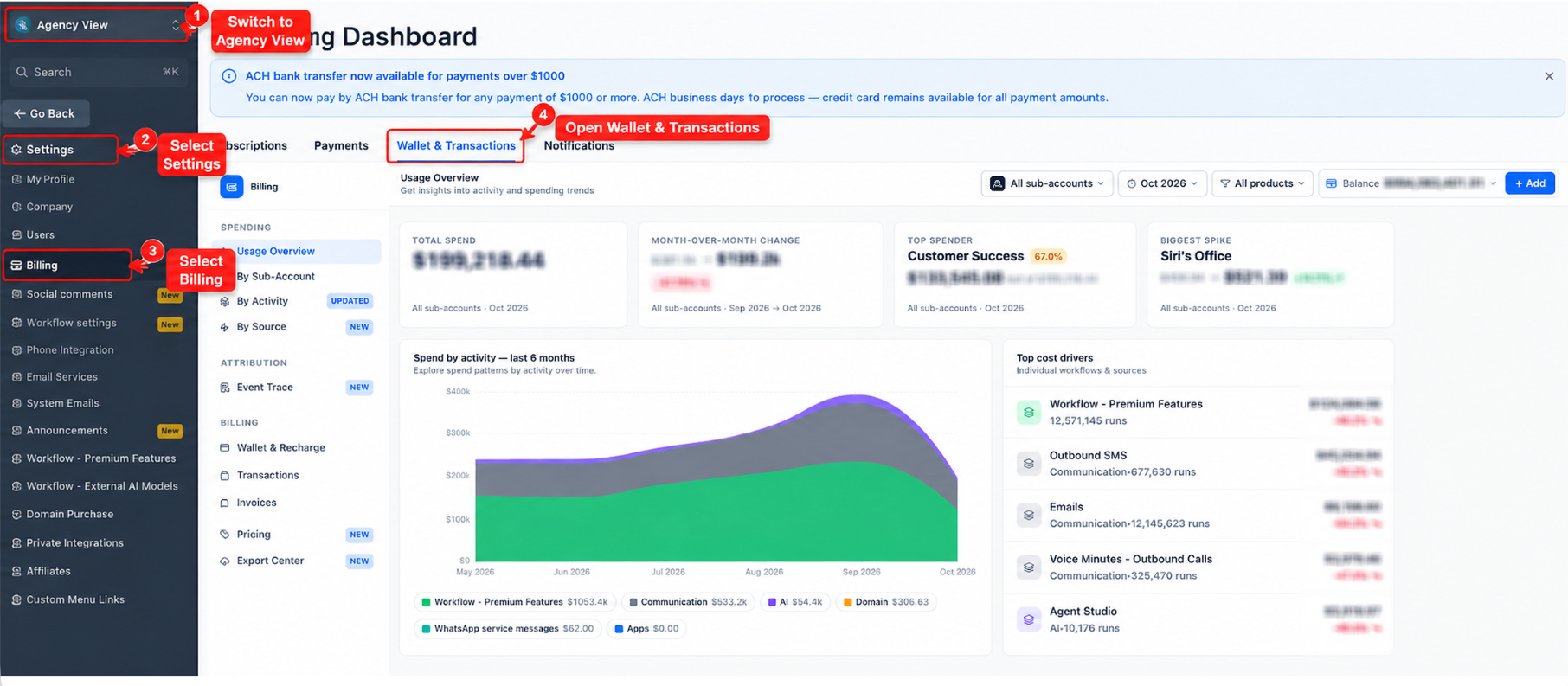
Open Wallet & Transactions
- Switch to Agency View.
- Select Settings.
- Select Billing.
- Open Wallet & Transactions.
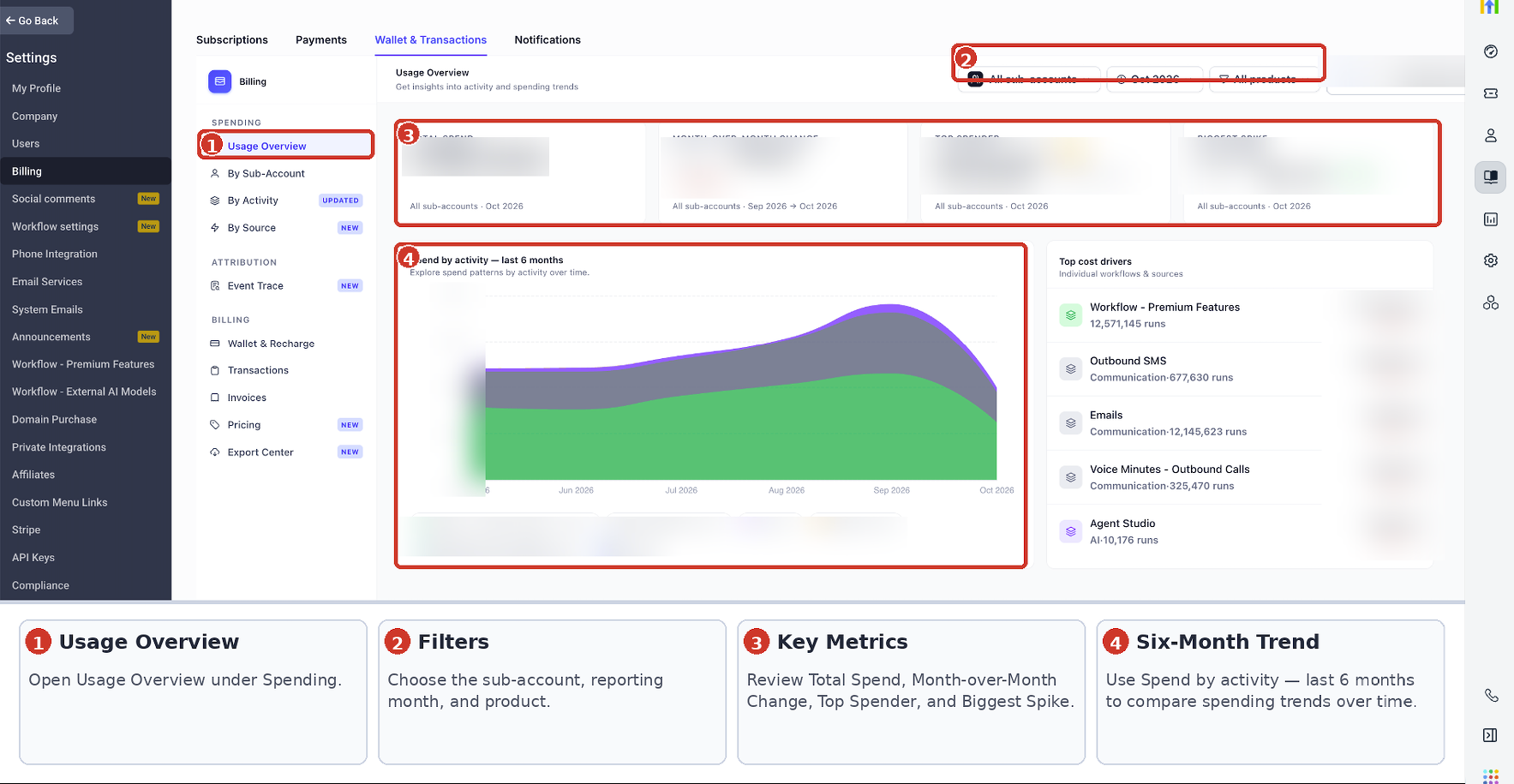
Review Usage Overview
- Under Spending, select Usage Overview.
- Apply the subaccount, reporting month, and product filters as needed.
- Observe the Total Spend, Month over Month Change, Top Spender, and Biggest Spike metrics.
- Examine the Spend by activity chart and the top cost drivers.
Review Spending by Subaccount
- While remaining in Agency View, select By Subaccount under Spending.
- Review the spending information for each subaccount to identify which locations contribute to agency wallet expenses.
- Note that you do not need to switch into an individual subaccount to view its agency level wallet spending.
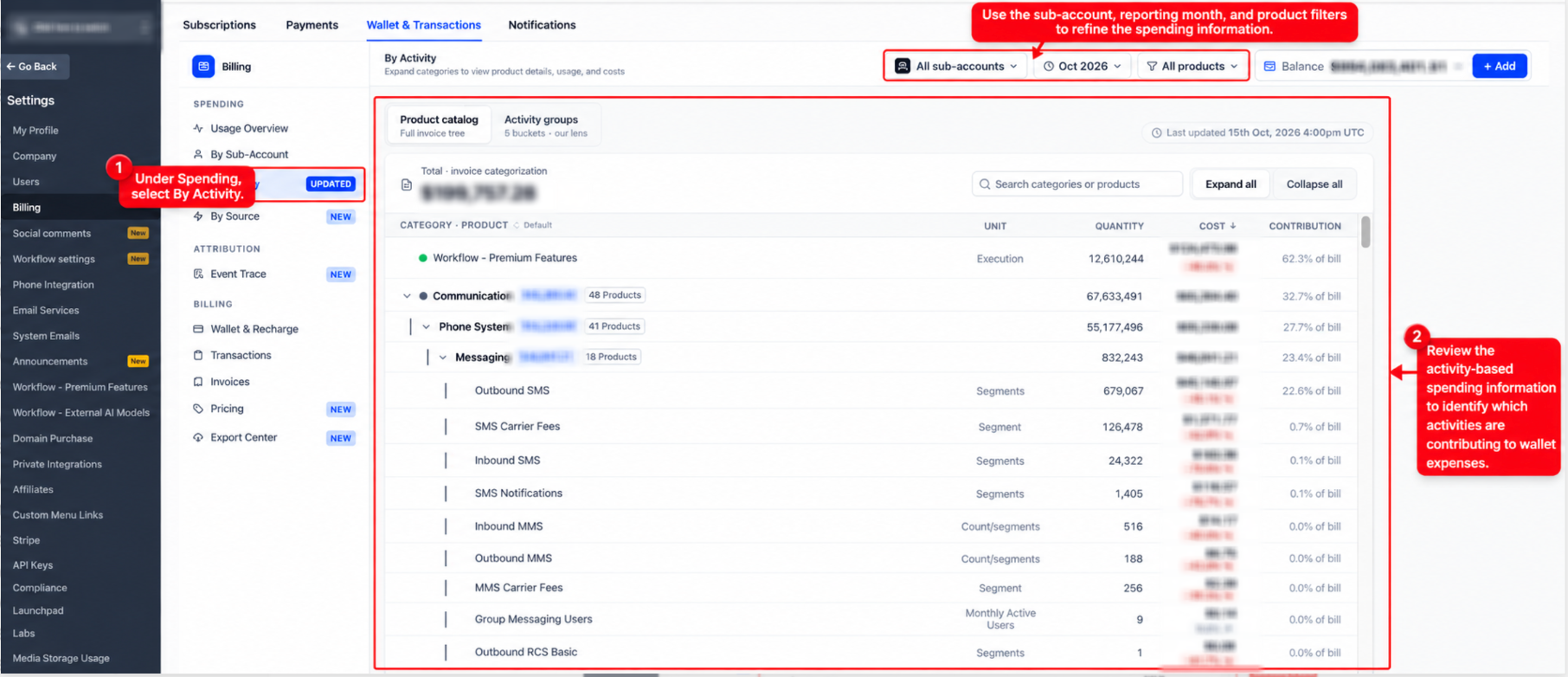
Review Spending by Activity
- Under Spending, select By Activity.
- Review the activity based spending information to identify which activities are contributing to wallet expenses.
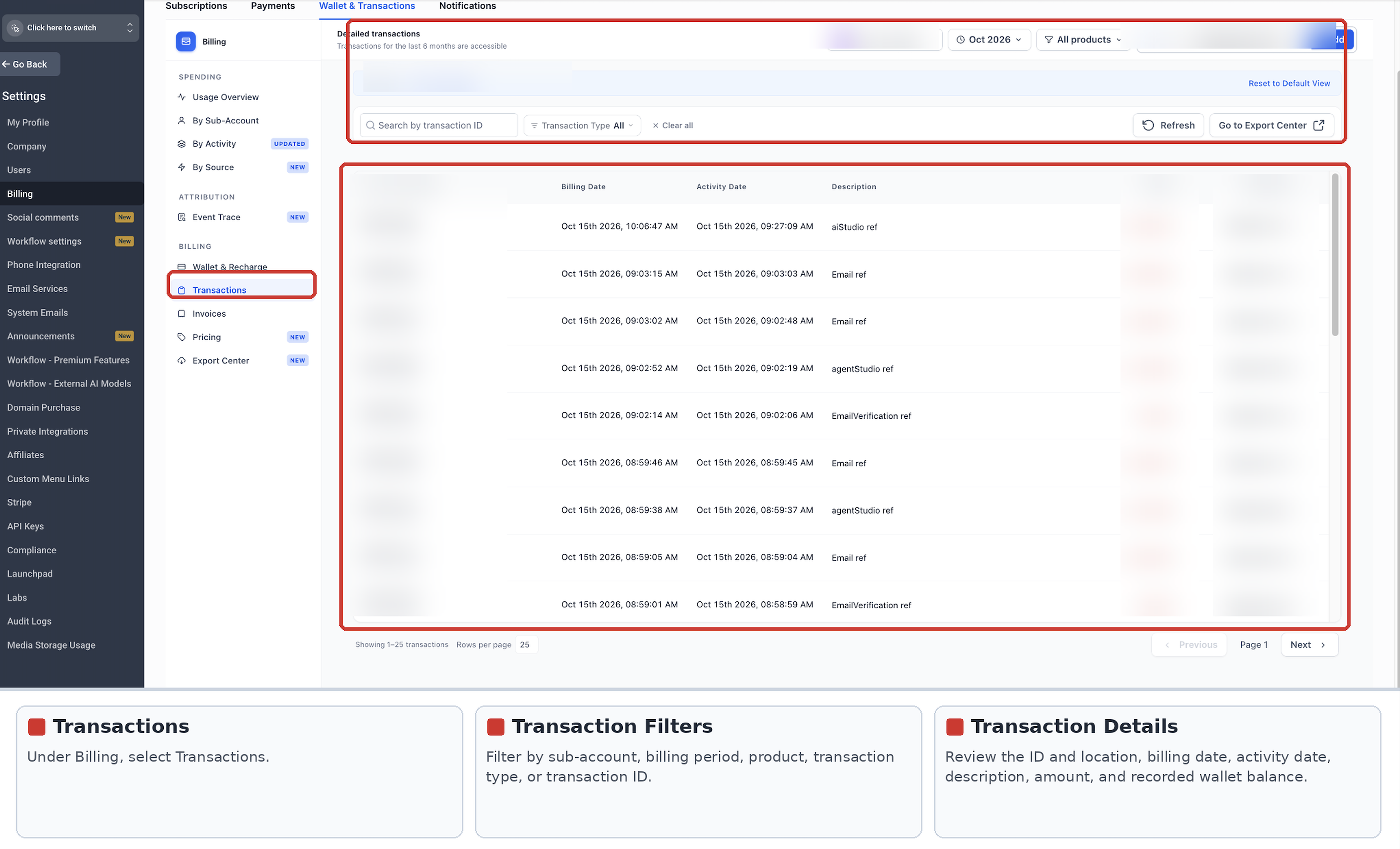
Review Individual Transactions
- Under Billing, select Transactions.
- Use the available filters (Subaccount, Billing Period, Product, Transaction Type, Transaction ID) to locate specific wallet charges.
- Review the transaction table details such as ID, dates, description, amount and total balance.
05What it looks like in HighLevel
06Settings that matter
- Sub, account. Filters transactions to a specific subaccount or includes all subaccounts.
- Billing Period. Limits the transaction list to a chosen month.
- Product. Shows only transactions for the selected product.
- Transaction Type. Narrows results to the chosen category of transaction.
- Transaction ID. Searches for a particular transaction using its unique identifier.
07How it connects to the rest of HighLevel
- Set up payment providers for agency billing Payment provider setup
- Review the Agency rebilling dashboard for additional billing insights Rebilling dashboard
- Check HighLevel pricing and plans for wallet top up costs Pricing
Michael's take

This feature consolidates everything into one view, making it easier to monitor wallet funds across multiple client accounts.
Don’t forget to filter by the correct subaccount or month, or you’ll be looking at the wrong data.