
01Who this is for
- Agency owners benefit because the selector shows the provider, version label and data management details, ensuring the right billing system is used.
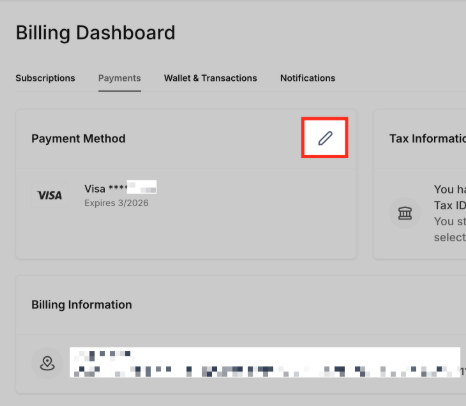
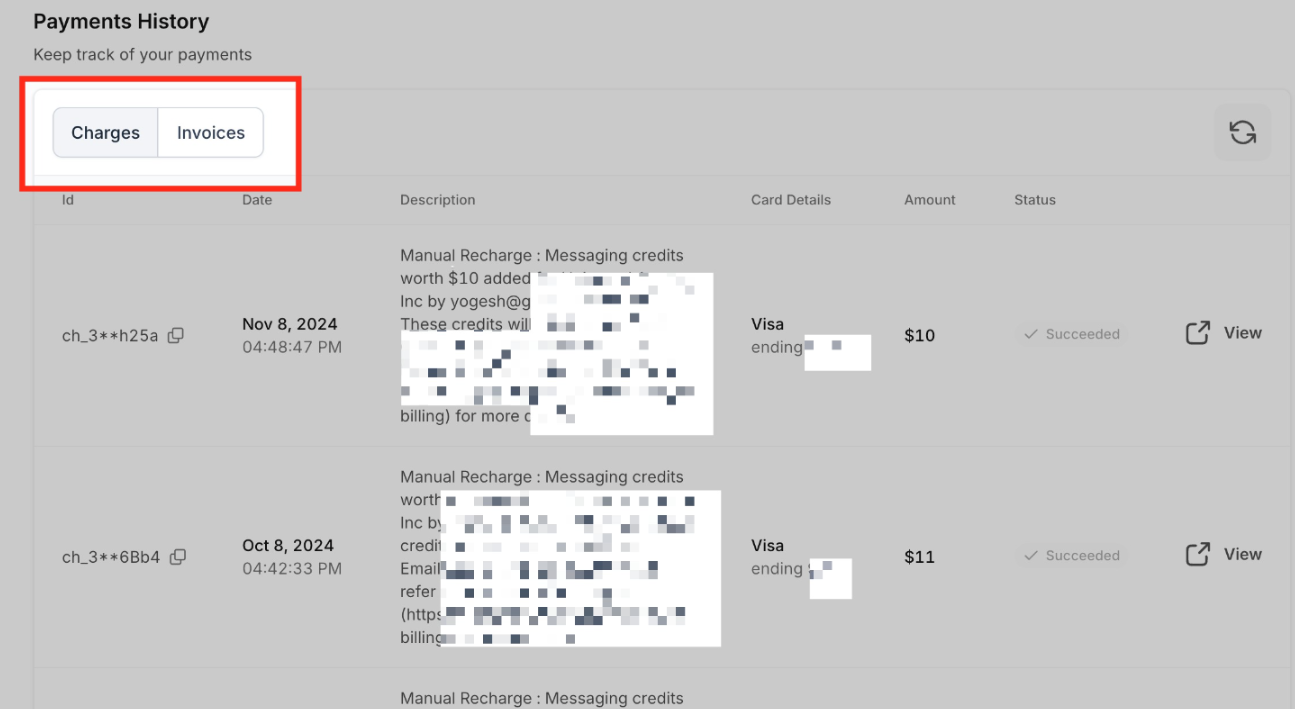
- Subaccount administrators gain the ability to add and edit payment methods and see all charges and invoices linked to their account.
- SaaS product vendors can use supported non Stripe providers through the V2 configuration for greater payment flexibility.
02SaaS payment providers, explained
The feature adds a provider selector to the SaaS activation flow. Each provider appears as a card that includes the provider logo, a V1 or V2 label, and a description of where customer and subscription data are stored. Selecting a card determines the billing architecture for that subscription.
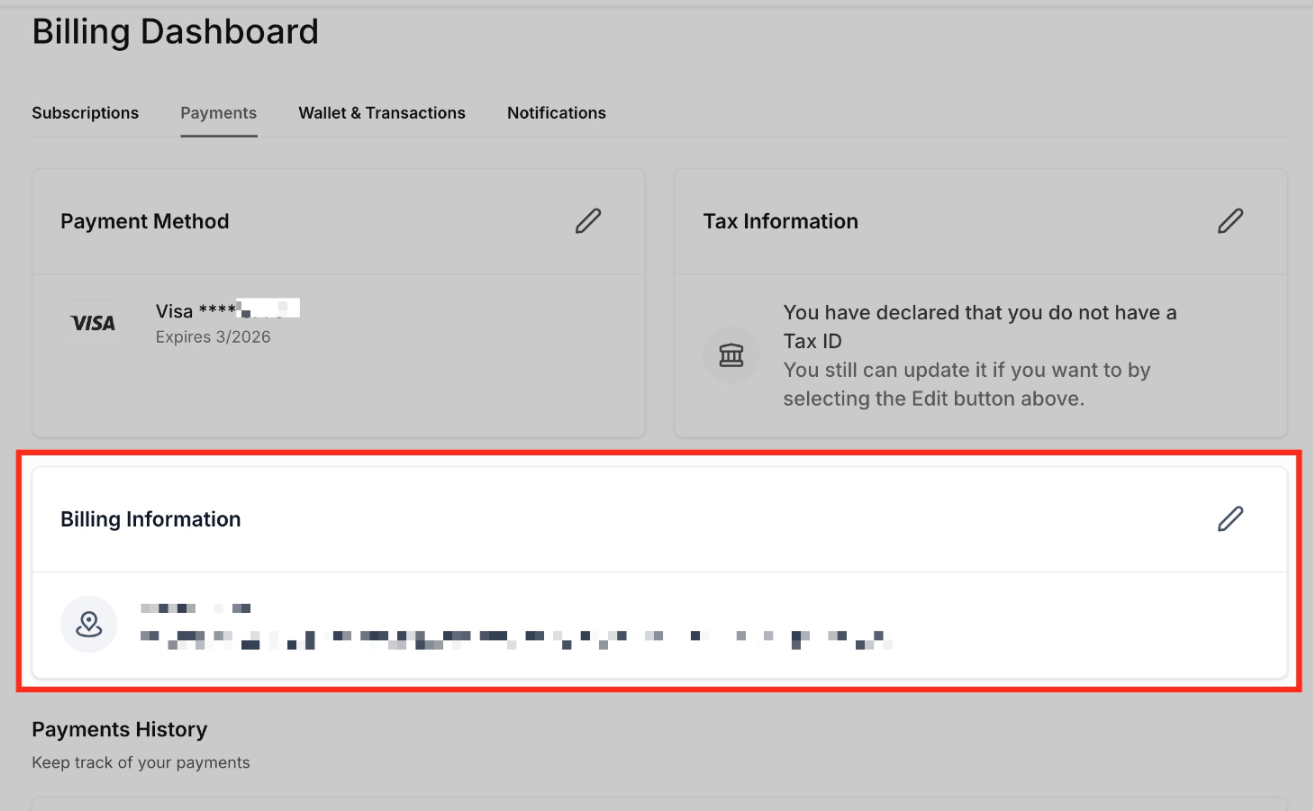
When a subaccount admin adds a payment method, the method is stored with the provider chosen by the agency for that subaccount. The billing page also lists all charges and invoices tied to the subaccount and saves any billing address entered by the admin.
All of these controls live inside the Agency View. The selector is reached through Subaccounts > Manage Client > SaaS > Add a SaaS Subscription. Payment provider configuration for V2 is managed under Payments > Integrations in the chosen subaccount.
03How businesses use saaS payment providers
- Digital marketing agency. The agency opens a client subaccount, launches the SaaS activation flow, and selects the appropriate provider card, V1 for the agency’s Stripe setup or V2 for a supported non Stripe provider. This ties the client’s subscription to the correct payment system.
- SaaS startup offering a subscription service. The startup’s subaccount admin adds a credit card on the billing page. The platform saves the card with the provider the agency selected for that subaccount, keeping payment data linked to the correct billing architecture.
- Fitness studio using membership software. The studio’s admin visits the subaccount billing page, reviews recent charges and invoices, and updates the stored billing address. All information is kept within the studio’s HighLevel subaccount record.
04The numbers and rules that matter
- Provider cards show logo, V1 or V2 label, and data management description.
- V1 (Agency) uses agency Stripe setup; data managed in Stripe.
- V2 (Subaccount) uses supported provider configured through the selected Agency Subaccount; data managed in HighLevel.
- Supported non Stripe payment providers are available through SaaS V2 configuration.
05Before you start
- Confirm the agency already has a supported payment provider configured for the desired SaaS version.
- For V2 setups, ensure the selected subaccount has a provider set up under Payments > Integrations.
06How to set up and use saaS payment providers in HighLevel
Set up SaaS payment provider selection
- In Agency View, open Subaccounts, select the appropriate subaccount and choose Manage Client.
- Enter the SaaS section and click Add a SaaS Subscription.
- Examine the provider cards and pick the card labeled V1 (Agency) for a Stripe based V1 setup or the appropriate V2 (Subaccount) card for a V2 configuration.
- Verify the version label on the provider card and read the description to confirm where customer and subscription data will be managed; avoid cards marked Not supported.
- Proceed through the subsequent customer, plan and payment screens that appear for the chosen activation flow.
- If using SaaS V2, verify that the subaccount already has a supported payment provider configured under Payments > Integrations.
- Consult the Reselling and Rebilling through SaaS V2 Payment Providers guide for any additional V2 rebilling steps.
07What it looks like in HighLevel
08Settings that matter
- Provider card. Shows the payment provider logo, whether it is V1 (Agency) or V2 (Subaccount), and a description of where customer and subscription records are managed.
- Billing page. Displays payment method options, a list of charges and invoices, and fields for saving a billing address tied to the subaccount.
09Things to know before you rely on it
- Cards marked Not supported cannot be chosen during activation.
- Custom payment providers are unavailable unless they support recurring payments and off session charging.
- Selecting a V2 provider does not migrate an existing V1 subscription; the two architectures remain separate.
10How it connects to the rest of HighLevel
- Explore all Labs features that include SaaS enhancements Labs features overview
- Learn how the Subaccount Launchpad supports onboarding for SaaS customers Subaccount Launchpad
- Read about agency billing wallets and transaction summaries Agency Billing
- View pricing details for HighLevel plans Pricing
Michael's take

Agencies juggling many client subscriptions often stumble over where the payment data lives and which processor handles each bill. The new provider cards and billing page give a clear visual cue and let admins keep payment methods tied to the right system, cutting down on mix ups.
The first thing I would get right is the provider card selection during SaaS activation. Seeing the V1 or V2 label and the data management description ensures the subscription lands in the intended record before any money moves.