
01Who this is for
- Agency admins who need consistent client facing messaging can prevent unrelated upsells from appearing.
- Marketing teams managing multiple client subaccounts can keep announcements on brand and avoid clutter.
- Support managers can hide system prompts that generate unnecessary tickets.
02In app banner management, explained
The feature provides a single place to see every banner that HighLevel can show to agency users and clients. You can review each banner, change its order, set how often it may reappear, and turn it on or off.
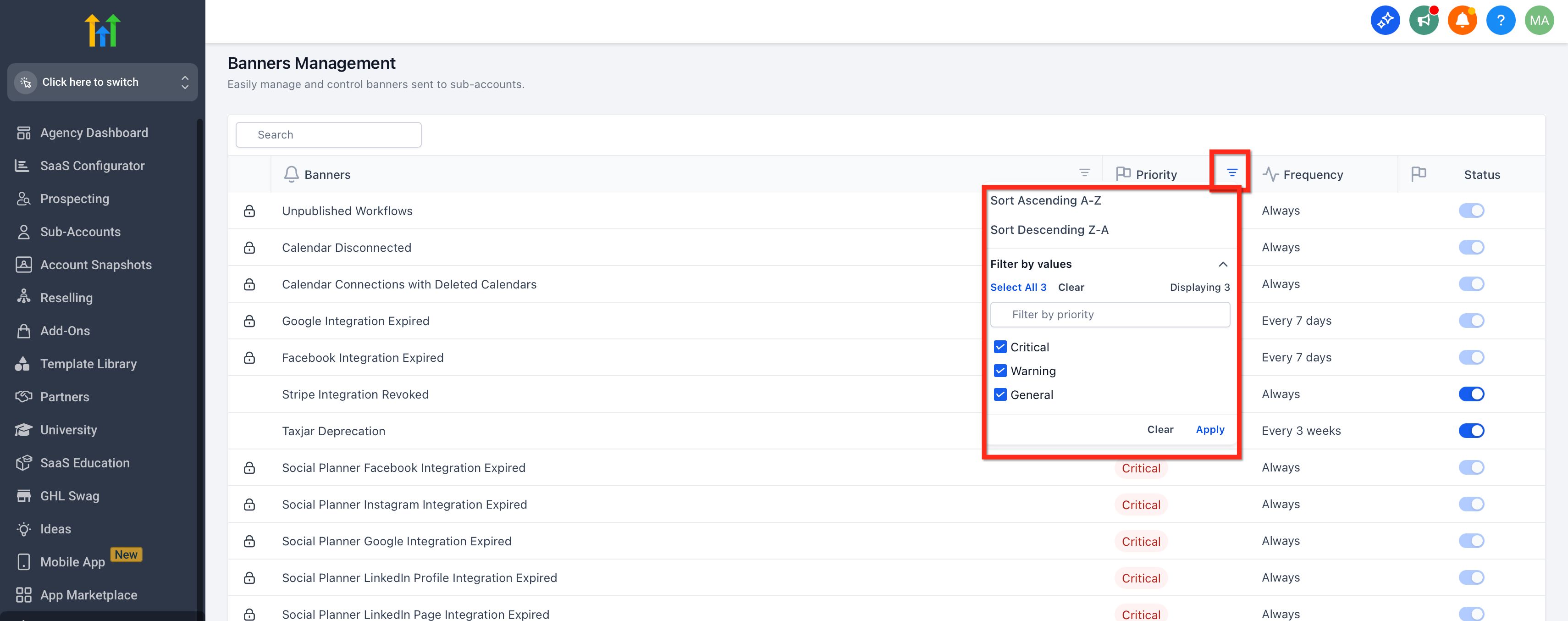
Banner visibility follows three controls: Priority decides which banner shows first; Frequency sets the repeat interval after a user dismisses it; Status (Enable/Disable) determines whether the banner is shown at all. The banner’s scope decides if it appears in the agency dashboard, in subaccounts, or both.
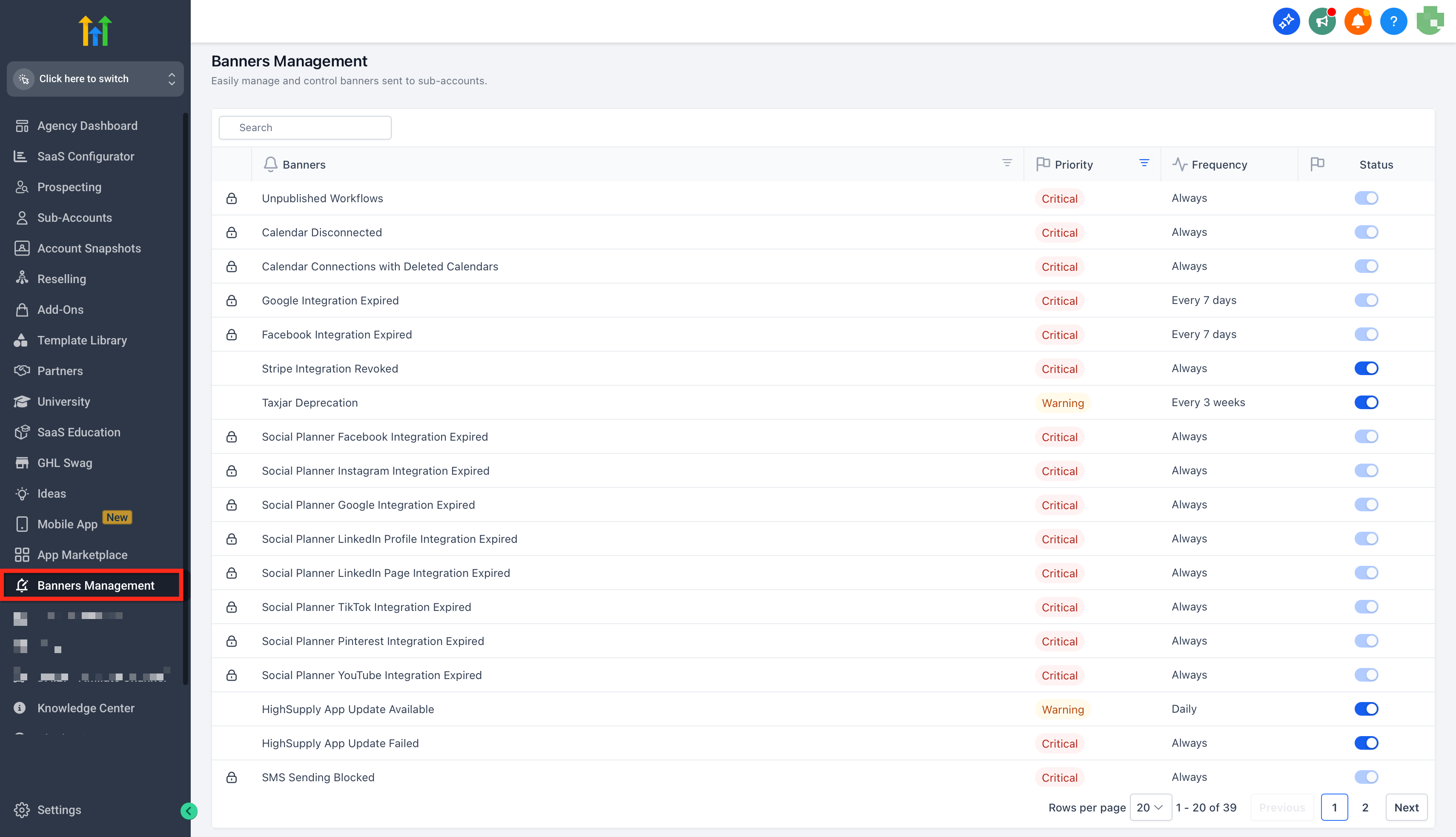
Banner Management lives under Agency Settings > Banner. Only users with Agency Admin rights or a custom role that includes the Banner Management permission can make changes.
03How businesses use in app banner management
- Digital marketing agency. The agency enables seasonal promotion banners for all client dashboards, raises their priority during campaign peaks, and sets a low frequency so the messages are not shown too often.
- SaaS startup incubator. During onboarding, the incubator disables upsell banners on new subaccounts to keep the interface clean, then re enables them after the trial period ends.
- Coaching firm. Coaches set a moderate frequency for weekly motivational banners and verify that each coach’s subaccount displays the banners in the correct order.
04Before you start
- Log in as an Agency Admin.
- Ensure the user has permission to manage agency level settings or a specific Banner Management permission.
05How to set up and use in app banner management in HighLevel
Set up banner management for agency and subaccounts
- Log in as an Agency Admin and navigate to Agency Settings > Banner.
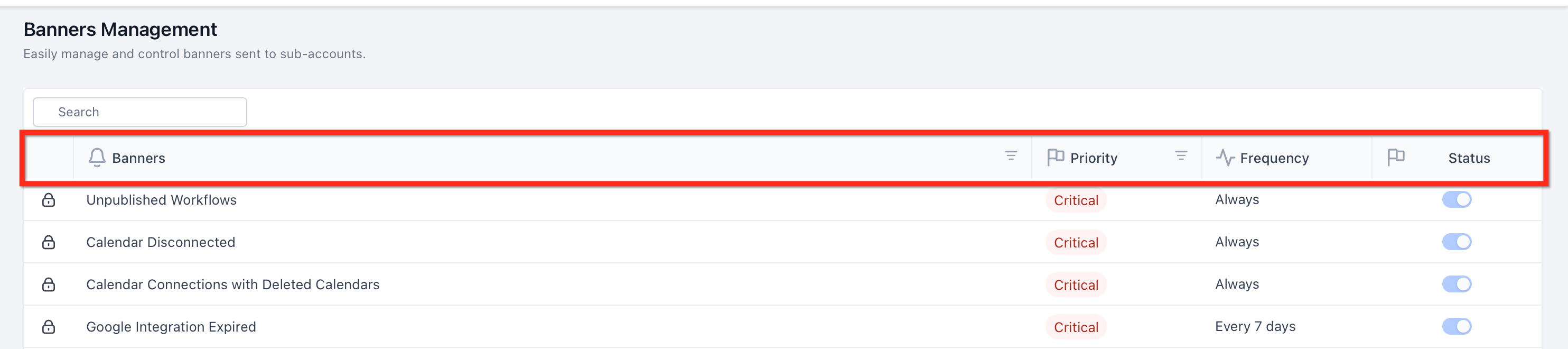
- Review the banner list and note the columns for banner name, priority, frequency, and status.
- Change the order of banners by dragging them or editing the priority value, then save if required.
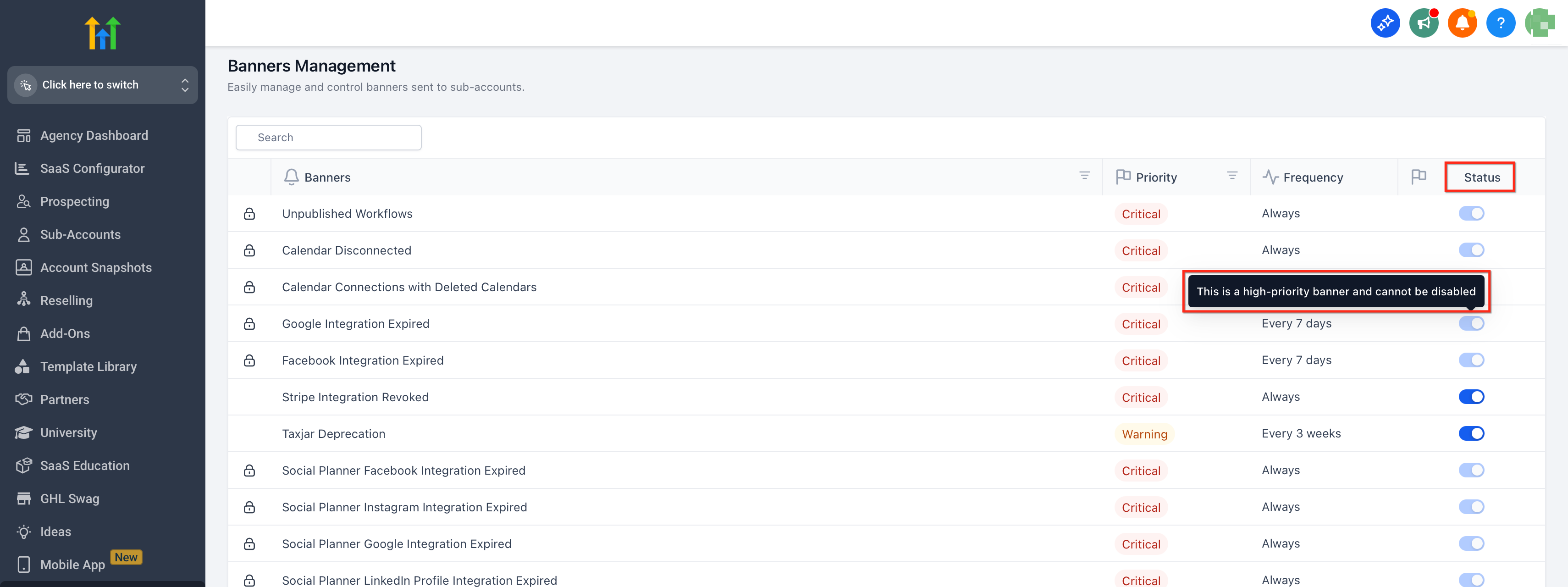
- Toggle each banner’s enable/disable switch; locked system banners will display a restricted control.
- Switch to a subaccount view to confirm that banners appear according to their defined scope.
06What it looks like in HighLevel
07Settings that matter
- Priority. Controls the order in which banners are shown; higher priority banners appear before lower ones.
- Frequency. Sets how often a banner can reappear after a user dismisses it.
- Status. Enables or disables a banner platform wide; disabling hides the banner for its defined scope.
08Things to know before you rely on it
- Some system banners are locked and cannot be edited; they show a restricted control icon.
- Targeting options vary by banner type; not all banners can be limited to specific subaccounts or roles.
- Dismissal persistence may differ between browsers or devices, and frequency settings dictate when a banner can show again.
- Changing priority only affects display order; it does not alter any analytics tied to the banner.
09How it connects to the rest of HighLevel
- Create in app banners with the Announcements Builder Announcements Builder
- Access subaccount views via the LaunchPad Subaccount LaunchPad
- Review agency billing and wallet details Agency Billing Summary
Michael's take

Watch out for system locked banners; they may look like they can be toggled but actually aren’t. Trying to edit those can waste time and cause confusion about why changes don’t stick.
When the controls work, you get a clean, on brand experience for every client and cut down on unnecessary support chatter. It’s a straightforward way to keep the app’s messages relevant and ordered.