
01Who this is for
- Agency owners can standardize client setups quickly, reducing repetitive work.
- Marketing teams that manage many client subaccounts benefit from a single workflow for snapshot deployment.
- Consultants overseeing several client portals can ensure consistent dashboard defaults and asset configurations.
02Multiple subaccounts, explained
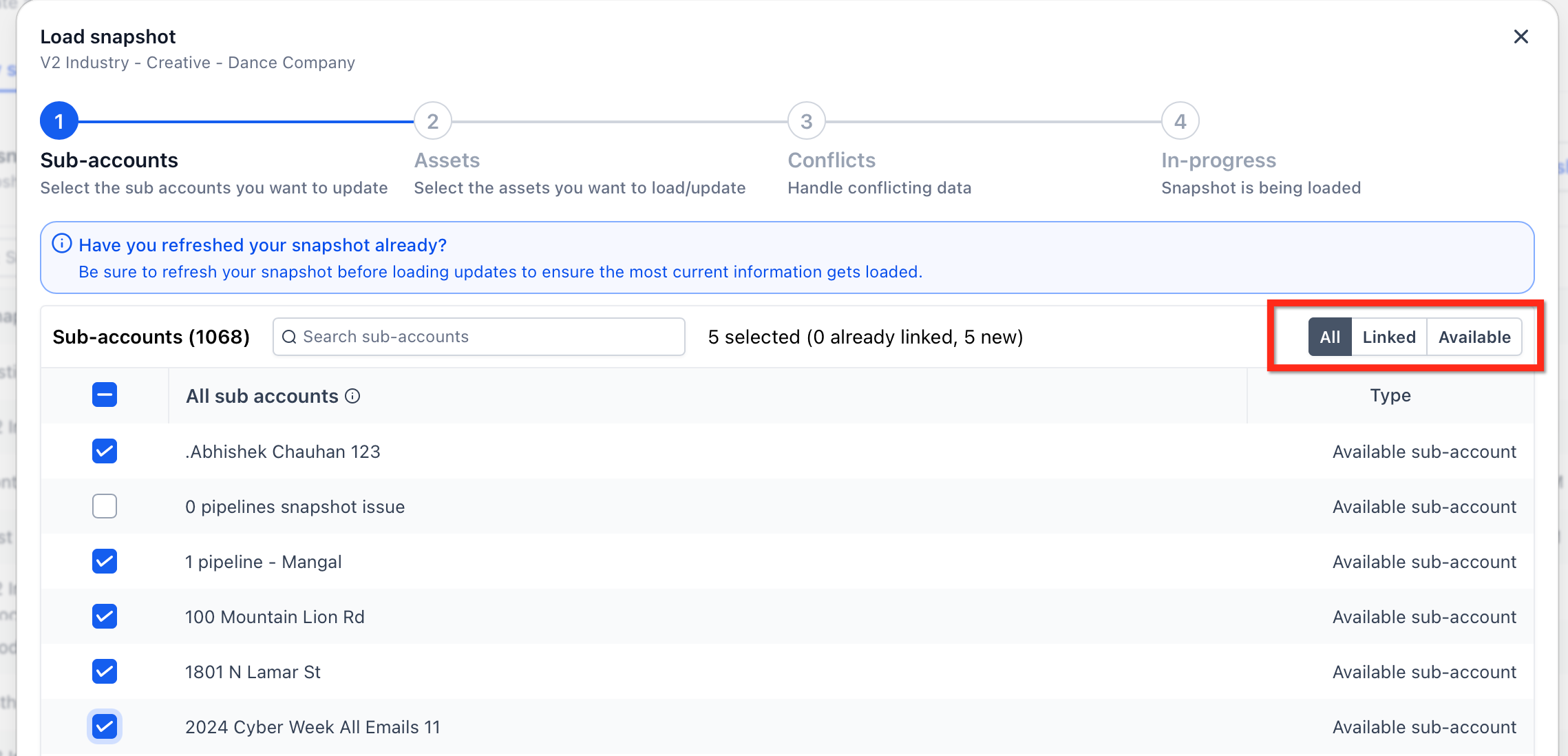
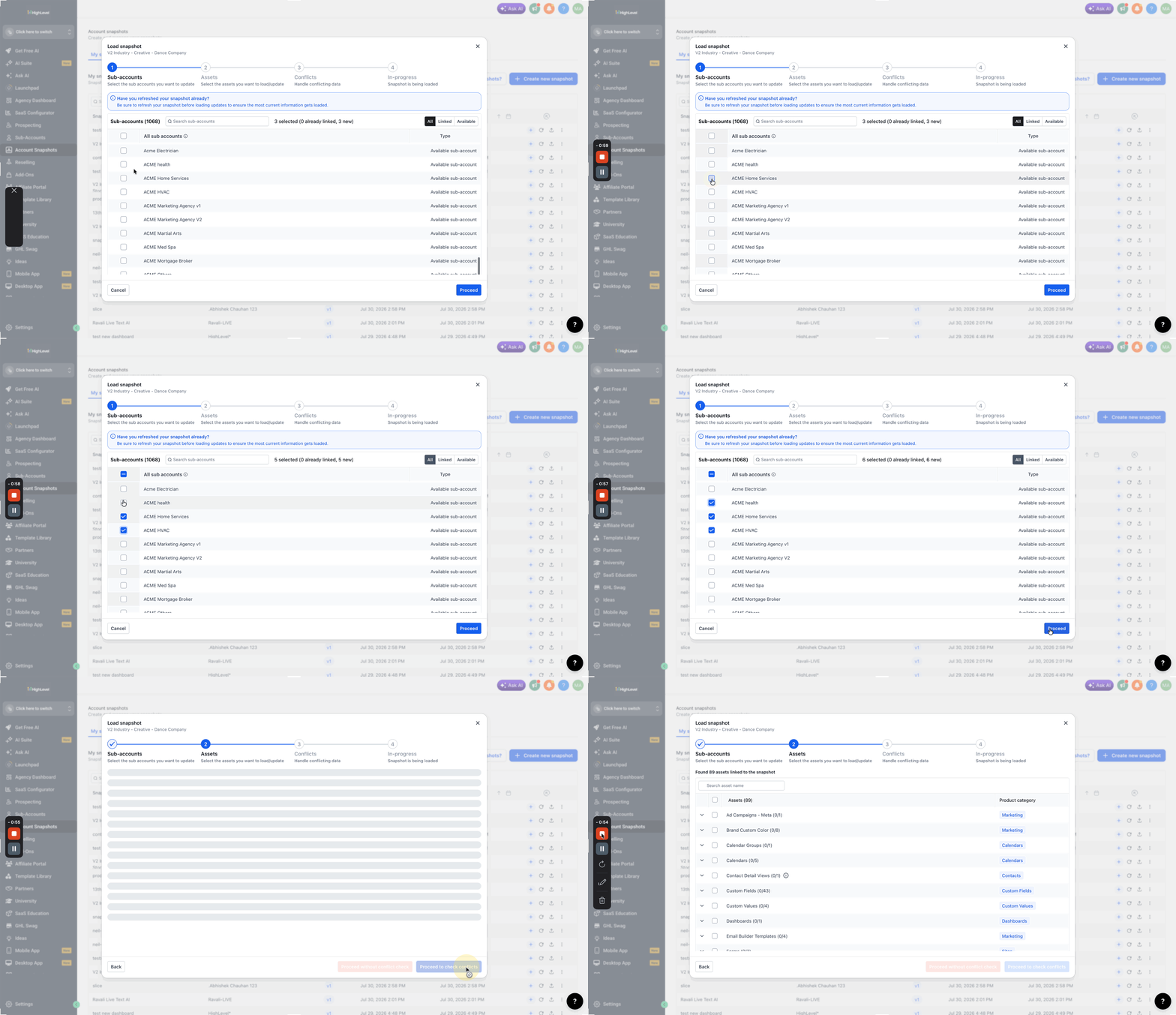
The feature expands the normal snapshot load by offering a centralized modal in My Account Snapshots. From there, agencies see all their subaccounts, filter them by relationship to the snapshot, and select any number to receive the load. Once confirmed, HighLevel loads the snapshot assets into each chosen account and links any previously unlinked subaccounts during the same action.
When dashboards are part of the snapshot, the modal lets the user mark one dashboard as the default for every destination account. If no dashboard is marked, the snapshot’s original default dashboard remains. The process finishes with a single confirmation step, after which HighLevel carries out the load across all selected subaccounts.
03How businesses use multiple subaccounts
- Digital marketing agency. The agency opens My Account Snapshots, picks a branding snapshot, filters to the Available tab, selects all new client subaccounts, marks the main reporting dashboard as default, and launches the load to provision the same marketing tools across all clients.
- Consulting firm. The firm navigates to My Account Snapshots, chooses a consulting workflow snapshot, uses the All tab to find both existing and new project subaccounts, checks the boxes for the relevant accounts, and confirms the load to set up identical project pipelines.
- Software reseller. The reseller accesses the Load modal, selects the Available tab to identify subaccounts not yet linked to a support snapshot, selects several reseller client accounts, optionally sets the support dashboard as default, and runs the load to replicate support ticket settings.
04How to set up and use multiple subaccounts in HighLevel
Load a snapshot to multiple subaccounts
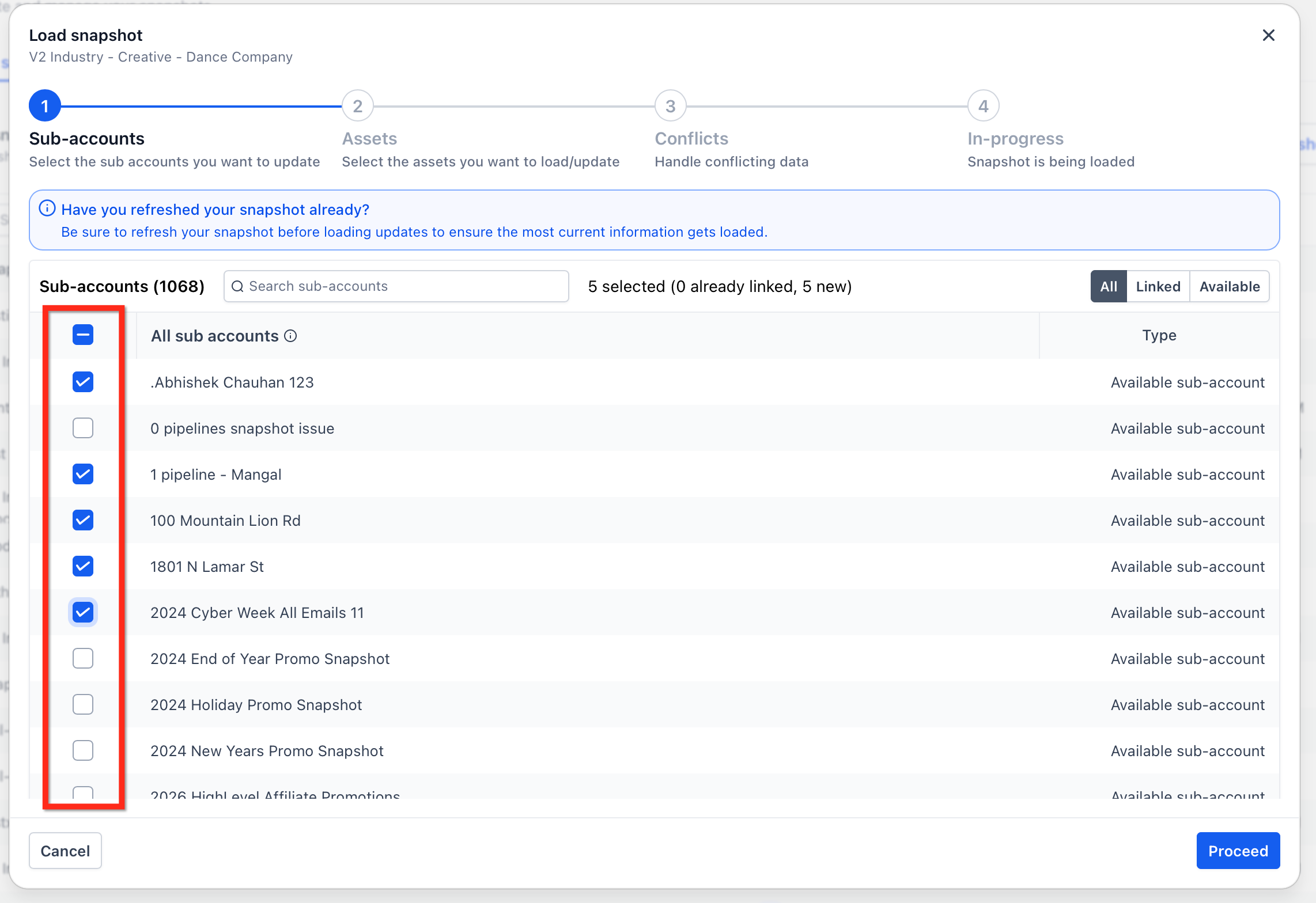
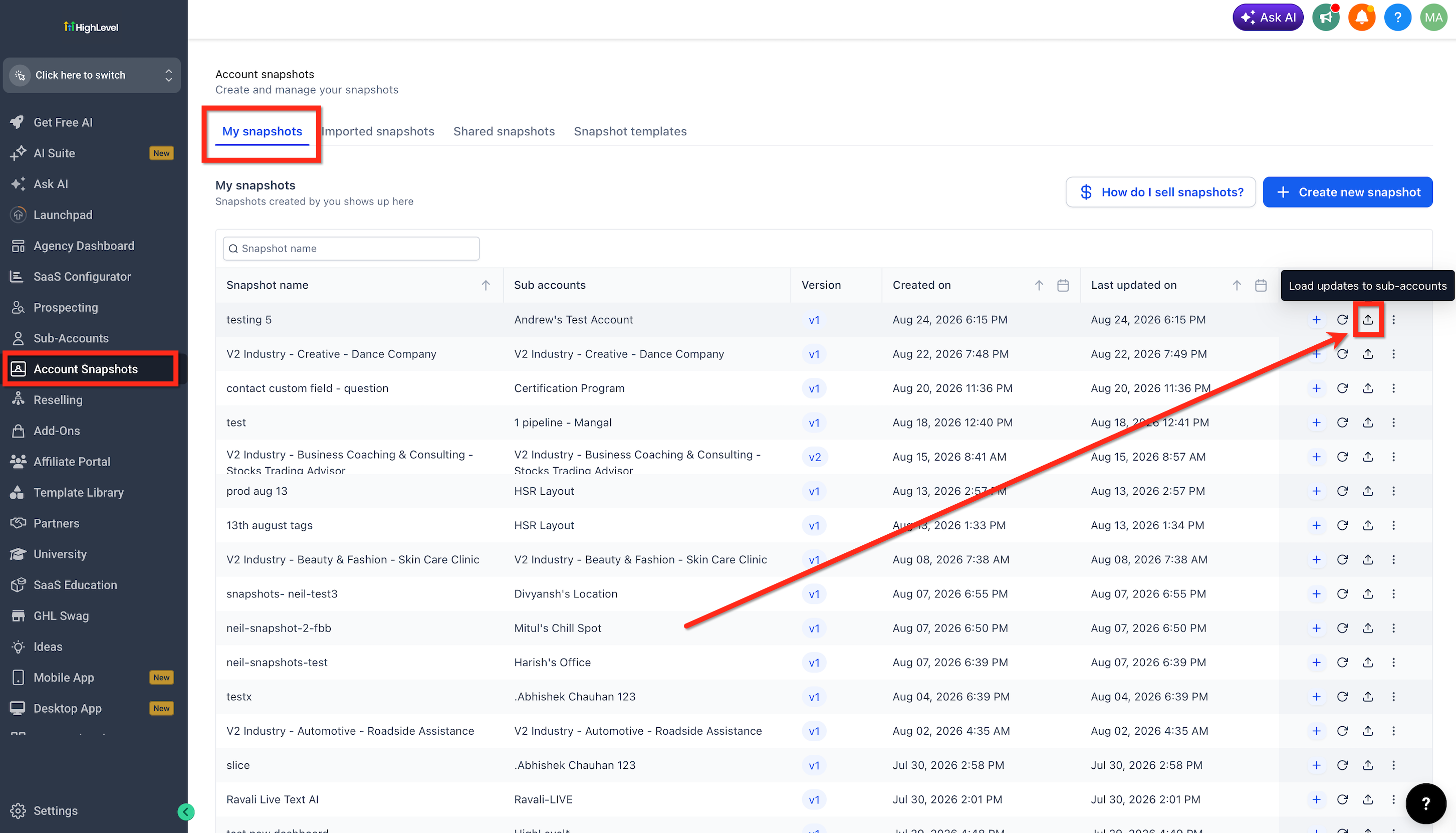
- Open My Account Snapshots from Agency View and click Load Updates to Subaccount next to the desired snapshot.
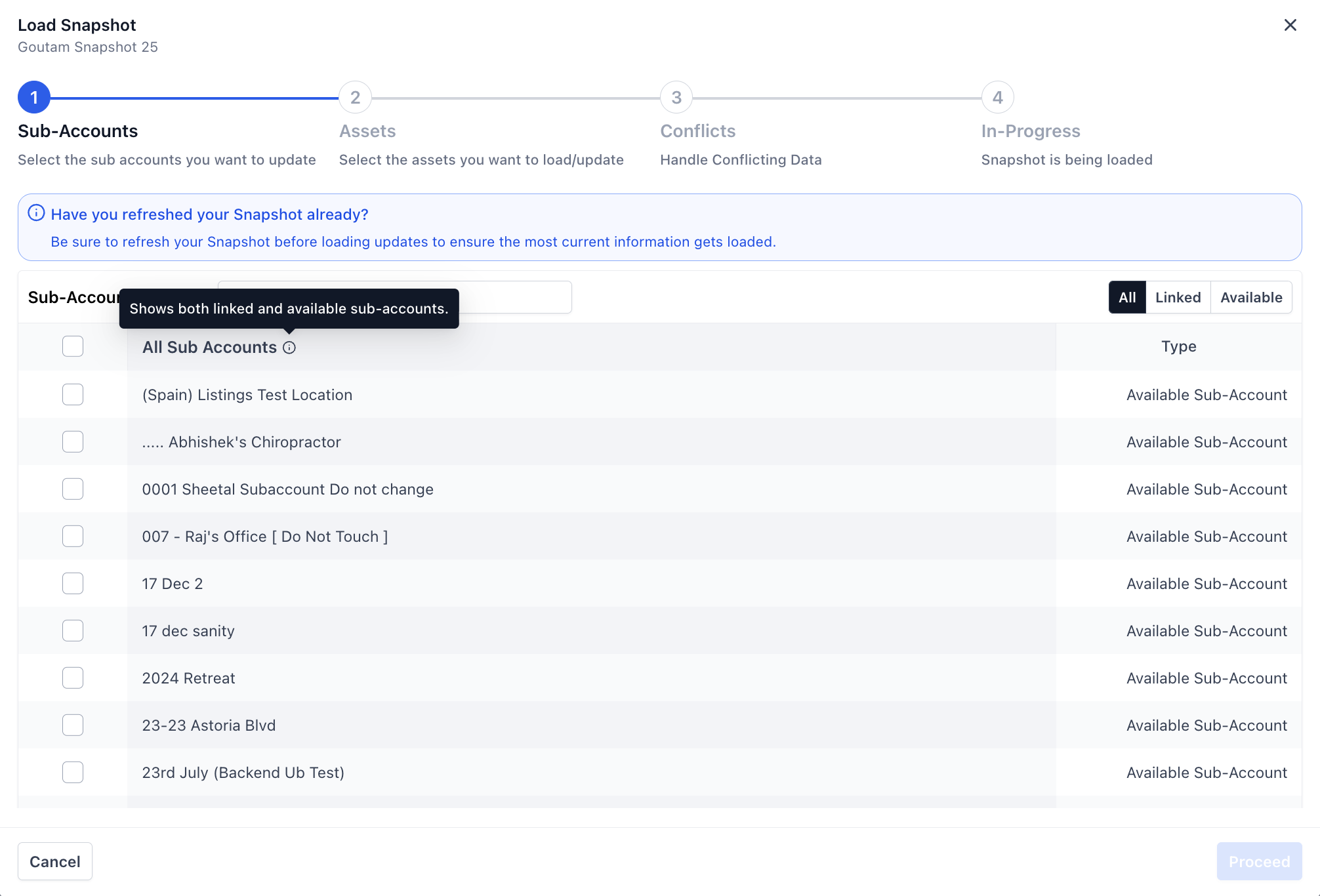
- Choose the appropriate account tab, All, Linked, or Available, to narrow the list.
- Check the boxes beside each subaccount you want to include, using the search field if needed.
- Click Load to move to the next phase of the snapshot loading process.
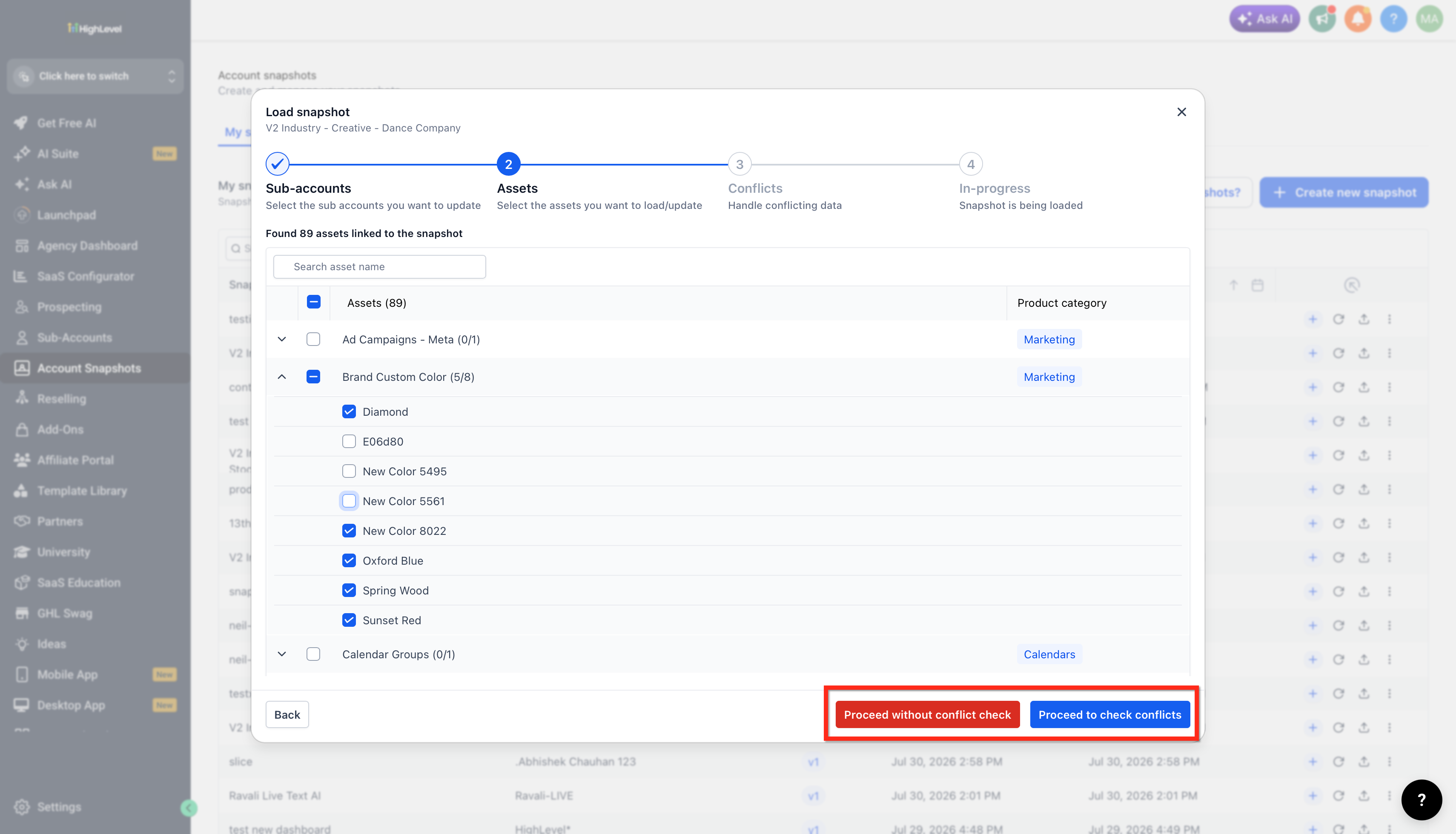
- Review the snapshot items, resolve any presented conflicts, and, if dashboards are included, click Set as default on the chosen dashboard.
- Confirm the action to begin loading the snapshot into all selected subaccounts.
05What it looks like in HighLevel
06Settings that matter
- Set as default. Marks a single dashboard from the snapshot as the default dashboard for every destination subaccount during the load.
07Things to know before you rely on it
- Only one dashboard can be marked as default during a multi subaccount load.
- If no dashboard is marked, the snapshot’s existing default dashboard is used.
- This workflow does not replace the Push Updates feature; Push Updates remains a separate process.
08How it connects to the rest of HighLevel
- Learn how to load a snapshot into an existing subaccount Load snapshots into existing subaccount
- Create a new subaccount using a snapshot Create subaccount with snapshot
- Read the overview of account snapshots Account snapshots overview
Michael's take

I would load the snapshot into every client subaccount at once, pick the same dashboard as default, and walk away knowing each client now has the same setup.