
01Who this is for
- Agency owners who manage multiple client subaccounts and need a single source of truth for configurations.
- Marketing teams that create standardized funnels and want to propagate changes without rebuilding each account.
- Workflow administrators who need to ensure contacts waiting on steps are cleared when a step is removed.
02Refresh or update snapshots, explained
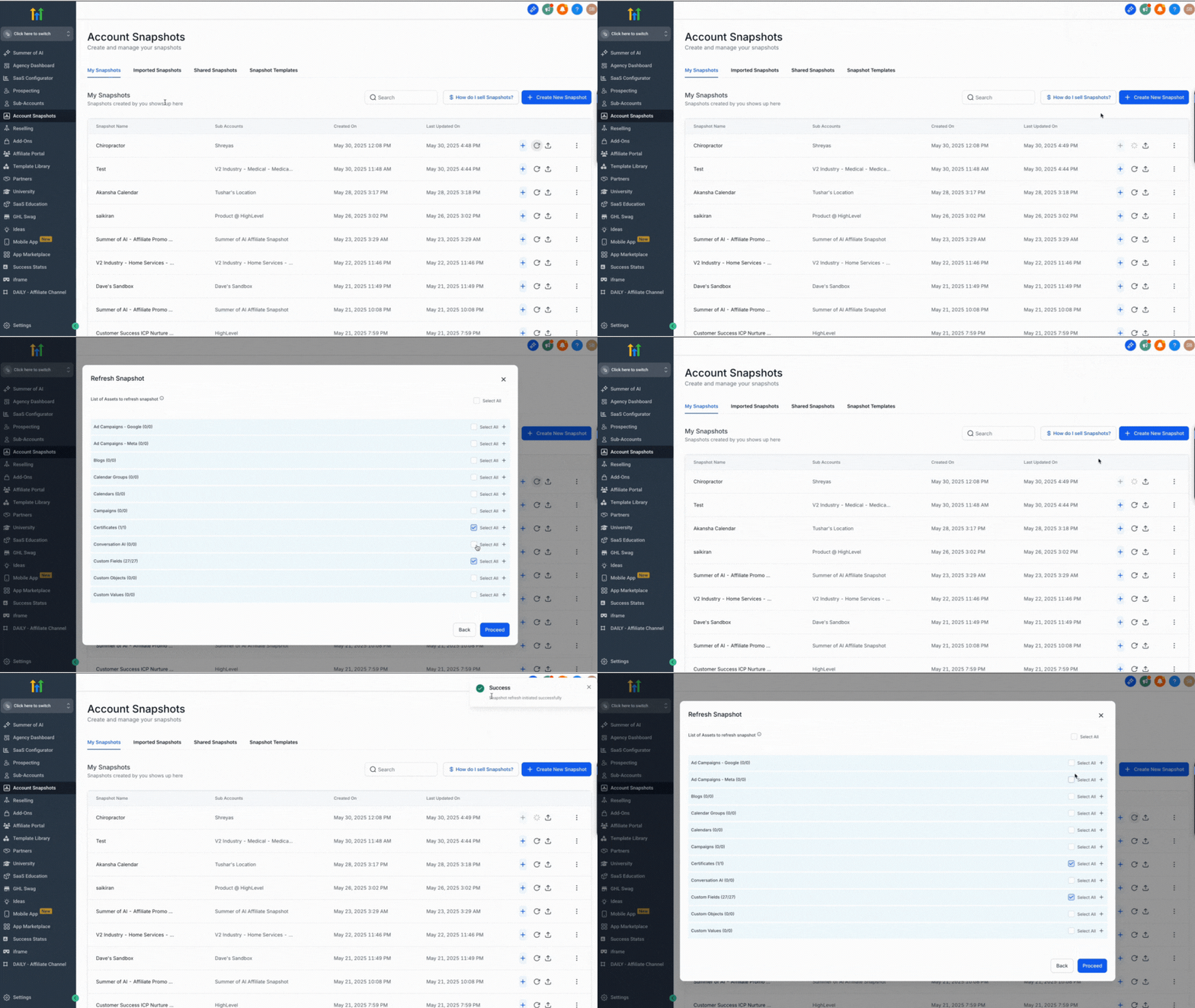
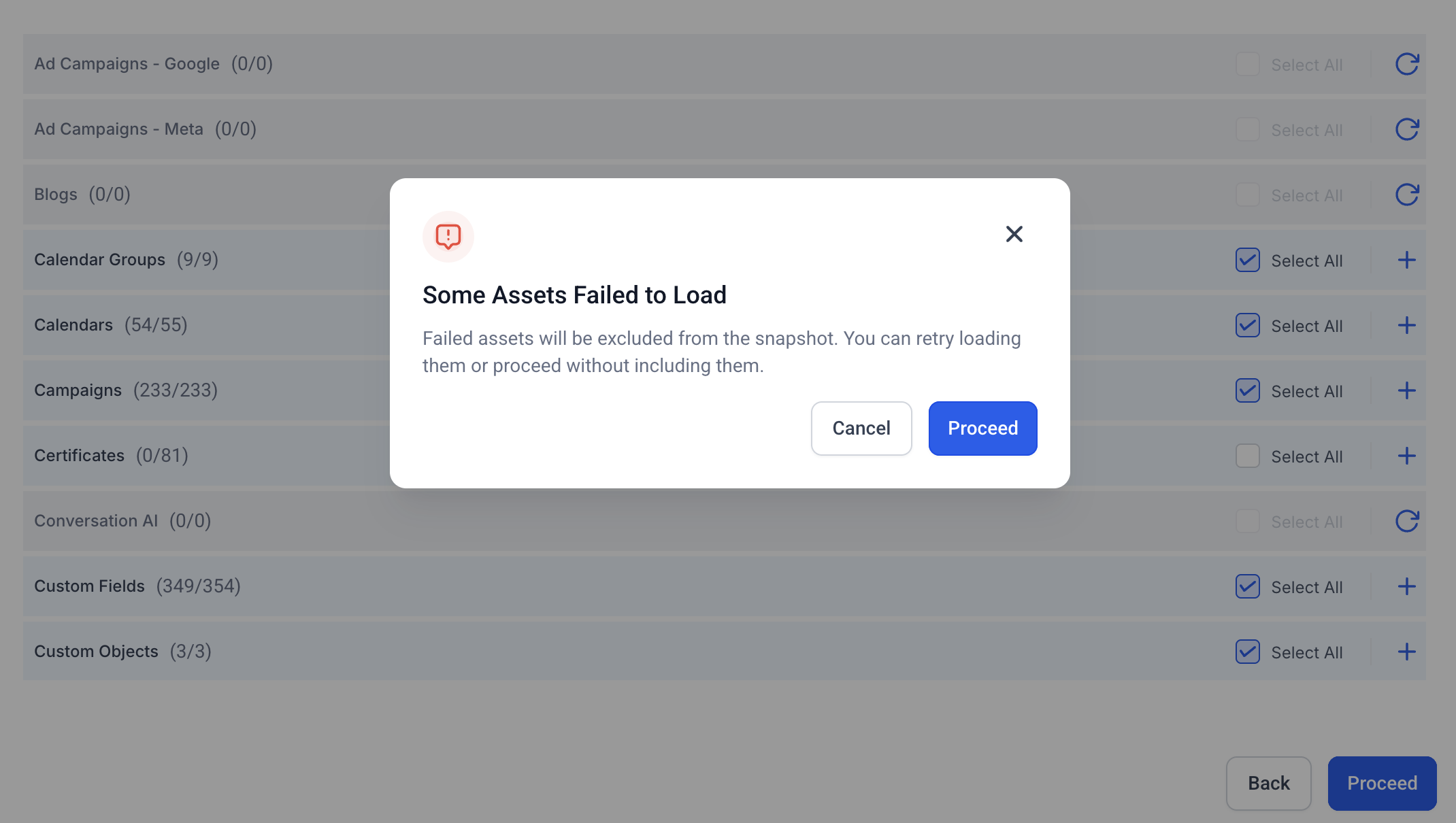
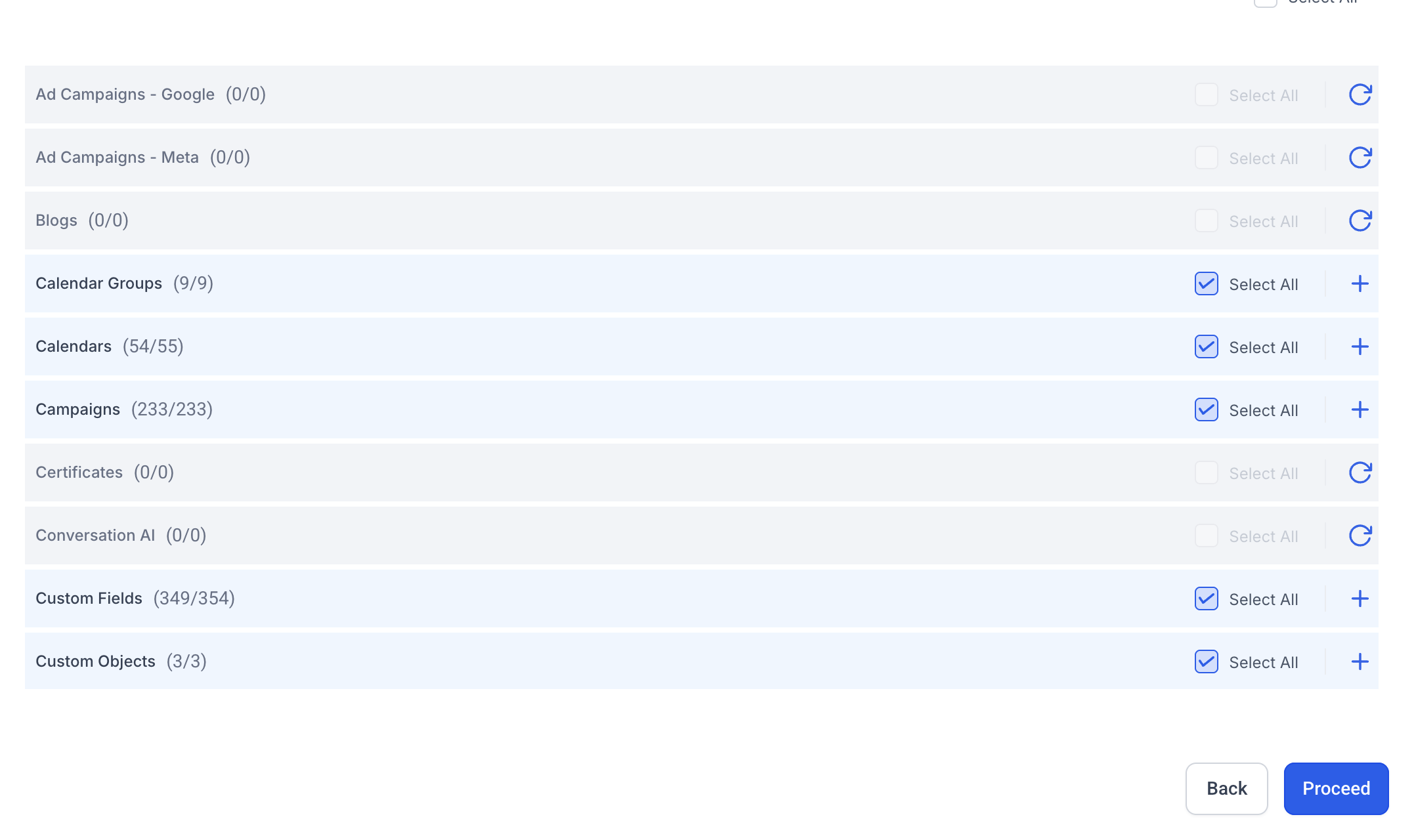
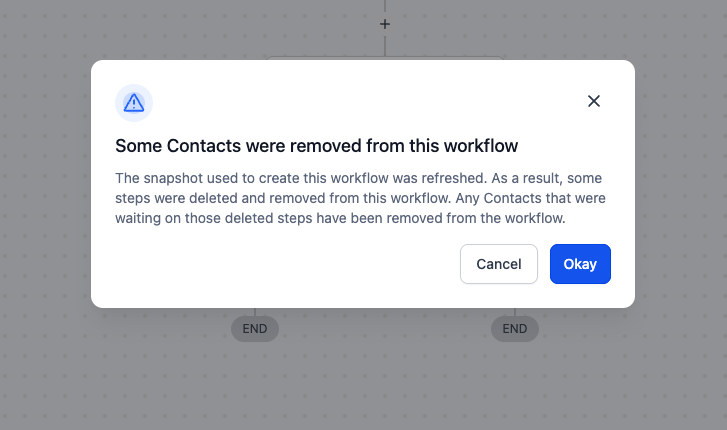
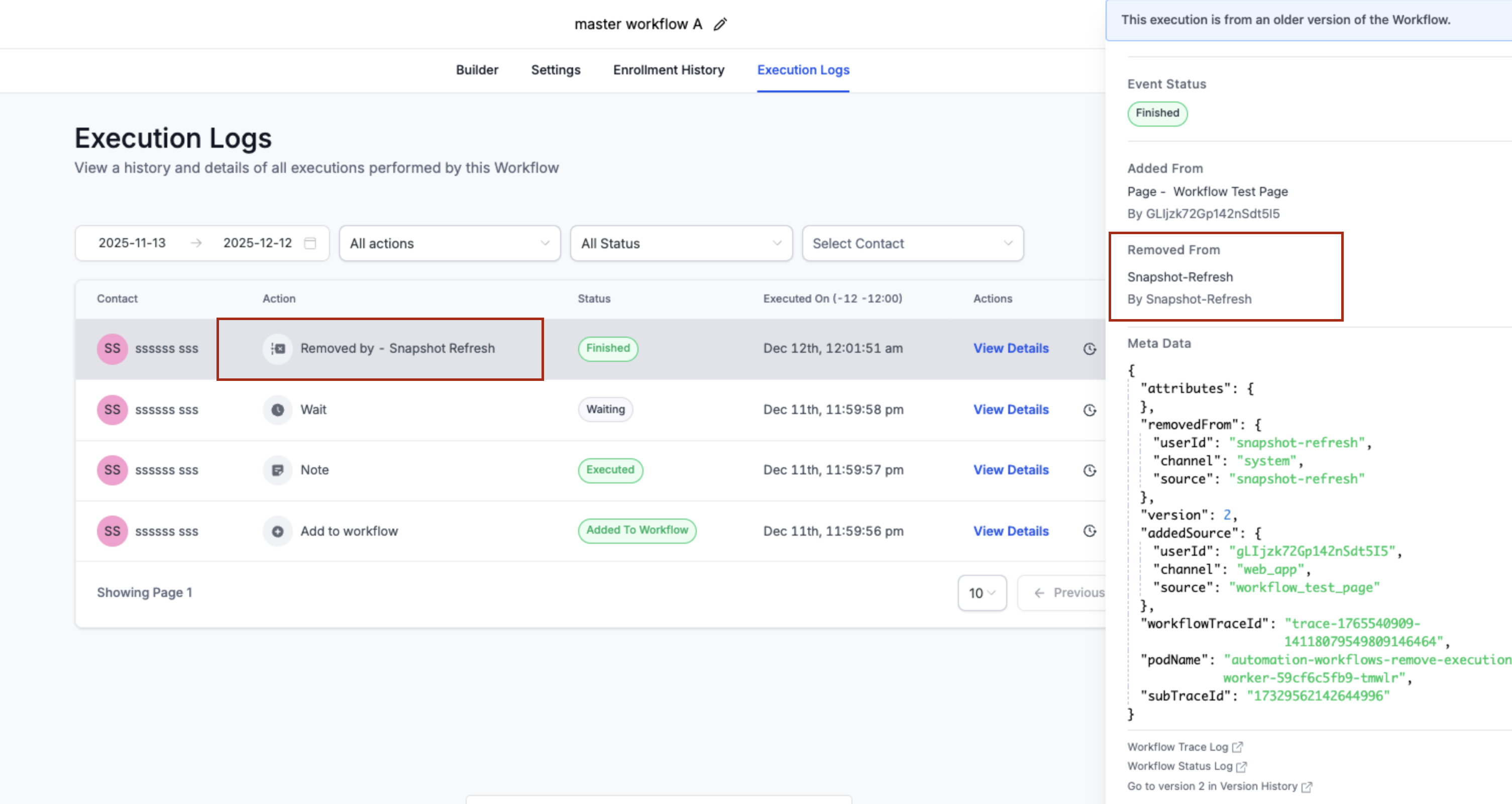
Refreshing a snapshot loads the selected assets from the source subaccount into the stored snapshot. A progress indicator shows how many assets have been loaded, and any assets that fail are marked as failed while the others continue. After the refresh a “Push Update” button appears, allowing you to choose which subaccounts inside your agency receive the selected assets. If a workflow step created from a snapshot is removed during the refresh, HighLevel automatically deletes contacts waiting on that step, shows a one time notice in the workflow, and records an entry labeled “Removed by - Snapshot Refresh” in Execution Logs.
03How businesses use refresh or update snapshots
- Digital marketing agency. The agency refreshes its master snapshot after adding a new lead capture form. It selects the form asset during refresh, then pushes the update only to clients that already use the snapshot, ensuring all accounts have the latest form without overwriting other data.
- SaaS onboarding team. When the team adds a new onboarding workflow, they refresh the snapshot that stores the onboarding assets. They then push the workflow update to existing customer subaccounts, letting each client receive the new steps while keeping their existing contacts intact.
- Insurance brokerage. After modifying a policy application funnel, the brokerage refreshes the snapshot and selects the funnel asset. They use Push Update to send the revised funnel to the broker’s regional offices that imported the snapshot, keeping every office aligned with the latest funnel design.
04Before you start
- A snapshot must already exist for the subaccount you intend to update.
05How to set up and use refresh or update snapshots in HighLevel
Refresh a snapshot
- Open Agency View and click the Account Snapshots tab on the left menu.
- Locate the desired snapshot and press the Refresh icon beside it.
- Choose the new or modified assets you want to add to the snapshot.
- Press Refresh to complete the update; a progress indicator will show loaded assets and any failures will be marked.
06What it looks like in HighLevel
07Things to know before you rely on it
- Failed assets are marked but do not stop the refresh; you can retry only those failures later.
- Push updates apply only to subaccounts within your own agency; external agencies must re import a new link.
- Updates are selective and do not delete existing data in the target subaccount.
- Workflow contact cleanup occurs only for workflows that originated from a snapshot when a step is removed during refresh.
08If something goes wrong
- One or more assets fail to load during a snapshot refresh.. Retry loading only the failed assets instead of restarting the entire refresh.
09How it connects to the rest of HighLevel
- Create a snapshot to use as a base for refreshes Snapshot overview
- Load a refreshed snapshot into an existing subaccount Load snapshot
- Create a new subaccount using a snapshot New subaccount from snapshot
Michael's take

Snapshots stay static until you manually refresh them.
Selective sync using Push Update avoids overwriting existing data.