
01Who this is for
- Agency owners who need to distribute proven workflows and templates to partner agencies without rebuilding them.
- Consultants who want to provide clients with a ready made setup while keeping proprietary assets protected.
- Marketing teams that must apply the same funnel and calendar configurations across multiple client accounts.
02Snapshots, explained
Snapshot sharing creates a share link or invitation that grants another agency access to a reusable snapshot. The snapshot can include workflows, funnels, forms, templates, calendars and other supported account settings. When the recipient clicks the link, the snapshot is imported into their agency level library and can later be loaded into any subaccount.
The sharing process is separate from importing and loading. Importing adds the snapshot to the recipient’s library, while loading applies selected assets to a specific subaccount. Different link types control who can import the snapshot and whether the link can be reused. An optional Assets Protected toggle keeps protected assets from leaving the receiving agency.
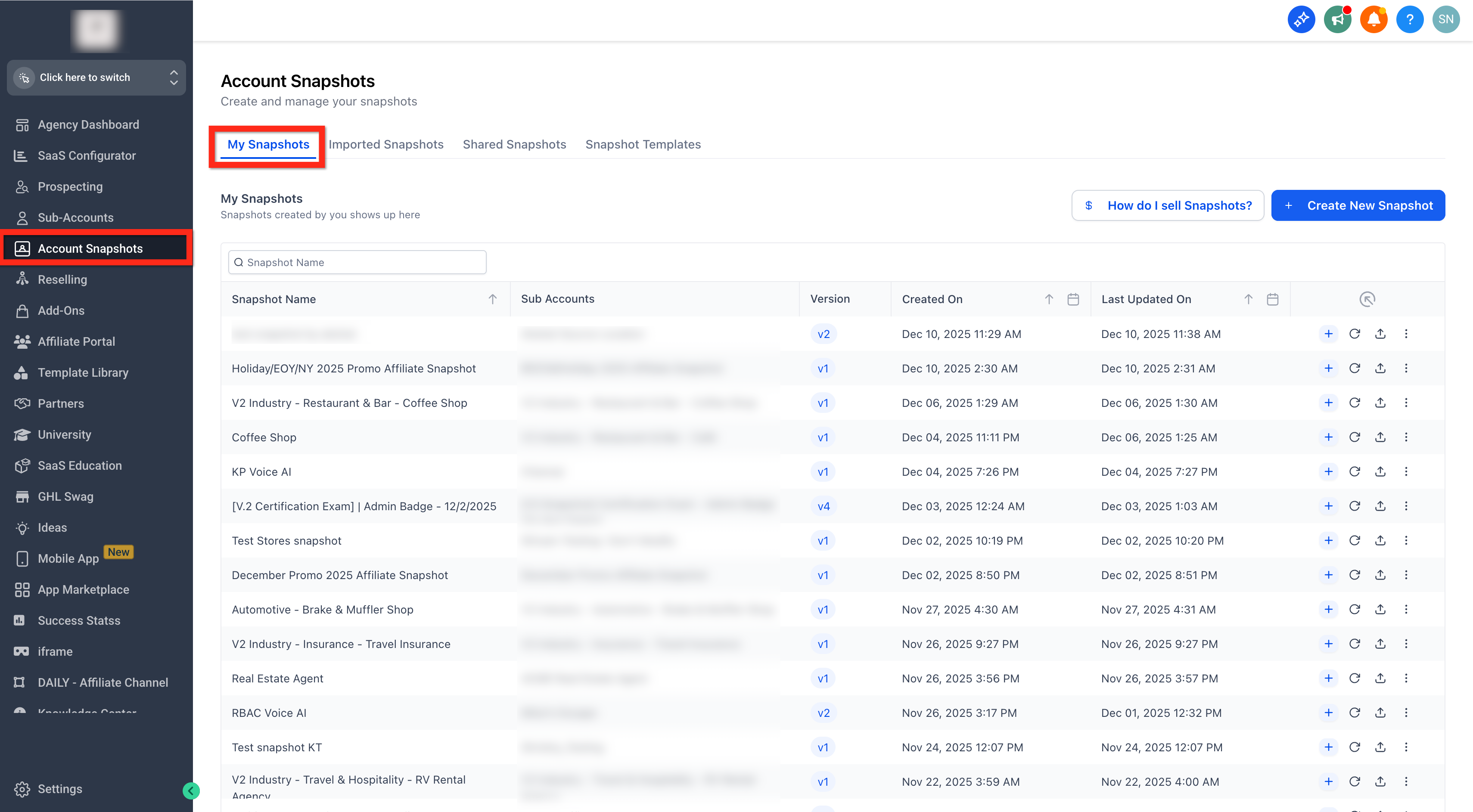
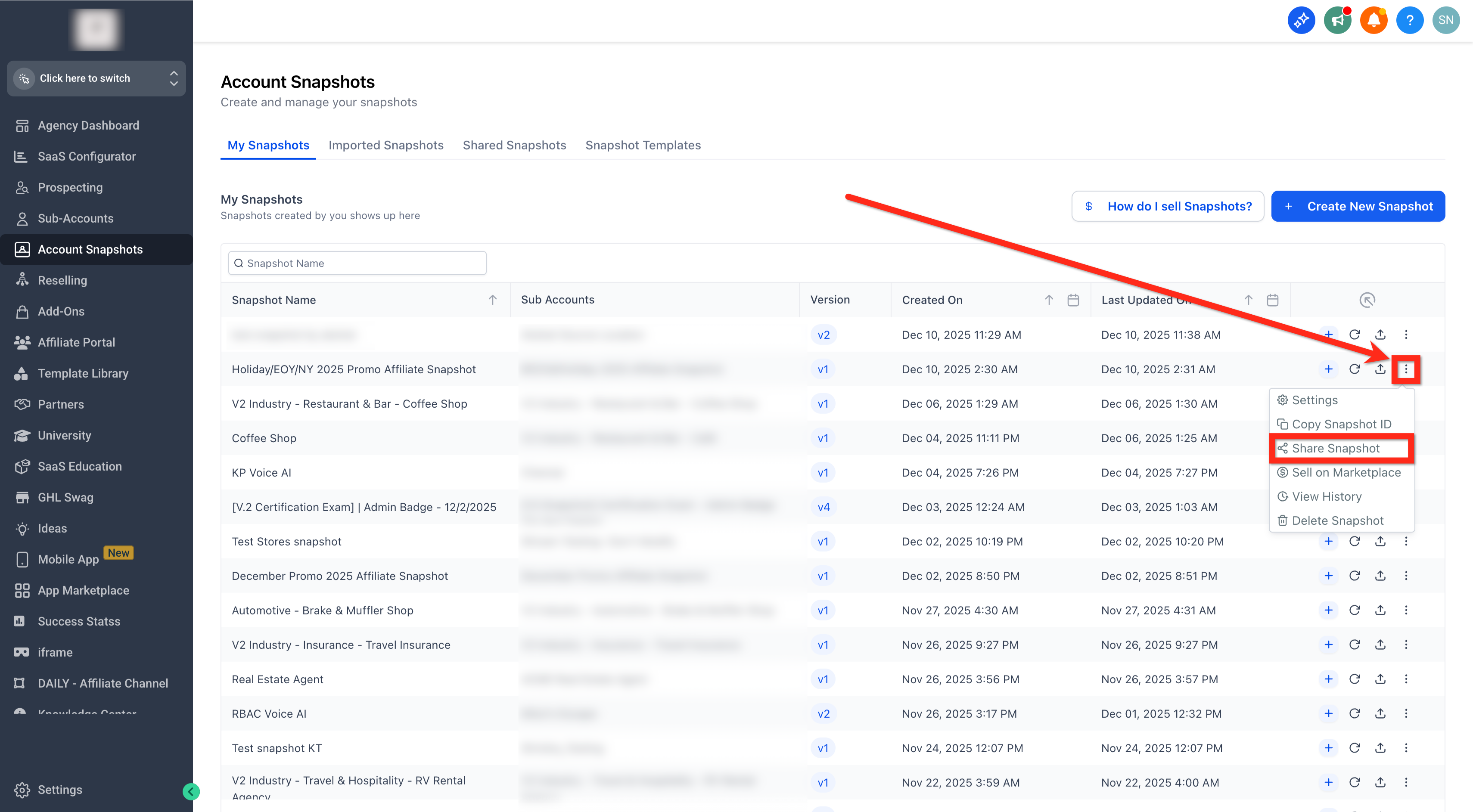
All actions are performed from the Agency View > Account Snapshots > My Snapshots area. Users must have Share/Import Snapshots permission to see the sharing option.
03How businesses use share snapshots
- Digital marketing agency. The agency creates a snapshot containing its standard funnel and email workflow. It generates a One Time Link and sends it to a partner agency. The partner imports the snapshot and loads the funnel into a client subaccount, keeping the agency’s protected assets safe.
- Consulting firm. The firm builds a snapshot with client onboarding forms and calendars. It selects an Agency Restricted Link, specifying the relationship numbers of approved client agencies. Those agencies import the snapshot and can reuse the forms internally, while protected content cannot be redistributed.
- SaaS reseller. The reseller prepares a snapshot that includes a marketplace ready template. It uses the Marketplace Share Link option, which automatically applies assets protection. Buyers import the snapshot through the HighLevel App Marketplace and can use the template inside their own agency.
04Before you start
- The user must have Share/Import Snapshots permission enabled.
- If the source subaccount was changed after the snapshot was created, refresh the snapshot before sharing.
05How to set up and use share snapshots in HighLevel
Set up snapshot sharing
- Open Agency View, navigate to Account Snapshots > My Snapshots.
- Find the desired snapshot, open its three dot action menu, and choose Share Snapshot.
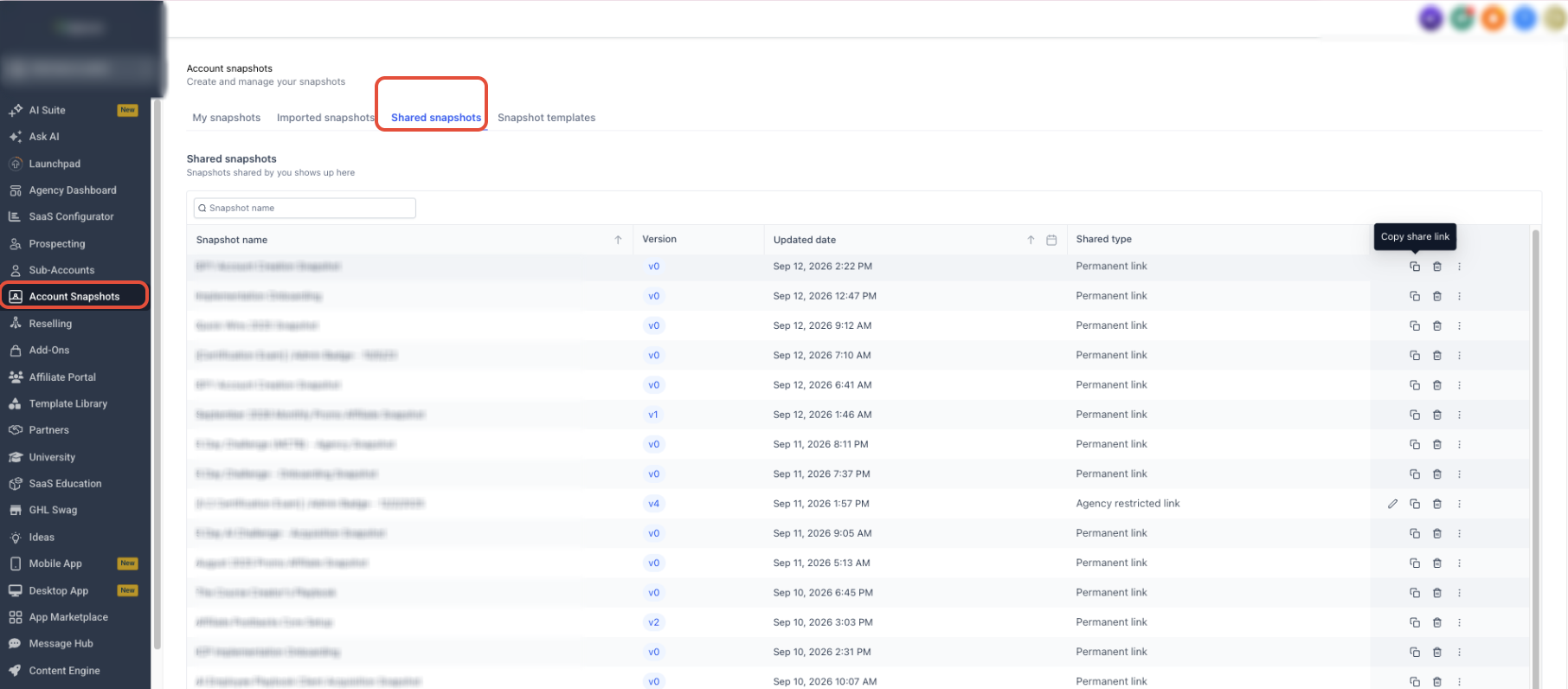
- Select the appropriate link type, Permanent, One Time, Email, Agency Restricted, Subaccount Restricted, or Marketplace Share Link.
- If needed, enable the Assets Protected toggle to keep applicable assets protected after import.
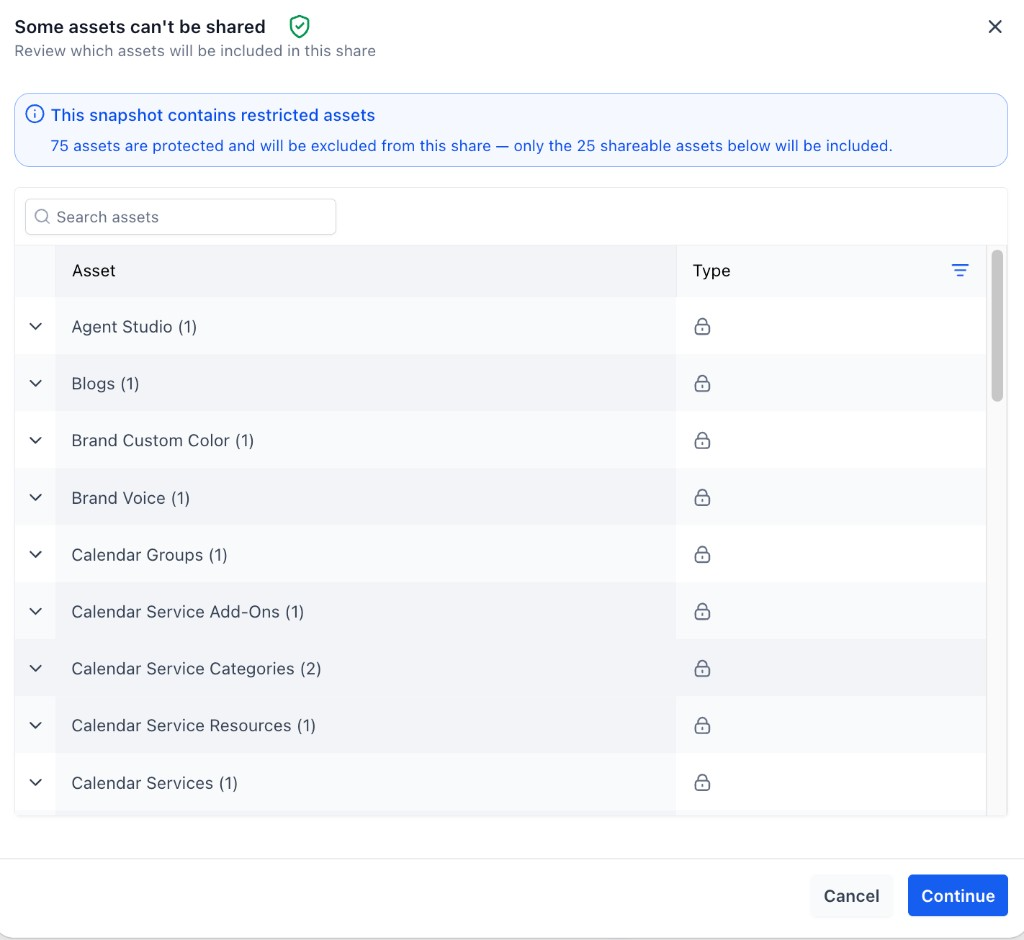
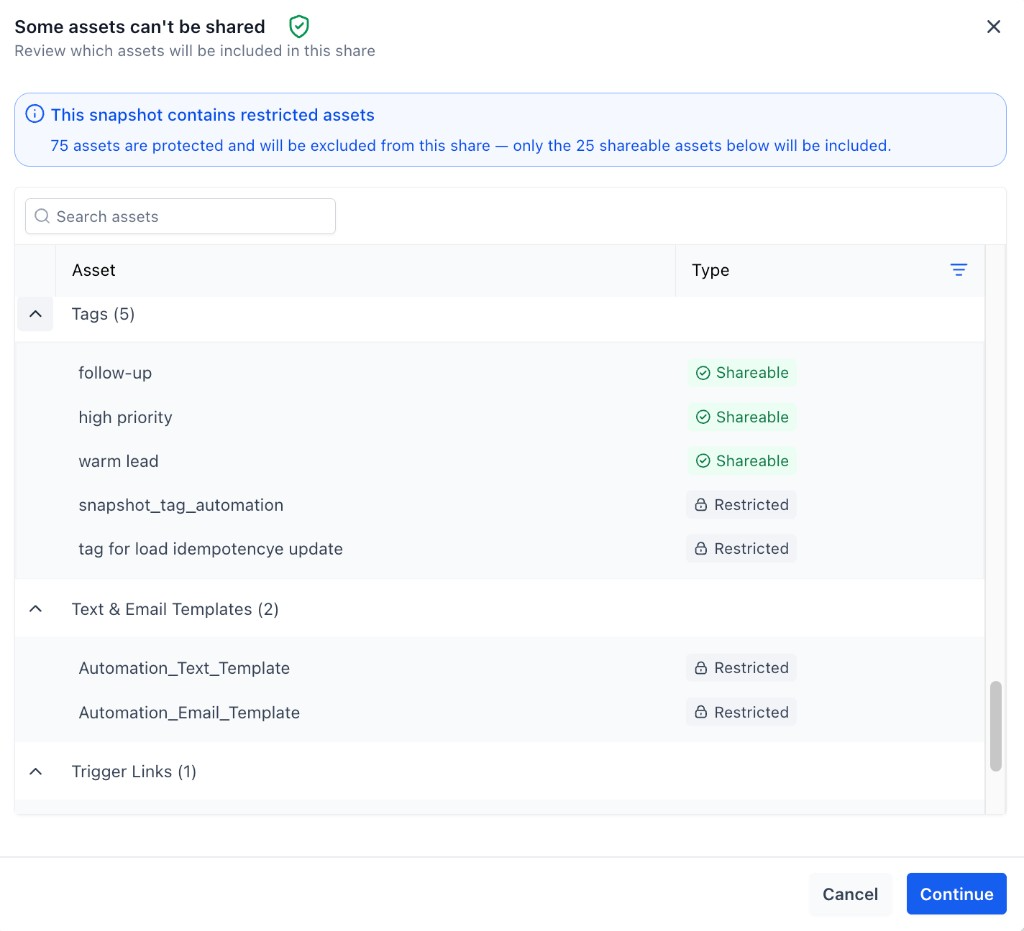
- When protected assets are present, review the list of items that will be excluded before proceeding.
- Click Get Link, copy the generated URL, and deliver it to the intended recipient.
06What it looks like in HighLevel
07Settings that matter
- Assets Protected. Controls whether applicable snapshot assets remain protected after the recipient imports the snapshot, preventing external redistribution.
- Share/Import Snapshots permission. Grants the user ability to generate share links and import snapshots; required for any snapshot sharing actions.
08Things to know before you rely on it
- Protected assets are excluded from external shares; only non protected assets are transferred.
- Mixed snapshots containing both protected and non protected assets can still be shared, but protected items stay within the receiving agency.
- Share links do not automatically push updates; the source snapshot must be refreshed and a new link generated for any changes.
- Marketplace Share Links are only available to eligible buyers through the HighLevel App Marketplace.
09If something goes wrong
- The Share Snapshot option is missing.. Check that the user has the Share/Import Snapshots permission enabled.
- The recipient does not see the latest assets after a share.. Refresh the source snapshot to capture new changes, then generate a new share link and resend it.
10How it connects to the rest of HighLevel
- Create a new snapshot for reusable setups Snapshot overview
- Load a shared snapshot into an existing subaccount Load snapshot
- Sell a snapshot on the HighLevel Marketplace Marketplace sharing
Michael's take

Wondering how to give a partner a ready made workflow without handing over your entire account? Snapshot sharing lets you hand off exactly the pieces they need via a link, and you stay in control of who sees what.
I’d start by setting up a permanent link for any template I plan to hand out repeatedly, then flip on Assets Protection for anything that’s proprietary. That way my partners can use the assets inside their own agency, but they can’t pass them on further.