

In this video Michael Reimer walks through five new GoHighLevel workflow features inside his own account: router, loop, AI agent skills, web search and AI video generation. He builds a working example of each for home service clients. It is for agencies and owners who build automations for real leads.
Everything lives in the same place. Go to Automation in the left menu and open Workflows. Open a workflow, then click the plus wherever you want the next step. Router and Loop sit right next to If Else in the action list. The AI agent sits just below them, and AI video generation lives with the other AI actions. If you have never built one, build your first workflow before you add any of these.
How is the router different from if else in HighLevel workflows?
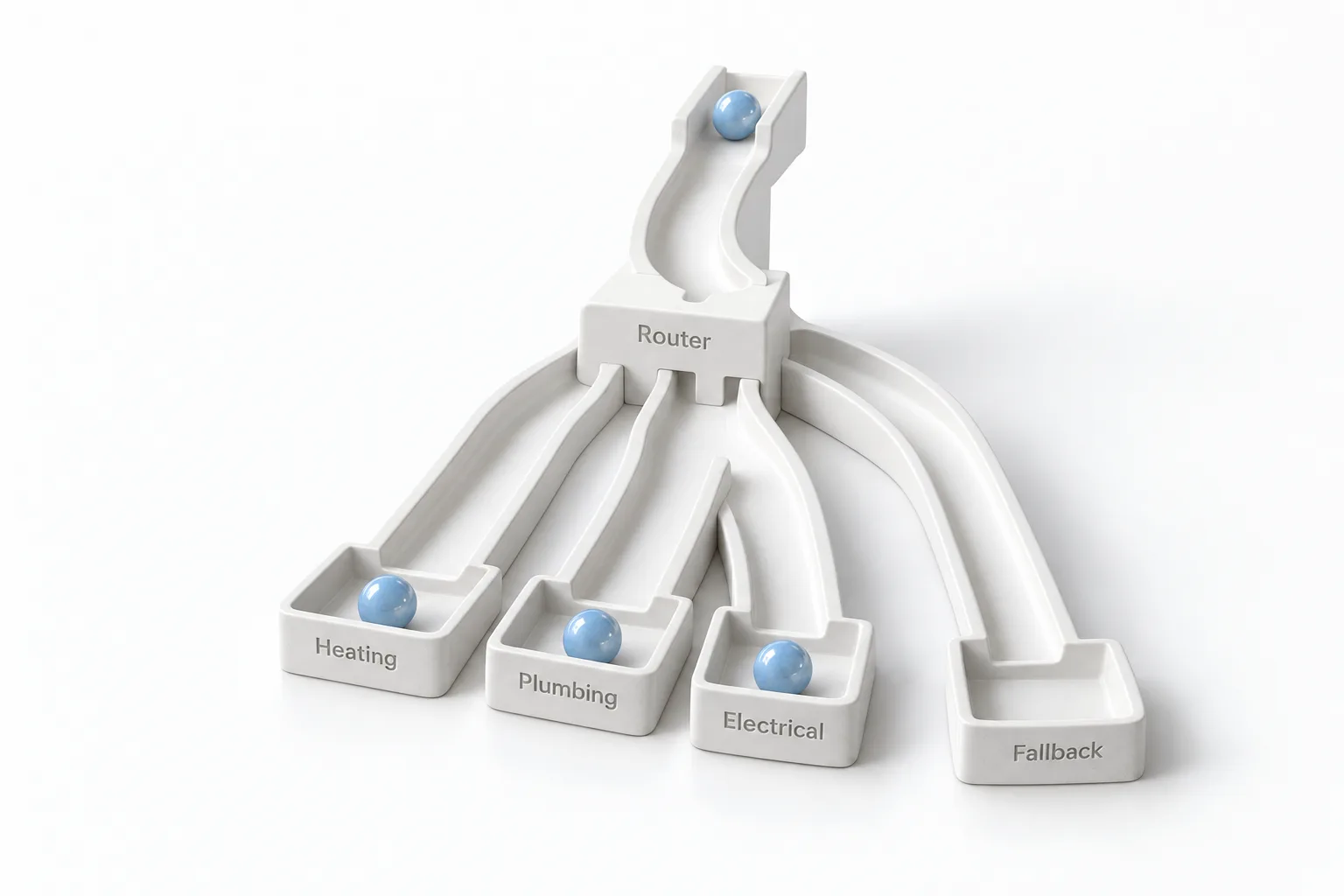
Michael calls router the big brother of if else. If else stops at the first branch that matches. Router checks every branch and runs each one that matches, one after another, from left to right.
Each branch is one of three types. Custom rules runs only when its conditions match. Always run fires for every contact with no conditions at all. Fallback runs only when no other branch matched. Order matters, so set it on purpose.
His example is a home services client whose form asks the lead what service they need. A lead can pick heating, plumbing and electrical. With if else, only the first team ever hears about that lead. With router, every matching team gets it. Each branch drops its own note on the contact, and a fallback branch catches anyone who picked something the company does not cover. Michael runs Test Workflow on a lead who picked all three, and the execution log shows all three branches ran. In his words, that is how you stop building three copies of the same workflow.
What does the loop action repeat, and what does it skip?
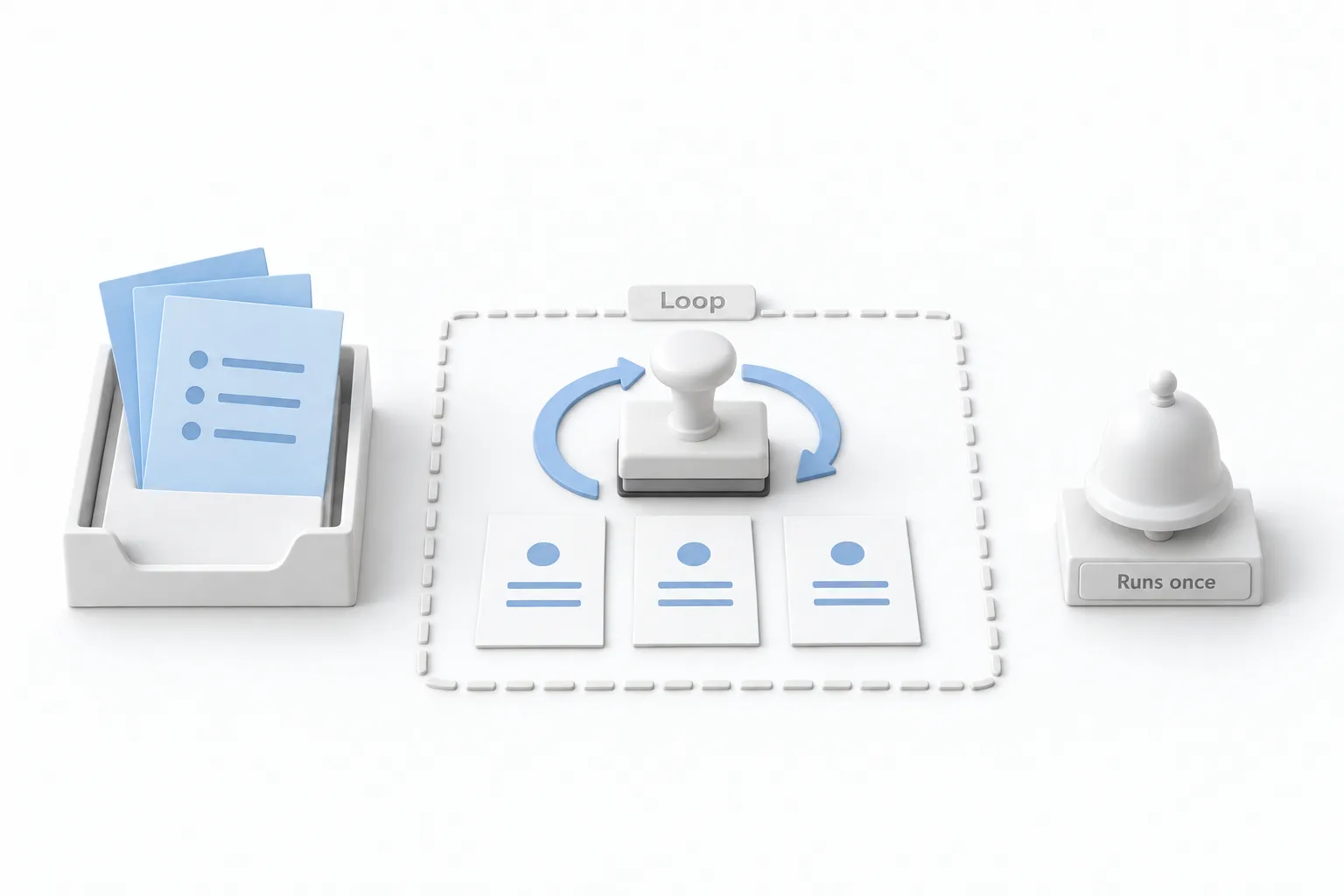
A single trigger often carries a whole list. Think of every service in one request or every product in one order. Loop runs the same steps once for each item in that list.
Under Loop over, you choose a list of items or a range of numbers. For a list, pick it from an earlier step, such as an inbound webhook. Then click the plus inside the dashed loop box and add the actions you want to repeat. To fill their fields, open custom values and then Loop item, which hands you the current item every time around. Execution is sequential by default, and parallel is there for steps that call outside systems and need speed.
In the video, a webhook brings in one roofing request with three services inside it. The loop runs three times and three new opportunities land in the pipeline, each with its own name and its own value. One thing trips people up. Only the actions inside the dashed box repeat. Anything below the box runs once after the loop finishes.
What are skills in the HighLevel AI agent action?
The AI agent action plans tasks and runs them on its own, using your instructions plus your tools. It is a premium action, so every run carries an extra charge. A skill is a reusable procedure the agent loads only when a run needs it.
Click Add skill and you get three ways to start. Create With AI asks a few questions and drafts the skill for you. Write Skill Instructions gives you three fields: a name, when the agent should use it and the instructions themselves. Add Existing Skill pulls one from your library. Every account also comes with four built in skills: Humanizer, Write Well, Cold Email and SMS Writer.
On every run, the agent reads only the when to use line of each skill. The full instructions load only when the run matches. For an HVAC client, Michael would write one custom skill for emergencies. It fires when a lead says no heat or reports a gas smell. It offers the next same day slot and never quotes a price. For a gas smell, it sends safety steps first and never books a visit. The guide to AI inside your workflows covers where an agent step fits.
Can a HighLevel workflow search the web and make a video?
Yes to both. Web search sits under built in tools with a single toggle. The agent only searches when the task needs facts it does not have. You can also paste a link to a page you trust into the instructions and tell the agent when to read it. His example is an HVAC company whose leads keep asking about rebates. The instructions say to read the rebate page before answering, and a question that page does not cover gets a web search. Searches bill per search on top of the agent, and the agent still needs tools like Add to notes or Send email to act on what it finds.
AI video generation is a new action under AI actions. It makes a short clip, saves it to your media library and hands back the link. You pick the model, Quality or Fast, then the resolution. The prompt can be typed in or filled by a custom value, so a contact field or a webhook can write it. You can add up to three reference images, choose landscape or portrait, and pick four, six or eight seconds. Michael picked Fast at four seconds, and about 30 seconds later he had a clip of a technician walking up to a porch and waving hello.
How do you set up the new workflow features in GoHighLevel?
Here is the build order from the video.
- Open the action list. Go to Automation, open Workflows, open or create a workflow and click the plus where you want the next step.
- Add a router for overlapping paths. Use it when one contact may match several branches. Choose custom rules, always run or fallback for each branch, and remember that branches run from left to right.
- Add a loop for lists. Repeat the actions inside the dashed box for each item in a list, such as items from an inbound webhook, or for a range of numbers.
- Give the agent skills. In the AI agent action, use Create With AI, Write Skill Instructions or Add Existing Skill, and give each skill a clear line on when to use it.
- Turn on web search. Find it under built in tools, paste trusted page links into the instructions and give the agent tools such as Add to notes.
- Set up the video action. Pick the model, resolution, prompt, orientation and length, then review every clip before it goes out.
- Test before you publish. Run Test Workflow on a real contact and check the execution log.
What changes for the clients you build for?
Michael is direct that most clients do not care about router or loop. They care that every lead reaches the right team the first time. They care that every order gets its own follow up. They care that their AI answers sound human and use today's facts. His advice is to build those outcomes once as a template, then roll them out to every client who needs them.
The video closes with three cautions on AI video. It is a premium action, so every video has a charge. Check every clip before it goes out, because his test put a made up logo on the technician's shirt. And the video sits at a public link that anyone can open, so keep private customer details out of the prompt. For how premium actions show up on a monthly bill, see the page on AI usage costs.
For earlier announcements, see the LevelUp 2025 new features video, and the HighLevel news posts cover newer releases. To build these workflows yourself, start a GoHighLevel 30 day trial through Michael's link. For a wider look at the platform, read Michael's GoHighLevel review.